
Learn about AI for accountingJoin live workshops

Ask the support agent

Just ask a direct question or search related articles from the Knowledge Base.

Support Center / Workpaper Agent / Studio

Highlight latest changes

New

Green highlights mark the latest agent changes in a workpaper. Set the default for new workpapers in Organization Settings, and turn the highlights on or off in each workpaper. Turning them off does not remove highlights you or a template added yourself.

Workflow

Step 1

Open Organization Settings

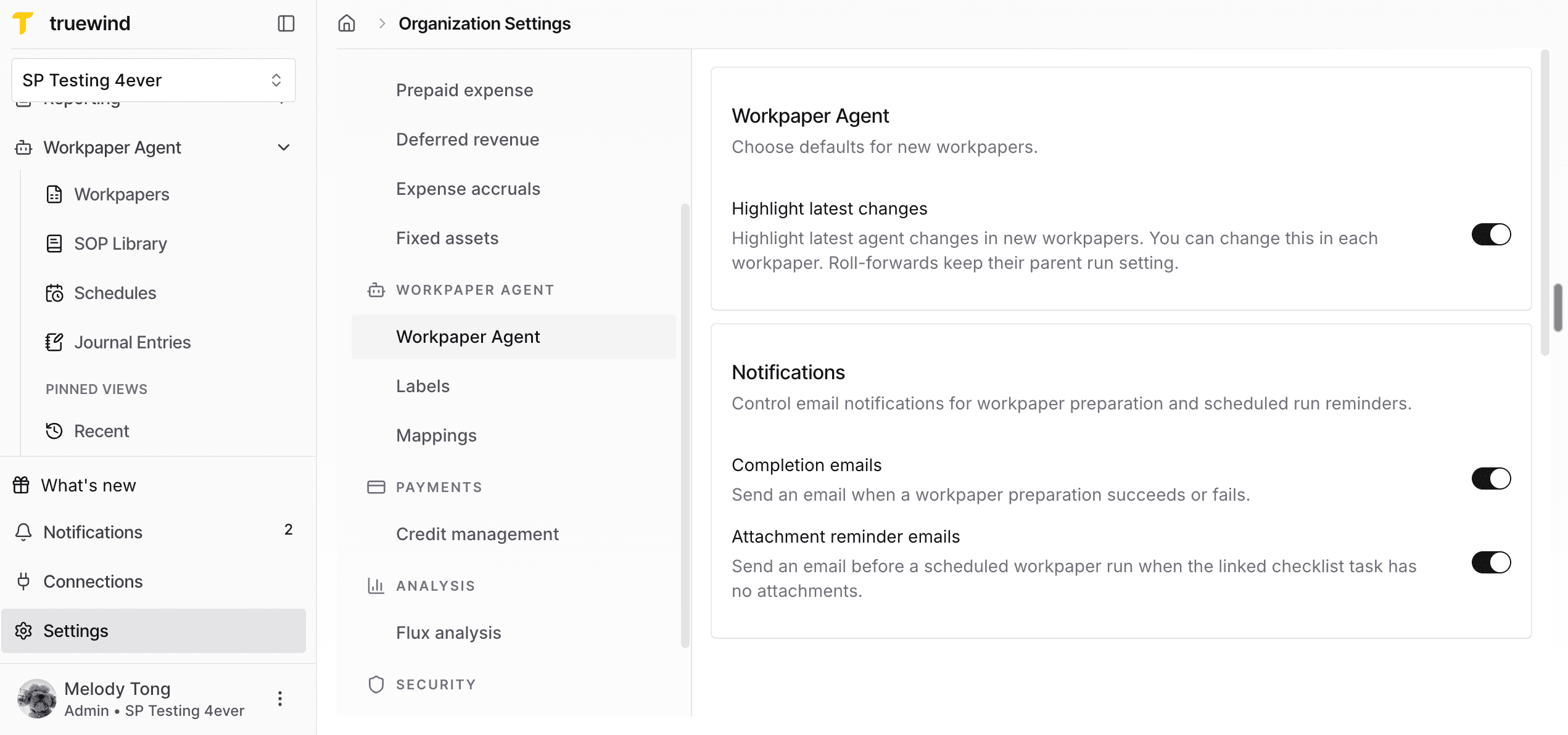
Go to Settings, then Organization Settings, and open Workpaper Agent to choose the default for new workpapers.

Screenshot showing Organization Settings with Highlight latest changes under Workpaper Agent

Step 2

Set the default for new workpapers

Turn Highlight latest changes on or off. The helper text reads: Highlight latest agent changes in new workpapers. You can change this in each workpaper. Roll-forwards keep their parent run setting. This chooses the starting state for new workpapers only.

Screenshot showing the Highlight latest changes organization default toggle

Step 3

Open a workpaper in Studio

Use Workpaper Agent, then the workpaper, then Studio when highlights need to change for one workpaper.

Screenshot showing a workpaper open in Studio

Step 4

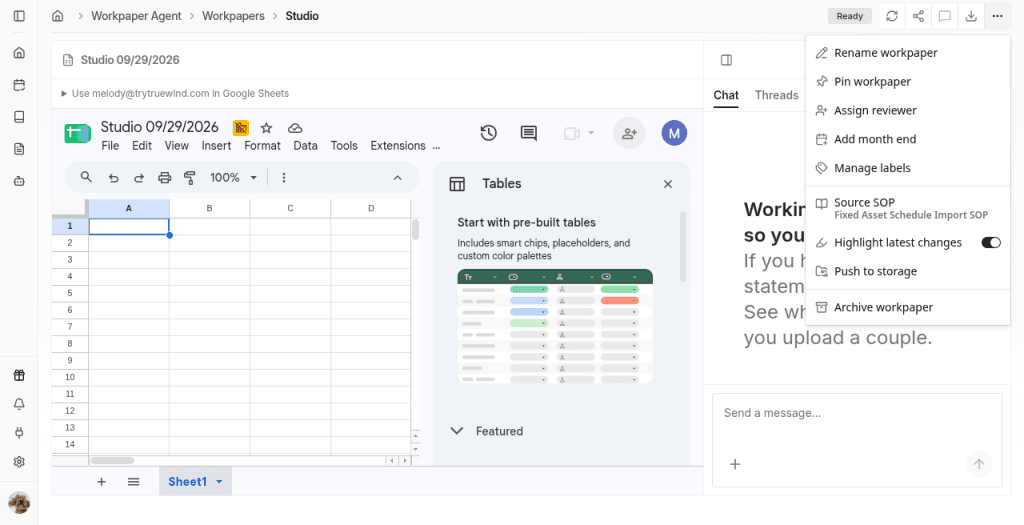
Open More workpaper actions

Highlight latest changes is listed in that menu for the open workpaper.

Screenshot showing More workpaper actions with Highlight latest changes

Step 5

Turn highlights on or off

On shows the green highlights for the agent's latest changes in this workpaper. Off hides them. The workpaper keeps the choice you last made, even if the organization default is different.

Screenshot showing Highlight latest changes turned on in More workpaper actions

What this workflow is for

Use Highlight latest changes when reviewers need the agent's latest edits called out in green, or when a team prefers to hide those system highlights while they review. You can set the default for new workpapers in Organization Settings and change the toggle on each workpaper in Studio.

Before you start

Decide whether new workpapers in this organization should start with the green highlights on or off. Then confirm you are in the right organization before changing Organization Settings. To change one existing workpaper, open it in Studio and use More workpaper actions.

FAQ

Does the organization setting change workpapers I already have?

No. It chooses the default for new workpapers. Change an existing workpaper from Studio, More workpaper actions, Highlight latest changes.

Why did my roll-forward not follow the new organization default?

Roll-forwards keep their parent run setting. Change the toggle on the new workpaper if you want a different state.

I turned highlights off and my own highlights disappeared. Is that expected?

No. Turning the toggle off hides only the green latest-change highlights. Highlights you added, and template highlights, should stay.

Limitations

Organization default applies to new workpapers

Changing the organization setting does not rewrite the toggle on workpapers that already exist.

Roll-forwards keep the parent run setting

A roll-forward starts with the parent workpaper's Highlight latest changes state, not a later change to the organization default.

Toggle controls system latest-change highlights only

The toggle does not remove highlights you added yourself or highlights that come from a template.

Troubleshooting

New workpapers still show green highlights after I turned the organization default off.

Confirm you changed Organization Settings in the correct organization. Existing workpapers keep their own toggle until you change them in Studio.

A roll-forward did not match the organization default I just set.

Check the parent run's Highlight latest changes setting. Roll-forwards keep that parent setting. Change the toggle on the new workpaper if needed.

Turning the toggle off removed highlights I expected to keep.

Confirm those highlights were user or template highlights. The toggle only hides the green latest-change highlights from the agent.

Was this helpful?

Need more help?

Ask for human help about this article and provide any feedback.