
Important note
Sharing uses authenticated organization access. The recipient still needs the right membership to open the shared workpaper.
Ask the support agent
Just ask a direct question or search related articles from the Knowledge Base.
Support Center / Workpaper Agent / Studio
Share a workpaper when another collaborator needs direct access to the current workflow, resulting in a deep link or invite that returns them to the target workpaper.
Step 1
Start in Workpaper Agent and open the exact workpaper page you want another collaborator to land on.
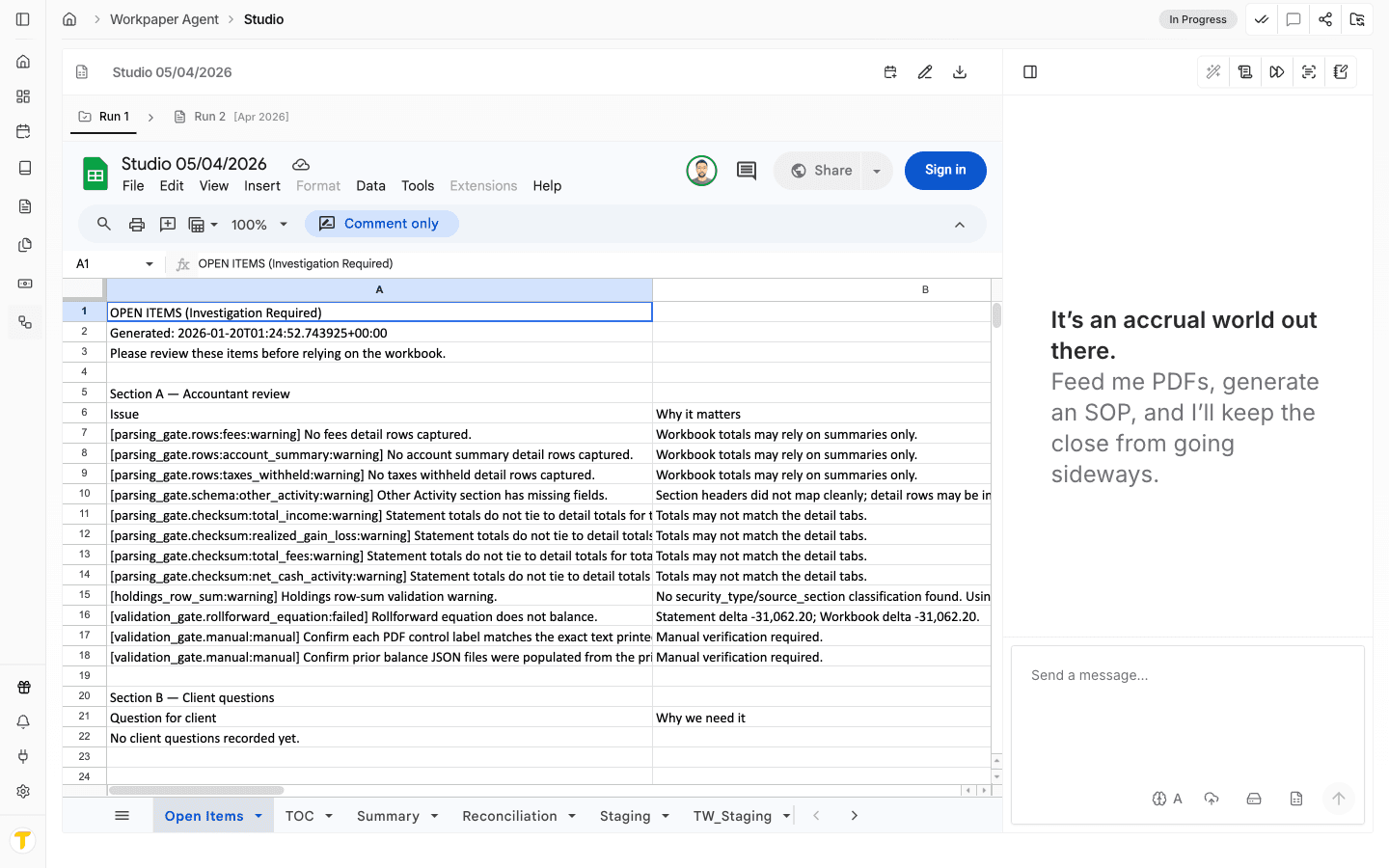
Step 2
This uses the Share action in the current workpaper toolbar so you can open the share dialog.
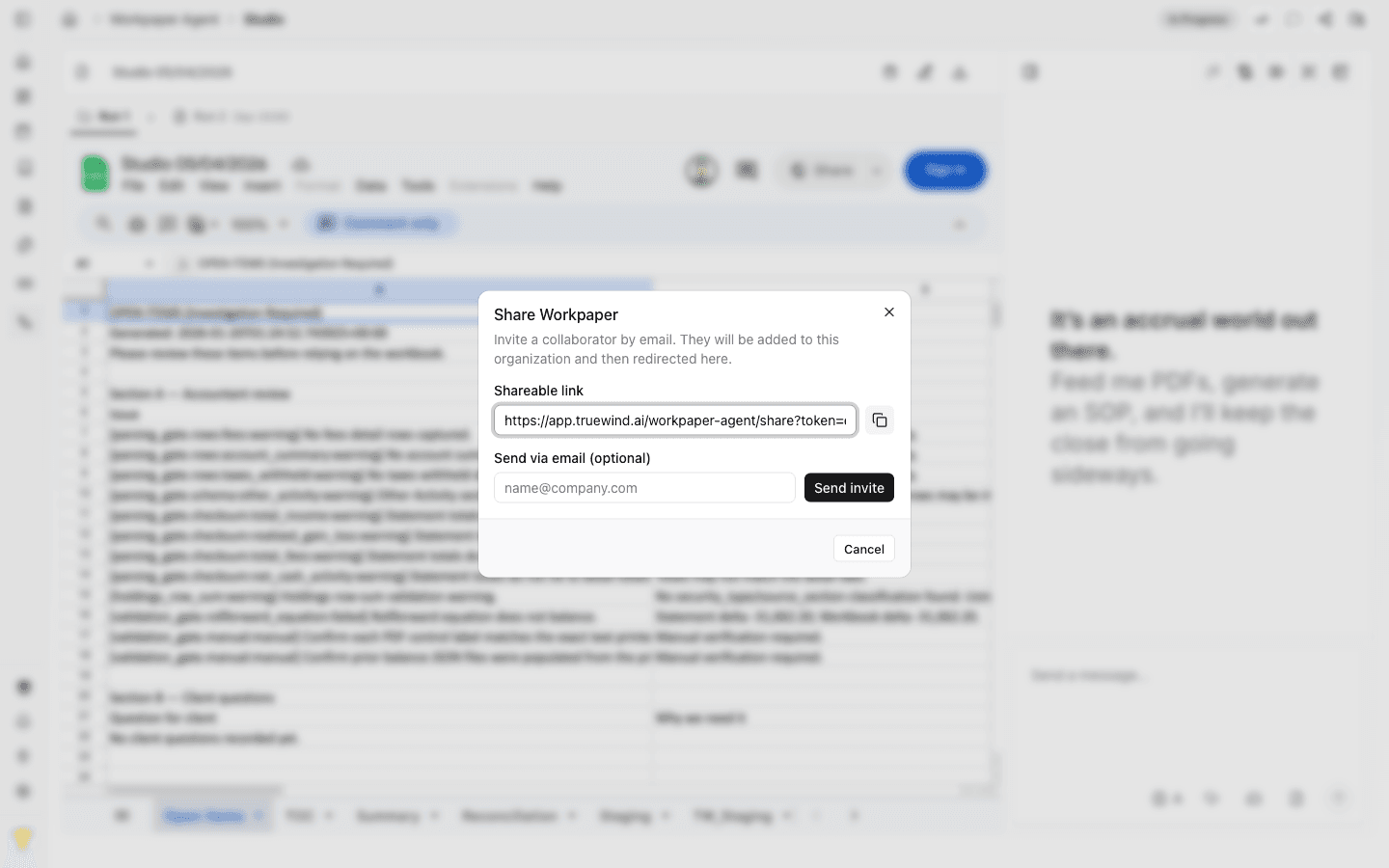
Step 3
Click on the copy button to share the link with your collaborators. it.
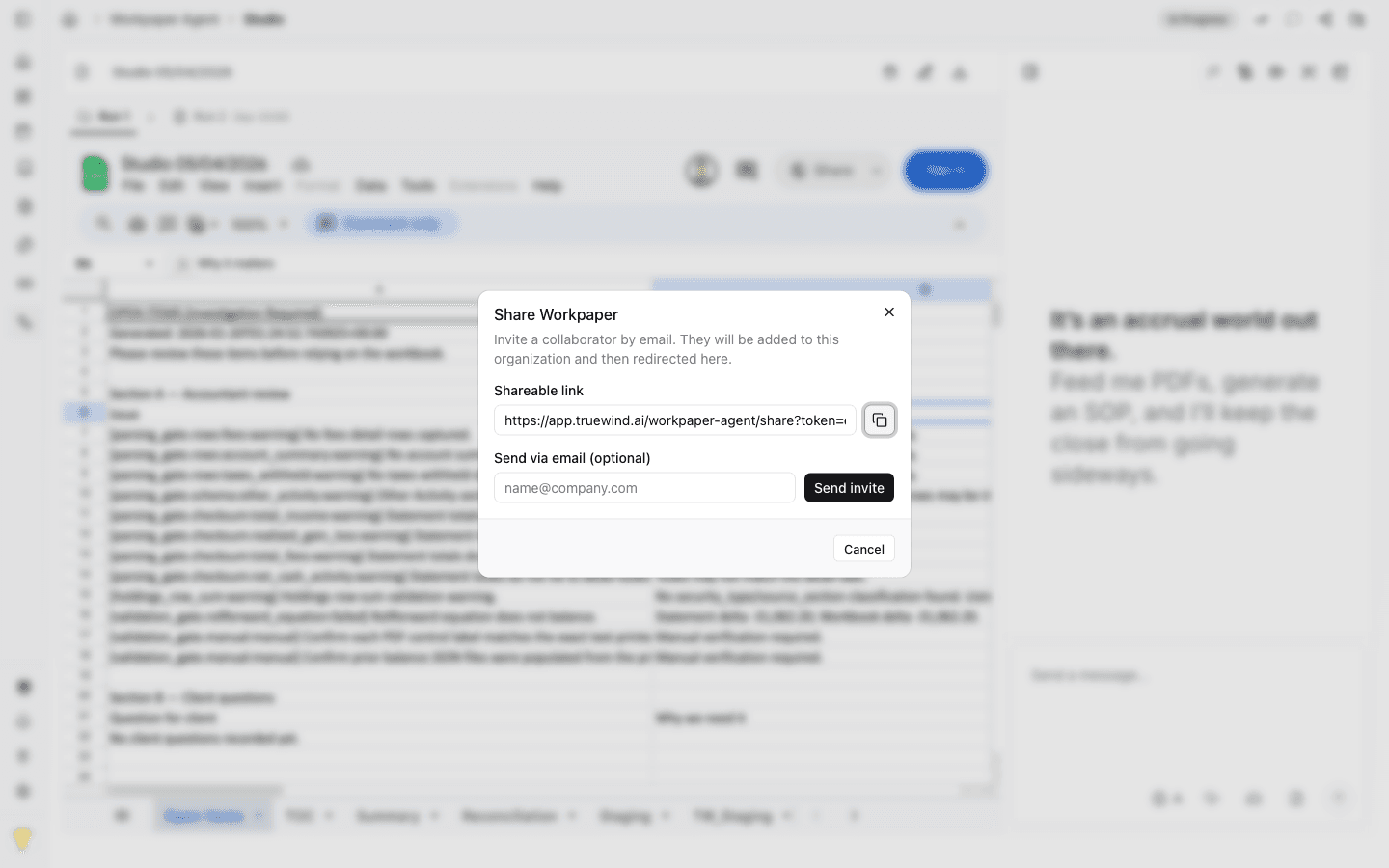
Step 4
Type the collaborator’s email into the Send via email field and click Send invite.
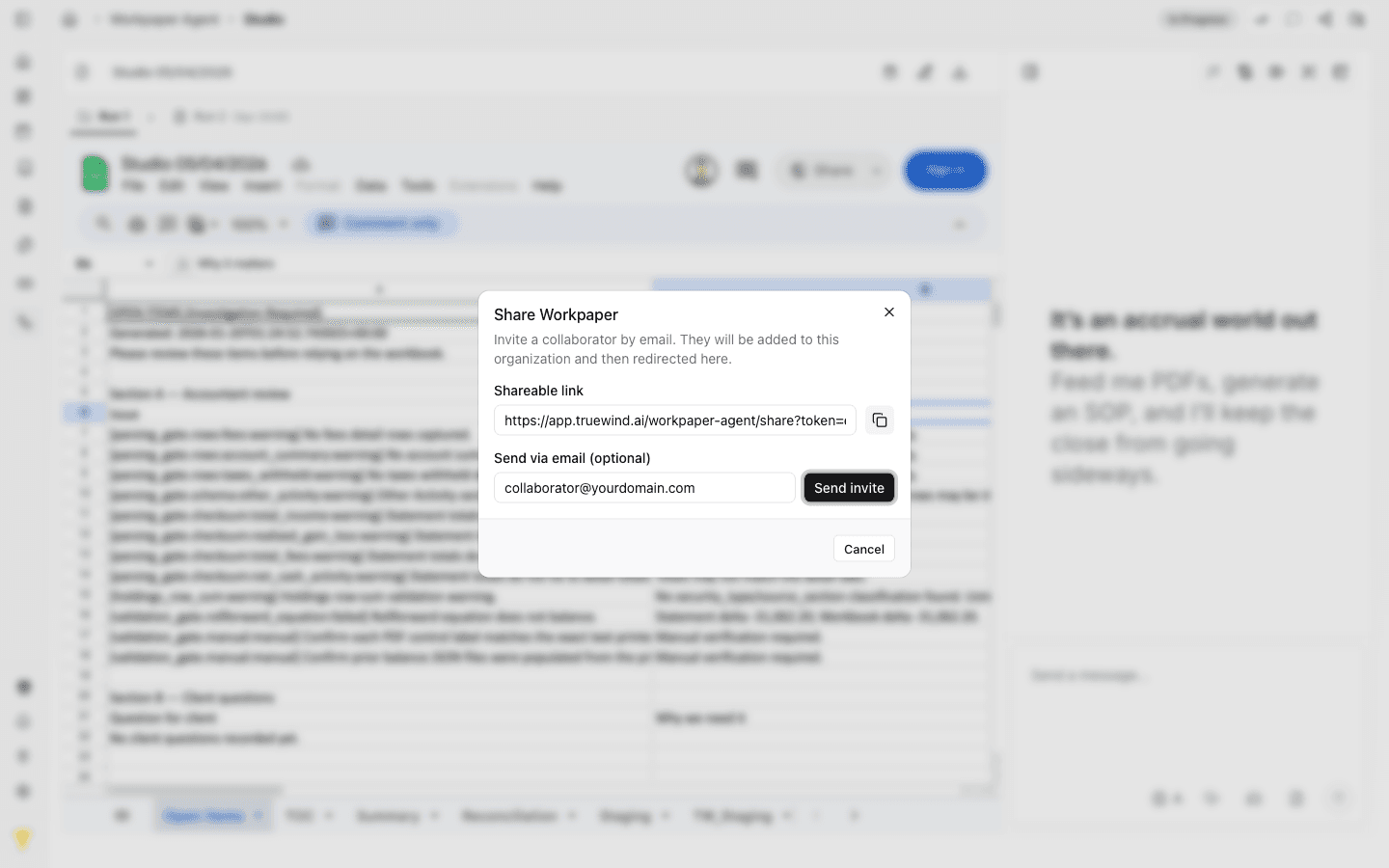
Step 5
The recipient uses the link or invite flow, signs in, and is redirected back into the target workpaper route with organization access.
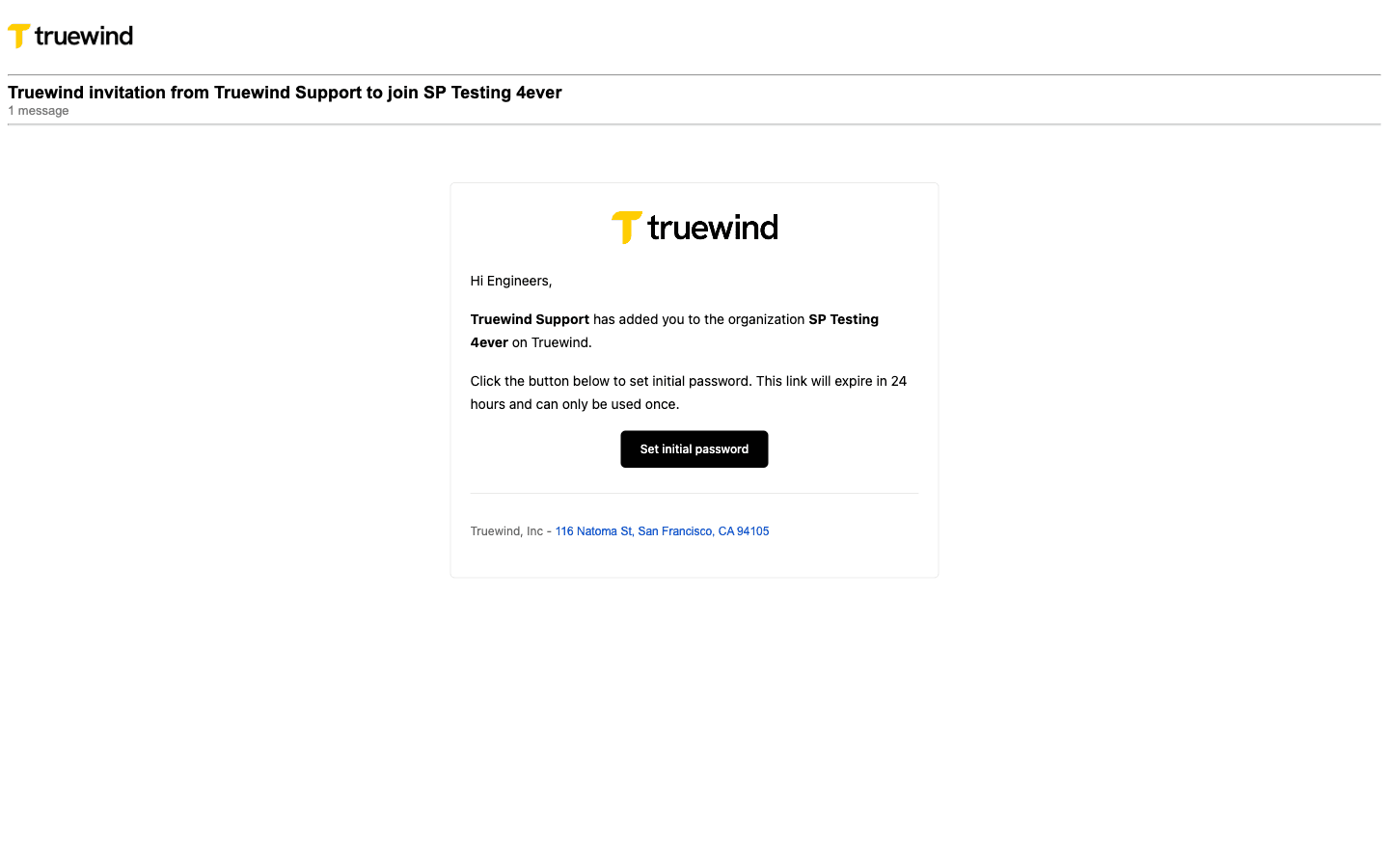
Sharing uses authenticated organization access. The recipient still needs the right membership to open the shared workpaper.
Copying the link gives you the generated share URL directly. Sending an invite uses the same target route but also emails the recipient through the current membership flow.
No. The share flow still depends on authentication and organization membership before the recipient can open the workpaper.
The share flow deep-links users into the workpaper after sign-in, but it does not create a separate anonymous or document-only permission model.
Confirm they completed sign-in with the invited account and that the organization membership was created or accepted successfully.
Wait for the signed share link to finish generating before trying to copy it or send an invite.
Was this helpful?
Need more help?
Ask for human help about this article and provide any feedback.