
When to use this flow
Use this flow during recurring close work when the next period should follow the same SOP and workbook format as the current period.
Ask the support agent
Just ask a direct question or search related articles from the Knowledge Base.
Support Center / Workpaper Agent / Studio
Roll a Workpaper Agent Studio run into a new period while keeping the same SOP structure and workbook format.
Step 1
Start from the Studio workpaper whose SOP and structure should carry into the next period.
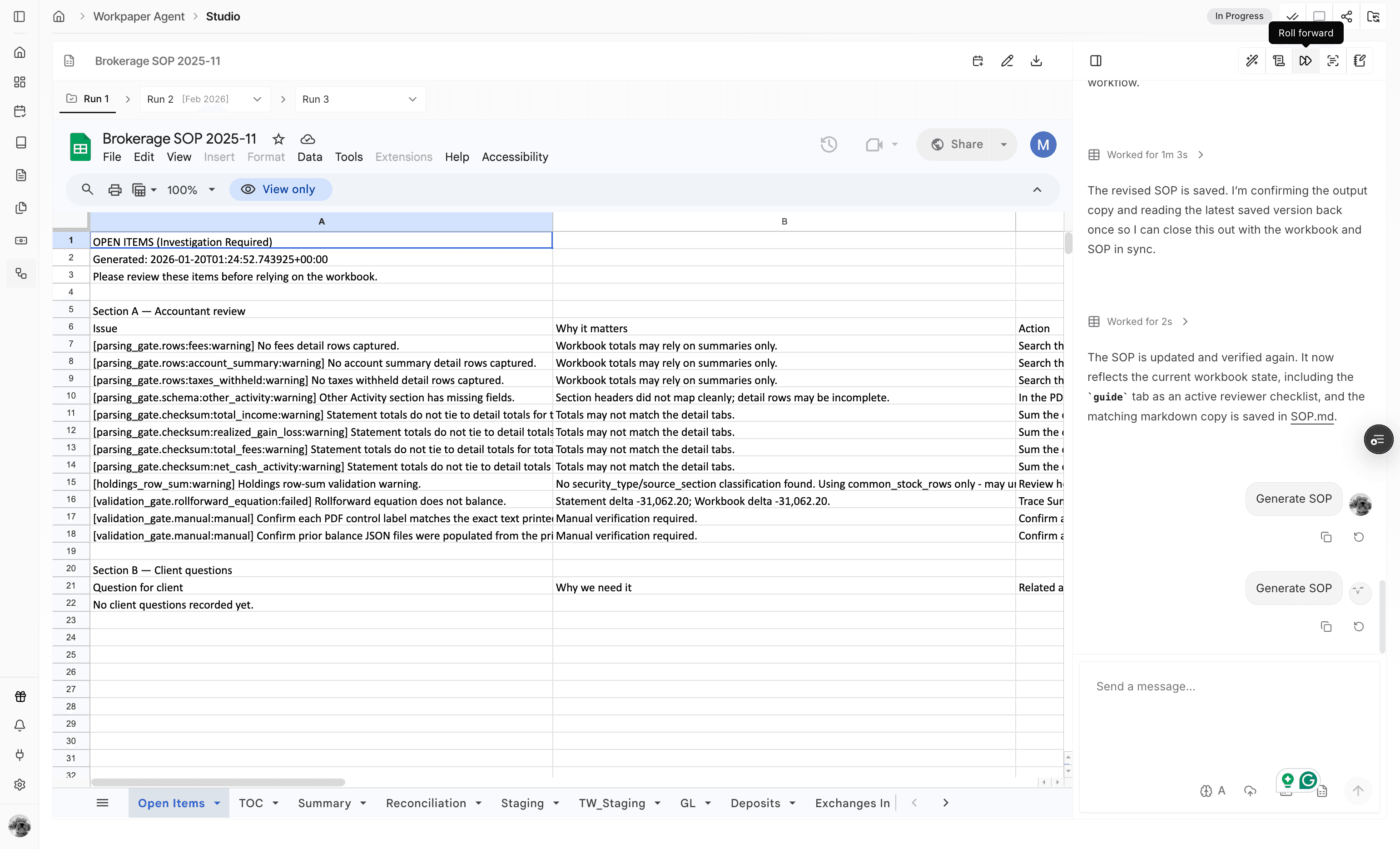
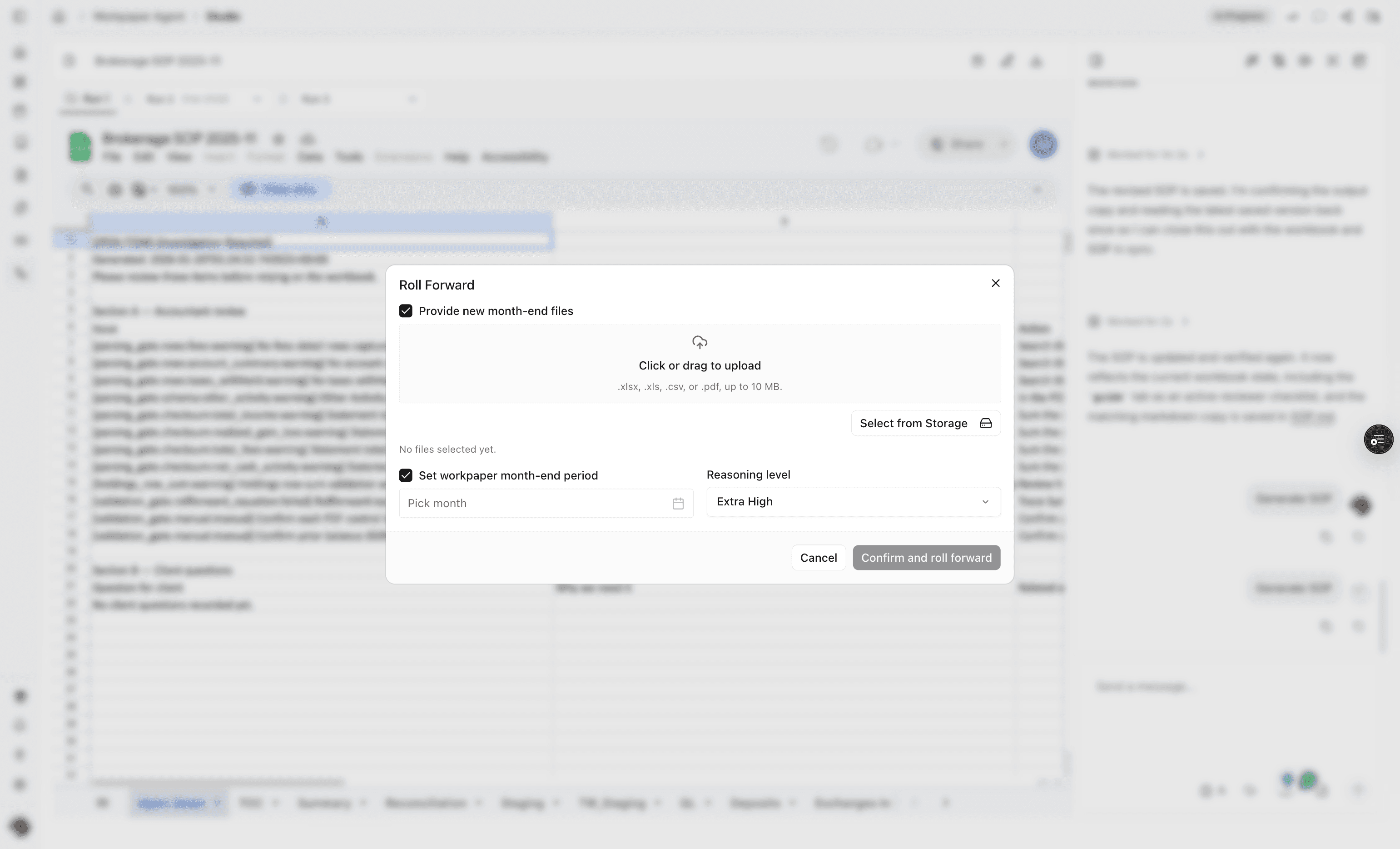
Step 2
Add the files that should seed the next period's run.
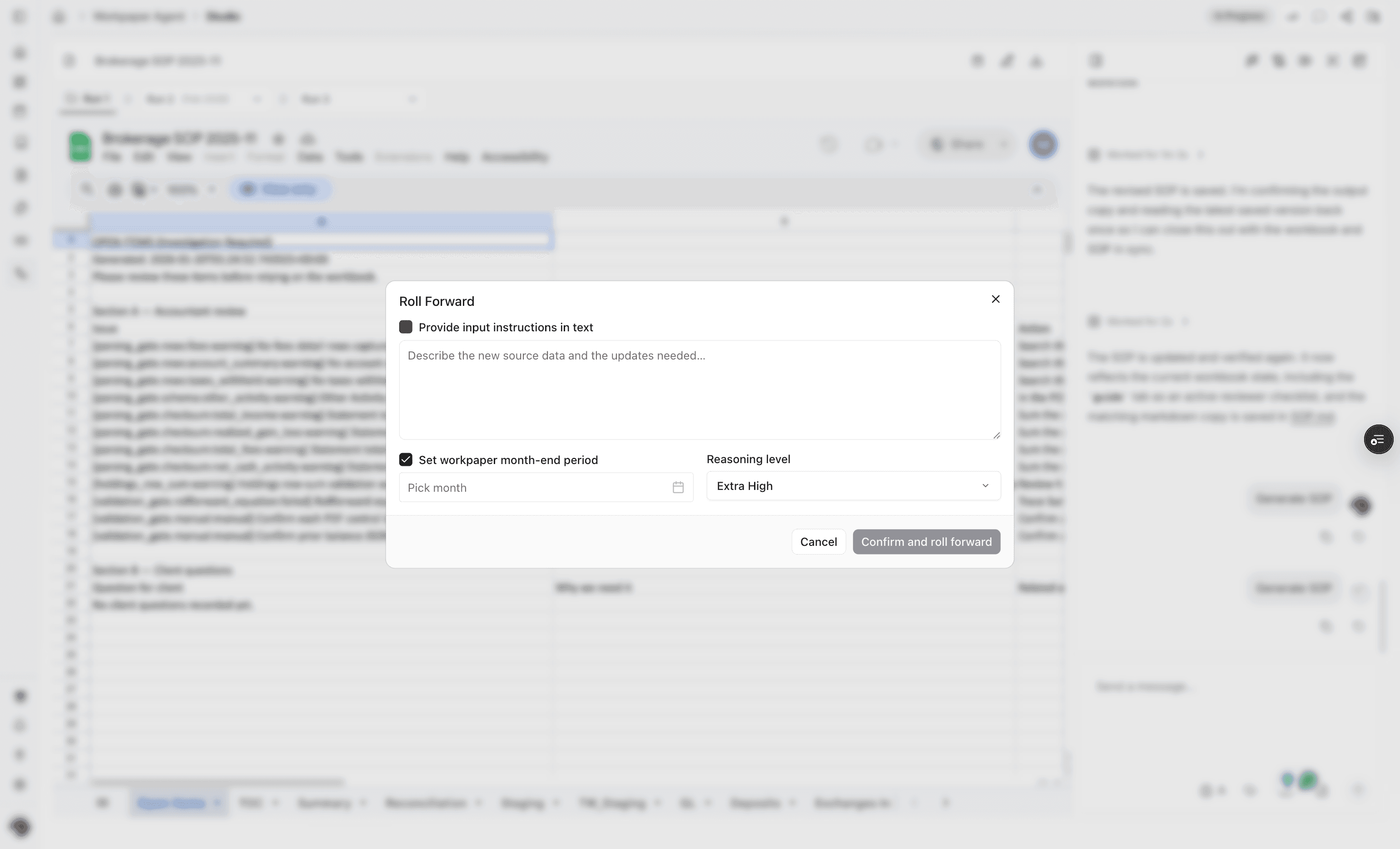
Step 3
Use text instructions instead of files when the new period should pull data from another source.
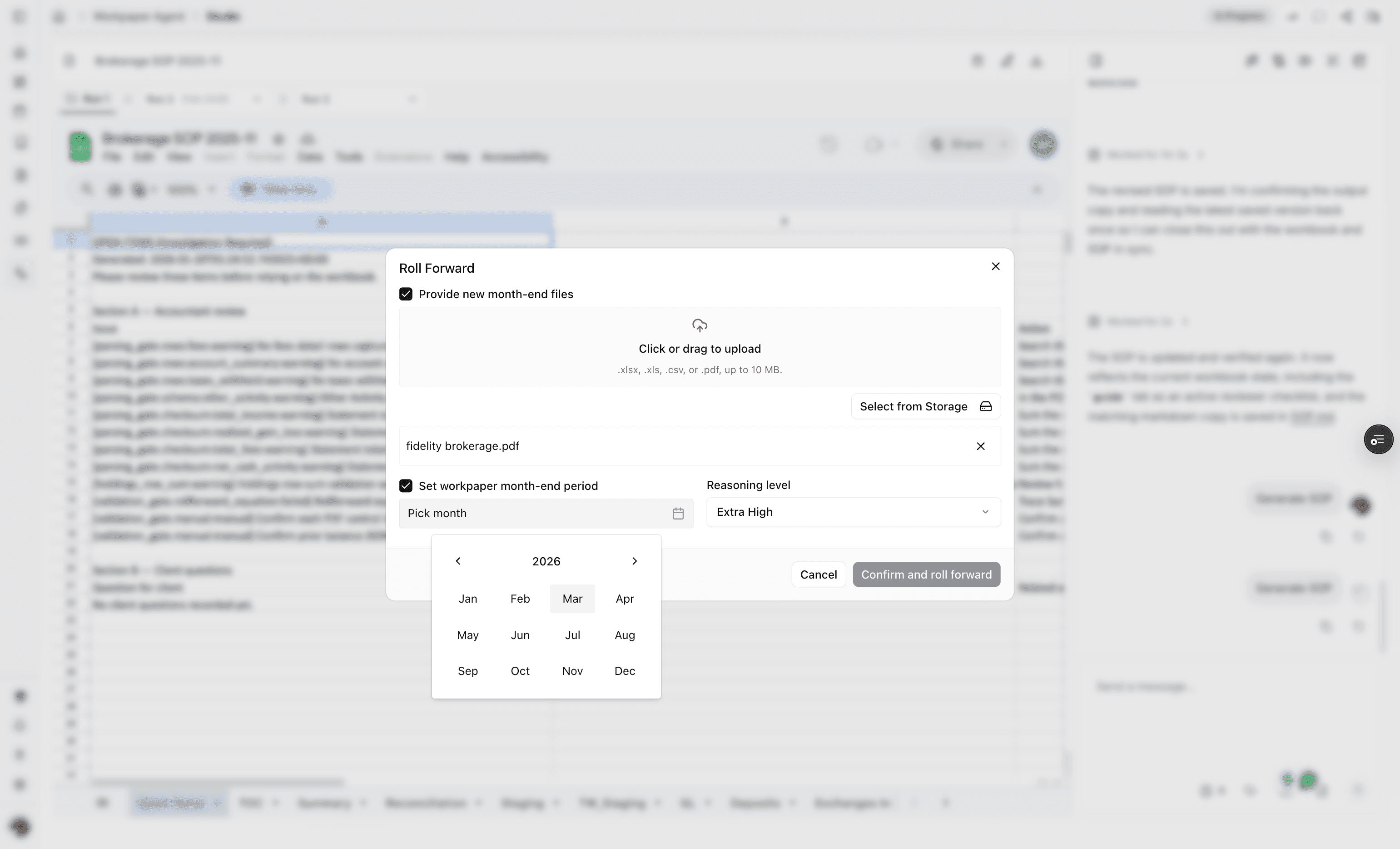
Step 4
Select the month-end period for the new run, or leave it unset for an independent use case.
Step 5
Create the new run after the period and inputs match the next close cycle.
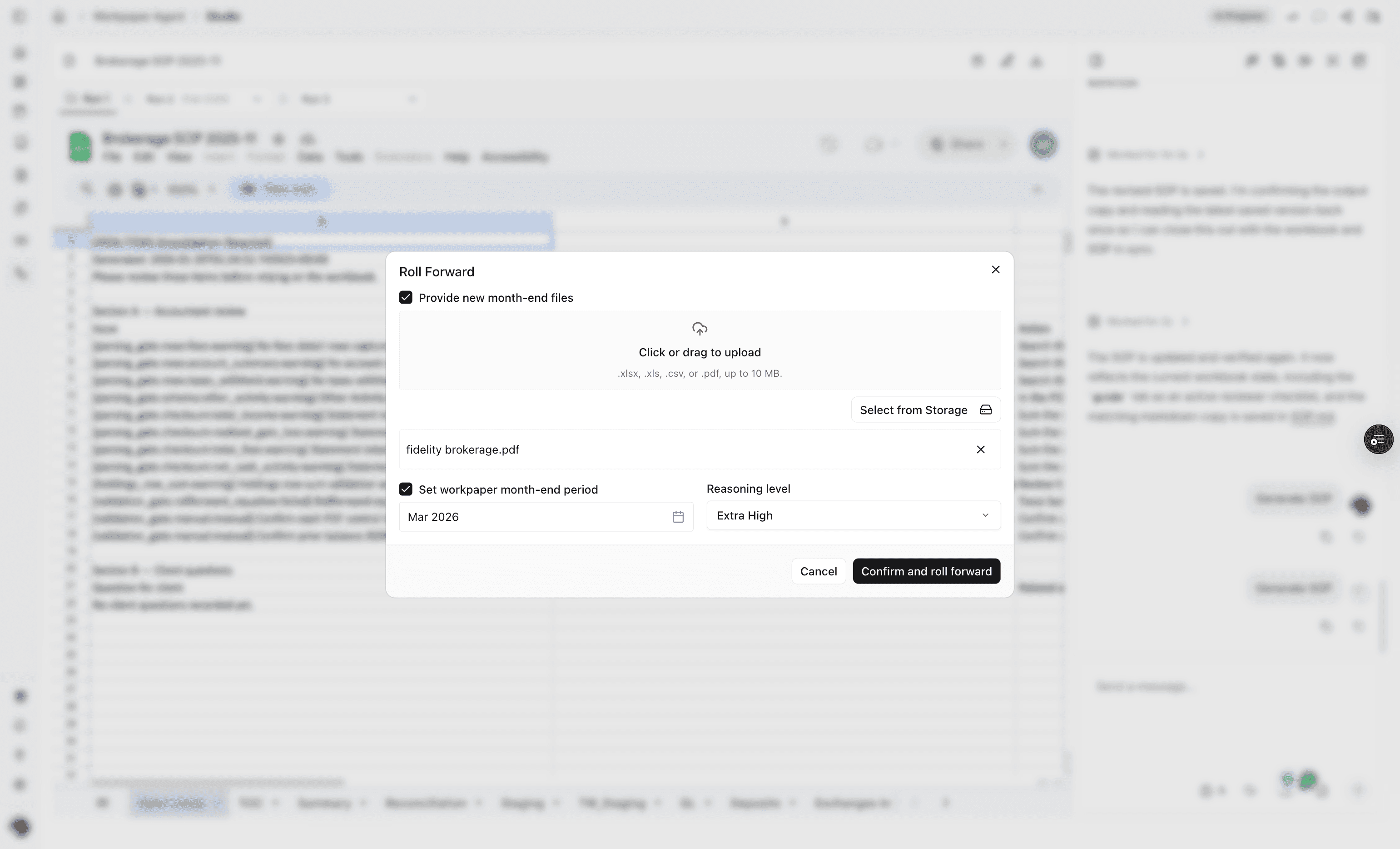
Step 6
Workpaper Agent starts the next period using an automatic prompt based on the rolled-forward SOP.
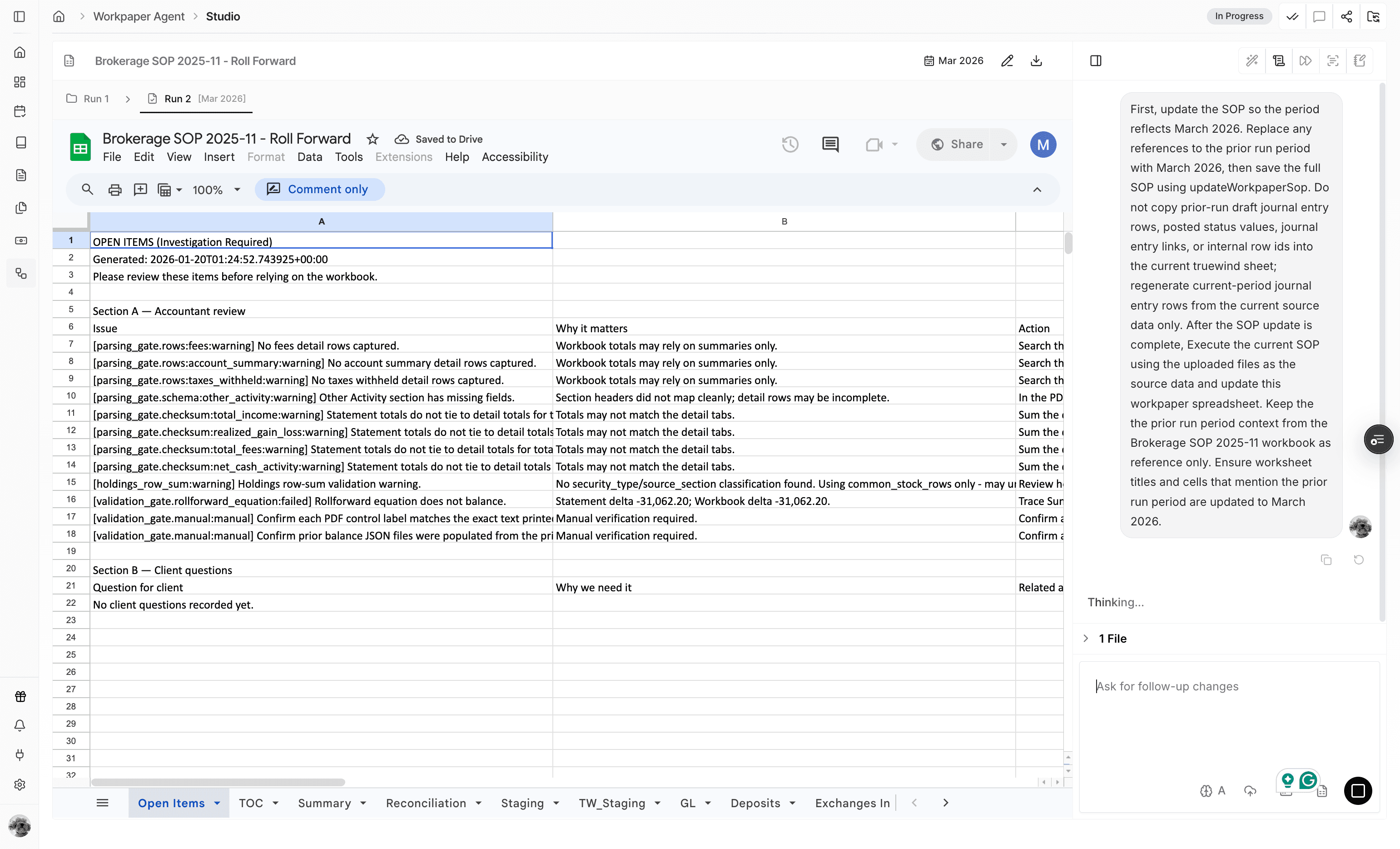
Step 7
Check the Studio header to confirm you are viewing the new rolled-forward run.
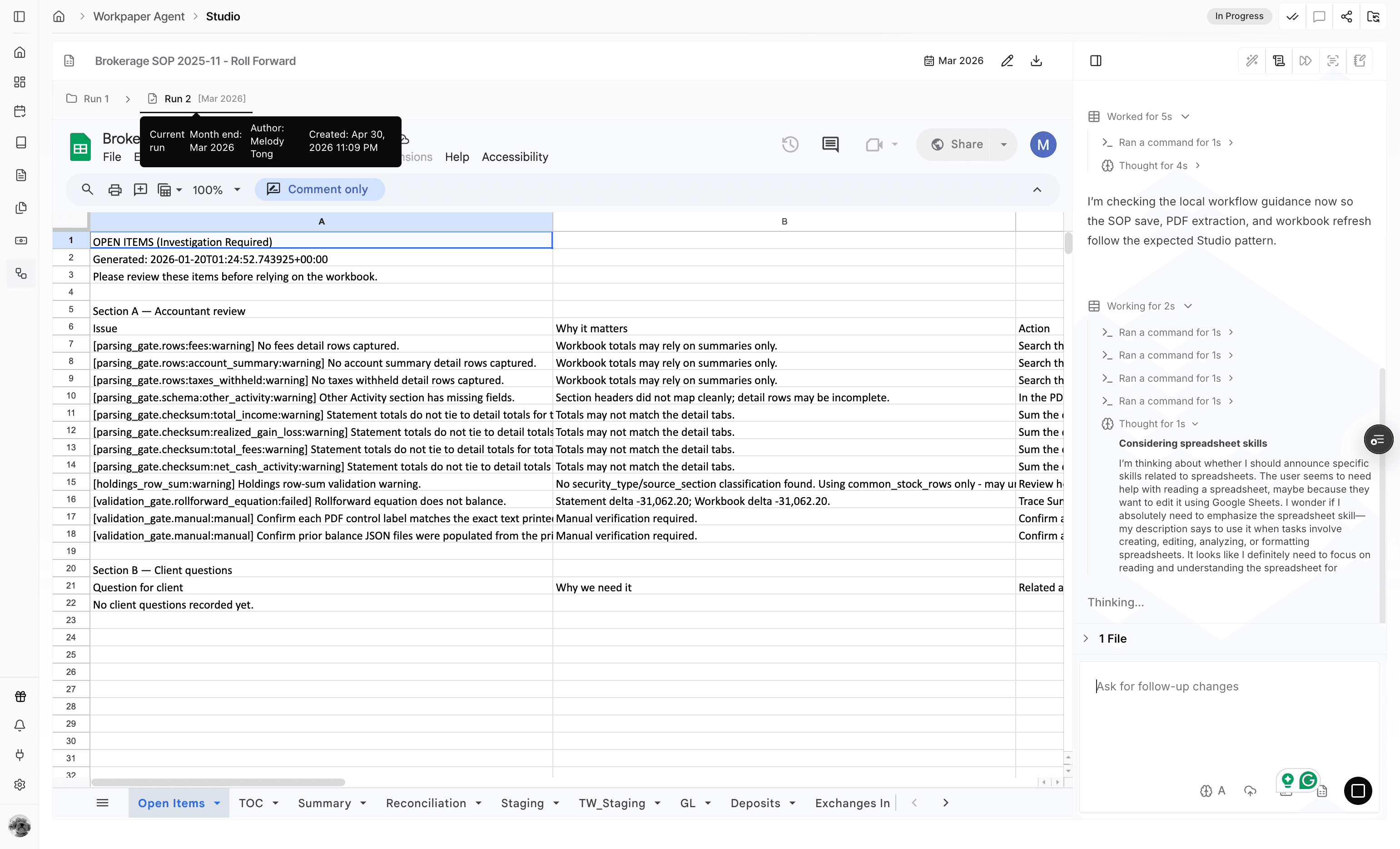
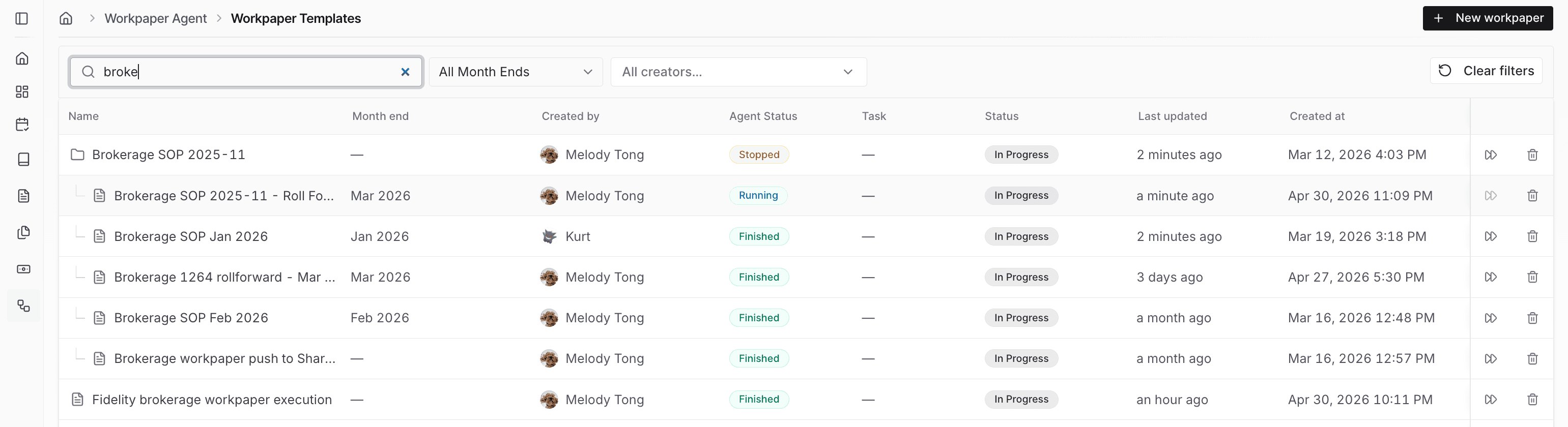
Step 8
Use the workpaper list to see how the original workbook and rolled-forward workbook are related.
Use this flow during recurring close work when the next period should follow the same SOP and workbook format as the current period.
Roll forward keeps the prior SOP and workbook structure available for the next period, which is useful for recurring monthly close work.
Roll forward works best when the new period follows the same basic process as the prior period.
Review the month picker before confirming the roll forward, or leave the period unset only when the run is not tied to a month-end period.
Was this helpful?
Need more help?
Ask for human help about this article and provide any feedback.