
Before you connect
Make sure the Google account you use has access to the Google Drive folder your team expects to use with Workpaper Agent.
Ask the support agent
Just ask a direct question or search related articles from the Knowledge Base.
Support Center / Workpaper Agent / Storage
Select files from a connected Google Drive storage destination, resulting in Workpaper Agent Studio using files from the saved root folder.
Step 1
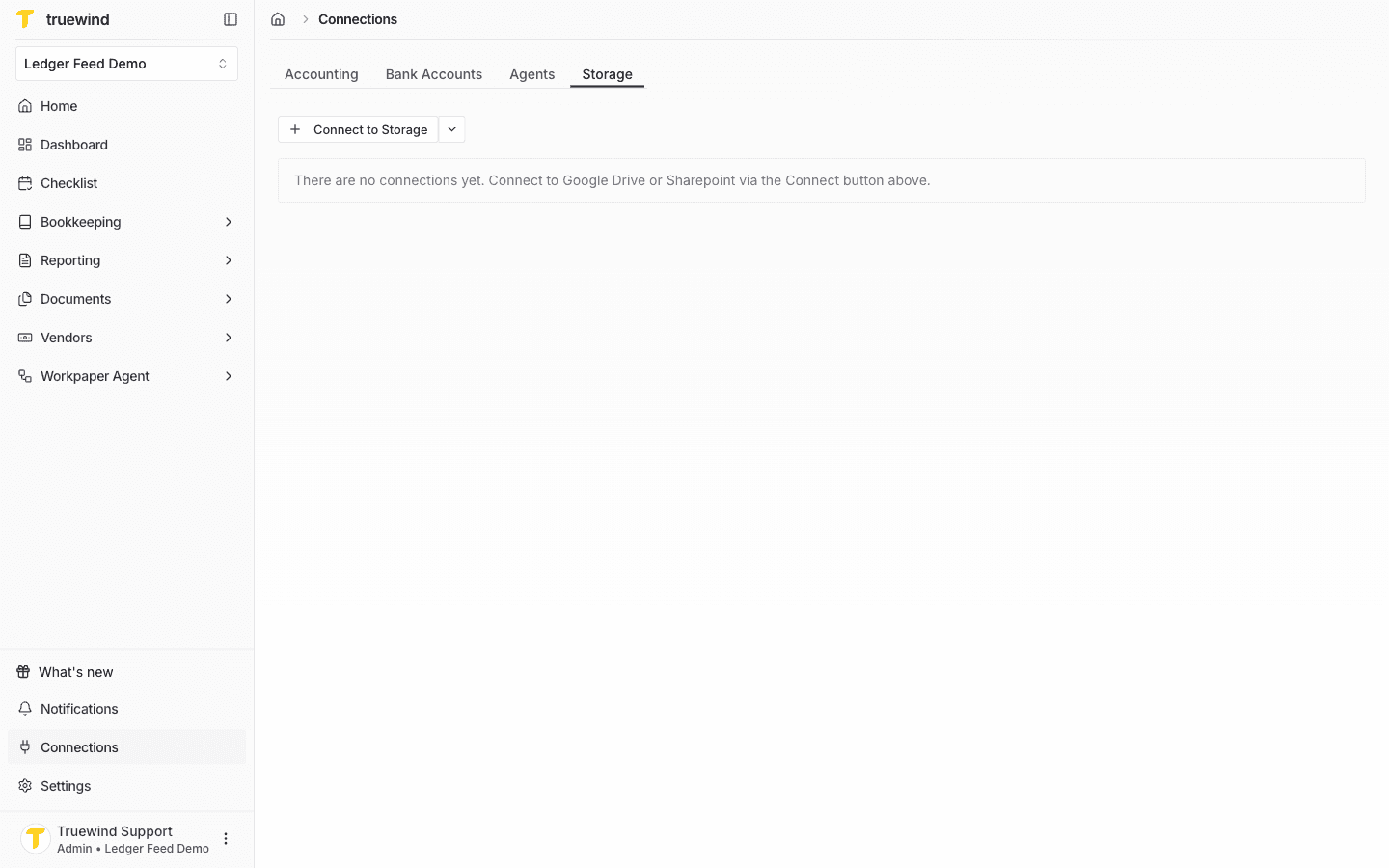
Start from the Truewind app, open Connections and Storage tab where you can manage the saved storage connections for the current organization.
Step 2
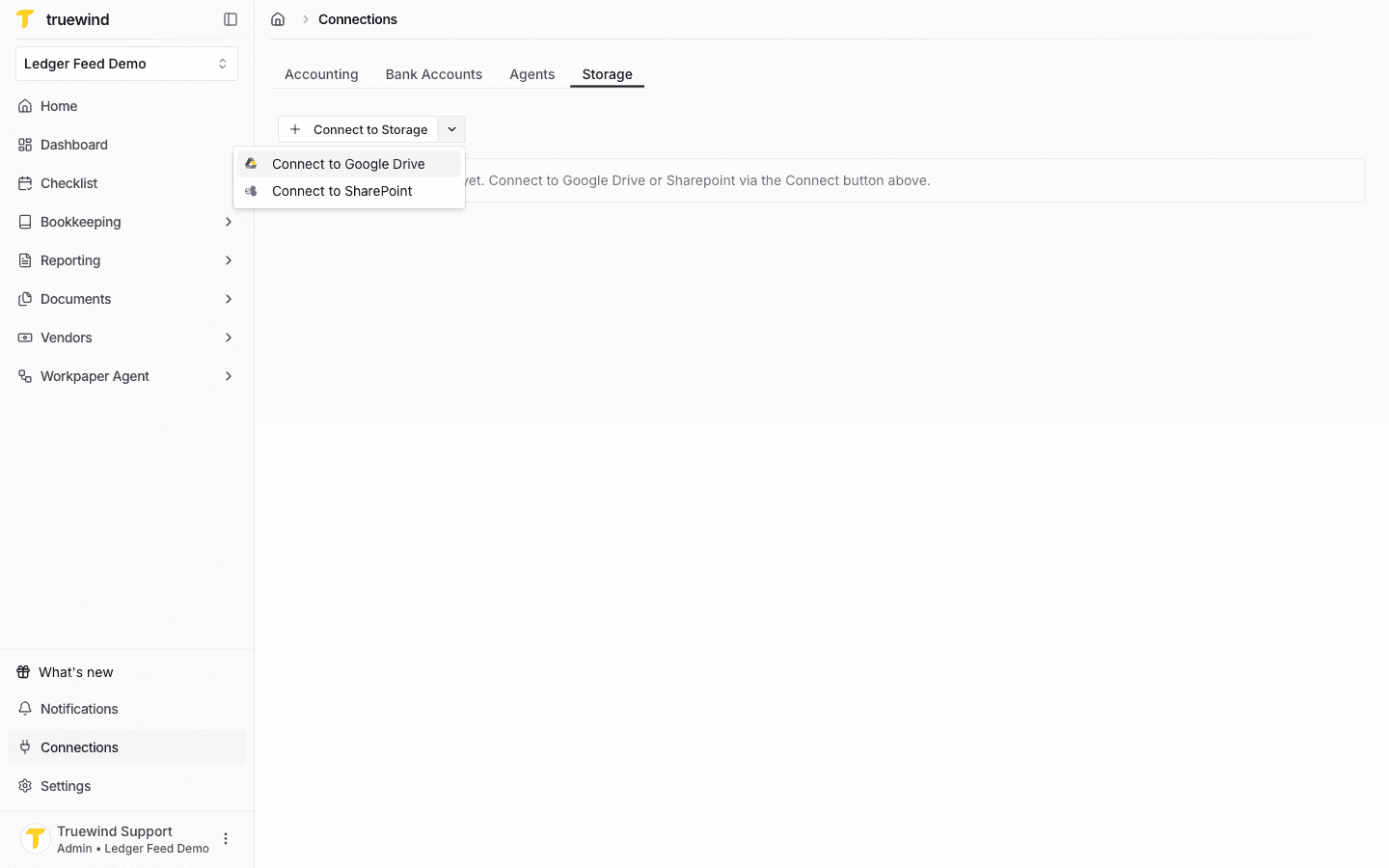
Select Google Drive as the storage provider when the destination should use your Google workspace.
Step 3
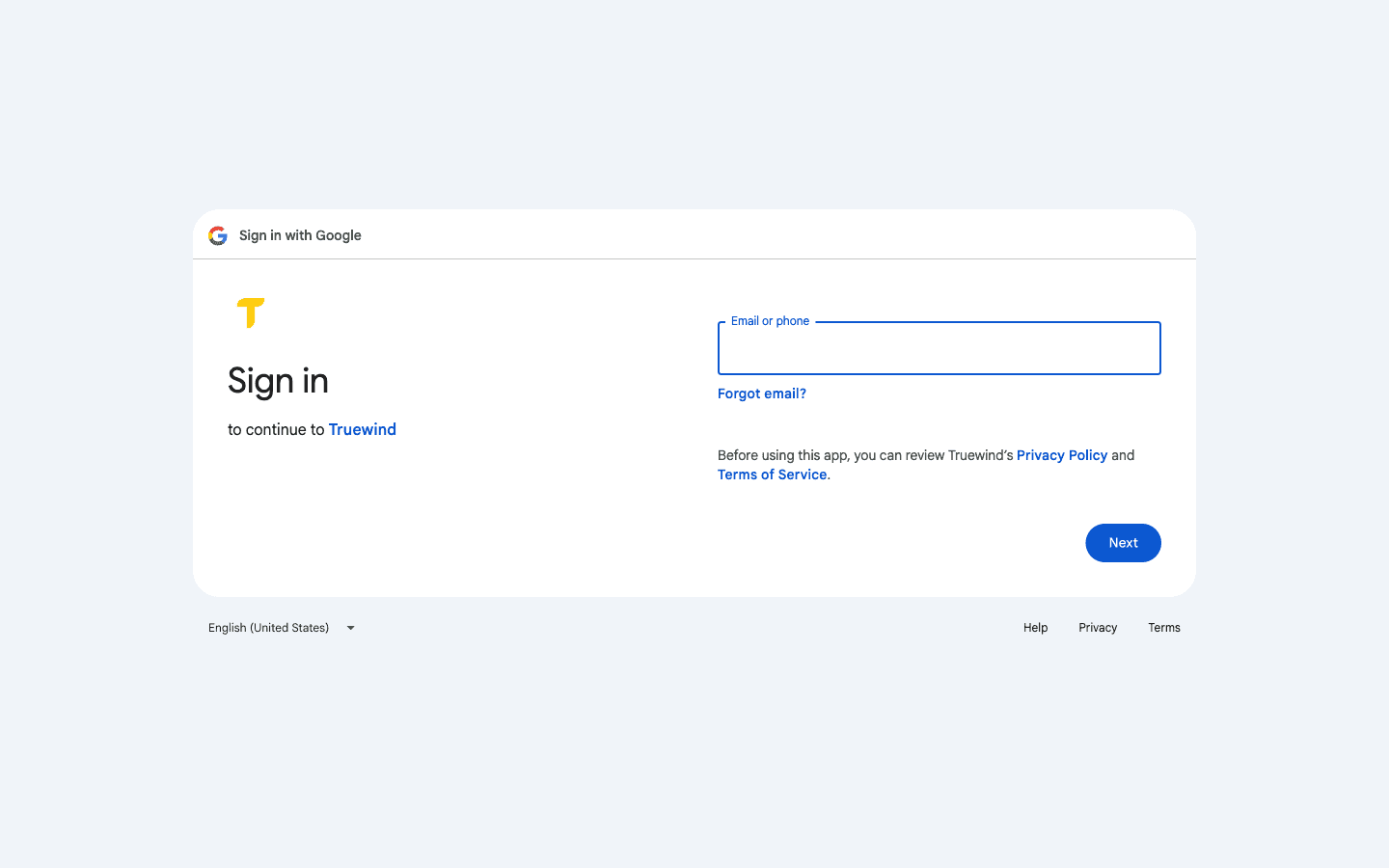
Complete the Google sign-in prompt with the account that has access to the Google Drive folder you plan to use.
Step 4
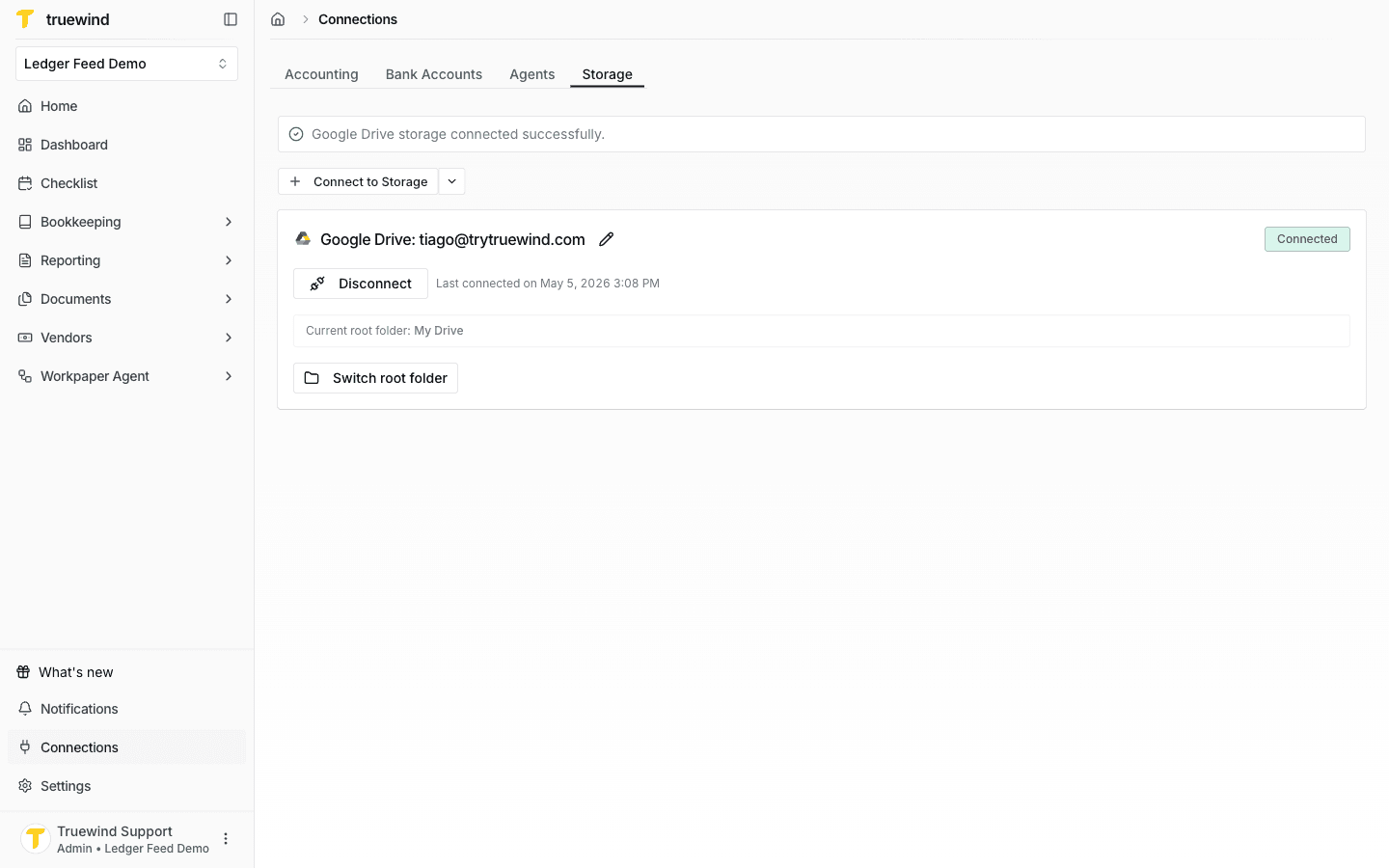
Click on Switch root folder to select your drive and root folder that should be available to Workpaper Agent.
Step 5
Go to Workpaper Agent workpapers when you want to use the connected Google Drive storage in a new Studio workpaper.
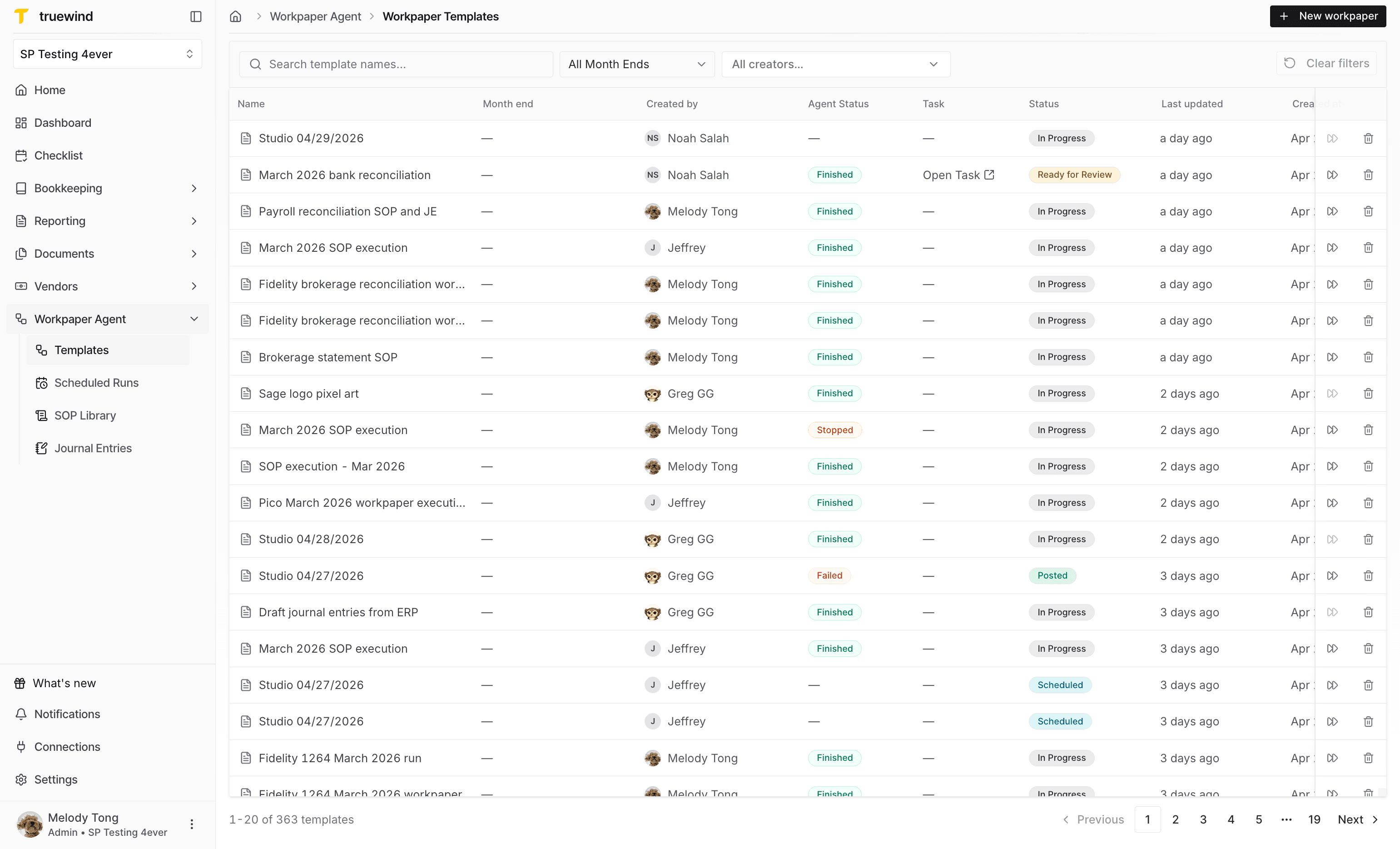
Step 6
Start a new workpaper so Studio opens with the file-selection controls available.
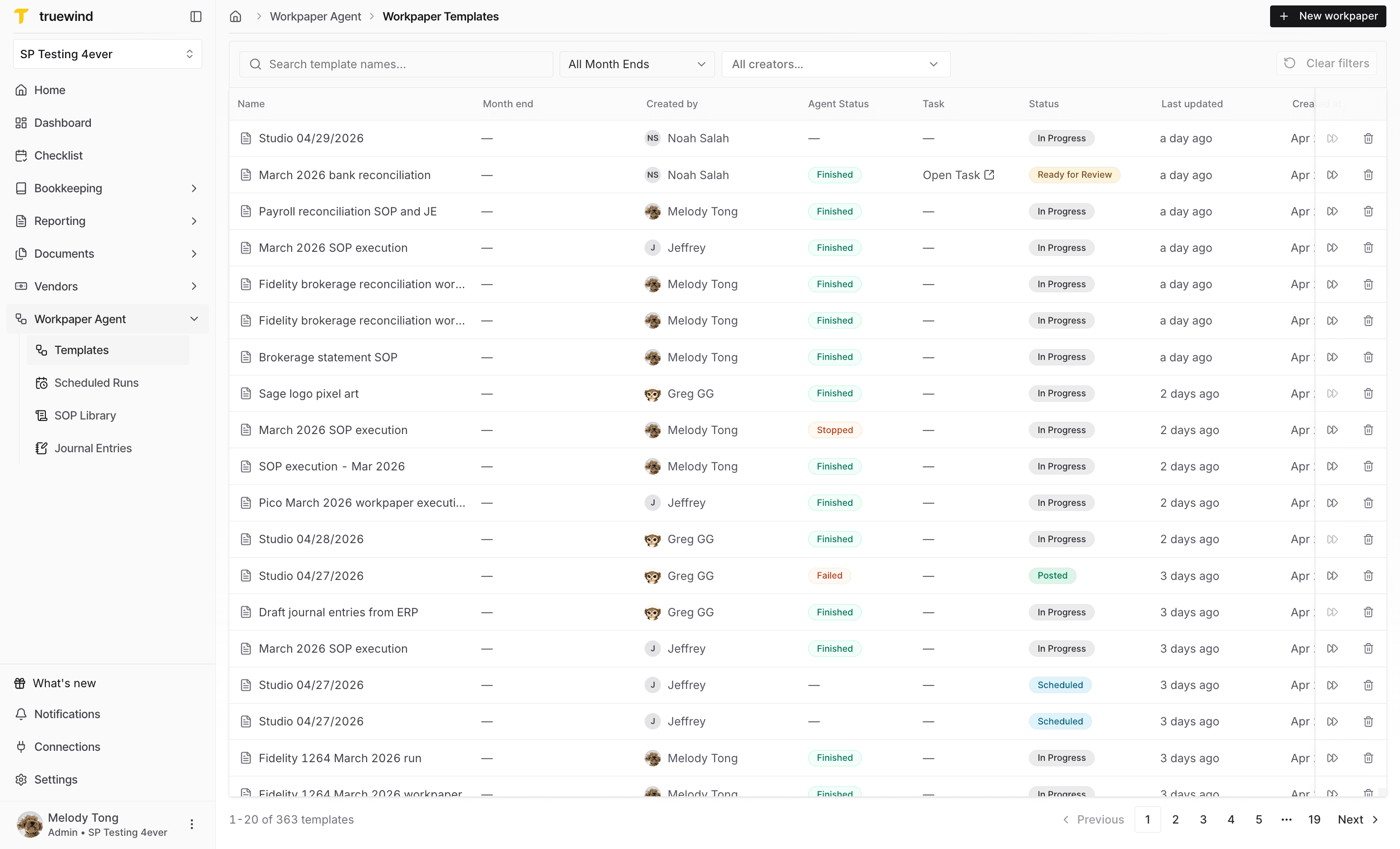
Step 7
Use the Open action when you want to pull an existing file from connected storage into the workpaper.
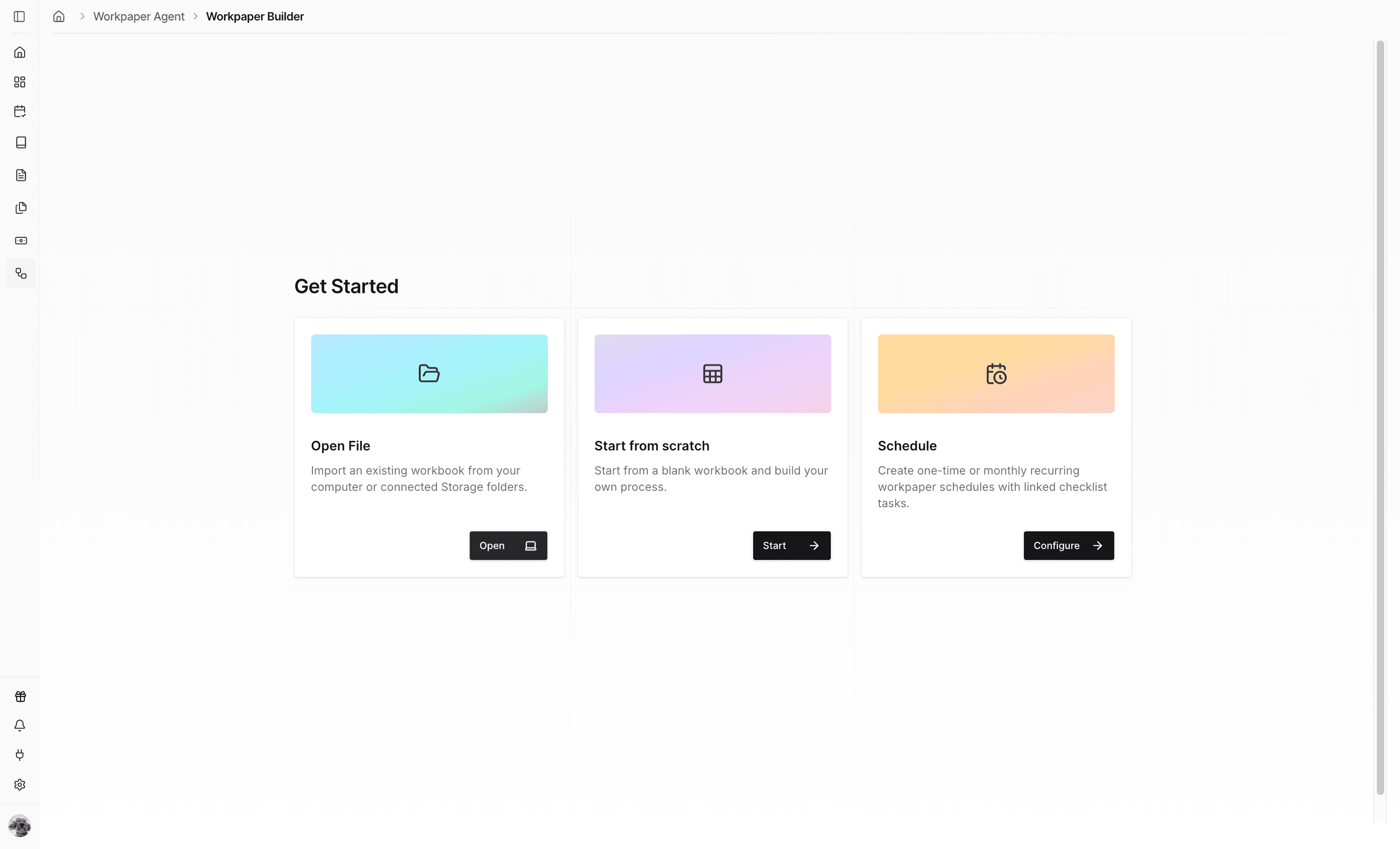
Step 8
Pick the storage option instead of uploading a local file when the source file is already in Google Drive.
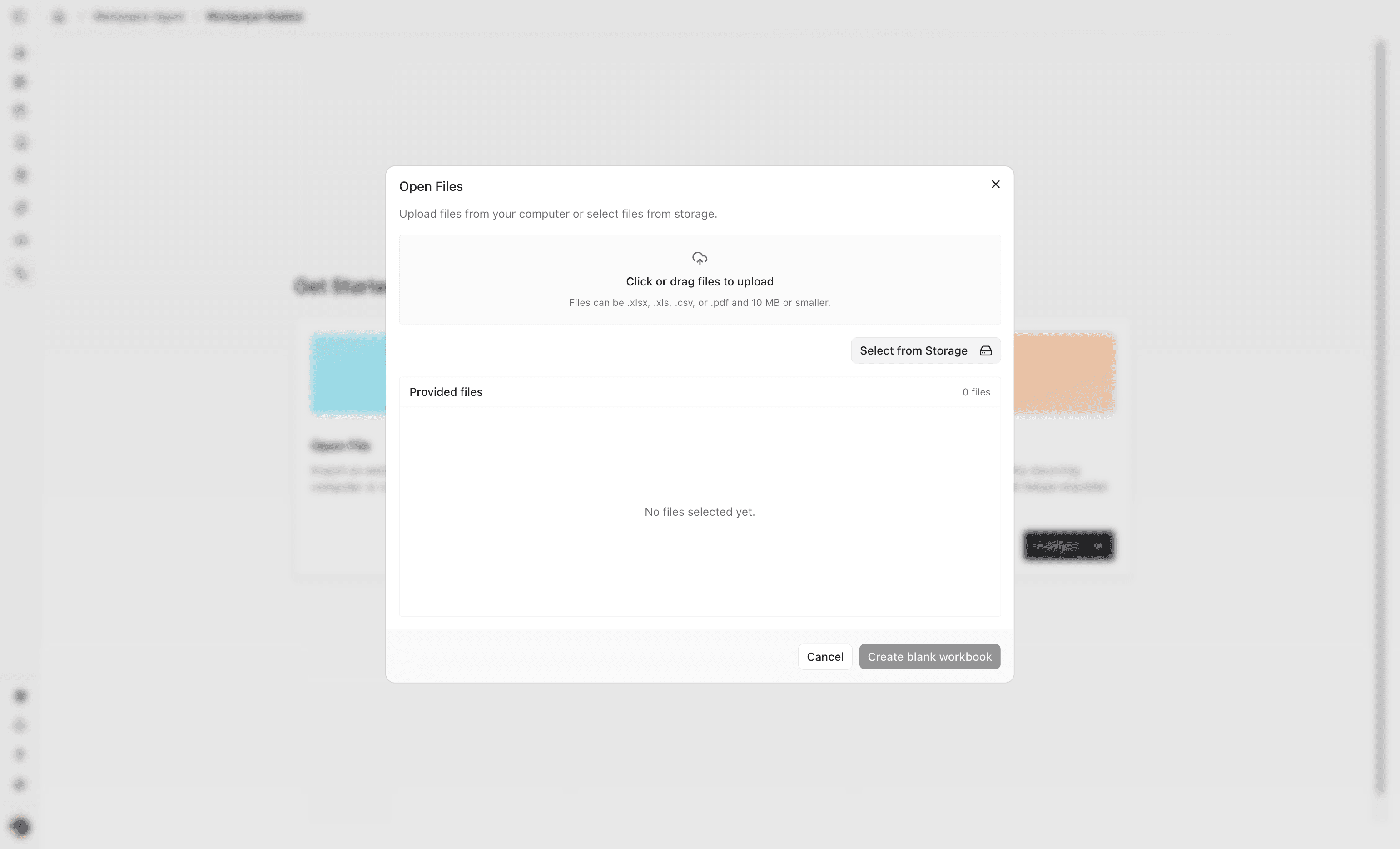
Step 9
Use the file browser to navigate within the saved Google Drive root and choose the file you want to bring into Studio.
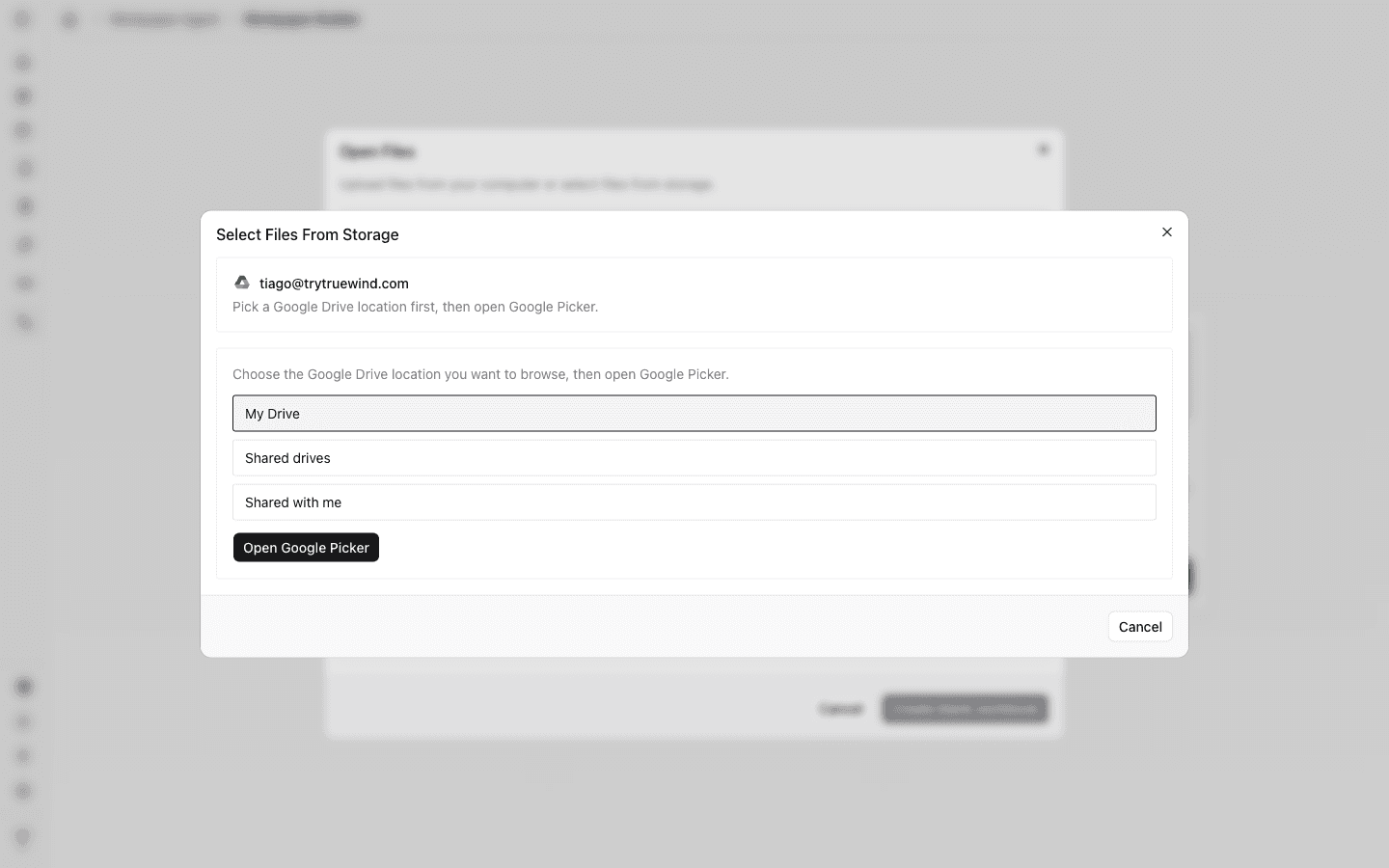
Step 10
Confirm the selected Google Drive files so Workpaper Agent can use them in the current Studio workflow.
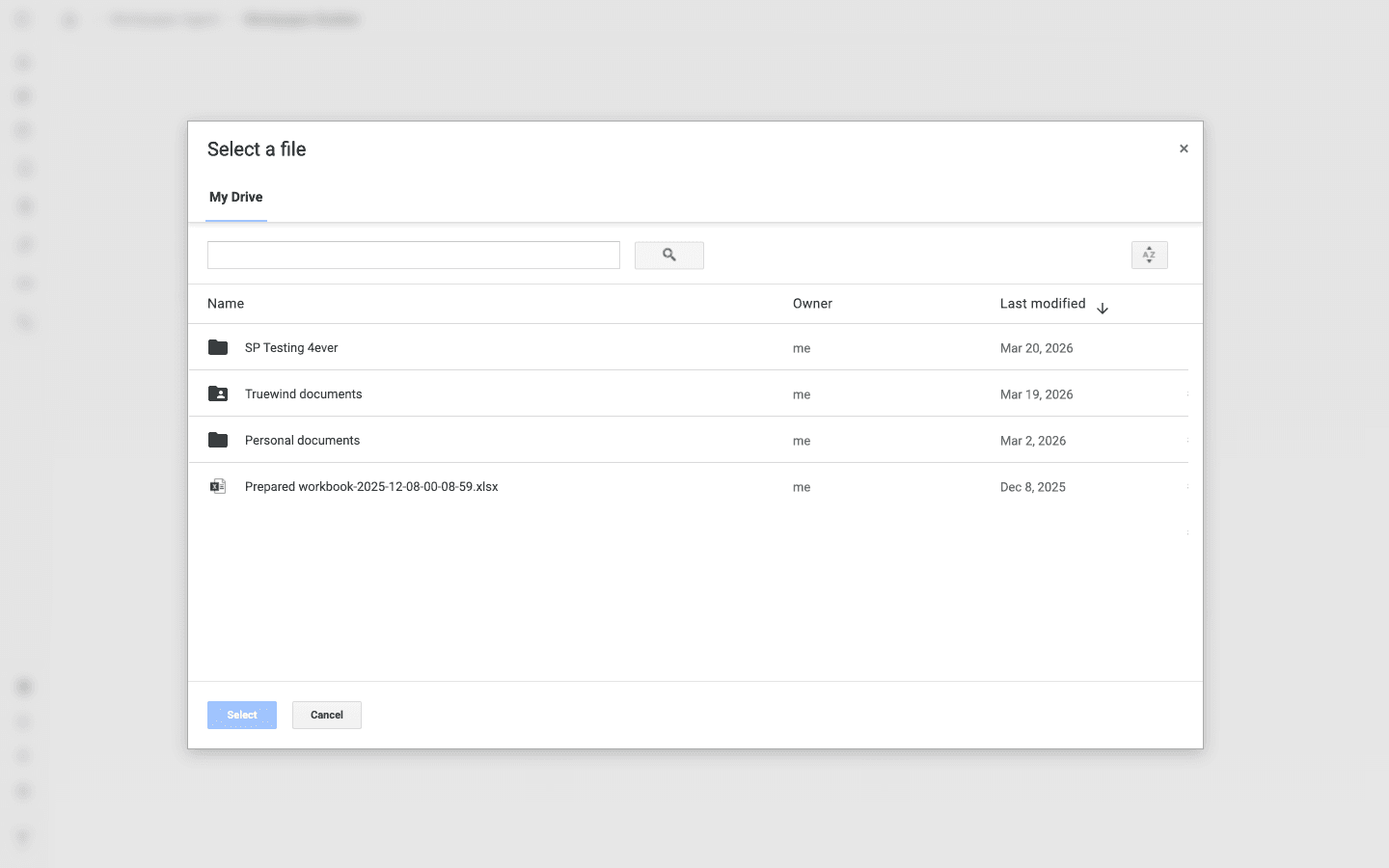
Make sure the Google account you use has access to the Google Drive folder your team expects to use with Workpaper Agent.
Use the Google account that has access to the Google Drive folder you want Workpaper Agent to read from or write to.
Yes. Return to Connections > Storage, update the Google Drive root folder, and then reopen the Studio file picker.
Truewind can only show folders and files that the connected Google account is allowed to access.
Workpaper Agent can import Google Drive files up to 50 MB per file. Larger files need to be reduced or split before selecting them from storage.
Confirm the signed-in Google account has access to the folder, then reconnect Google Drive from Connections > Storage if the folder list is stale.
Check the saved root folder in Connections > Storage because Studio only browses within that configured root.
Was this helpful?
Need more help?
Ask for human help about this article and provide any feedback.