
What reviewers can do
Reviewers can inspect the assigned workbook, leave comments in context, and either mark the workbook reviewed or request changes from the preparer.
Ask the support agent
Just ask a direct question or search related articles from the Knowledge Base.
Support Center / Workpaper Agent / Review
Review an assigned Workpaper Agent workbook, leave workbook comments when needed, and mark the review complete or request changes.
Step 1
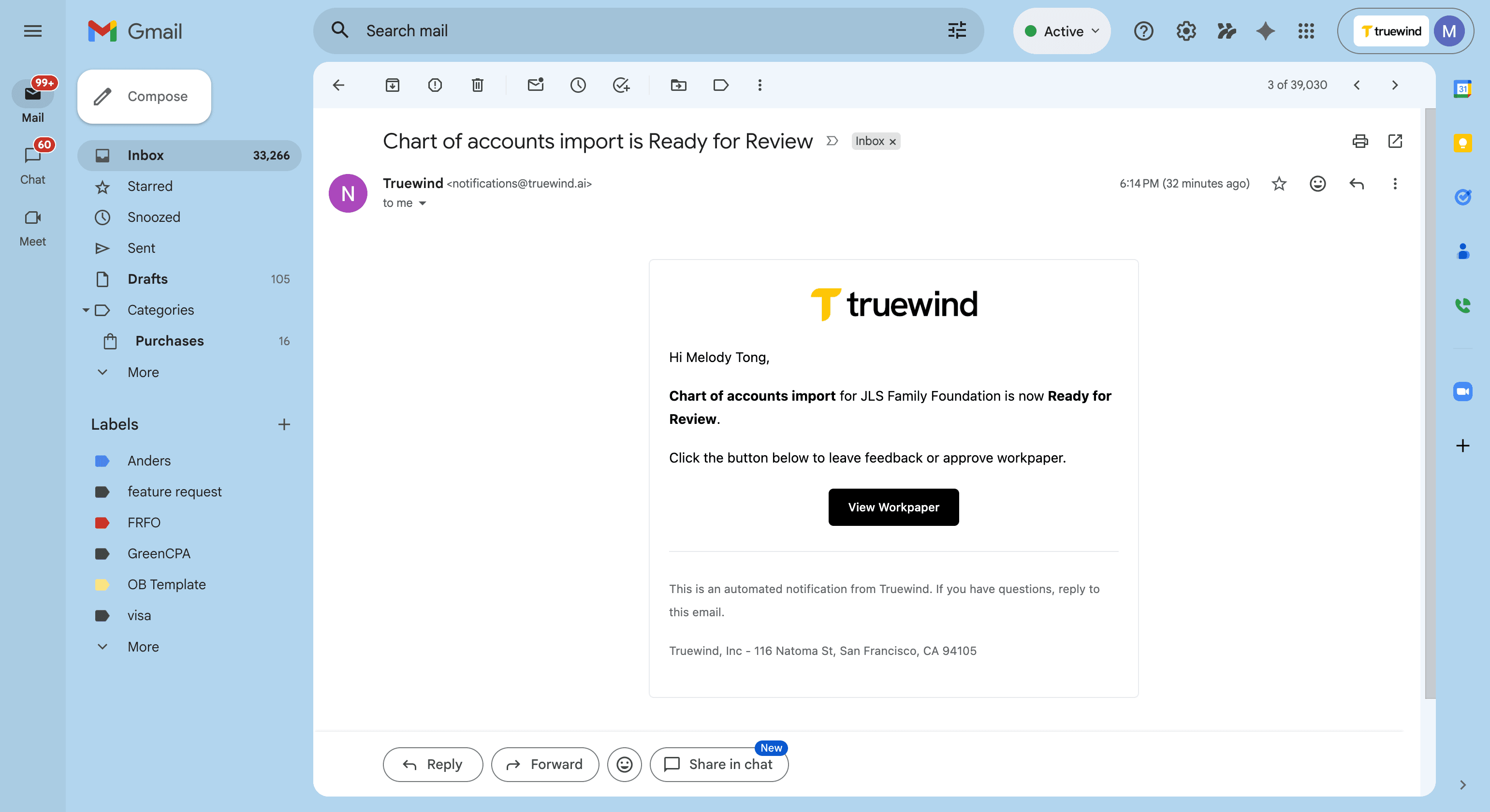
Use the View Workpaper link from the assignment email to open the workbook that needs your review.
Step 2
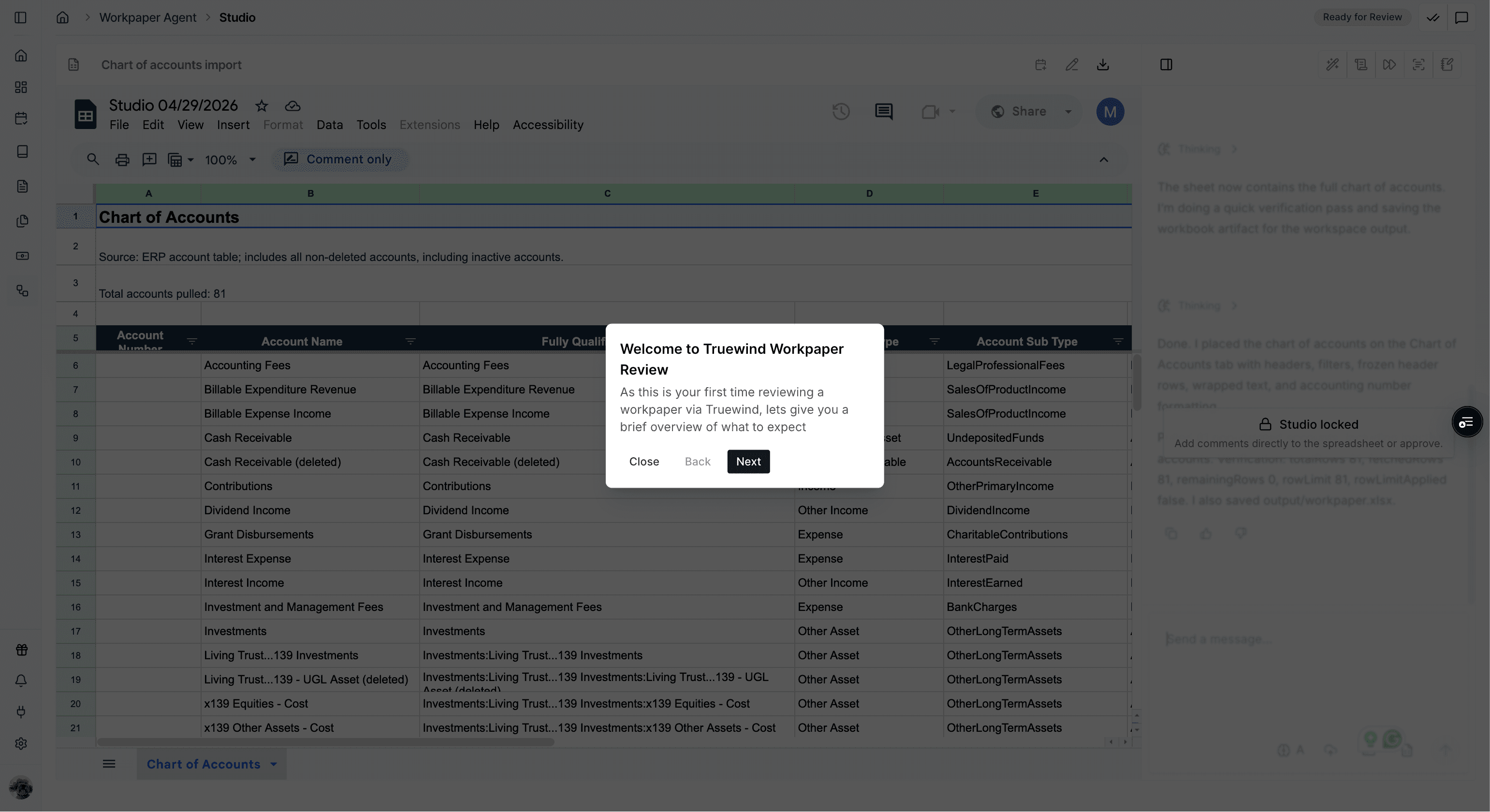
Follow the tour when it appears so you understand the workbook review controls on the page.
Step 3
Finish the final tour pop-up so you can interact directly with the workbook.
Step 4
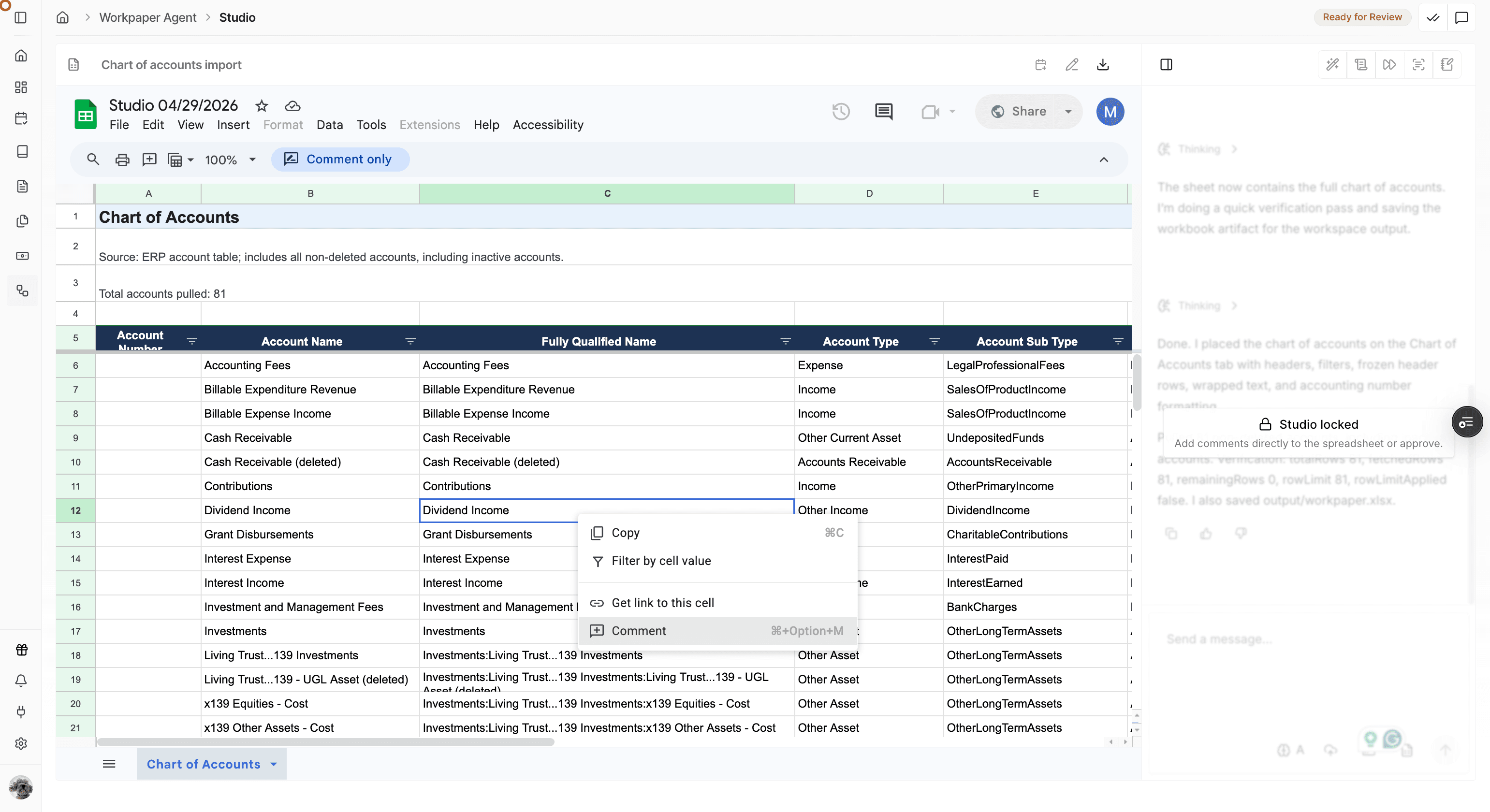
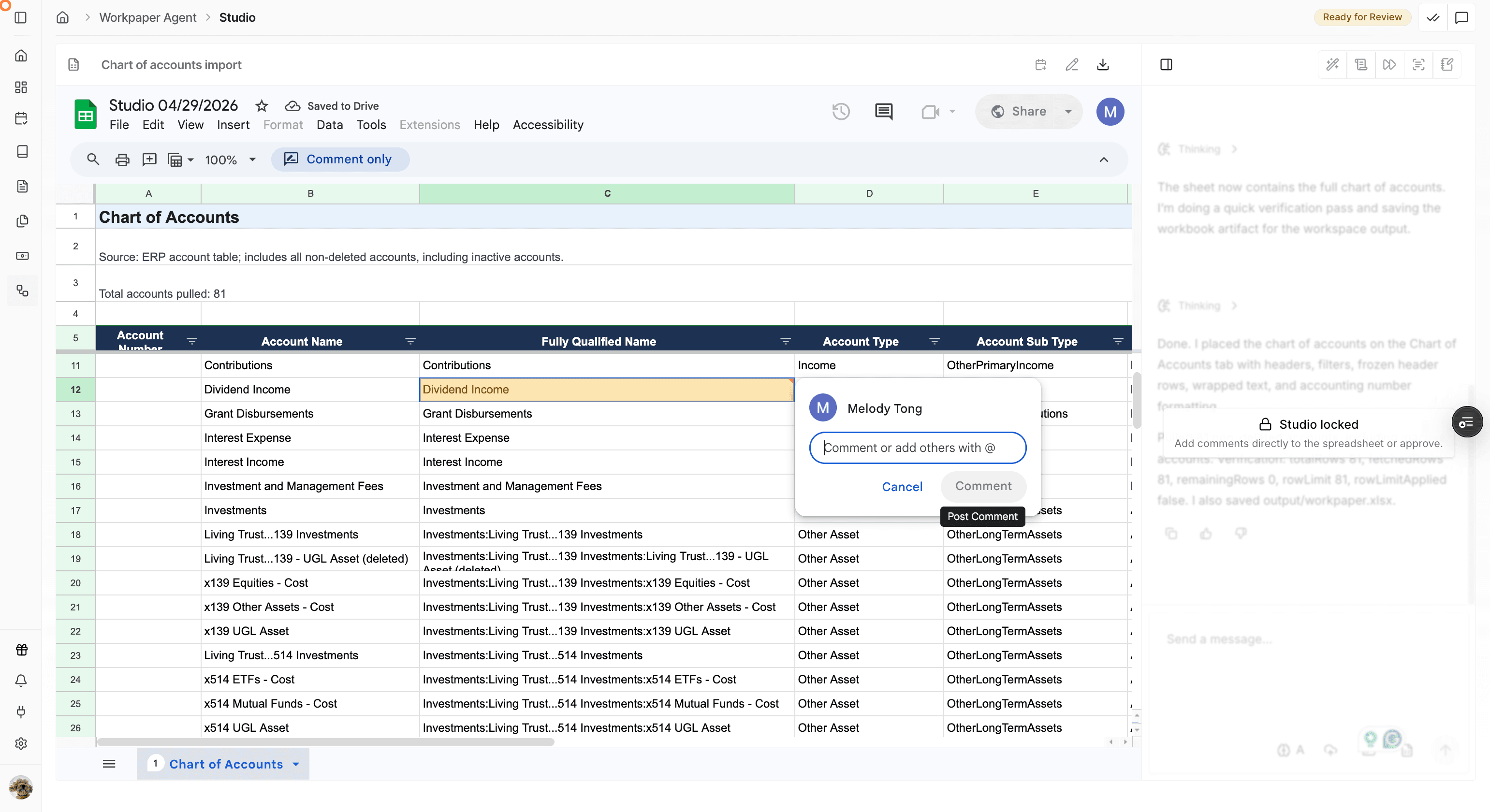
Comment beside a workbook cell when you need to leave specific feedback for the preparer.
Step 5
Save the workbook comment so the preparer can see the feedback in context.
Step 6
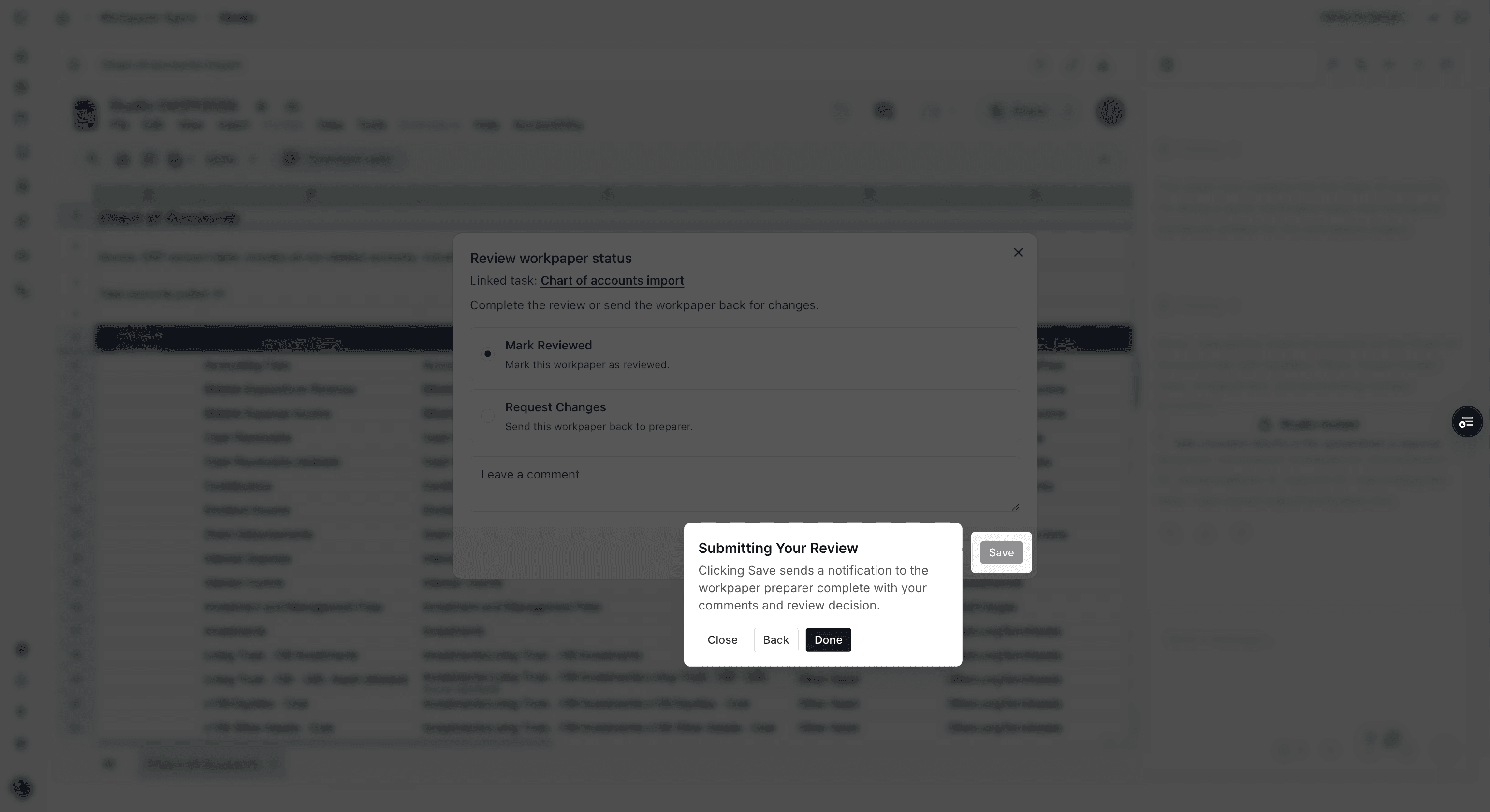
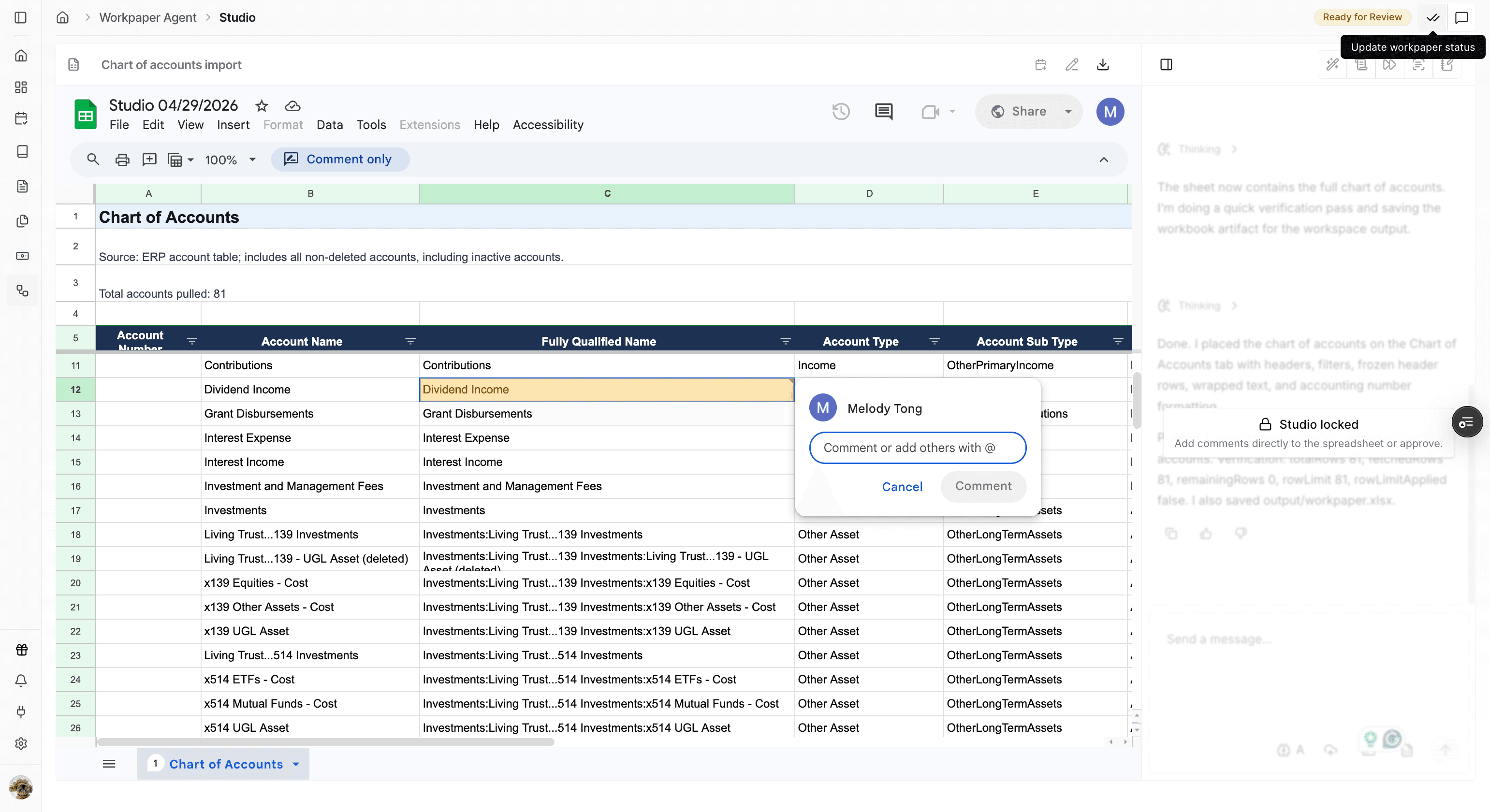
After finishing the workbook review, use the review status control to choose the next state.
Step 7
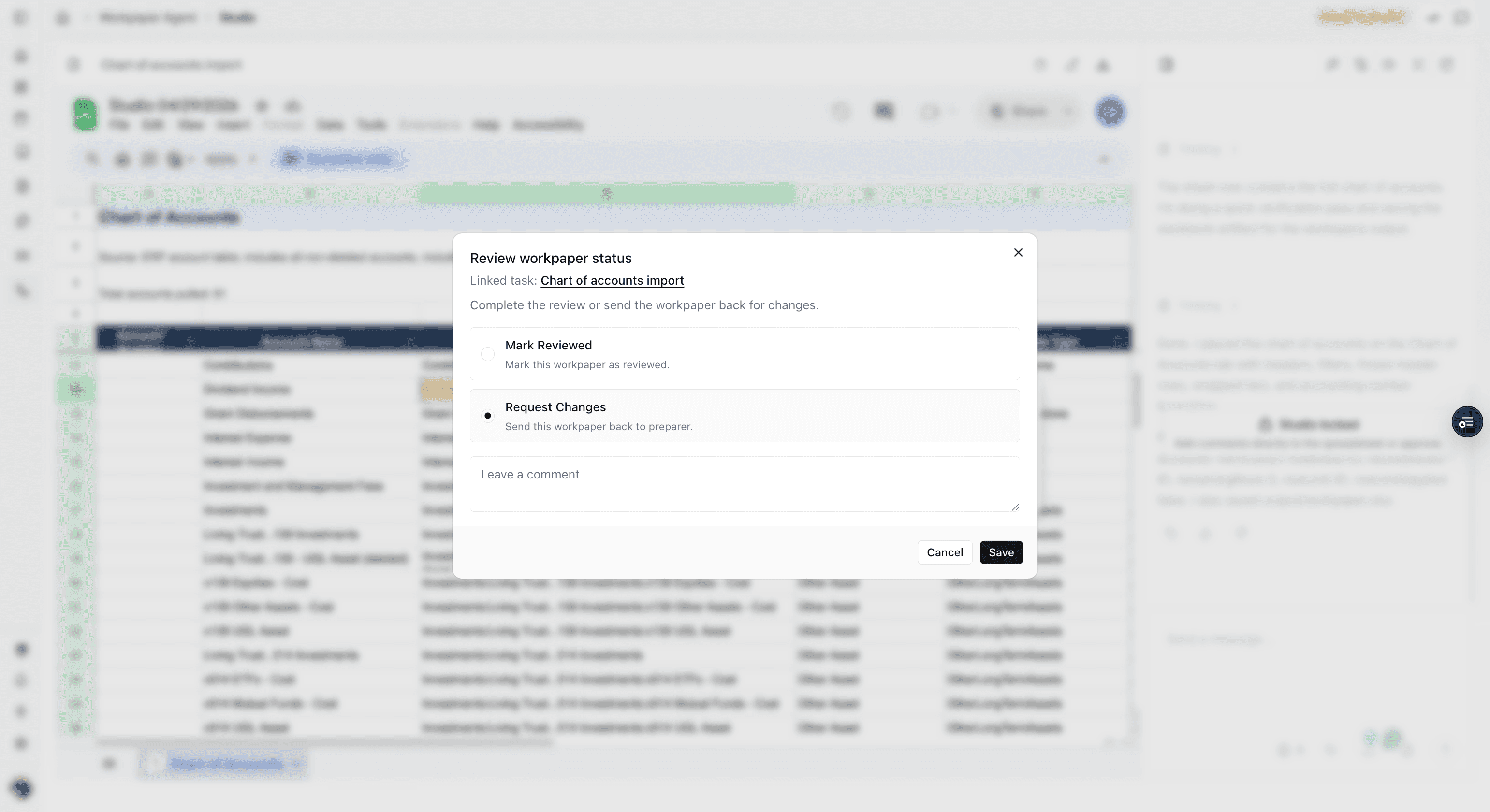
Select Mark Reviewed when the workbook is ready, or Request Changes when the preparer needs to revise it.
Step 8
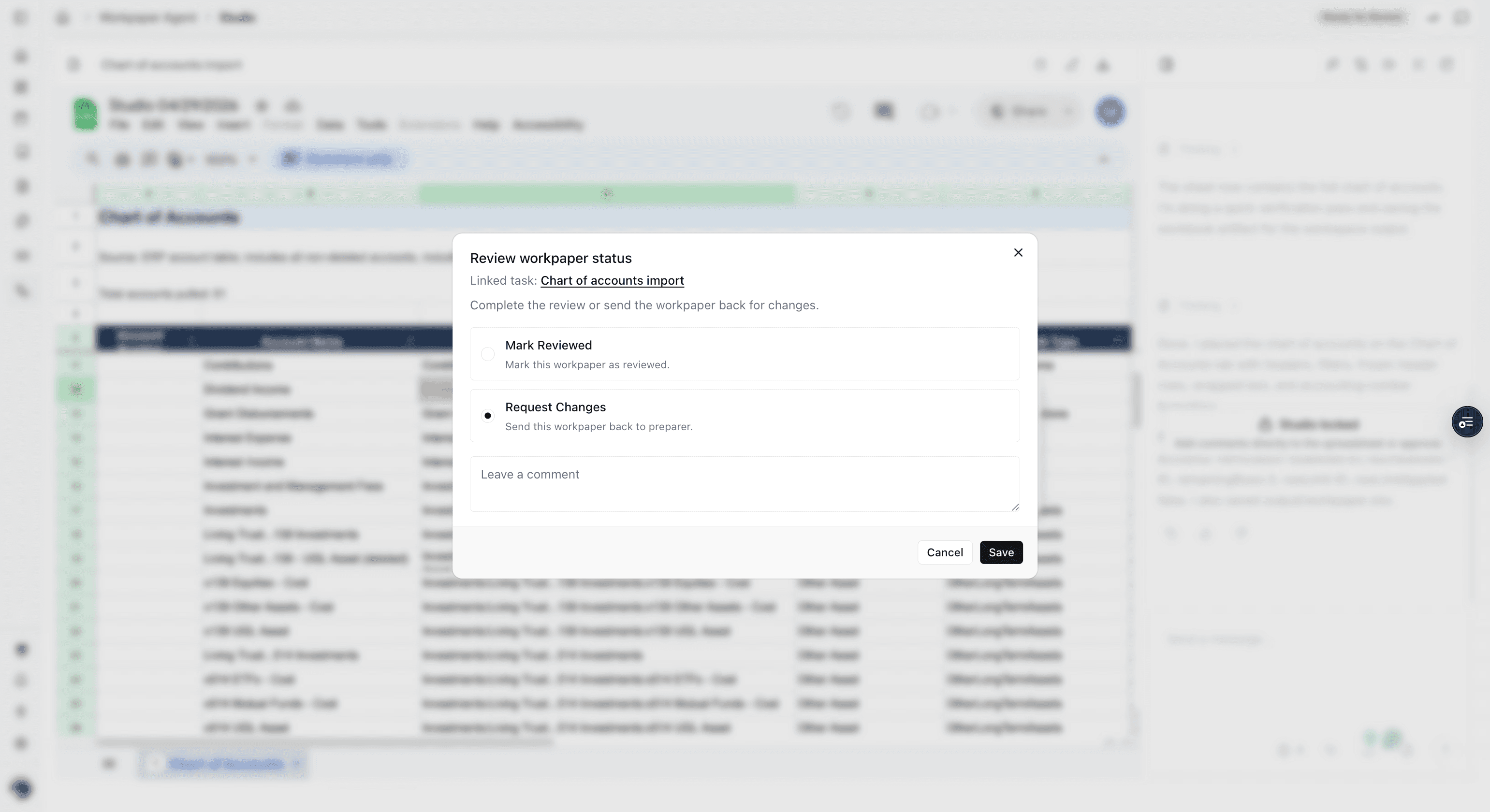
Confirm the selected outcome so the linked checklist status updates for the preparer.
Reviewers can inspect the assigned workbook, leave comments in context, and either mark the workbook reviewed or request changes from the preparer.
Use Request Changes when the workbook needs preparer follow-up before it can be approved. Add comments first when the requested changes need workbook-specific context.
The reviewer flow assumes you have been assigned to the workbook and have access through the review email or linked checklist task.
Finish or close the live tour first, then look for the review status control on the workbook page.
Was this helpful?
Need more help?
Ask for human help about this article and provide any feedback.