
Ask the support agent

Just ask a direct question or search related articles from the Knowledge Base.

Support Center / Workpaper Agent / Schedules

Upload documents for a scheduled workpaper

Upload support files to the linked checklist task before a scheduled workpaper runs, resulting in those documents being pulled into the scheduled Workpaper Agent run as primary support.

Workflow

Step 1

Open the linked checklist task

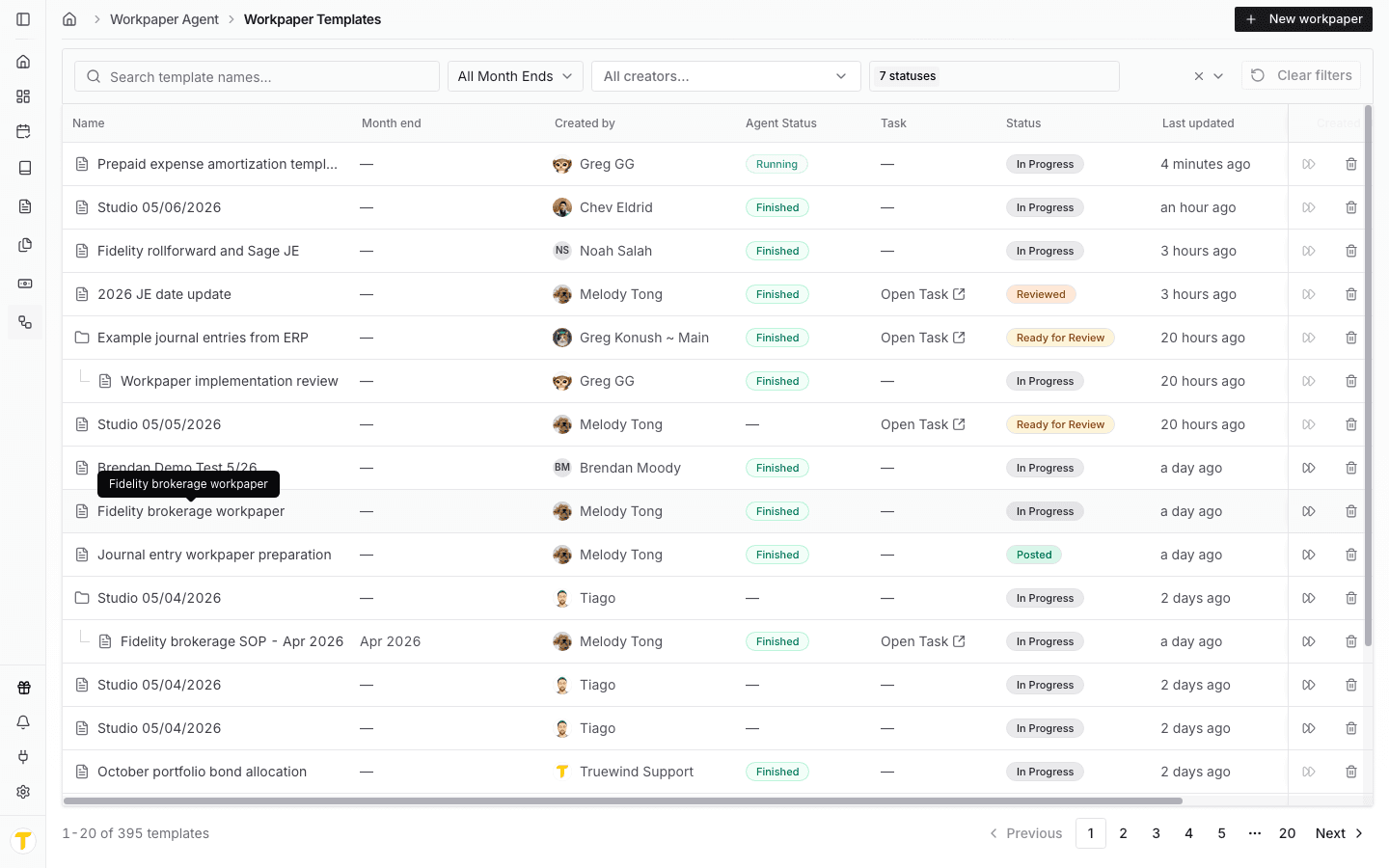
Start from Workpaper Agent > Schedules or from the month-close checklist, then open the task connected to the scheduled workpaper you want to prepare.

Screenshot showing the Workpaper Templates list with Open Task links available for workpapers that already have linked checklist tasks.

Step 2

Confirm the schedule details

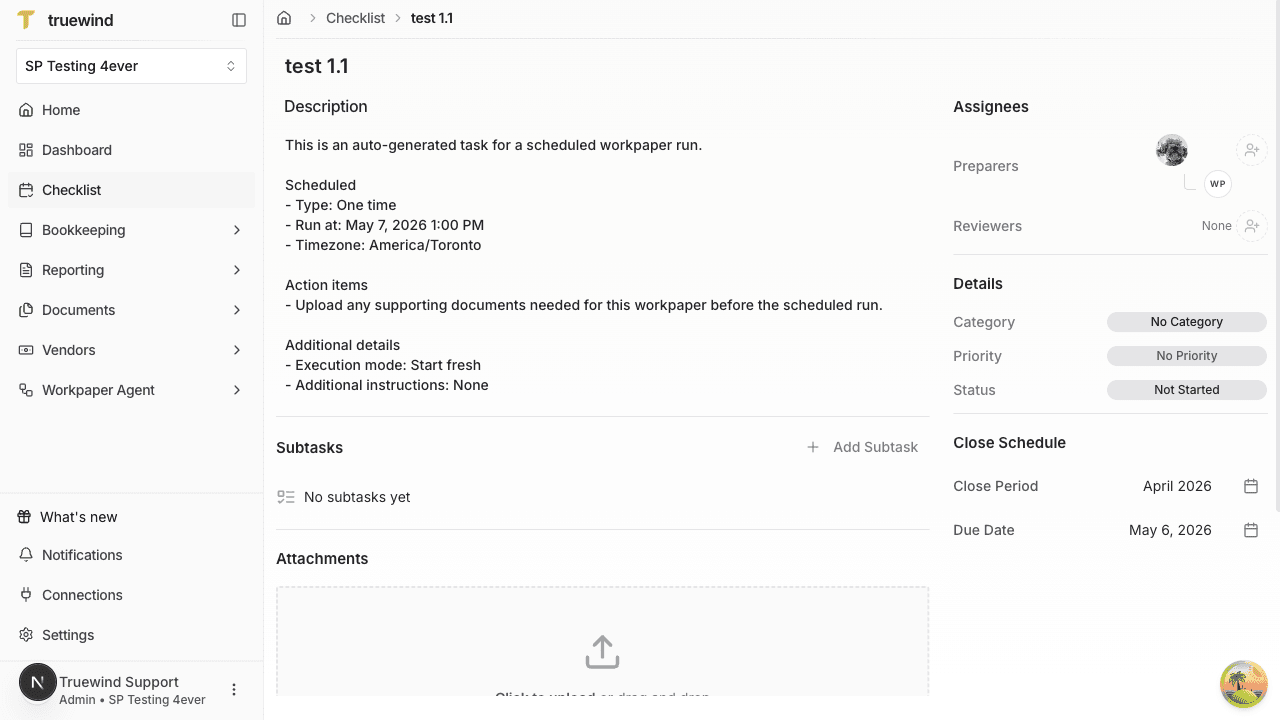
Check the task name, due date, and upcoming run timing so you know which scheduled workpaper you are supplying documents for.

Screenshot showing the linked checklist task with the scheduled run description, timing, and close-period details visible.

Step 3

Upload the support files

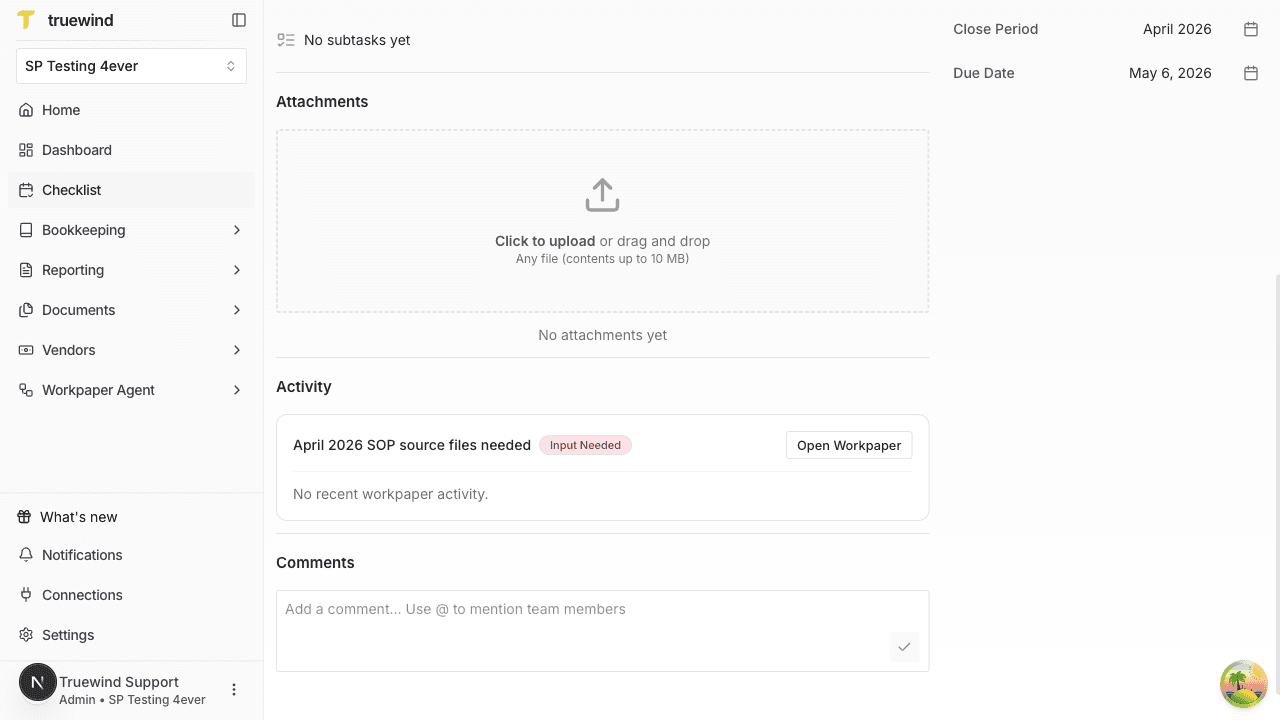
Add the files the upcoming run should use, such as trial balances, bank statements, invoices, reconciliations, or other support for that close task.

Screenshot showing the Attachments section on the linked checklist task with the upload dropzone for adding support files before the run.

Step 4

Verify the task attachments

Keep the files on the linked checklist task before the run starts. Scheduled workpapers pull from that task attachment list when the run is triggered.

Step 5

Review reminder email settings

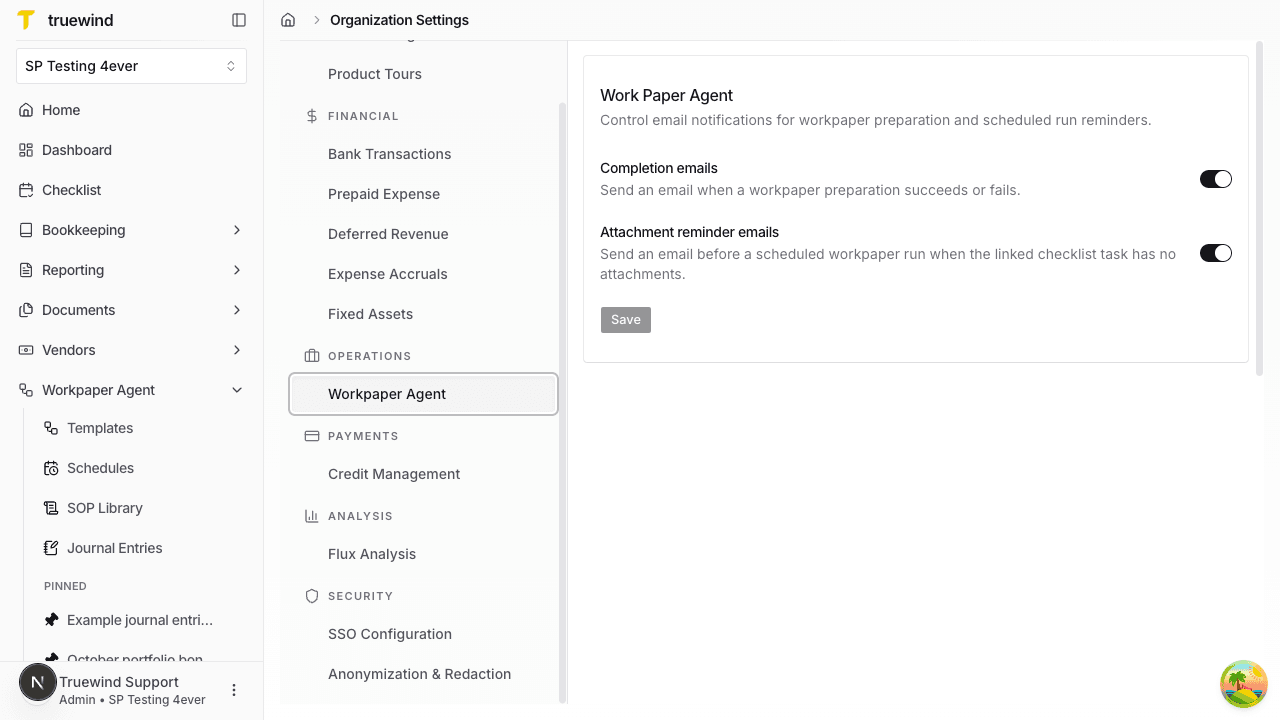
If you want email nudges before the run, confirm that Attachment reminder emails are enabled in Organization Settings under Workpaper Agent.

Screenshot showing the Work Paper Agent notification settings card with the Attachment reminder emails toggle enabled.

Step 6

Let the schedule trigger

When the scheduled run starts, Workpaper Agent copies the linked task attachments into the scheduled workpaper conversation and uses them as the primary support for the run.

Step 7

Review the created workpaper

After the run materializes, open the created workpaper or the schedule detail page to confirm the task and workpaper were created from the expected support.

How attachment pickup works

Scheduled workpapers do not look for support files in arbitrary places. At run time, Truewind reads the attachments on the linked checklist task, copies those files into the scheduled workpaper conversation, and prompts Workpaper Agent to use them as the primary support for the run.

That means the linked task is the safest place to manage the documents for an upcoming scheduled workpaper.

Where to manage reminder emails

Attachment reminders are controlled in Organization Settings under Workpaper Agent notifications. The setting is labeled Attachment reminder emails and describes sending an email before a scheduled workpaper run when the linked checklist task has no attachments.

FAQ

Where should I upload documents for a scheduled workpaper?

Upload them to the linked checklist task, not only to a separate folder or unrelated workpaper. The scheduled run reads the task attachments when it starts.

What does the scheduled workpaper use as support?

The scheduled run copies the linked checklist task attachments into the workpaper conversation and tells Workpaper Agent to treat those uploaded files as the primary support for the run.

What happens if the linked task has no attachments?

The scheduled run can still start, but Workpaper Agent records that no checklist task attachments were available and proceeds carefully so missing support can be identified instead of assumed.

When are reminder emails sent?

If your organization has Workpaper Agent attachment reminder emails enabled, Truewind sends a reminder before the scheduled run when the linked checklist task has no attachments.

Limitations

Attachments must be on the linked task before the run begins

Files uploaded after the scheduled run has already started are not part of the initial attachment pull for that run.

Reminder emails depend on organization settings

Attachment reminder emails can be turned on or off in Organization Settings for Workpaper Agent notifications.

Troubleshooting

The scheduled workpaper started without the files I expected.

Confirm the files were attached to the linked checklist task before the run triggered, then review the schedule timing and task you used.

I did not receive an attachment reminder email.

Check whether the linked task already had attachments or whether attachment reminder emails are disabled in Workpaper Agent notification settings for the organization.

I uploaded files, but the run still says support is missing.

Verify that the files were attached to the correct linked checklist task for that schedule rather than a different task, workpaper, or storage location.

Was this helpful?

Need more help?

Ask for human help about this article and provide any feedback.