
Learn about AI for accountingJoin live workshops

Ask the support agent

Just ask a direct question or search related articles from the Knowledge Base.

Support Center / Workpaper Agent / Journal Entries

Configure, review, and edit journal-entry mappings

Start from your workbook, resolve new or uncertain ERP mappings, review the saved configuration, and check journal entries before posting. Update mappings in Settings for future use. This walkthrough uses Sage Intacct examples.

Workflow

Step 1

Start from your workbook

Open Workpaper Agent → Workpapers and select the workbook for the correct company and period. Check the source dates, accounts, amounts, payees, and dimensions. For Sage, confirm the intended posting entity.

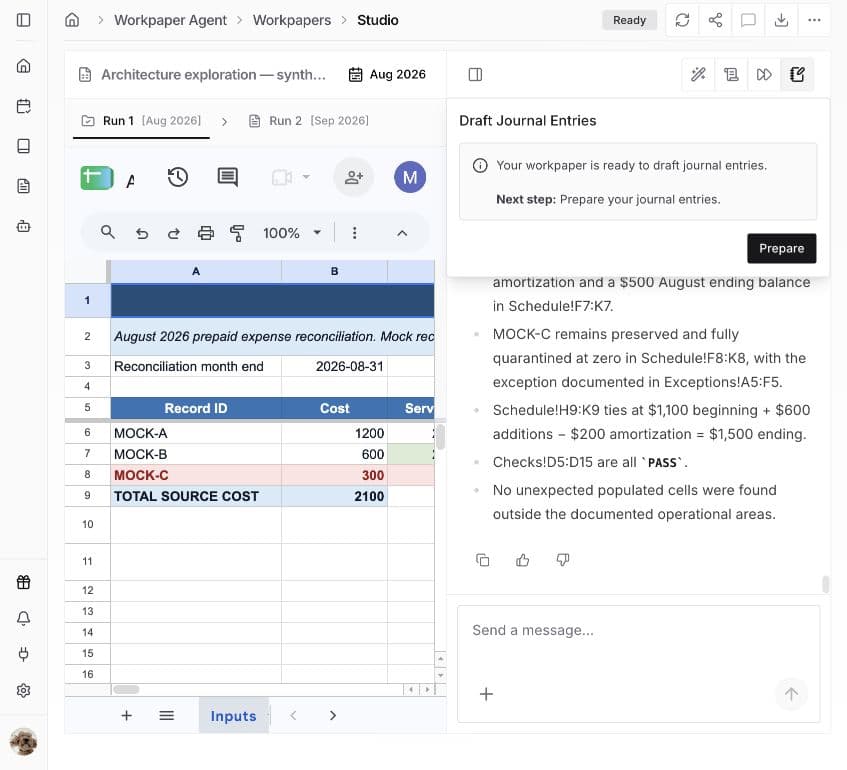
Open Draft journal entries above chat and choose Prepare for the first draft. Preparation creates the structured Truewind tab when needed. For an existing draft, follow the panel’s Next step and wait for preparation and validation to finish.

Draft Journal Entries panel offering Prepare for a first draft

Step 2

Respond to the mapping request

When Truewind finds a new value it cannot confidently match, an uncertain match, or a mapping discrepancy between the workbook and ERP records, it requests your input. Choose Review mappings when the panel prompts you. For an existing draft, this action may be under the arrow beside the main button.

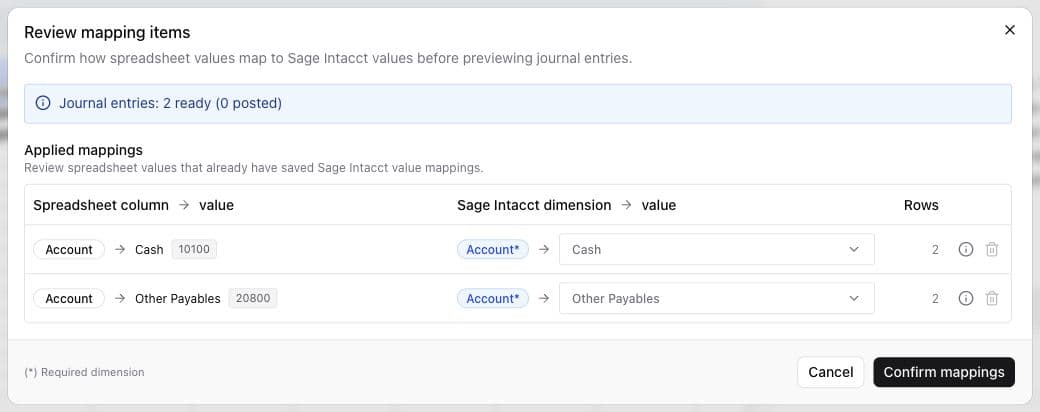
In Review mapping items, compare each spreadsheet value with the proposed account, payee, or dimension. Check Proposed mappings for unresolved choices and Applied mappings for saved workbook choices. Rows shows how many source rows share a mapping.

The screenshot shows Applied mappings for two saved accounts. Proposed mappings appear when a workpaper needs a choice. If no review is requested, continue to Preview in Step 4.

Review mapping items showing saved Cash and Other Payables account mappings

Step 3

Choose and confirm the ERP values

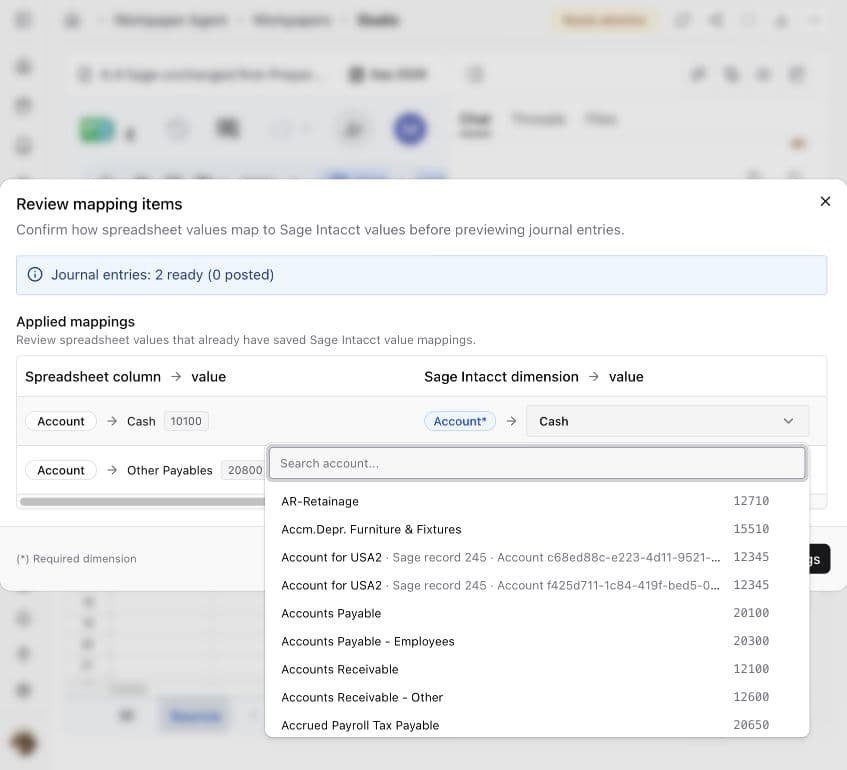
Open the value picker for each item needing a decision. Search by ERP name or code, select the intended active record, and check its entity scope. Complete fields marked with an asterisk, including any additional dimensions required by the selected account.

Choose Confirm mappings when offered. If you are correcting a prepared draft and see Update journal entries, first review the affected entry references. The update applies to the identified unposted entries; posted entries are unchanged.

Confirmed choices are saved with the workbook. Valid, reusable mappings are also saved to the organization’s mapping configuration for future use. Continue to Step 4 to verify the resulting draft lines. Steps 8–9 explain where to check and change the saved configuration for future use.

Current-workpaper account mapping picker with searchable Sage records and account codes

Step 4

Review the resulting draft lines

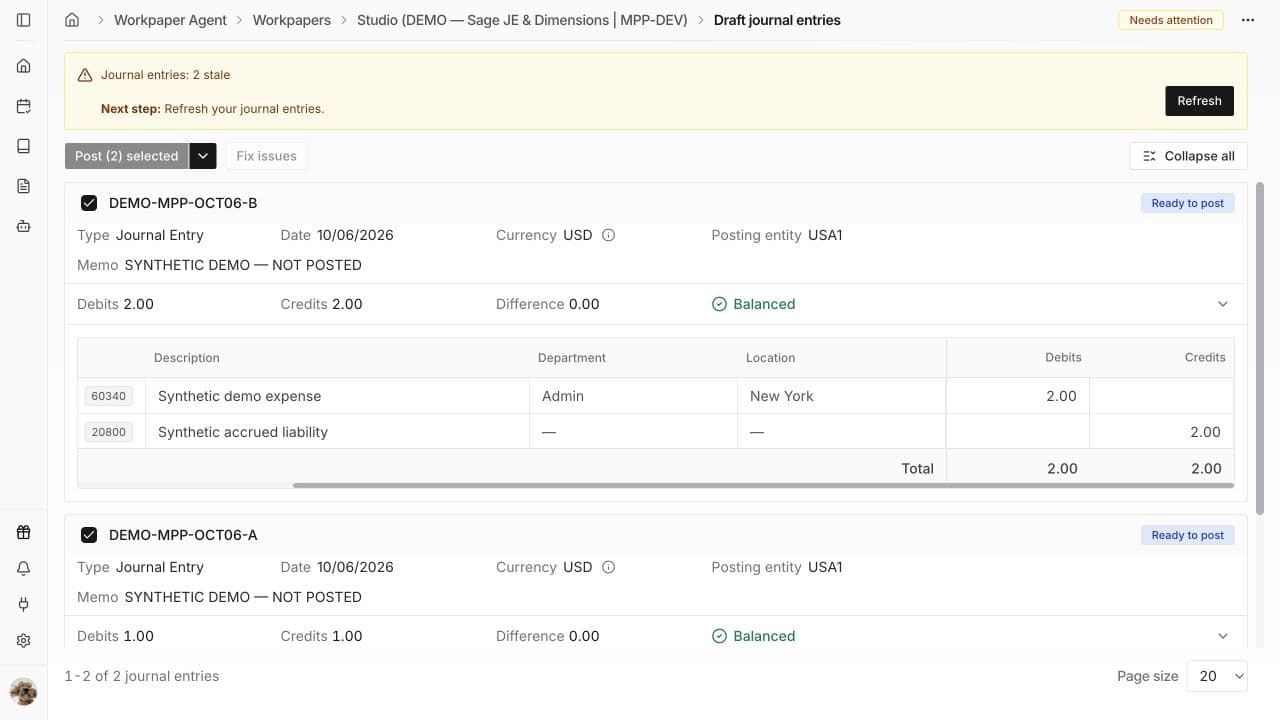
Return to the workbook and inspect the mapped journal-entry rows in the Truewind tab. Open Draft journal entries → Preview to compare dates, period, memo, accounts, descriptions, payees, and dimensions with the source. For Sage, check Posting entity. Scroll the line-item table horizontally to see additional columns.

Check each debit and credit amount, confirm Difference is zero, and complete your accounting review and required approval. Balanced or Ready to post does not mean approved.

If the panel says stale, wait for workbook edits to save, use Refresh, and review the updated Preview. The screenshot shows this stale state; posting is disabled until the draft is refreshed.

Saved Sage draft with line-level dimensions, balances, a stale warning, and disabled posting

Step 5

Select and post the reviewed entries

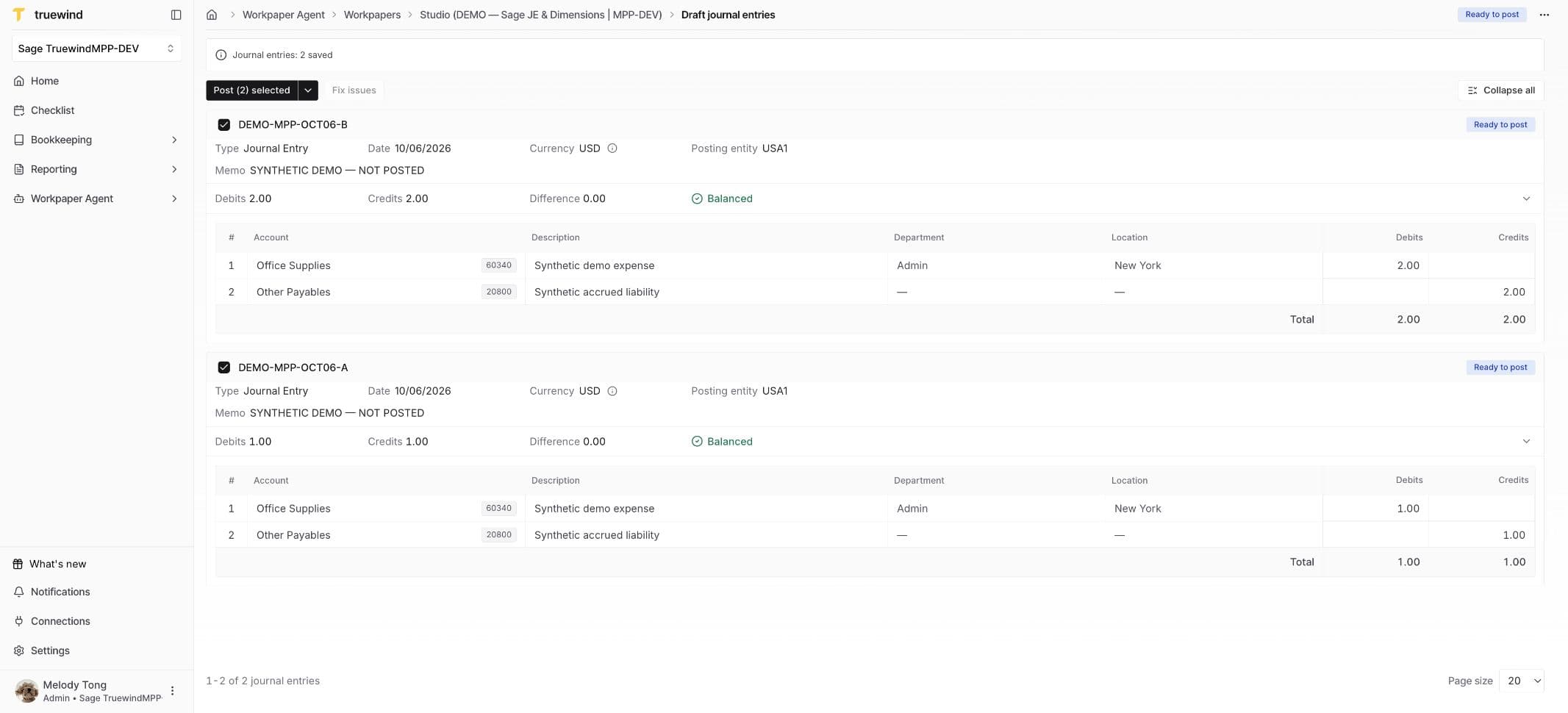
Once Preview is current and validation issues are resolved, select only the entries you have reviewed. Check the selected count, then click Post, such as Post (2) selected, to open the confirmation dialog.

Opening the confirmation does not send the entries. Return to Preview if the selection or accounting details need to change.

Review the confirmation before clicking its final Post button. For Sage Intacct, select the intended Journal book, or Use journal books from workpaper when offered and appropriate. Resolve unavailable-journal warnings first.

Post as draft is off by default. Enable it if you intend to create Sage drafts for later review and posting; leaving it off requests posting. This choice is separate from Sage’s approval requirements. Review any attachments offered by your integration.

Click the final Post once and wait for each entry’s result. If mapping review interrupts posting and offers Update and Post Journal Entries, treat that as a posting action: confirming it can resume submission.

The screenshot shows the demo’s saved Preview before its later edits, with Post enabled. It shows the button that opens confirmation, not the confirmation dialog or a completed posting.

Journal entry Preview with reviewed entries selected for posting

Step 6

Check the saved result in Truewind

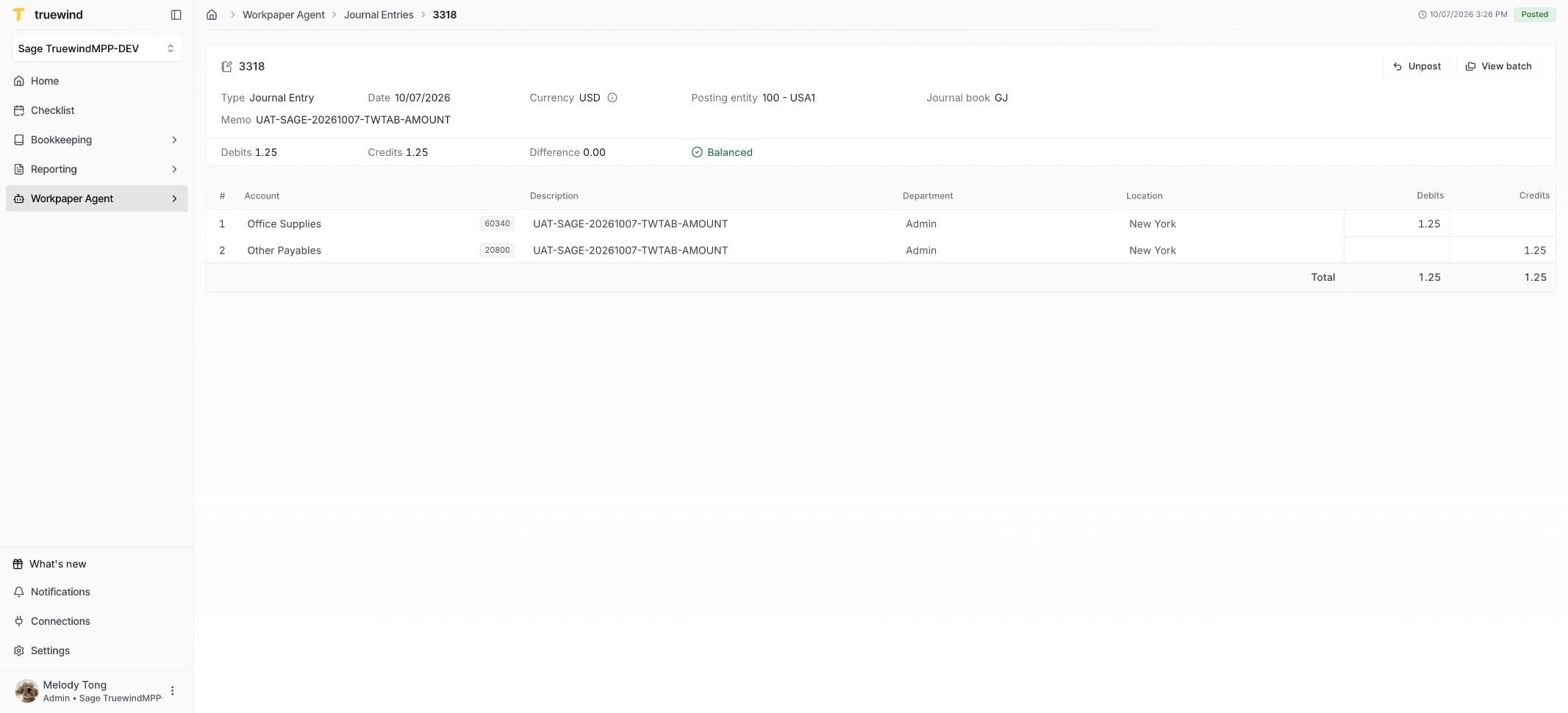
Open Workpaper Agent → Journal Entries and find the submitted entries. Check each status and open the reference to review the saved date, memo, accounts, dimensions, and amounts against your final Preview. Keep the accounting-system reference.

Posting means the request is still running. Investigate failed entries separately. If the outcome is unclear, check the accounting system for the reference, date, amount, and memo before retrying; do not resend successful entries.

The screenshot shows an existing saved example, not a new posting from this walkthrough.

Saved Sage journal entry detail in Truewind

Step 7

Verify the accounting-system record

In the correct accounting company and entity, find the matching entry and compare its accounts, dimensions, dates, and amounts. Confirm there is only one intended posting.

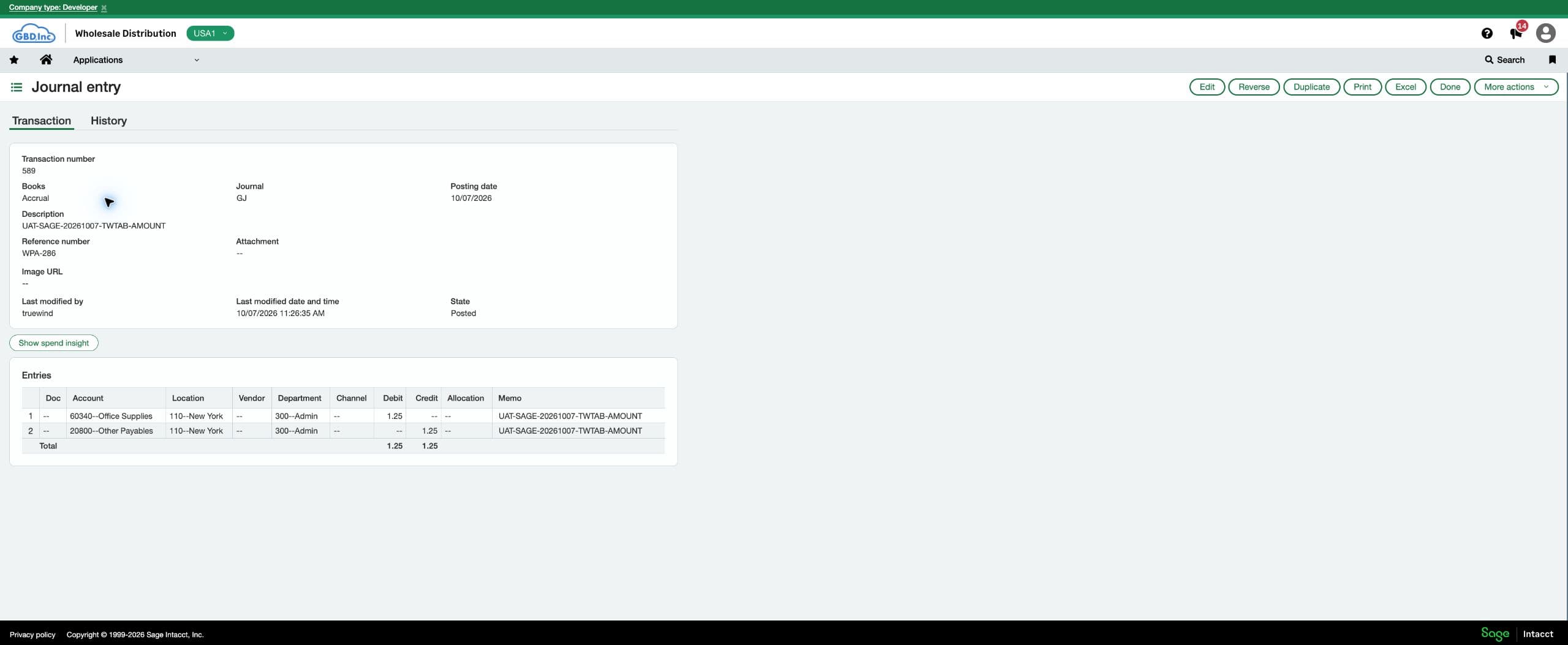
For Sage Intacct, open General Ledger → Journal entries → the relevant journal → View transactions, find the reference, and choose View. Check State: Posted confirms ledger posting; Draft or pending approval still requires the Sage review/posting process. A successful send from Truewind does not by itself confirm Sage ledger completion.

The existing Sage screenshot illustrates the final State check.

Sage journal entry showing State Posted and account and dimension details

Step 8

Check the saved mapping configuration

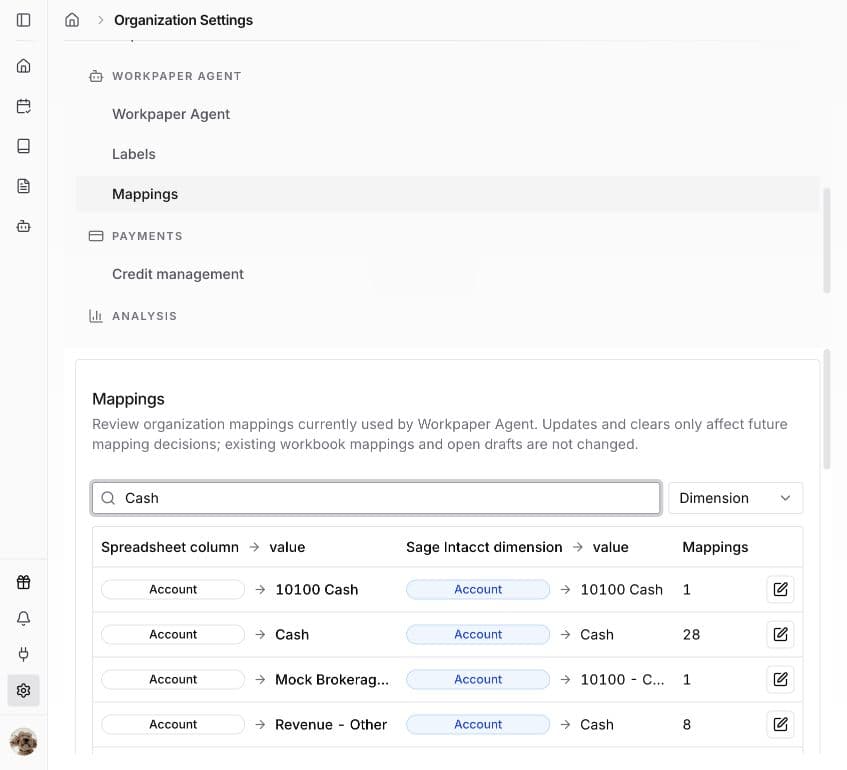
After confirming the workbook mappings and completing preparation, open Settings → Workpaper Agent → Mappings in the same organization. Search for the workbook value or ERP value, or use the Dimension filter.

Compare the saved spreadsheet column and value with the dimension and ERP value. This is where you can review reusable mappings learned from workpapers. You do not need to create the mapping here before preparing the workbook.

If the saved choice is correct, no Settings change is needed. To change it for future use, continue to Step 9. A choice restricted to particular workbook rows is not a general organization default.

Sage organization mapping settings with spreadsheet values matched to Cash

Step 9

Optional: change a mapping for future use

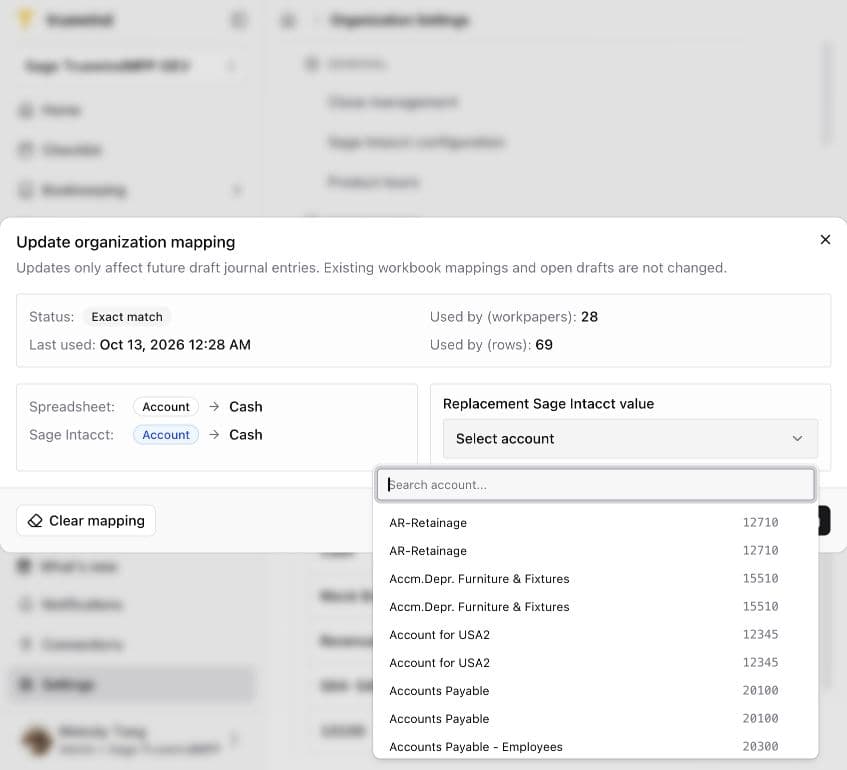
An Admin or Accountant can click Update mapping beside an existing row. In Update organization mapping, choose the intended Replacement Sage Intacct value. Check its full name and account code or record ID, then click Save mapping.

This changes future mapping decisions. It does not rewrite existing workbook mappings or open drafts. To correct an unposted draft too, return to Review mappings and repeat Steps 2–3, then check Preview.

Update organization mapping with the replacement Sage account picker open

Mappings connect the labels in your workbook to real accounts, payees, and dimensions in your accounting system. Start with the workbook. When Truewind needs help matching a new value or resolving a mapping discrepancy, it requests mapping review before you continue.

Confirm the correct ERP values, check the mapped draft, and review the reusable choices saved in the organization’s mapping configuration. You can later change those defaults in Settings → Workpaper Agent → Mappings for future use.

The screenshots use the Sage TruewindMPP-DEV demonstration organization. Apply your own company’s record names, codes, and accounting requirements. Sage-specific posting options are identified in the steps.

Before you start

Choose the correct connected company and prepare the source entries for the intended accounting period. For Sage, confirm the posting entity as well. An Admin or Accountant manages saved organization mappings.

Workbook first: Steps 1–3 prepare the draft and resolve mapping requests.

Review and submit: Step 4 checks the mapped draft. Steps 5–7 cover submission and verification in Truewind and the accounting system. You can return to the source workbook to keep working before opening Preview; refresh the draft after saved workbook changes when prompted.

Future use: Steps 8–9 show where reusable mappings are saved and how to change a default in Settings.

For integration-specific preparation and correction details, see the Sage journal-entry guide or the QuickBooks Online journal-entry guide.

FAQ

Where should I change a mapping?

Start in the workbook: respond to Review mappings to resolve new or uncertain matches and correct the current draft. Confirmed reusable mappings are saved to the organization configuration. Use Settings → Workpaper Agent → Mappings to change a saved default for future use. Settings changes do not update open drafts.

What if there is no mapping in Settings?

Prepare the workbook and resolve the value in Review mapping items when prompted. After confirmation and validation, check for the reusable mapping in Settings. A selection restricted to particular workbook rows is not a general default. Settings manages saved organization mappings; it is not a blank form for creating every possible mapping in advance.

Are confirmed mappings reused in future roll-forwards?

Confirmed workbook mappings can be reused in future roll-forwards for that workbook. Valid, reusable choices can also inform organization mapping decisions. Review them again if the workbook values, ERP records, or accounting requirements change; a saved choice is not a substitute for checking the new period.

Can I skip a required mapping?

Resolve accounts and every required field. Skip a dimension only when the dialog explicitly permits it and the entry does not require it. A saved mapping can still need review; do not select an unrelated record to clear validation.

Why does Sage use a different dimension name?

Your Sage organization can use customized names, such as Class → Channel. Verify the synced names under Settings → Sage Intacct configuration → Dimensions mapping. That table is read-only and describes names; Workpaper Agent → Mappings matches spreadsheet values to actual records. Keep generated Truewind-tab headers intact.

Do mapping changes affect posted entries?

Current-draft mapping updates affect the unposted entries identified by the dialog. They do not correct an entry already sent to the accounting system. Use your firm’s posted-entry correction process and verify the accounting-system result.

Why does Truewind show Posted while Sage shows Draft?

The entry reached Sage but may still need Sage review or posting. This is expected if you chose Post as draft. Complete the required Sage process and check State is Posted. Do not resend the same entry from Truewind.

How do I correct a mapping without changing the accounting amounts?

For example, if the workbook label Cash maps to the wrong bank account, open Review mappings, find Cash, and select the intended account by its code. Review every affected line in Preview and confirm the dates, debit and credit amounts, and offset account remain correct.

Do I have to post every journal entry at once?

No. In Preview, select all reviewed entries or only those ready to post. Check the selected entry count and ERP destination in the confirmation before submitting. Leave entries with unresolved mappings or validation errors unposted.

Limitations

Supported workpapers only

Draft journal entries is available for workpapers that support journal-entry output. Start with a workbook prepared for that output.

Fields and posting options depend on the integration

This general mapping workflow uses Sage Intacct examples. Required dimensions, entity scope, available records, and posting options depend on your connected system and configuration. Sage journal books and Post as draft are Sage-specific.

Saved defaults do not rewrite existing workpapers

Organization mapping updates and clears affect future mapping decisions. Existing workbook mappings and open drafts stay unchanged. Admin or Accountant access is required to update or clear saved organization mappings.

Rebuilding can replace direct draft edits

Use Rebuild from source only when the panel requires it. First copy any direct Truewind-tab edits you need to keep into the source, then review mappings and Preview again.

Validation is not accounting approval

A zero difference and Ready status do not verify business purpose, the correct accounting period, or approval. Complete those checks before submission.

Troubleshooting

The record I need is missing from the picker.

Verify the correct organization, record name/code, active status, and entity scope. Have the accounting administrator confirm the source record. After the relevant ledger data has synced, reopen mapping review and search again.

Review mappings or Post is unavailable.

Follow the Draft Journal Entries panel’s Next step. A stale draft needs Refresh; unresolved validation may require a field correction. Use View errors when offered, save corrections, and recheck Preview.

The selected account needs more dimensions.

Complete the additional fields requested for that account and review all affected lines. If account requirements cannot be loaded, resolve that validation issue before confirming or posting.

Was this helpful?

Need more help?

Ask for human help about this article and provide any feedback.