
Learn about AI for accountingJoin live workshops

Ask the support agent

Just ask a direct question or search related articles from the Knowledge Base.

Support Center / Workpaper Agent / Journal Entries

Use customized Sage dimensions in draft journal entries

New

Use this workflow after your organization renames a dimension in Sage Intacct—for example, Class to Channel. Verify the synced name in Truewind, map workbook values to Sage records, and review the dimensions on your draft journal entries.

Workflow

Step 1

Check your dimension names

Start with the customized name configured in Sage Intacct by your Sage administrator and synced to Truewind. In this example, Class has been renamed Channel in Sage. If your organization already uses that name, no additional rename is needed.

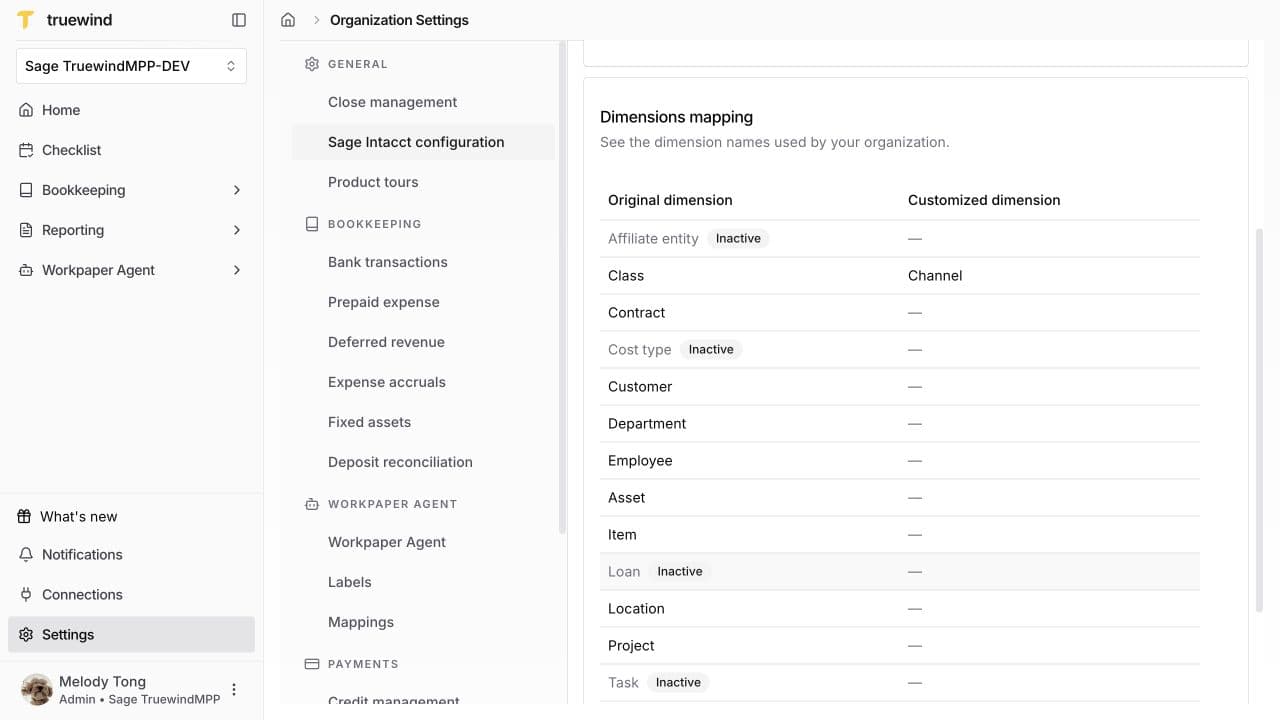
In Truewind, open Settings → Sage Intacct configuration → Dimensions mapping. Compare Original dimension with Customized dimension to verify the synced name. This table is read-only; it does not rename dimensions or assign workbook values.

A dash means there is no different customized name. Inactive means the dimension is not enabled for the General Ledger in the synced Sage configuration; it does not describe an individual record such as Residential.

Dimensions mapping in Sage Intacct configuration, showing Class renamed Channel and inactive dimensions

Step 2

Find a saved value mapping

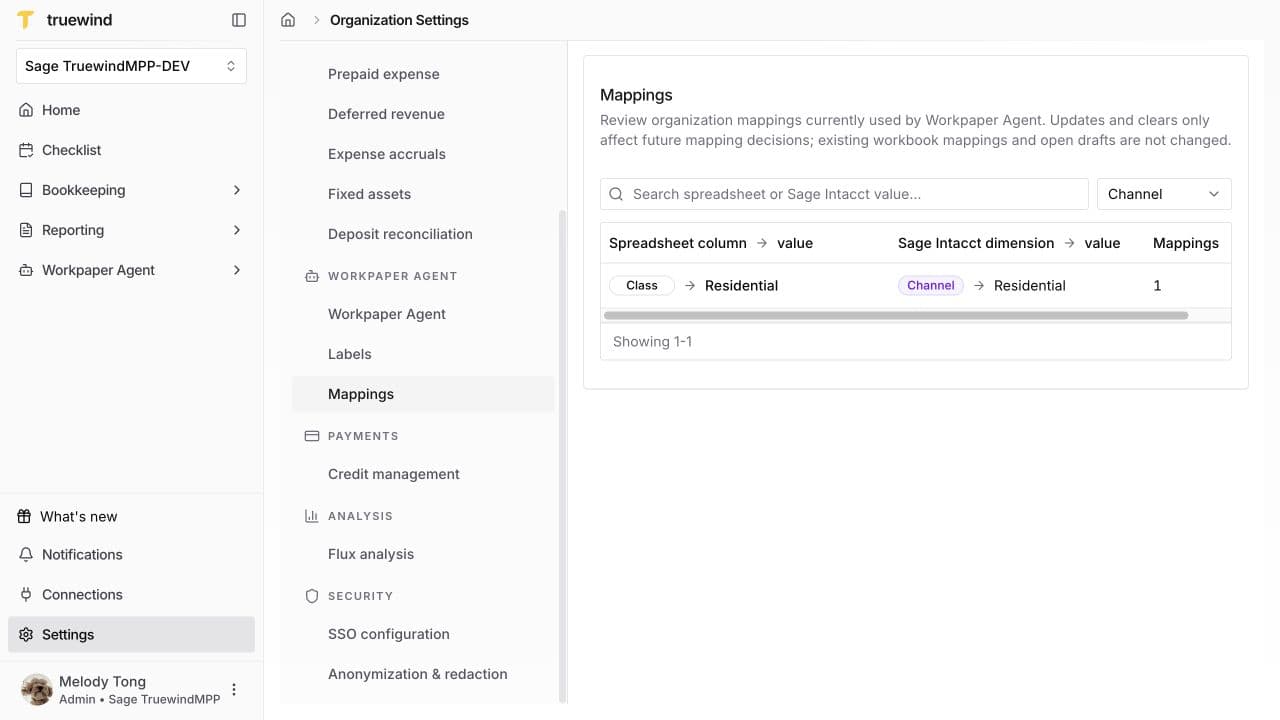
Open Settings → Workpaper Agent → Mappings. Filter by the dimension name shown in your organization, or search for a spreadsheet or Sage value.

Compare the spreadsheet column and value with the Sage dimension and value. Here, the spreadsheet column Class, value Residential, maps to Sage dimension Channel, value Residential. Channel names the dimension; Residential is a record within it.

If there is no saved row, continue to Step 4 and resolve the mapping during draft preparation. This settings page manages existing mappings.

Organization mappings filtered to Channel with Class Residential mapped to Channel Residential

Step 3

Set the mapping for future drafts

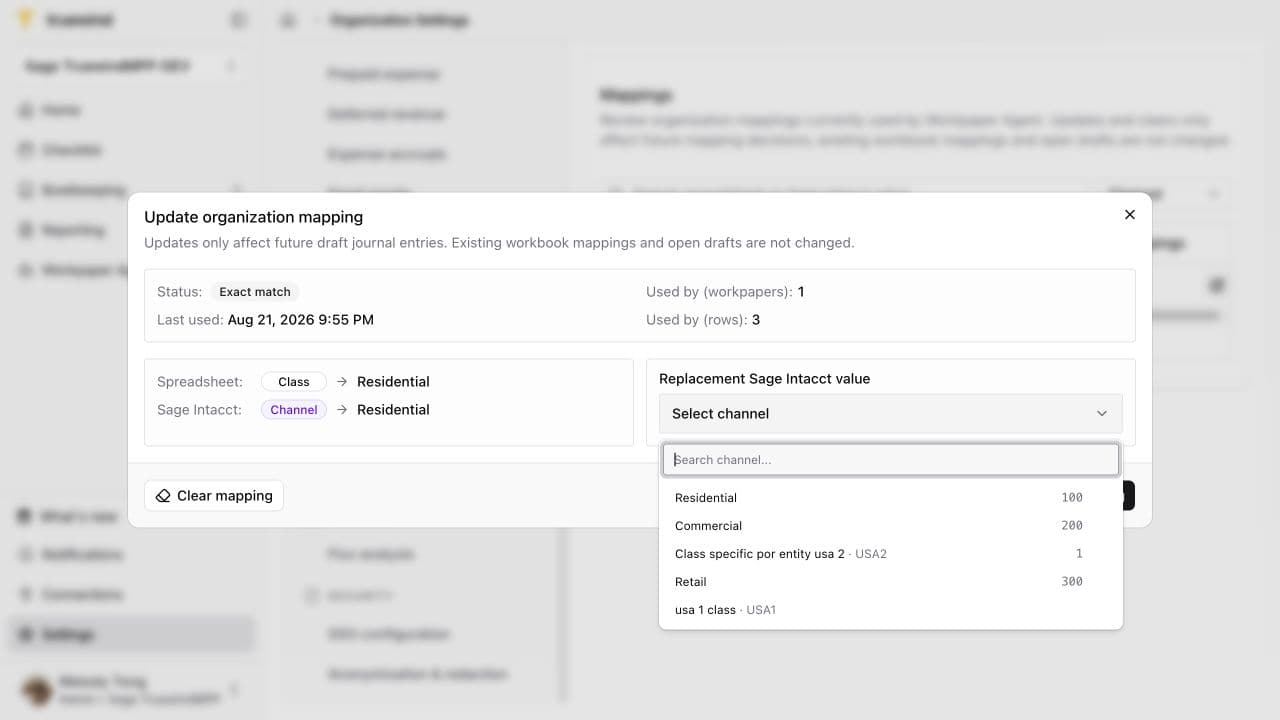
If the saved value is already correct, continue to Step 4. To change a future default, an Admin or Accountant can open the row’s update control. In Update organization mapping, use Replacement Sage Intacct value to choose the intended active record. Check both its name and code; Residential — 100 is the example shown. Click Save mapping when the choice is correct.

This changes future mapping decisions. Existing workbook mappings and open drafts are not changed. To correct an existing draft, use its Review mappings action when available, as explained below.

Replacement Sage Intacct value picker showing Channel records with their codes

Step 4

Prepare the draft

Open Workpaper Agent → Workpapers and select the workpaper. Check the source’s Sage company, posting entity, dates, amounts, and intended dimensions. Keep the generated Truewind tab’s column names and layout intact.

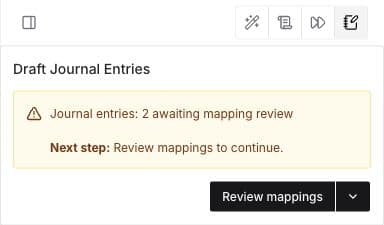
Open Draft Journal Entries above chat. Choose Prepare for a first draft; for an existing draft, follow Next step. Choose Review mappings when prompted, or find it in the arrow menu when available. If no mapping review is requested, skip to Step 7 and verify the values in Preview.

The screenshot shows an existing draft awaiting mapping review.

Sage Draft Journal Entries panel above chat showing two entries awaiting mapping review and the Review mappings button

Step 5

Review the mapping items

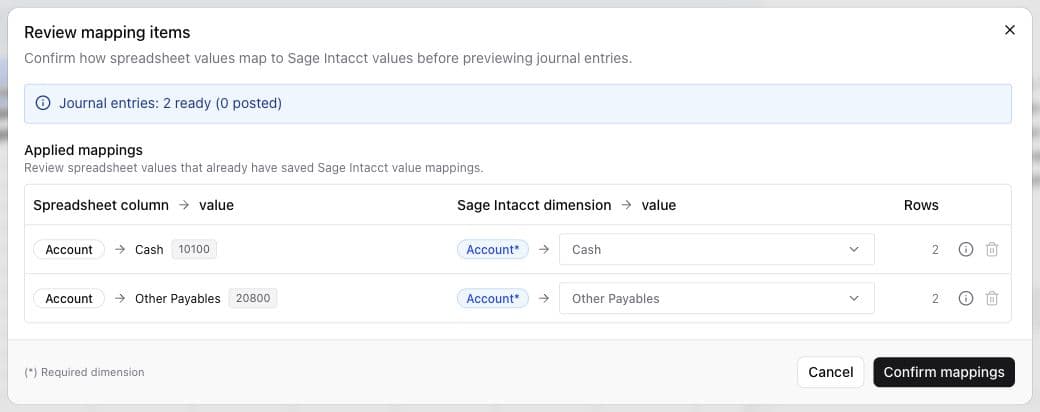
In Review mapping items, compare each spreadsheet value with its Sage record. Resolve Proposed mappings and check the saved choices under Applied mappings. Verify record names, codes, and entity scope against your source.

For example, Class → Residential should map to the intended Channel record. The screenshot shows saved account mappings; the rows depend on your workpaper.

Review mapping items in Sage TruewindMPP-DEV, showing applied Cash and Other Payables account mappings, required-field indicators, row counts, and Confirm mappings

Step 6

Confirm the selections

Complete every required mapping, including any additional dimensions required by a new account selection. Choose Confirm mappings when the selections are correct, then resolve any validation messages.

If the dialog offers Update journal entries, review the affected entry references before confirming. This updates affected unposted entries; posted entries remain unchanged. Continue to Preview to check the resulting lines.

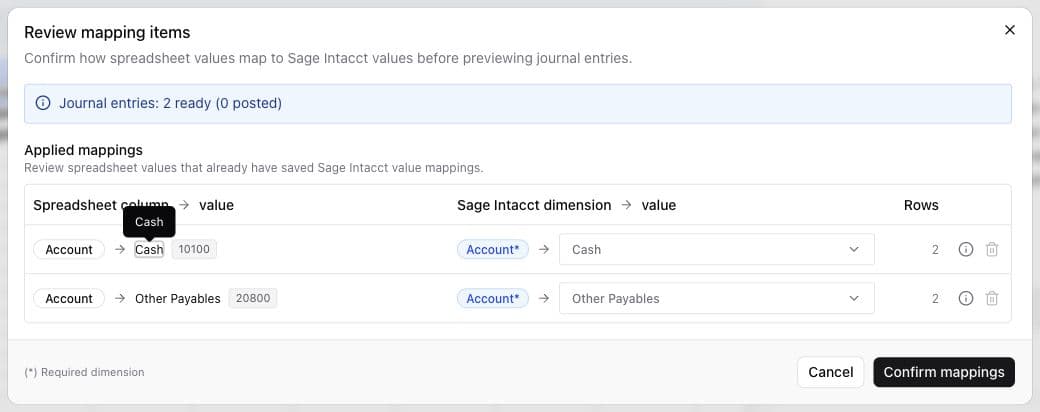
Sage mapping review with required account mappings selected and the Confirm mappings button available

Step 7

Verify the draft in Preview

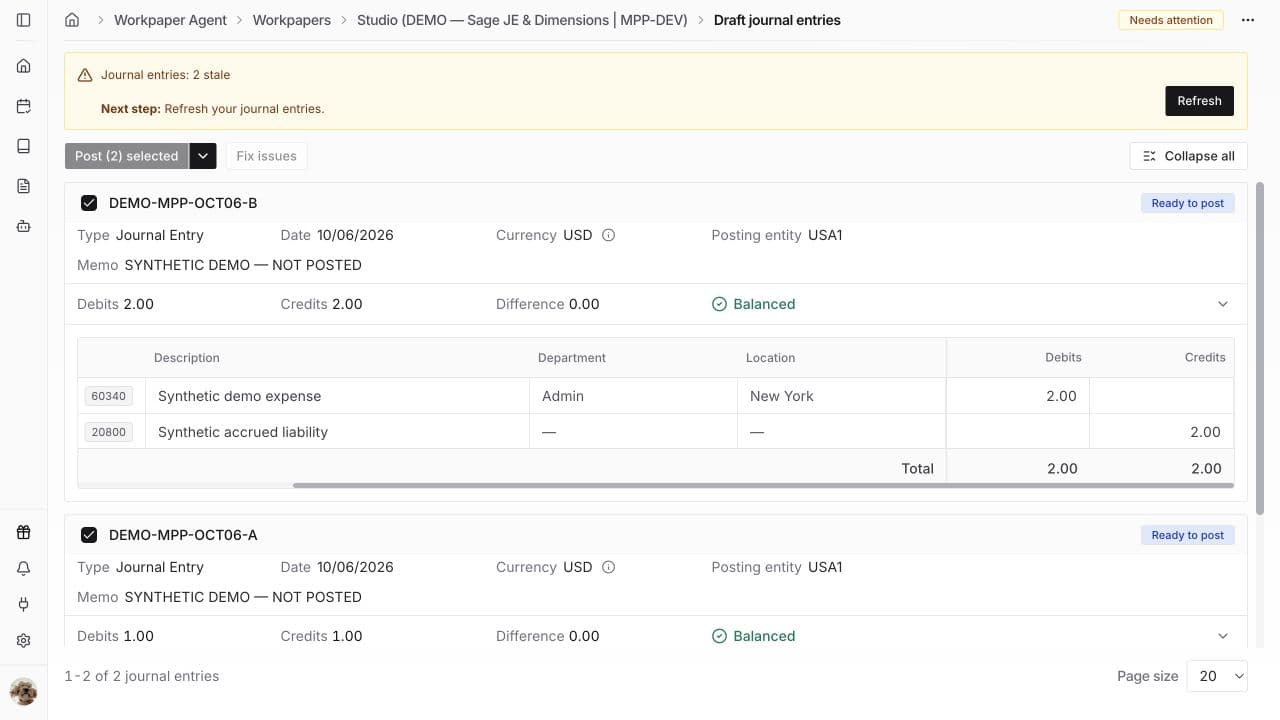
Open Preview and compare each entry with its source. Check posting entity, date and accounting period, accounts, line descriptions, and every required dimension. Scroll the line-item table horizontally to see additional dimensions. Check the debit and credit amounts on each line and confirm Difference is zero.

This screenshot shows a saved demo with Department and Location values. Its stale warning means it needs Refresh before the latest workbook edits can be reviewed. It does not demonstrate a Channel value on a draft.

If the panel says Refresh, wait for your workbook edits to save, refresh, and review Preview again. Balanced or Ready to post does not replace accounting review or approval. Preparing and reviewing a draft does not post it to Sage.

Saved Sage draft Preview with posting entity, dimension values, balances, and a stale warning

This guide covers a dimension that your organization has already renamed in Sage Intacct, such as Class → Channel. Configure the customized name in Sage first and allow the configuration to sync to Truewind. Then use this workflow to verify the name and map workbook values to the intended Sage records.

Start with the connected Sage organization and a workpaper containing your source entries. An Admin or Accountant manages saved organization mappings in Truewind.

The screenshots use Sage TruewindMPP-DEV, a demonstration organization. Use your own company’s record names, codes, and accounting requirements. The configuration example uses Class → Channel; the draft example illustrates the review checks with Department and Location.

FAQ

Can I rename a dimension in Truewind?

The Dimensions mapping table is read-only. Ask your Sage administrator to manage the terminology in Sage. Truewind displays the names from the synced configuration; opening this page does not trigger a sync.

Why does my workbook say Class while the picker says Channel?

Channel can be your organization’s customized name for Class. Confirm that relationship in Sage Intacct configuration. Supported, unambiguous source dimension names can be recognized, but the generated Truewind tab may retain the original name. Do not rename its generated headers. Always check the mapped record as well as the label.

What is the difference between Proposed mappings and Applied mappings?

Proposed mappings need a Sage value selected or confirmed before you can complete initial draft preparation. Applied mappings show saved choices for the workbook. Review both against the source: a saved choice is not evidence that the account, dimension, or entity is correct for this entry. Re-choose any required values flagged by the dialog, then verify the resulting journal-entry lines in Preview.

How do I correct a mapping on an existing draft?

In Studio, open Draft Journal Entries, then the arrow beside its main button and Review mappings, when available. Review the replacement values and complete the dialog’s required selections. Use Confirm mappings when offered. If it offers Update journal entries, review the impacted entry references before confirming; this can refresh affected unposted entries and does not change posted entries. Return to Preview to verify the intended lines. If Review mappings is unavailable, follow the panel’s Next step message first.

Does updating a saved organization mapping fix my open draft?

No. Settings updates apply to future mapping decisions. Existing workbook mappings and open drafts stay unchanged. Use the current draft’s mapping review for a current-draft correction. If you also want a future default corrected, review its saved organization mapping separately.

What if I cannot find the dimension or value I need?

Check the correct organization, the original/customized name, and whether the dimension is marked Inactive. Ask your Sage administrator to verify the record’s active status and entity scope. After the relevant Sage information has synced, review the choices again. Do not select an unrelated record to clear a required field.

Limitations

Names and values serve different purposes

A customized name identifies a dimension; it does not create a Sage record or select a value for a journal-entry line. A dash in the name-reference table does not mean your journal entry has an unresolved value mapping.

The reference table is broader than draft support

A dimension appearing in Sage configuration does not guarantee it is supported in every Workpaper Agent draft workflow. Customized source-name recognition covers Class, Department, Location, Project, and Employee when enabled and unambiguous. It does not enable arbitrary user-defined dimensions.

Required fields depend on your Sage setup

The selected account and your Sage configuration can require additional dimensions or party records. Complete the fields requested by mapping review and validation; leave a value blank only when allowed and appropriate for the entry.

Rebuilding can replace direct draft edits

If the panel requires Rebuild from source, first copy any direct Truewind-tab edits you need to keep into the source. Recheck mappings and Preview after rebuilding.

Was this helpful?

Need more help?

Ask for human help about this article and provide any feedback.