


Ask the support agent

Just ask a direct question or search related articles from the Knowledge Base.

Support Center / Workpaper Agent / Communication

Slack Threads

Connect Slack Threads to Workpaper Agent so workbook conversations can sync between Truewind and Slack.

Workflow

Step 1

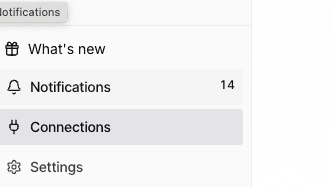
Open Connections

Start in Connections so you can authorize Slack before linking workbook threads.

Screenshot showing the Connections icon in the Truewind sidebar

Step 2

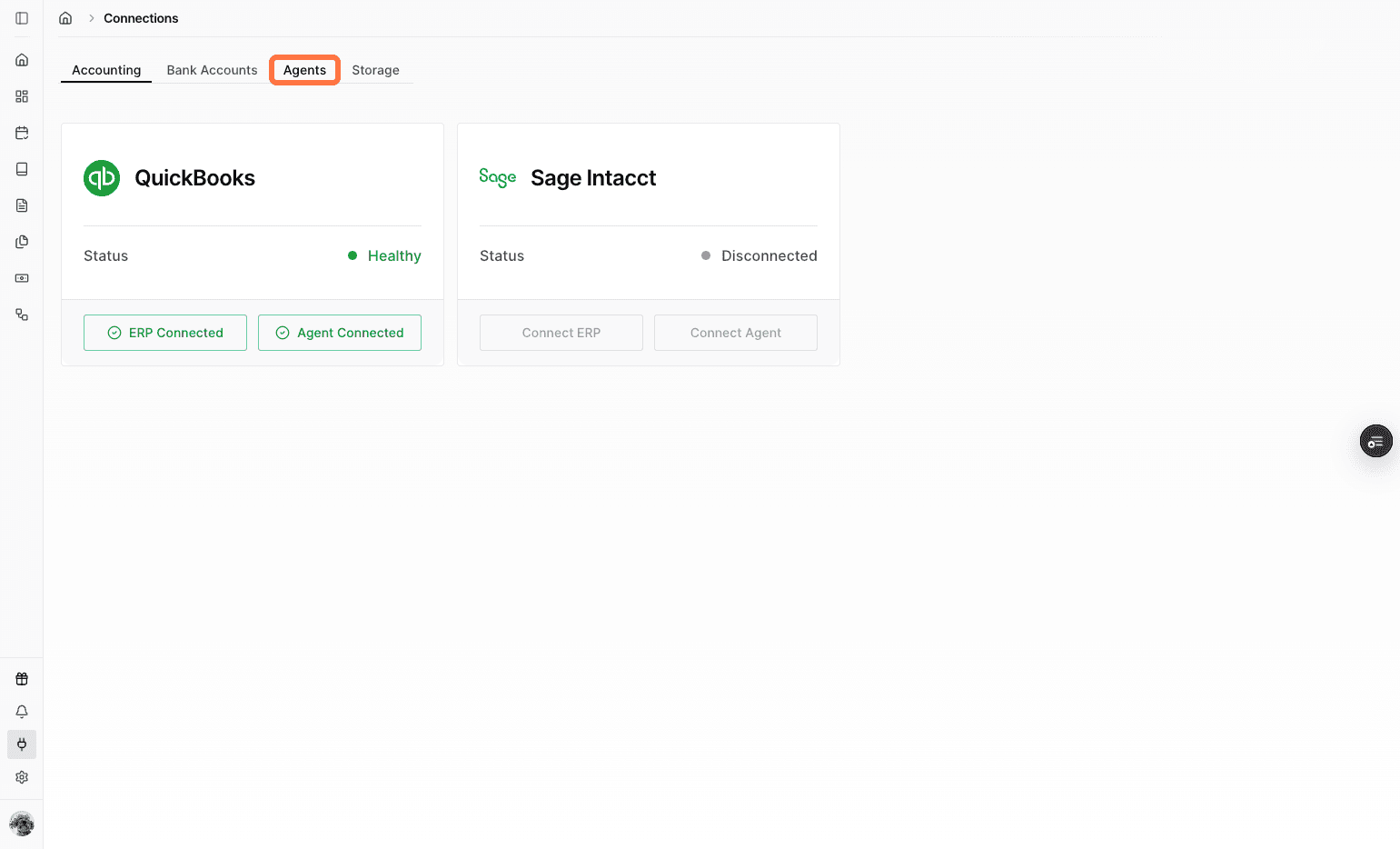
Open Agents

Use the Agents connection area to manage apps that connect to Workpaper Agent.

Screenshot showing the Agents option in Connections

Step 3

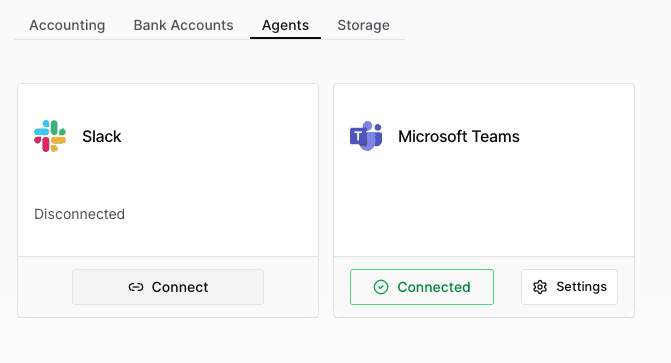
Connect Slack

Start the Slack connection flow for syncing Workpaper Agent threads.

Screenshot showing the Connect button for Slack

Step 4

Find your workspace

Enter or confirm the Slack workspace that should receive the Workpaper Agent thread link.

Screenshot showing the Slack workspace search field

Step 5

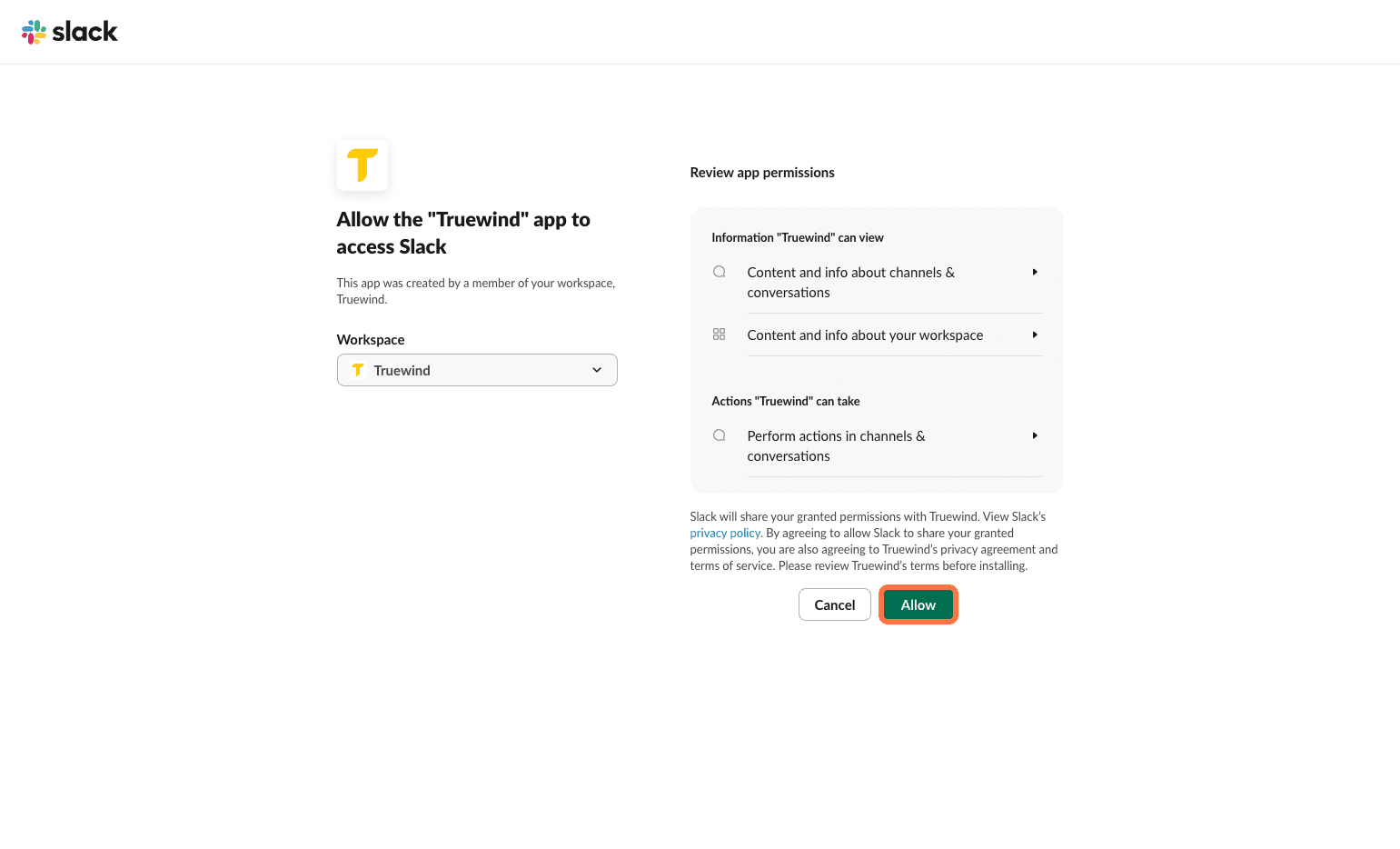
Allow Slack access

Approve the requested Slack permissions so Truewind can create and sync the thread connection.

Screenshot showing the Slack authorization Allow button

Step 6

Open Workpaper Agent

Return to Workpaper Agent and open the workbook or template where you want Slack collaboration.

Screenshot showing Workpaper Agent and Templates in the sidebar

Step 7

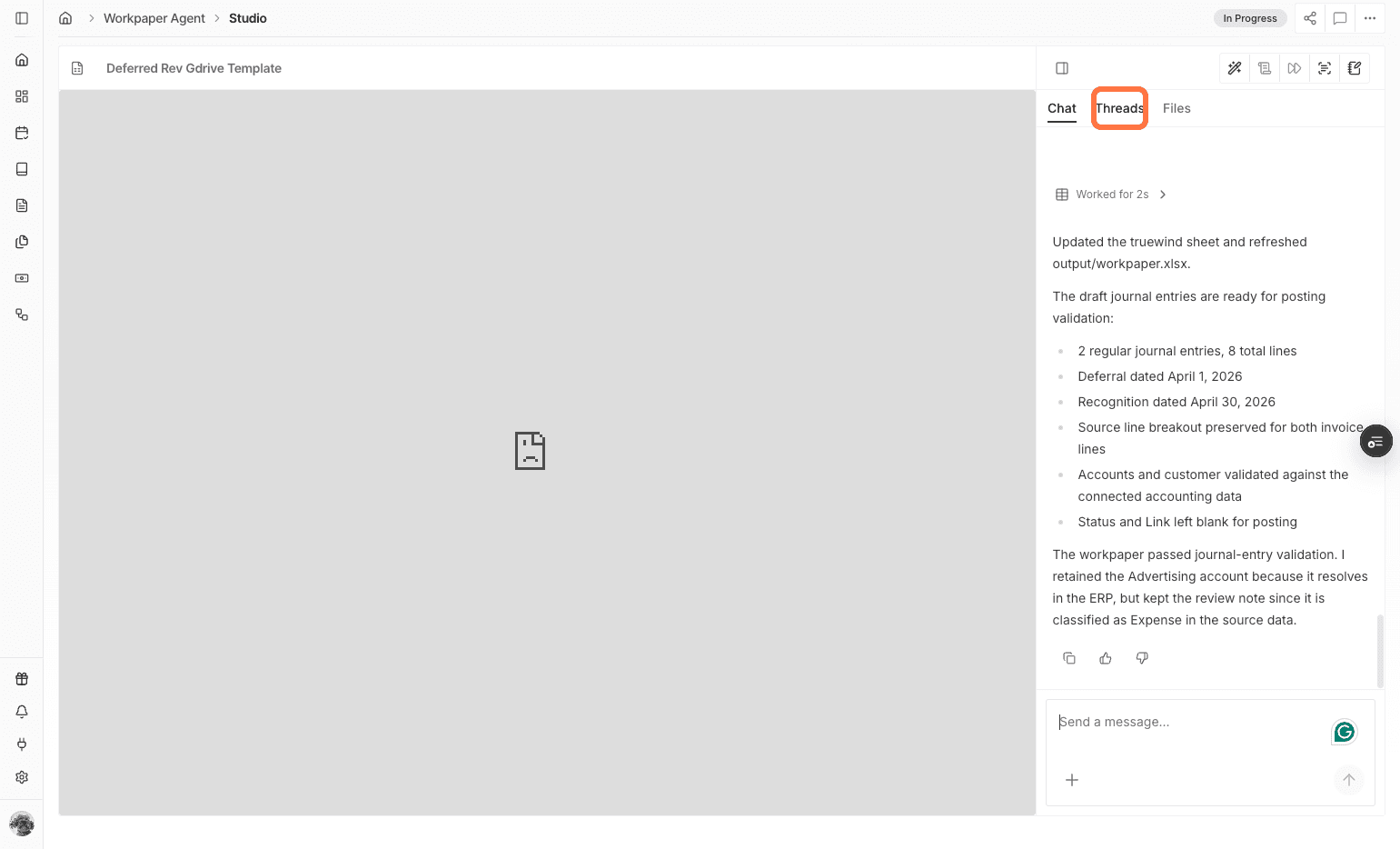
Open Threads

Use Threads to manage the workbook conversation and connected Slack thread.

Screenshot showing the Threads tab in Workpaper Agent

Step 8

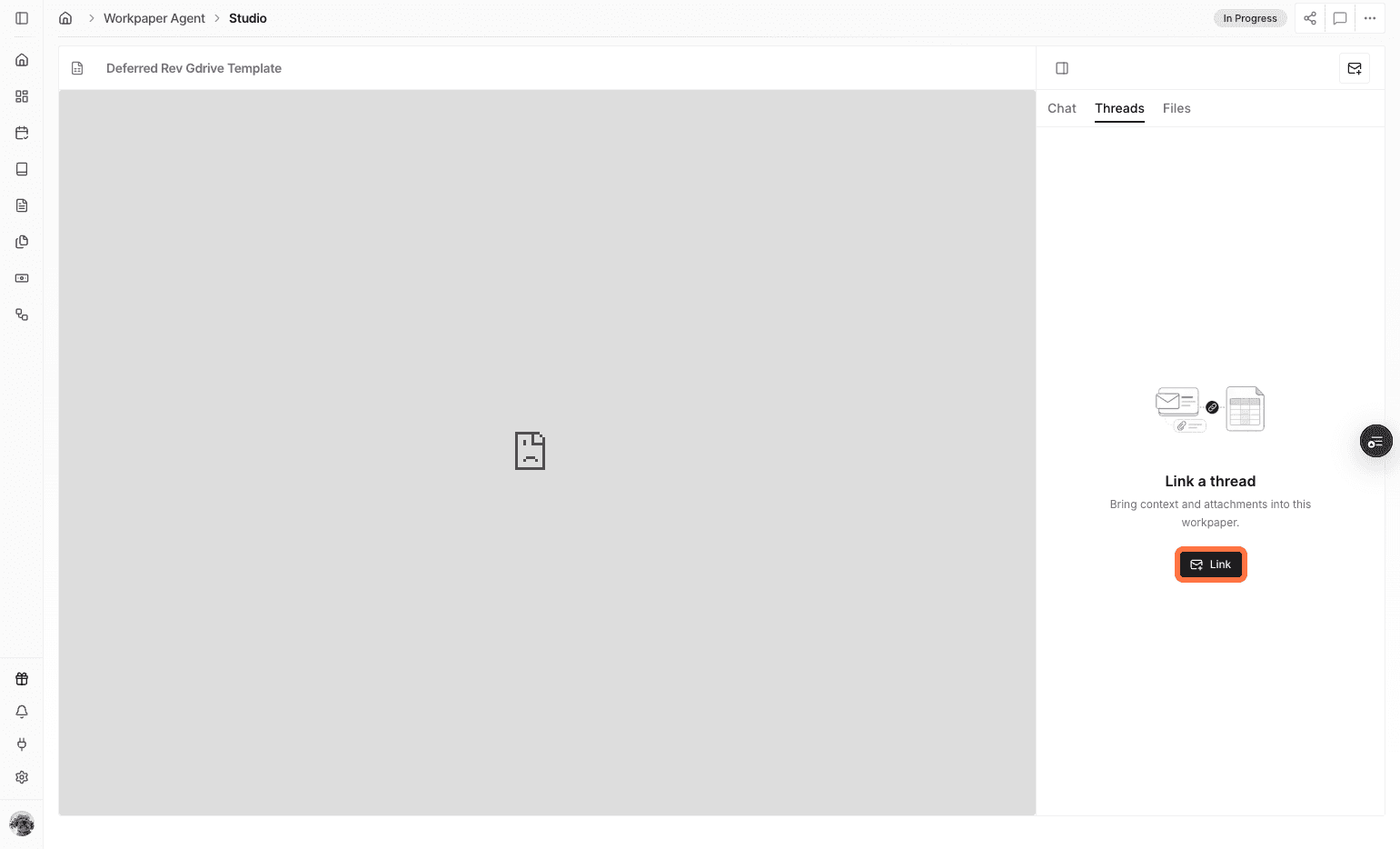
Open Link

Start the link workflow when you are ready to connect this workbook thread to Slack.

Screenshot showing the Link action in the Threads panel

Step 9

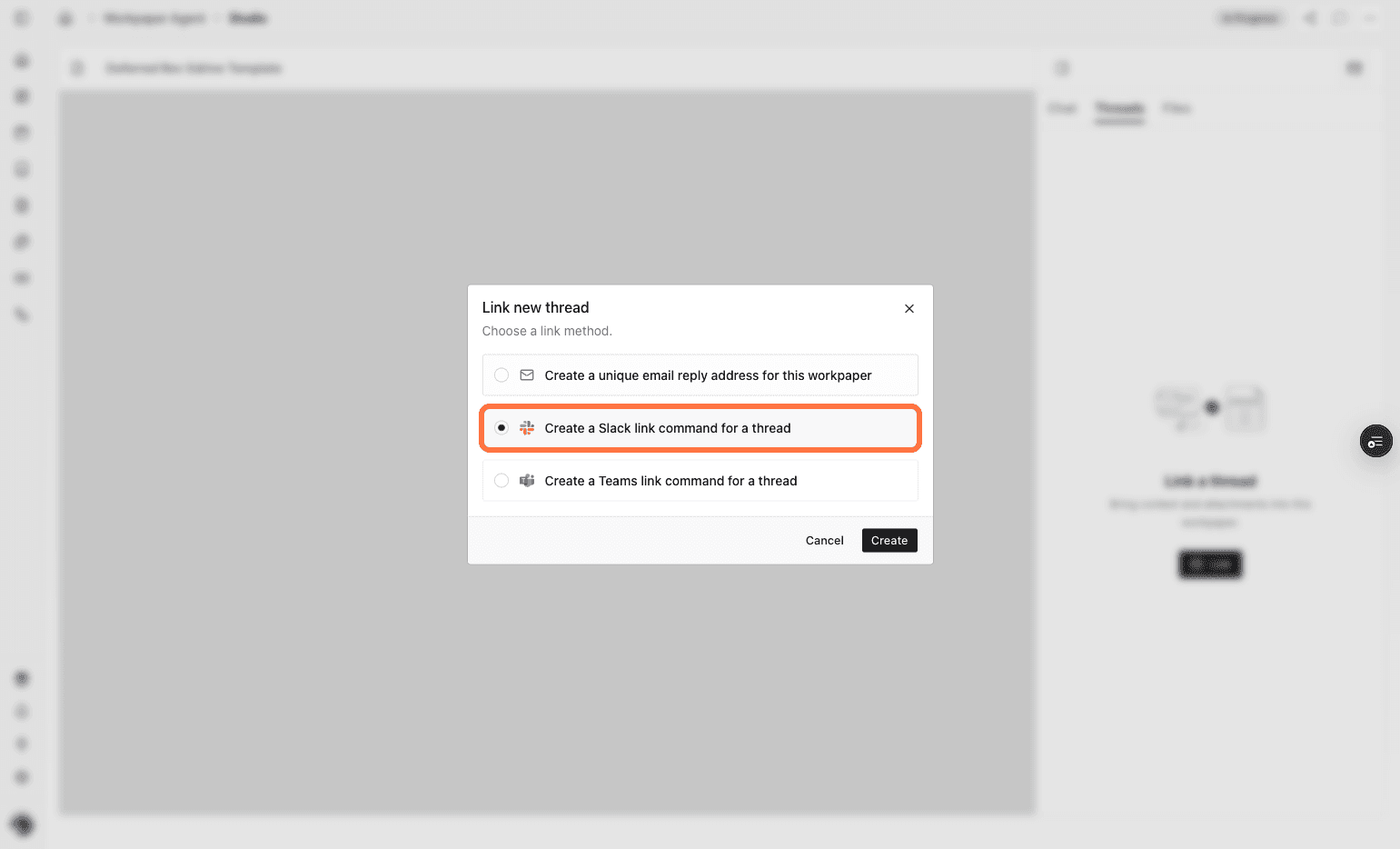
Choose the Slack link command

Select the command that creates a Slack link for the current thread.

Screenshot showing the Create a Slack link command option

Step 10

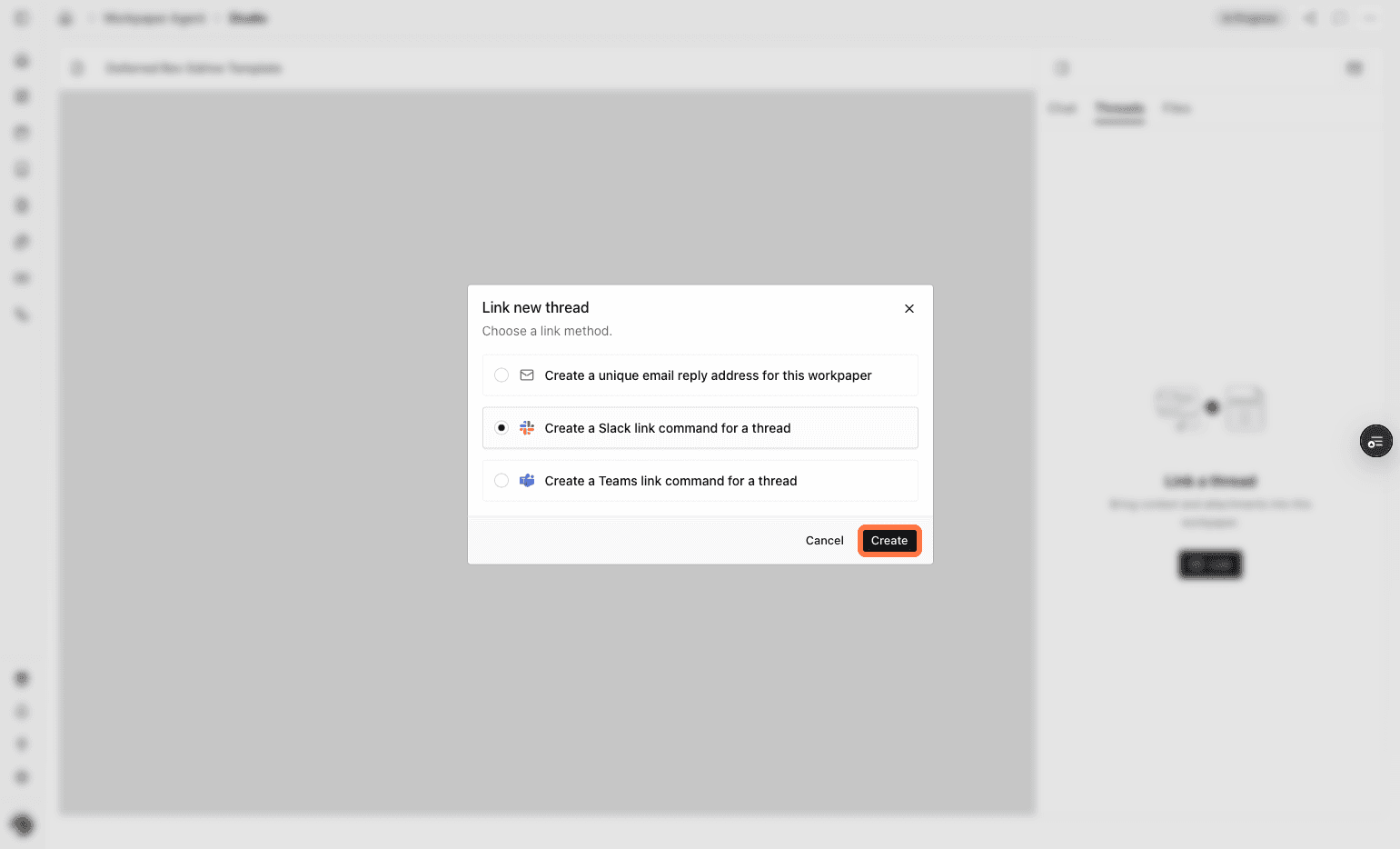
Create the Slack link

Generate the Slack thread link for the current workbook conversation.

Screenshot showing the Create button for the Slack link command

Step 11

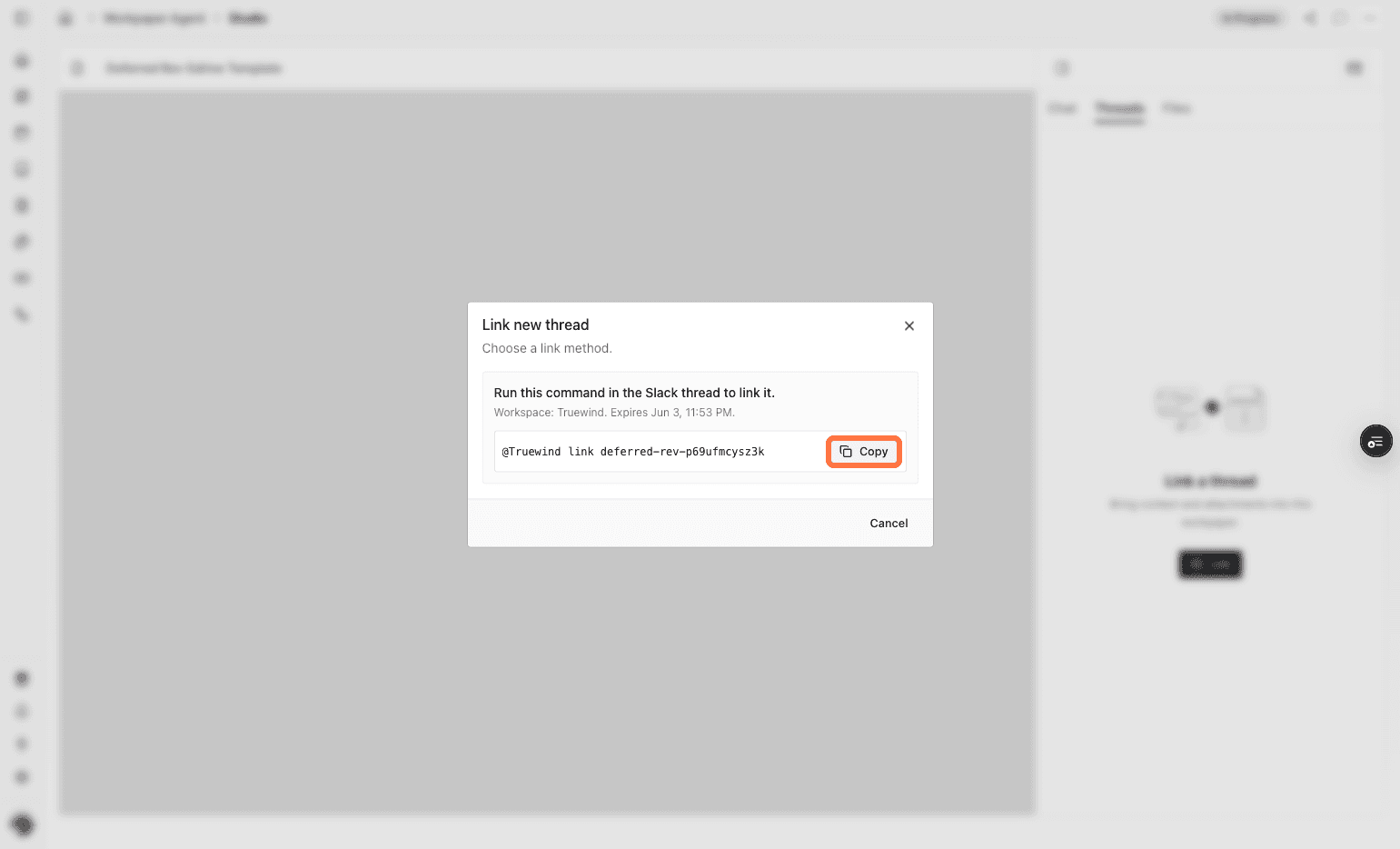
Copy the link

Copy the generated link so it can be shared in the intended Slack channel.

Screenshot showing the Copy button for the generated Slack link

Step 12

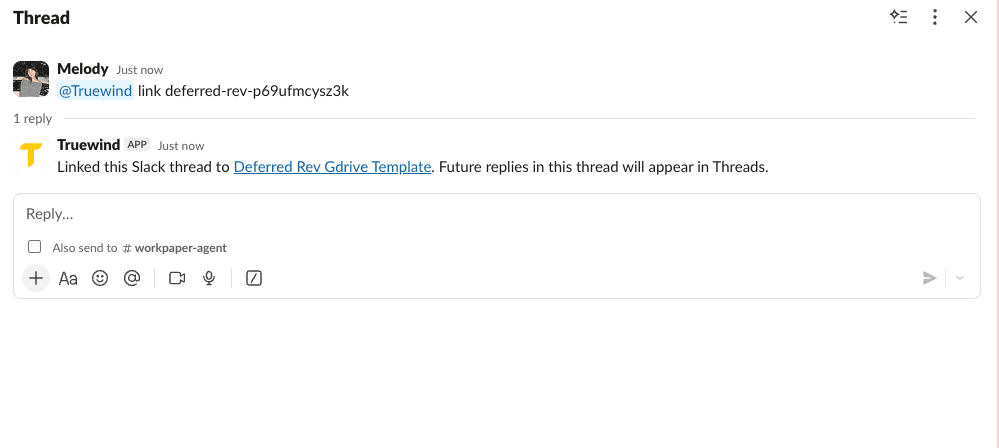
Share the link in Slack

Paste the link into Slack; the workbook link and thread sync should appear in the channel.

Screenshot showing the workbook link posted in a Slack channel

Step 13

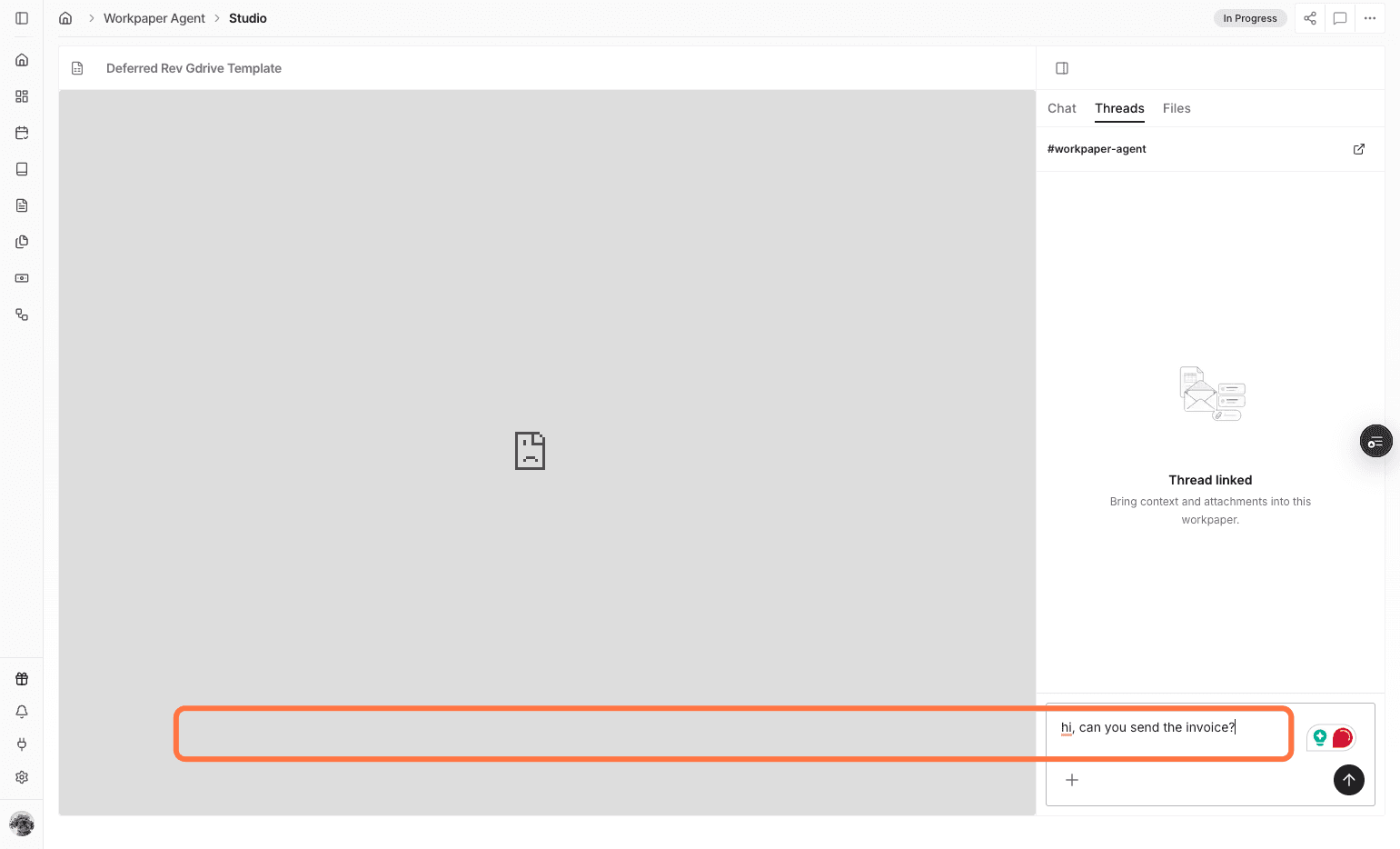
Send a thread message

Add a message from Workpaper Agent Threads to confirm the conversation syncs to Slack.

Screenshot showing a message being typed in Workpaper Agent Threads

Step 14

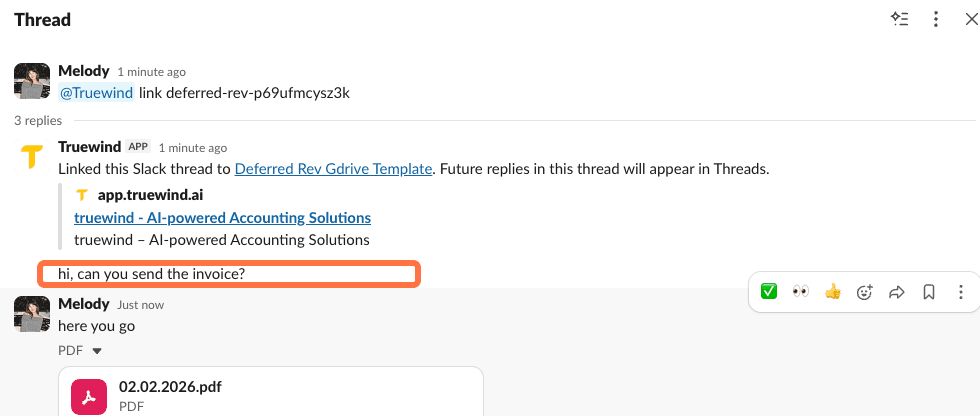
Review the Slack thread

Check Slack to confirm the Workpaper Agent message appears in the linked thread.

Screenshot showing the synced message in a Slack thread

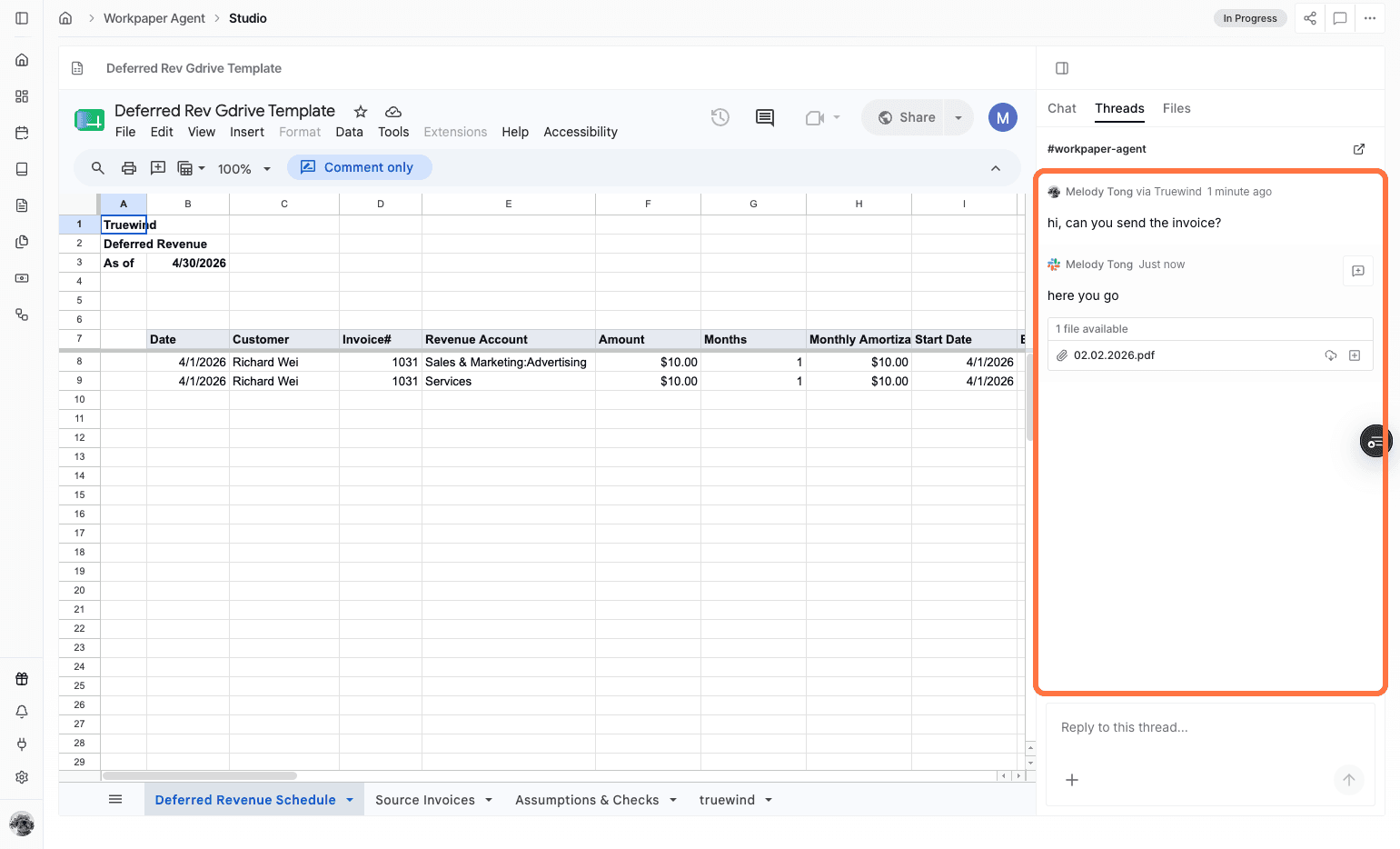
Step 15

Open thread messages

Return to Workpaper Agent and open the synced thread messages.

Screenshot showing the conversation thread messages panel

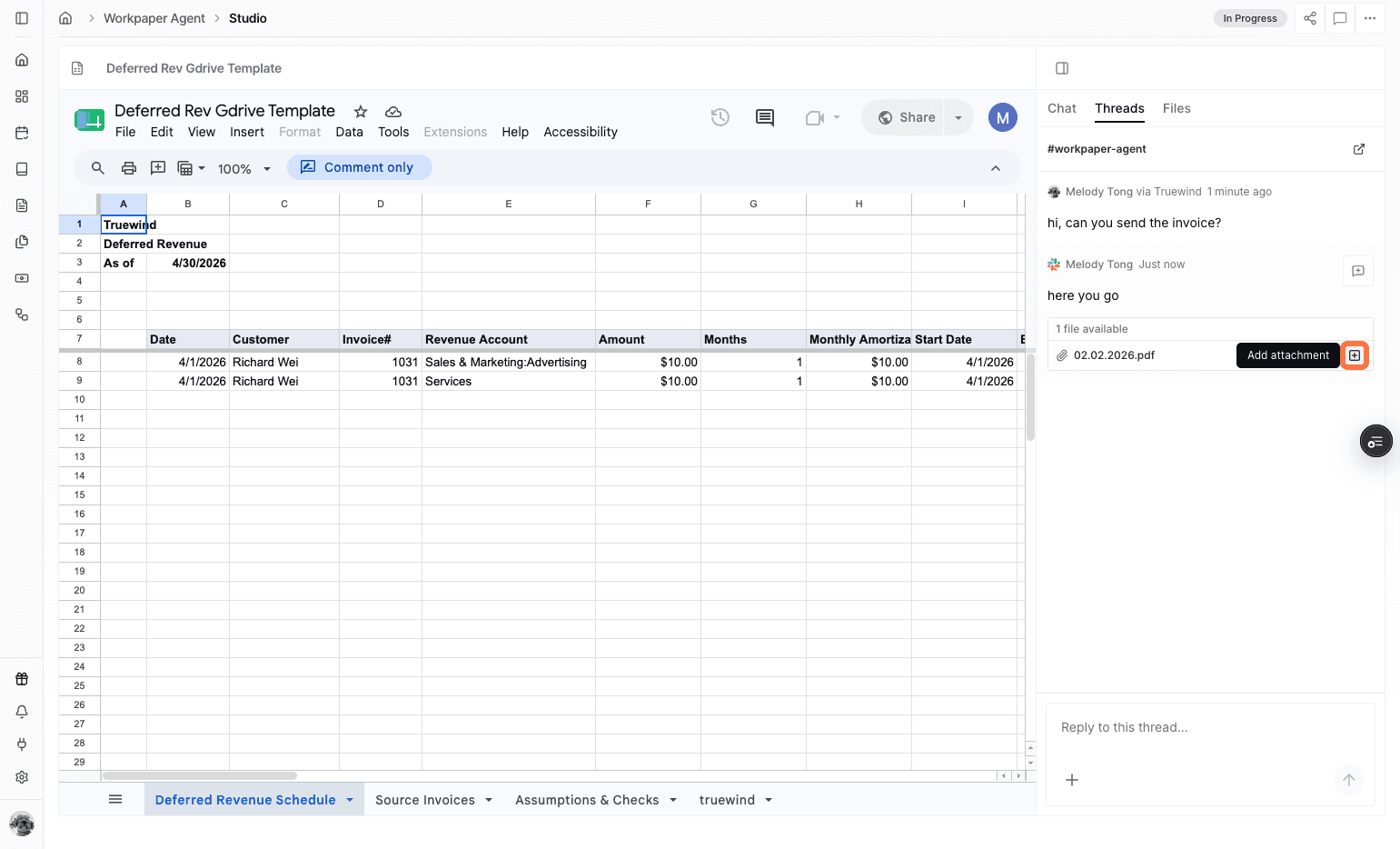
Step 16

Add an attachment to Chat

Add the selected thread attachment to Chat when the agent should use that file as context.

Screenshot showing the Add attachment to Chat action

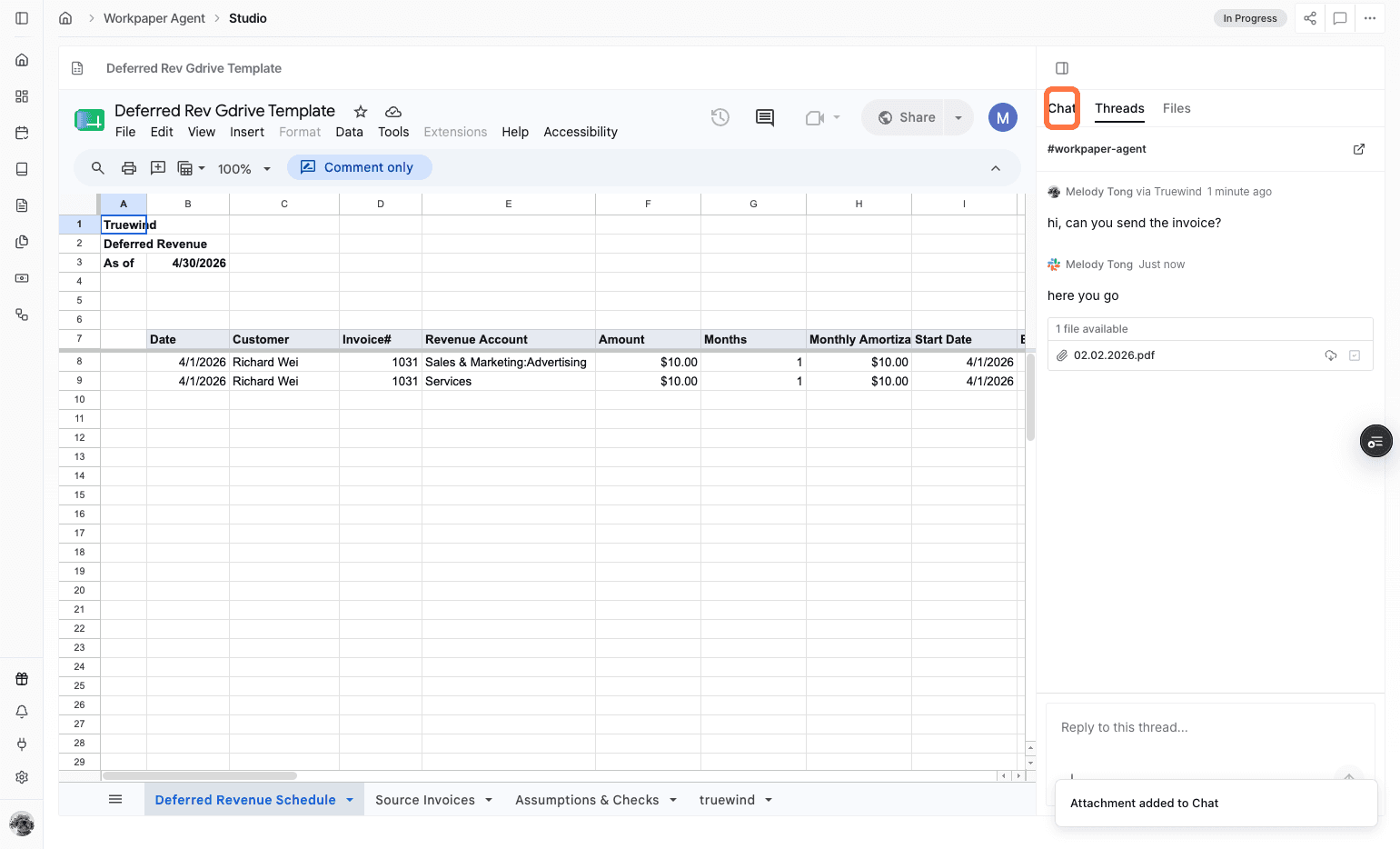
Step 17

Open Chat

Switch to Chat to review the context that was added from the thread.

Screenshot showing the Chat tab in Workpaper Agent

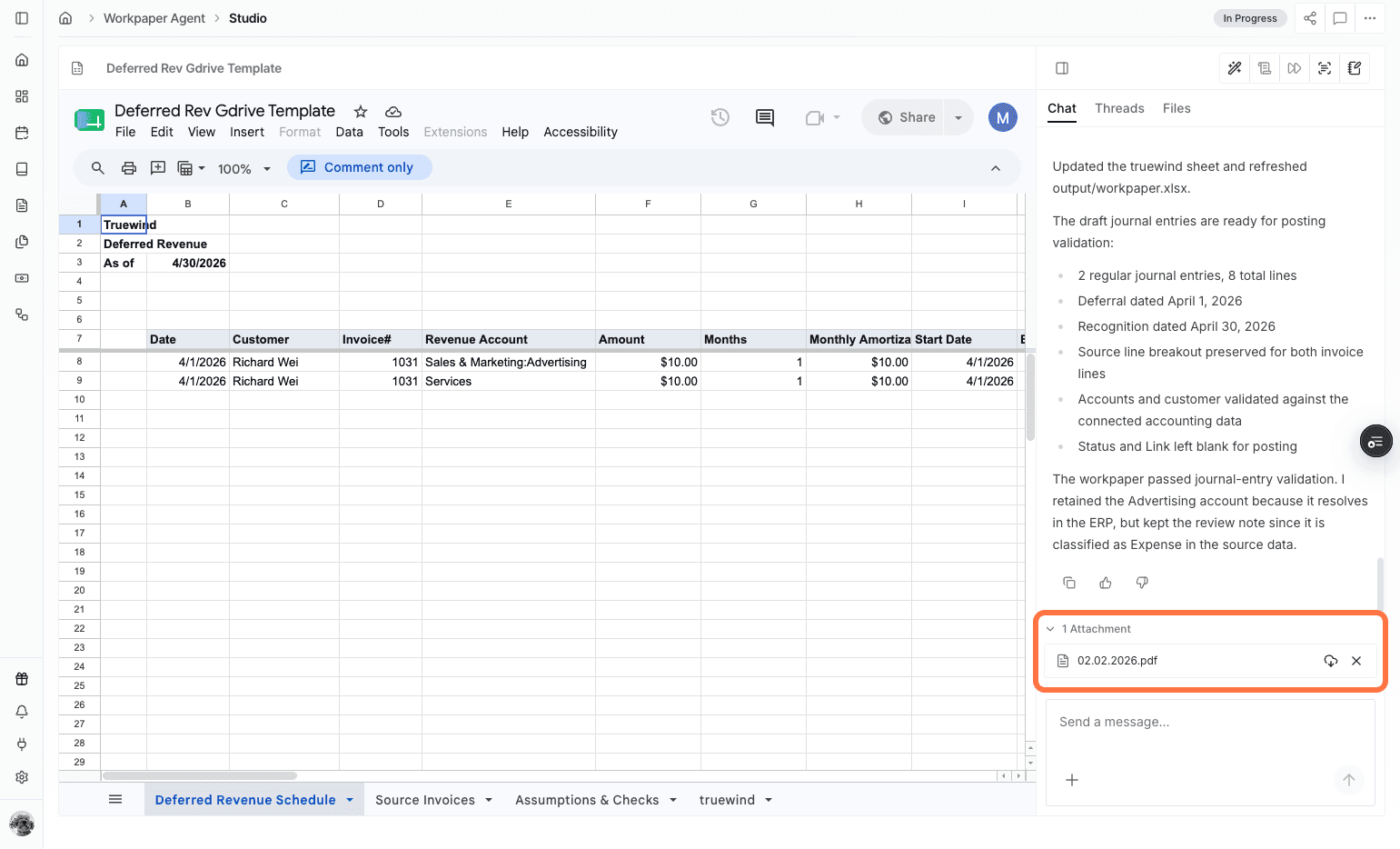
Step 18

Review the attached file

Confirm the attachment appears in Chat before prompting the agent to process it.

Screenshot showing an attachment added to Workpaper Agent Chat

Step 19

Prompt the agent

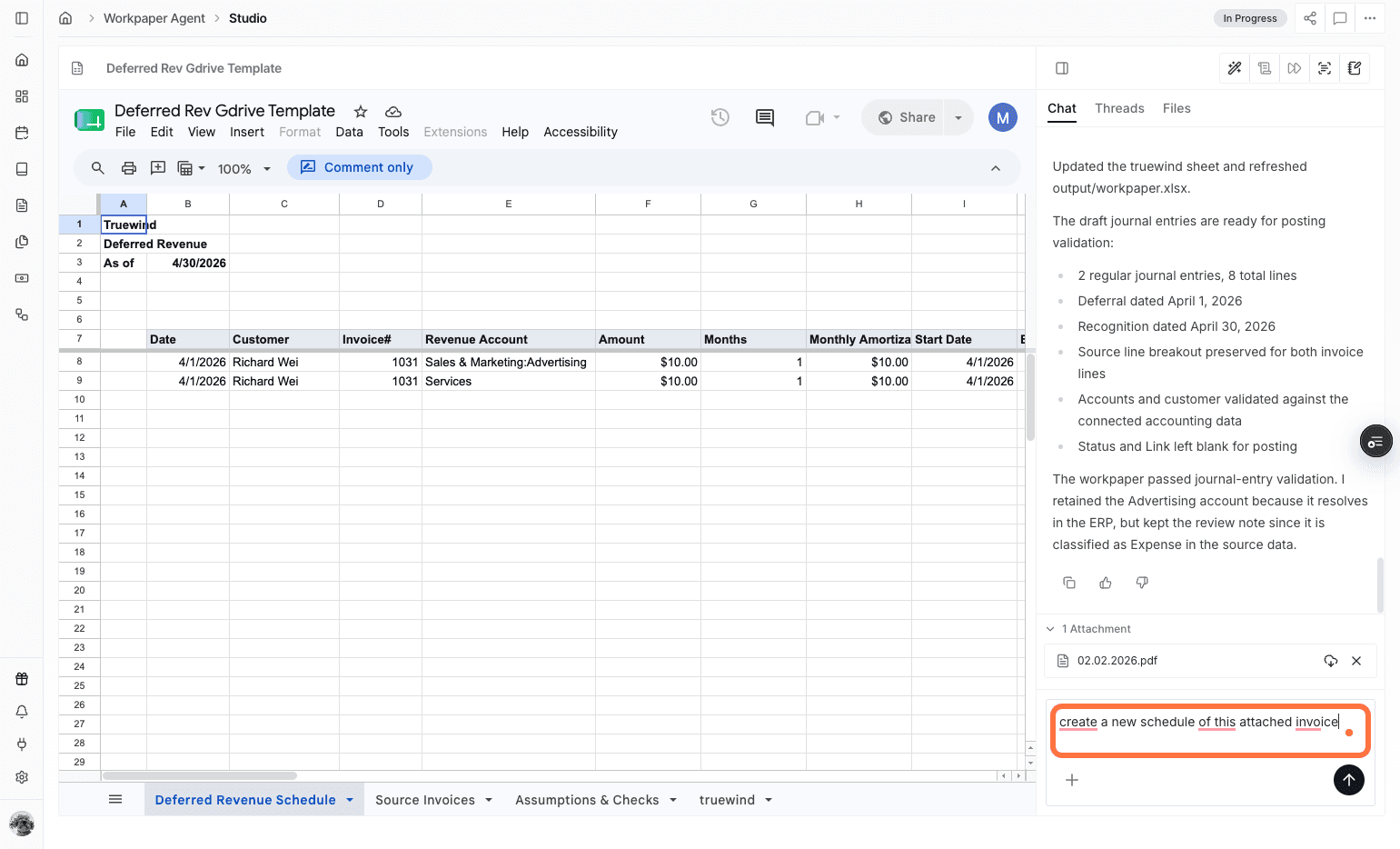
Enter the prompt the agent should use with the added thread attachment.

Screenshot showing a prompt entered in Workpaper Agent Chat

Step 20

Add a message to Chat

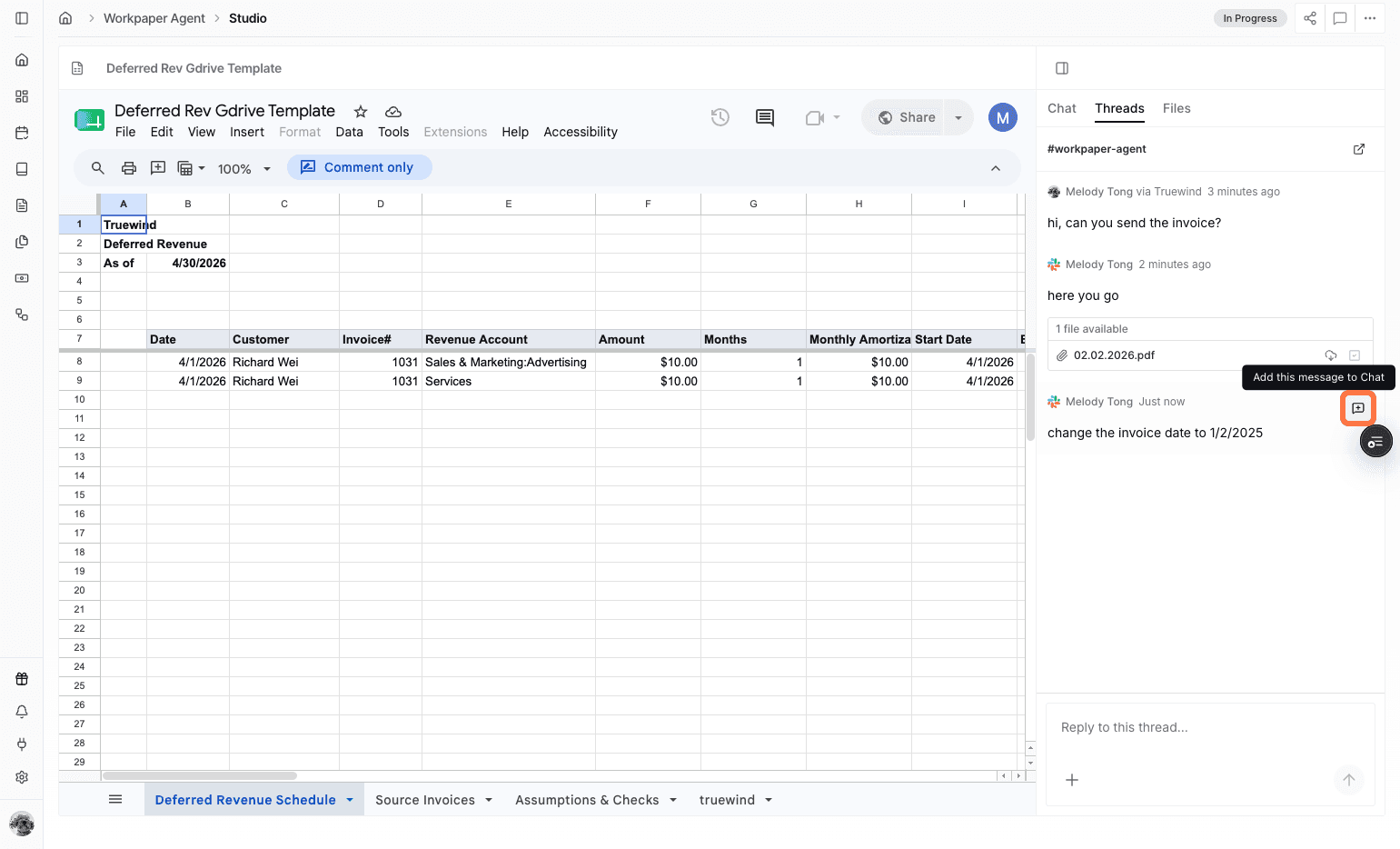
Add a synced thread message when the agent needs that message as additional context.

Screenshot showing the Add message to Chat action in Threads

Step 21

Open Chat with message context

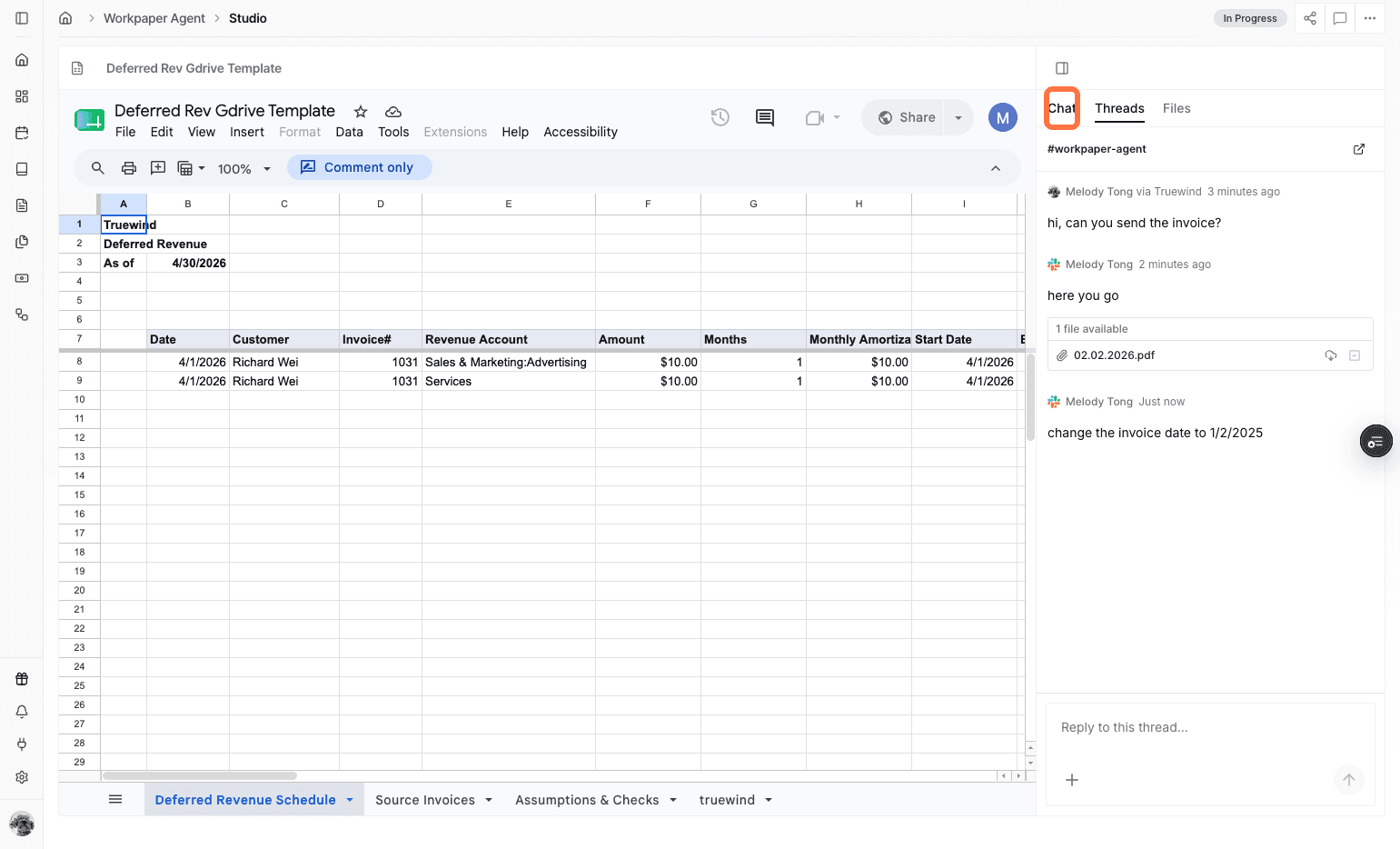
Return to Chat after adding the Slack message context.

Screenshot showing the Chat tab after adding message context

Step 22

Send a follow-up prompt

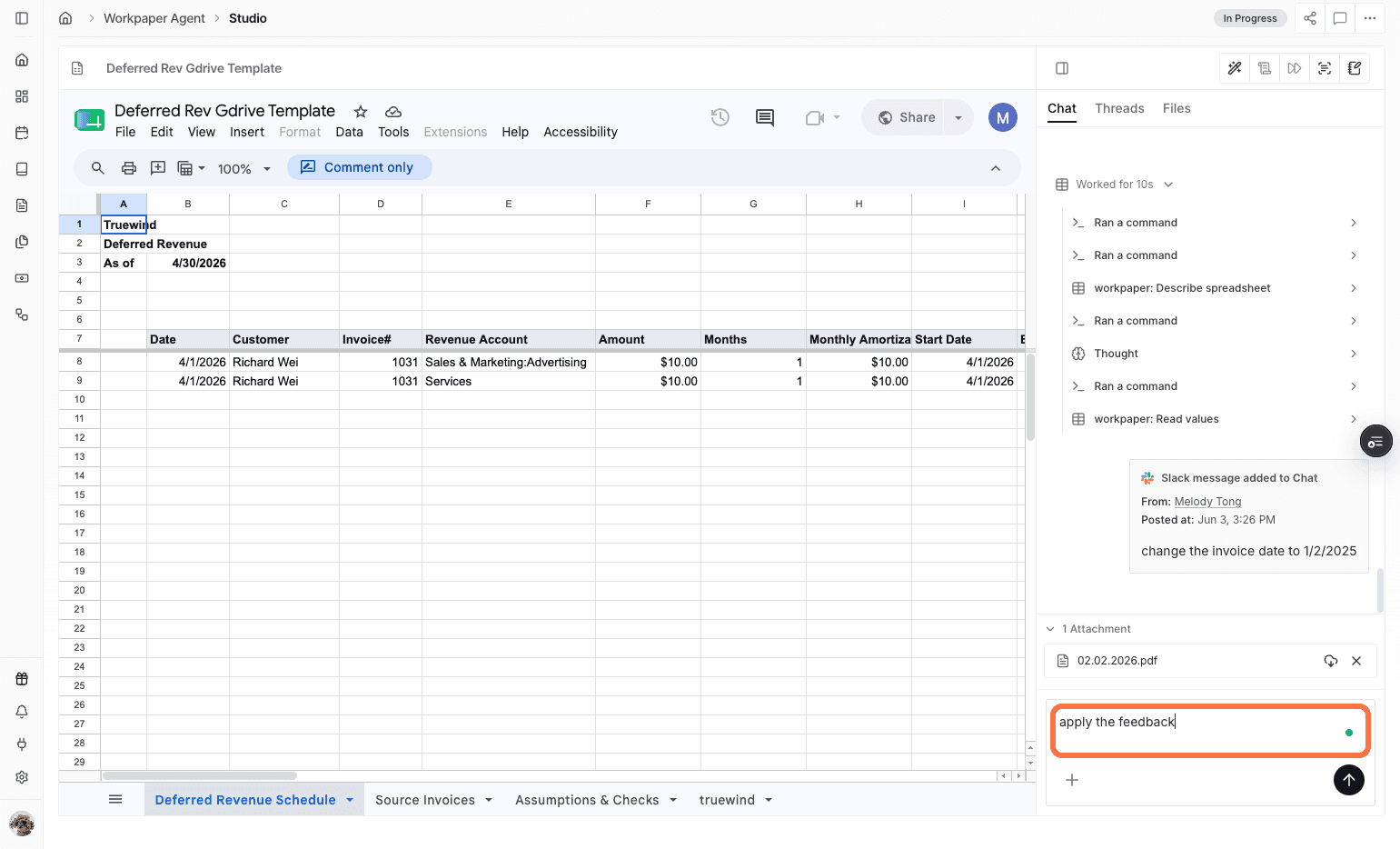
Prompt the agent again so it can use the newly added thread message.

Screenshot showing a follow-up prompt entered in Chat

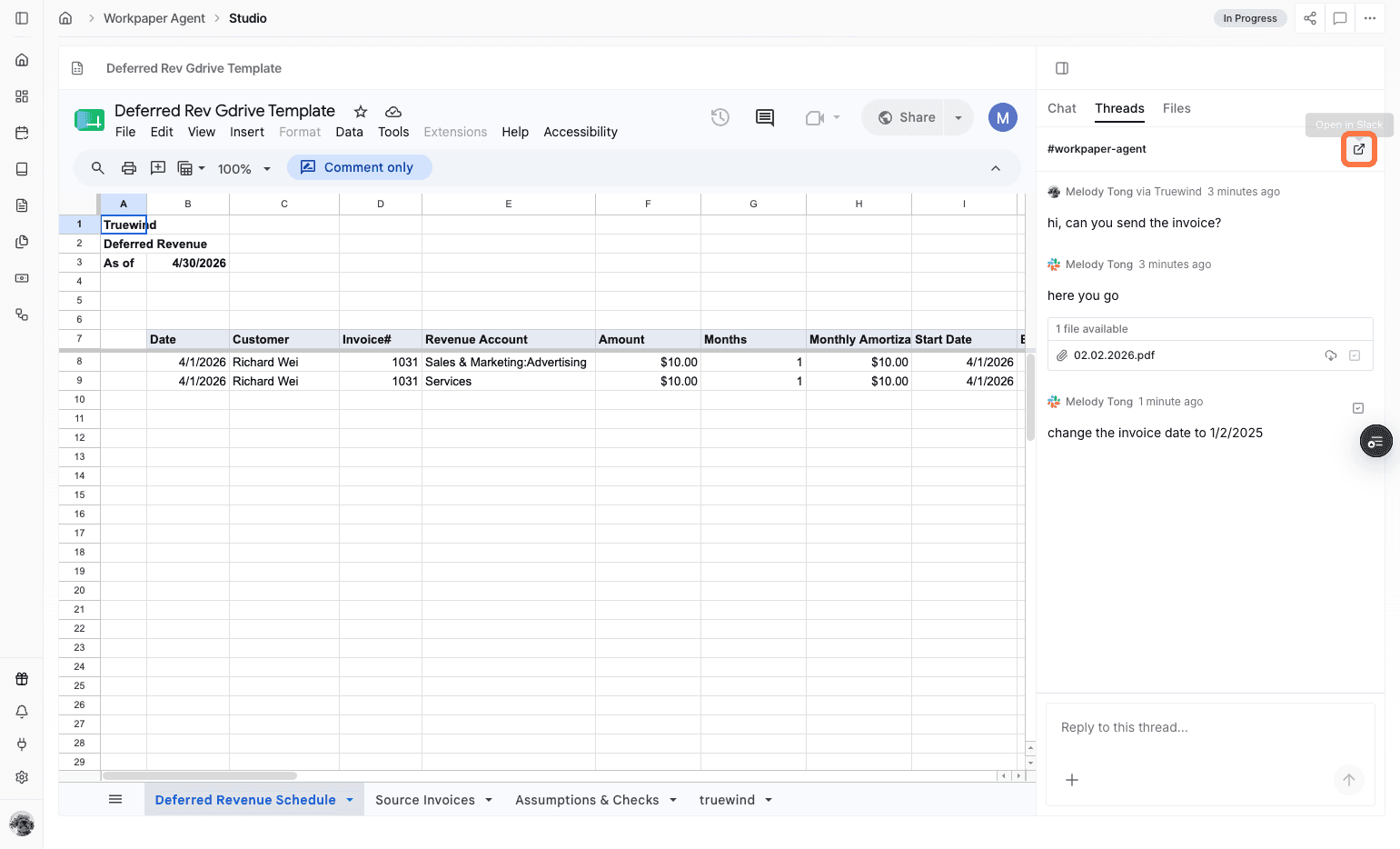
Step 23

Open Slack from Threads

Use the Slack entry point in Threads when you need to jump back to the linked Slack conversation.

Screenshot showing the Slack entry point in Workpaper Agent Threads

What Slack Threads is for

Slack Threads connects Workpaper Agent conversations with Slack so teams can collaborate on workbook context without leaving their preferred channel. After the Slack link is created and shared, messages sync between the Workpaper Agent thread and the linked Slack thread.

Review habit

Create the Slack link from the correct workbook, paste it into the intended Slack channel, and add only the thread messages or attachments the agent should use as prompt context.

FAQ

What does Slack Threads sync?

Slack Threads syncs messages between Workpaper Agent Threads and the linked Slack thread so collaborators can follow the same workbook conversation in either place.

Can Slack thread messages be used in agent chat?

Yes. You can add a Slack thread message or attachment to Chat so the agent can use it as context for a prompt.

Limitations

Slack authorization is required

A workspace admin or authorized Slack user must approve the Slack connection before threads can sync.

Thread links are workbook-specific

Create and share the Slack link from the relevant Workpaper Agent workbook so messages sync to the right thread.

Troubleshooting

The Slack link does not appear in the channel.

Confirm the link was copied from Threads and pasted into the intended Slack channel.

A message or attachment is not available in Chat.

Open the synced thread messages and use Add to Chat for the specific message or attachment before prompting the agent.

Was this helpful?

Need more help?

Ask for human help about this article and provide any feedback.