
What to verify
- The workflow completes with the expected result.
- The screenshots match the current product flow.
Ask the support agent
Just ask a direct question or search related articles from the Knowledge Base.
Support Center / Bank Transactions / Bank Connections
Connect bank accounts through Stripe when that connection path is available, resulting in new connected accounts ready for mapping in Truewind.
Step 1
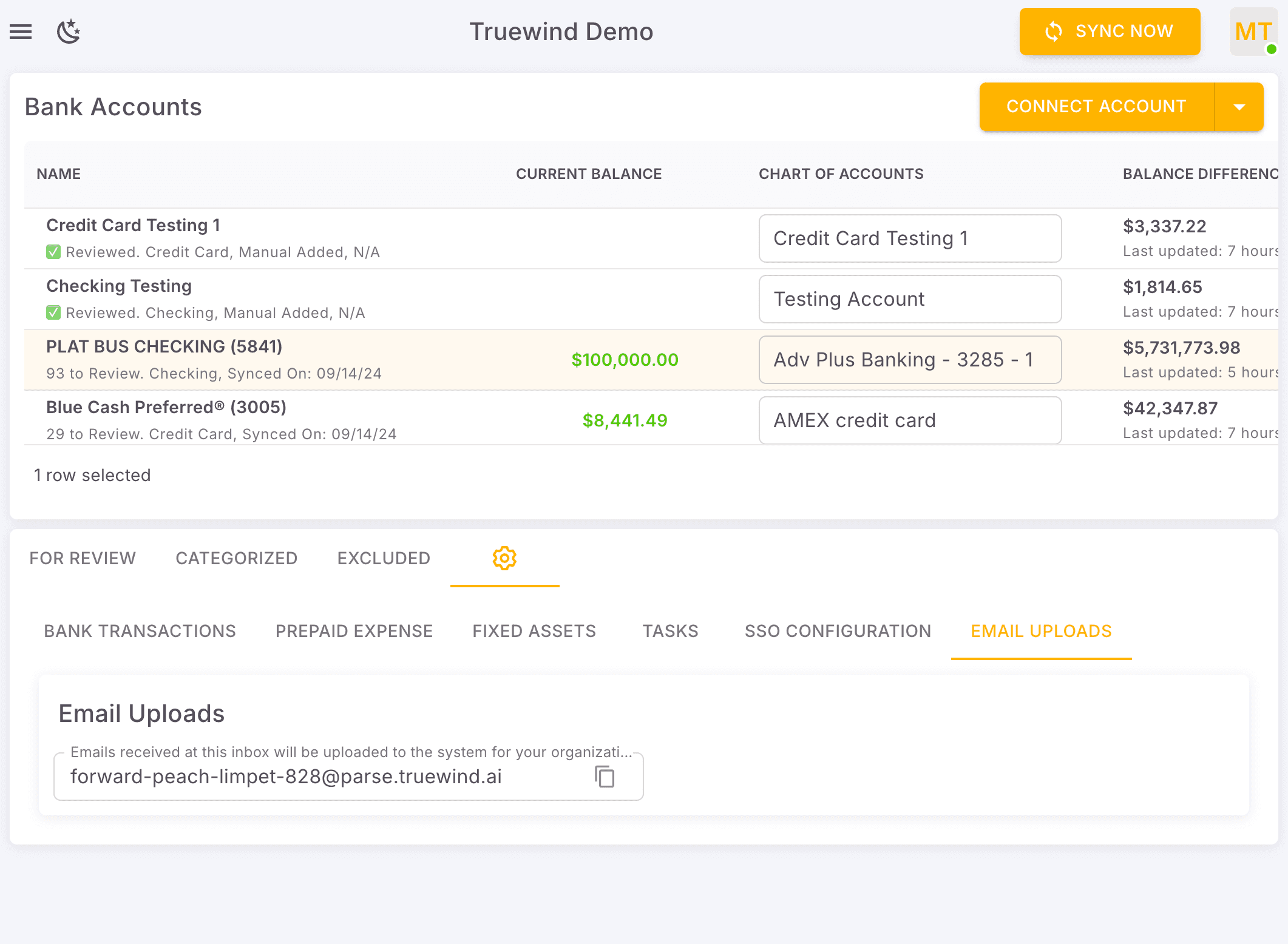
Start in Truewind on Bookkeeping > Bank Transactions, then go to Truewind Bank Transaction Page
Step 2
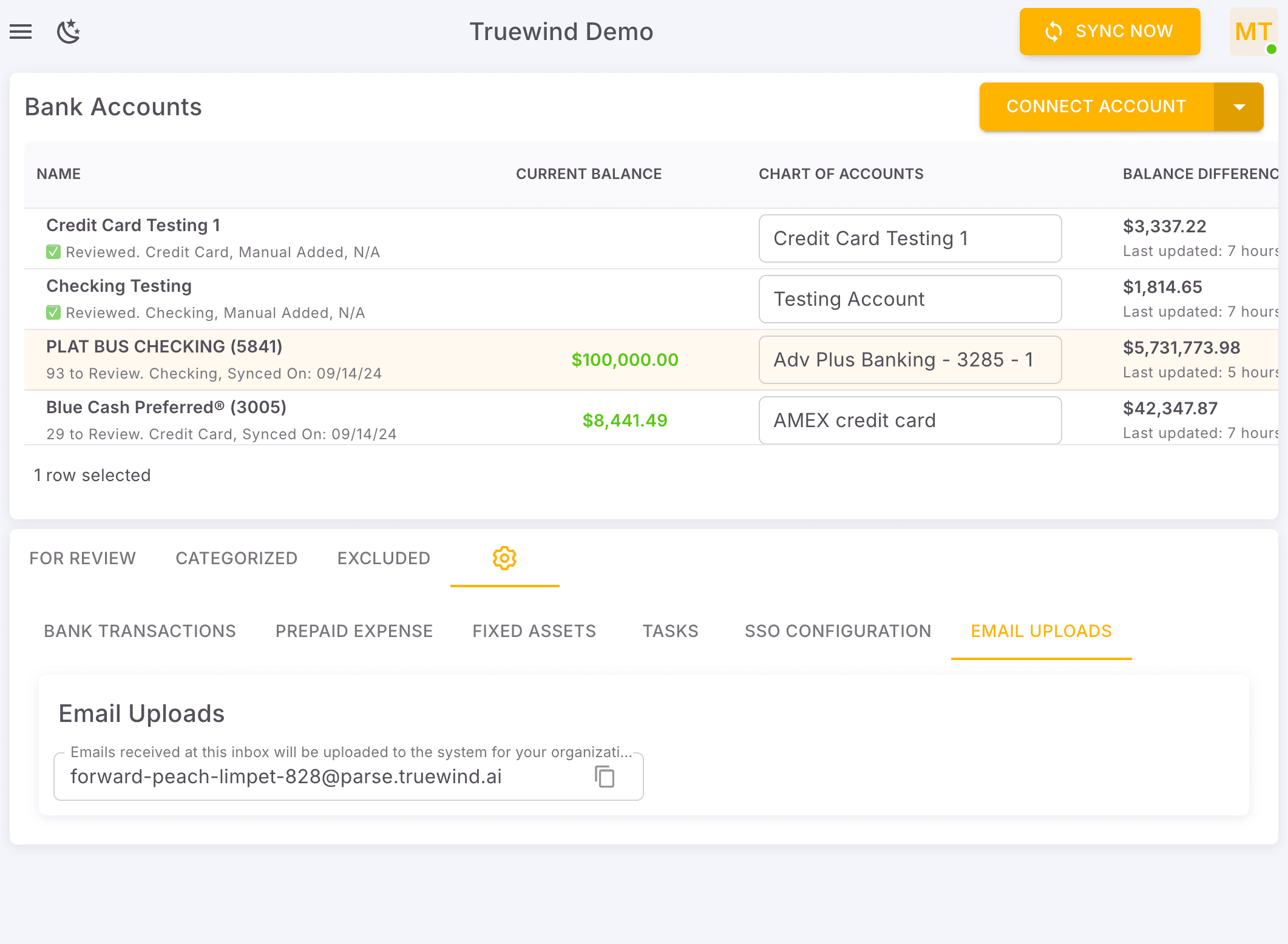
Use the bank-connection menu to choose which provider you want to launch for this client.
Step 3
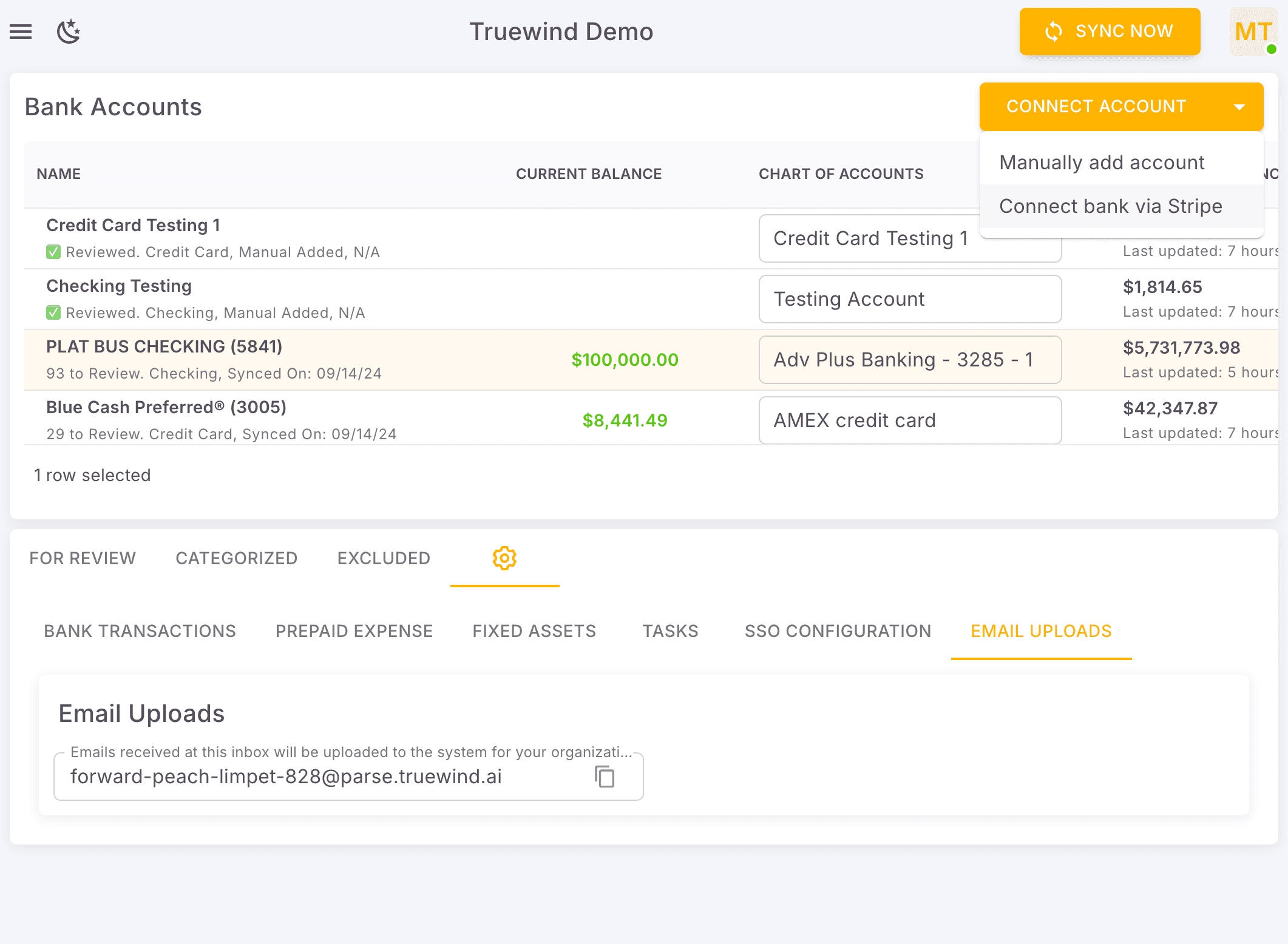
Start the Stripe connection flow only when this client should authenticate through Stripe instead of another provider.
Step 4
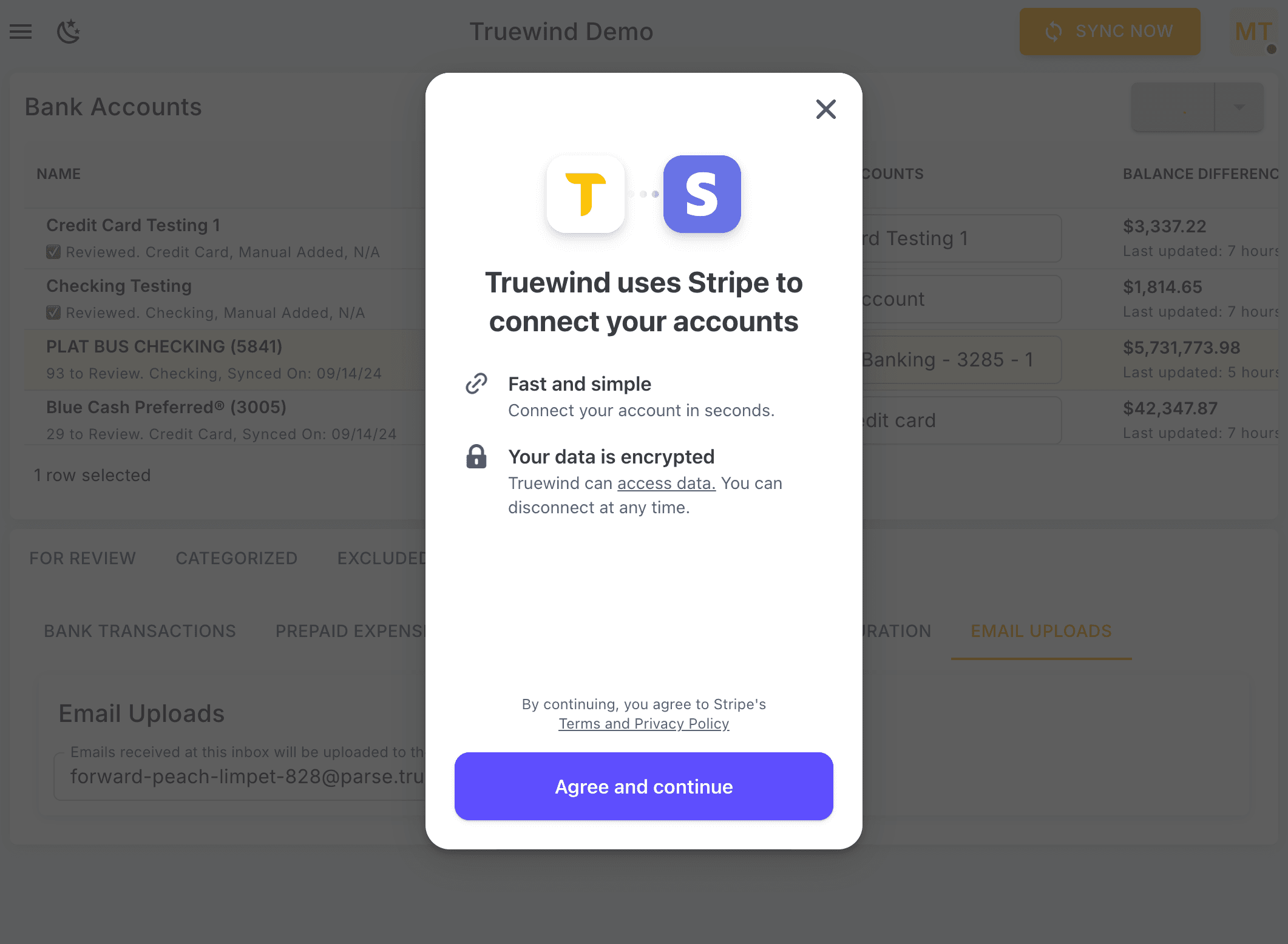
You must acknowledge the provider terms before Stripe will let you continue into account selection.
Step 5
Stripe may request your 2FA.
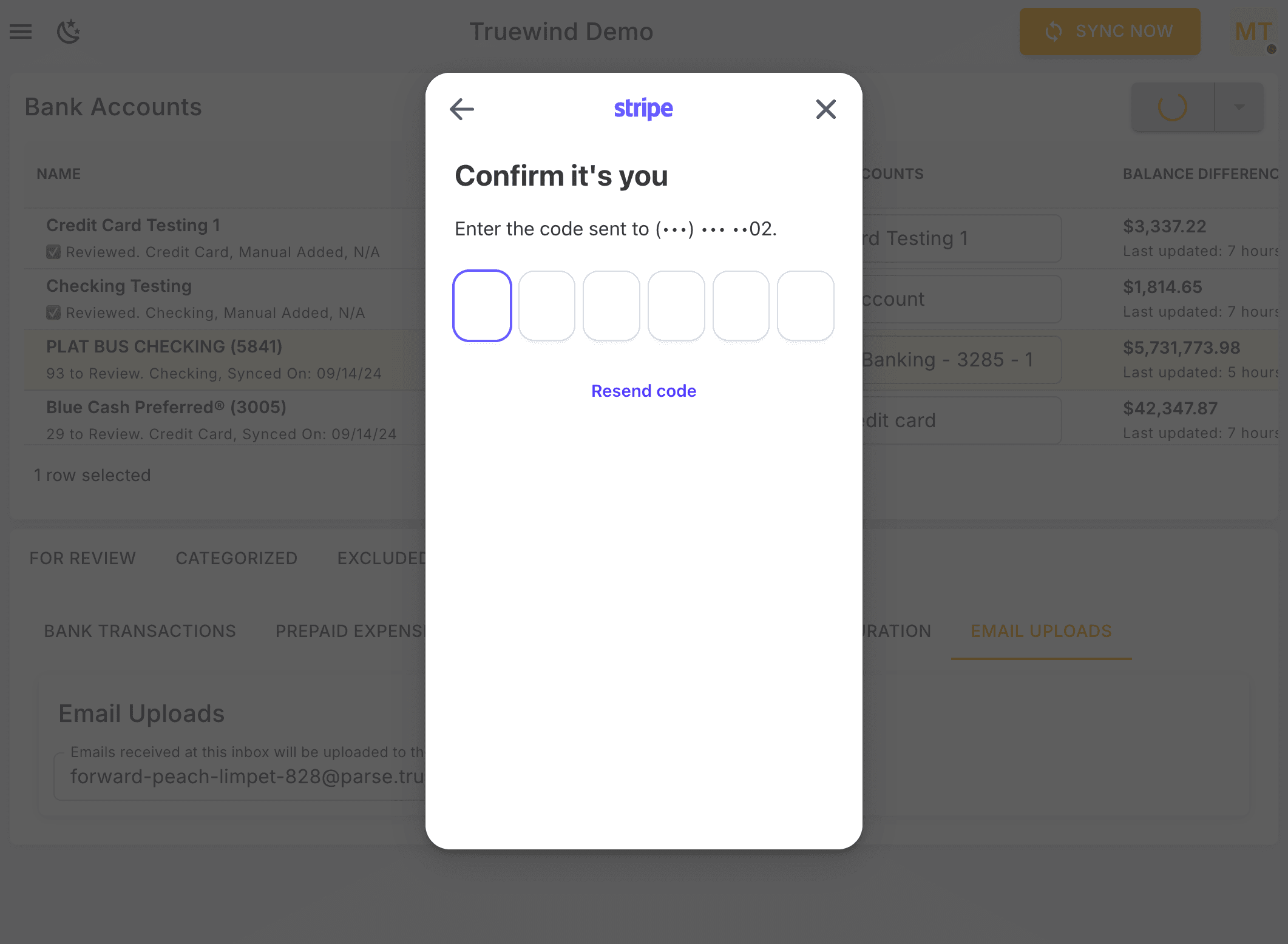
Step 6
Launch the institution picker so Stripe can ask which bank you want to connect.
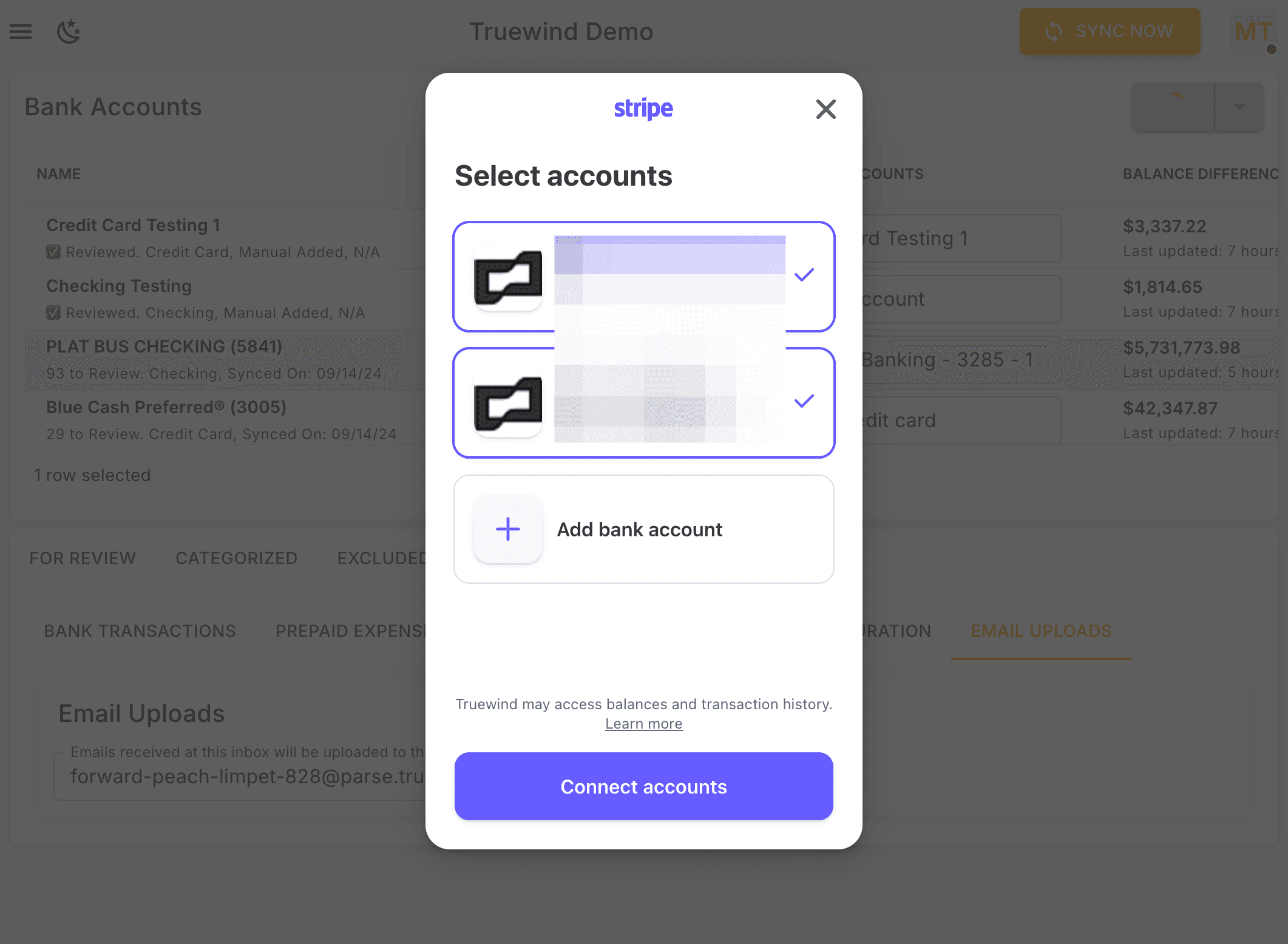
Step 7
Look up the client bank by name so Stripe can present the correct login flow and account list.
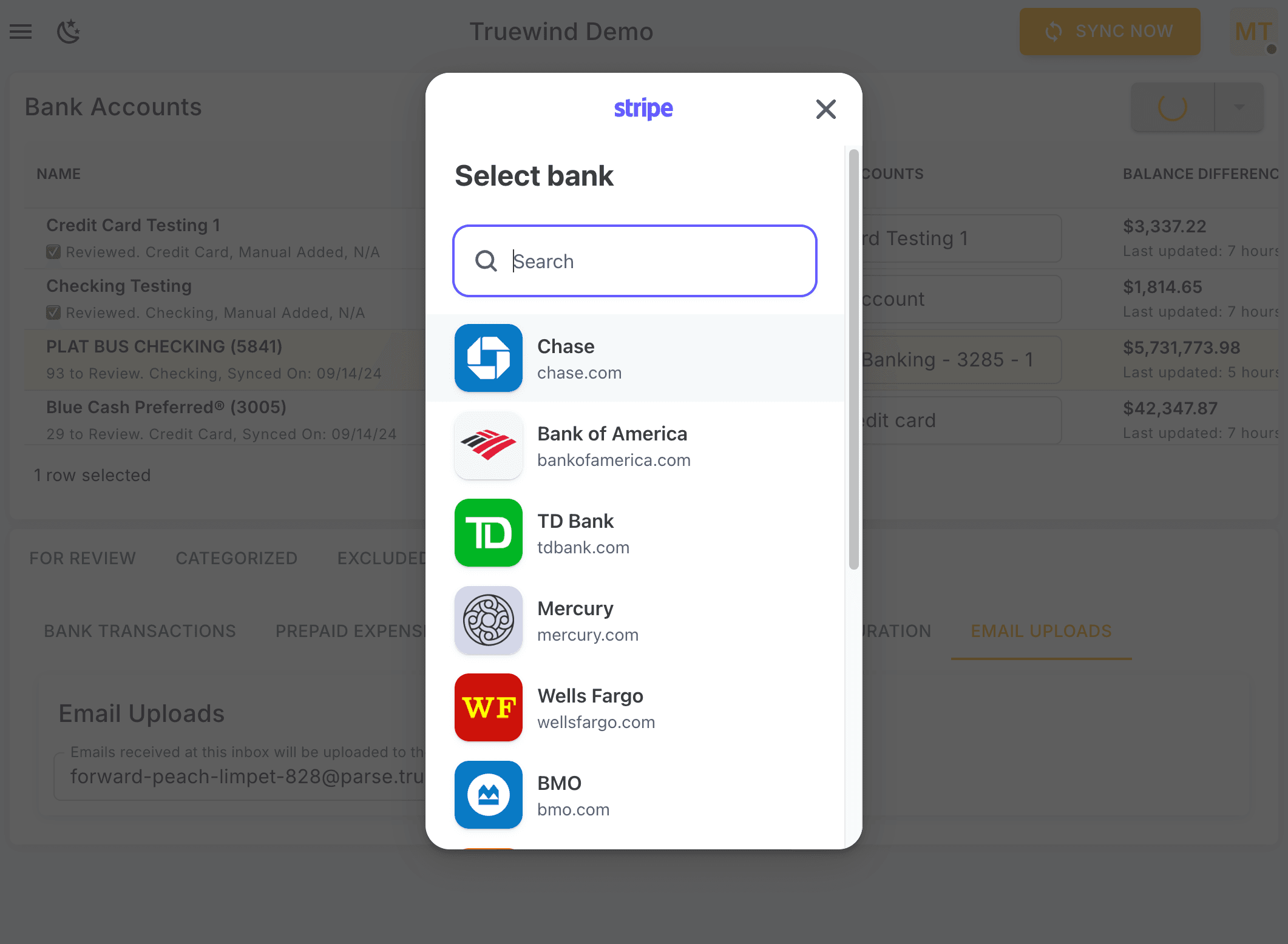
Step 8
Pick the option that matches the client setup because that choice controls what happens next so Stripe can return the selected bank accounts to Truewind.
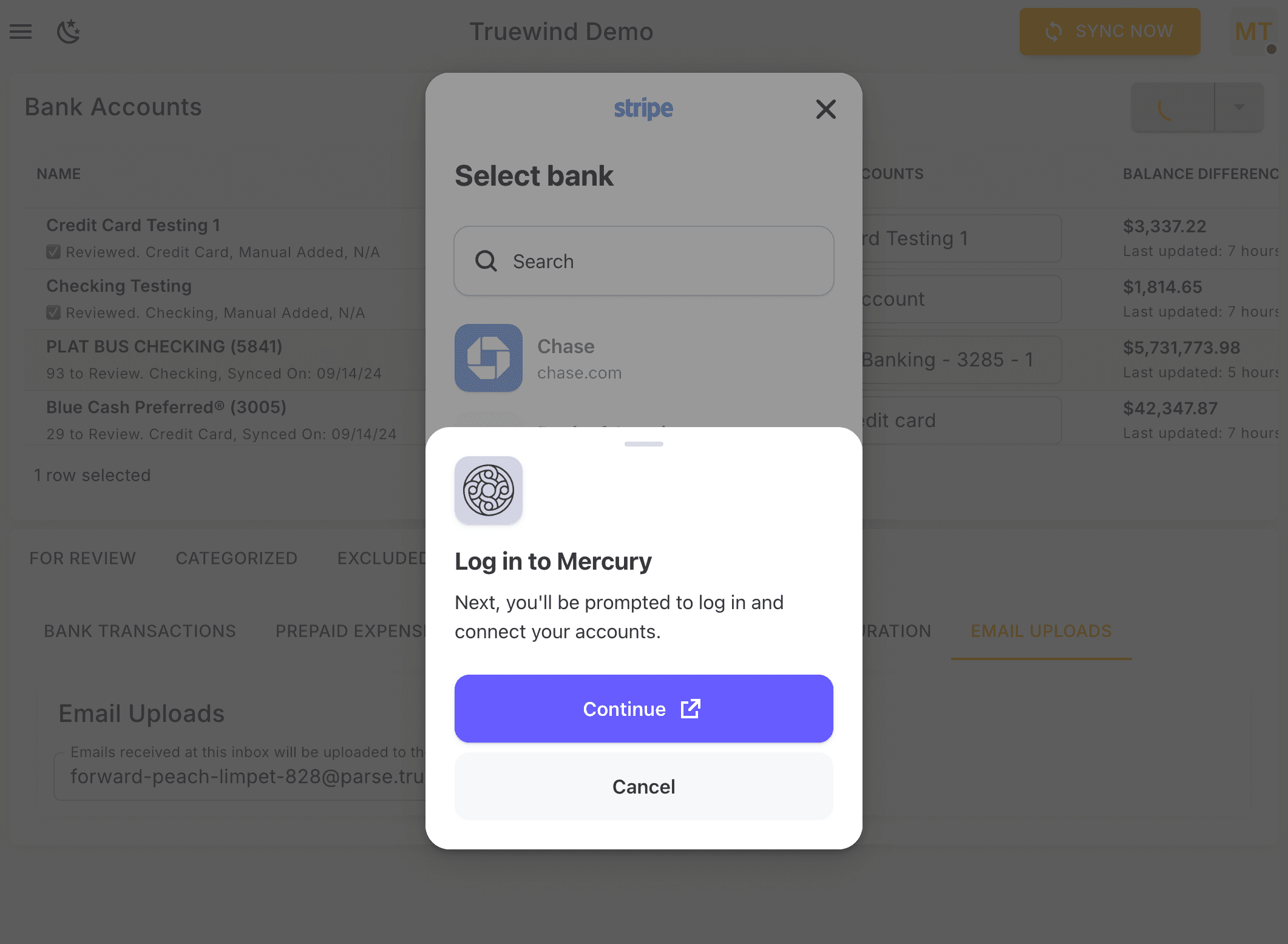
Step 9
Move forward only after the correct institution is selected in Stripe.
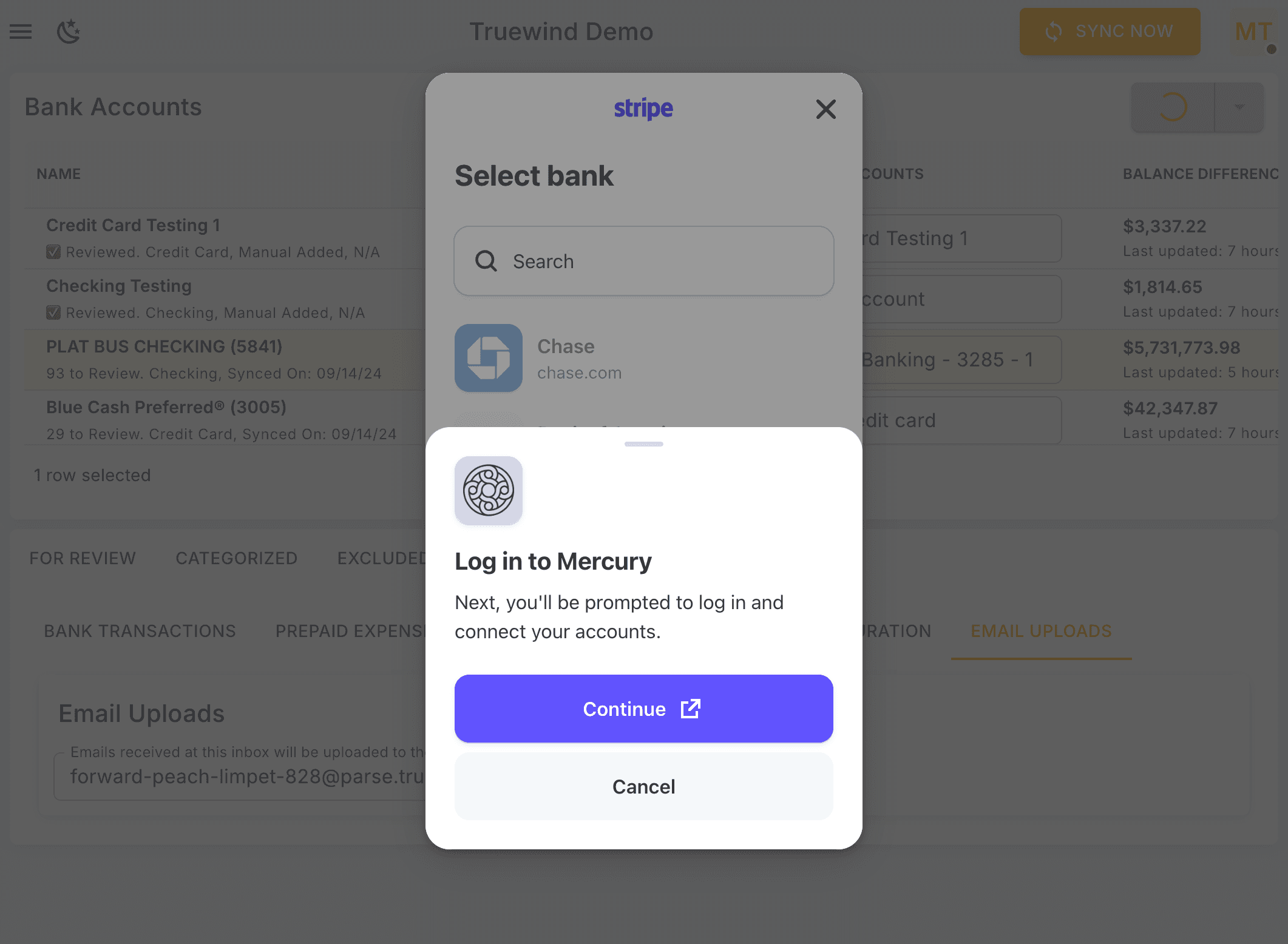
Step 10
Stripe redirects you to the bank login page so the institution can verify the connection directly.
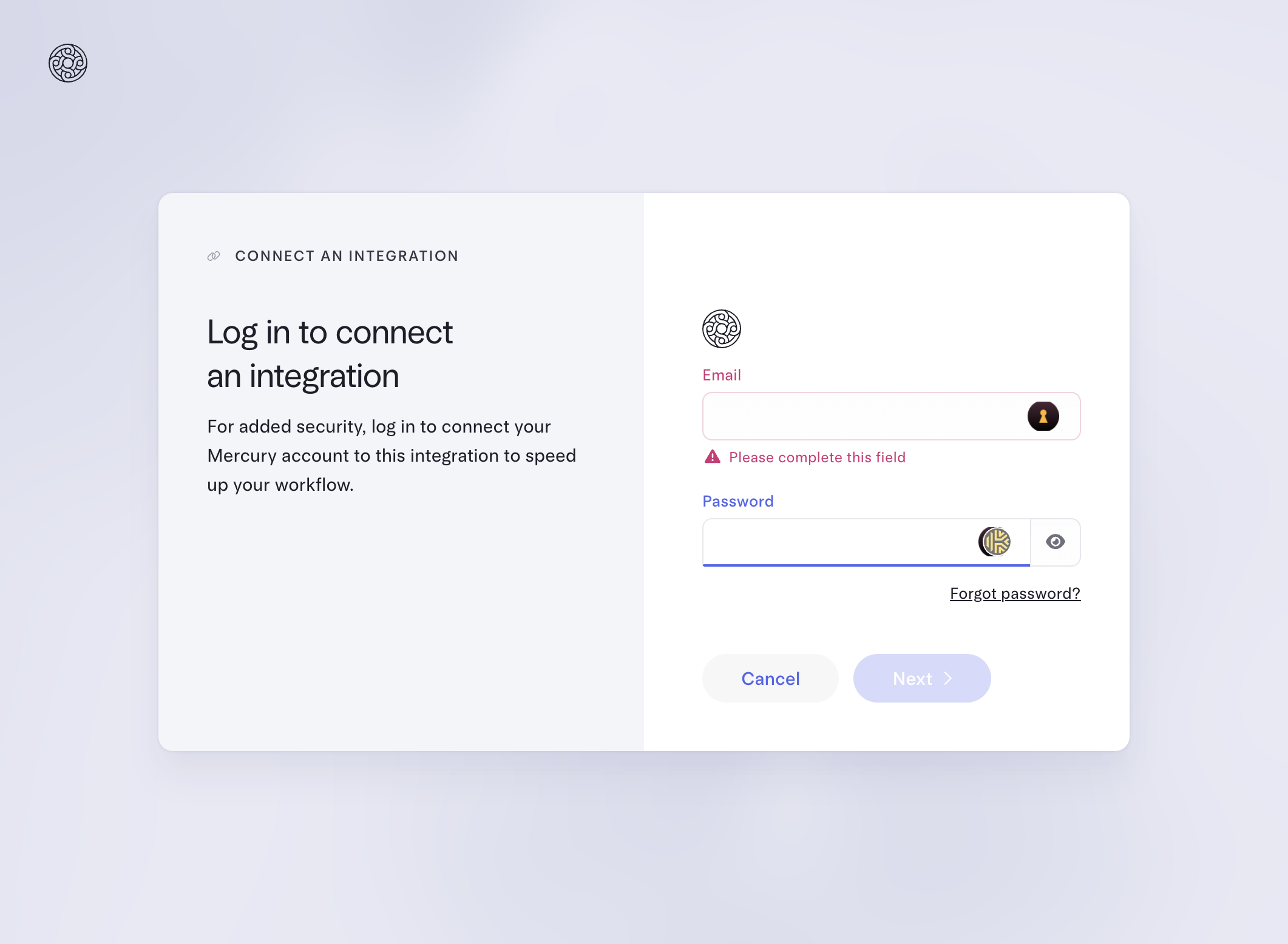
Step 11
Approve the bank-side permission request so Stripe can read the account data Truewind needs.
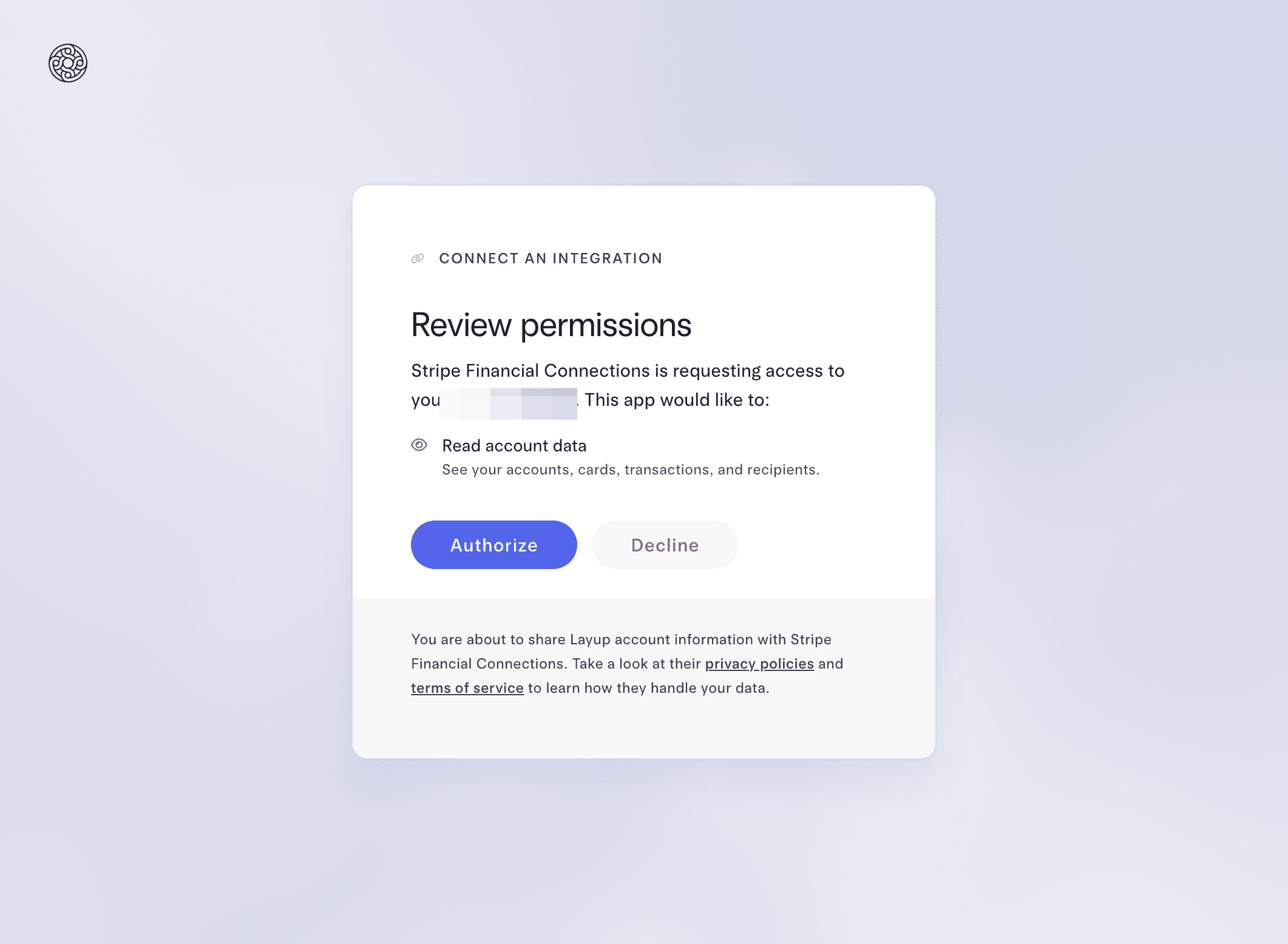
Step 12
Send the chosen bank accounts back to Truewind so they can be mapped and synced.
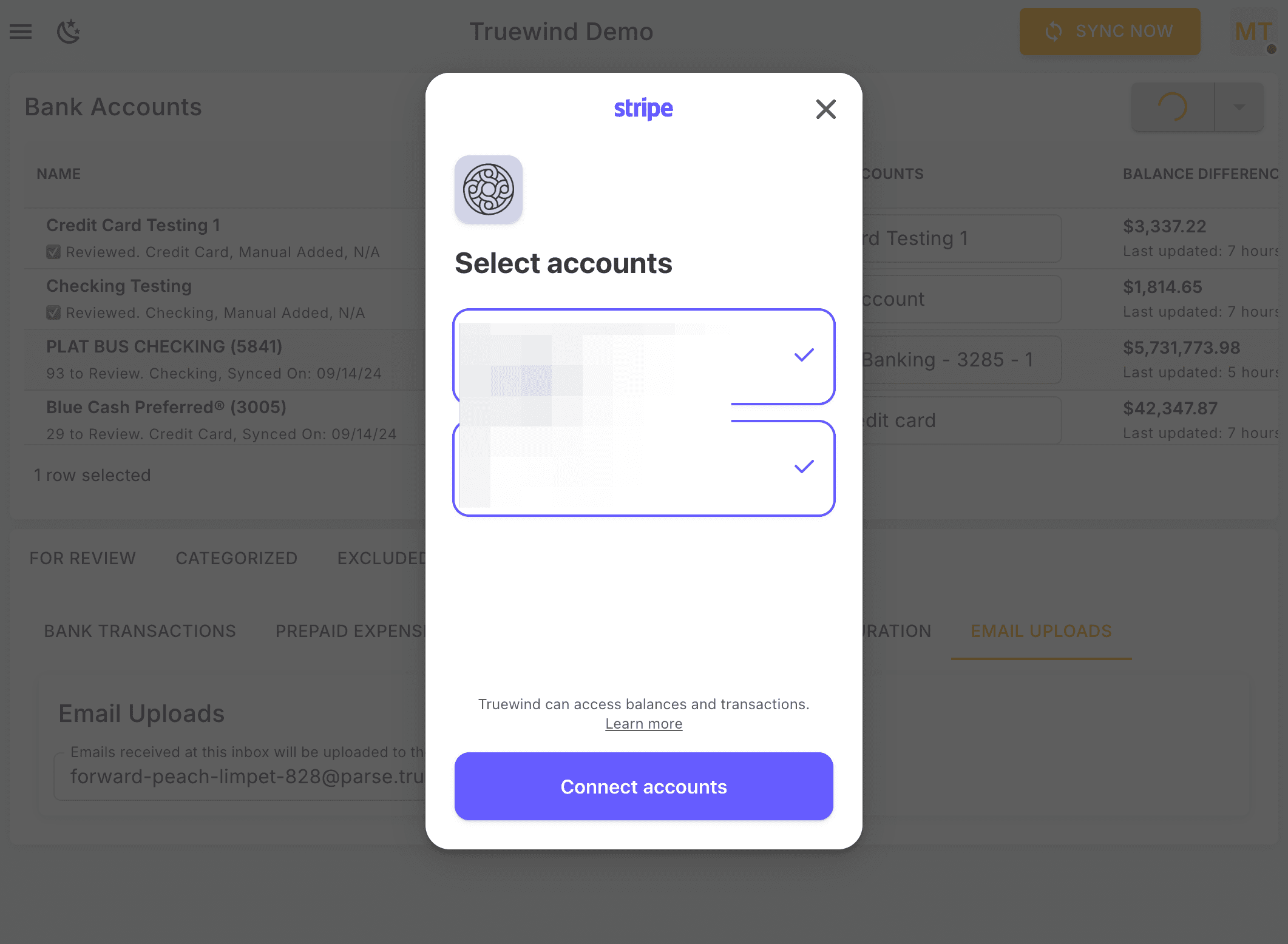
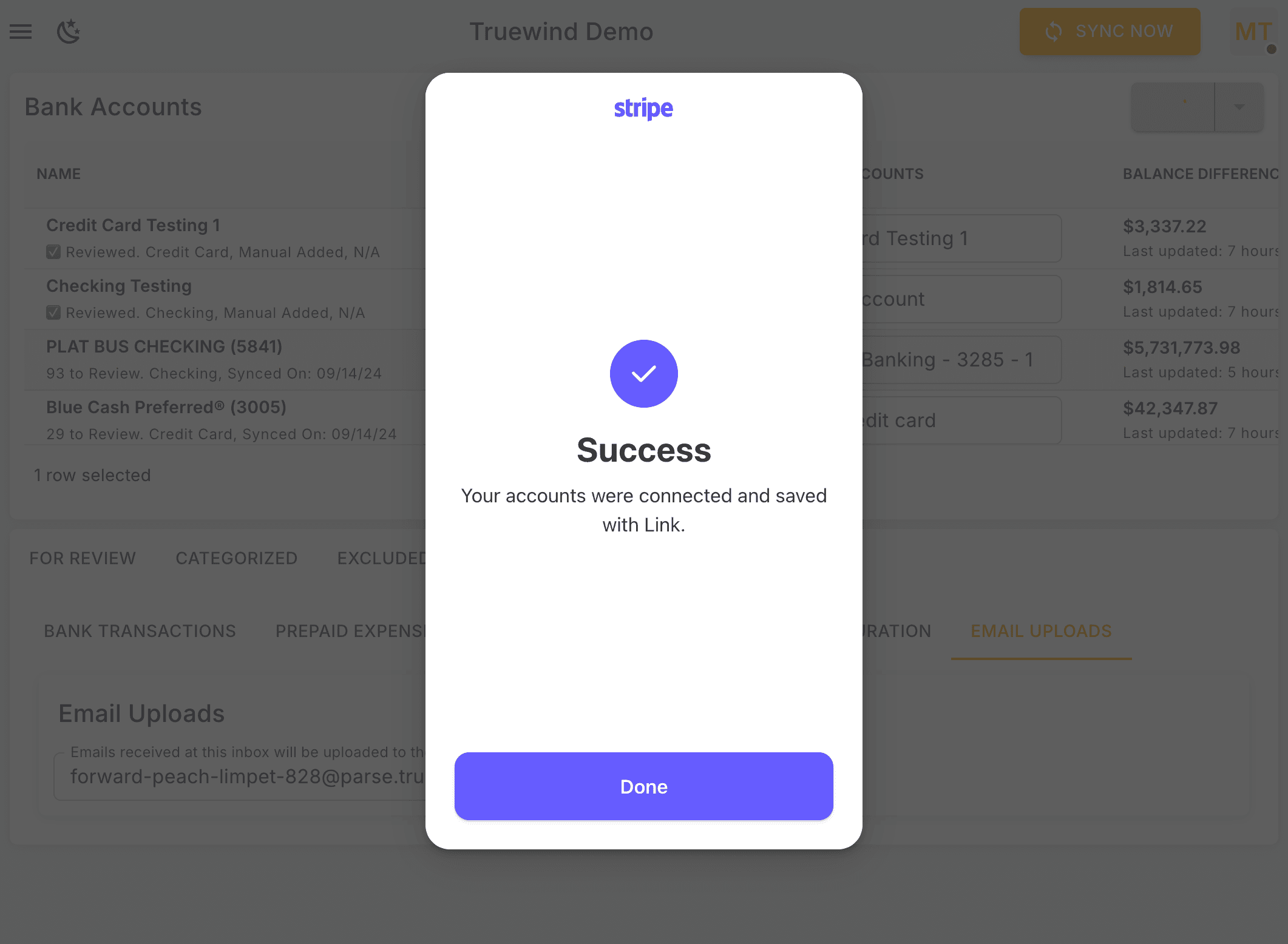
Step 13
Done!.
Step 14
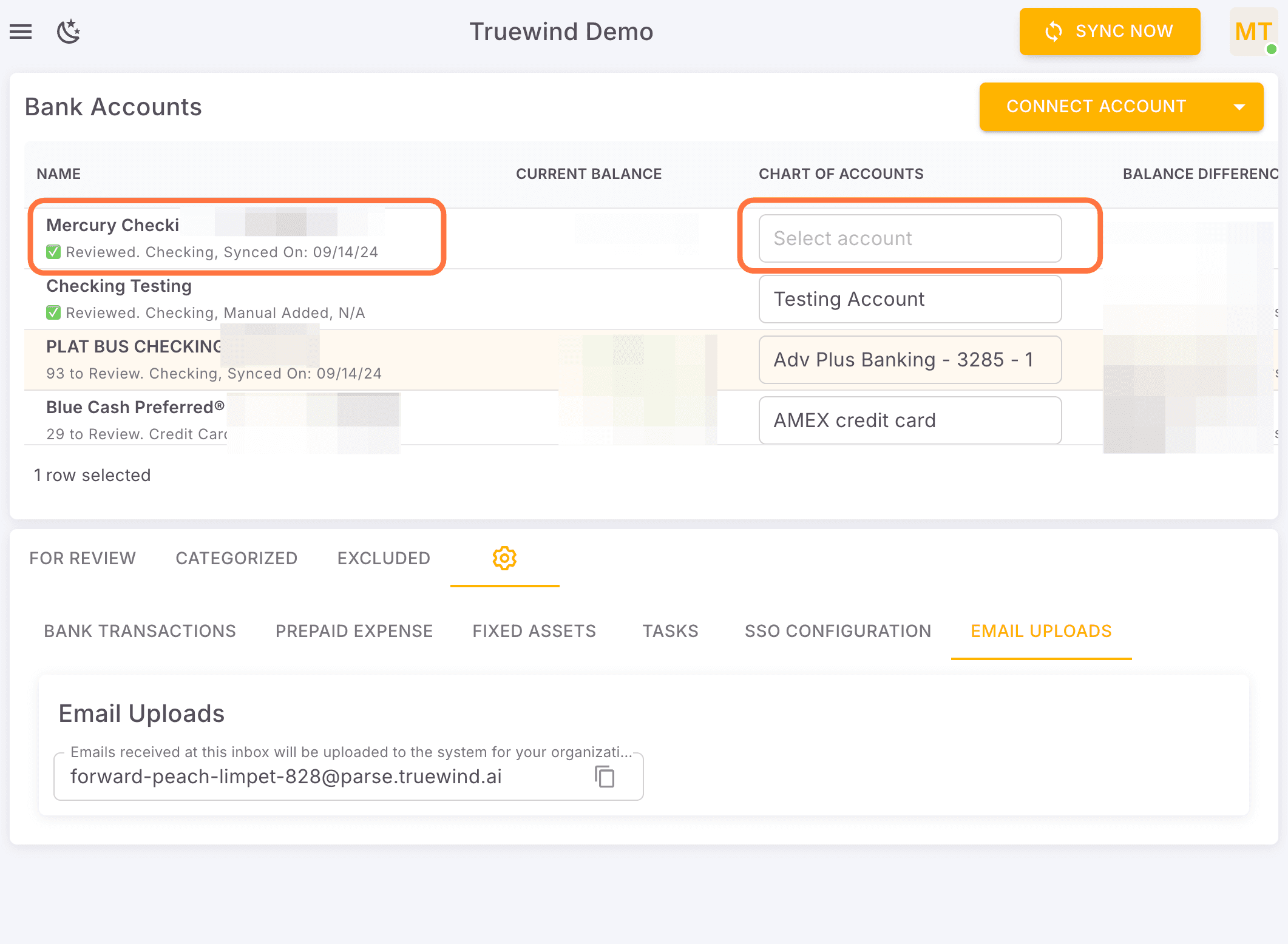
The new accounts should appear in Truewind and be ready for Chart of Accounts mapping.
Was this helpful?
Need more help?
Ask for human help about this article and provide any feedback.