
Access note
Only organizations with the current anonymization feature enabled will see Anonymization & Redaction in Organization Settings.
Ask the support agent
Just ask a direct question or search related articles from the Knowledge Base.
Support Center / Bank Transactions / Features
Configure anonymization settings when transaction data should be redacted, resulting in sensitive fields appearing masked in supported workflows.
Step 1
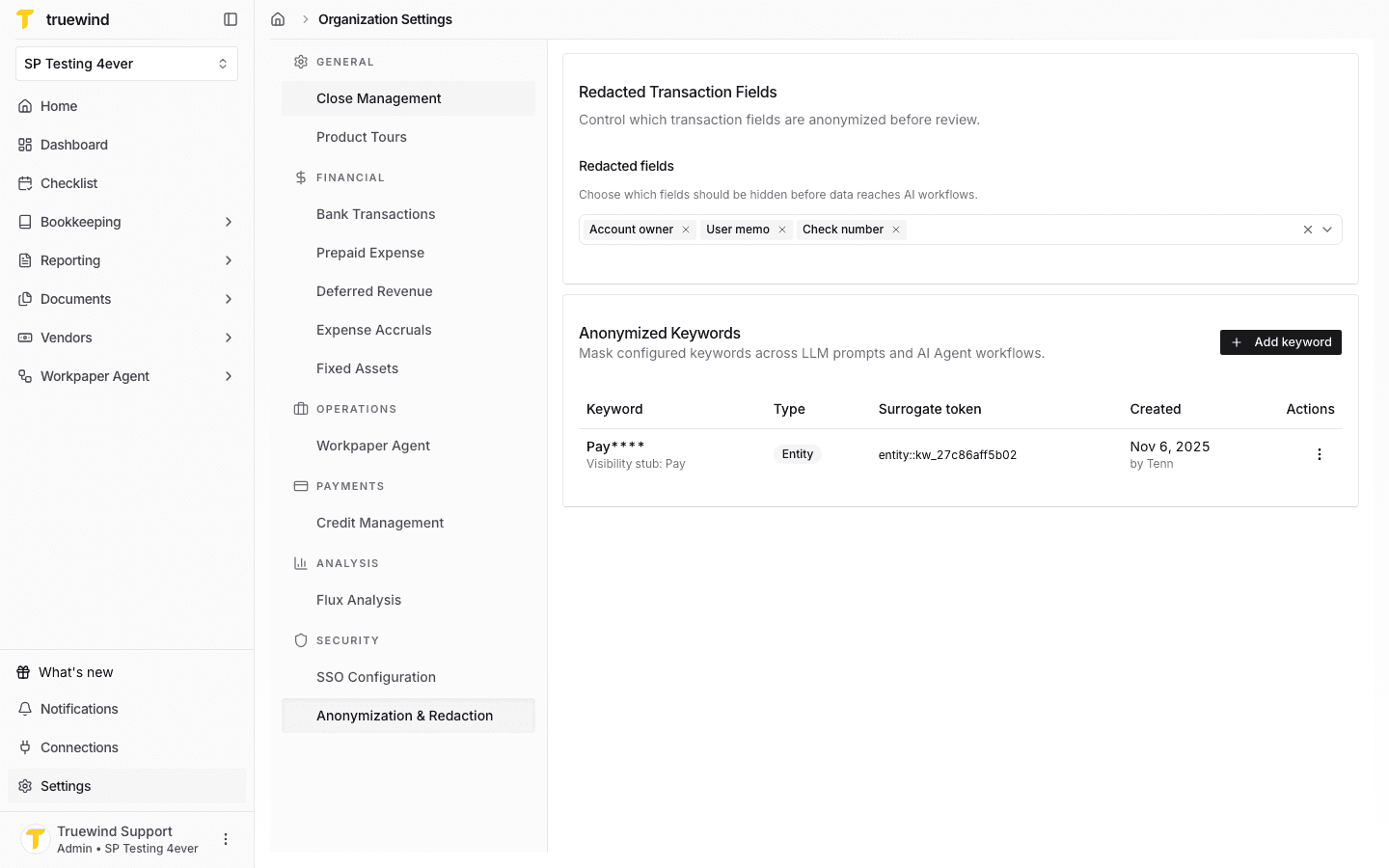
Open Settings > Anonymization & Redaction in order to manage fields that should be hidden before data reaches AI workflows.
Step 2
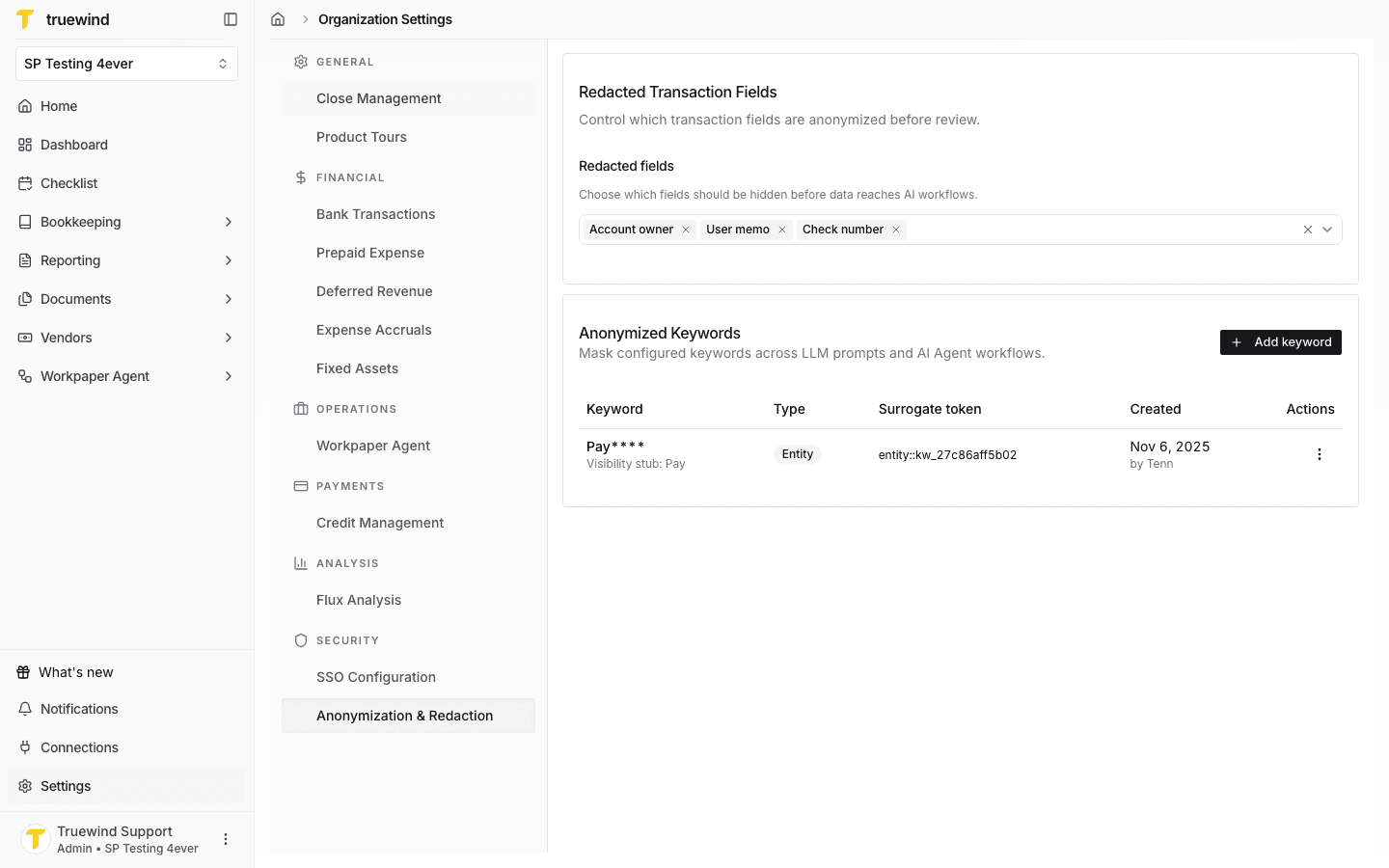
The Redacted Transaction Fields card controls which transaction fields are anonymized before review.
Step 3
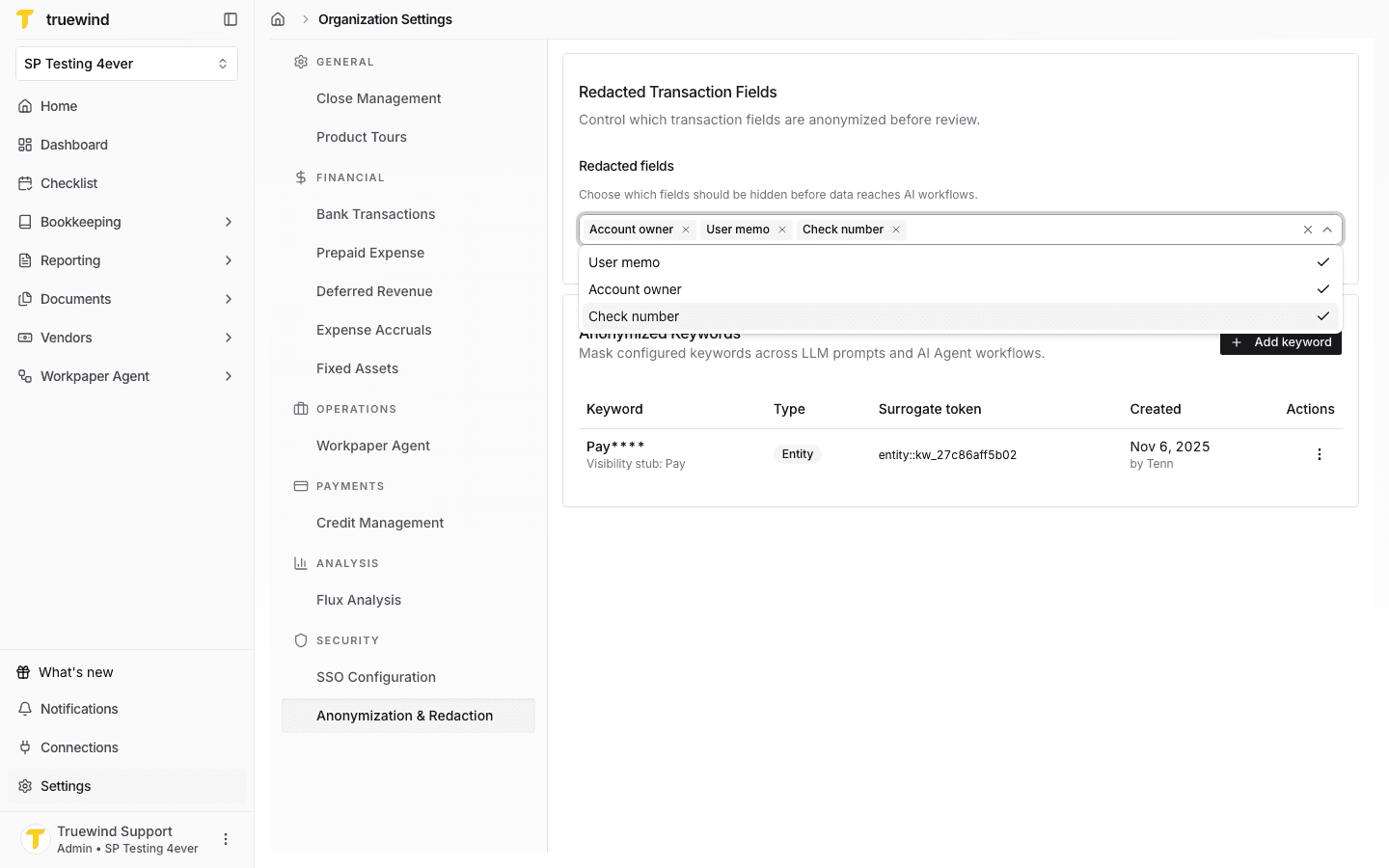
Open the field picker to add or remove User memo, Account owner, and Check number from the redaction list.
Step 4
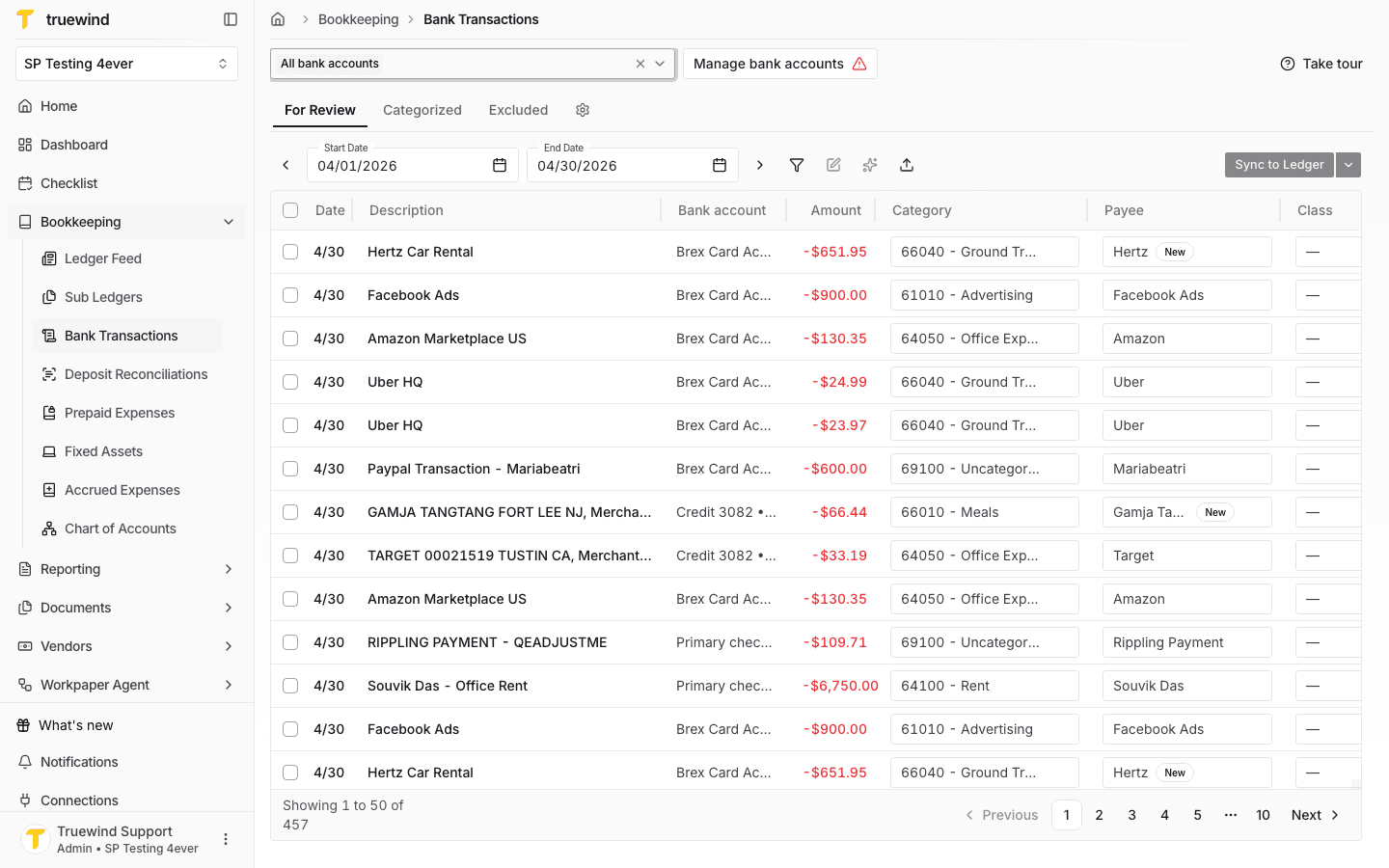
Open Bookkeeping > Bank Transactions and select the bank accounts you want to review so transaction rows are visible.
Step 5
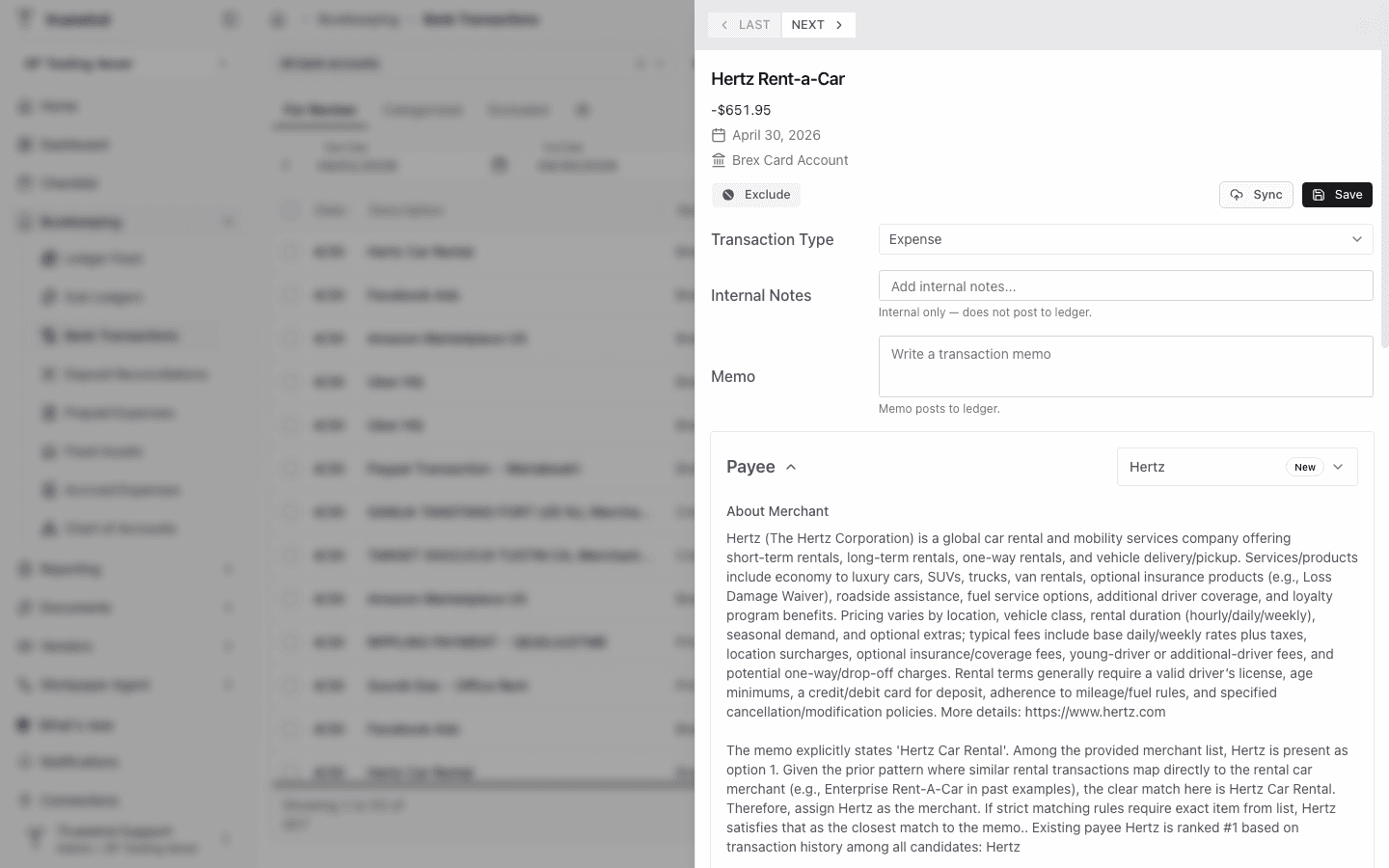
Select a transaction row to open its detail panel and review how redacted fields appear in context.
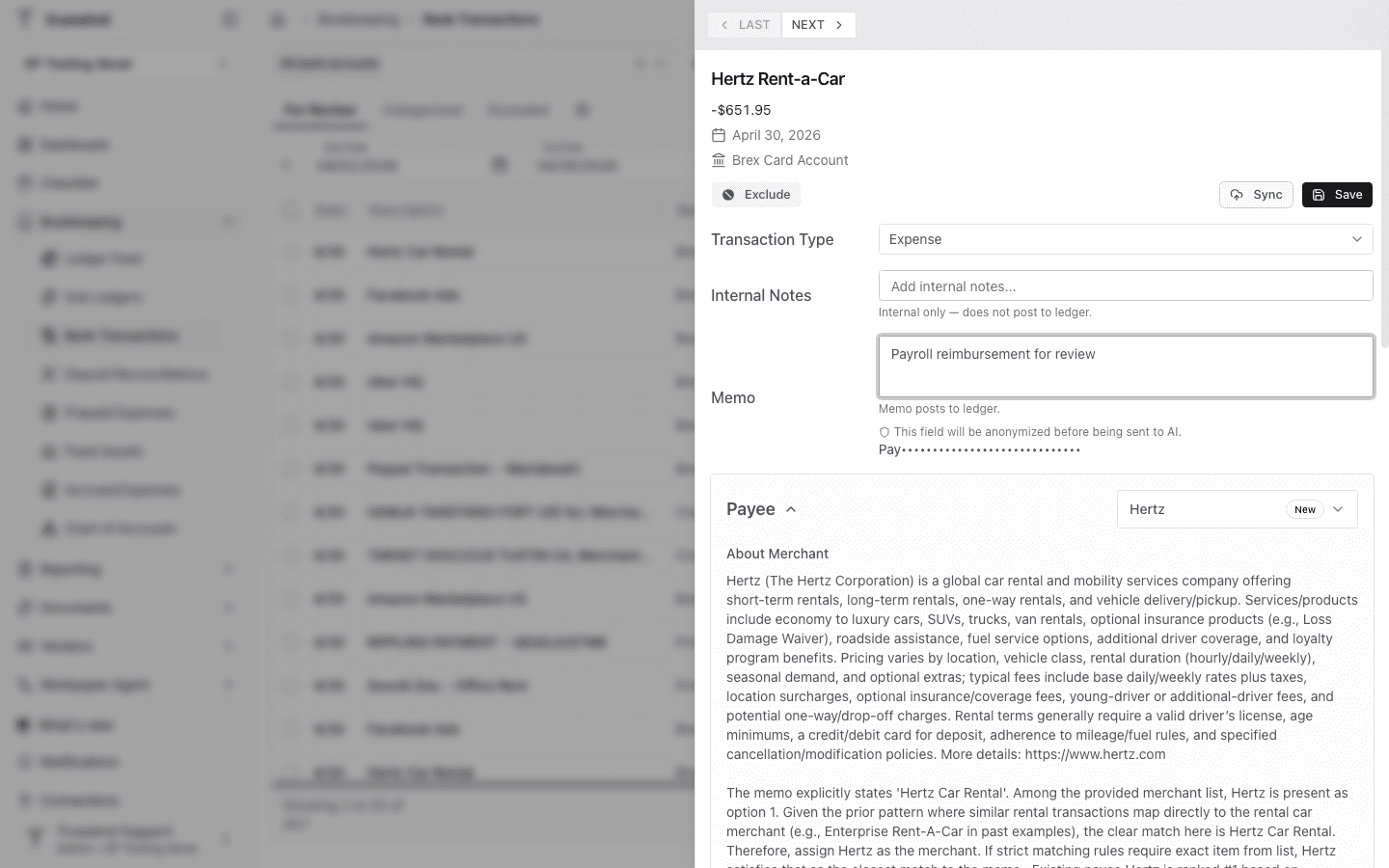
Step 6
Redacted values show a shield message and masked text before the field is shared with AI.
Only organizations with the current anonymization feature enabled will see Anonymization & Redaction in Organization Settings.
Was this helpful?
Need more help?
Ask for human help about this article and provide any feedback.