
Helpful review habit
Categorize transactions with the bank account filter and date range already narrowed so the table only shows the work you expect to complete in that session.
Ask the support agent
Just ask a direct question or search related articles from the Knowledge Base.
Support Center / Bank Transactions / Features
Categorize transactions in Bank Transactions when individual rows need accounting decisions, resulting in ledger-ready transaction detail.
Step 1
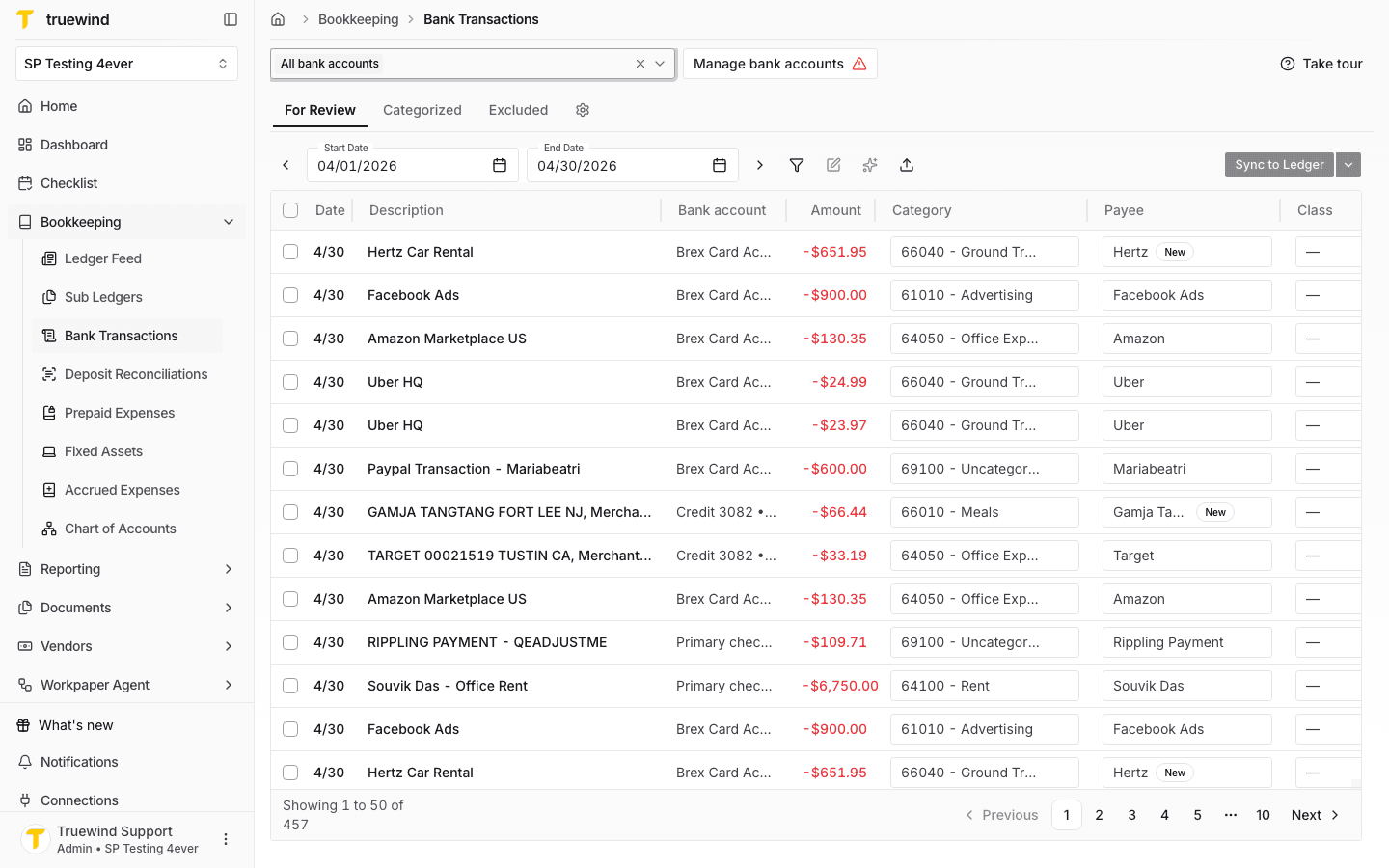
Start in Bookkeeping > Bank Transactions and select the bank accounts you want to review so transaction rows are visible.
Step 2
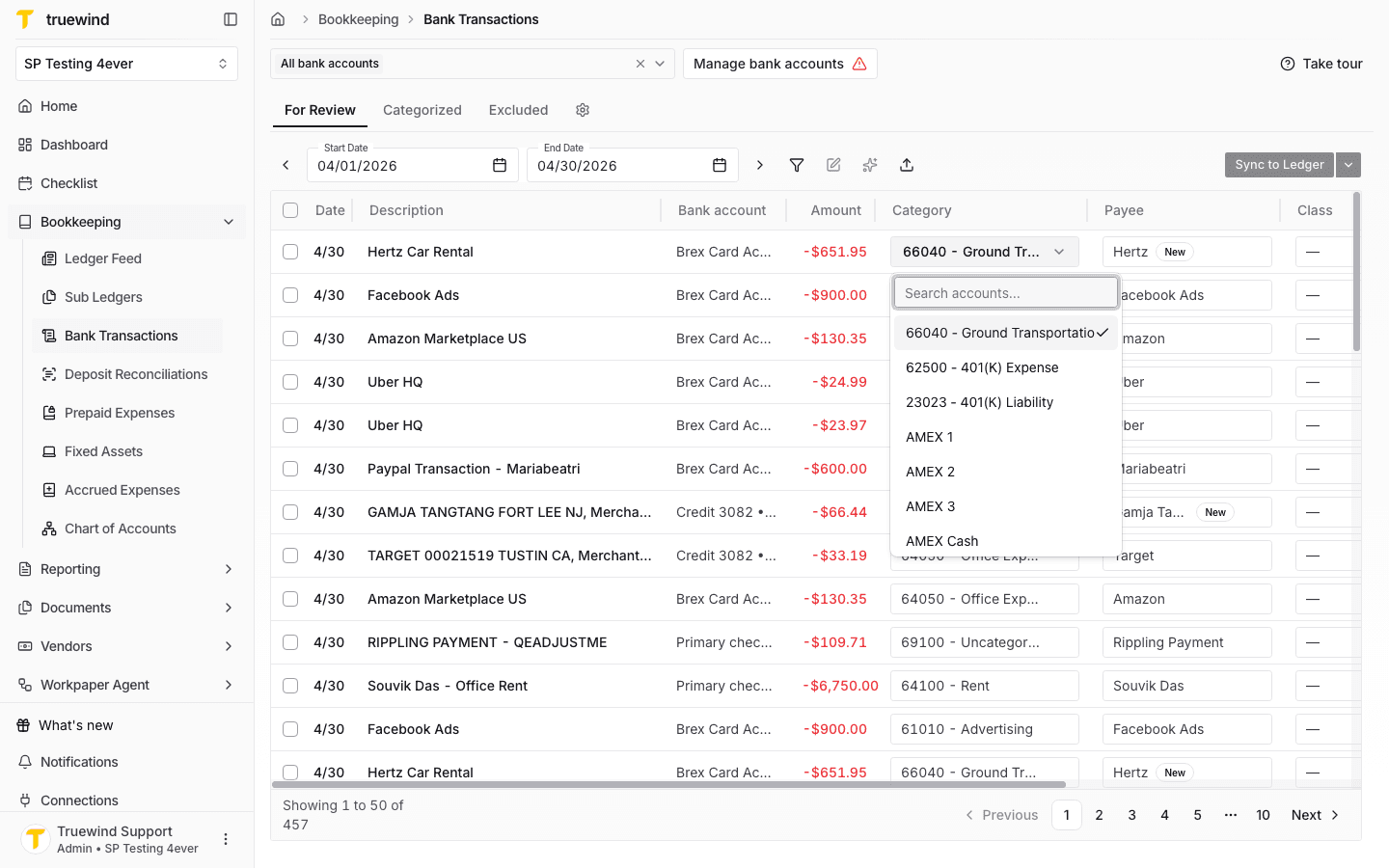
Use the category field on the transaction row when you want to update the ledger account directly from the table.
Step 3
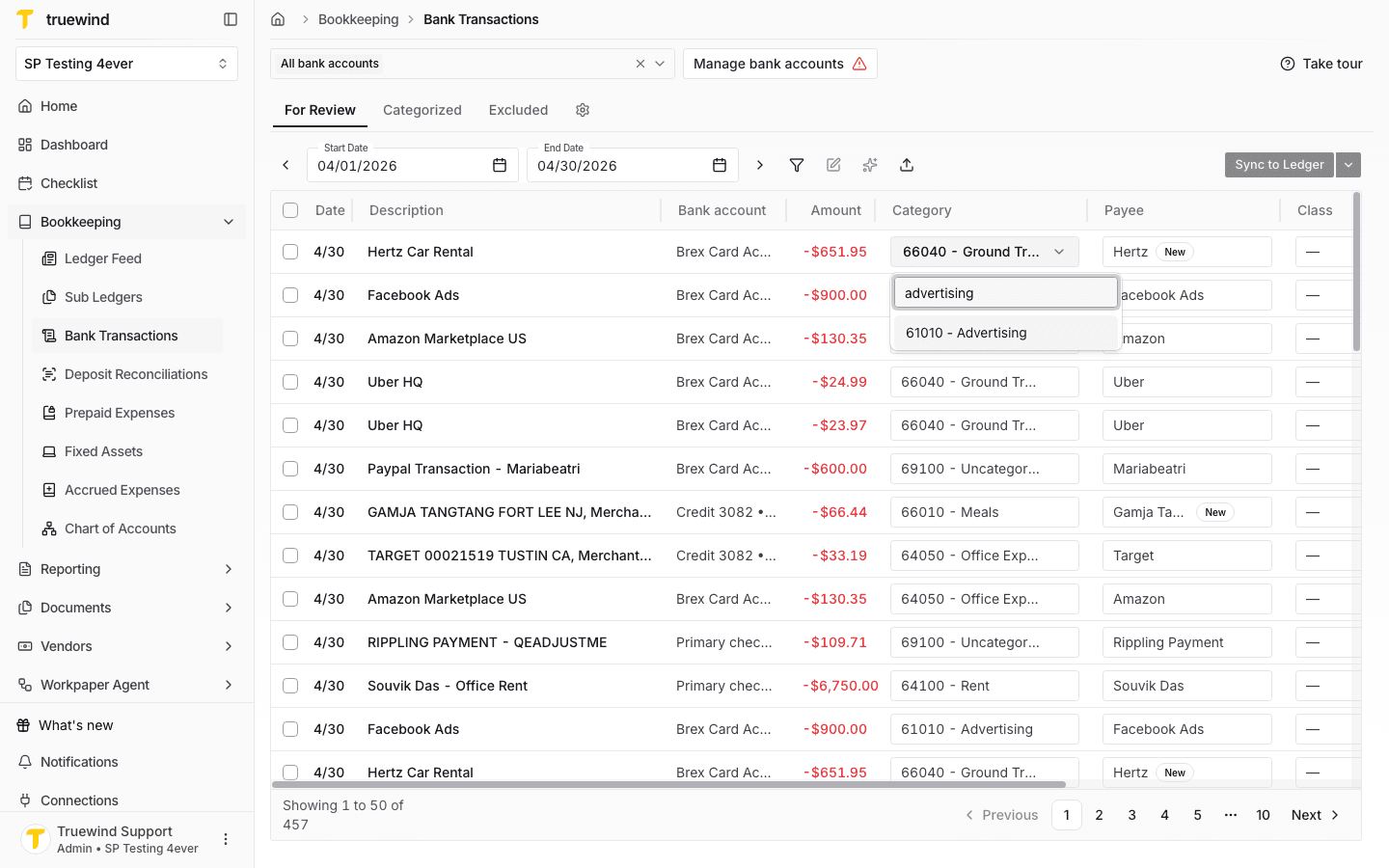
Type part of the account name or number to narrow the list to the ledger account you want to apply.
Step 4
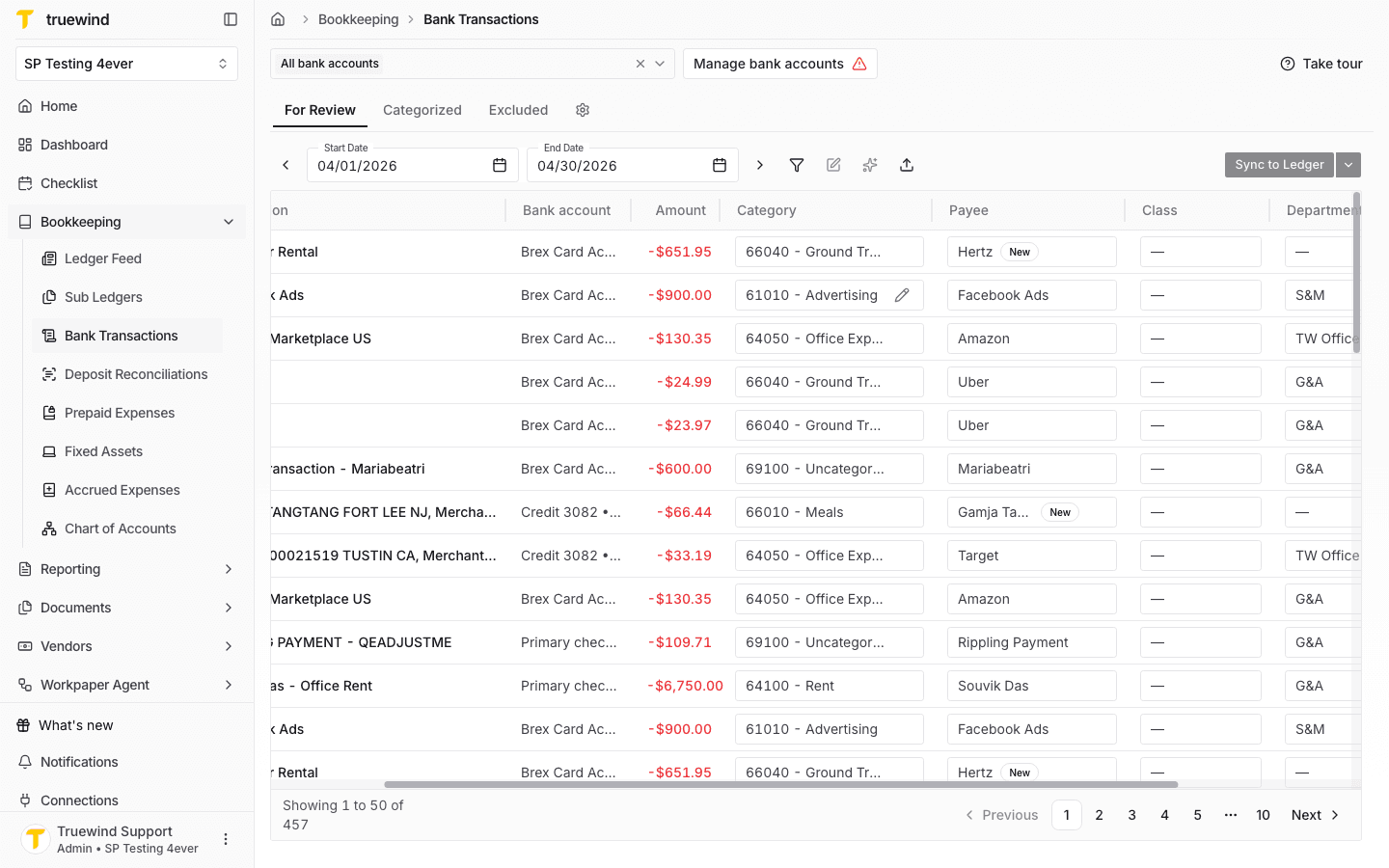
Choose the matching ledger account so the row reflects the category you want to use for sync.
Step 5
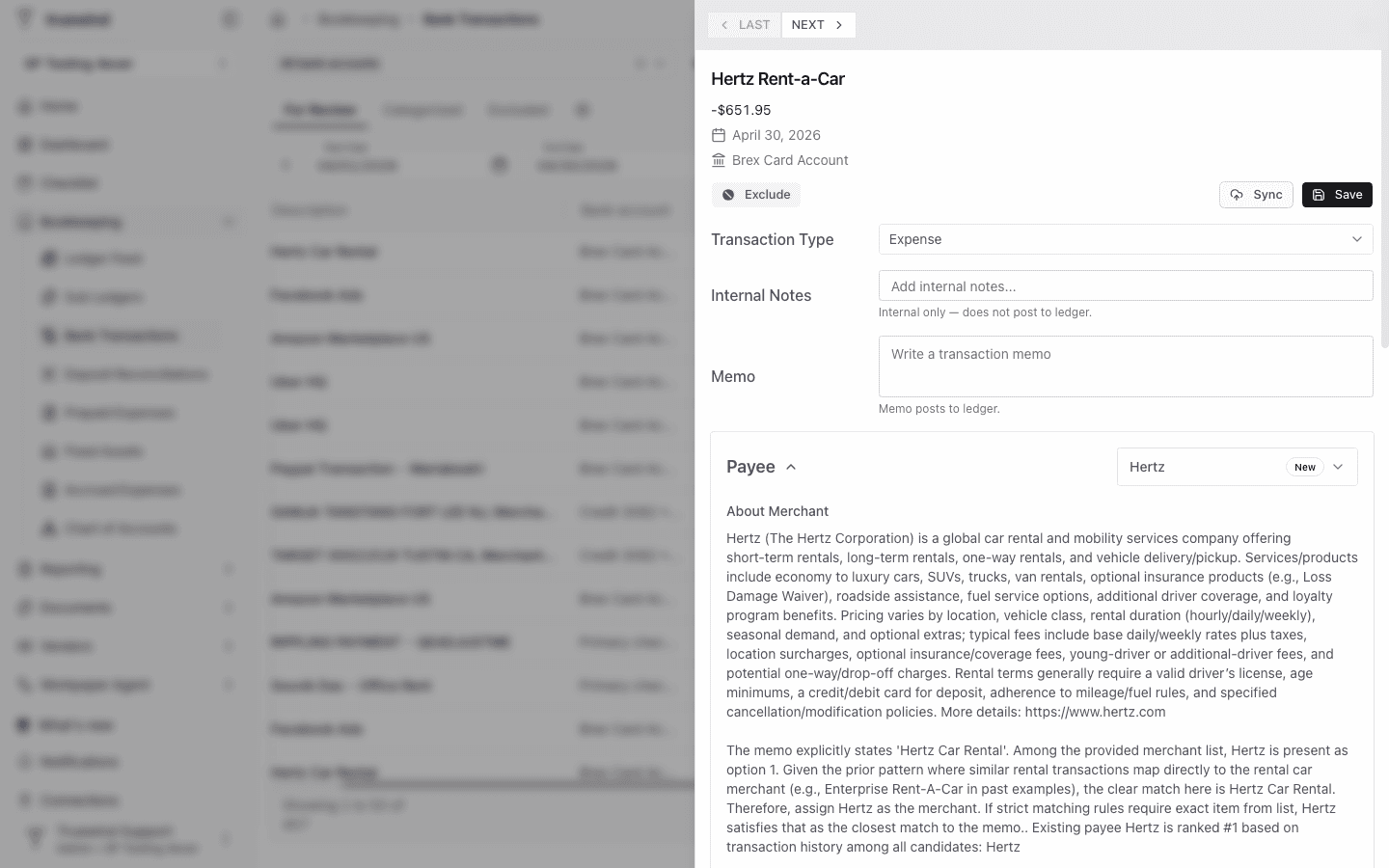
Open the detail panel when you need to review the transaction explanation, payee, category, or dimensions before saving.
Step 6
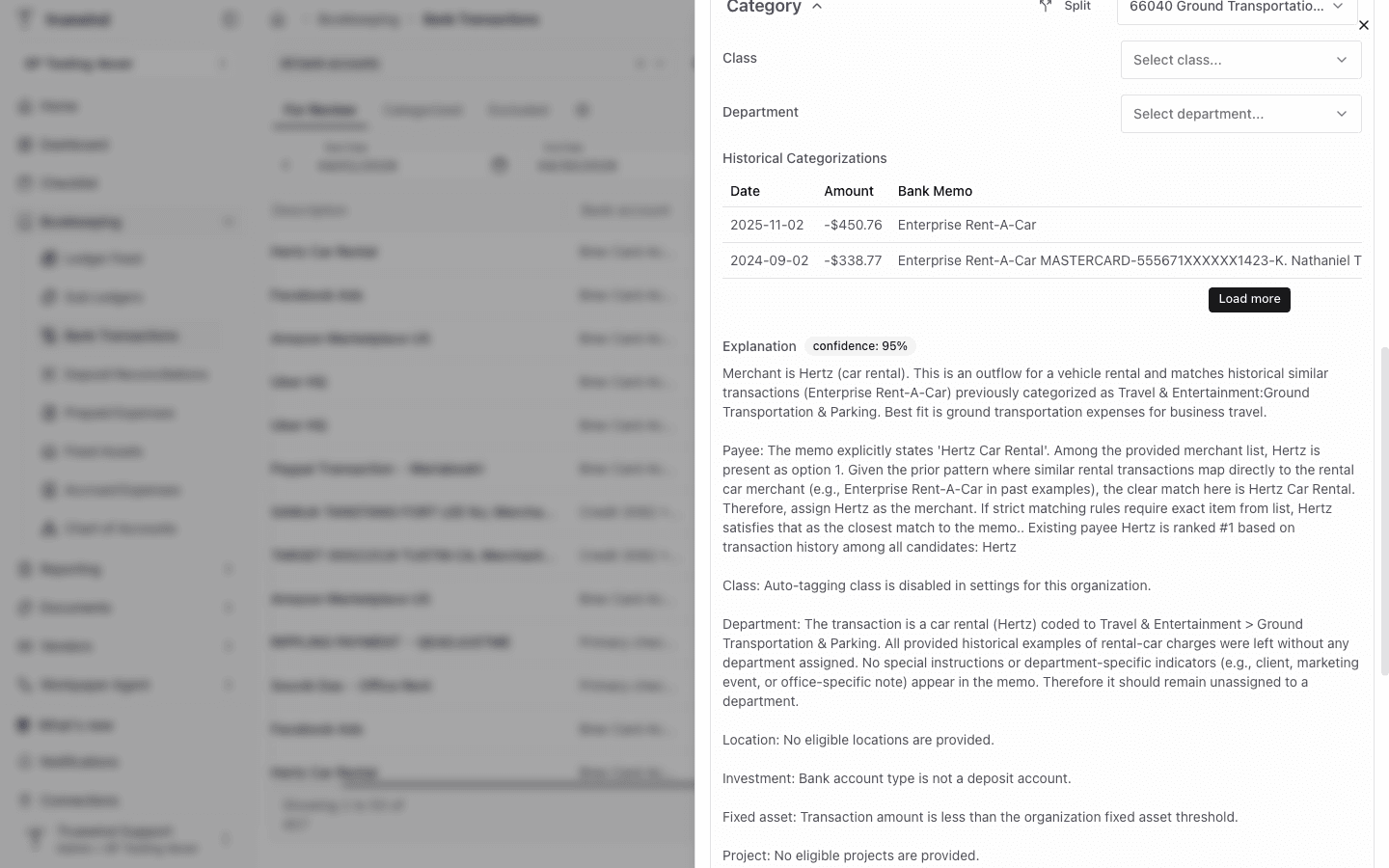
Use the Category section to confirm the ledger account, class, department, historical categorization, and AI explanation.
Step 7
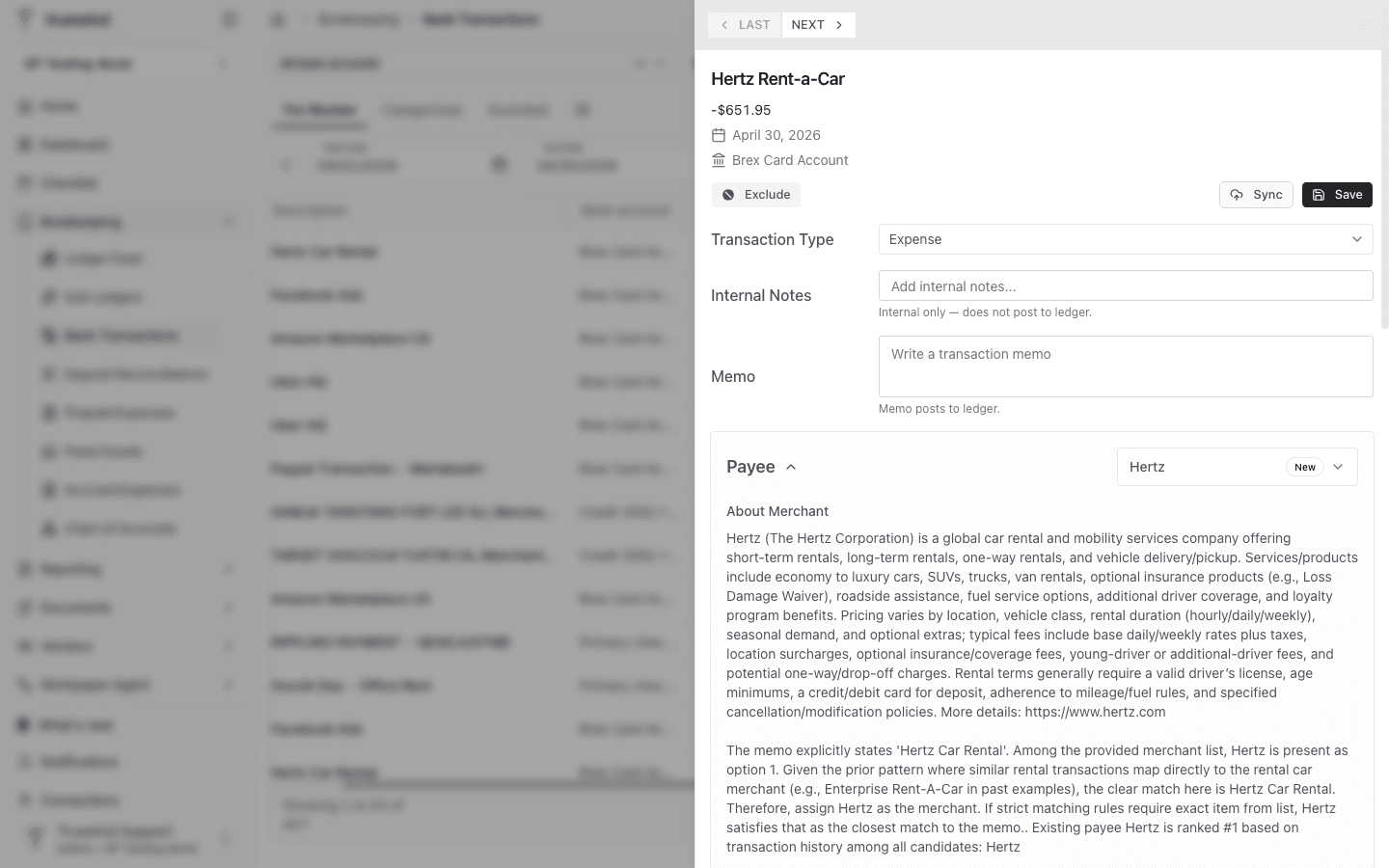
Click Save after confirming the category and supporting details are ready for the transaction.
Categorize transactions with the bank account filter and date range already narrowed so the table only shows the work you expect to complete in that session.
Was this helpful?
Need more help?
Ask for human help about this article and provide any feedback.