
Next step after creation
After the account appears, finish any required chart-of-accounts mapping so the Bank Transactions workflow can use it.
Ask the support agent
Just ask a direct question or search related articles from the Knowledge Base.
Support Center / Bank Transactions / Bank Connections
Add a new bank account from the Bank Accounts connection flow when more accounts need to come into scope, resulting in a new row ready for mapping and review.
Step 1
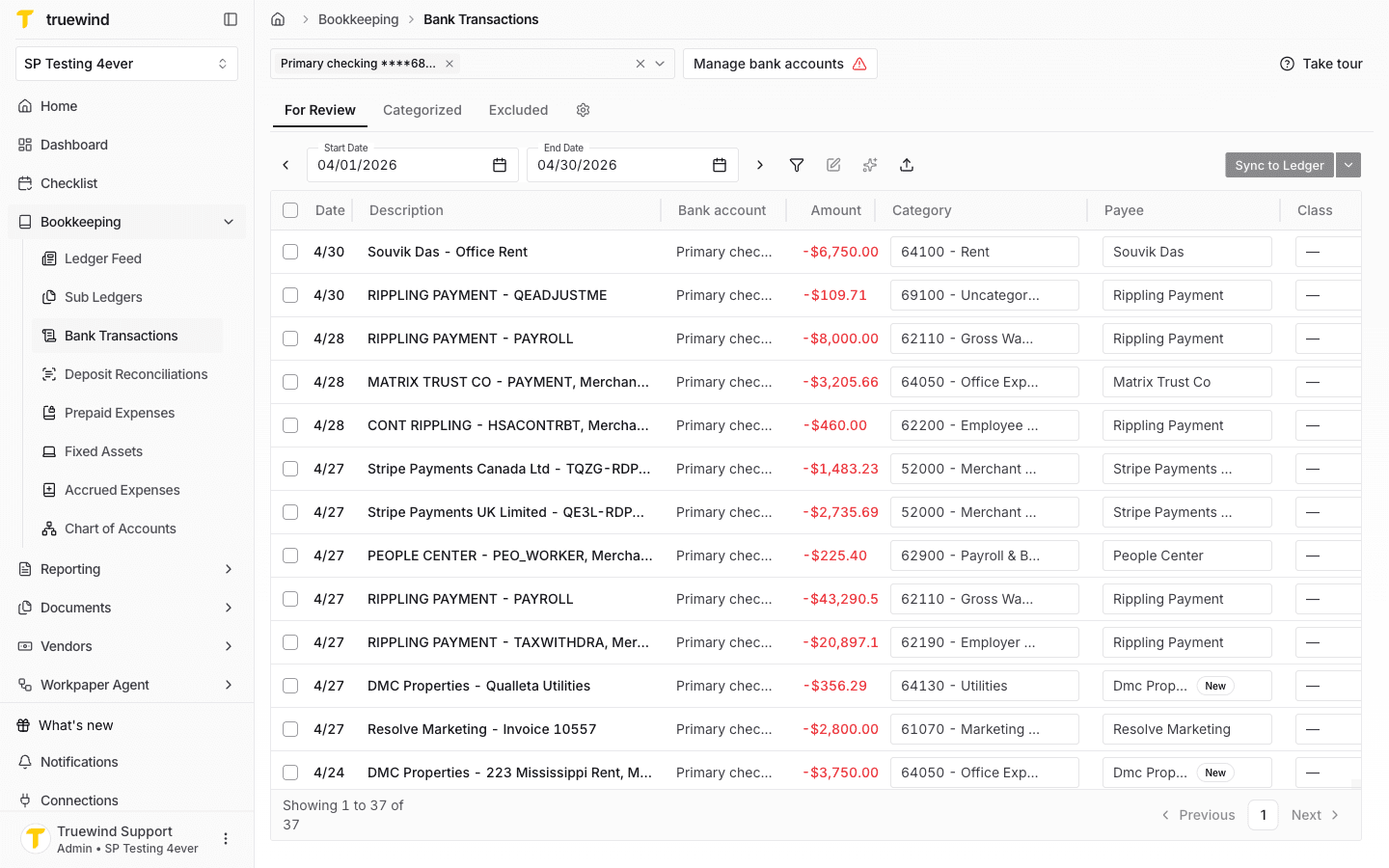
Start in Truewind on Bookkeeping > Bank Transactions, then click on Manage bank accounts button.
Step 2
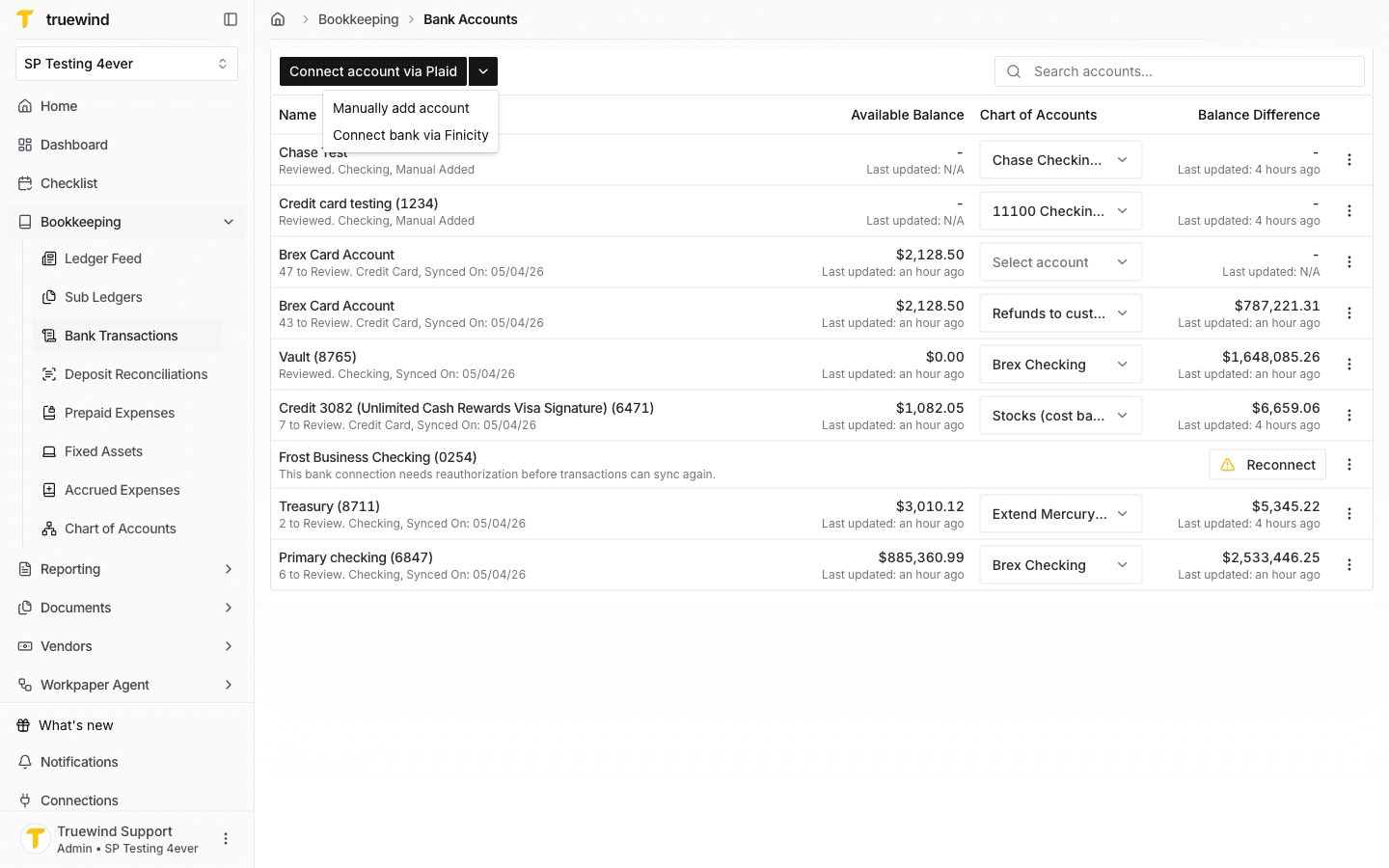
Once there, there's a dropdown button next to Connect account via Plaid. Select Manually add account.
Step 3
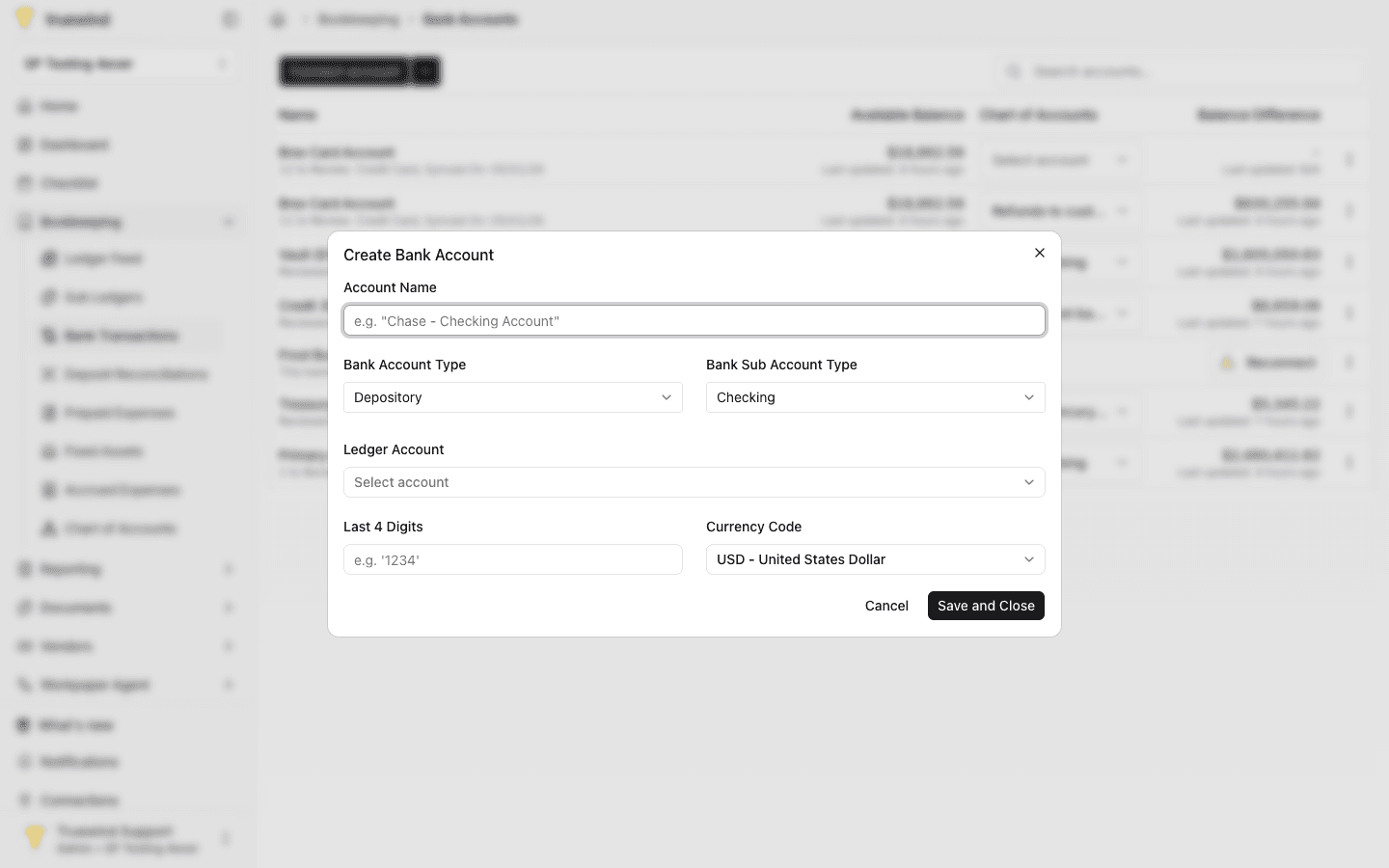
Provide the requested value exactly as it should be saved so the new bank account is available for mapping and imports.
Step 4
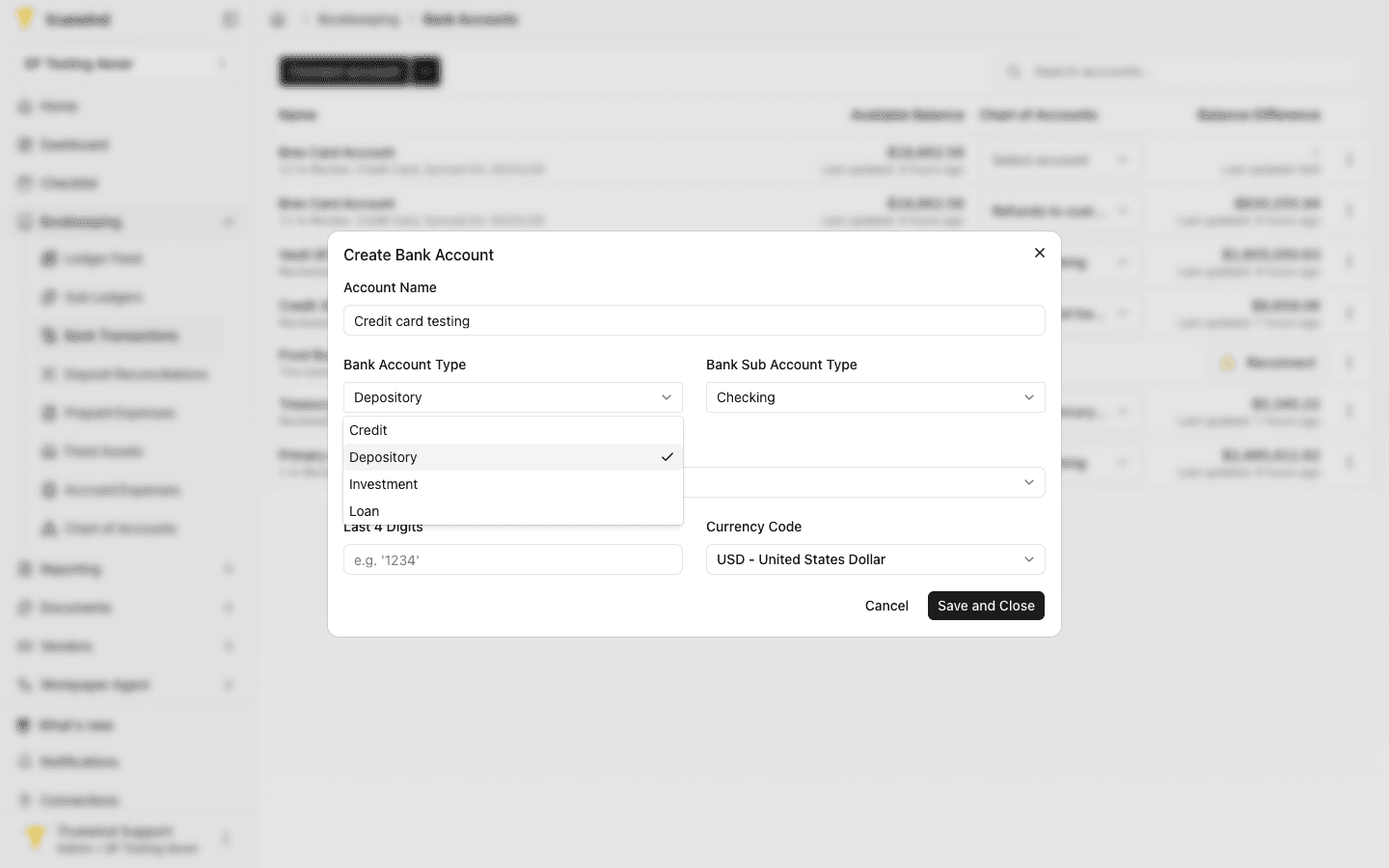
Pick the option that matches the client setup.
Step 5
Pick the option that matches the client setup
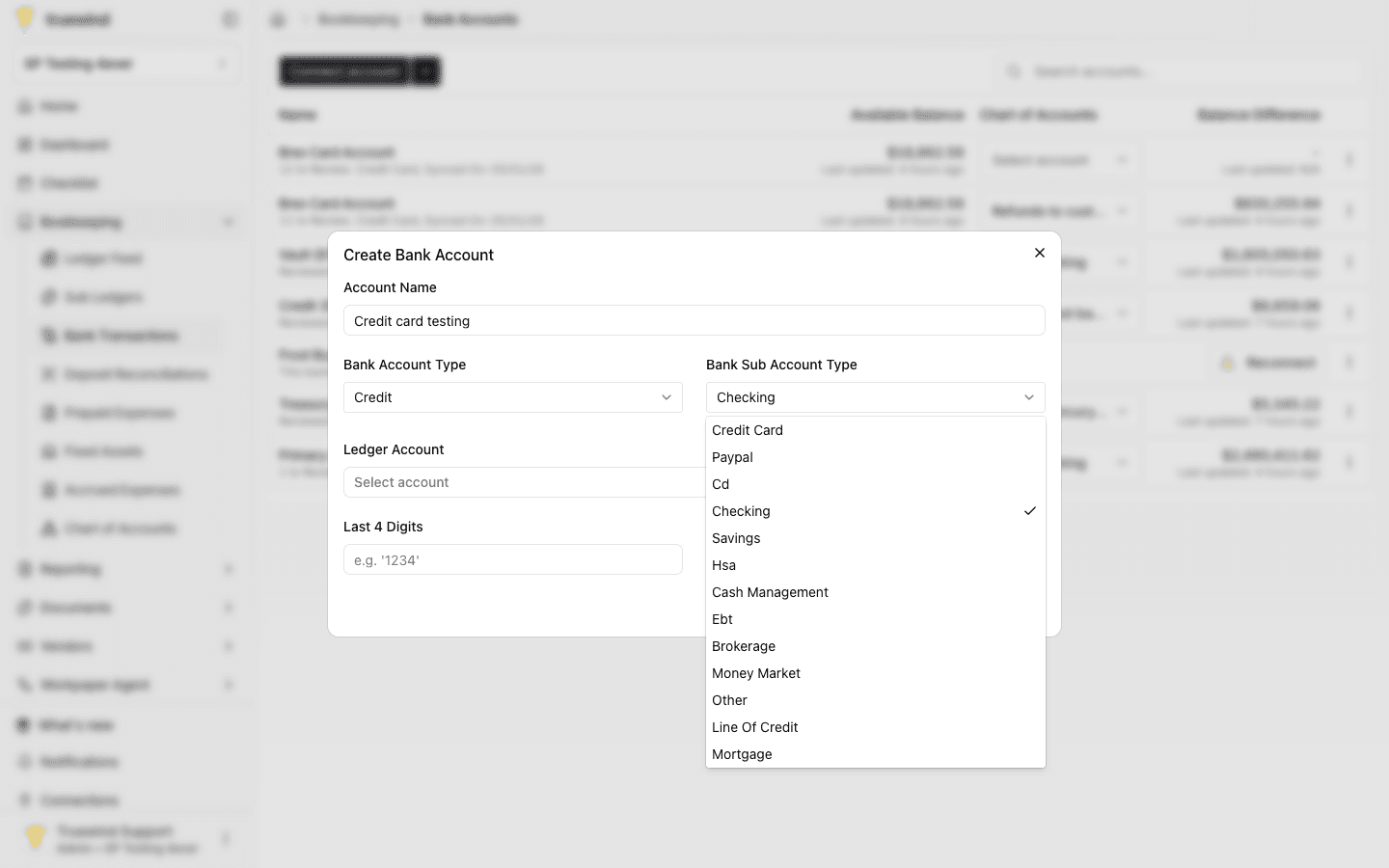
Step 6
Pick the option that matches the client setup.
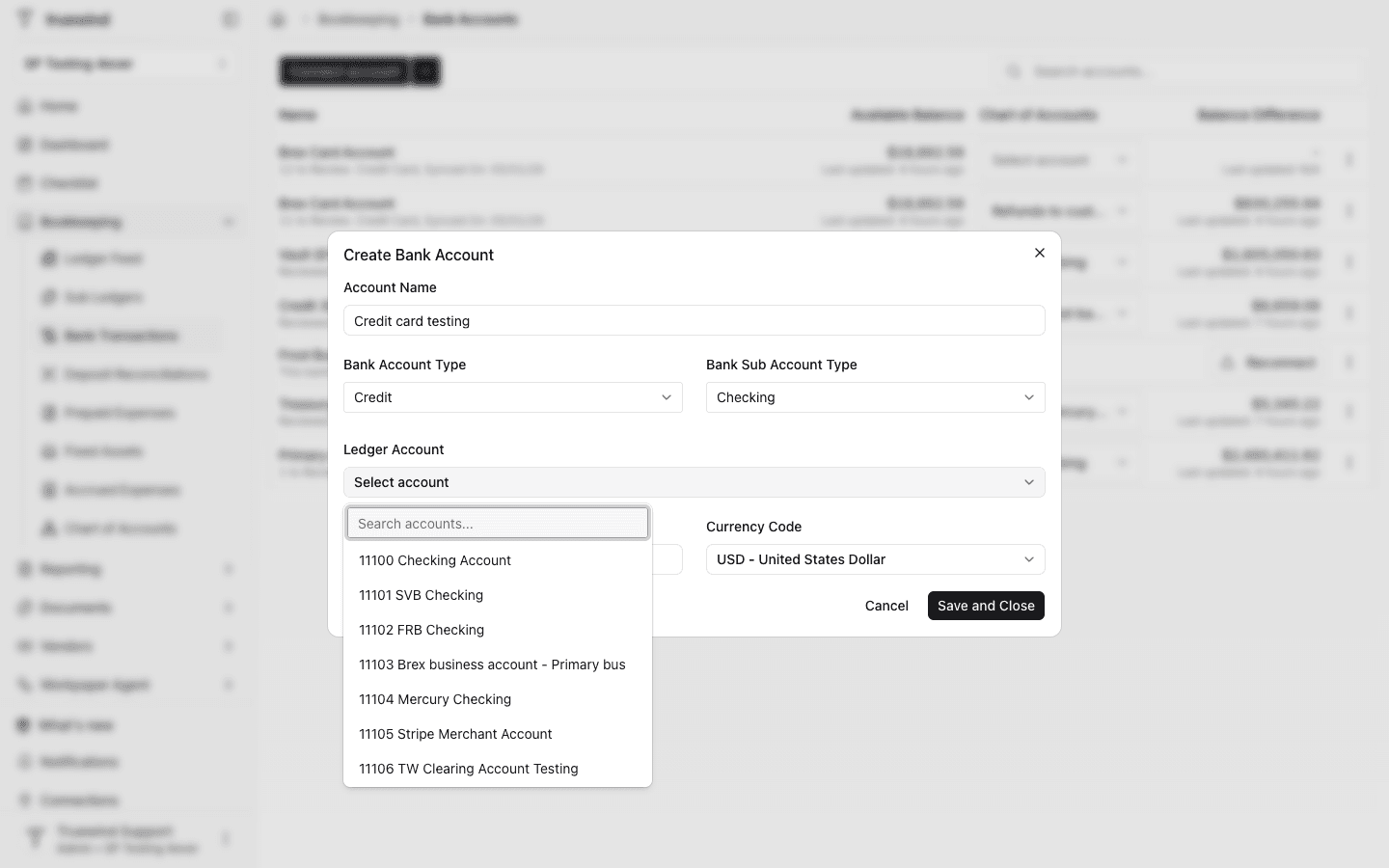
Step 7
Optionally, type on the last 4 digits and pick a different currency code, if applicable. Then, click on Save and Close button.
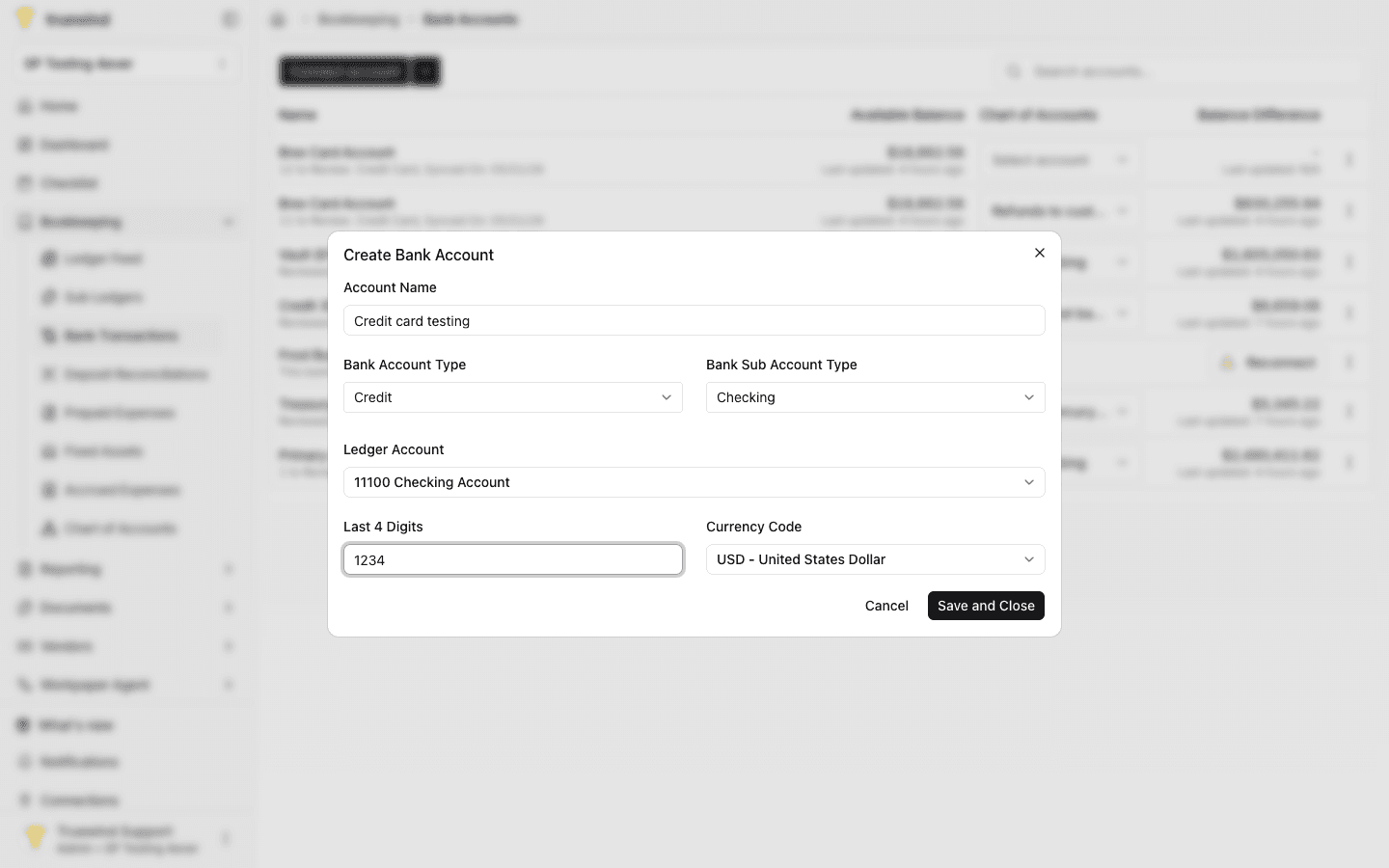
Step 8
Check for the expected result before moving on so the new bank account is available for mapping and imports.
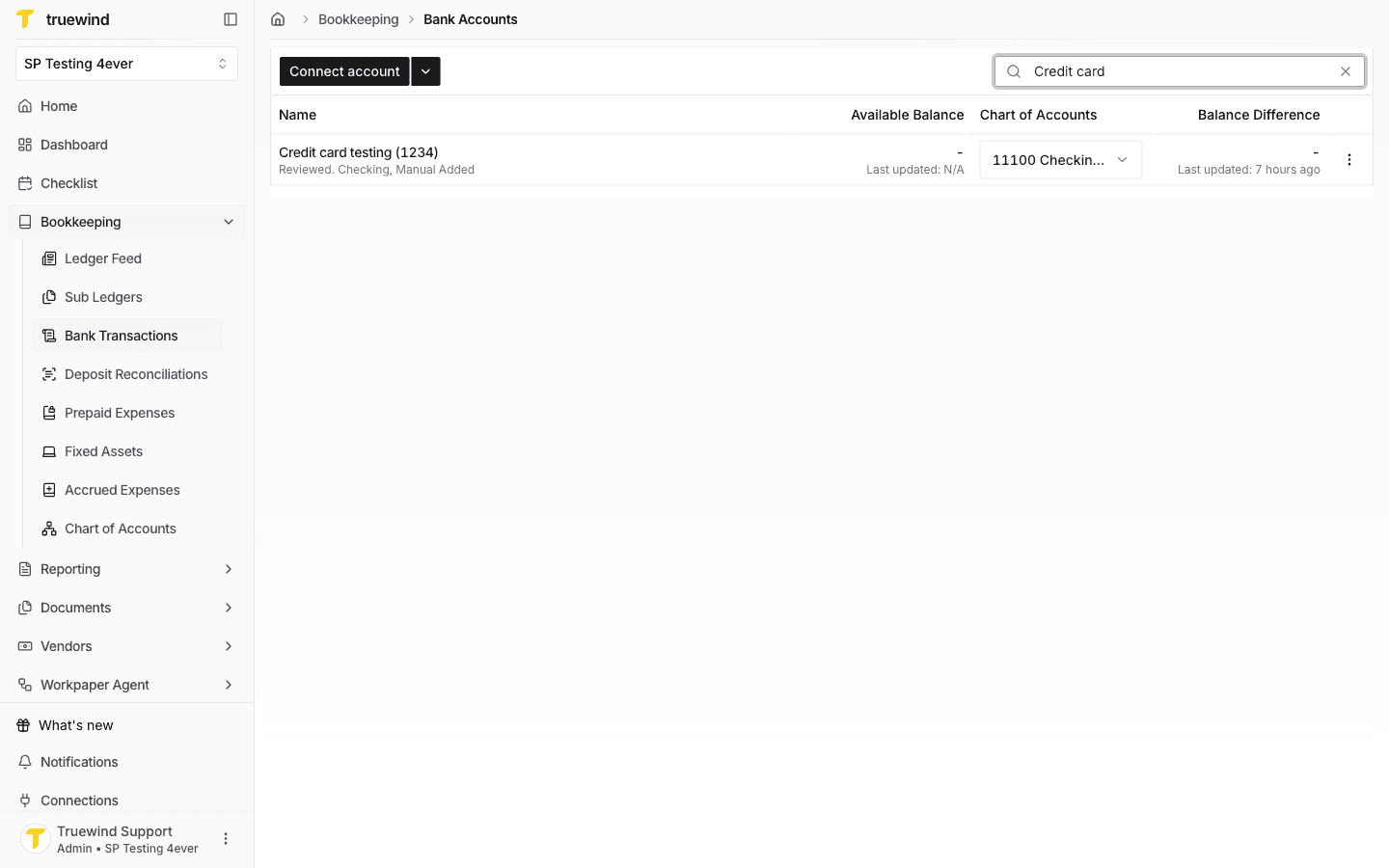
After the account appears, finish any required chart-of-accounts mapping so the Bank Transactions workflow can use it.
Was this helpful?
Need more help?
Ask for human help about this article and provide any feedback.