
What to verify
Check that the transaction amount, date, and accounting outcome line up between Truewind and QuickBooks before treating the workflow as complete.
Ask the support agent
Just ask a direct question or search related articles from the Knowledge Base.
Support Center / Bank Transactions / Features
Review synced and matched transaction states before checking QuickBooks, resulting in a cleaner comparison between Truewind and the ERP outcome.
Step 1
Start in Bookkeeping > Bank Transactions and select the bank accounts you want to review so transaction rows are visible.
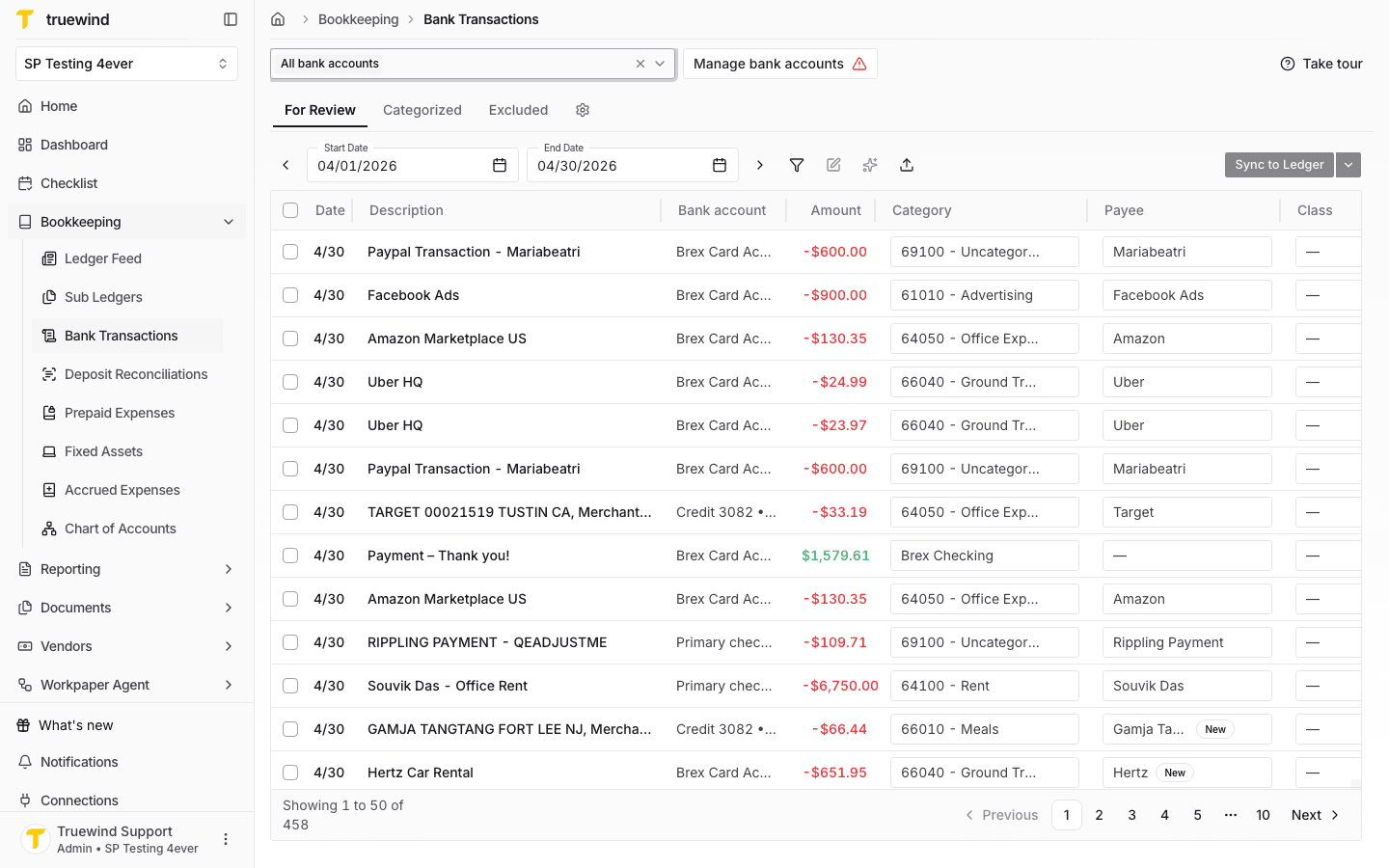
Step 2
Start from Categorized because only completed syncs and matches expose links back to QuickBooks.
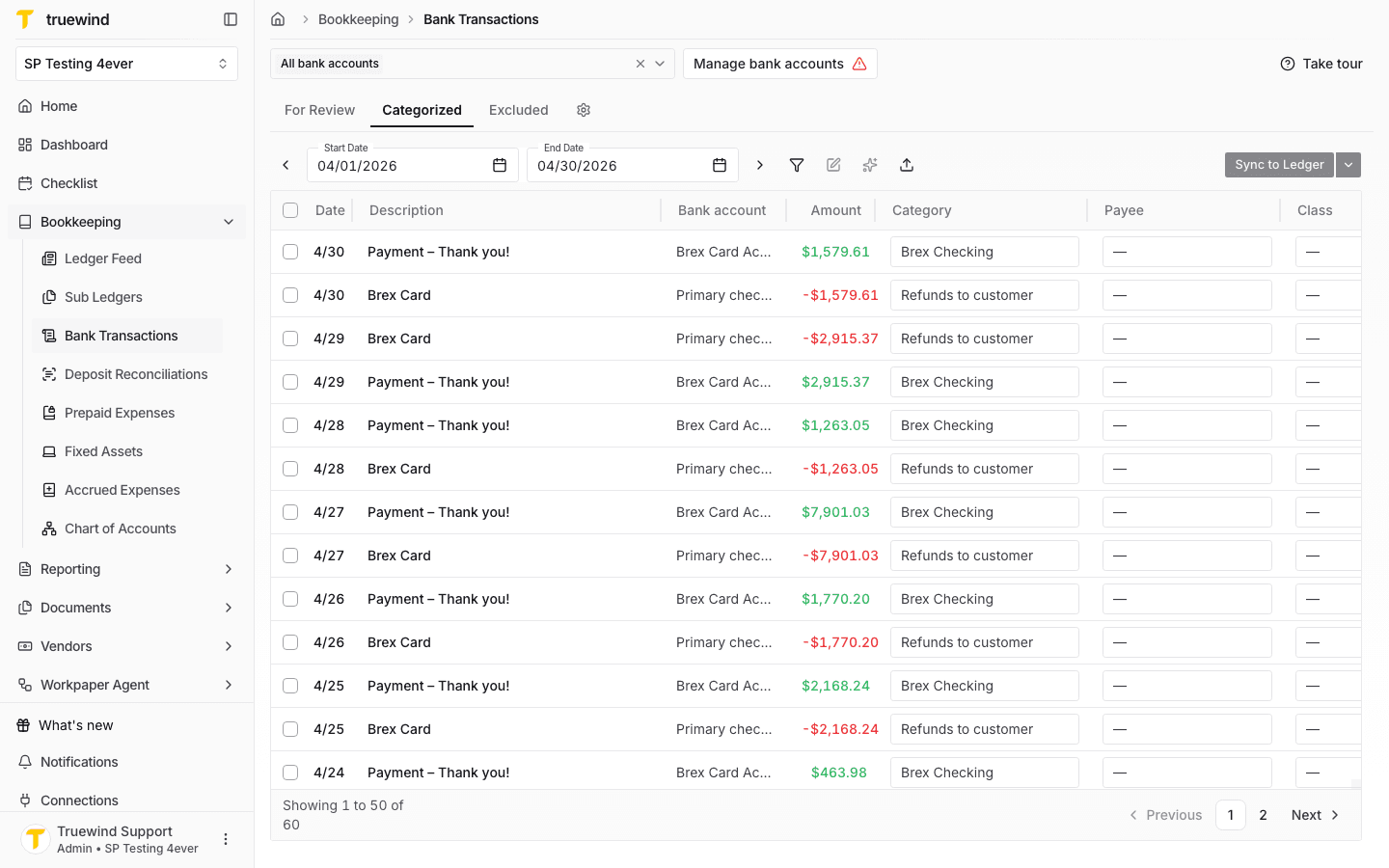
Step 3
Select a synced or matched transaction row to open the detail panel where Truewind shows the ledger status and accounting fields.
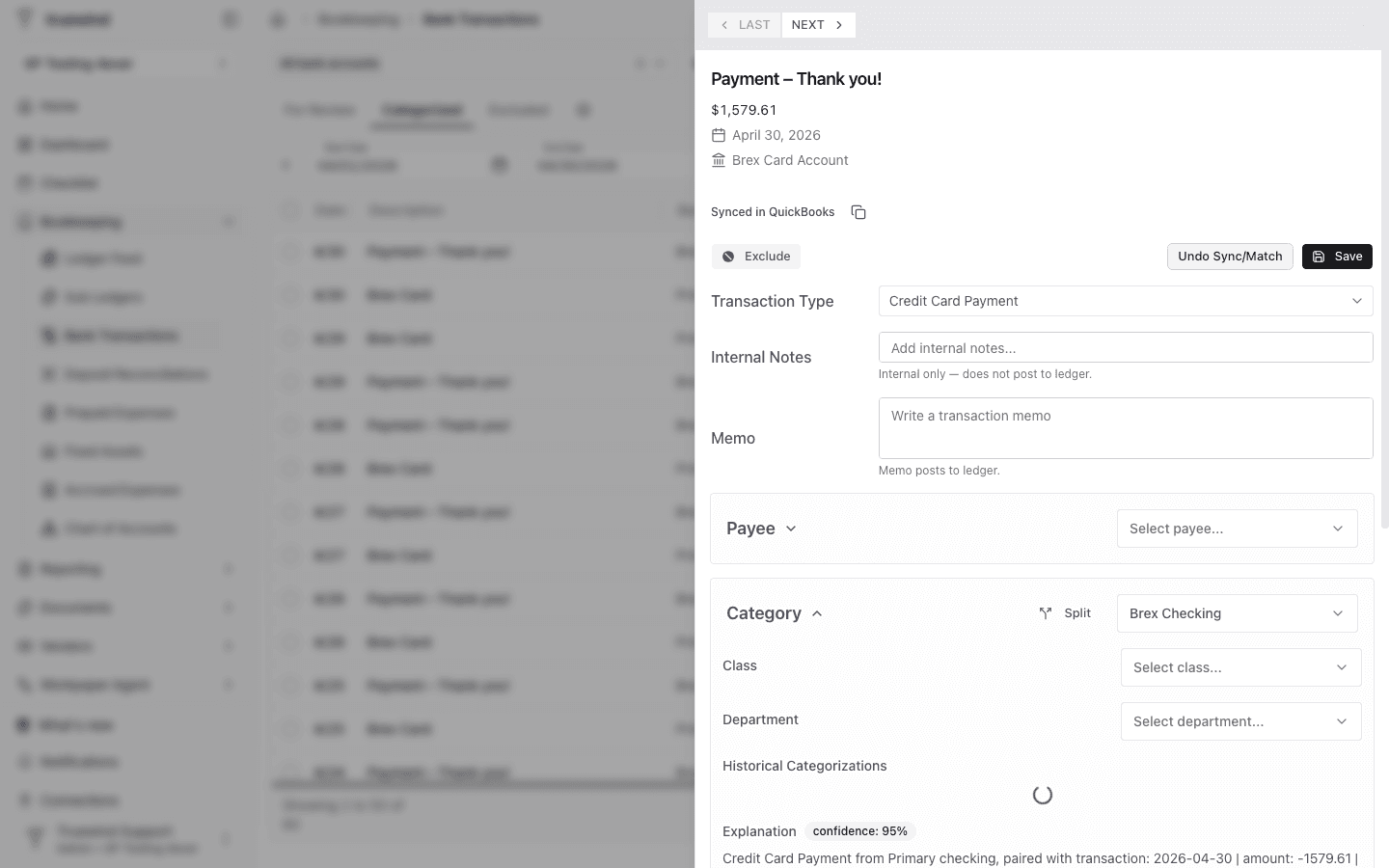
Step 4
Use the Synced in QuickBooks link in the detail panel to open the record that Truewind created or matched in QuickBooks.
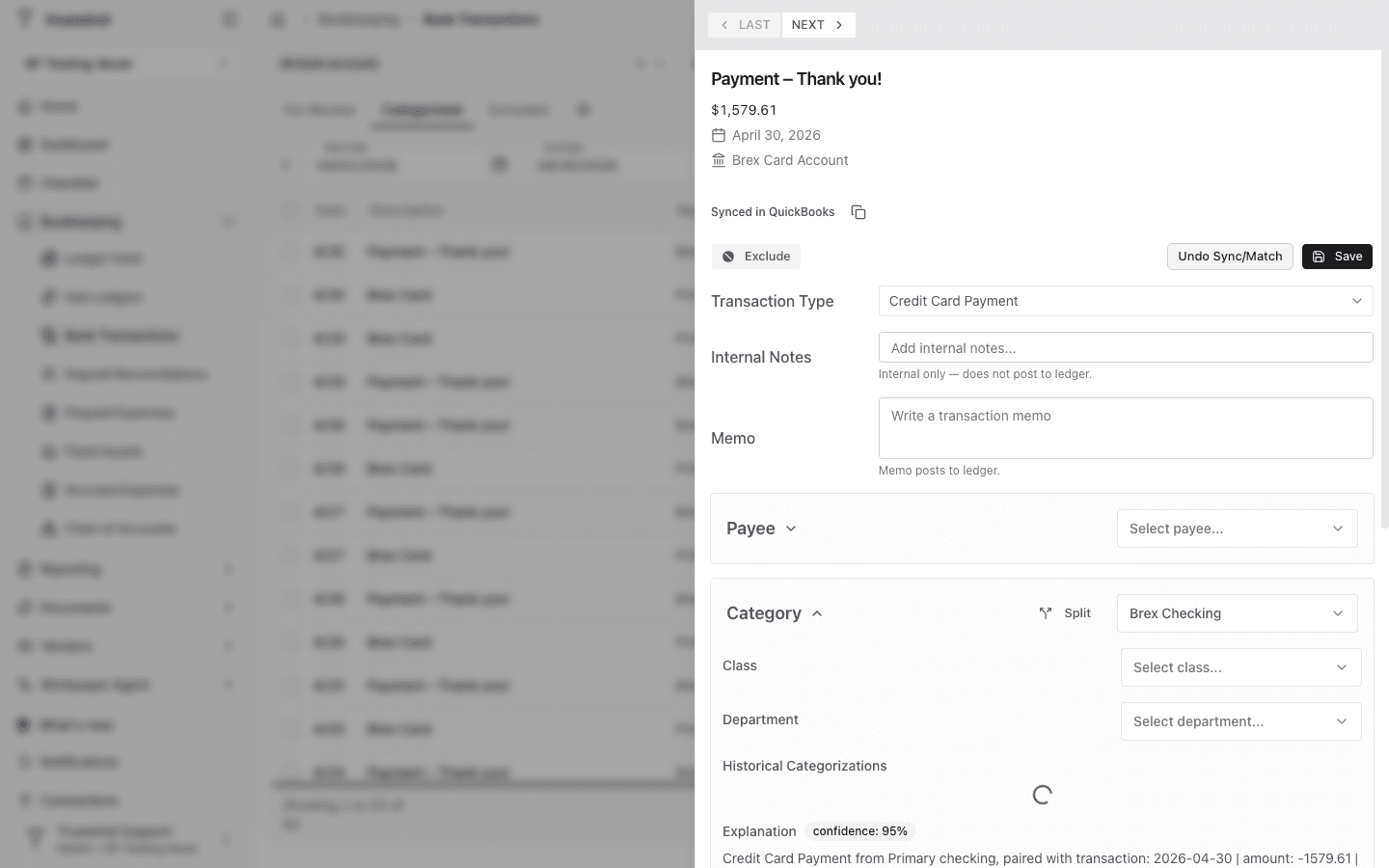
Step 5
In QuickBooks, compare the payee, account, description, payment account, and amount against the Truewind transaction.
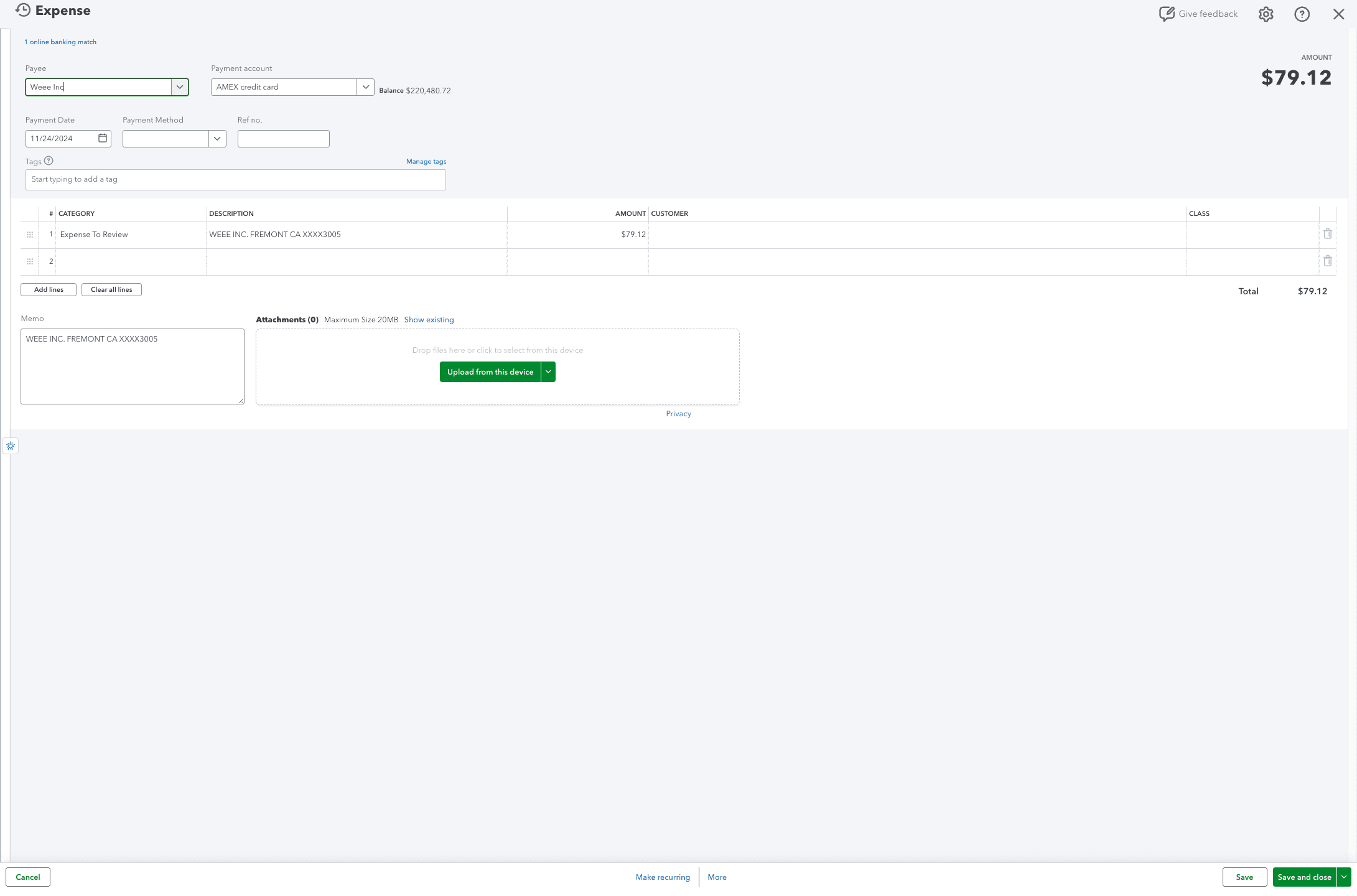
Step 6
For credit card payments or transfers, confirm QuickBooks shows the source and destination accounts Truewind used for the sync.
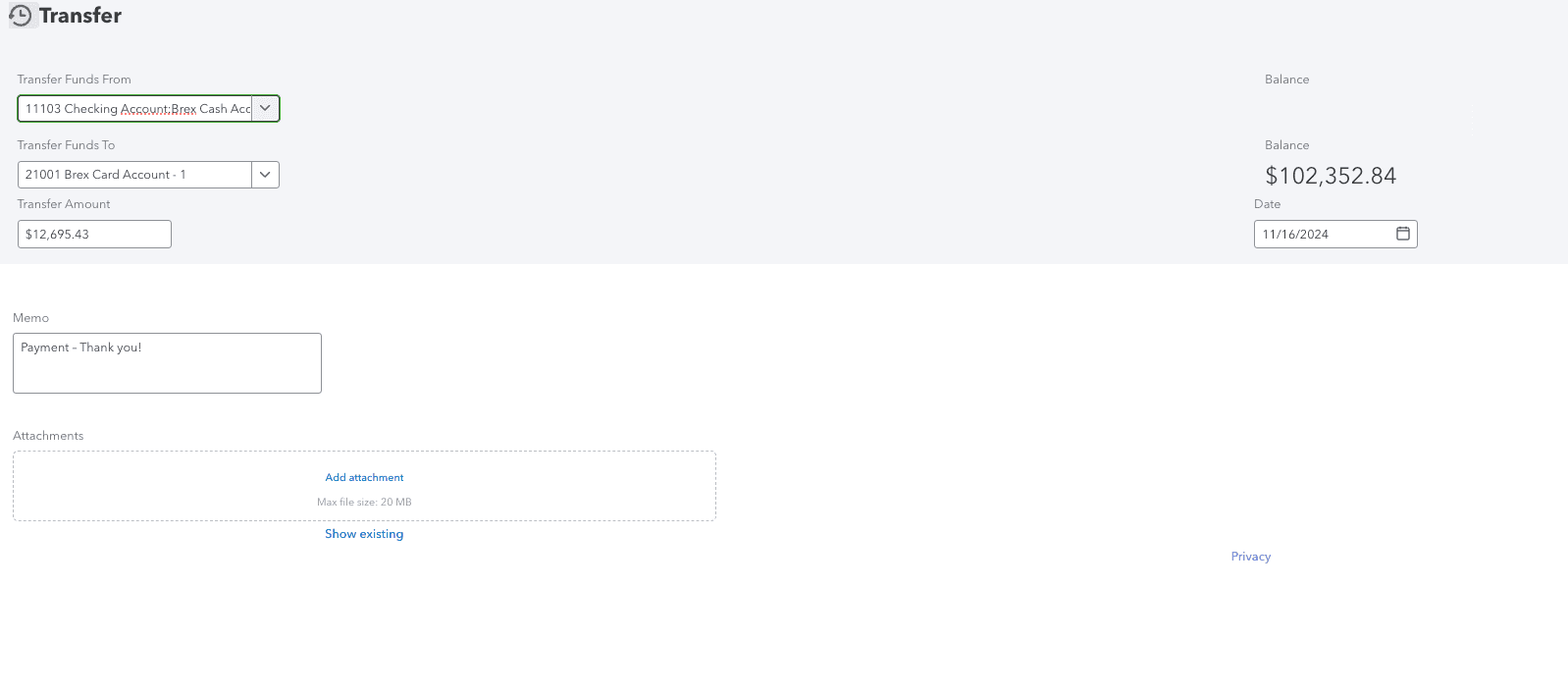
Step 7
If Truewind matched a bank transaction to an open bill, verify QuickBooks shows the expected bill payment and linked bill.
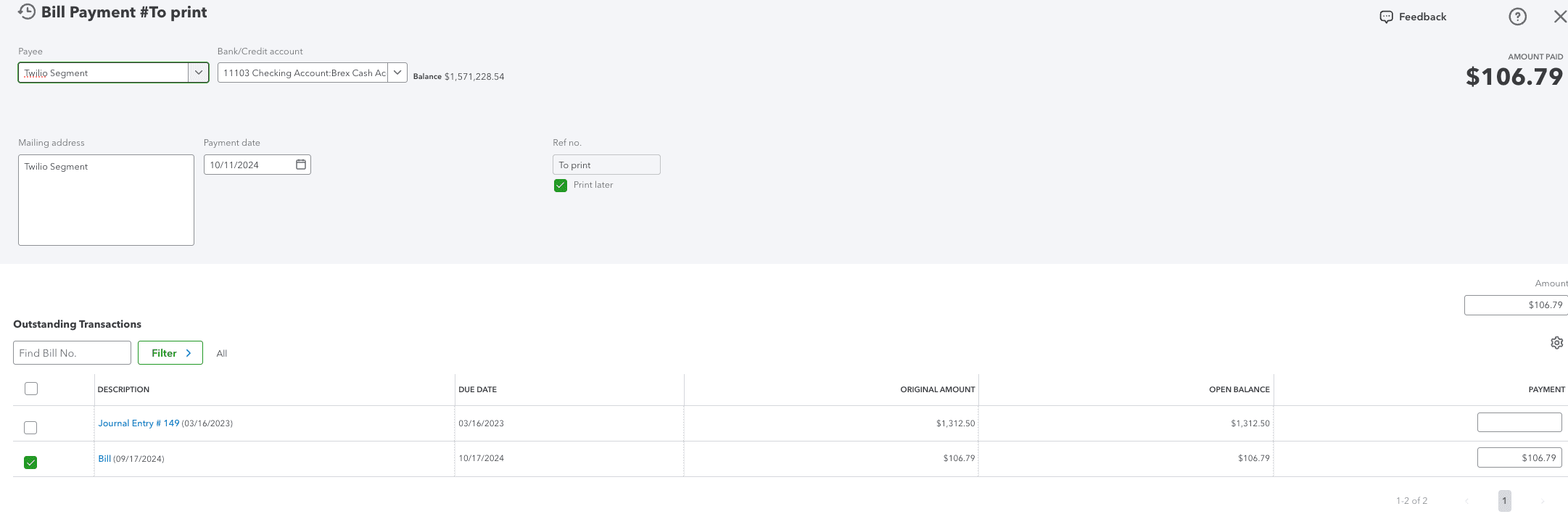
Step 8
For payroll, merchant account statements, or other matched entries, verify the QuickBooks journal entry or statement record is the expected match.
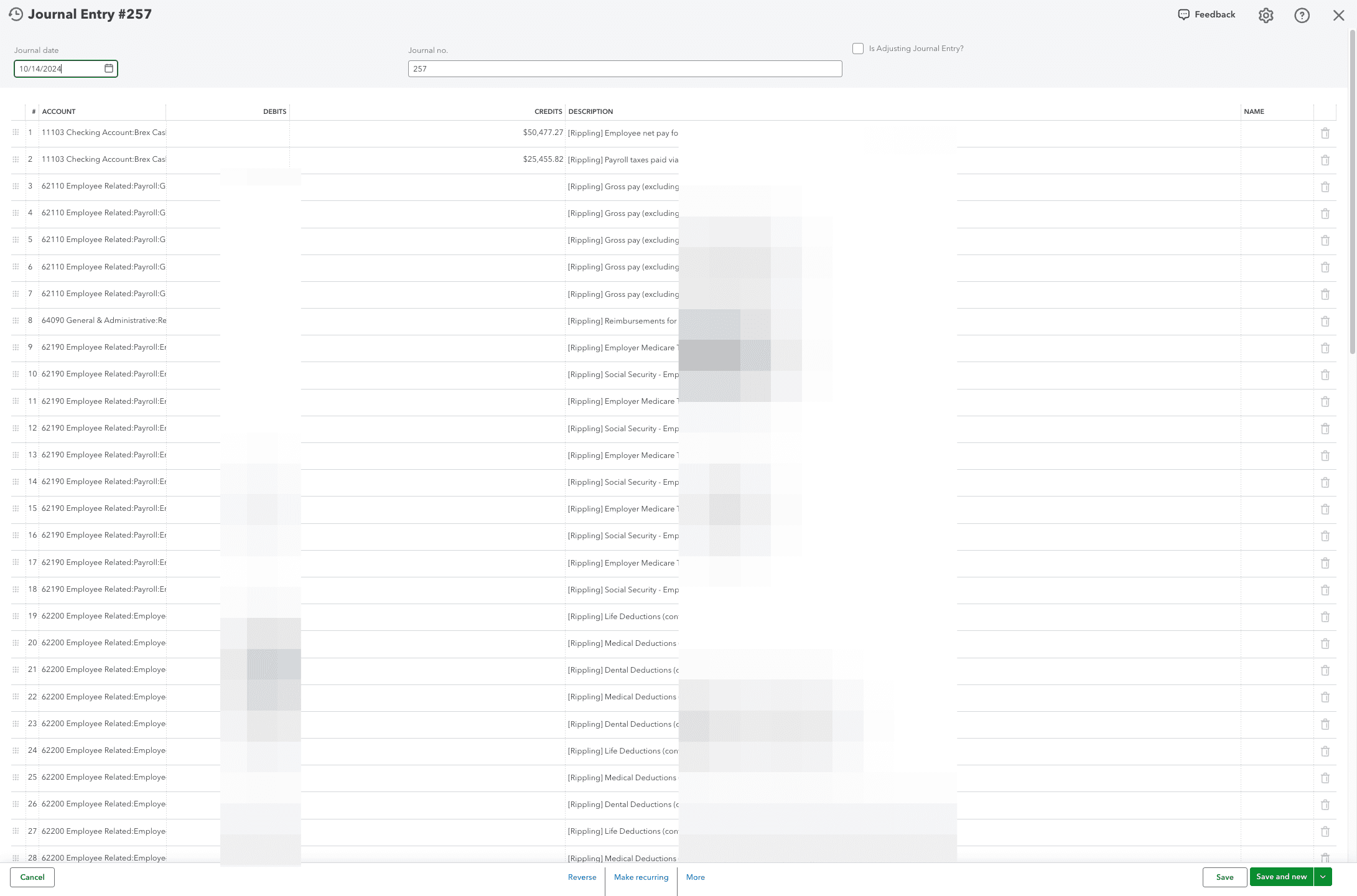
Step 9
For matched transfers or payments, confirm the QuickBooks record reflects the same transaction amount and linked accounts.
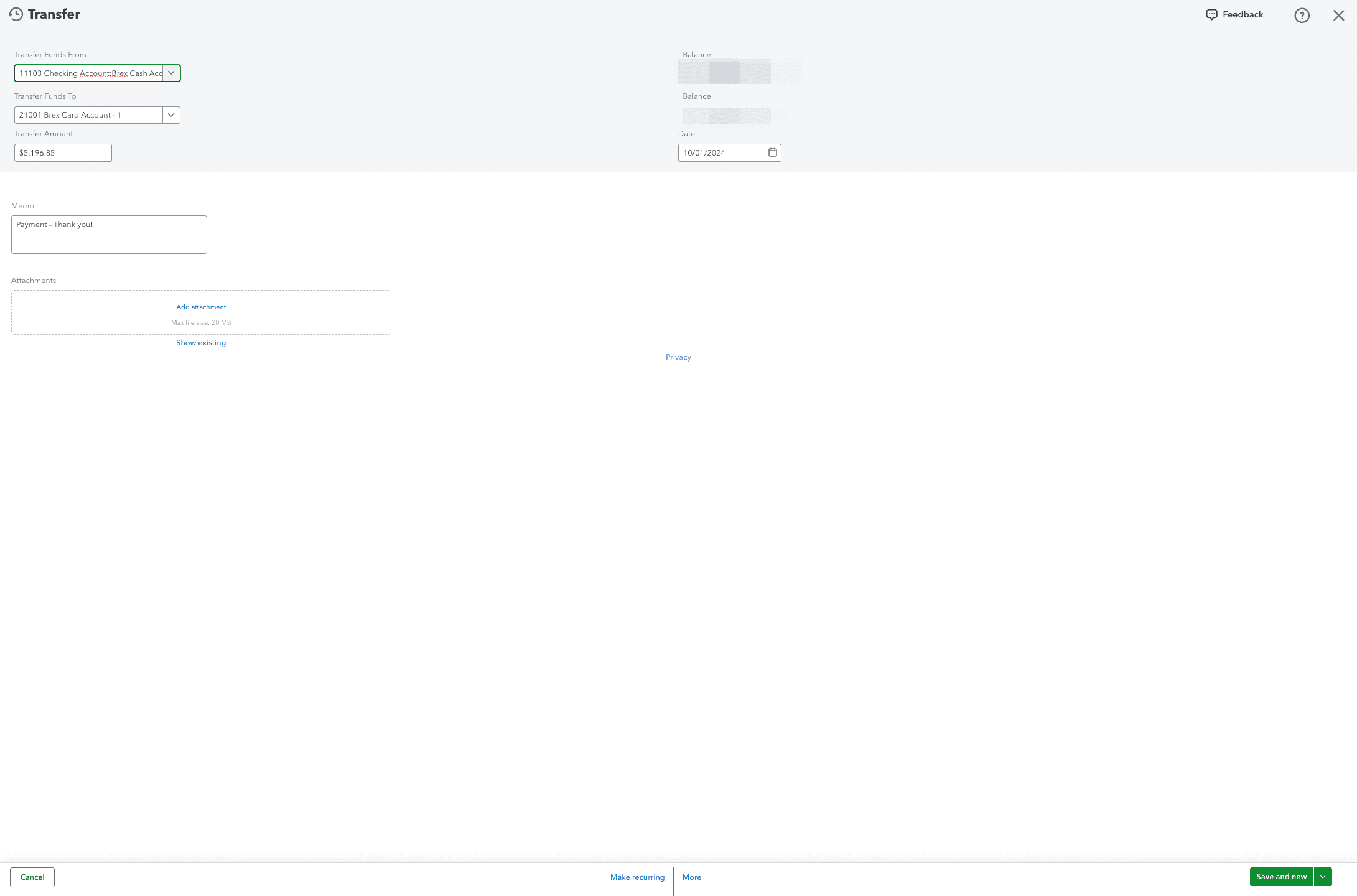
Check that the transaction amount, date, and accounting outcome line up between Truewind and QuickBooks before treating the workflow as complete.
Truewind reads general-ledger transactions from the connected ERP. When a bank transaction matches an existing ERP transaction, Truewind marks it as matched instead of creating a duplicate transaction. Review the matched status and QuickBooks link before syncing or treating the transaction as complete.
Yes. Truewind can match transfers between connected bank accounts when the opposite-side transaction is available. It can also match bank transactions to existing general-ledger transfer transactions when the amount, date window, account context, and description are consistent.
Was this helpful?
Need more help?
Ask for human help about this article and provide any feedback.