Ask the support agent

Just ask a direct question or search related articles from the Knowledge Base.

Support Center / Bank Transactions / Features

Undo sync or match in Bank Transactions

Undo a synced or matched result when the original accounting outcome was wrong, resulting in a transaction that can be corrected and reviewed again.

Workflow

Step 1

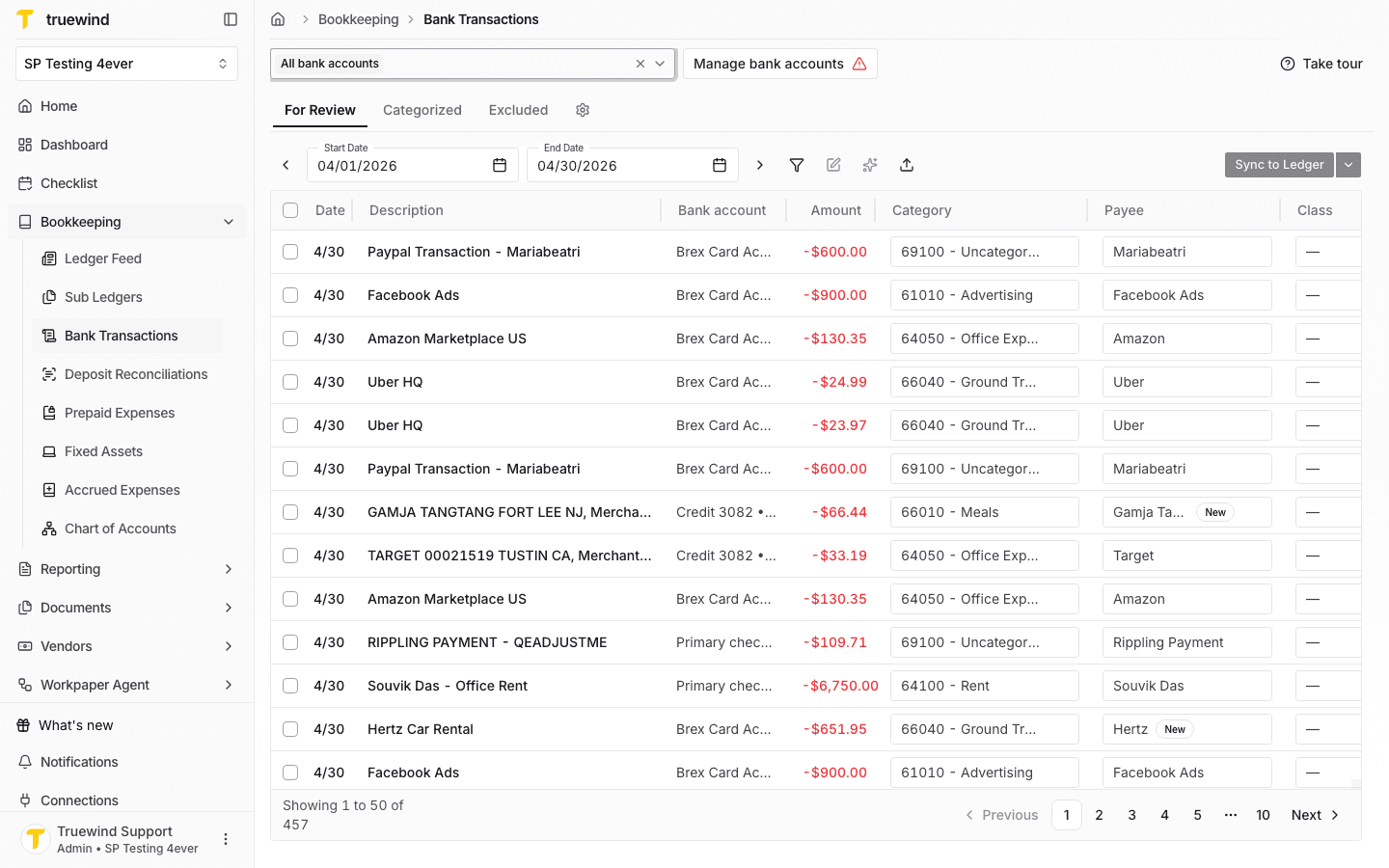
Click Bank Transactions

Start in Truewind on Bookkeeping > Bank Transactions, then click on Bank Transactions.

Screenshot showing Click Bank Transactions

Step 2

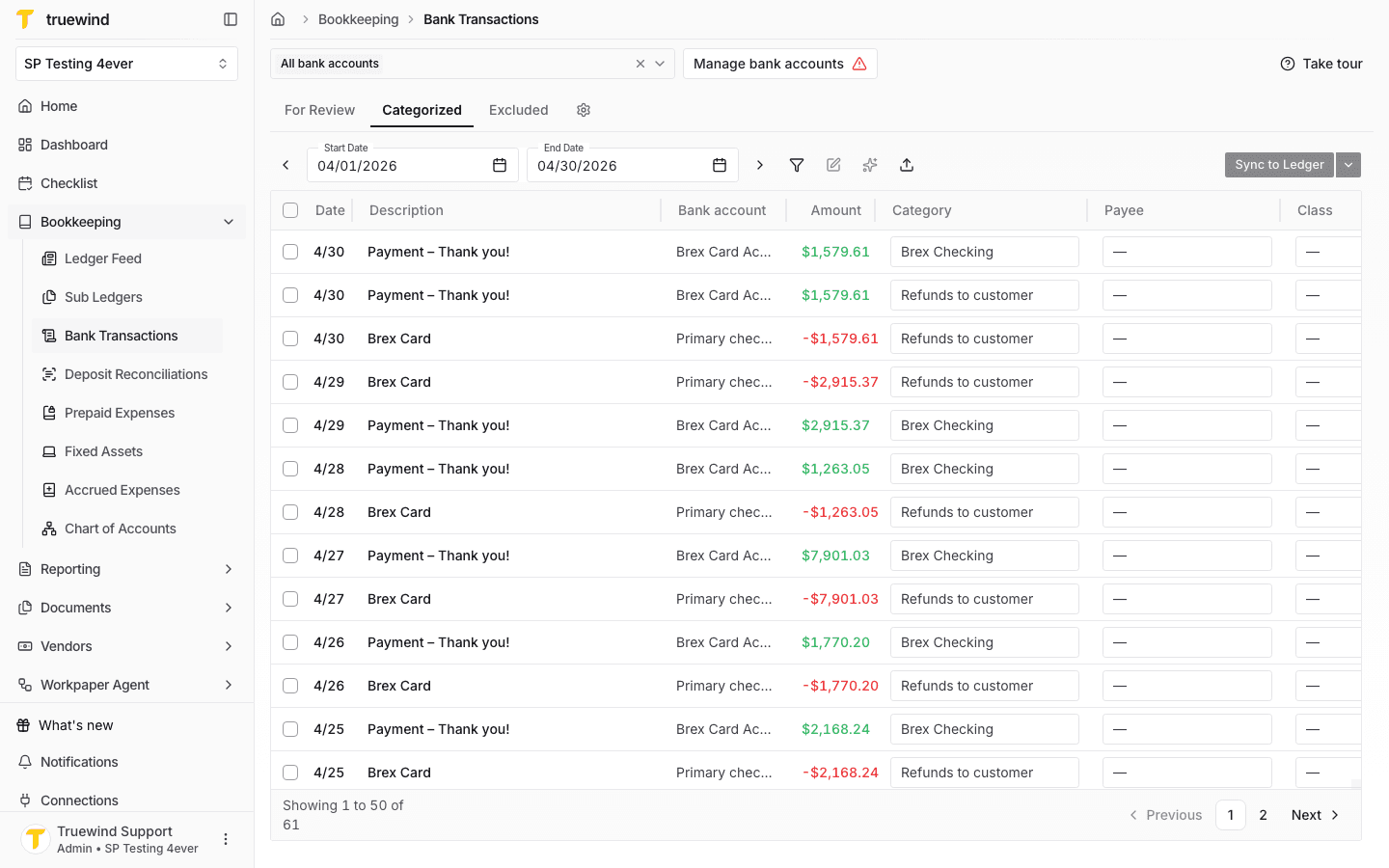
Open Categorized

Start from Categorized because only synced or matched transactions can be undone from this view.

Screenshot showing Click Categorized

Step 3

Open the synced transaction

Inspect the synced or matched row before you reverse it so you know which ERP record will be removed.

Screenshot showing Click 3/22 7-Eleven -$83.66 0.8

Step 4

Undo the sync or match

Complete this action so the transaction returns to review and the ERP-side record is removed.

Screenshot showing In the transaction side draw, click on Undo Sync/Match

Step 5

Review the unsynced notice

Use the confirmation state to verify the ERP-side record was removed before you leave the transaction.

Screenshot showing Click 1 transactions unsynced

Step 6

Confirm the ERP rollback

Check for the expected result before moving on so the transaction returns to review and the ERP-side record is removed.

Screenshot showing Once you Undo Sync/Match , the transaction will move from the “Categorized” tab to “For Review.” The synced or matched transaction will also be deleted in ERP

Step 7

Confirm the review status

After the undo finishes, the transaction should return to review without its prior sync or match.

Screenshot showing Click 3/22 7-Eleven -$83.66 N/A

Step 8

Alternative: you can bulk undo transactions

Complete this action so the transaction returns to review and the ERP-side record is removed.

Screenshot showing Alternatively, you can bulk undo transactions

Step 9

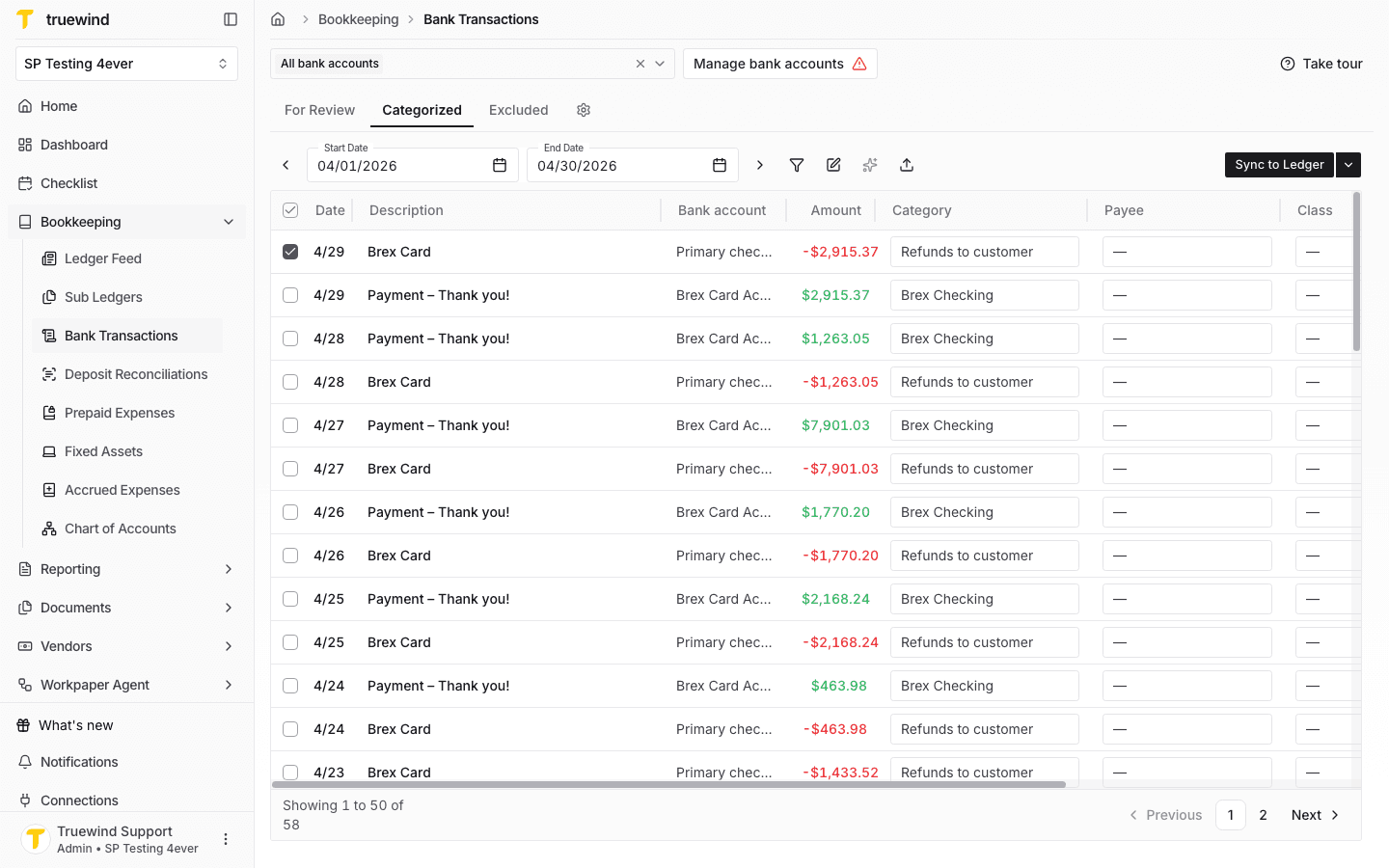
Select multiple transactions

Pick the option that matches the client setup; that choice controls what happens next so the transaction returns to review and the ERP-side record is removed.

Screenshot showing Select multiple transactions

Step 10

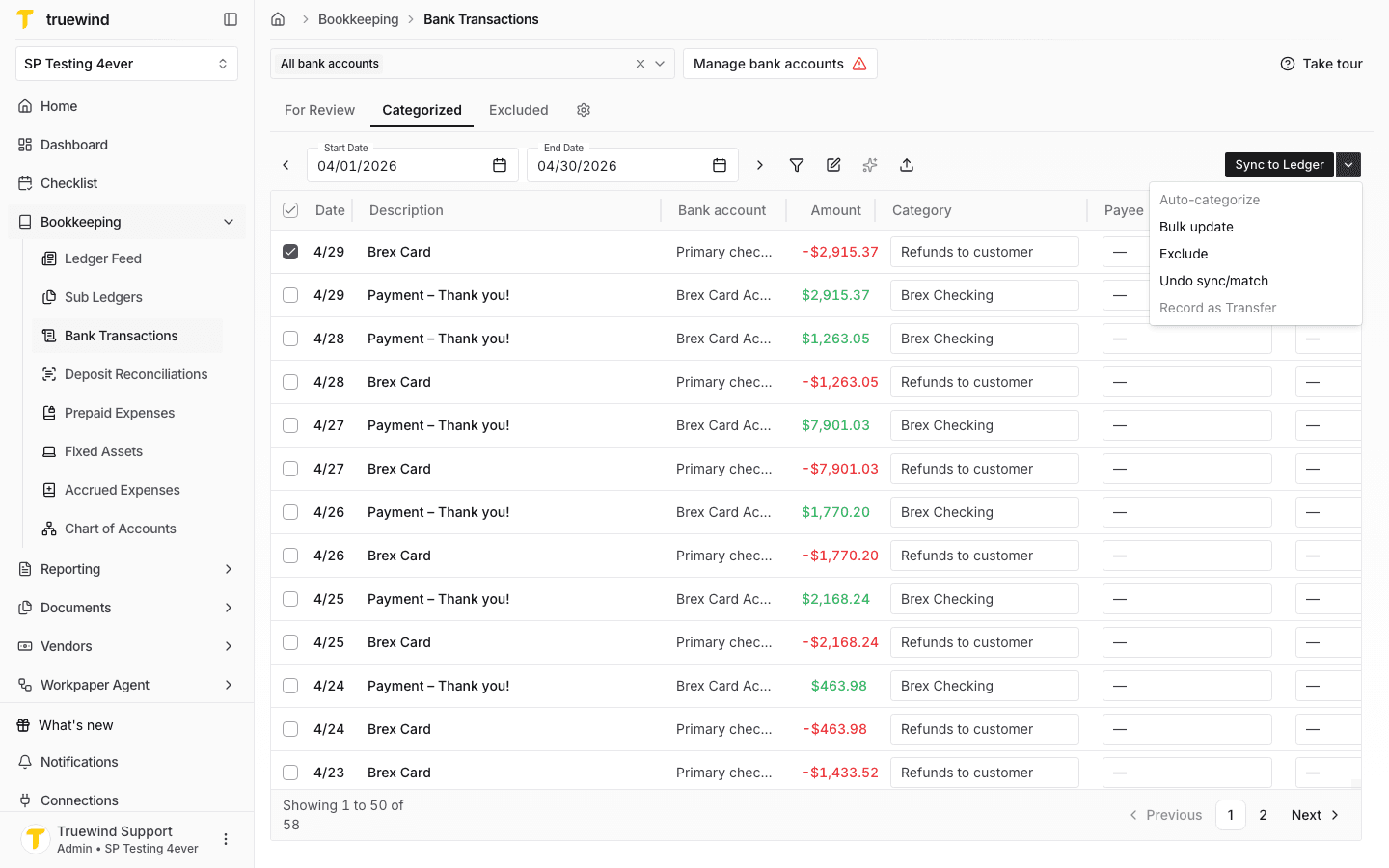
Open the menu

Use the bulk-action menu when you want to undo multiple synced transactions at once.

Screenshot showing Click dropdown trigger

Step 11

Choose Undo sync or match

Use the rollback action only after you confirm the selected categorized rows are the ones you want to return to review.

Screenshot showing Click Undo sync/match

Step 12

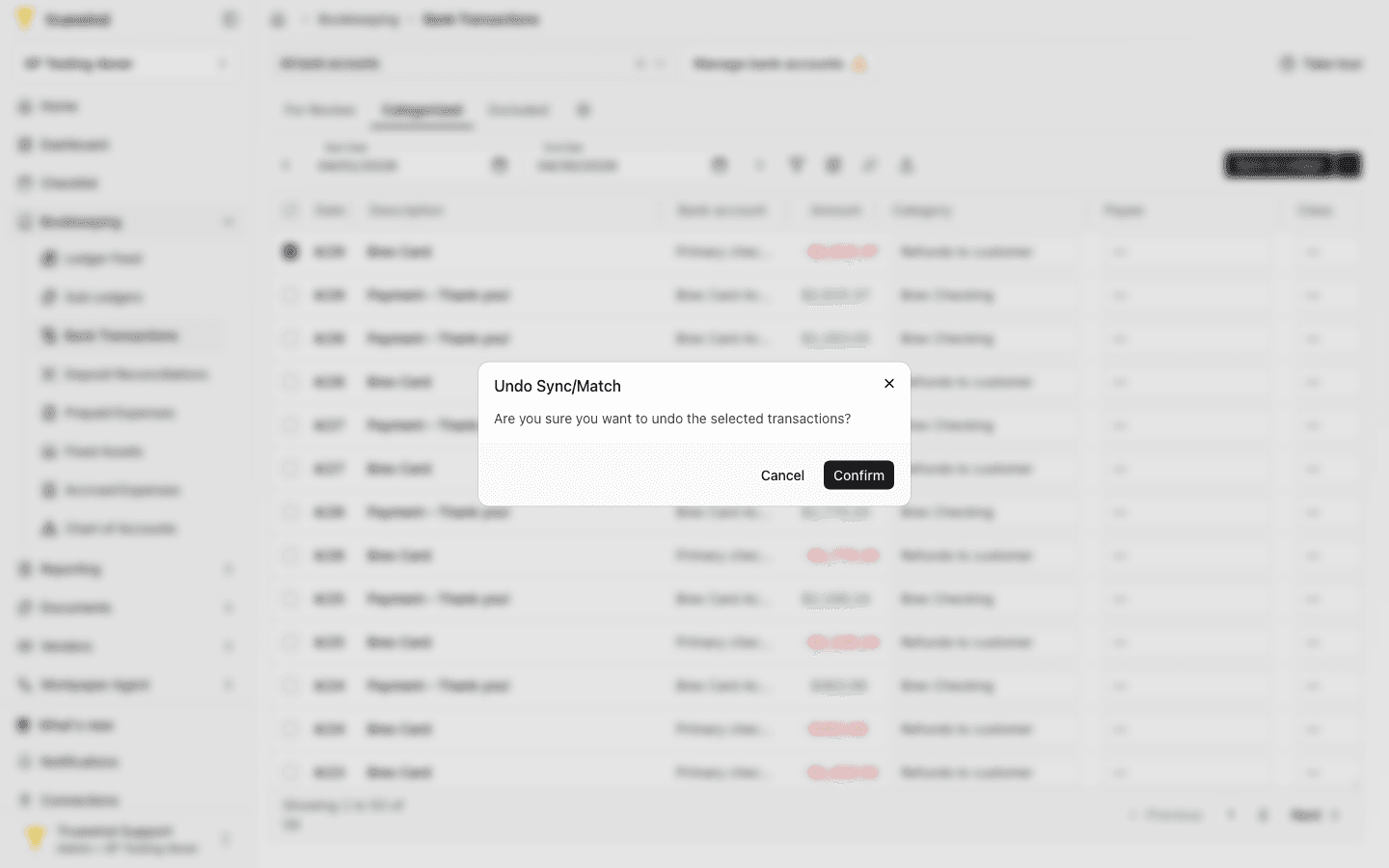
Confirm the rollback

Finish the bulk undo only after you confirm the selected transactions should return to review.

Screenshot showing Click CONFIRM

Step 13

Confirm the QuickBooks rollback

Check for the expected result before moving on so the transaction returns to review and the ERP-side record is removed.

Screenshot showing Once you Undo Sync/Match , the transaction will move from the “Categorized” tab to “For Review.” The synced or matched transaction will also be deleted in QuickBooks

Step 14

Review the second transaction

Use another transaction example to confirm the rollback behaves the same way across categorized rows.

Screenshot showing Click 3/15 Uber -$24.01 N/A

When to use this

Use this workflow when the transaction was synced or matched successfully from a system perspective but the accounting result was not the one you wanted.

Was this helpful?

Need more help?

Ask for human help about this article and provide any feedback.