
If Plaid does not support your institution
Use the Finicity path from the same Bank Accounts tab when your institution is unavailable in Plaid.
Ask the support agent
Just ask a direct question or search related articles from the Knowledge Base.
Support Center / Bank Transactions / Bank Connections
Connect bank accounts through Plaid when the institution is supported there, resulting in the selected accounts appearing in the Bank Accounts workflow.
Step 1
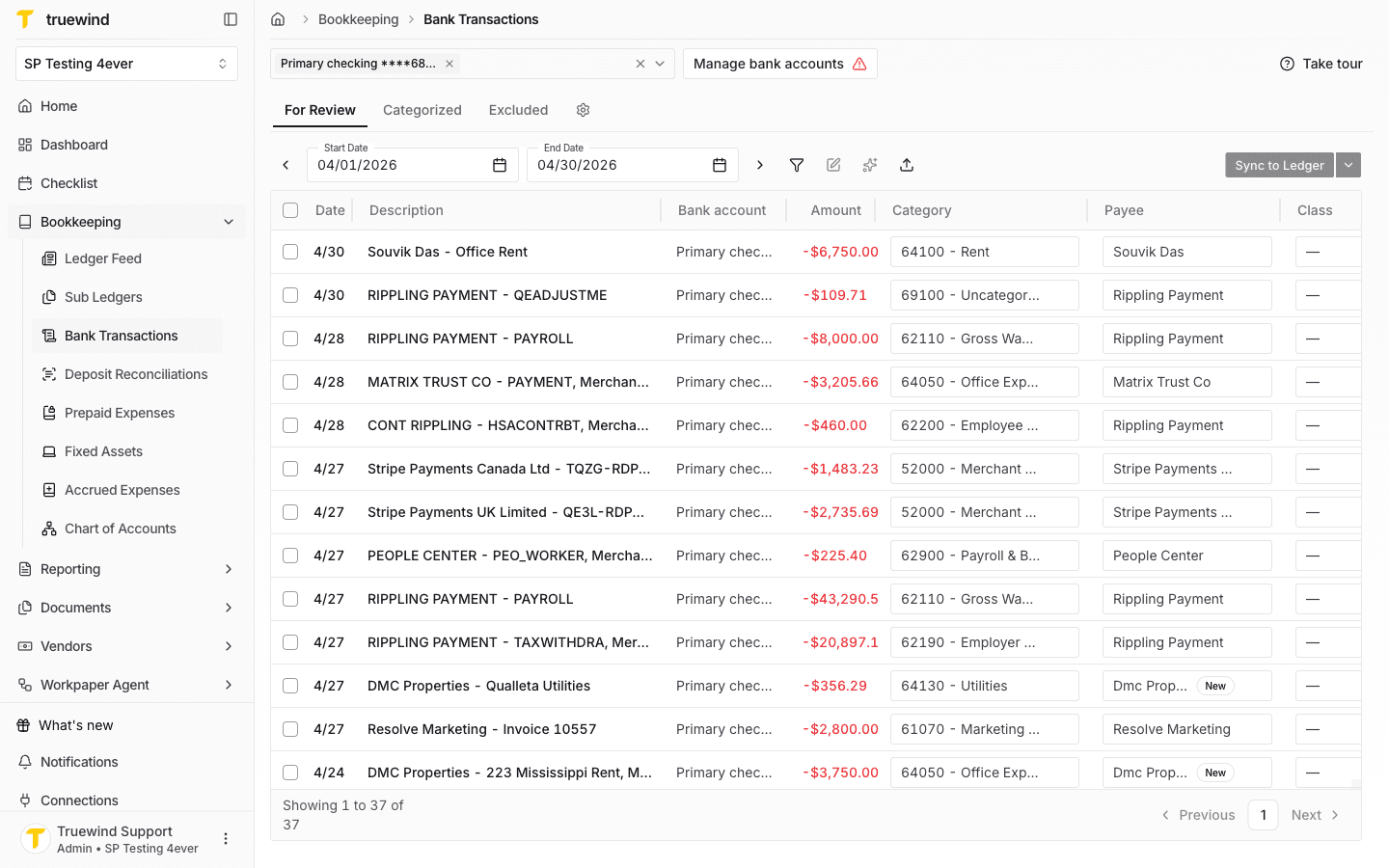
Start in Truewind on Bookkeeping > Bank Transactions, then click on Manage bank accounts button.
Step 2
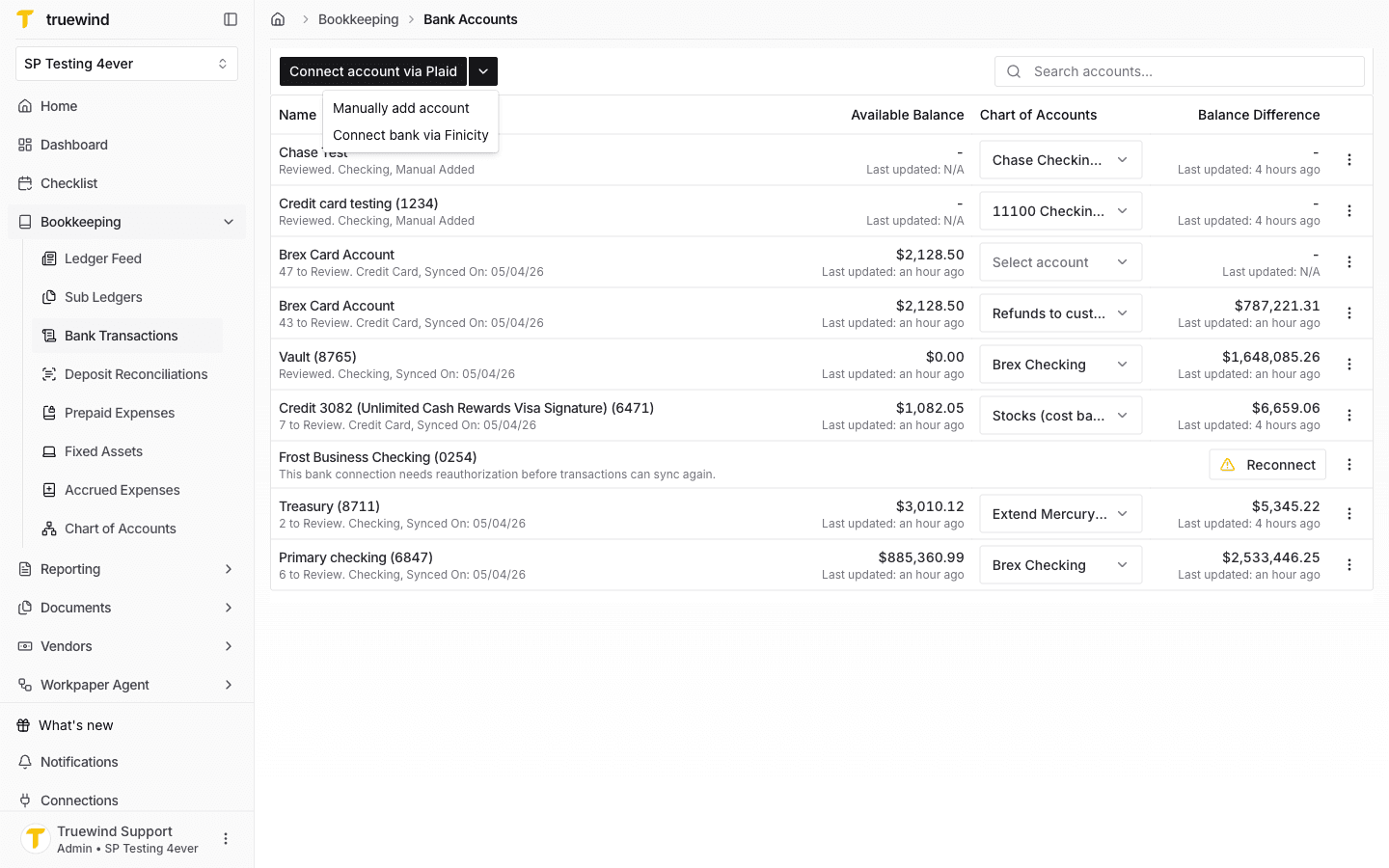
Once there, click on the button Connect account via Plaid
Step 3
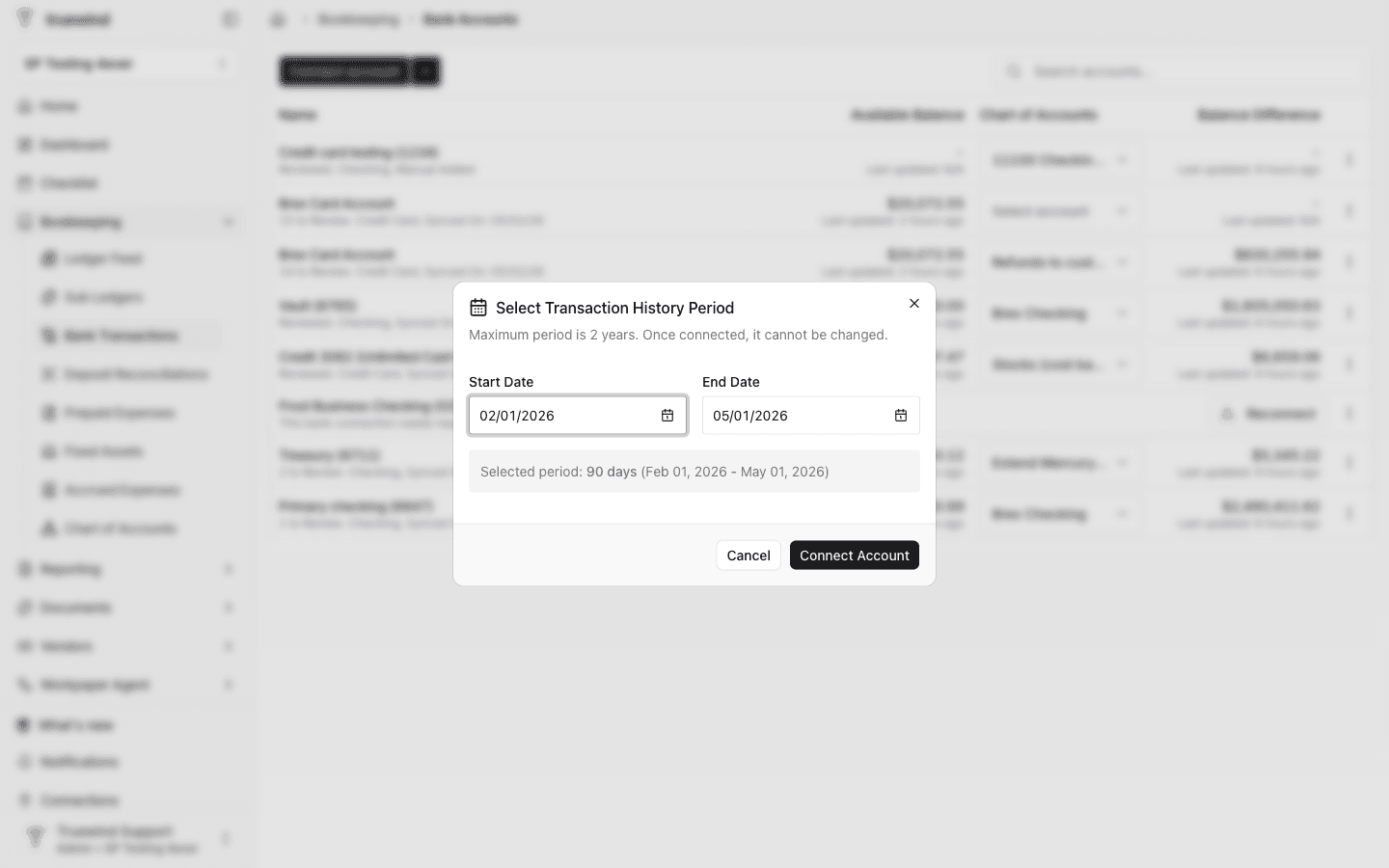
Select a Start data and End date for the transaction history period that will be requested to Plaid. Once ready, click on the Connect Account button.
Step 4
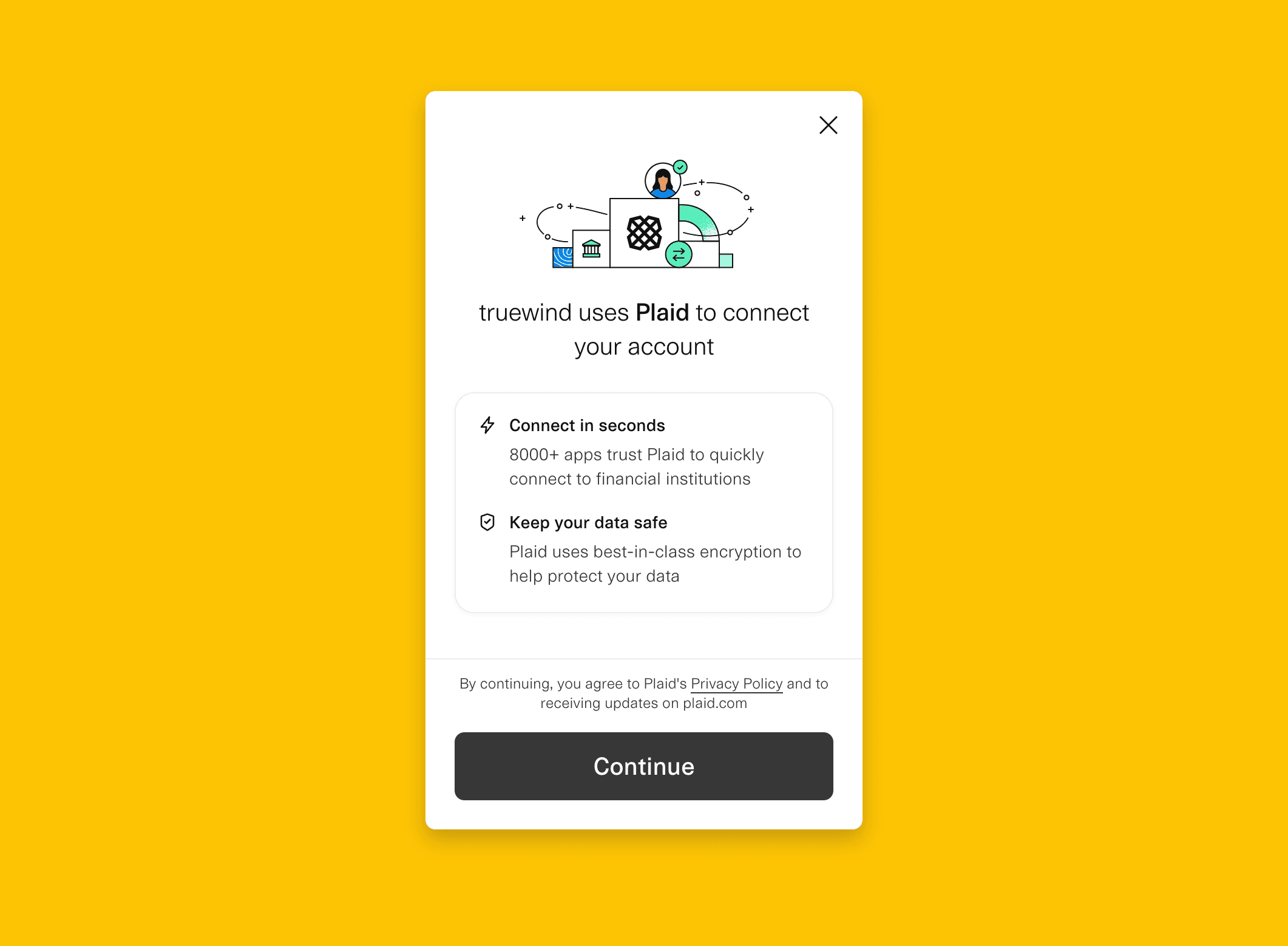
Truewind connects bank account with Plaid. Click on Continue.
Step 5
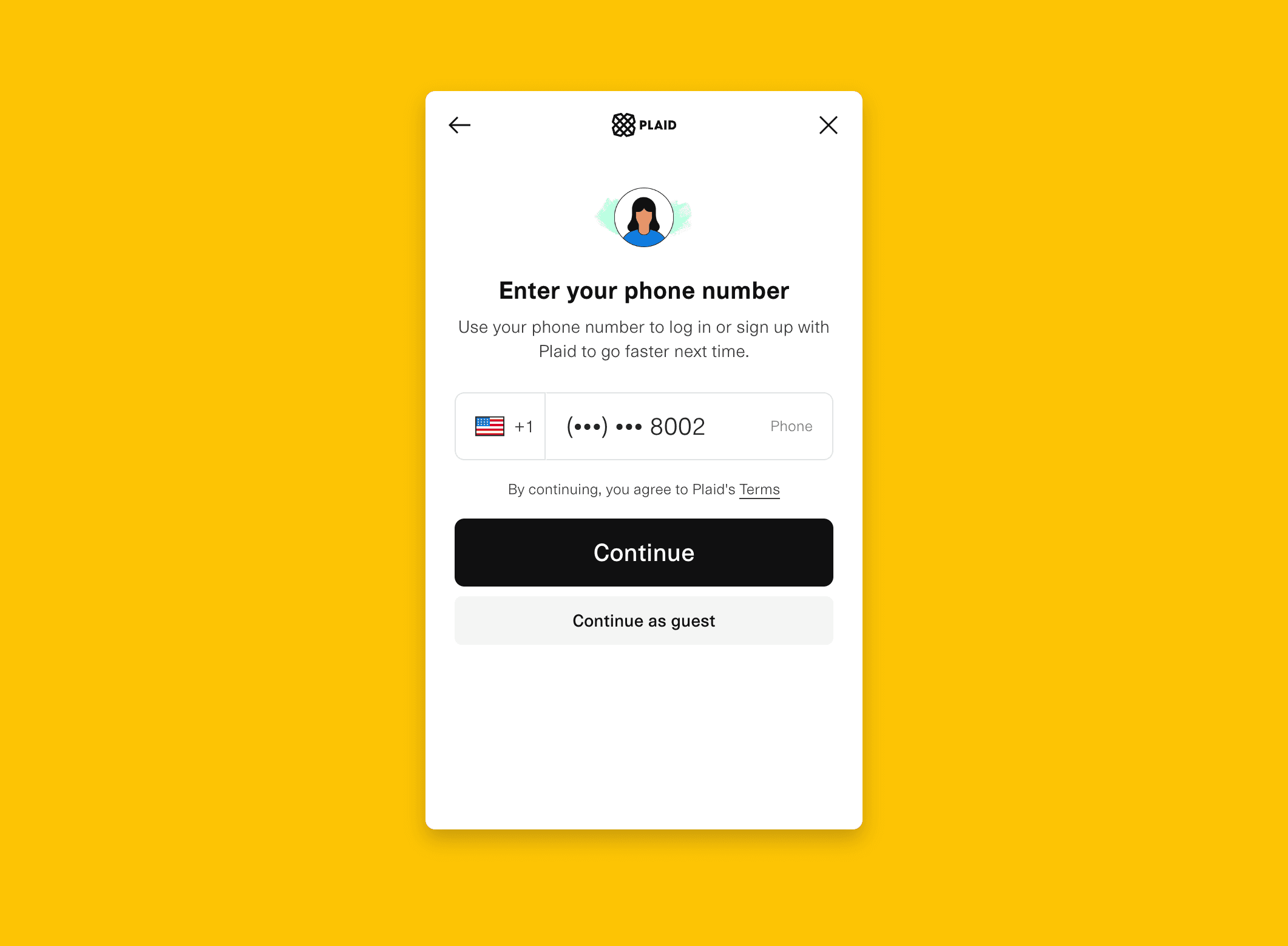
Skip the optional phone-number prompt unless the institution specifically requires it for this connection.
Step 6
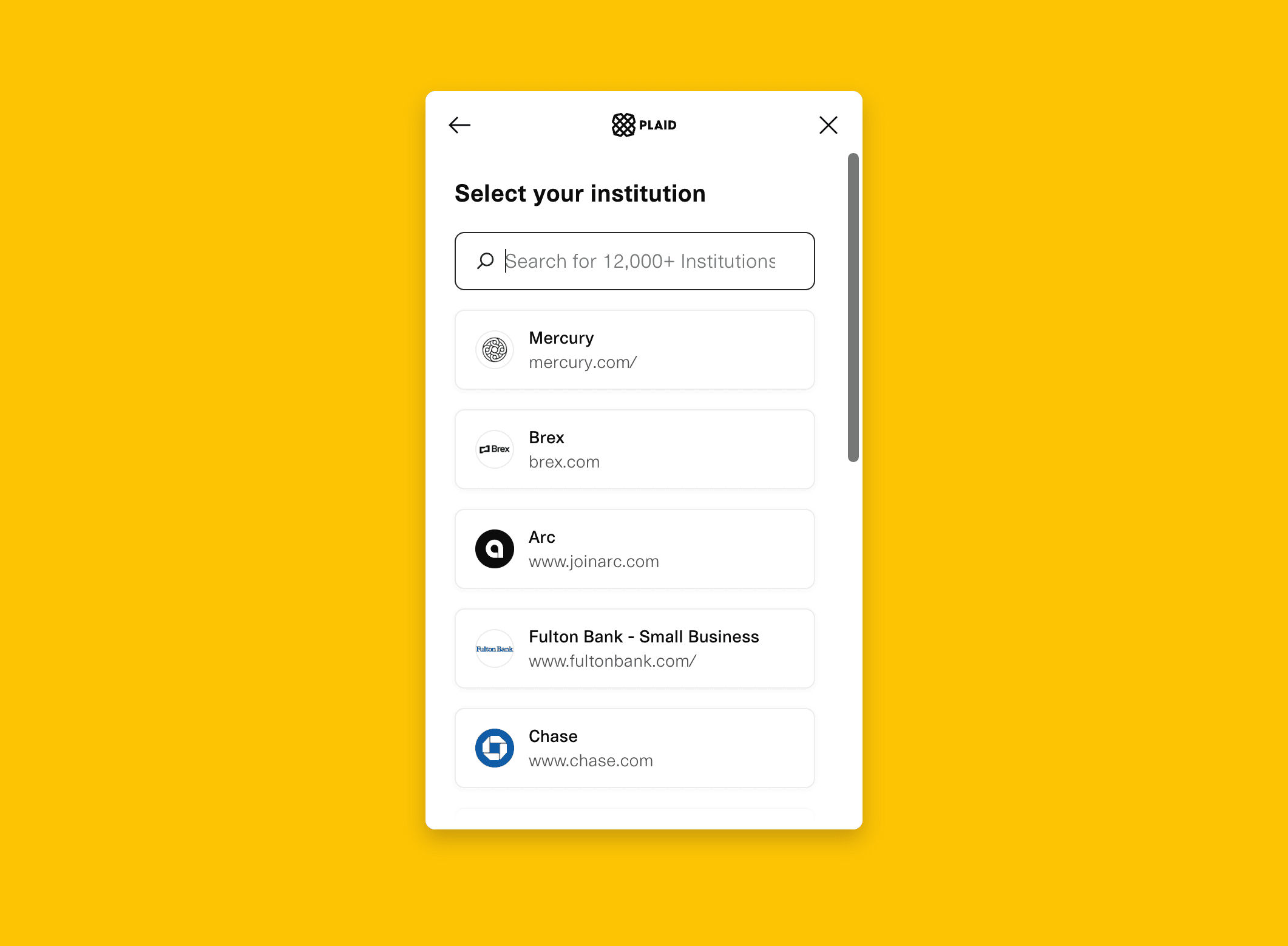
Find the exact institution name so Plaid can route you to the right authentication flow.
Step 7
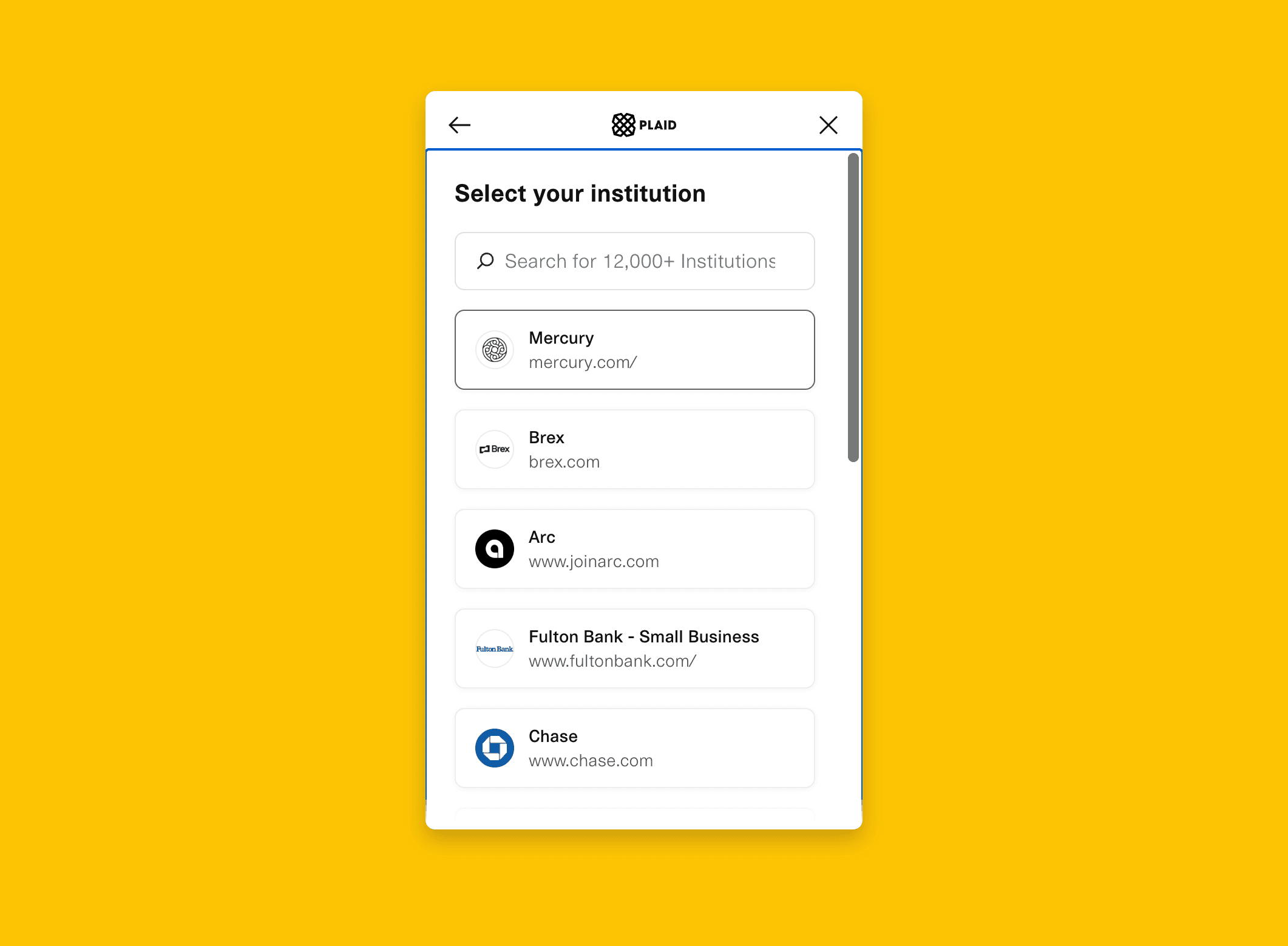
Pick the exact institution or account path you want Plaid to authorize for this connection.
Step 8
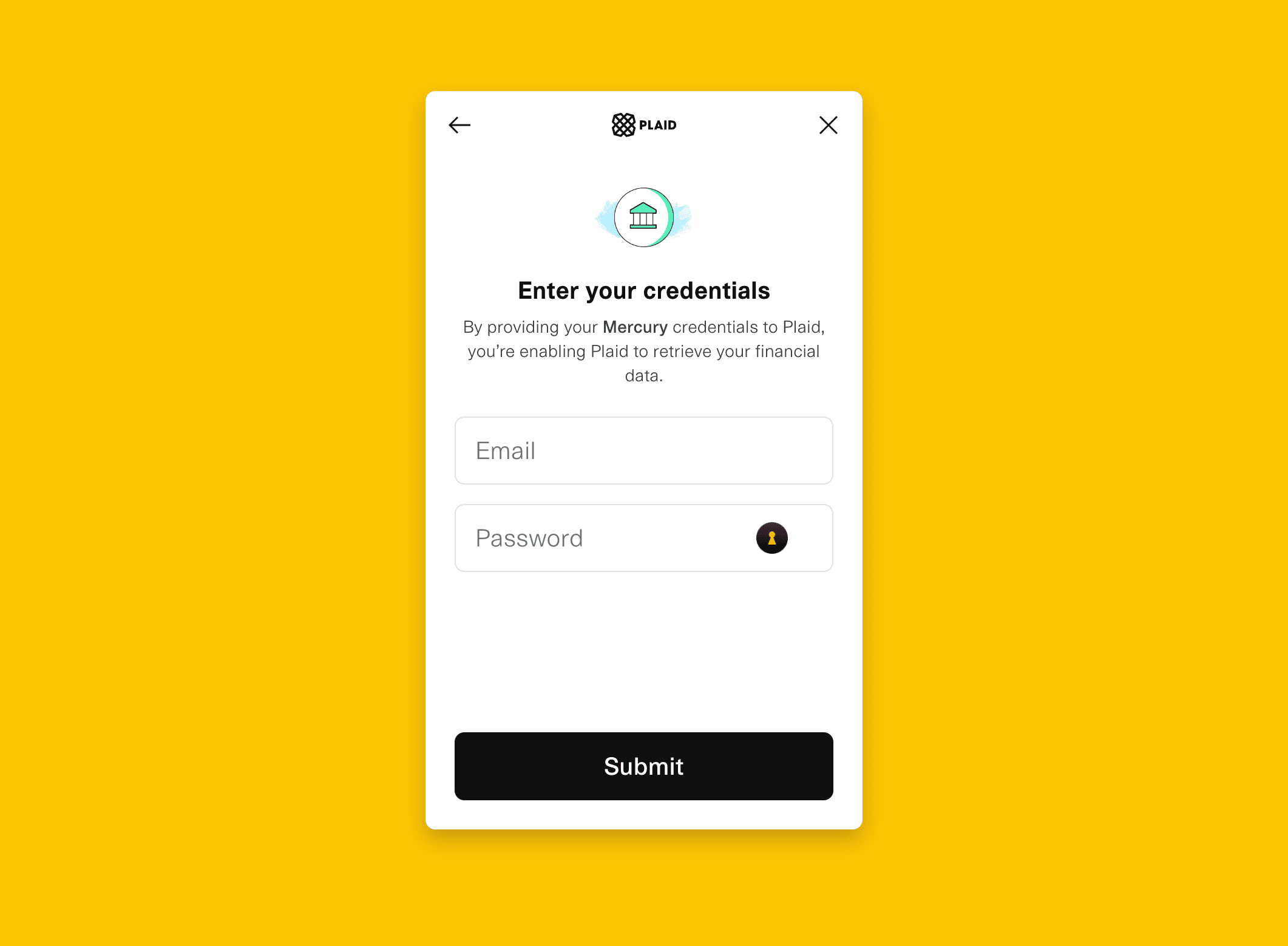
Input the bank account log in credentials - email, password.
Step 9
Send the chosen institution back to Plaid so it can begin verification.
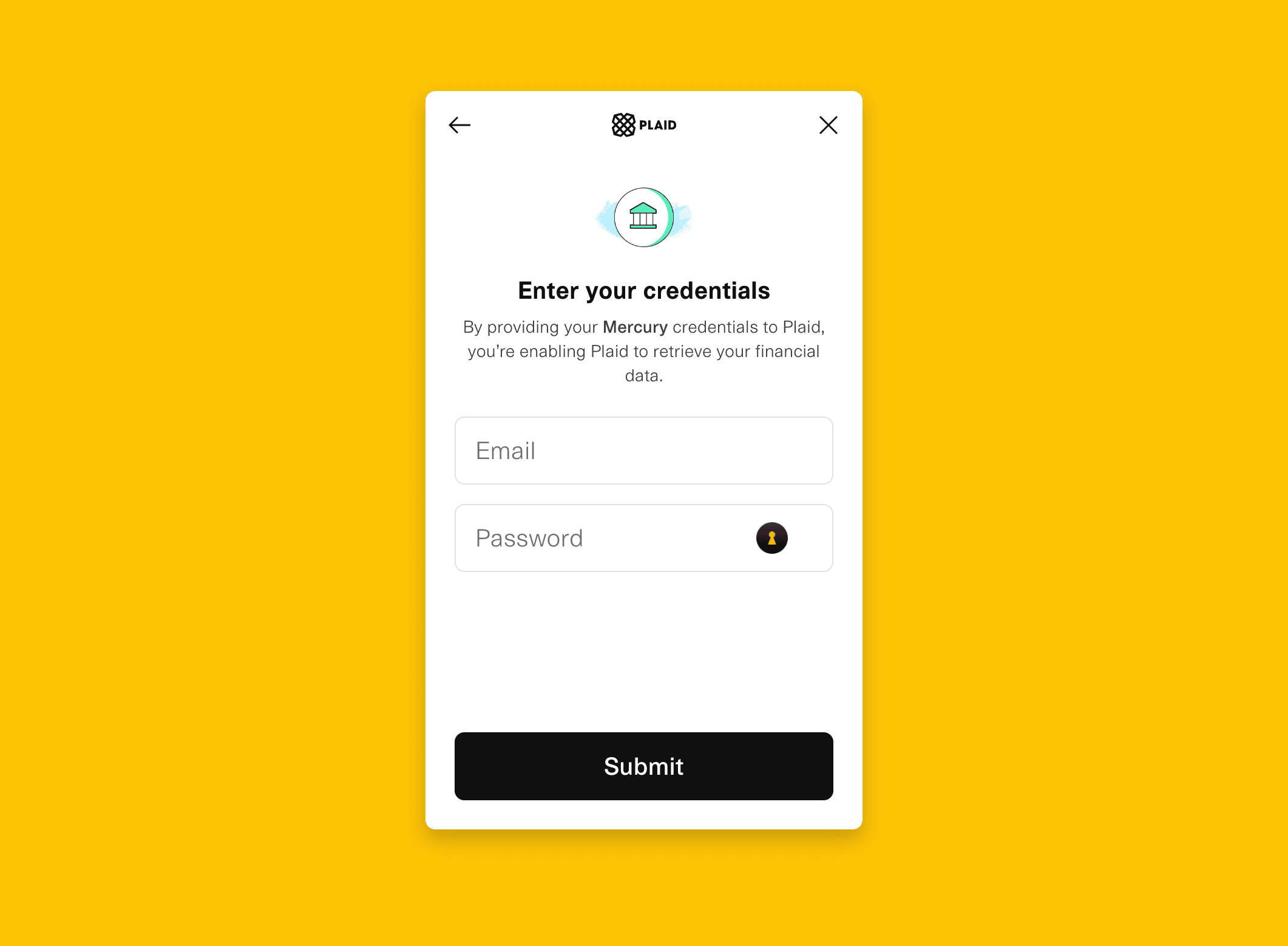
Step 10
Plaid sends you to the bank site so the institution can confirm the connection with its own controls.
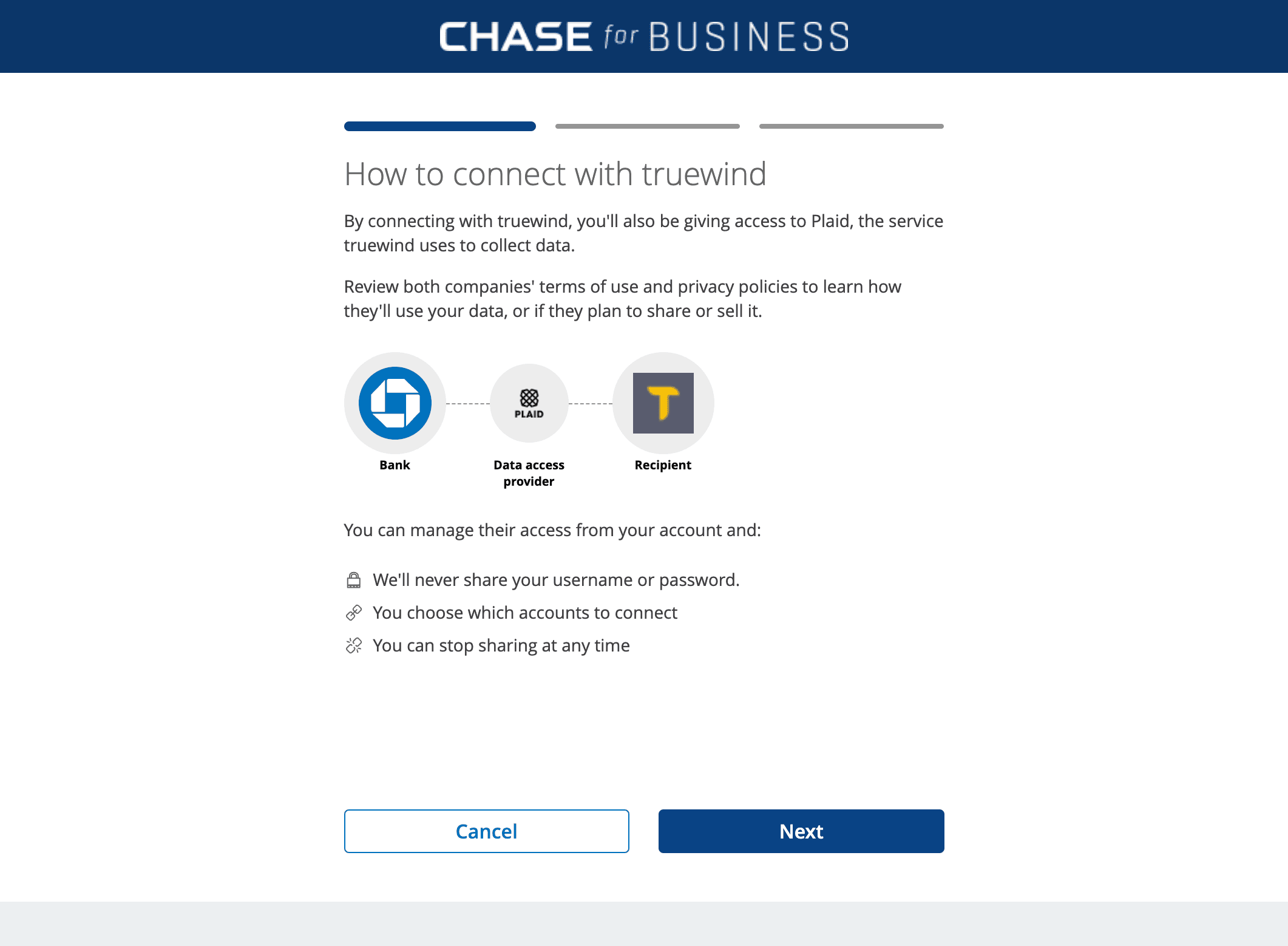
Step 11
Move to the next Plaid screen only after the current verification step is complete.
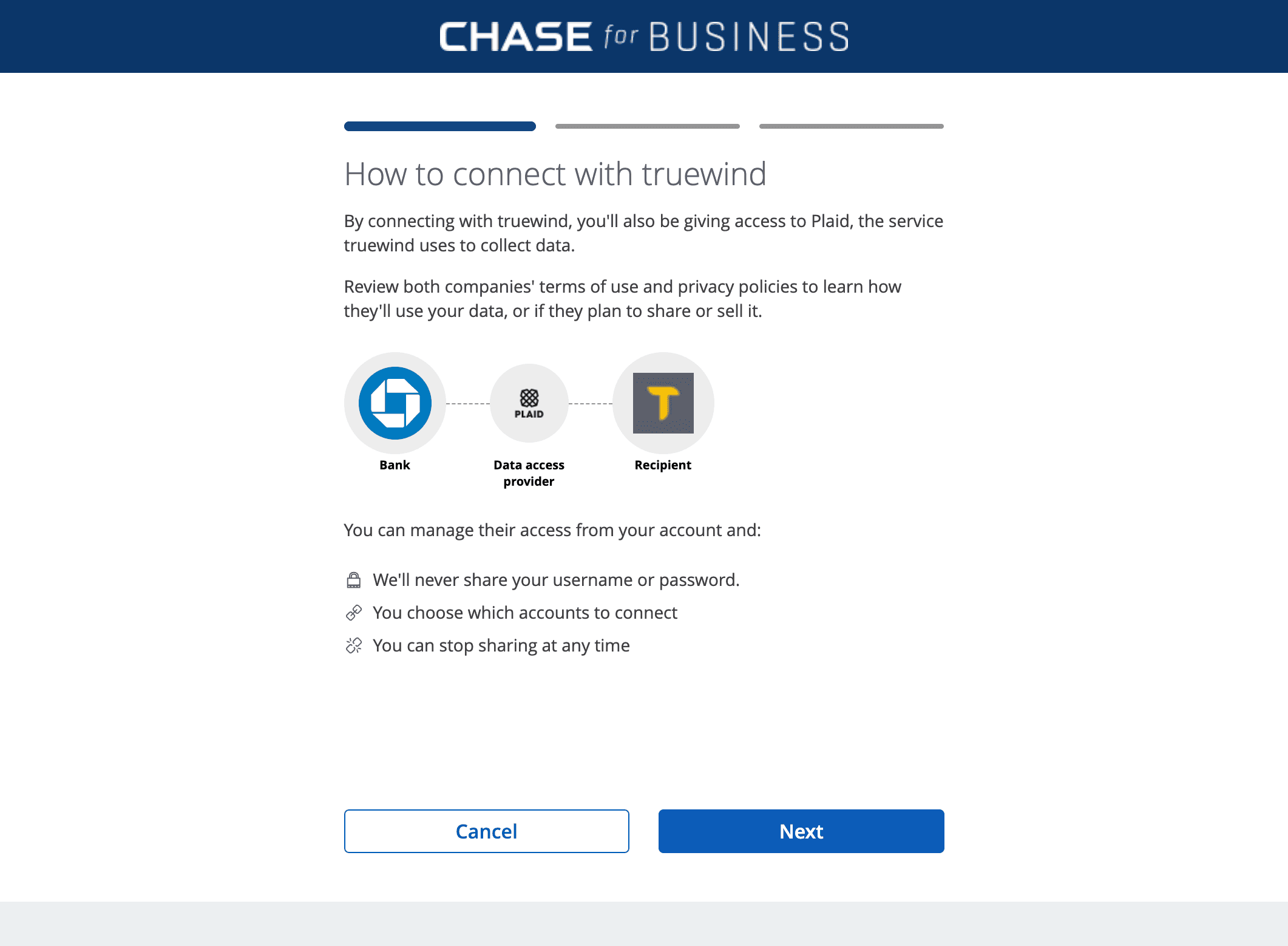
Step 12
Return the authorized accounts to Truewind so they can be mapped and synced.
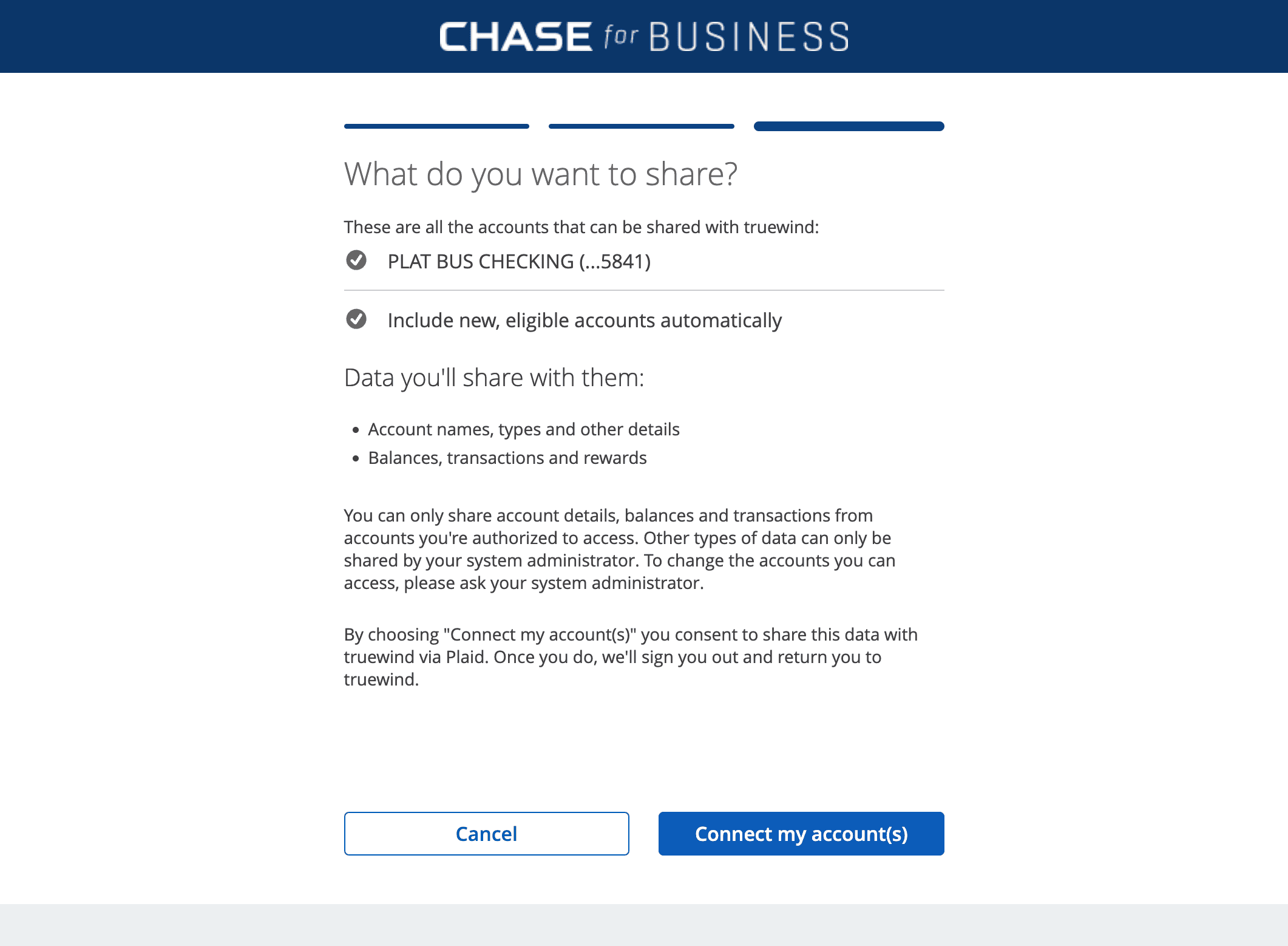
Step 13
Back on the Plaid screen, provide the phone number only if the bank requires a second-factor challenge to finish setup.
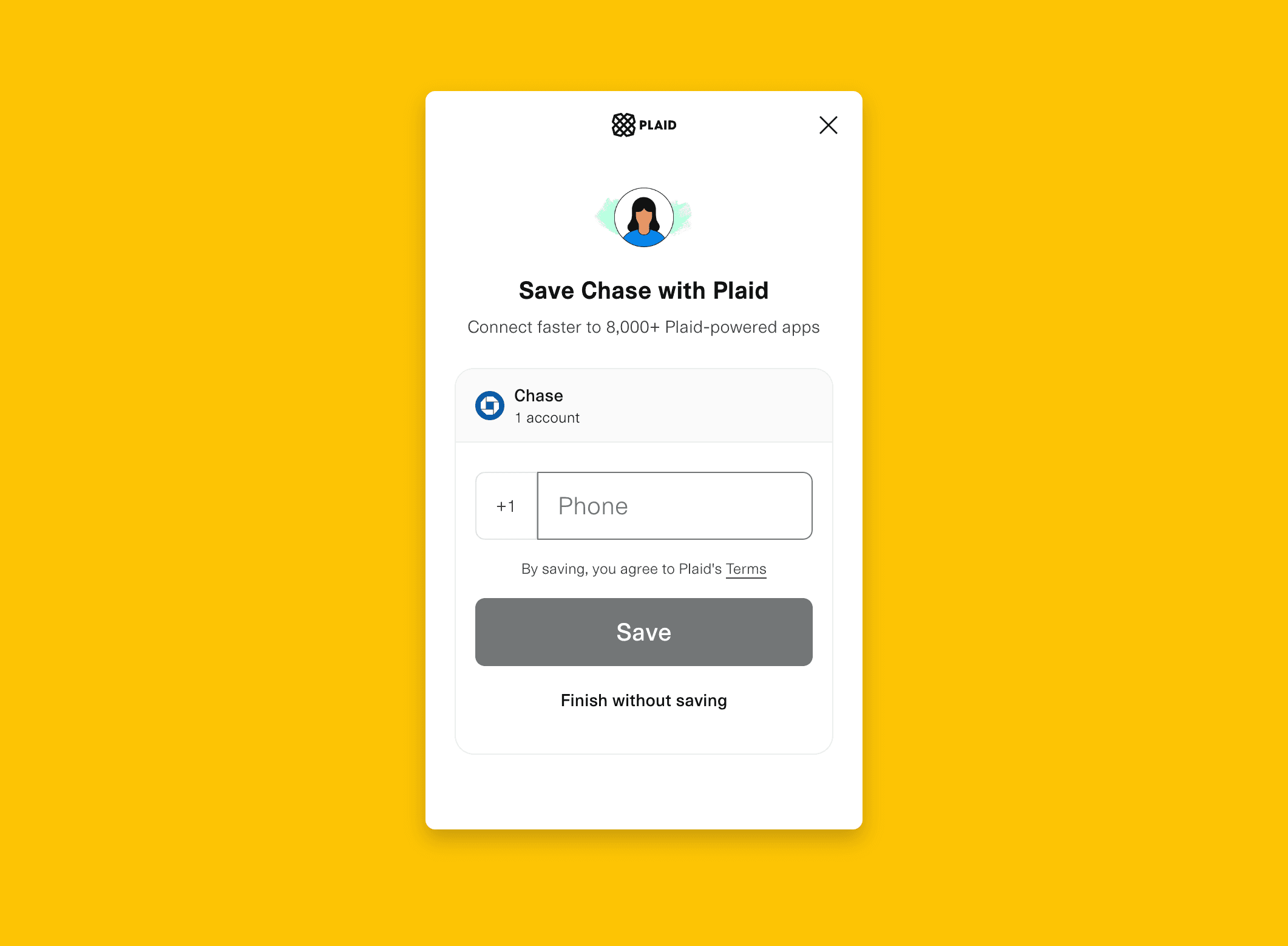
Step 14
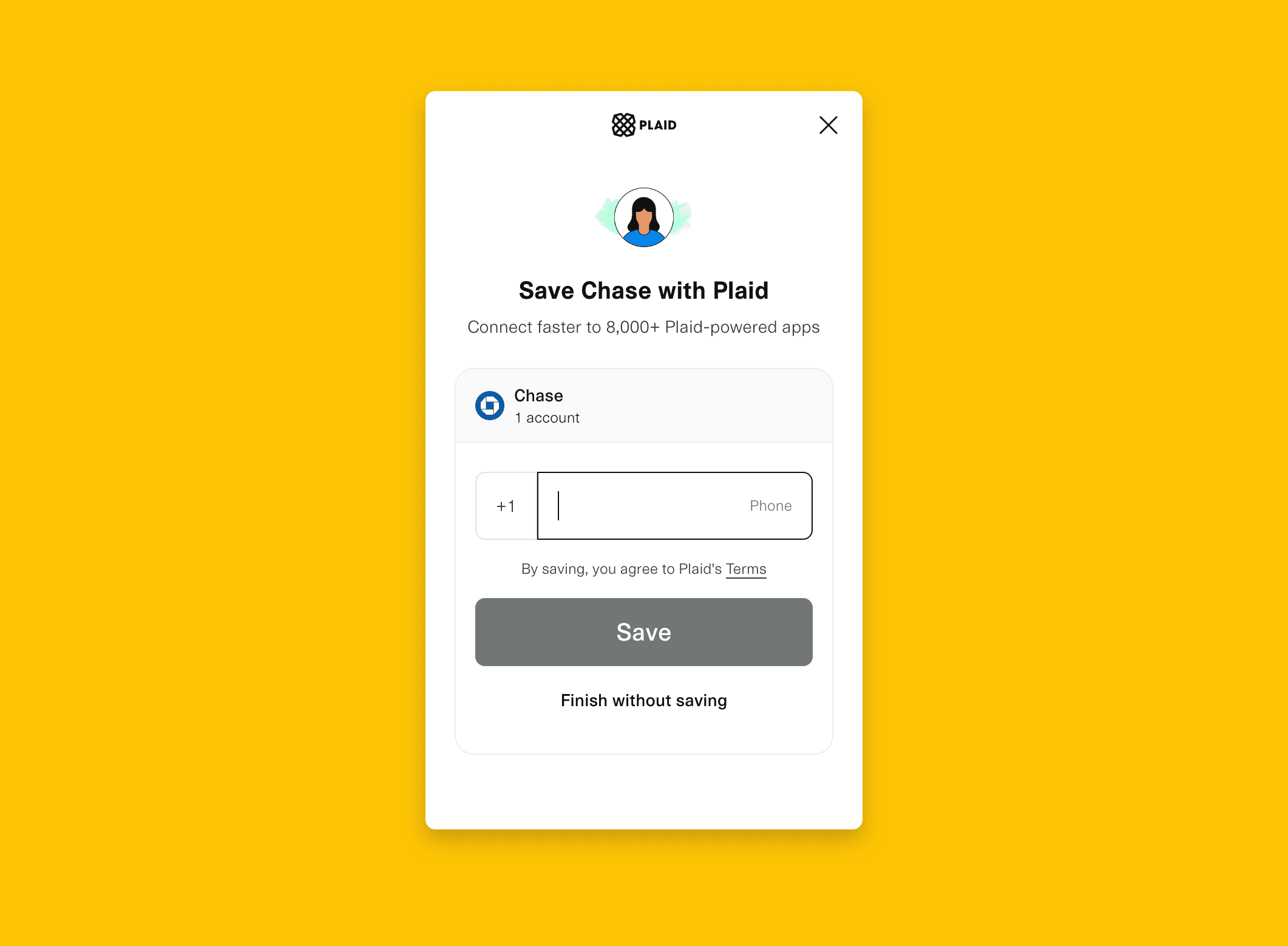
Persist the Plaid result in Truewind so the new bank feed appears in the account list.
Use the Finicity path from the same Bank Accounts tab when your institution is unavailable in Plaid.
Was this helpful?
Need more help?
Ask for human help about this article and provide any feedback.