
Before you sync
Make sure the selected rows are fully reviewed. Syncing too early can create cleanup work later if the categorization still needs changes.
Ask the support agent
Just ask a direct question or search related articles from the Knowledge Base.
Support Center / Bank Transactions / Features
Sync reviewed transactions from Bank Transactions when they are ready for the ledger, resulting in updated synced states for the selected rows.
Step 1
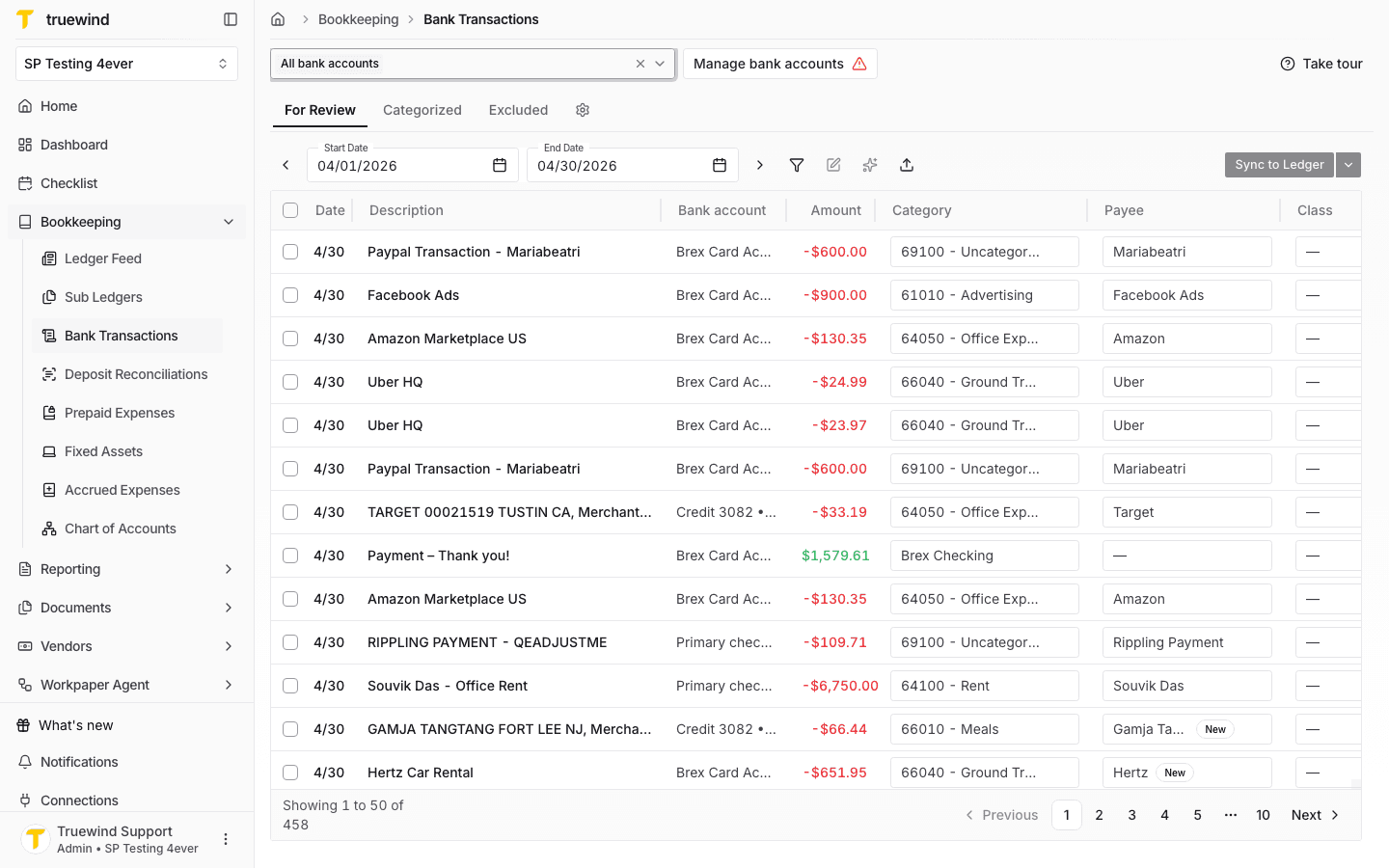
Start in Bookkeeping > Bank Transactions and select the bank accounts you want to review so transaction rows are visible.
Step 2
Choose the reviewed For Review rows you want to post before starting the sync.
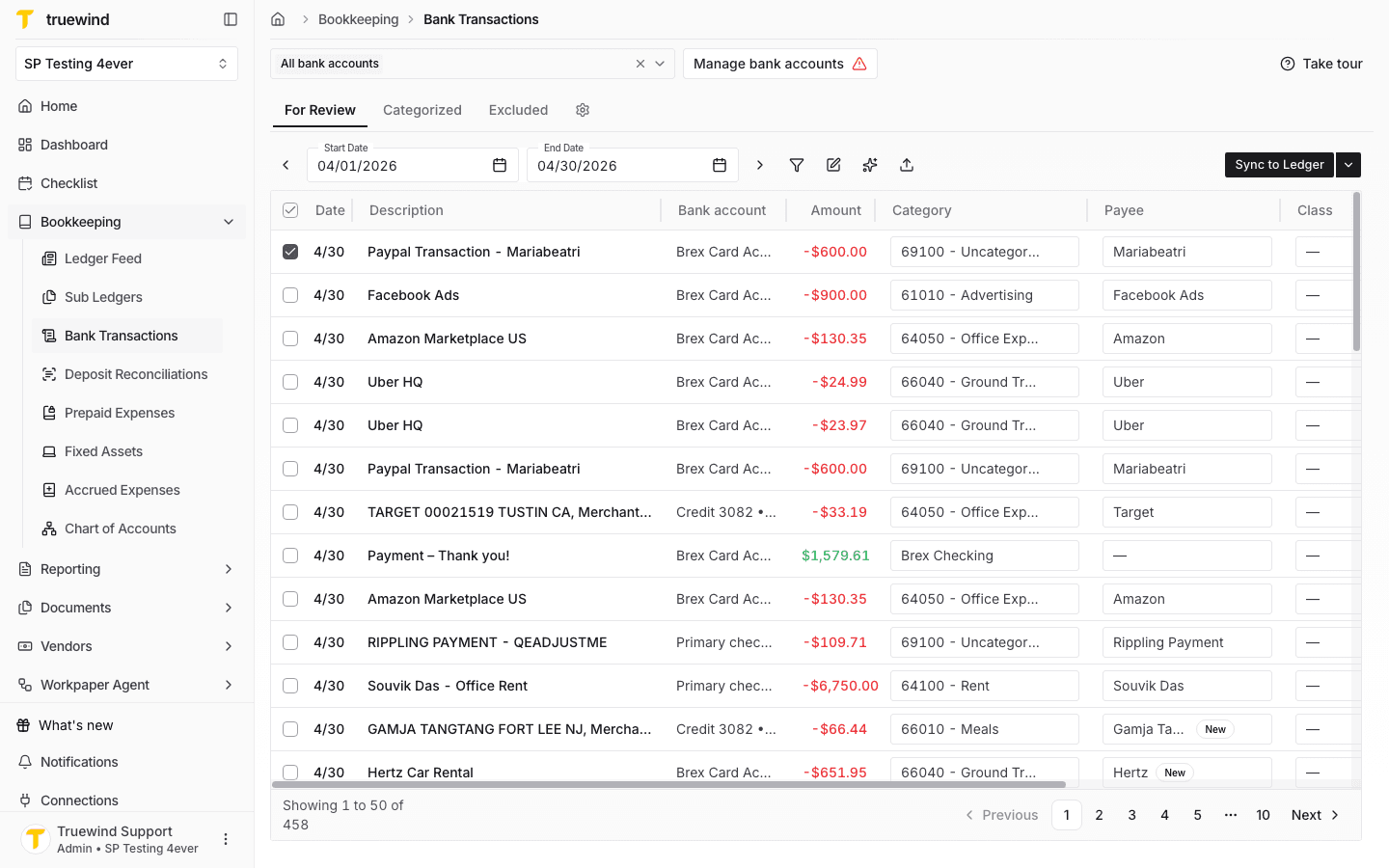
Step 3
Click Sync to Ledger after confirming the selected rows are ready to post to the connected ledger.
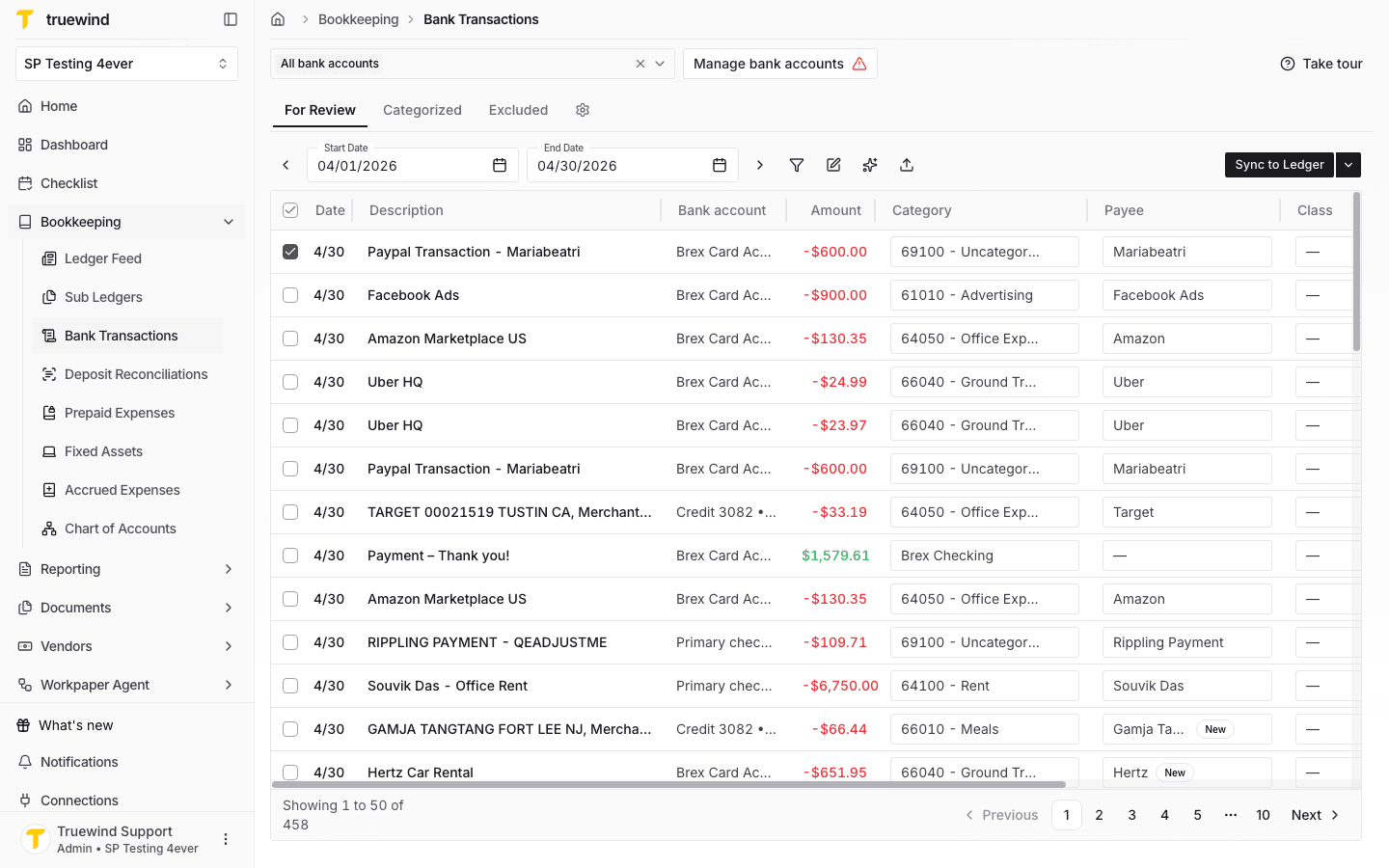
Step 4
After sync finishes, use Categorized to review transactions that have synced or matched successfully.
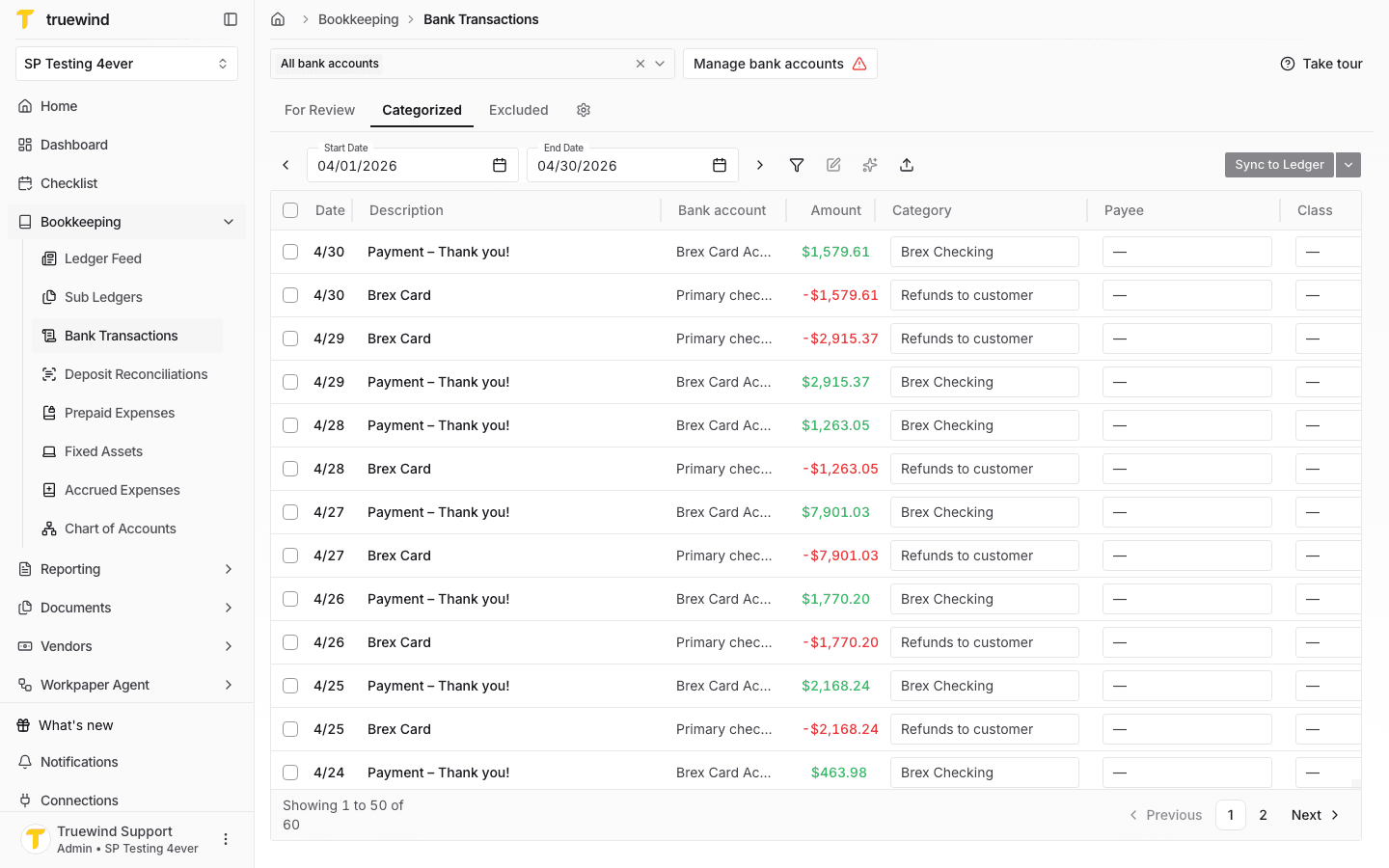
Step 5
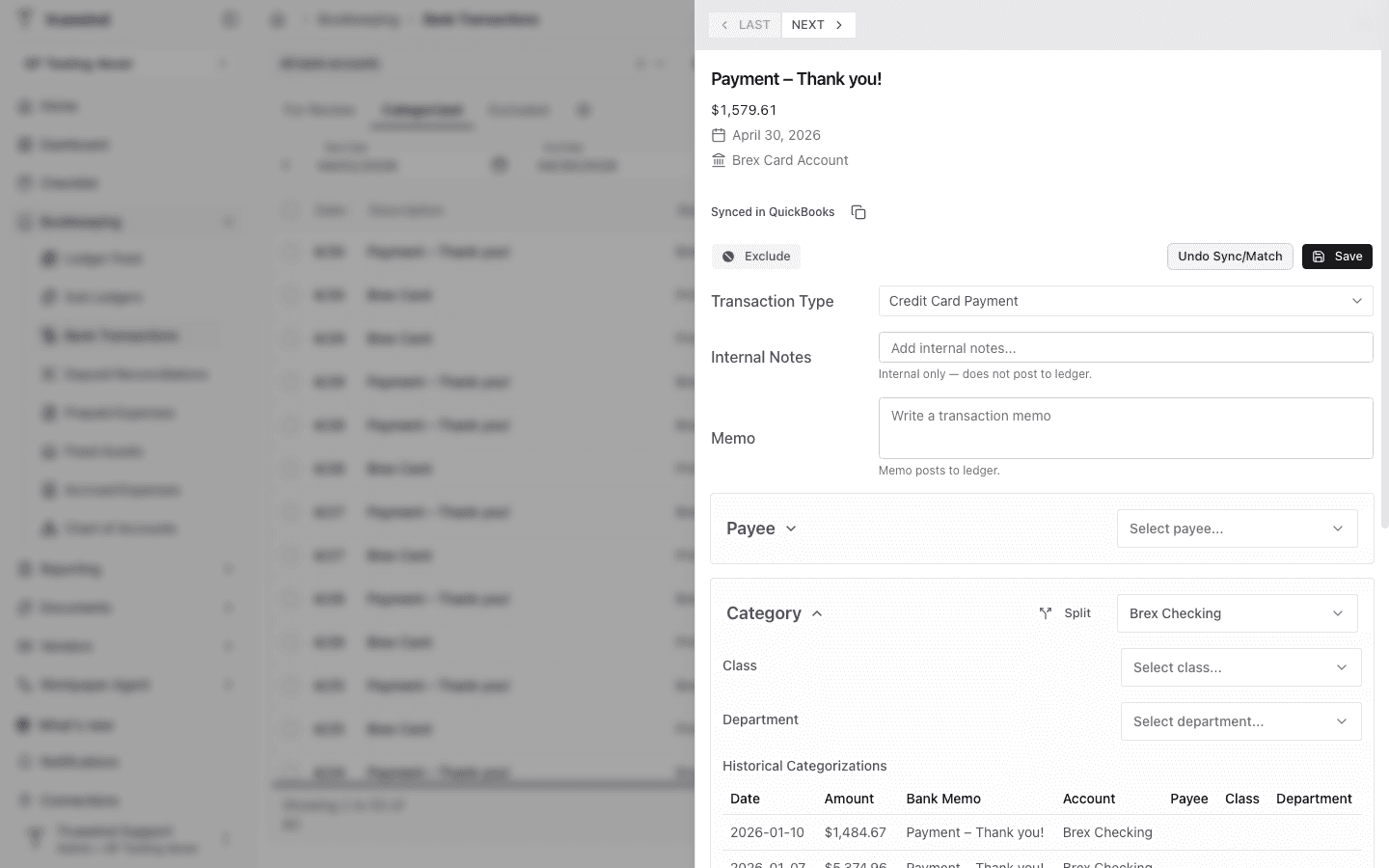
Open a synced transaction to confirm the ledger link and transaction detail are available for follow-up review.
Make sure the selected rows are fully reviewed. Syncing too early can create cleanup work later if the categorization still needs changes.
Use Sync to Ledger only after category, payee, amount, and dimension details are ready to post.
Select at least one ready For Review transaction and confirm the selected rows have the required accounting details.
Was this helpful?
Need more help?
Ask for human help about this article and provide any feedback.