
Export contents
The exported workbook includes schedule details such as payee, expense account, term, start date, end date, monthly amortization, and remaining carrying amount.
Ask the support agent
Just ask a direct question or search related articles from the Knowledge Base.
Support Center / Prepaid Expenses / Import/Export
Export Prepaid Expense schedule data when you need offline review or workbook backup, resulting in an .xlsx report for the selected term date.
Step 1
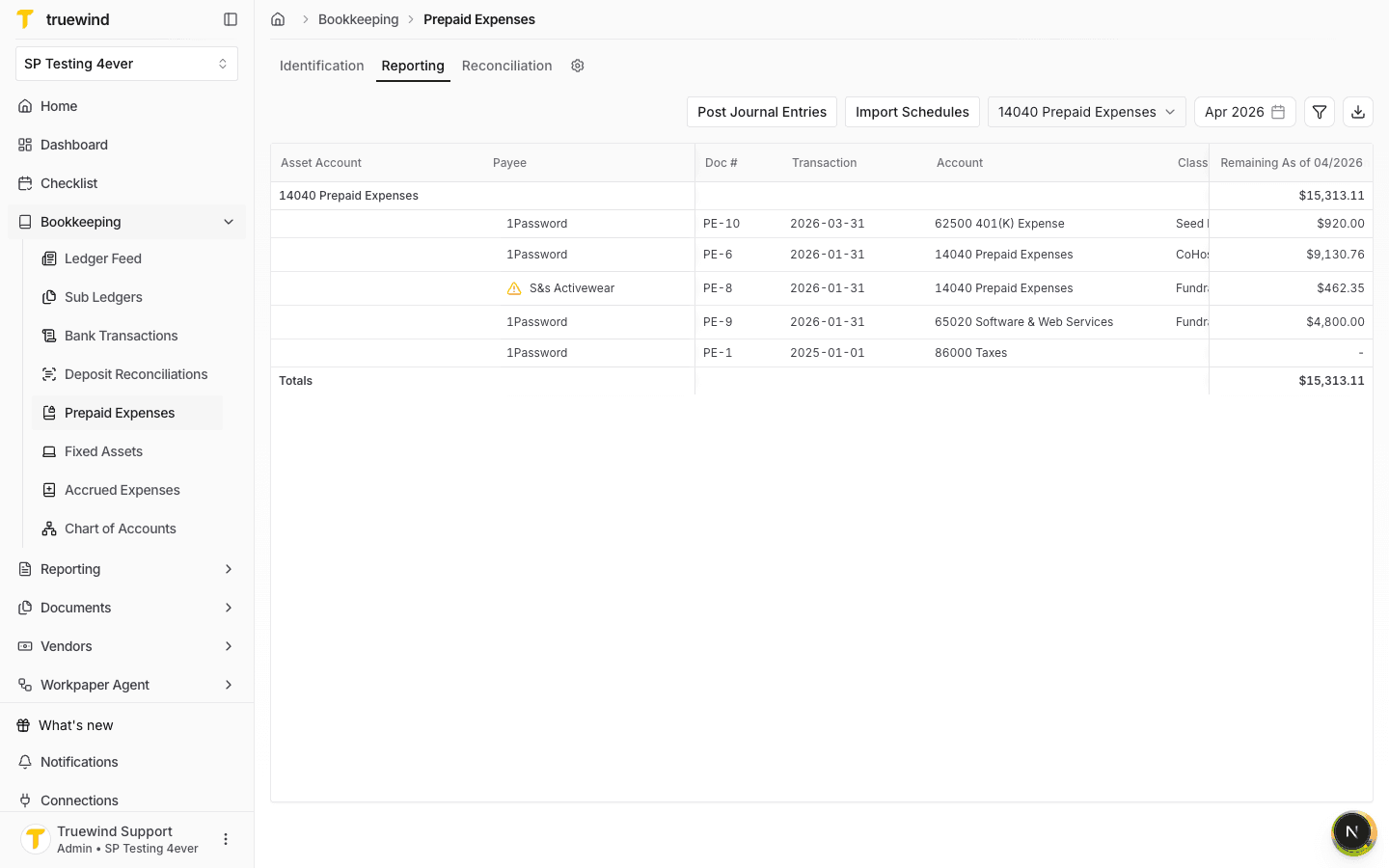
Start in Bookkeeping > Prepaid Expenses and open Reporting so schedule rows, account controls, and export actions are visible.
Step 2
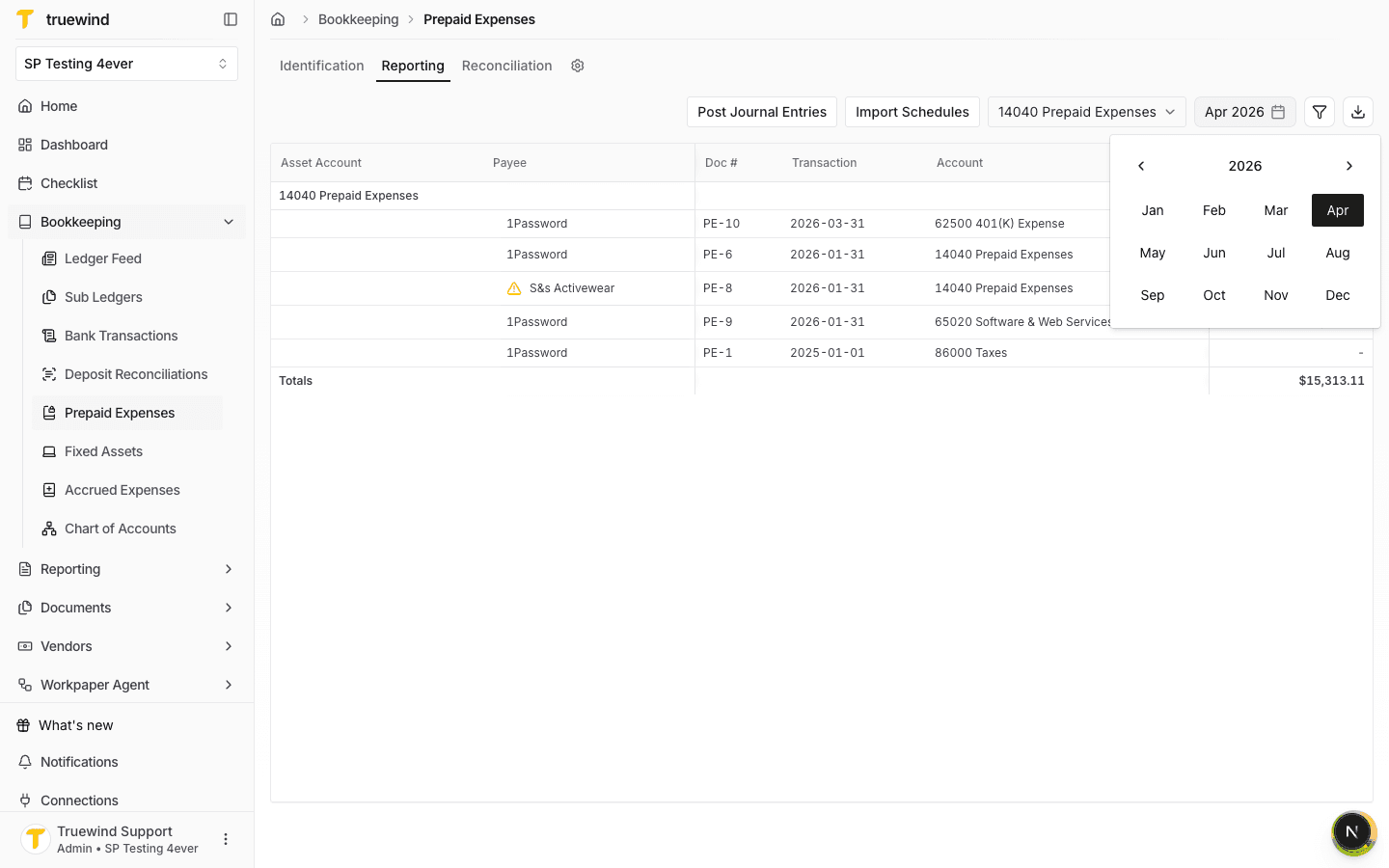
Use the term date picker to choose the period that should drive the schedule balances in the export.
Step 3
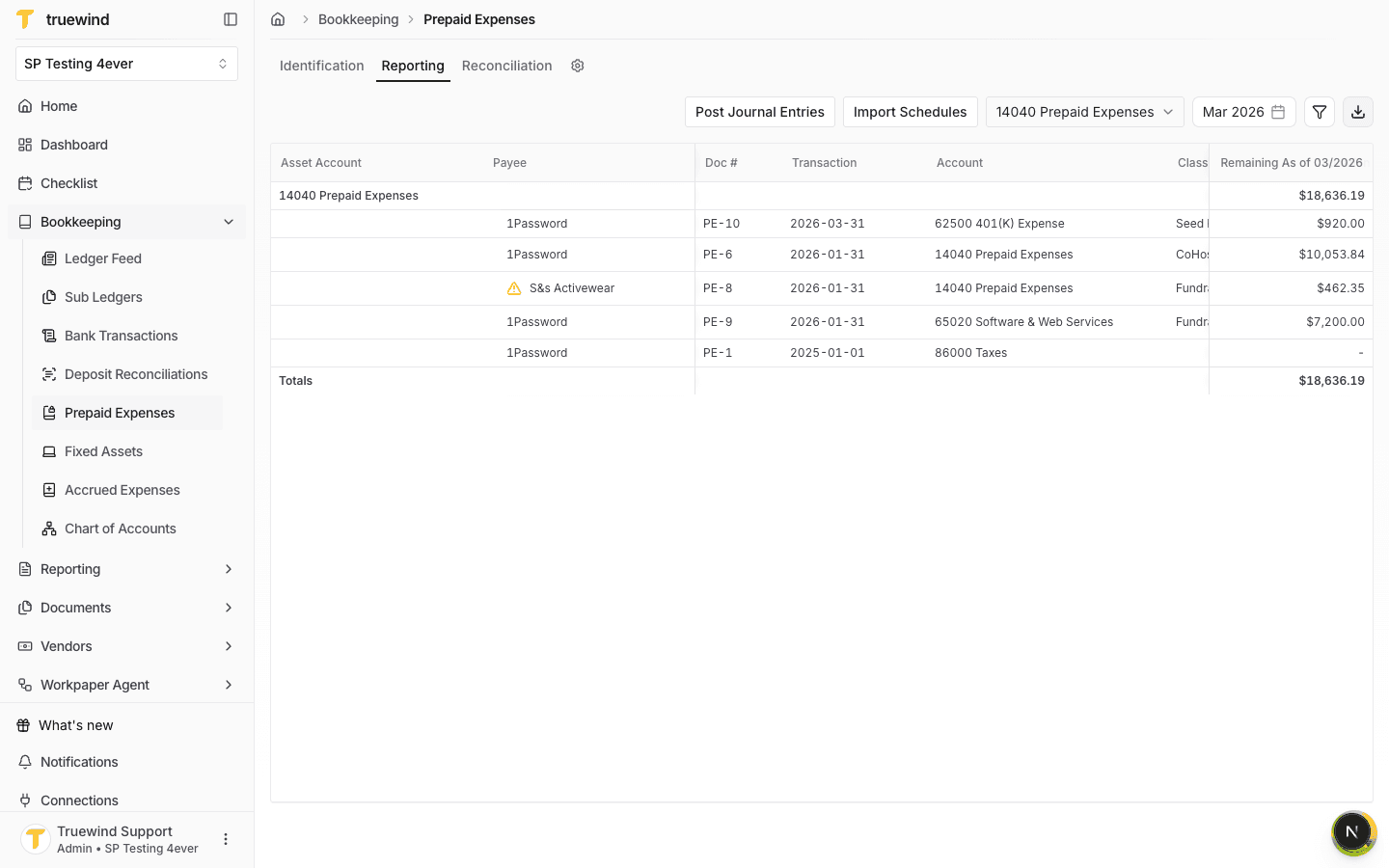
Select the month you want to export; the reporting grid refreshes to show remaining balances as of that period.
Step 4
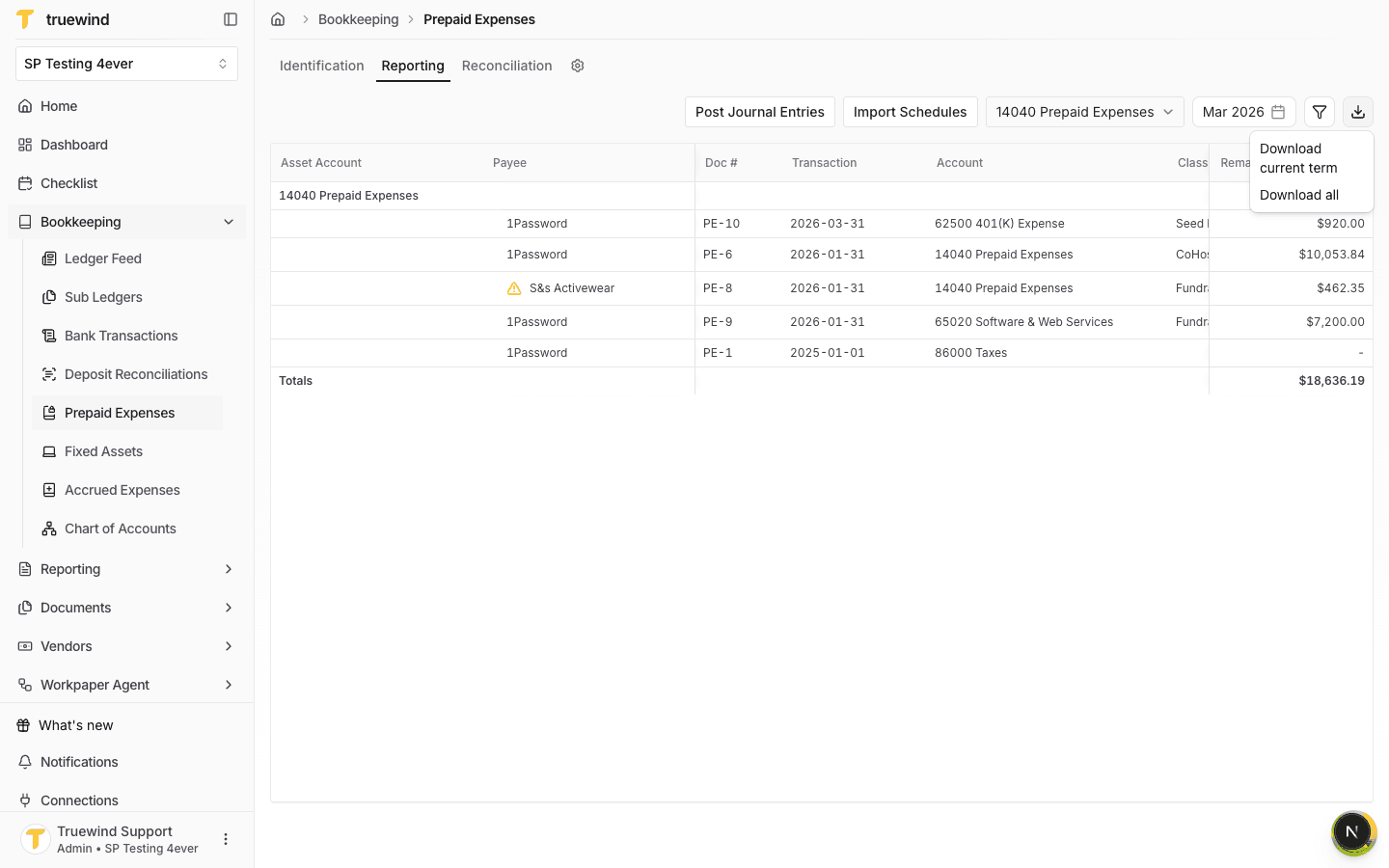
Confirm the prepaid account and term date before opening the download menu in the reporting toolbar.
Step 5
Select Download current term for the selected period or Download all when you need the complete schedule export.
The exported workbook includes schedule details such as payee, expense account, term, start date, end date, monthly amortization, and remaining carrying amount.
Was this helpful?
Need more help?
Ask for human help about this article and provide any feedback.