
Learn about AI for accountingJoin live workshops

Ask the support agent

Just ask a direct question or search related articles from the Knowledge Base.

Support Center / Checklist / Overview

Run a linked workpaper after uploading task support

New

Upload support to a linked Checklist task and optionally queue a Workpaper Agent chat run using those files.

Workflow

Step 1

Open the linked task

Confirm the task’s workbook link and close period. The upload-and-run option is for a task already connected to a workpaper; use Link workpaper first if the task is still regular.

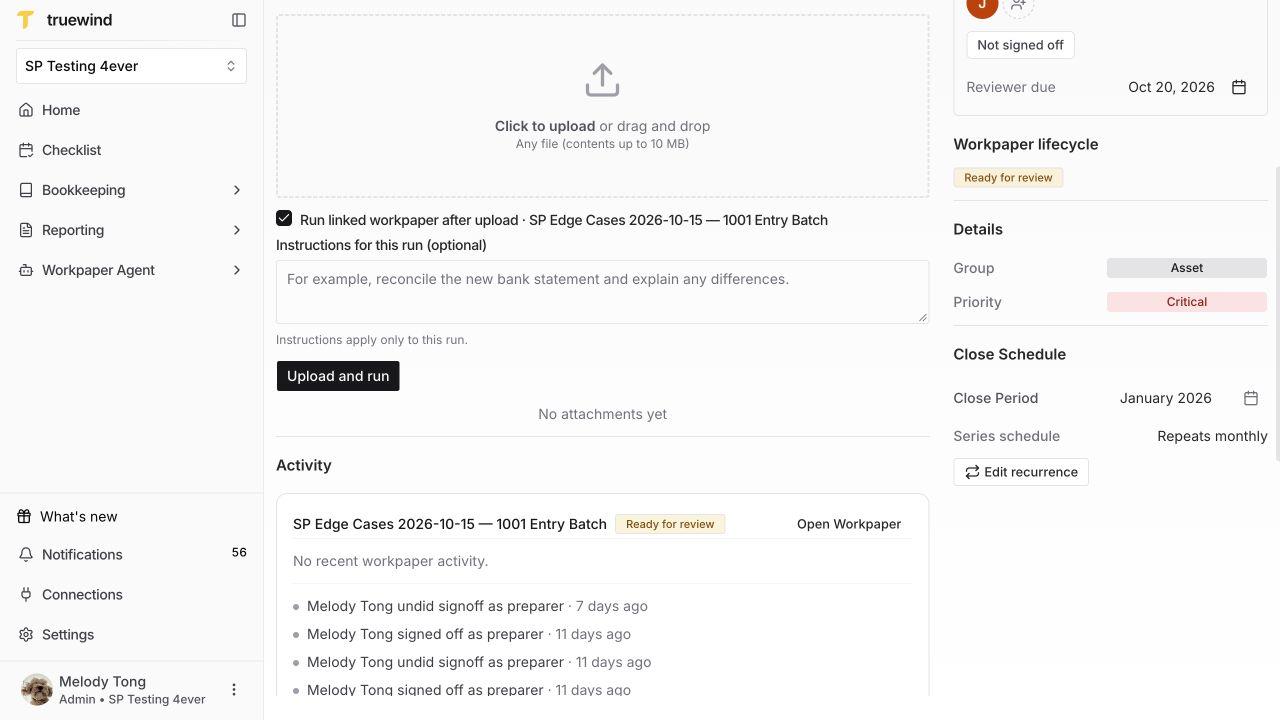
The screenshot shows the support area with the optional run setting selected, before any upload or run.

Linked task support area with Open Workpaper, workpaper lifecycle, and upload-and-run controls.

Step 2

Choose the files and run option

Select the support files in Attachments. Turn on Run linked workpaper after upload only when the agent should use these new files now. Leave it off when you only want to store task support.

Enter Instructions for this run (optional) to explain the requested work, such as which reconciliation needs updating. This instruction is limited to 4,000 characters.

Attachment upload form with Run linked workpaper after upload and optional instructions.

Step 3

Submit once and follow the result

Review the task, workbook, filenames, and instructions before selecting Upload and run. Files are saved to Checklist first, then copied into the existing workbook conversation and queued for a chat run.

A queued message is not a completed run. Open the linked workbook in Studio to follow execution and review its output before relying on the result.

Linked-workpaper upload form before submission.

Before starting the agent

Screenshots show a demonstration organization. Confirm your own organization and open close period before making changes. Separate preparer and reviewer controls appear where your organization uses role signoffs.

Use this workflow when the supporting files are ready and the linked workbook needs to process them. Ordinary uploads and scheduled future SOP runs are separate actions.

FAQ

Does this create a new workbook or rerun the SOP?

No. It queues an ordinary chat turn in the existing workbook conversation. It does not create another workbook, start a separate SOP execution, or automatically post journal entries.

What if the workbook is already running?

The new turn can be queued behind the current work. Verify the queued state and follow it in Studio instead of repeatedly submitting.

What happens if the run submission fails after upload?

Successfully saved attachments remain on the Checklist task. Use the offered retry or Check submission action for the existing request instead of uploading the same files as a new independent request.

Limitations

Workpaper restrictions still apply

Archived workpapers, closed periods, active review protections, or unresolved journal-entry recovery can block a run. Resolve the displayed condition in Studio first.

Cancellation and evidence

Before a run is queued, cancellation can leave already uploaded Checklist attachments in place. After admission, use the normal Studio controls to pause the work.

Was this helpful?

Need more help?

Ask for human help about this article and provide any feedback.