
Learn about AI for accountingJoin live workshops

Ask the support agent

Just ask a direct question or search related articles from the Knowledge Base.

Support Center / Checklist / Overview

Prepare and review Checklist tasks

New

Sign off preparation and review from either the main Checklist or task details, add review comments, and return work for correction when needed.

Workflow

Step 1

Review the work and your assigned role

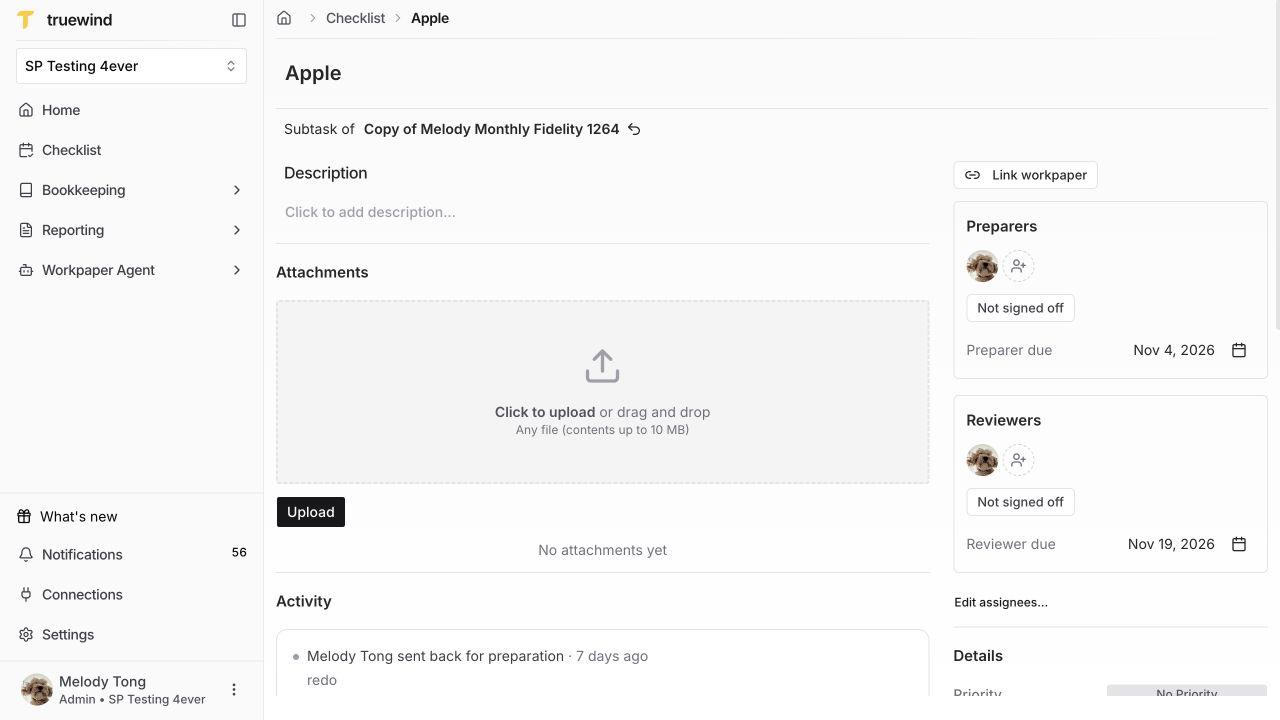
Open the task, read its description, inspect attachments, and open the linked workbook when present. Check Preparers, Reviewers, and each role’s deadline. Only a current assignee of a role can sign or undo that role.

Task detail with preparer and reviewer assignments, deadlines, and signoff controls.

Step 2

Choose the list or detail controls

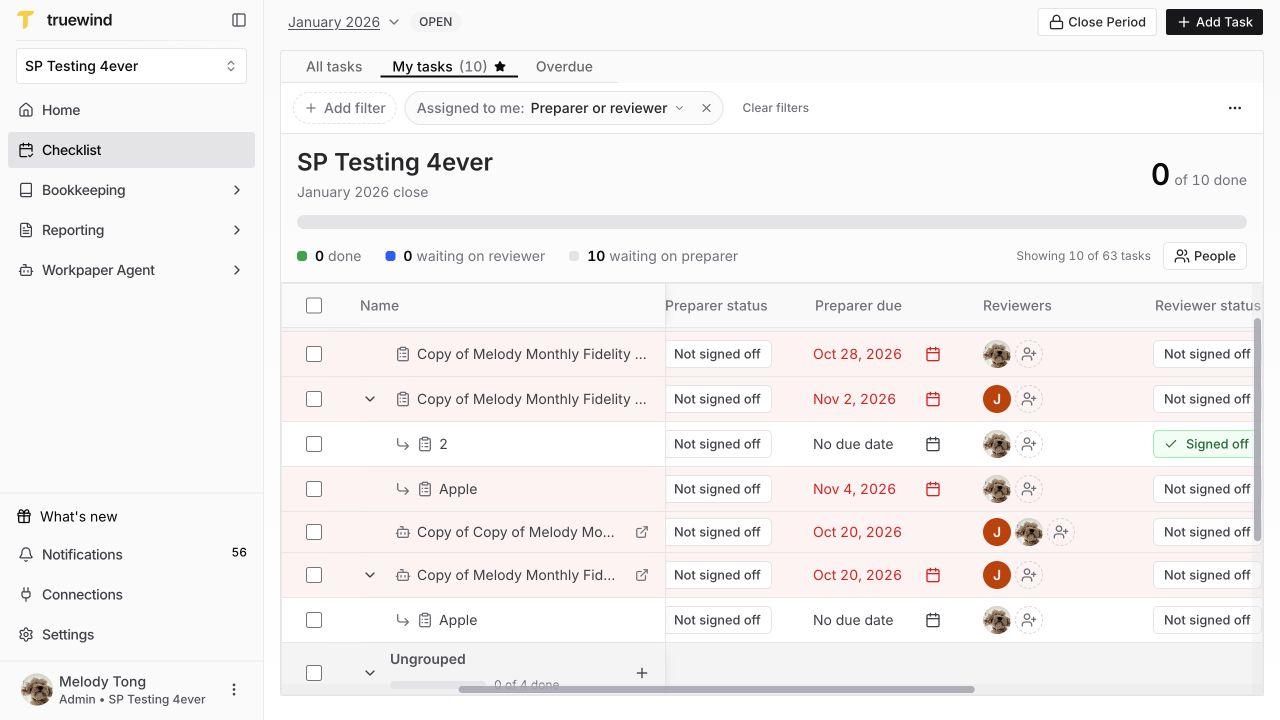
You can complete the same role signoff from either screen. In the main Checklist, locate the exact task row and use Not signed off under Preparer status or Reviewer status. Expand the parent first when signing a subtask. Scroll the table horizontally if a status column is off-screen.

On the task detail page, use Not signed off inside the Preparers or Reviewers card instead. Both entry points open the role-specific confirmation. Check the dialog title so you sign the intended role. Use one entry point; you do not need to sign again on the other screen.

Main Checklist with task names and separate Preparer status and Reviewer status columns containing Not signed off controls.

Step 3

Sign off preparation

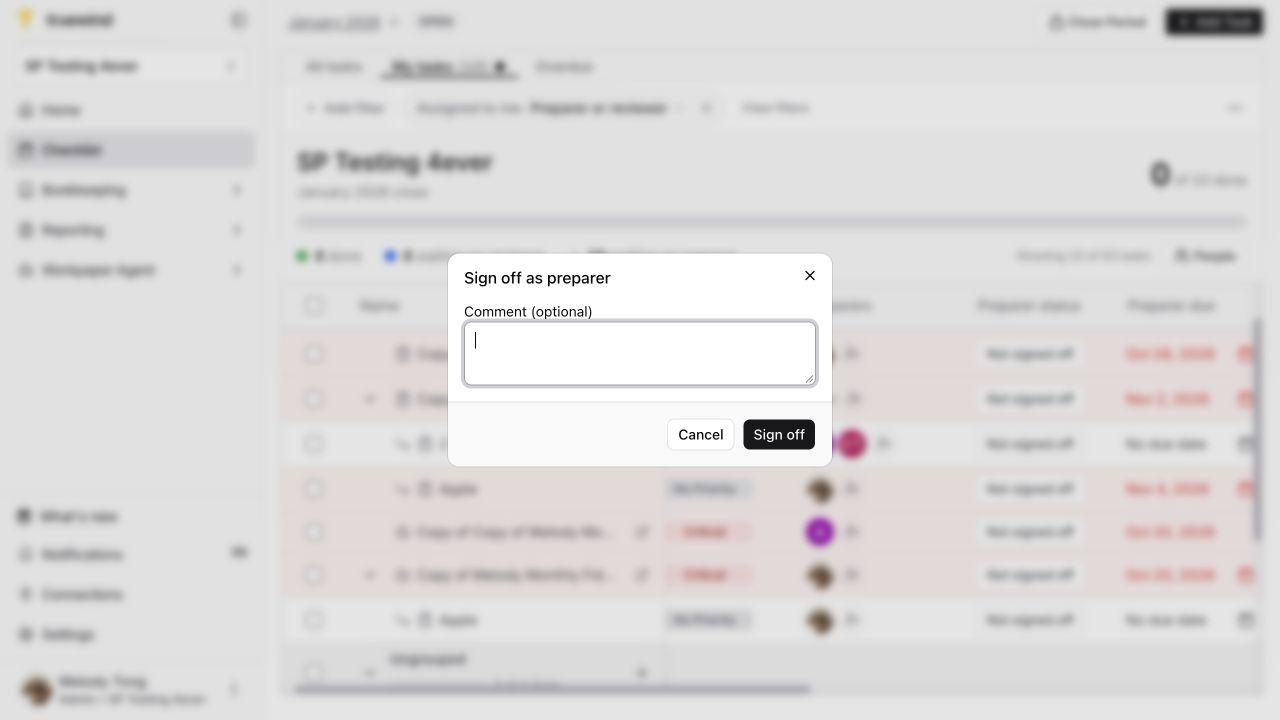
After completing the preparation checks, select Not signed off under Preparers in task details or Preparer status on the main Checklist row. The Sign off as preparer dialog accepts an optional comment. Select Sign off when the work is ready, then verify the preparer state.

This signs only preparation; it does not also sign review or post a journal entry. The screenshot stops before confirmation.

Sign off as preparer dialog with optional comment and Sign off.

Step 4

Complete the reviewer check

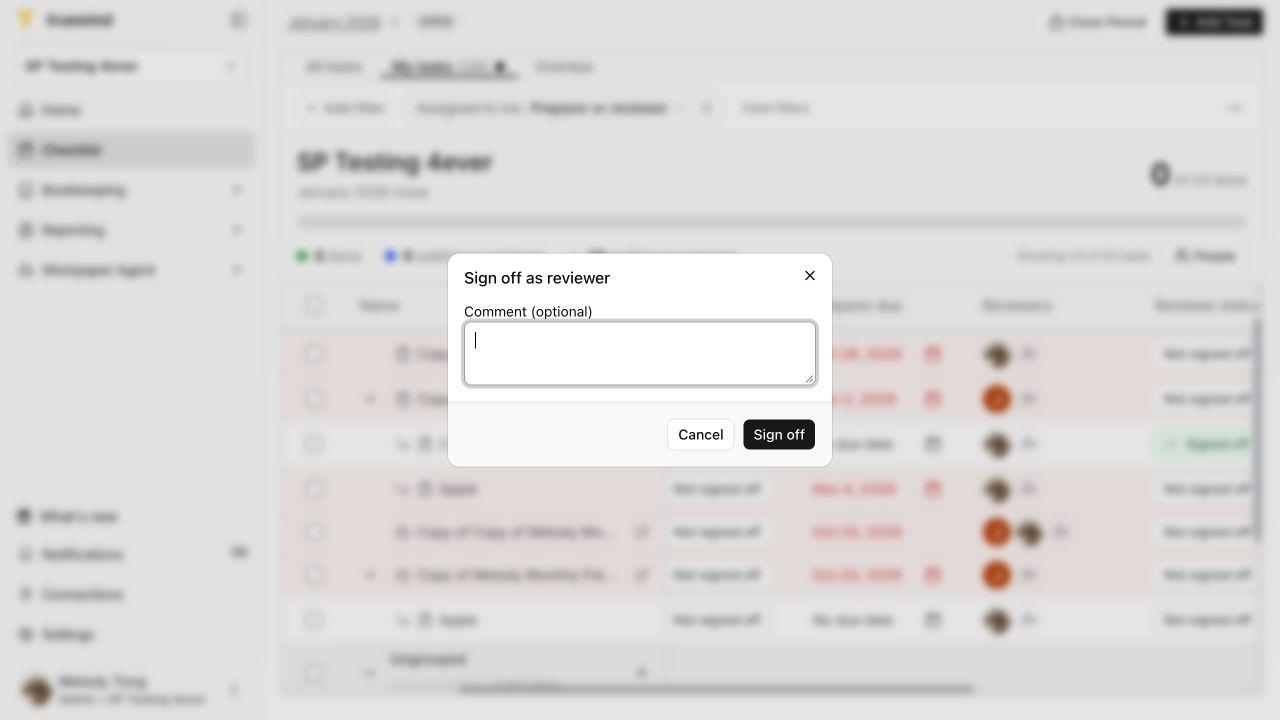
As an assigned reviewer, verify the underlying support and workbook results before selecting the Reviewer status control on the main Checklist row or the signoff control under Reviewers in task details. Check that the dialog says Sign off as reviewer. Add a comment if helpful, confirm, and check the reviewer state separately from the preparer state.

For linked tasks, Workpaper lifecycle remains a separate indicator. A Checklist signoff is not evidence that an entry was posted in the accounting system.

Sign off as reviewer confirmation opened from the main Checklist, with an optional comment and Sign off button before submission.

Step 5

Review returned work

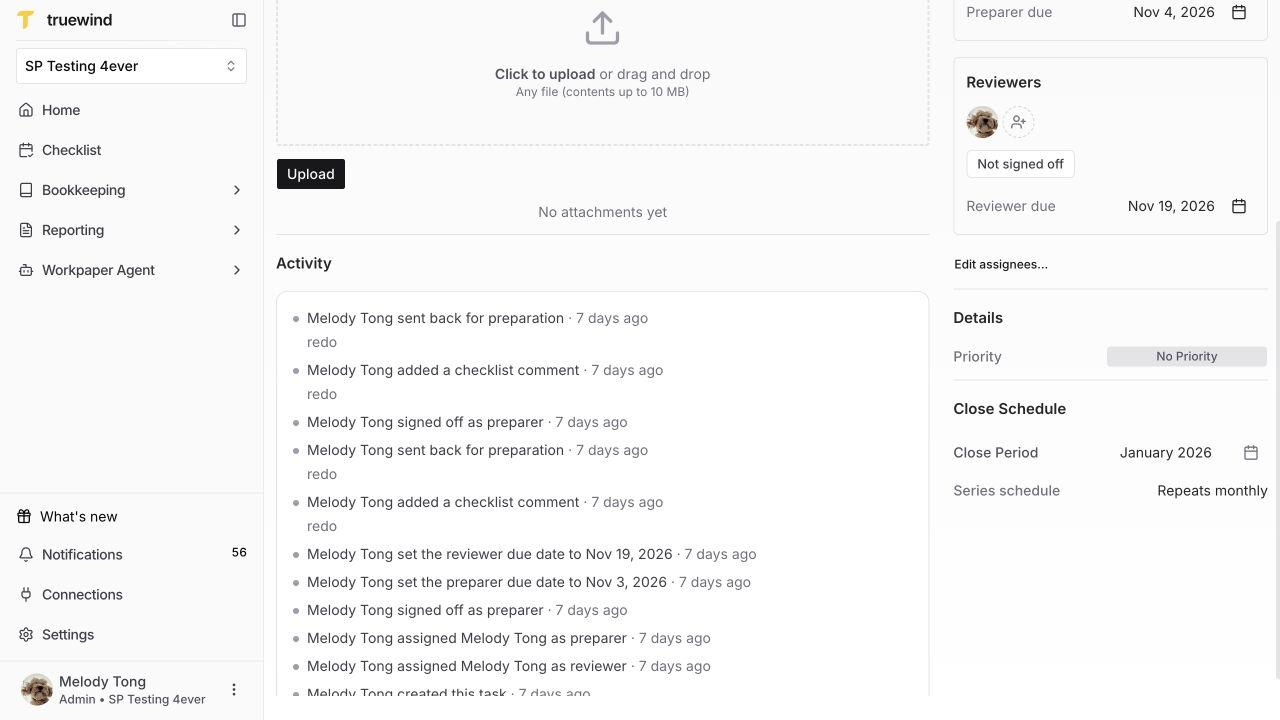
If work has been sent back, read the Sent back comment and the activity record. Recheck the requested correction and preparer deadline before preparing the task again. The preparer and reviewer signoffs remain separate.

The screenshot shows an existing returned task, not the Send back confirmation dialog.

Existing task activity recording that the task was sent back for preparation.

Before signing off

Screenshots show a demonstration organization. Confirm your own organization and open close period before making changes. Separate preparer and reviewer controls appear where your organization uses role signoffs.

Use comments to make the review decision understandable to the next person. If evidence is missing, open the task details and check its attachments and comments before signing.

Return work for correction

When preparation is signed and review is not signed, an assigned reviewer can choose Send back. Enter the required Reason in the dialog and adjust the preparer deadline if needed. Check the task and request before submitting. Afterward, verify the task has returned to preparation and that the correction is recorded in its comments and activity.

An assigned member can also use the undo control for their role when that signoff needs to be removed. This changes that role’s signoff, not the other role or an accounting-system posting.

FAQ

Must I sign off in both the main list and task details?

No. They are two entry points for the same task and role. Verify the updated state in either place; preparer and reviewer signoffs remain separate.

Can an administrator sign for another preparer?

Being an administrator alone does not make you a current assignee. Signoff and undo belong to assigned members of that role.

Is a workpaper lifecycle status the same as a signoff?

No. Workpaper execution and review lifecycle is separate from the Checklist preparer and reviewer signoffs.

Why is there a dash for reviewer status?

The task may have no reviewer assigned. Add the intended reviewer before expecting a review signoff.

Limitations

Organization experience

This guide applies where separate role signoffs are enabled. An organization using the earlier single-status workflow has different controls.

Accounting review still matters

Verify the source documents, amounts, accounts, period, and any posted journal entry in the appropriate workbook and accounting system. Task signoff does not replace those checks.

Was this helpful?

Need more help?

Ask for human help about this article and provide any feedback.