
Learn about AI for accountingJoin live workshops

Ask the support agent

Just ask a direct question or search related articles from the Knowledge Base.

Support Center / Checklist / Overview

Filter Checklist tasks and save personal views

New

Find tasks by ownership, deadlines, group, priority, or signoff status, then save a reusable personal view.

Workflow

Step 1

Start with the right task list

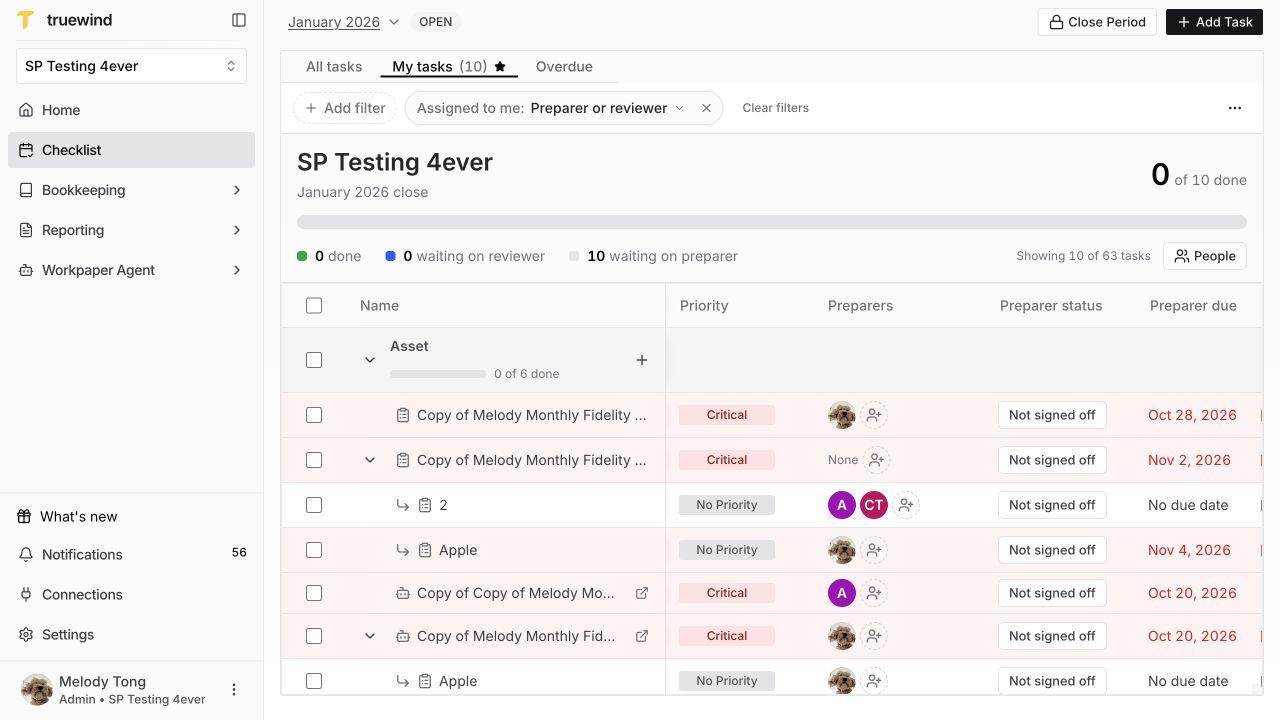
Confirm the organization and period, then choose All tasks, My tasks, or an existing saved view. Compare the matching count with the total before assuming a task is missing. Parent rows may remain visible to provide context for matching subtasks.

Checklist tabs, active assignment filter, and matching task count.

Step 2

Add and adjust filters

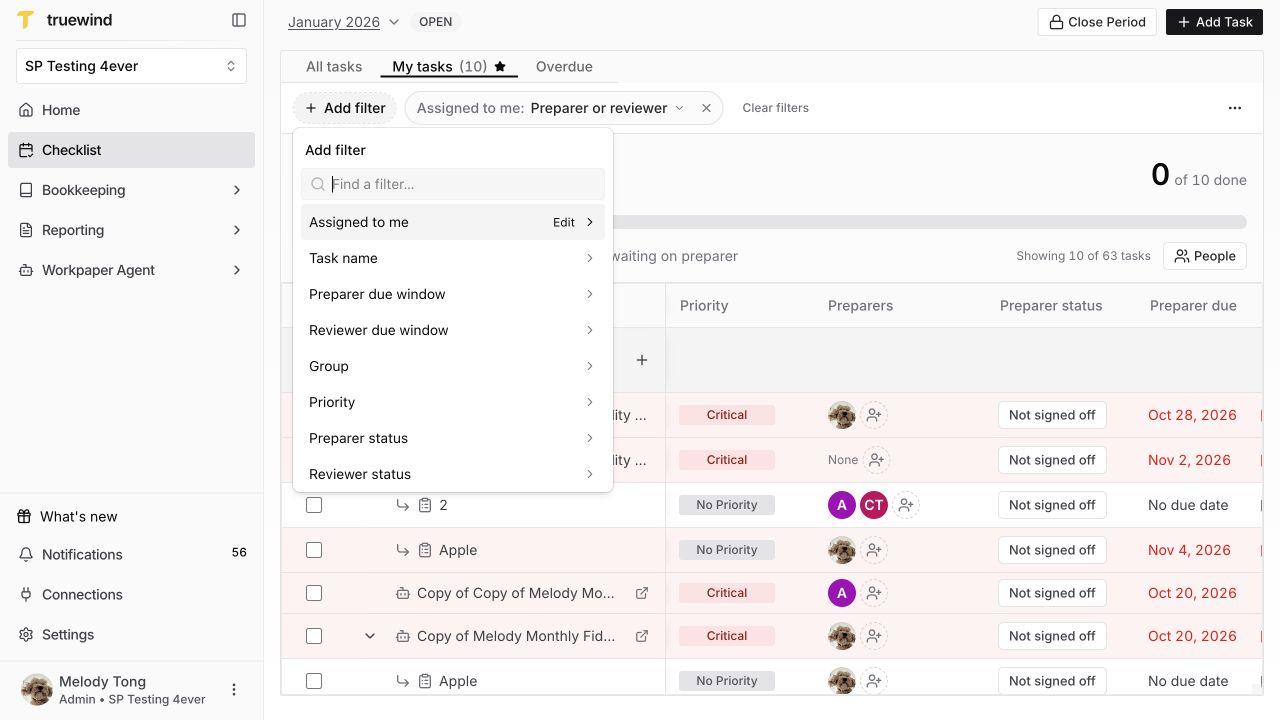
Select Add filter and choose the field. In the role-signoff layout, available choices include assignment, task name, group, priority, preparer/reviewer status, and role-specific due windows.

Click a filter pill to adjust it, remove one with its × control, or use Clear filters. Filter criteria remain useful when you switch close periods.

Checklist Add filter menu with role-specific fields and Group.

Step 3

Create and save a view

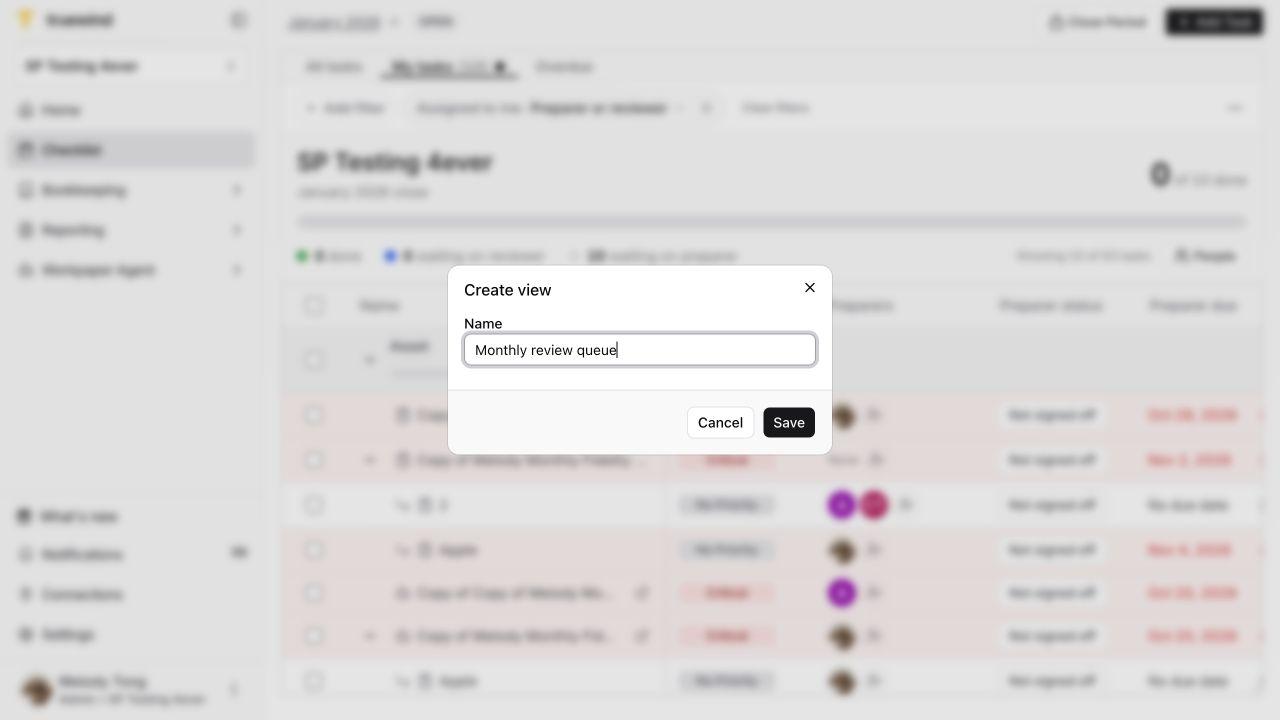
Set the filters that define the workflow first. Open View options → Create view…, enter a descriptive name, and select Save to save the current filters as a personal view.

For example, save a review queue with the reviewer and reviewer-status filters your team uses. Reopen the saved tab to verify its criteria and matching tasks.

Create view dialog with an example name and Save; the view has not been saved.

Step 4

Manage the saved view

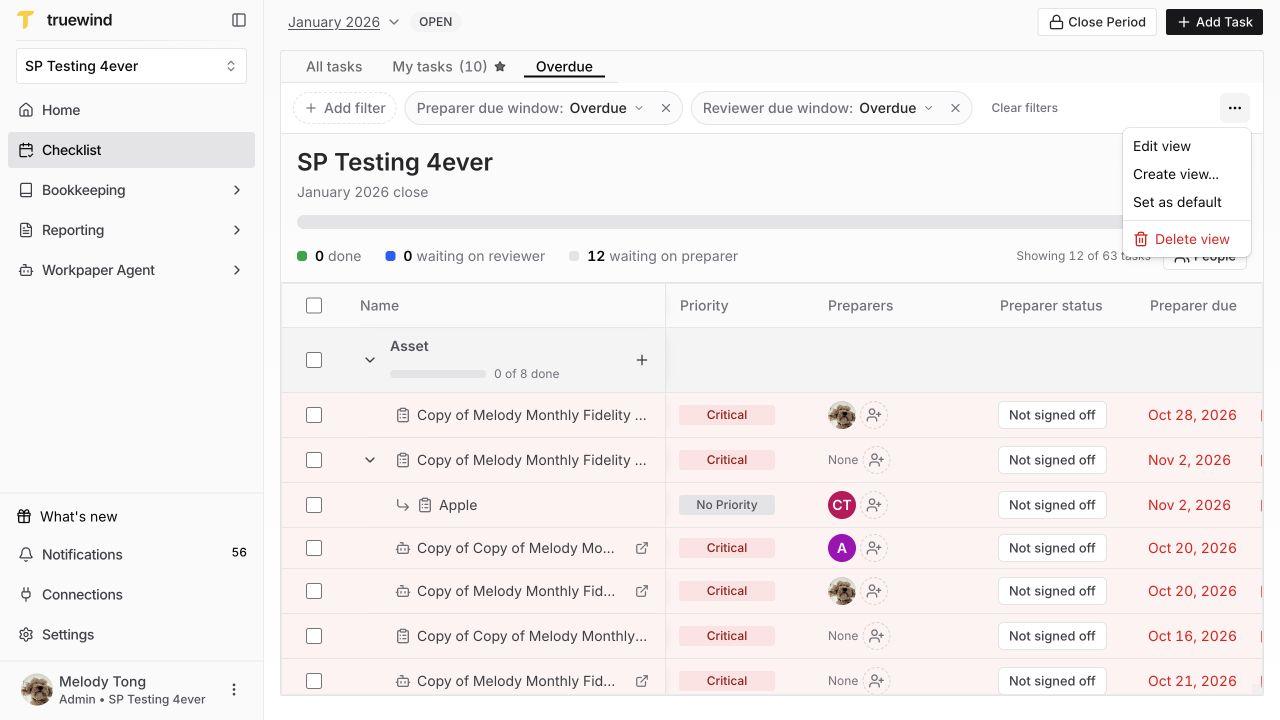
With a saved view selected, use View options to edit it, set it as your default, or delete it. Review unsaved changes before switching views. Deleting a view removes the saved filter setup, not its tasks.

Checklist View options menu with personal-view management actions.

Build a repeatable work queue

Screenshots show a demonstration organization. Confirm your own organization and open close period before making changes. Separate preparer and reviewer controls appear where your organization uses role signoffs.

Use filters to focus your close work before reviewing or updating tasks. A view helps you find tasks; it does not change their assignments or status.

FAQ

Can other users see my saved view?

Saved views are personal to the user and organization. They are not shared team views.

Will deleting a view delete tasks?

No. It removes that saved view and returns you to the task list.

Why is a task absent?

Check the close period and active filters, including My tasks assignment criteria. Clear filters or use All tasks to broaden the list.

Limitations

Availability

Personal saved views and separate role filters appear where the organization uses the corresponding Checklist experience.

Names and scope

Use a unique descriptive name of up to 80 characters. All tasks and My tasks are reserved built-in names. A saved view stores filters, not a shared task collection.

Was this helpful?

Need more help?

Ask for human help about this article and provide any feedback.