
Learn about AI for accountingJoin live workshops

Ask the support agent

Just ask a direct question or search related articles from the Knowledge Base.

Support Center / Checklist / Overview

Change a Checklist task’s recurrence

New

Make a task recurring or change a parent series’ frequency and upcoming deadlines while preserving protected work.

Workflow

Step 1

Open the parent task

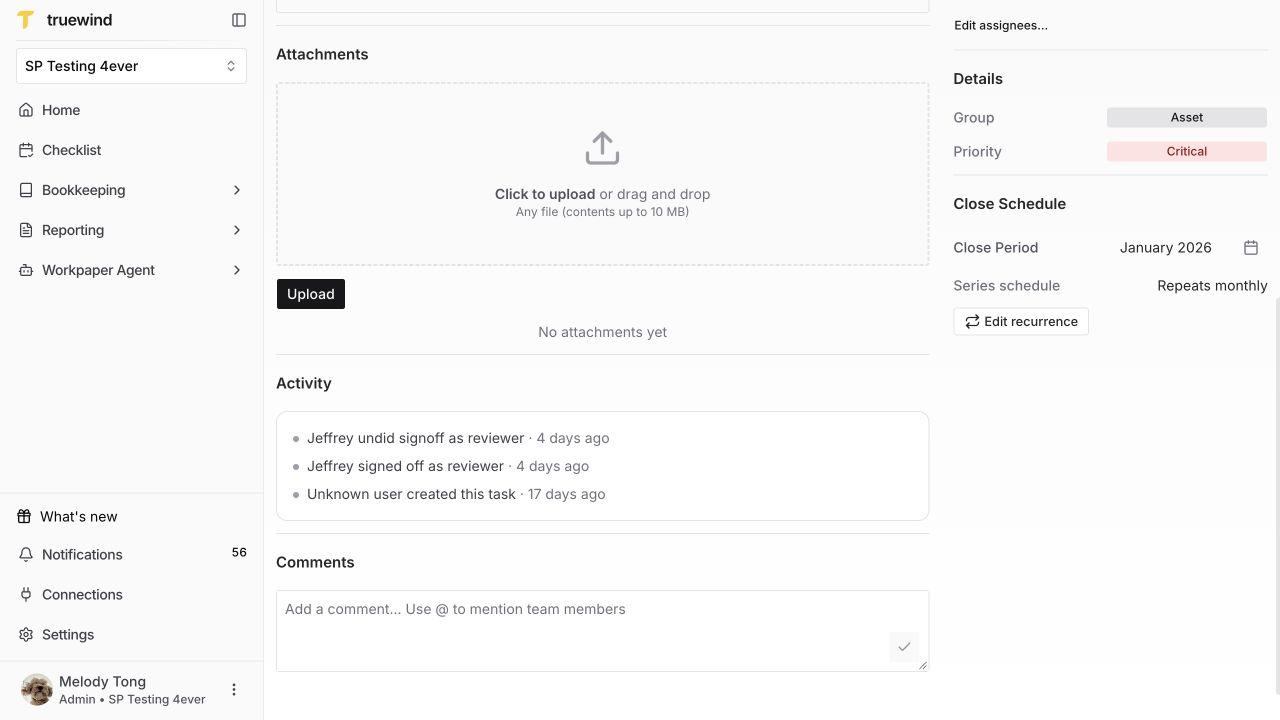
Open the task from Checklist and look under Close Schedule. For an active recurring parent, choose Edit recurrence. A repeating subtask inherits its parent’s cadence; use the parent link when you need to change that cadence.

Parent task Close Schedule with Edit recurrence.

Step 2

Check where changes begin

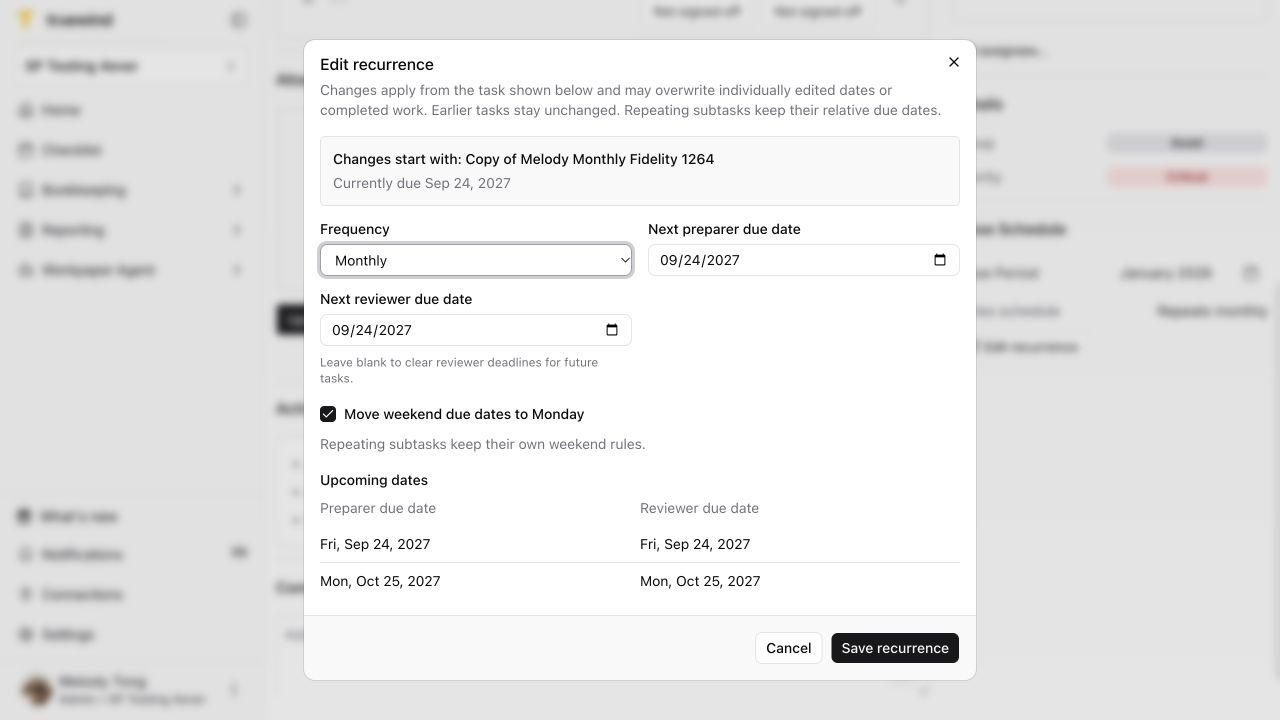
Read Changes start with and its current due date before editing. The starting task can be later than the task you opened. Changes apply from the displayed task; the dialog warns that they may overwrite individually edited dates or completed work. Earlier tasks stay unchanged. Read the current notice before proceeding.

Edit recurrence showing Changes start with and the upcoming-date preview.

Step 3

Set the new cadence and dates

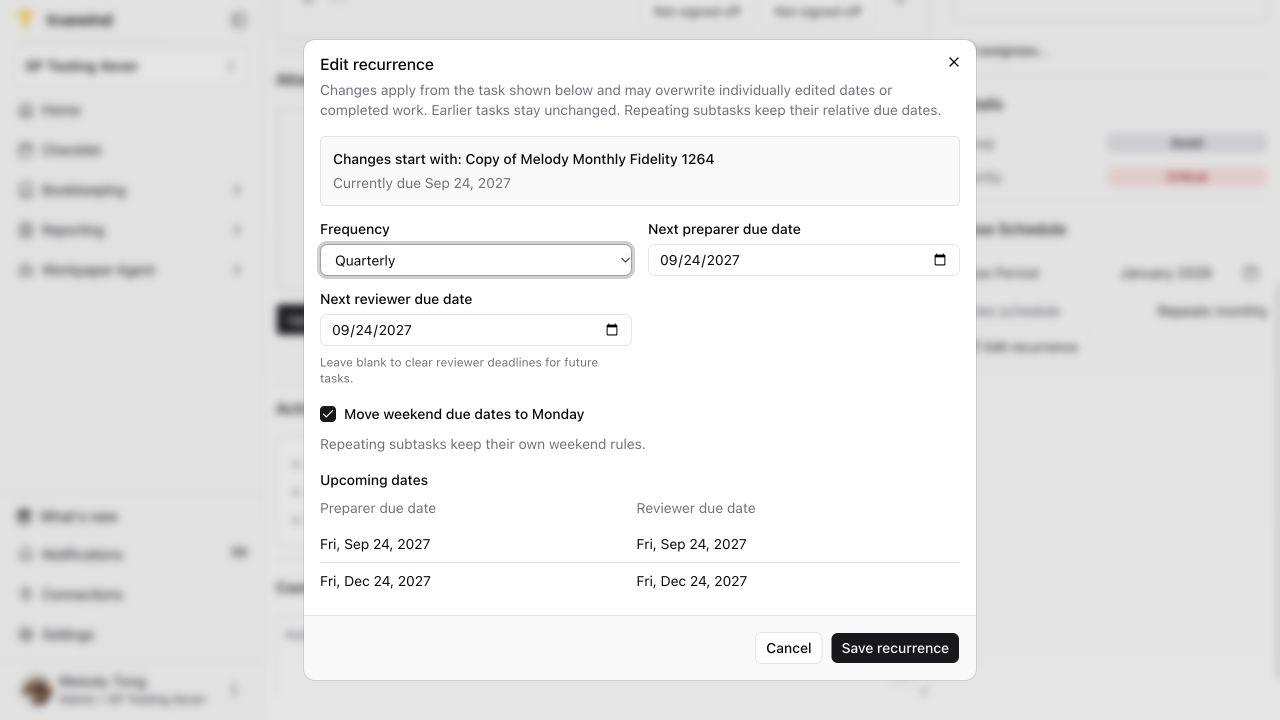
Choose the Frequency and the next preparer deadline. Set the next reviewer deadline, or leave it blank only if you intend to clear reviewer deadlines for future tasks.

Review Move weekend due dates to Monday. Repeating subtasks keep their own weekend rules and relative deadlines.

Unsaved Quarterly recurrence with preparer and reviewer dates and weekend adjustment.

Step 4

Review the preview and save

Compare both upcoming dates with the close calendar and review any repeating subtasks listed. Select Save recurrence only after the starting task and dates are correct. Reopen the task and confirm the schedule and upcoming occurrences after synchronization.

If the preview becomes stale, reopen it and review the fresh impact. Do not submit a second independent change while the first is still synchronizing.

Quarterly preview showing the first two upcoming due dates and Save recurrence.

Step 5

Optional — Make a one-time task recurring

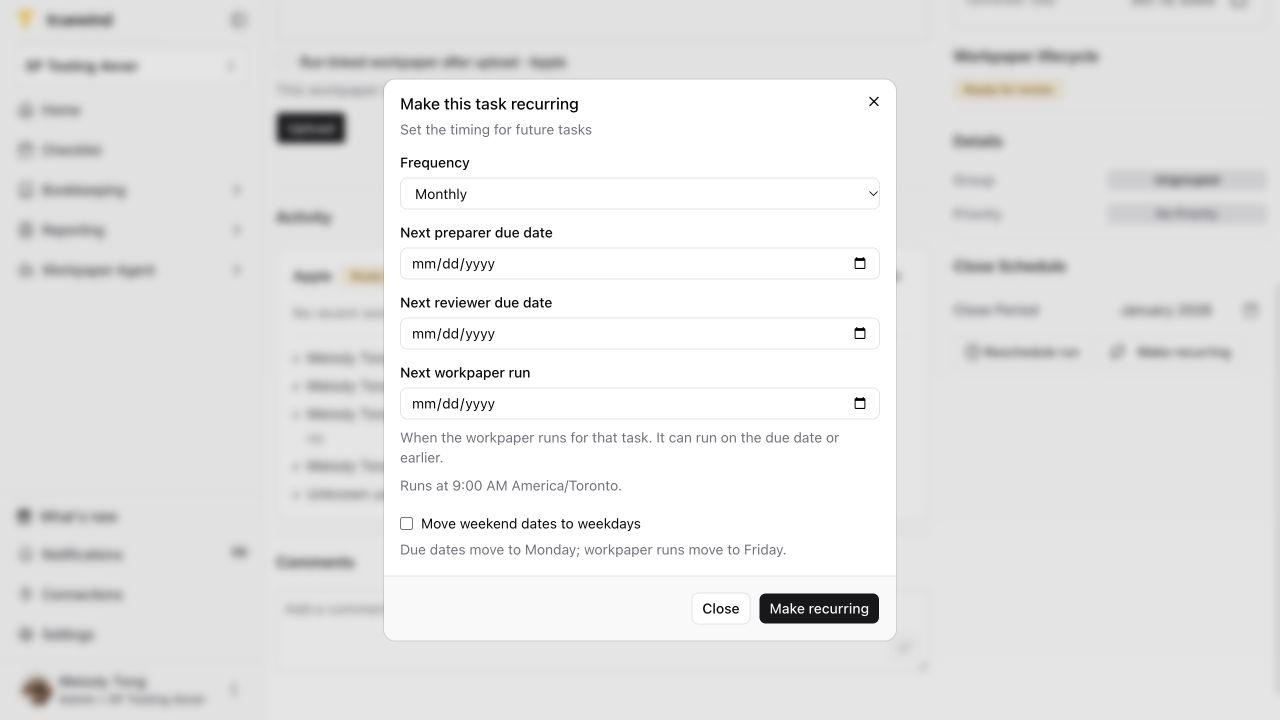
On an eligible one-time top-level task, select Make recurring. Set the frequency, first deadline, and weekend handling. A linked workpaper also needs a valid future first run. Review the preview, then save.

This creates future occurrences without rerunning the original task. For a one-time subtask of a recurring parent, use Repeat with parent instead of choosing an independent cadence.

Make recurring configuration for a one-time Checklist task.

Choose the right change

Screenshots show a demonstration organization. Confirm your own organization and open close period before making changes. Separate preparer and reviewer controls appear where your organization uses role signoffs.

Use this workflow for frequency or series timing changes. For owner, group, priority, or individual deadline corrections, use Edit task details. To end a series, use Stop recurrence or delete tasks.

FAQ

Can I just edit a due date?

Yes. Use the task’s due-date edit control for a deadline correction. That is different from changing the series frequency.

Why do changes start months later?

The starting occurrence can differ from the task you opened. Read Changes start with and its current due date; do not assume the change starts in the displayed close period.

Can I edit a child’s frequency?

Repeating subtasks follow the parent cadence. A child can be one-time or repeat with its parent, not have an independent frequency.

Limitations

Review the forward impact

The dialog warns that changes from the displayed starting task may overwrite individually edited dates or completed work. Earlier tasks stay unchanged. Review the starting task and upcoming dates before saving; one-time subtasks remain one-time.

Use Checklist for schedule changes

Manage task recurrence from task details. The Schedules inventory is not an alternate editor for these controls.

Was this helpful?

Need more help?

Ask for human help about this article and provide any feedback.