
Learn about AI for accountingJoin live workshops

Ask the support agent

Just ask a direct question or search related articles from the Knowledge Base.

Support Center / Checklist / Overview

Delete Checklist tasks or stop recurrence

New

Review the impact of removing one task, removing eligible future tasks, or stopping repetition while preserving existing work.

Workflow

Step 1

Open the task’s deletion options

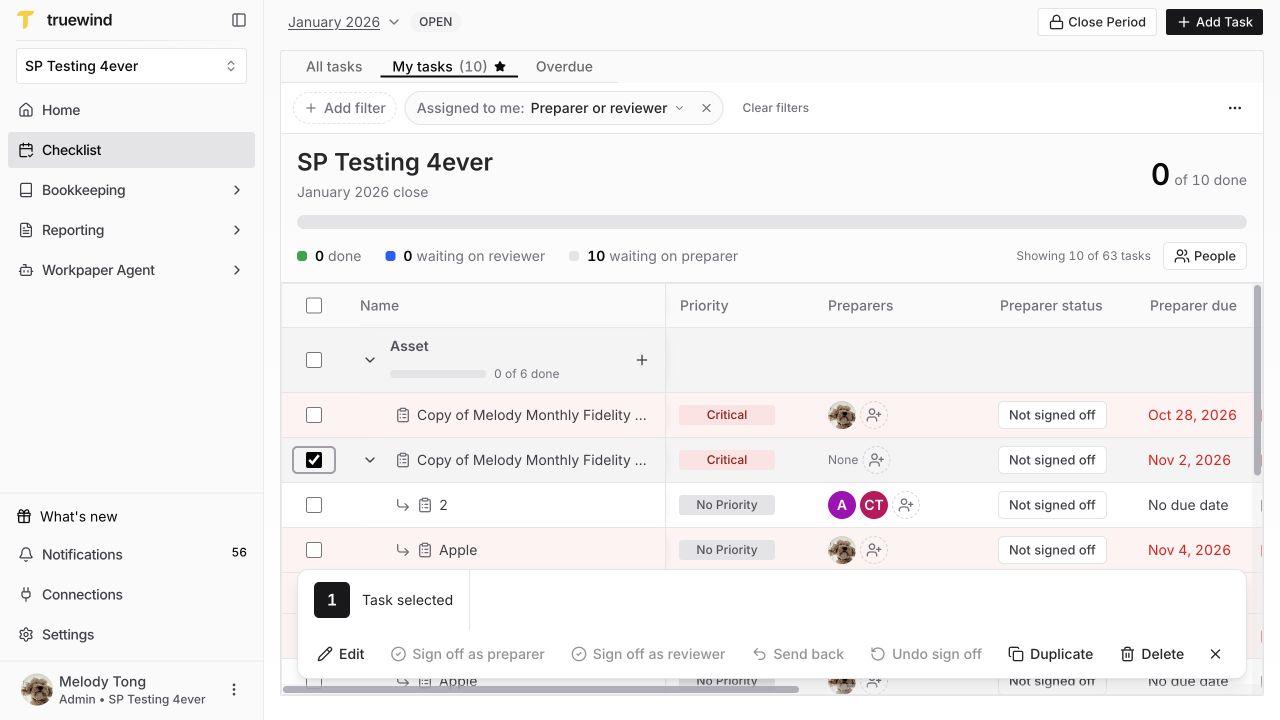
Select the checkbox beside one task in Checklist, then select Delete in the action bar at the bottom. Check the task name in the dialog before choosing a scope. For a parent, the impact includes its concrete subtasks.

One selected task in Checklist with the bottom action bar and Delete control.

Step 2

Choose the intended scope

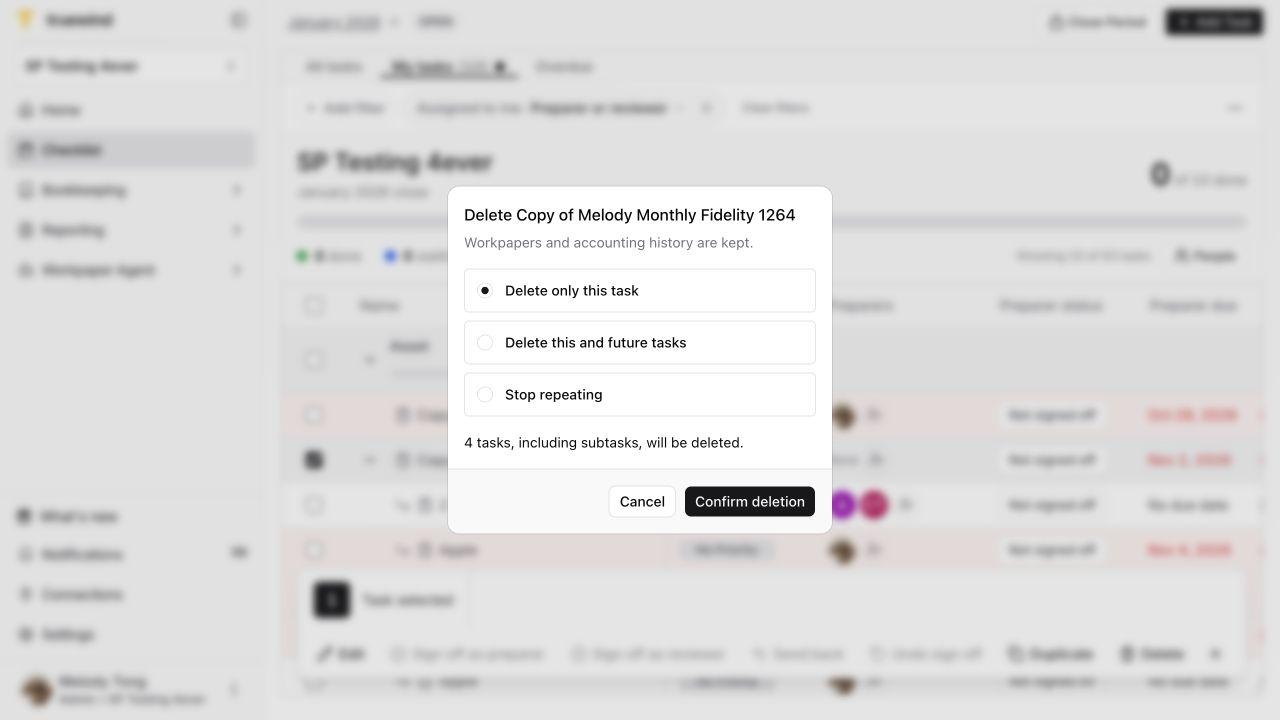
Use Delete only this task to remove the current occurrence and its applicable children. For an eligible recurring task, Delete this and future tasks includes only the future work permitted by the impact preview.

Choose Stop repeating when you want to stop future recurrence without deleting existing task occurrences. These actions have different consequences.

Deletion dialog showing occurrence, future-task, and Stop repeating scope choices.

Step 3

Read the impact before confirming

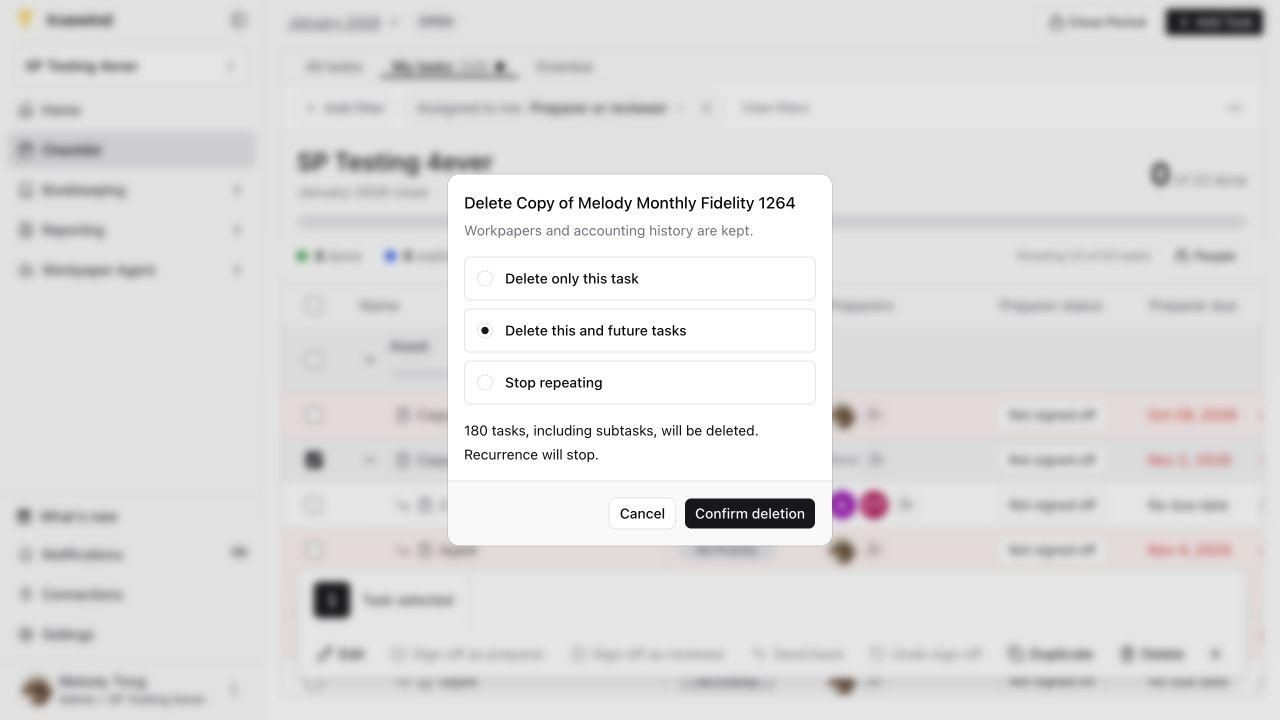
Wait for the exact affected-task count and protection messages. Check the parent and child scope against your intent. Workpapers and accounting history are kept, as the dialog explains.

Only then select Confirm deletion or Stop recurrence, depending on the chosen action. If the impact changes, refresh it and review again. If the save succeeded but synchronization is pending, use the offered synchronization recovery instead of starting another deletion.

Loaded deletion impact and confirmation controls before any destructive action.

Choose the least disruptive action

Screenshots show a demonstration organization. Confirm your own organization and open close period before making changes. Separate preparer and reviewer controls appear where your organization uses role signoffs.

If only a deadline or owner is wrong, edit that field instead of deleting the task. If the work is no longer repeated, consider Stop repeating and review the existing occurrences that remain. Screenshots stop at confirmation; they do not show completed deletion.

FAQ

Does deleting the task delete its workbook?

No. The deletion dialog preserves workpapers and accounting history.

How is Stop repeating different?

It ends future recurrence while leaving existing task occurrences in place. It is not the same as deleting the current task.

Are all future tasks deleted?

No. Future deletion is limited by eligibility and protected work. Read the live impact count and warnings; do not infer the scope from the series name alone.

Limitations

Parent and child scope

Deleting a parent includes its concrete children. Check the impact even if children were collapsed or hidden in the table.

Protected and active work

Closed periods, active execution, edited or completed work, and other protection rules may block or narrow the action. The current preview is authoritative.

Was this helpful?

Need more help?

Ask for human help about this article and provide any feedback.