
Settings to review
Confirm the threshold, depreciation defaults, useful life, and auto-posting behavior before month-end Fixed Asset work begins.
Ask the support agent
Just ask a direct question or search related articles from the Knowledge Base.
Support Center / Fixed Assets / Manage
Update Fixed Assets settings when thresholds, subaccounts, or posting behavior need to change, resulting in a configuration that matches your accounting policy.
Step 1
Use the highlighted control to continue through the workflow.
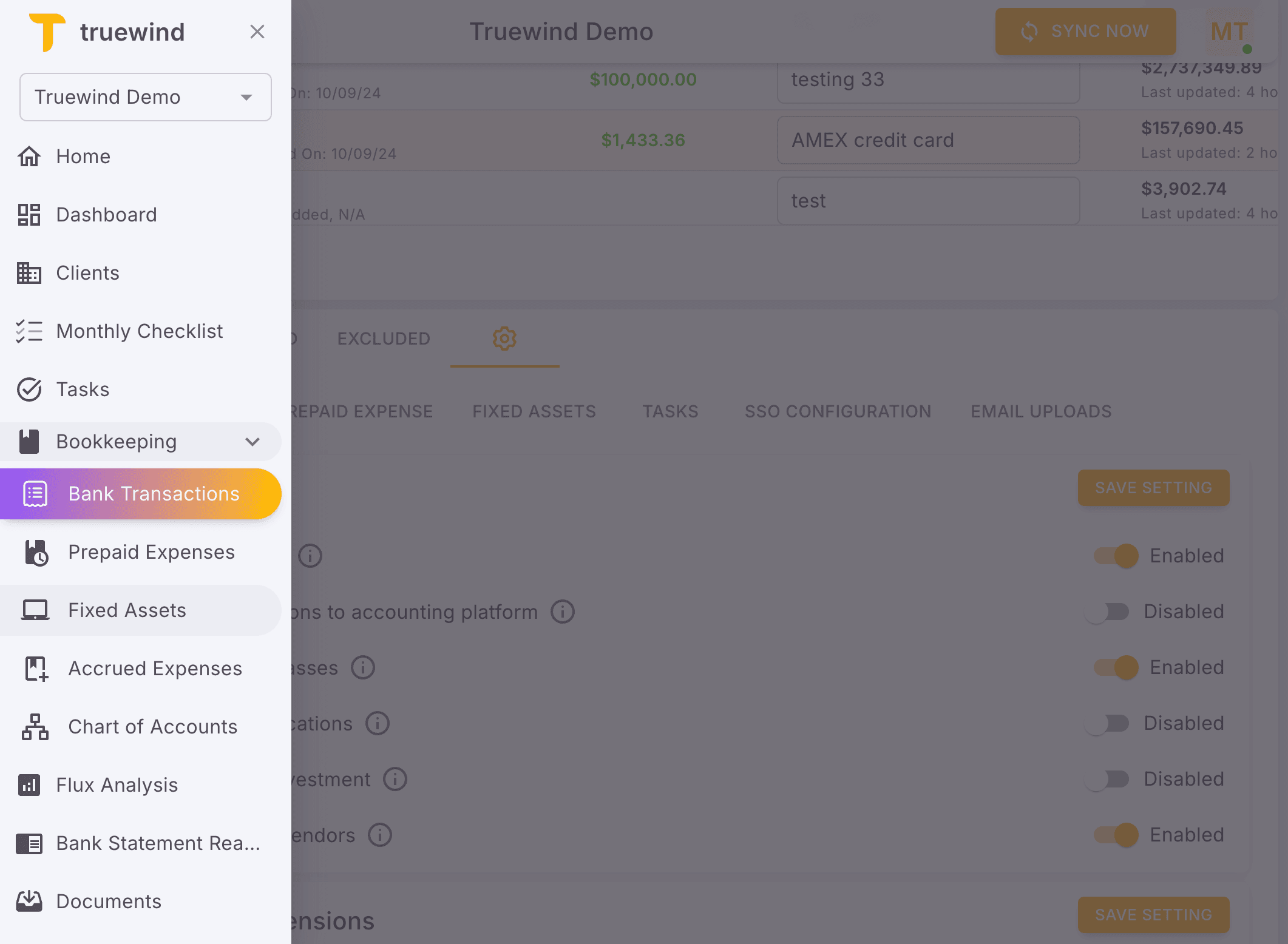
Step 2
Use the highlighted control to continue through the workflow.
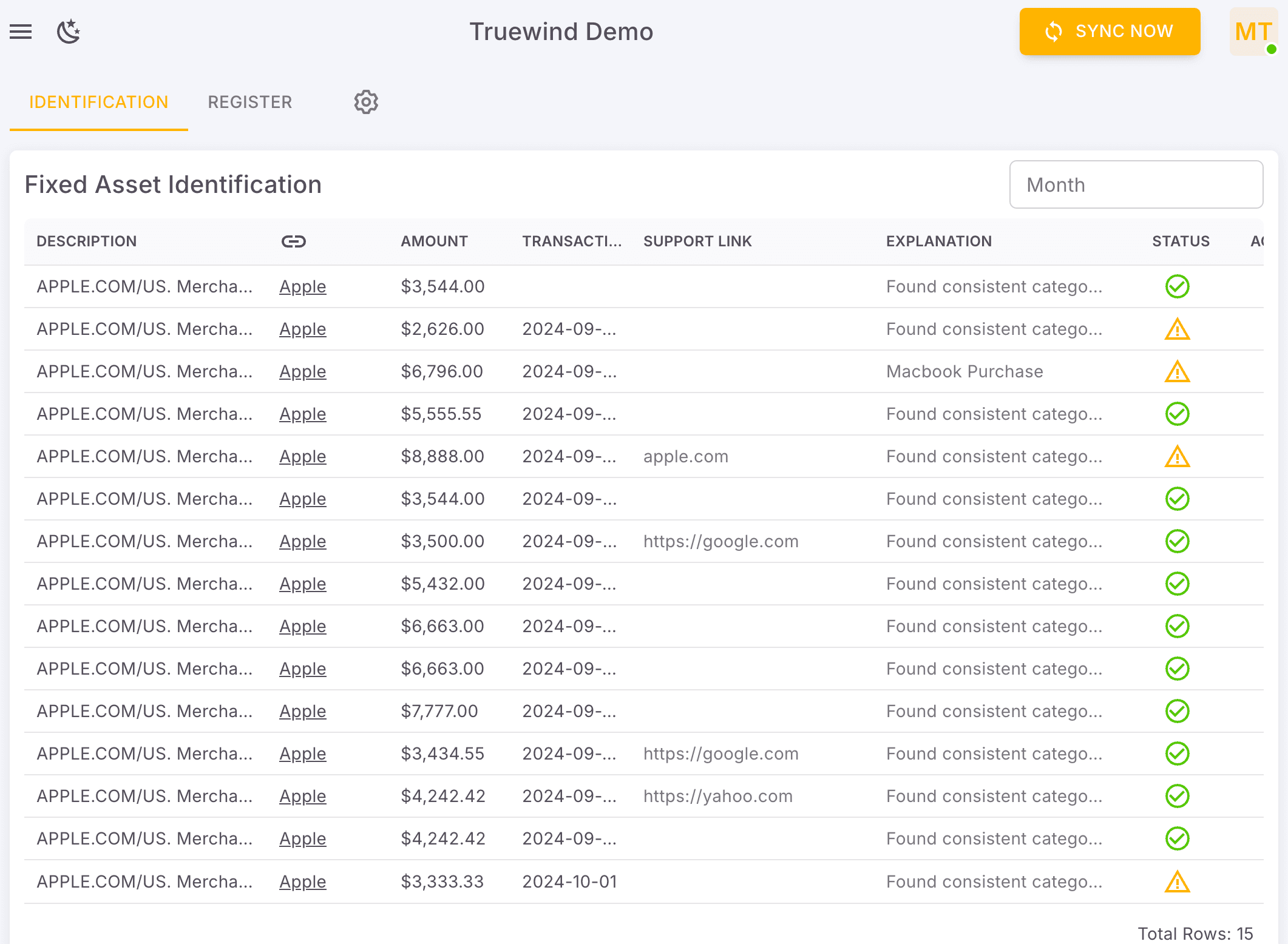
Step 3
Use the highlighted control to continue through the workflow.
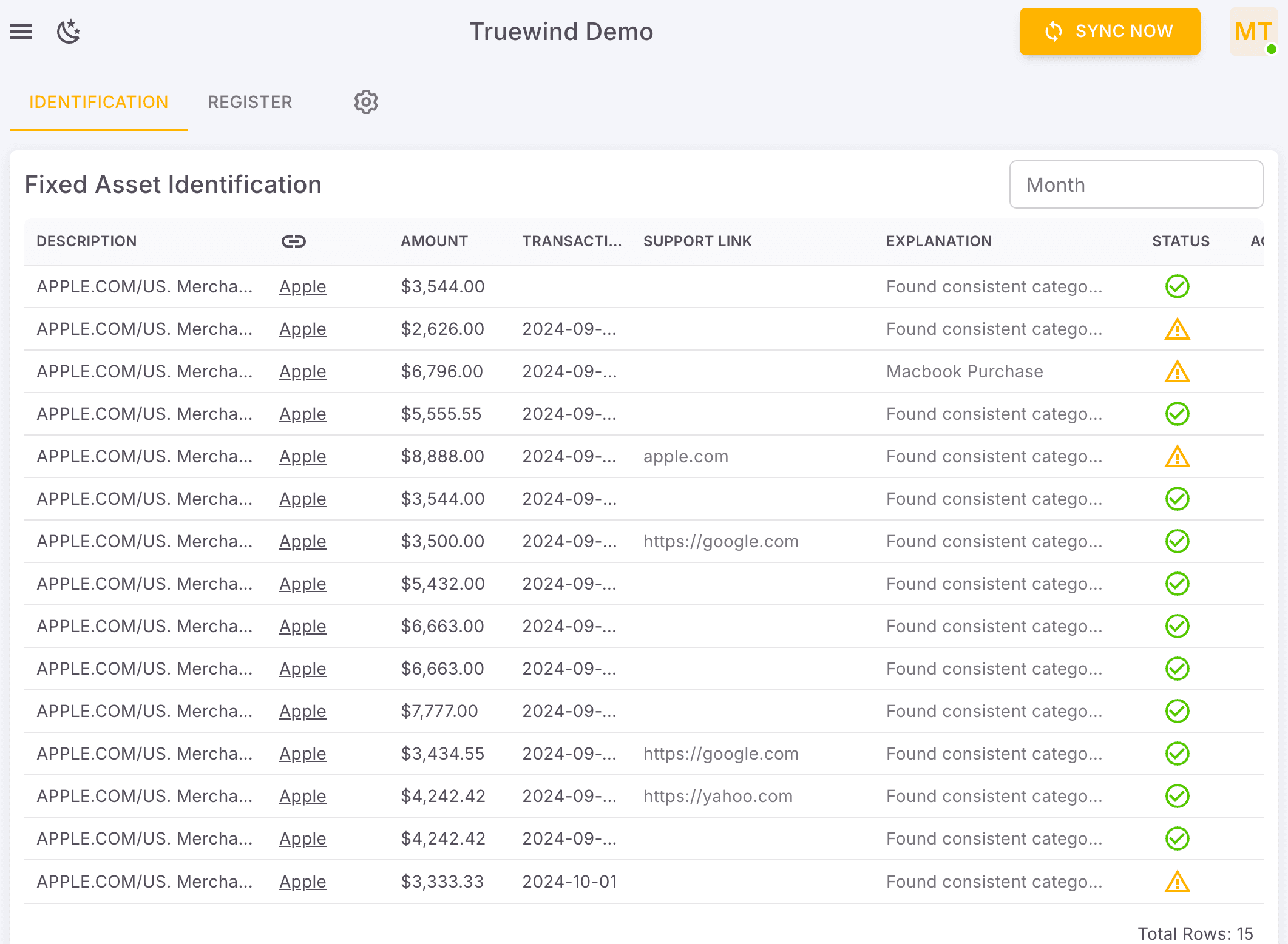
Step 4
Use the highlighted control to continue through the workflow.
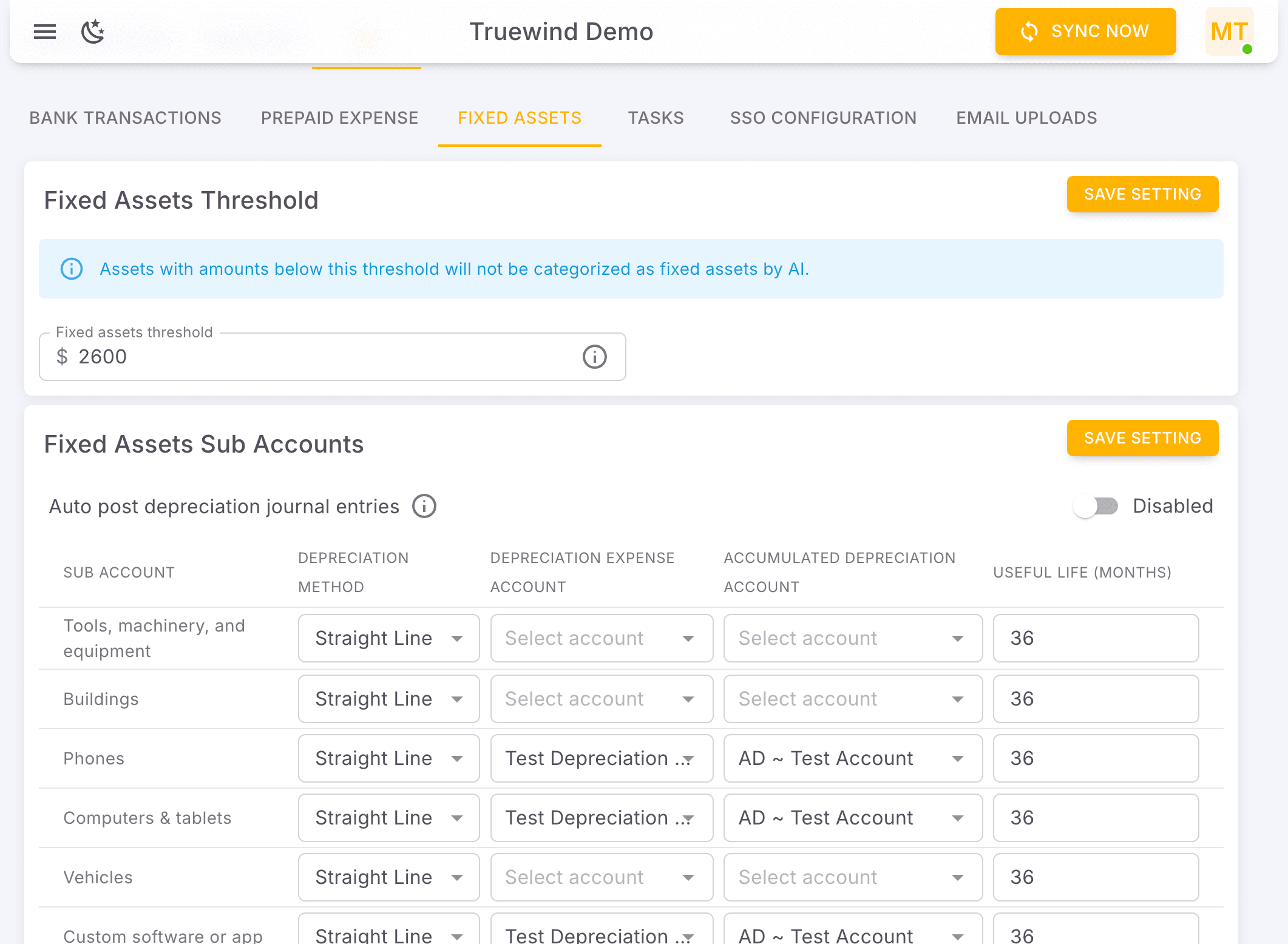
Step 5
Use the highlighted control to continue through the workflow.
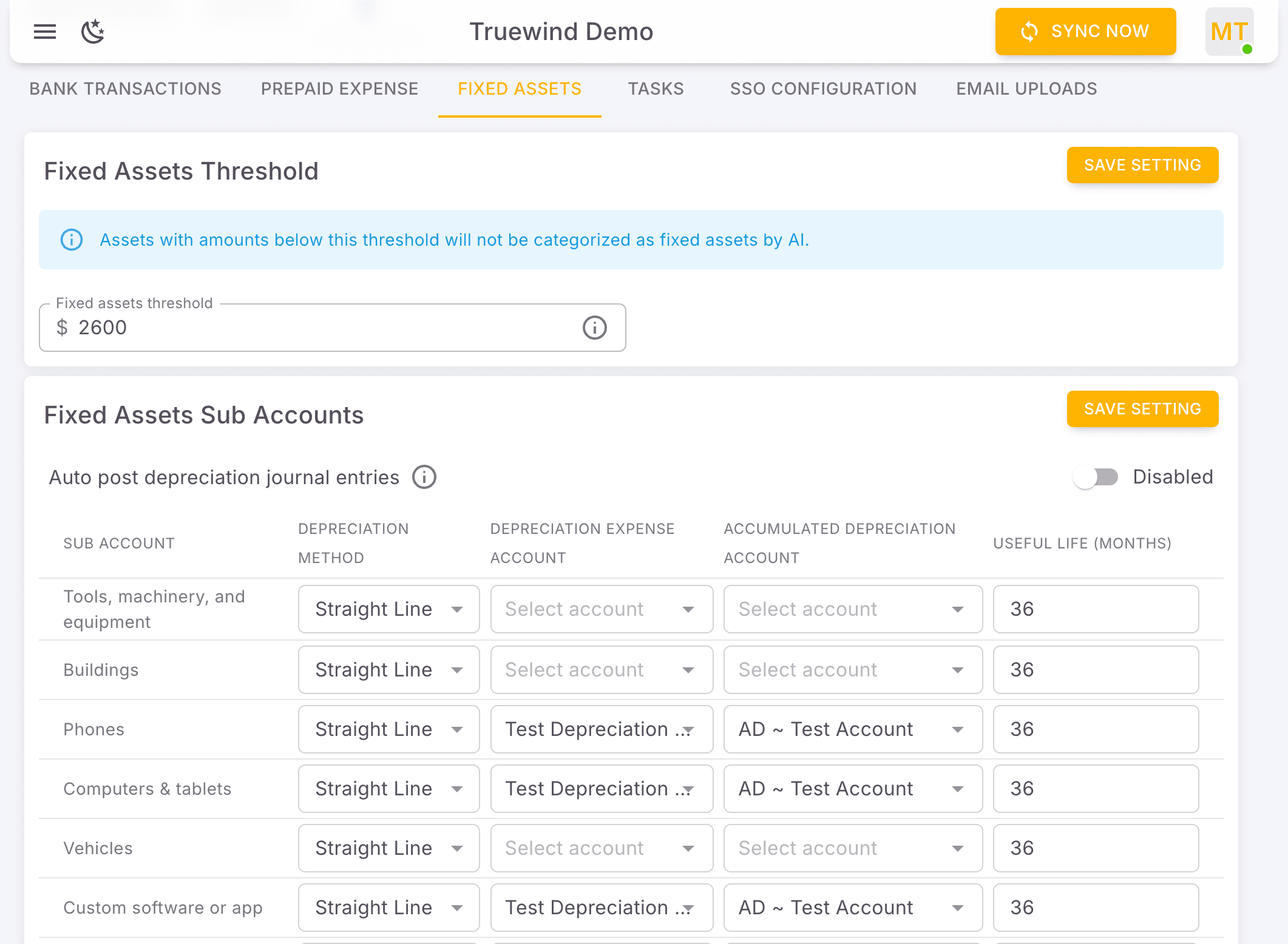
Step 6
Use the highlighted control to continue through the workflow.
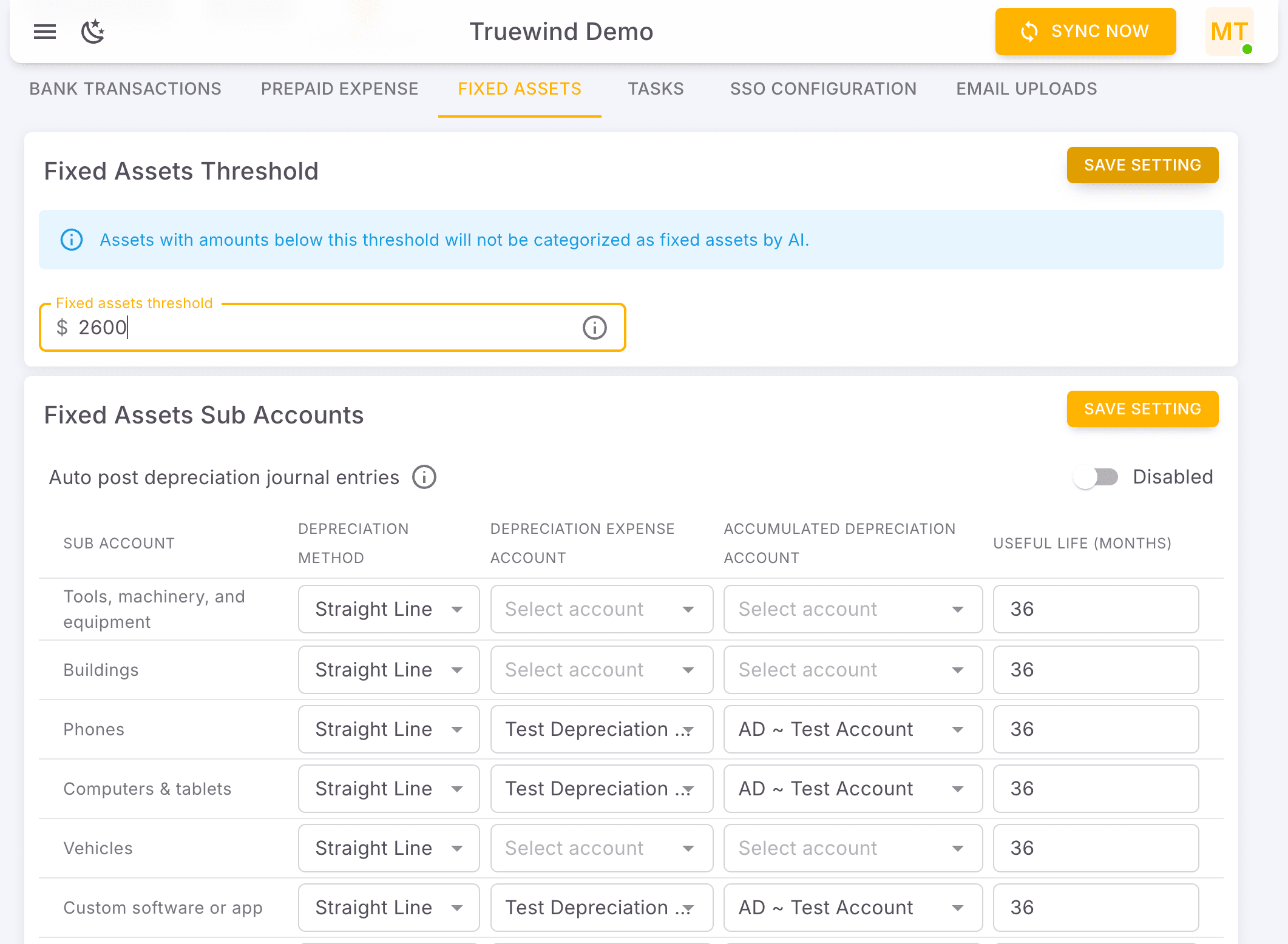
Step 7
Use the highlighted control to continue through the workflow.
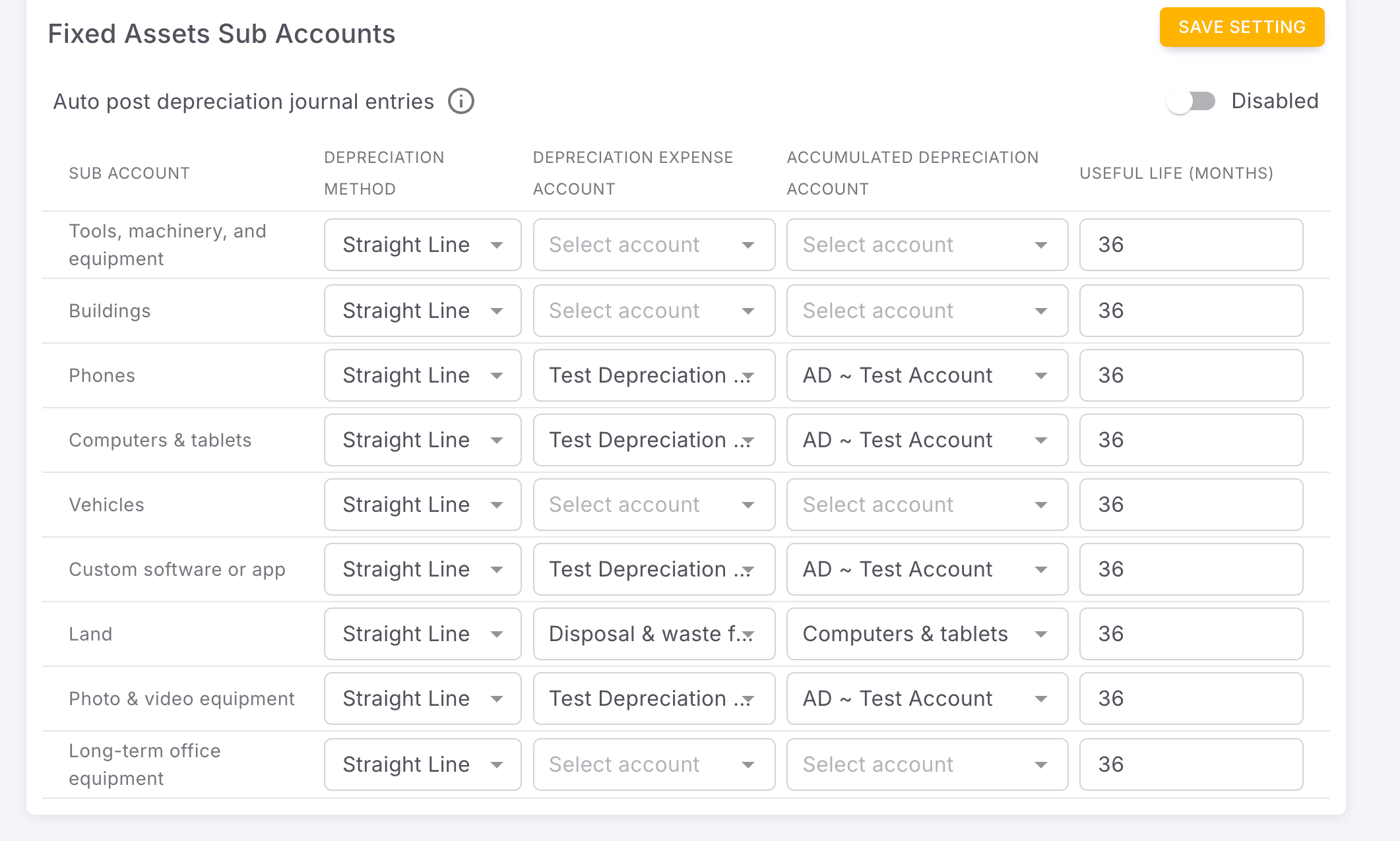
Step 8
Use the highlighted control to continue through the workflow.
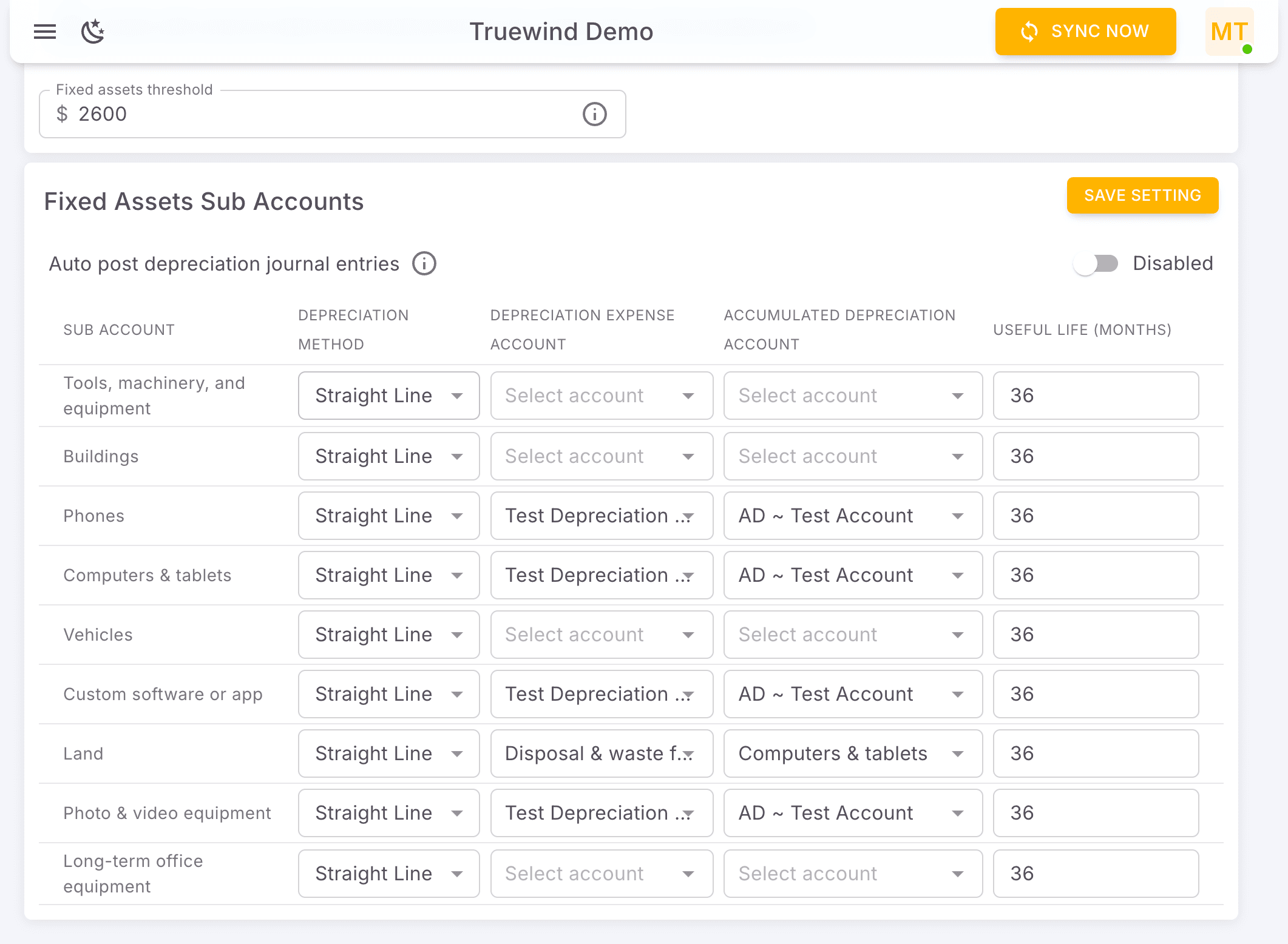
Step 9
Use the highlighted control to continue through the workflow.
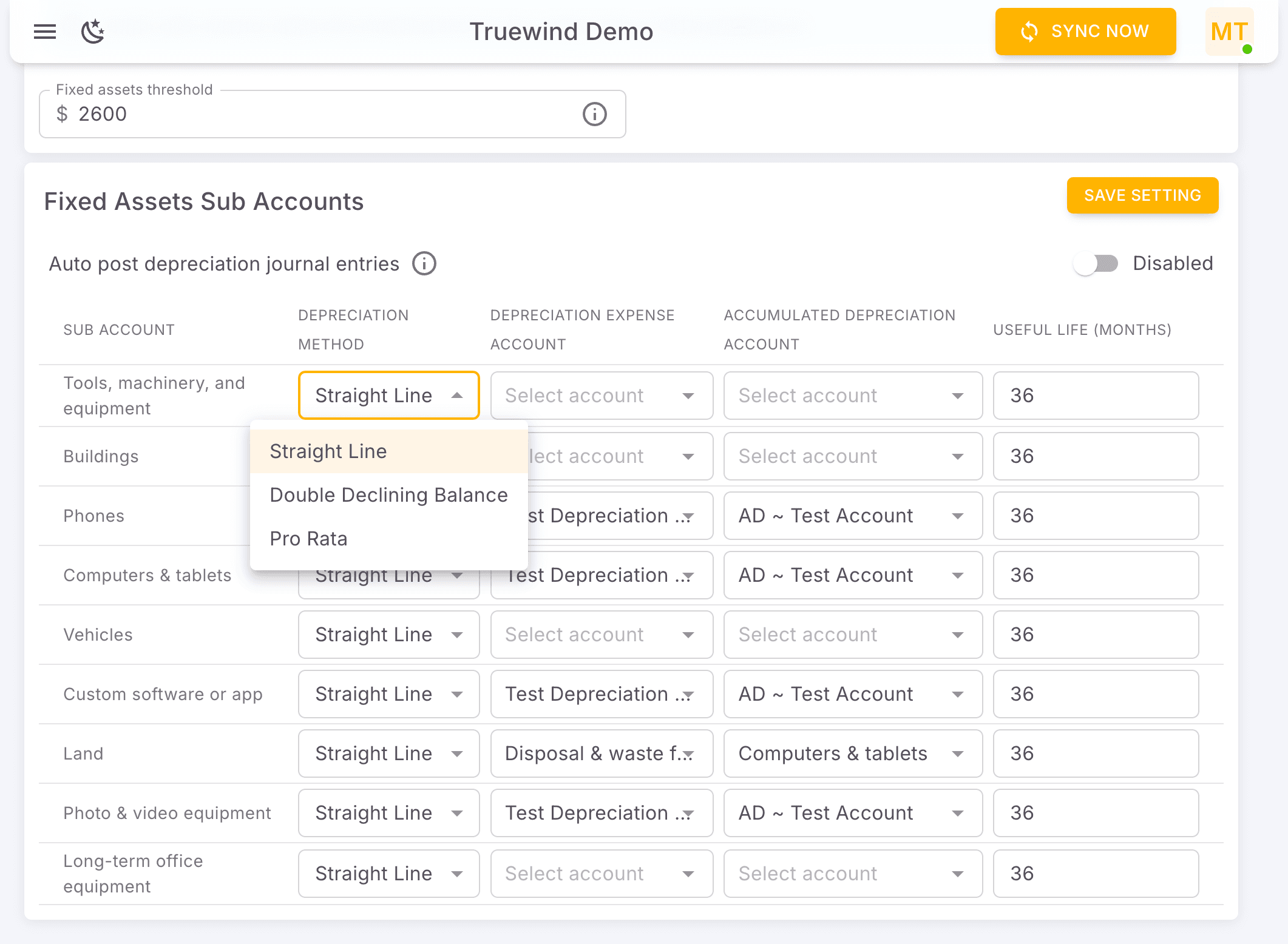
Step 10
Choose the option that matches the account, period, or schedule you are working with.
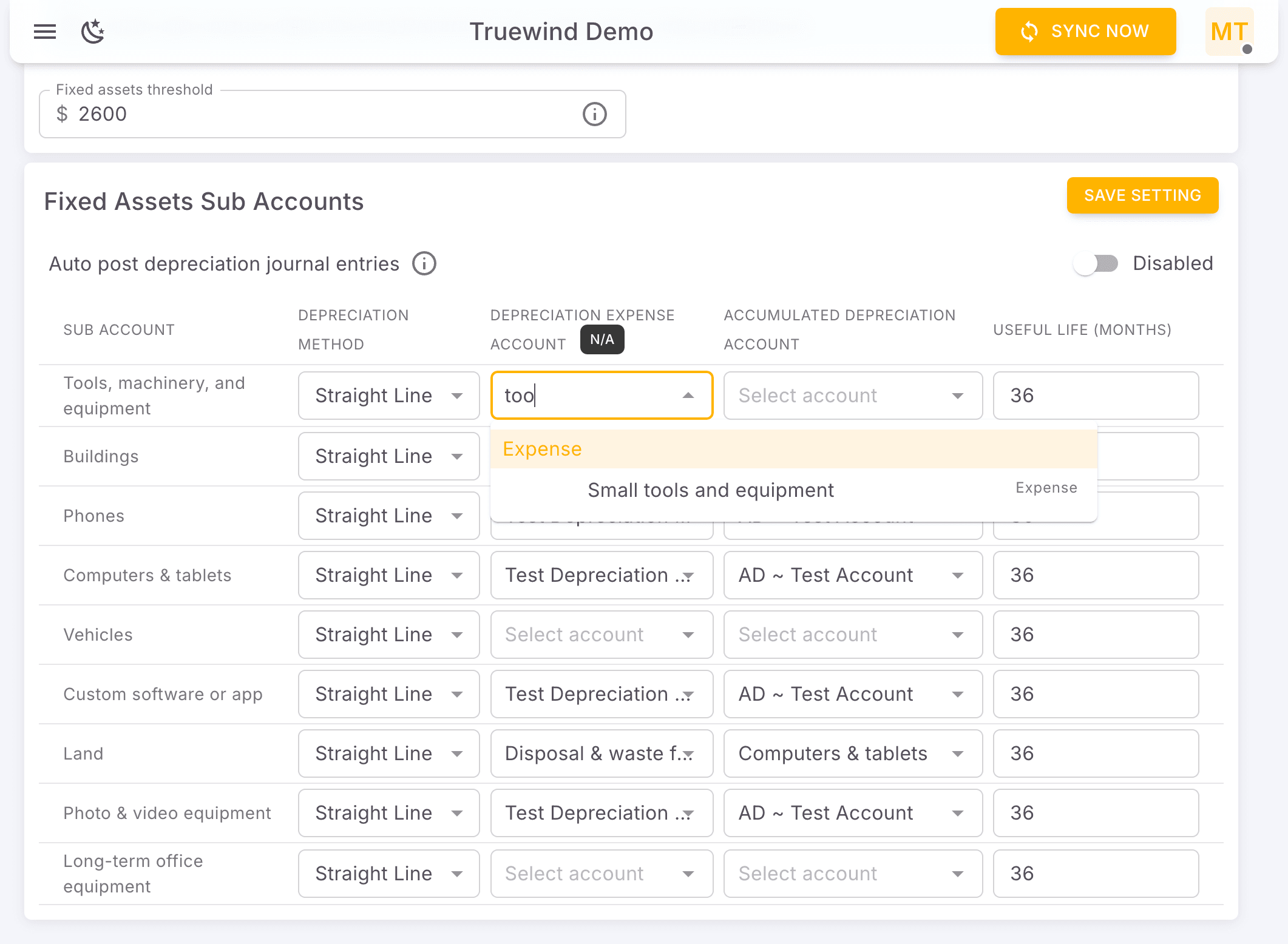
Step 11
Use the highlighted control to continue through the workflow.
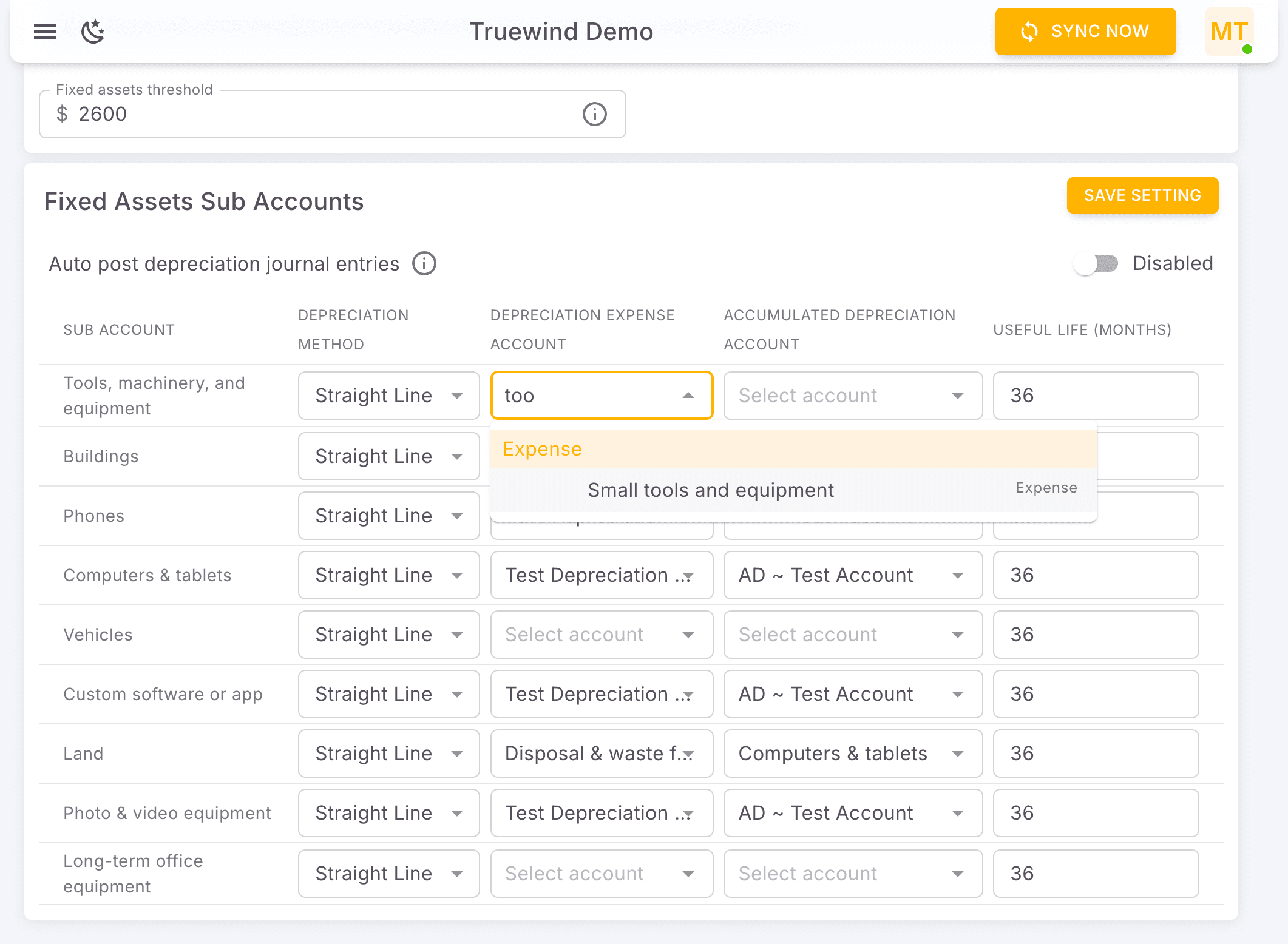
Step 12
Choose the option that matches the account, period, or schedule you are working with.
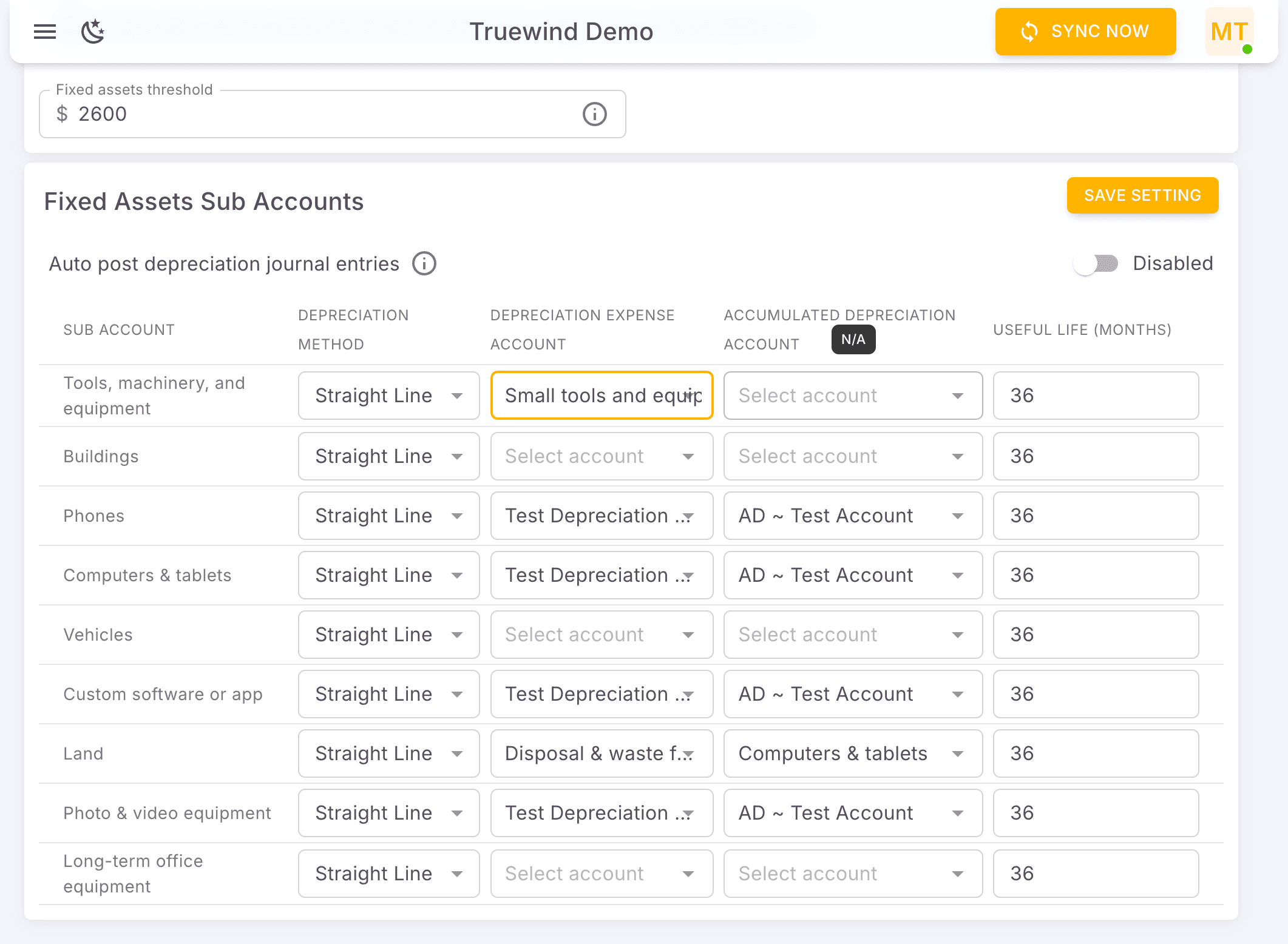
Step 13
Use the highlighted control to continue through the workflow.
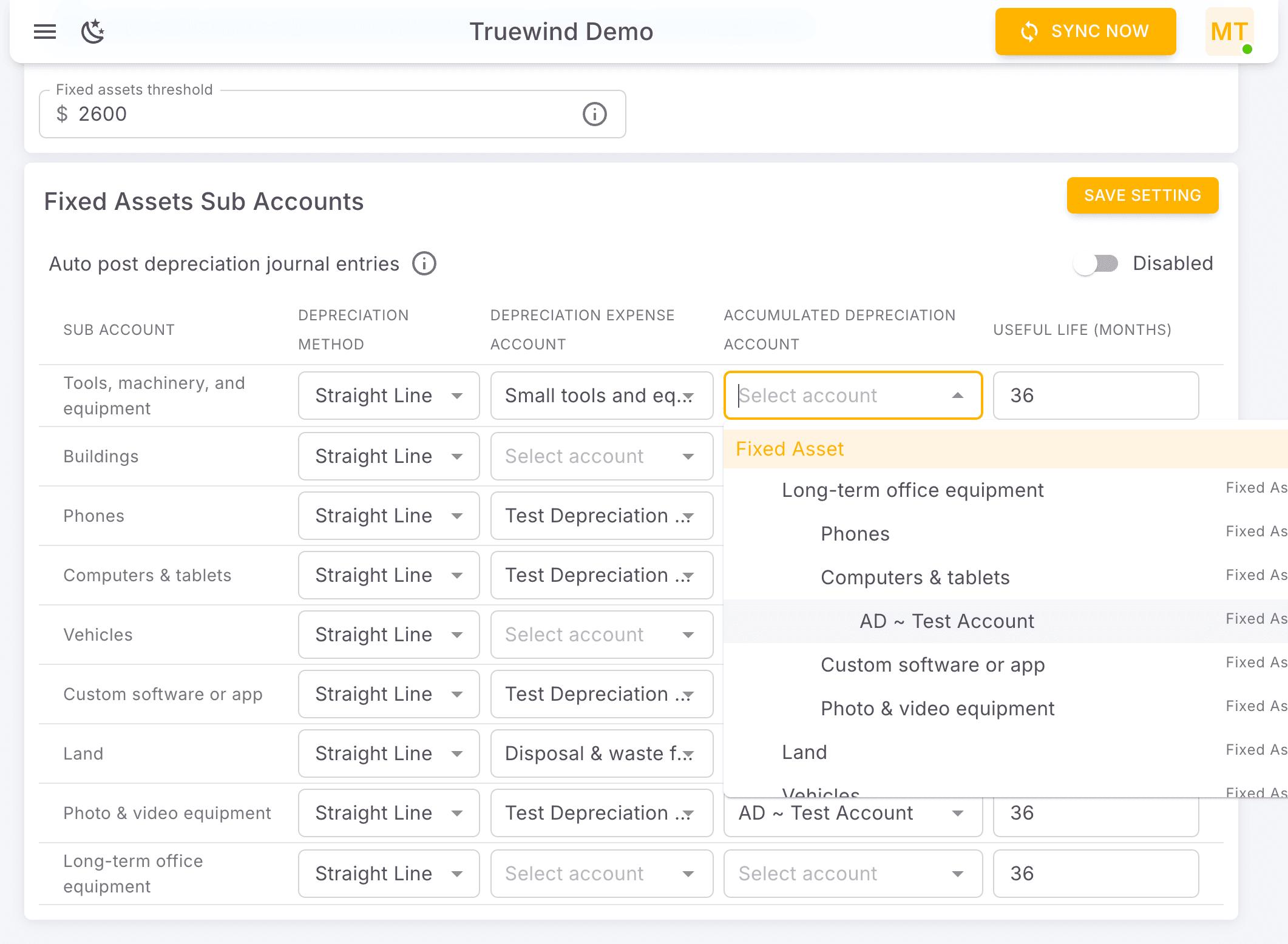
Step 14
Enter the required values carefully so the schedule and journal-entry details calculate correctly.
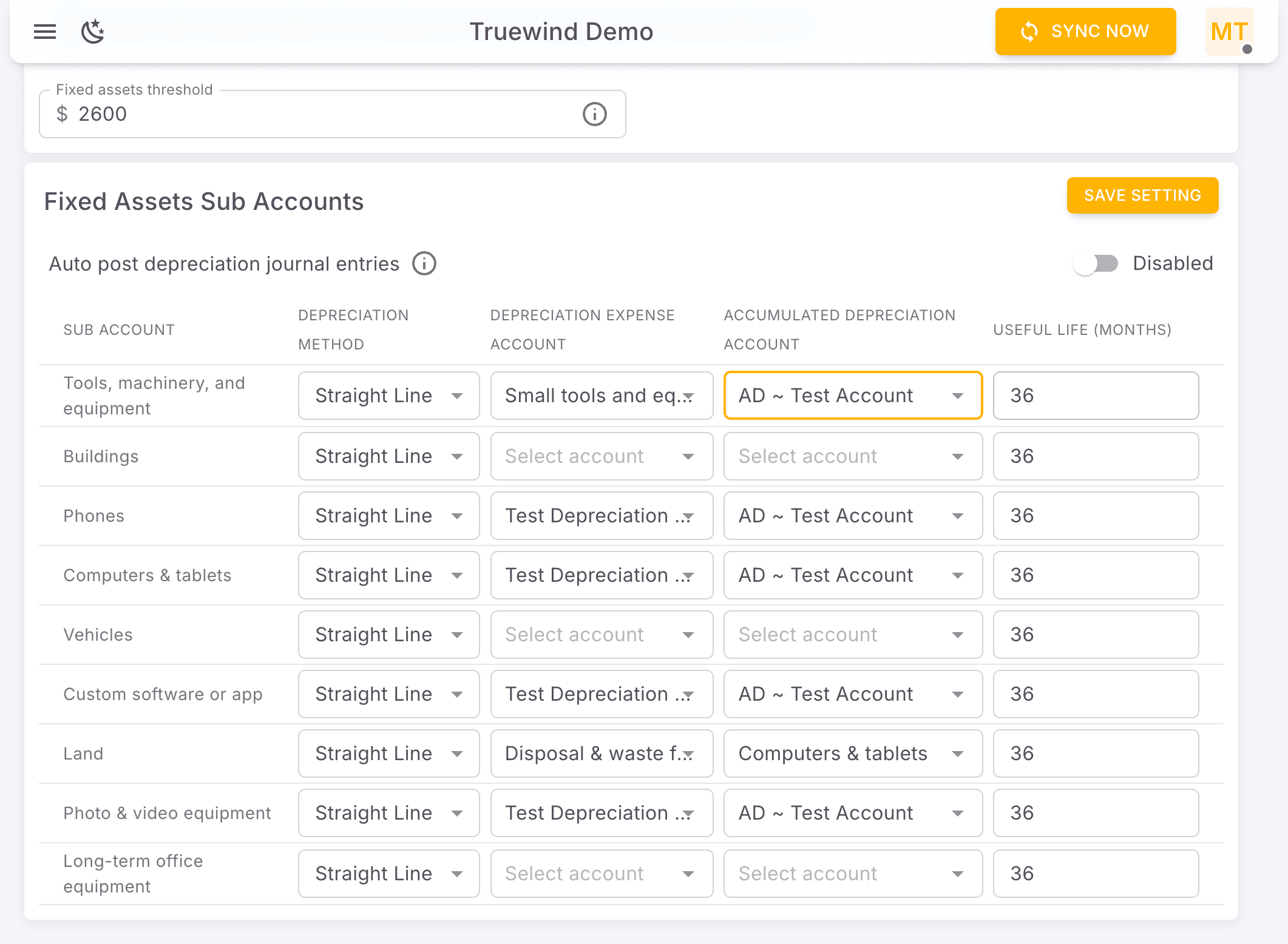
Step 15
Use the highlighted control to continue through the workflow.
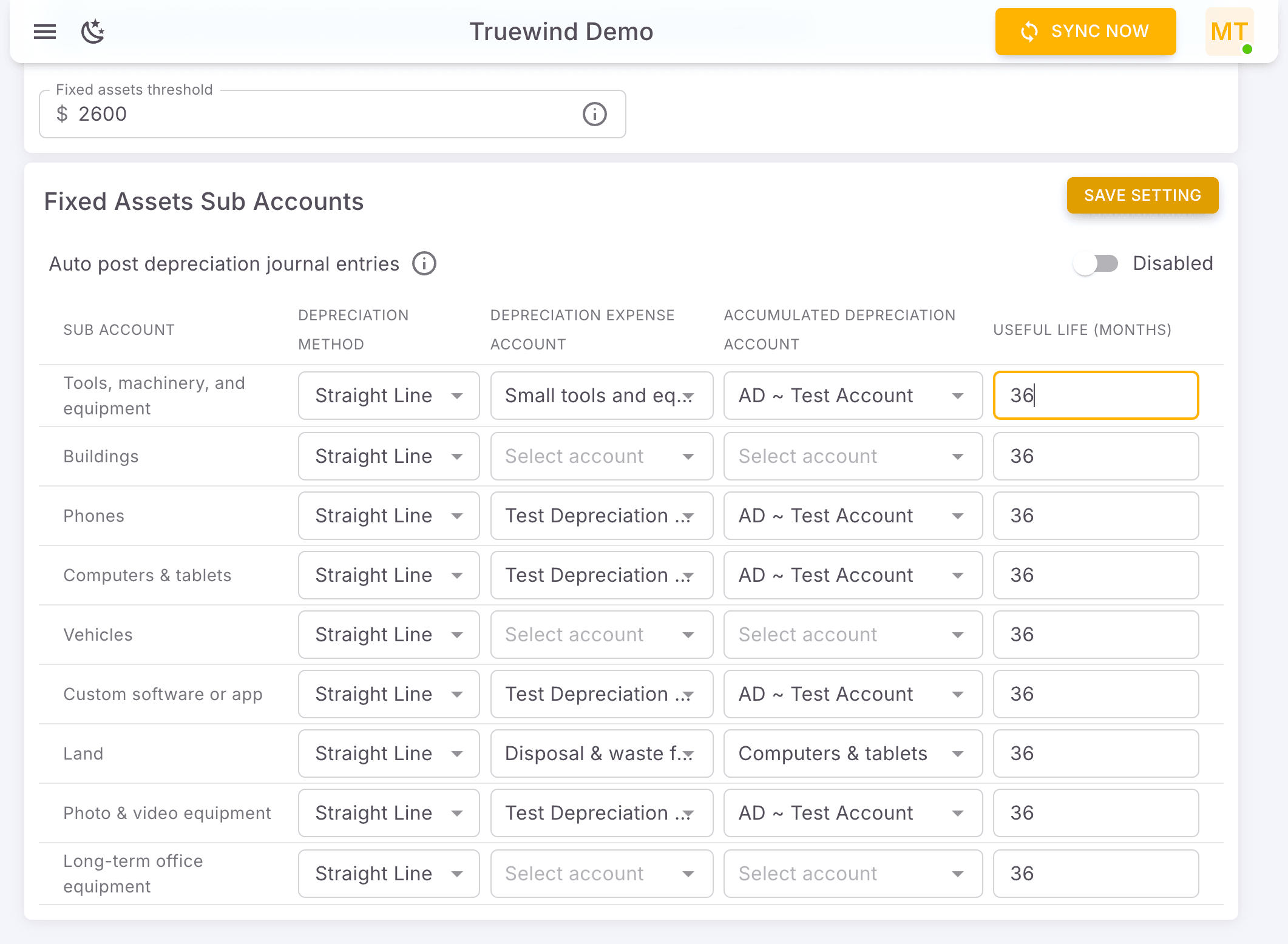
Step 16
Use the highlighted control to continue through the workflow.
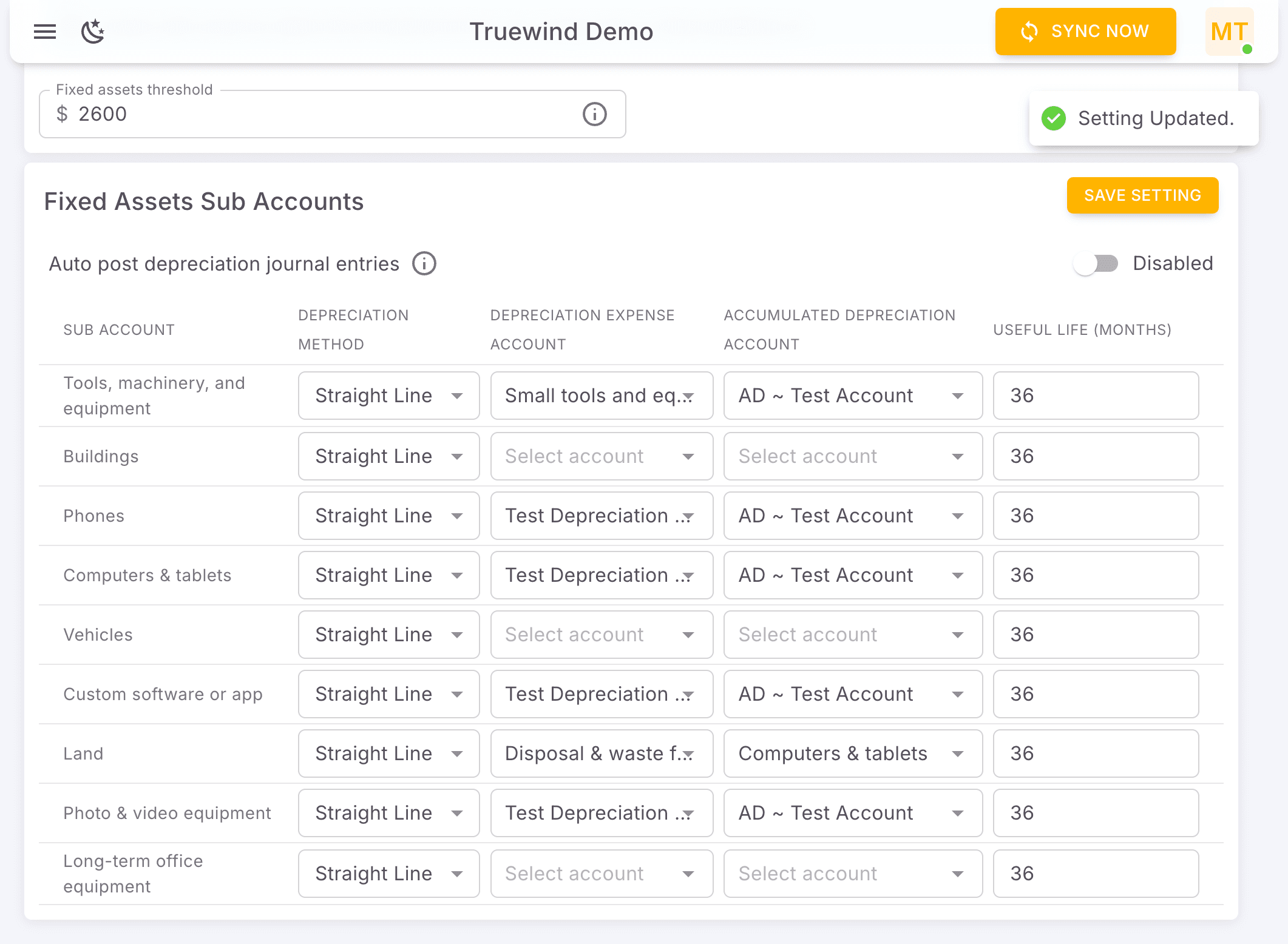
Step 17
Review the posting details and continue only when the journal-entry information is correct.

Step 18
Use the highlighted control to continue through the workflow.
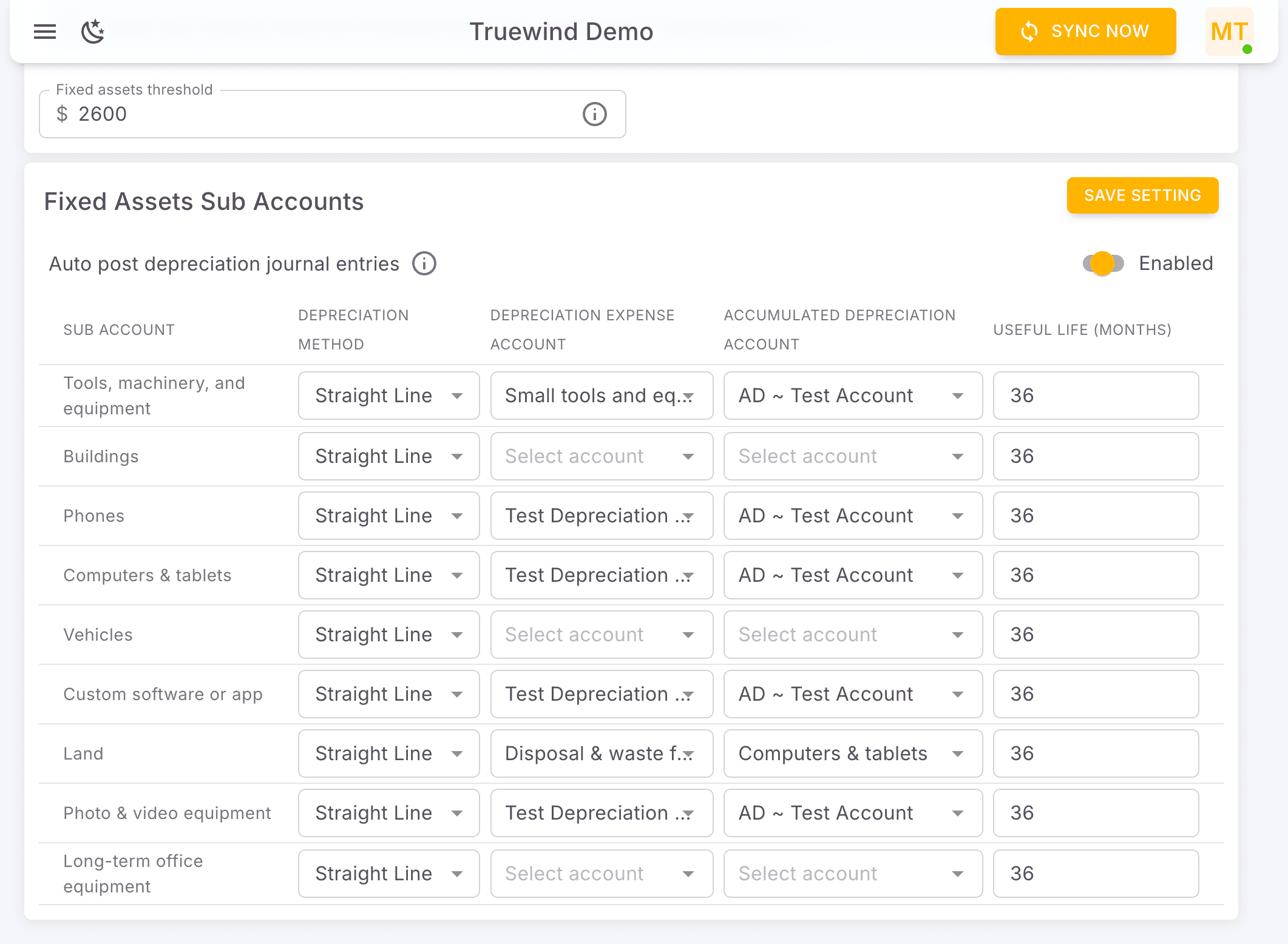
Confirm the threshold, depreciation defaults, useful life, and auto-posting behavior before month-end Fixed Asset work begins.
Was this helpful?
Need more help?
Ask for human help about this article and provide any feedback.