
Before disposing
Confirm the disposal date, method, proceeds, fees, and gain or loss account before saving the disposal.
Ask the support agent
Just ask a direct question or search related articles from the Knowledge Base.
Support Center / Fixed Assets / Manage
Use the disposal workflow when an asset is leaving service entirely, resulting in a full asset retirement with the related journal-entry details.
Step 1
Start in Bookkeeping > Fixed Assets > Register so active asset rows are visible.
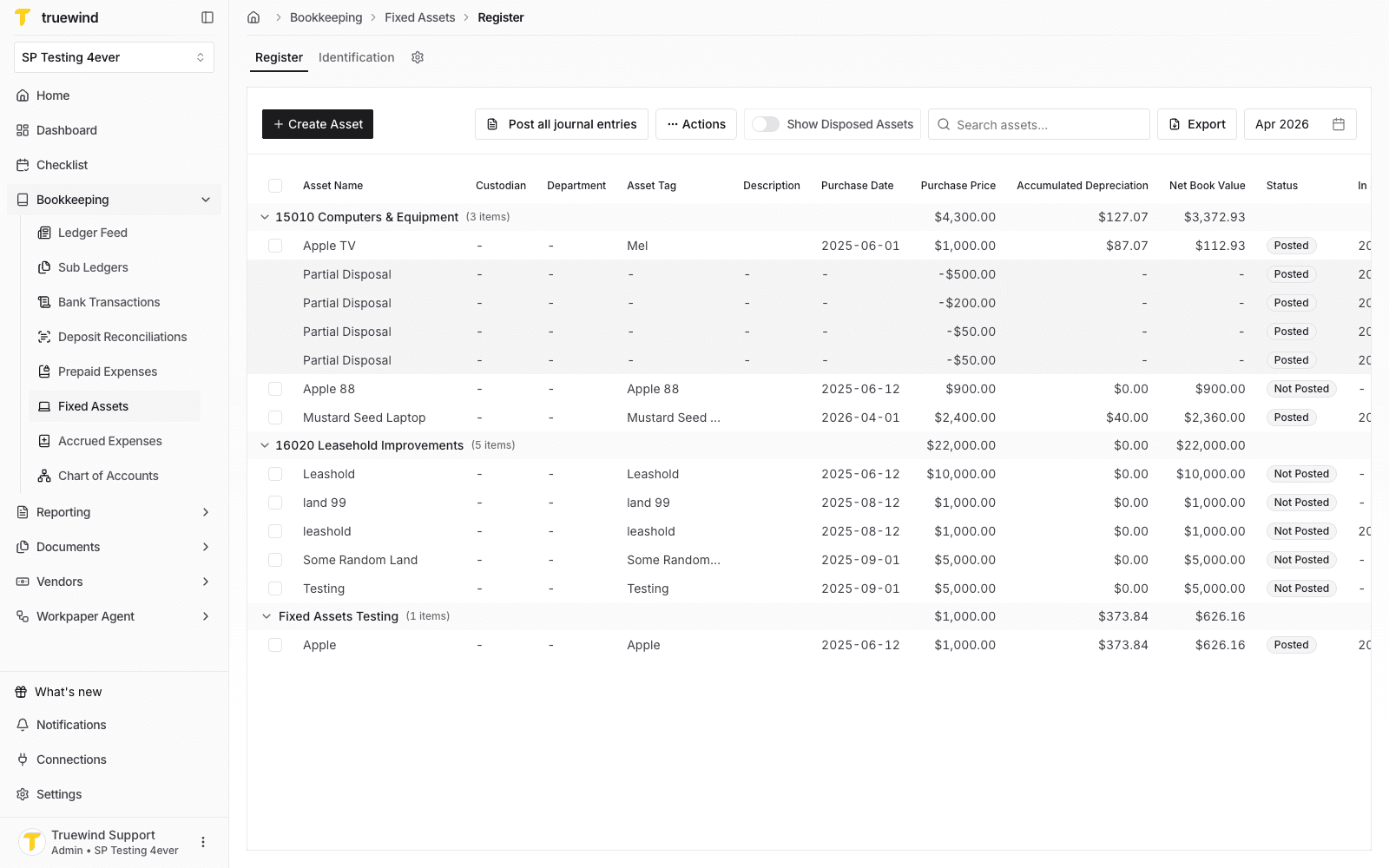
Step 2
Select the fixed asset that is leaving service to review its detail page and schedule.
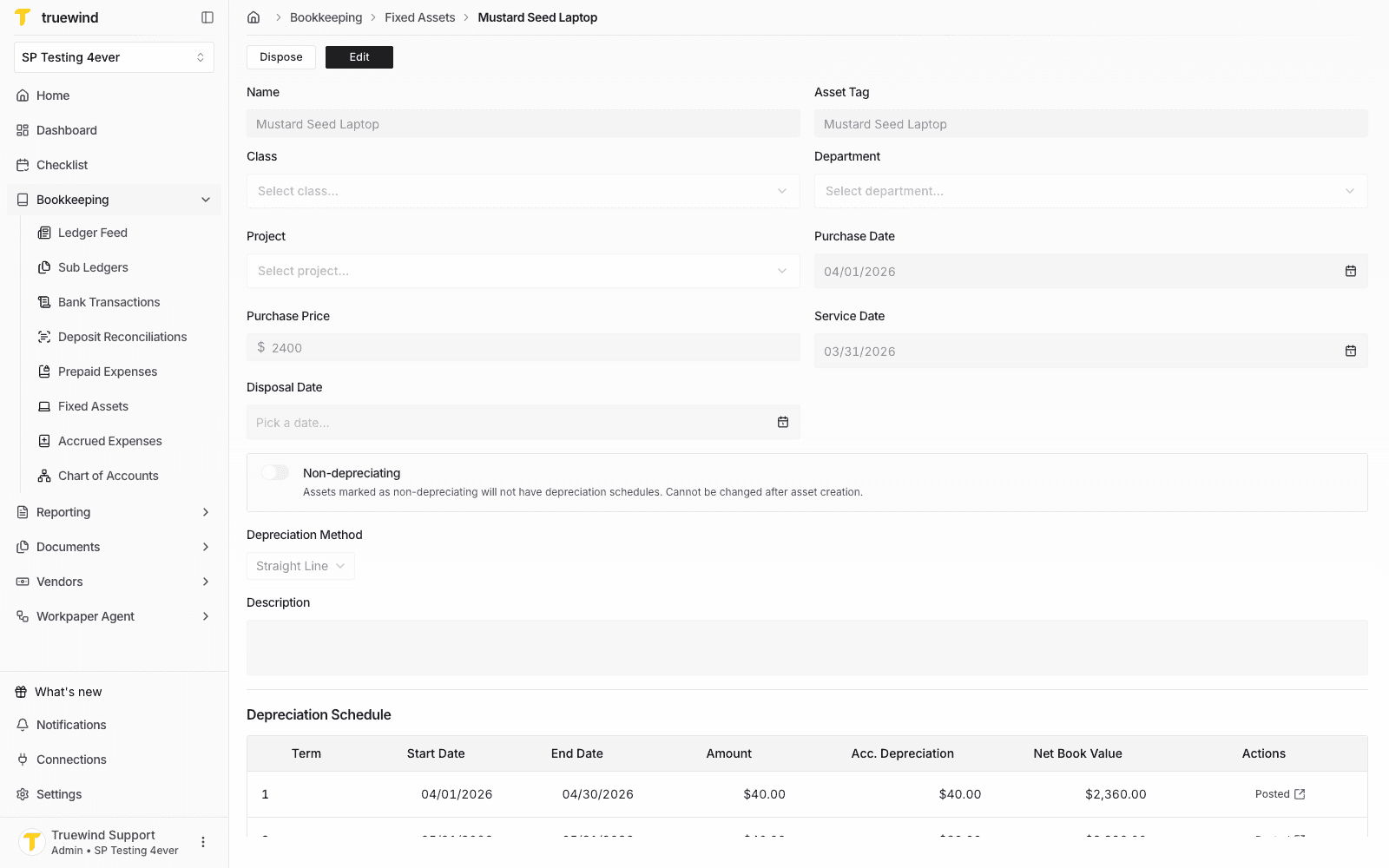
Step 3
Use Dispose to open the retirement form before changing the asset status.
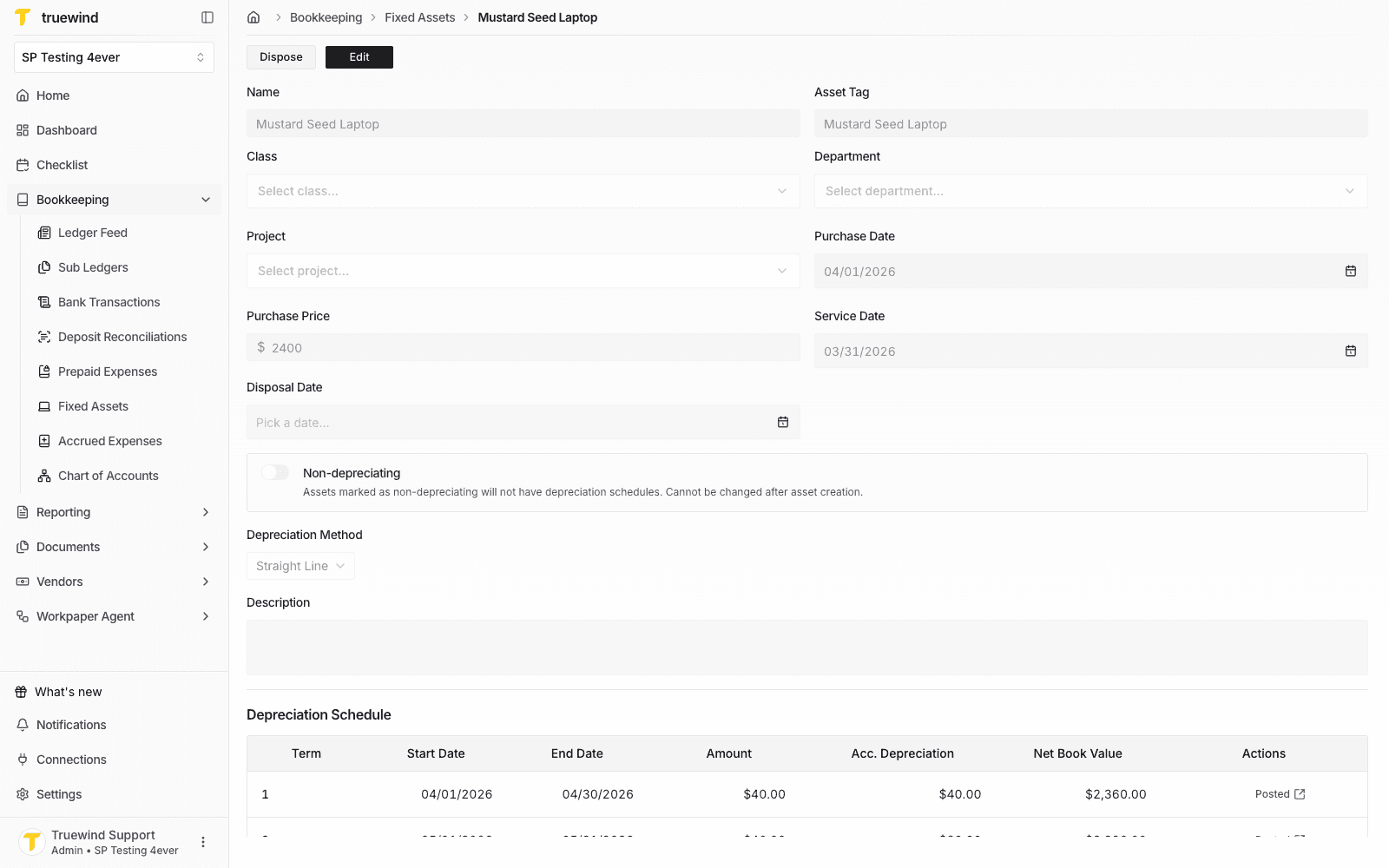
Step 4
Pick the date the asset leaves service so Truewind can calculate the remaining depreciation and disposal entries.
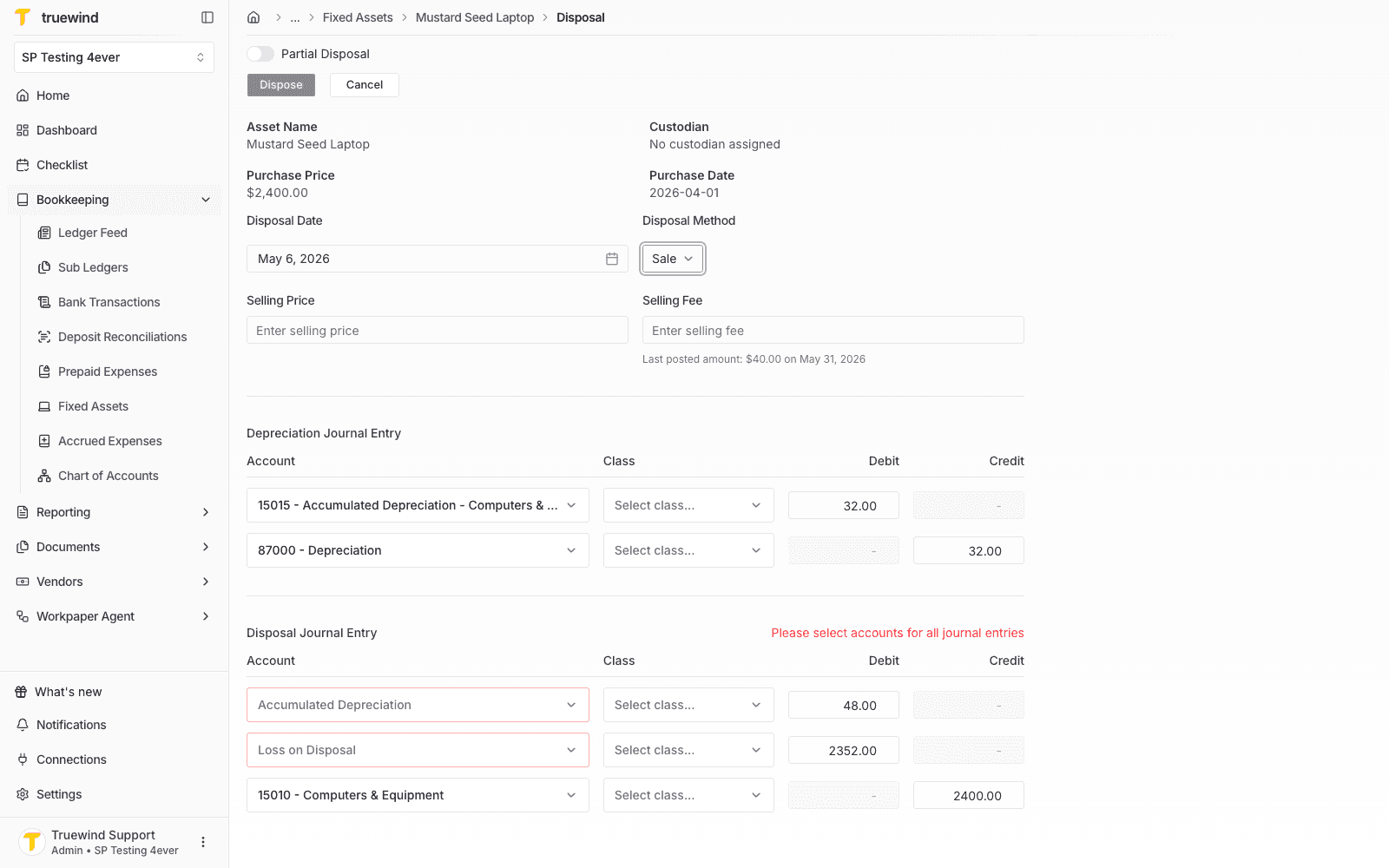
Step 5
Select the disposal method that matches how the asset is being retired.
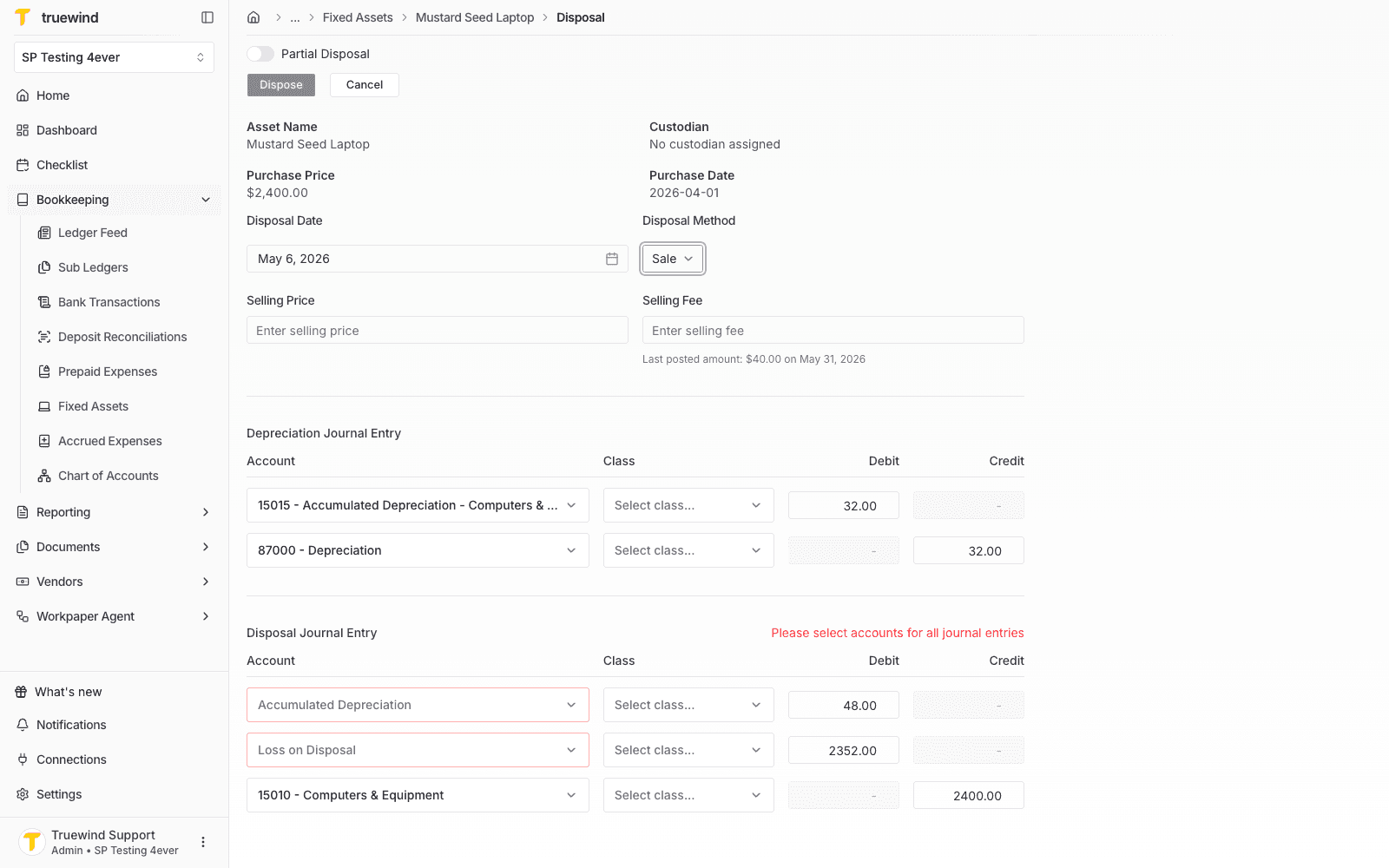
Step 6
Add the selling price or proceeds so the gain or loss calculation reflects the expected cash or receivable amount.
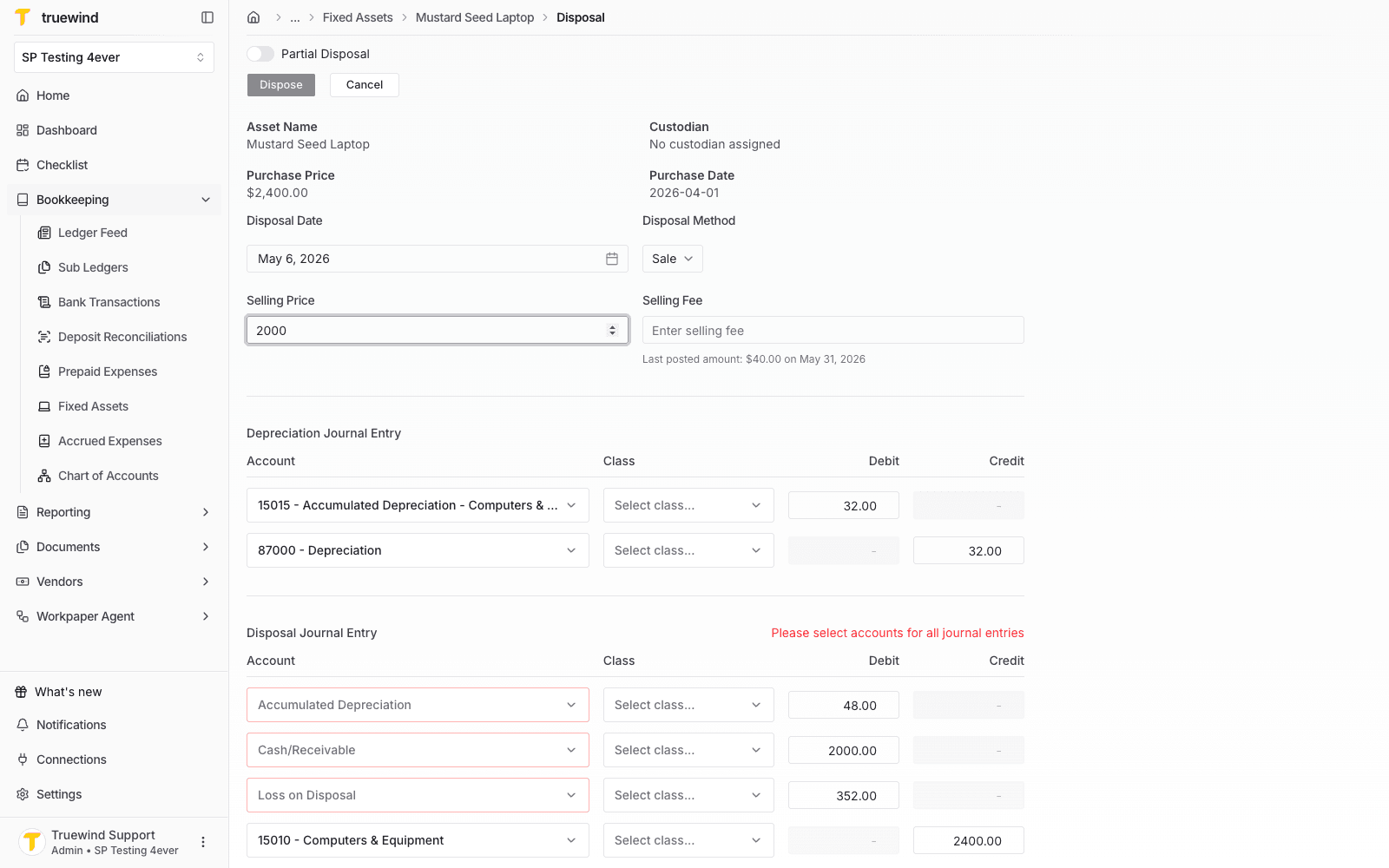
Step 7
Add any selling fee separately so it posts to the appropriate expense account.
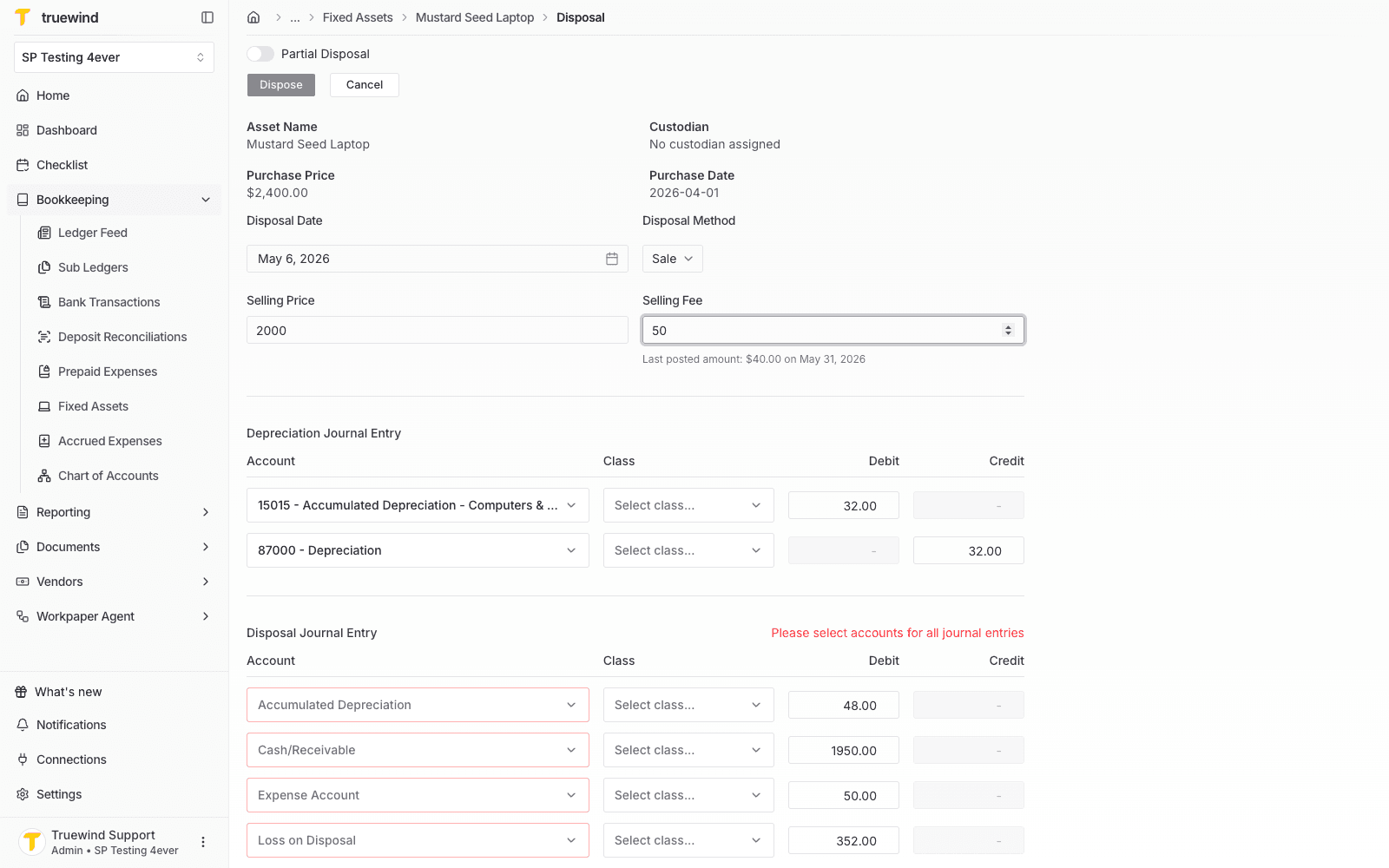
Step 8
Confirm the final depreciation journal entry before completing the disposal.
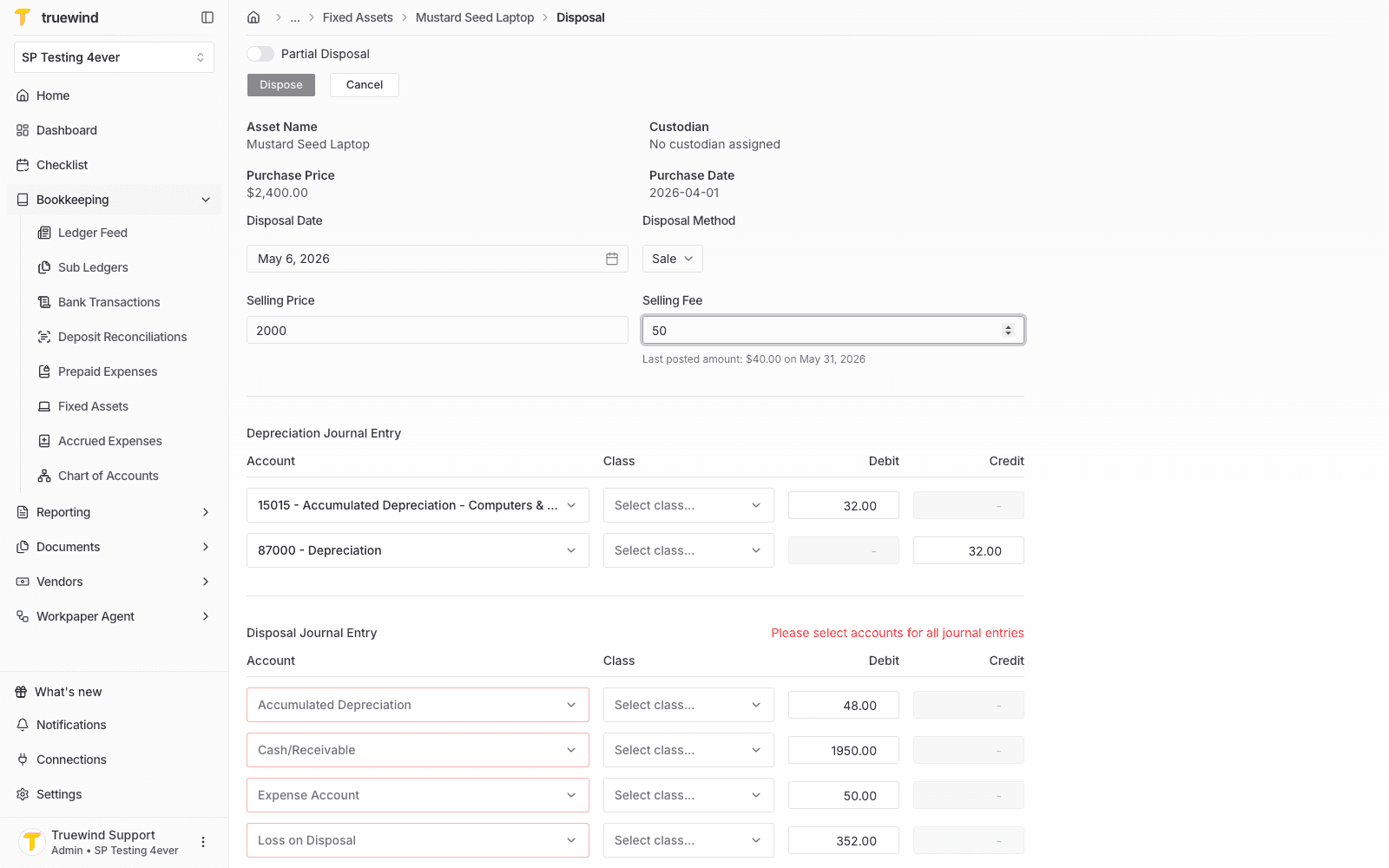
Step 9
Check the disposal journal entry lines for the asset retirement, proceeds, fees, and gain or loss.
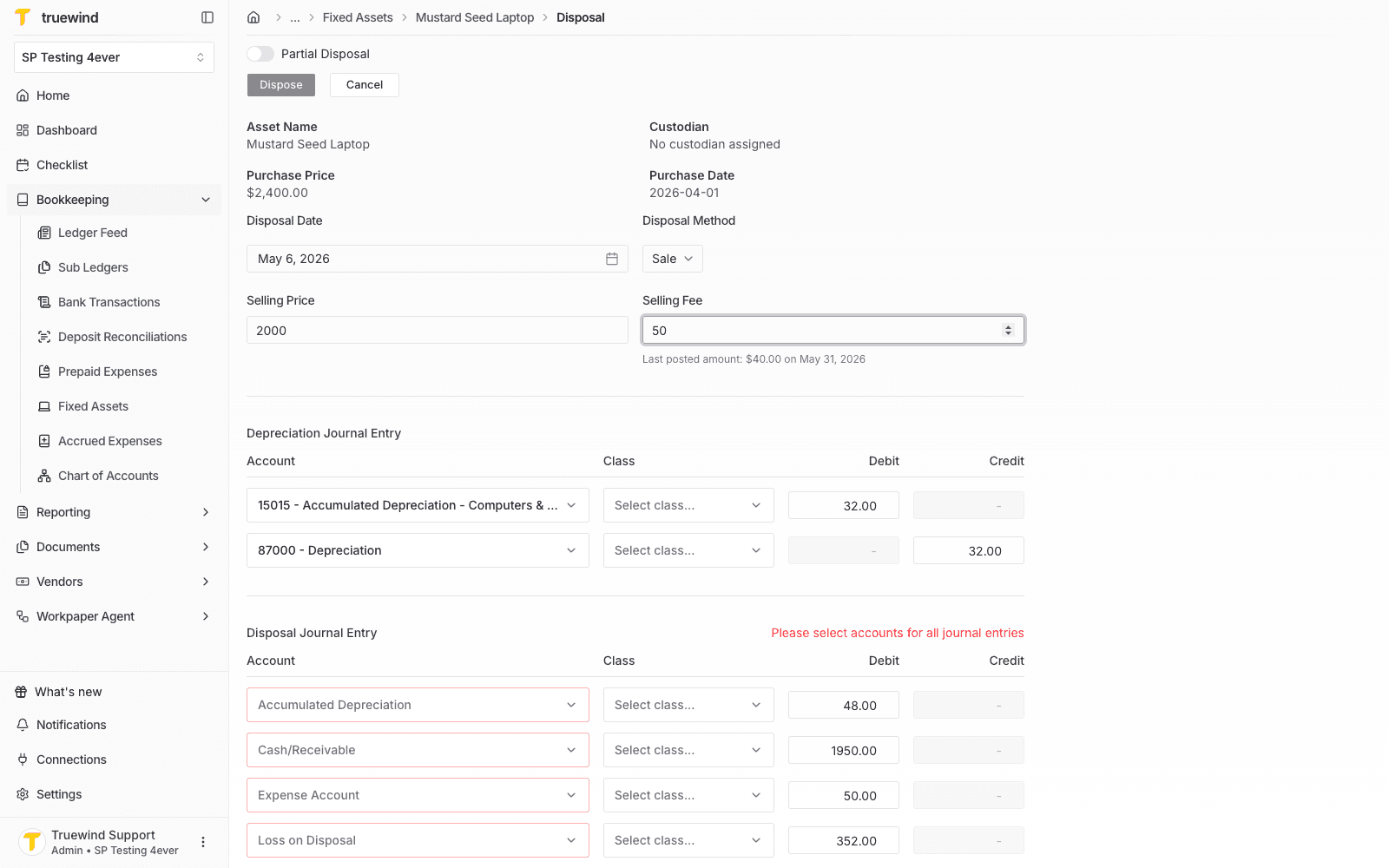
Step 10
Choose the accumulated depreciation account that should clear the asset's depreciation balance.
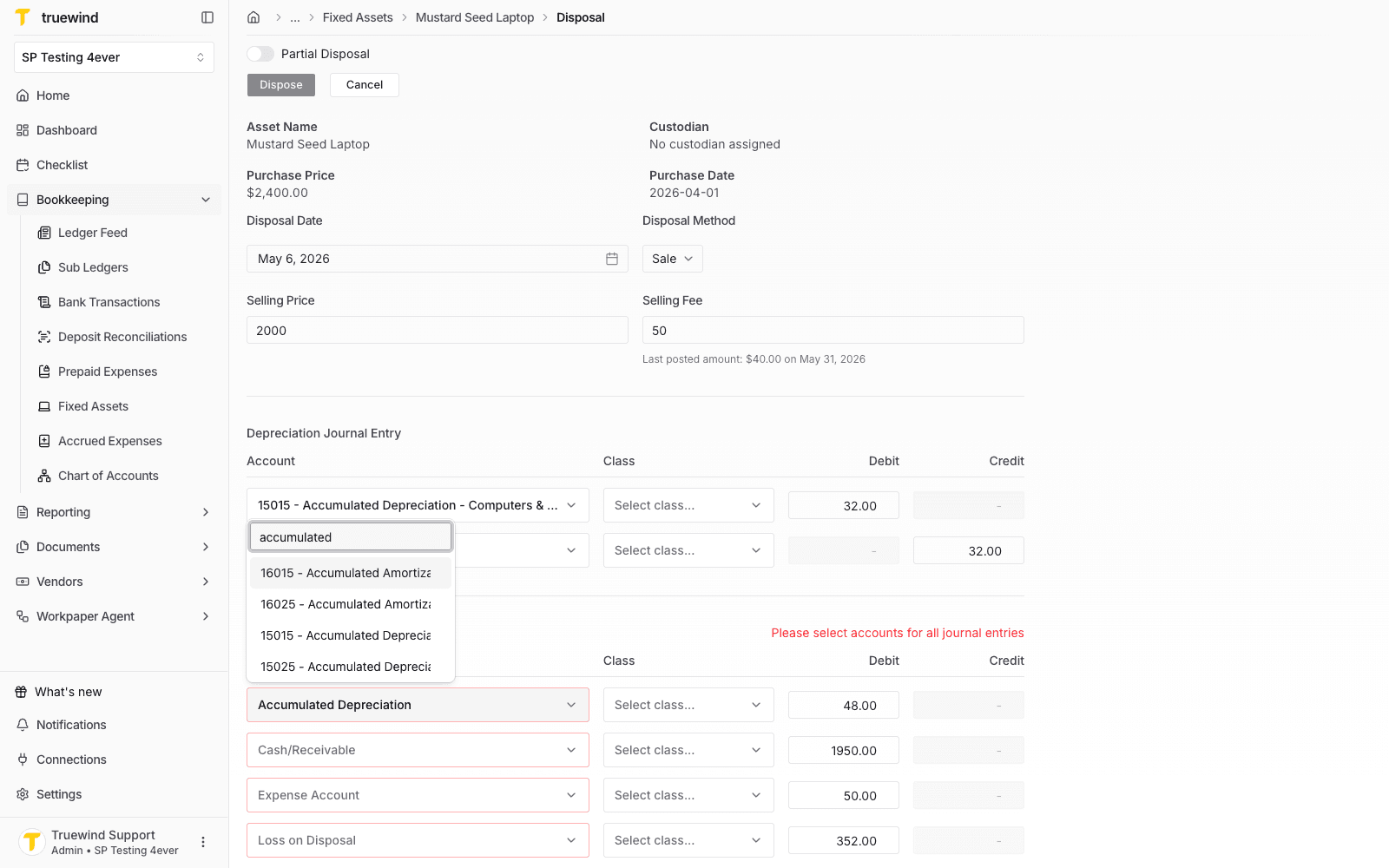
Step 11
Choose the account that will receive the sale proceeds from the disposal.
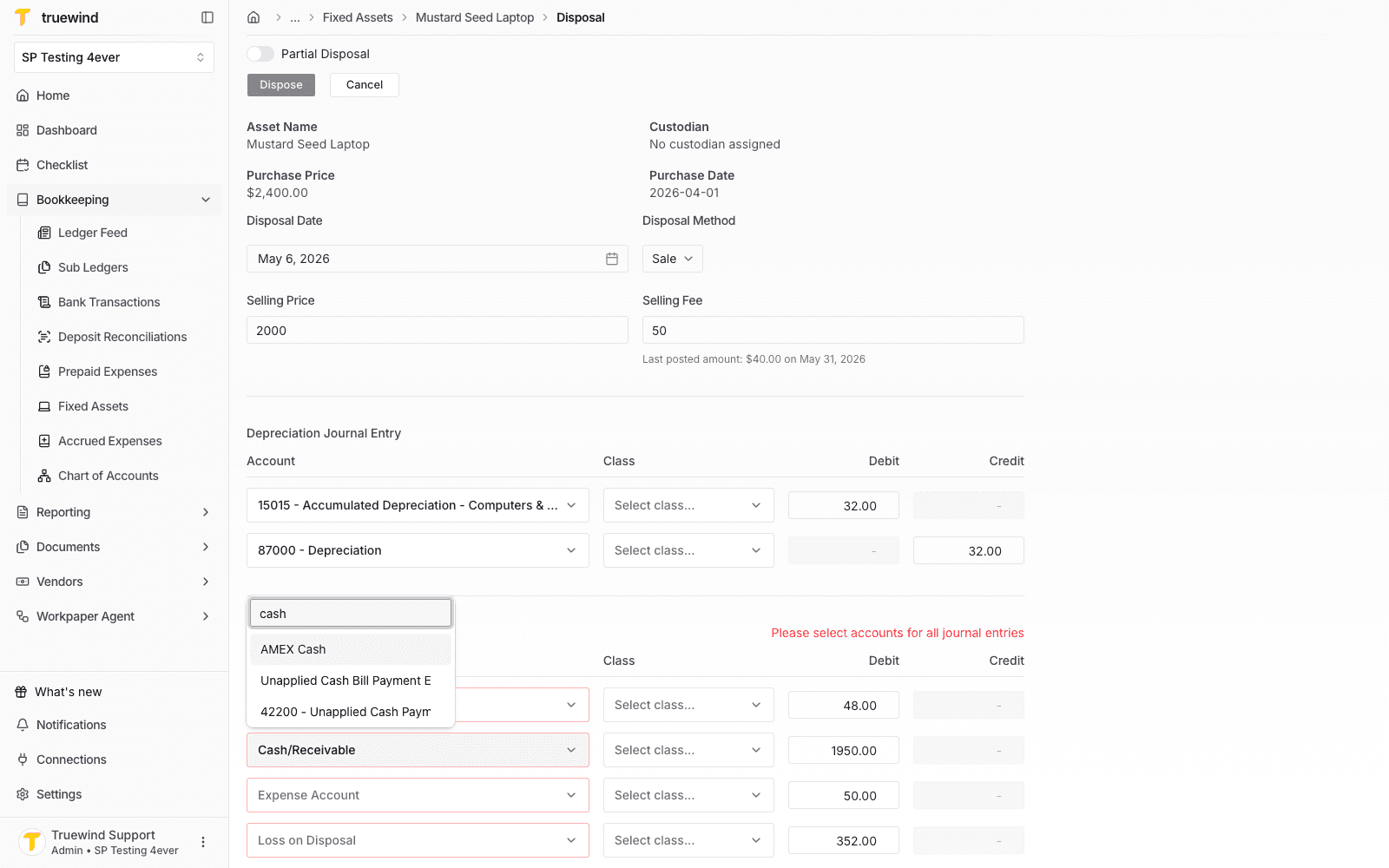
Step 12
Pick the gain or loss account that should receive the difference between proceeds and net book value.
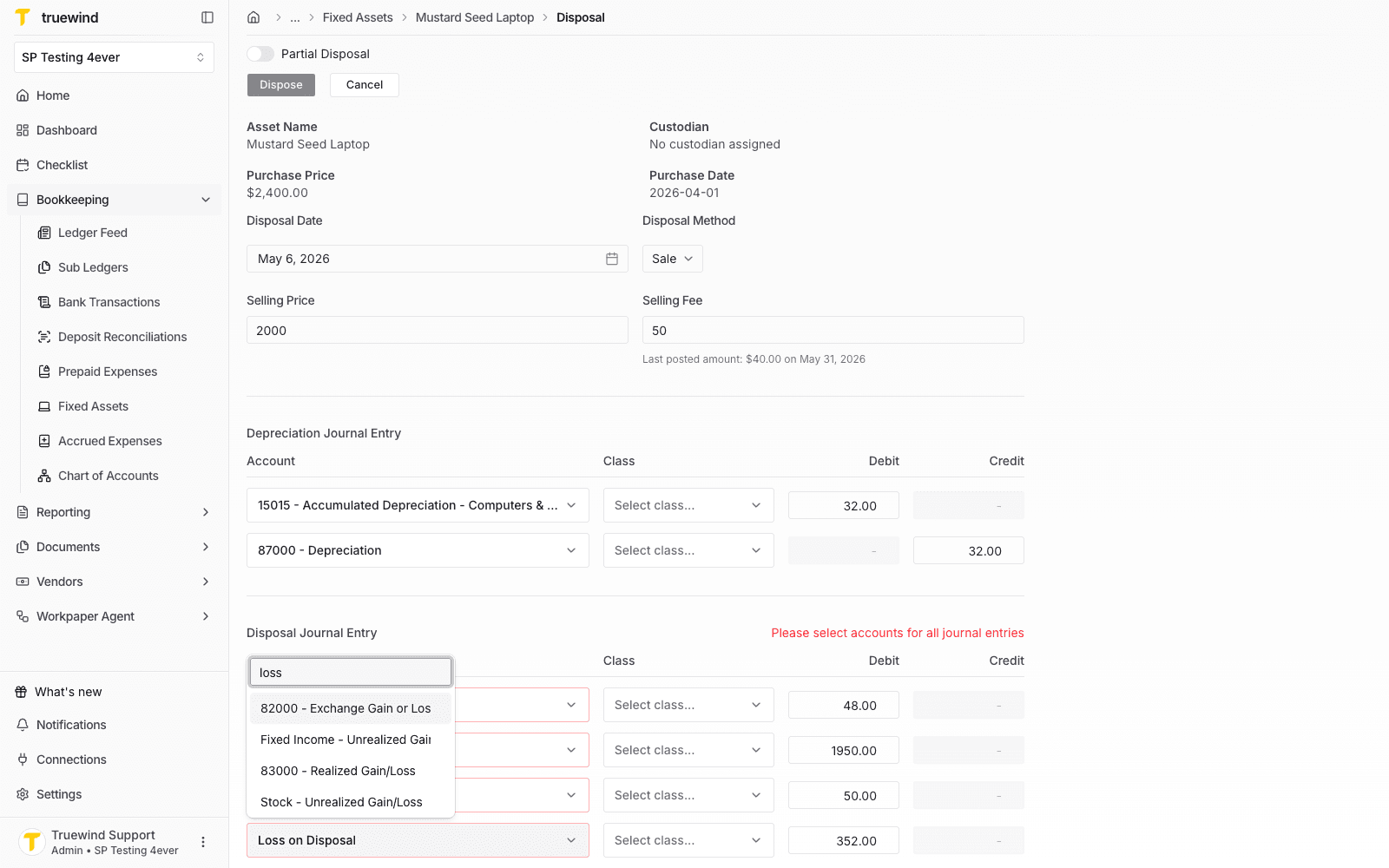
Step 13
Choose the expense account that should record any selling fee.
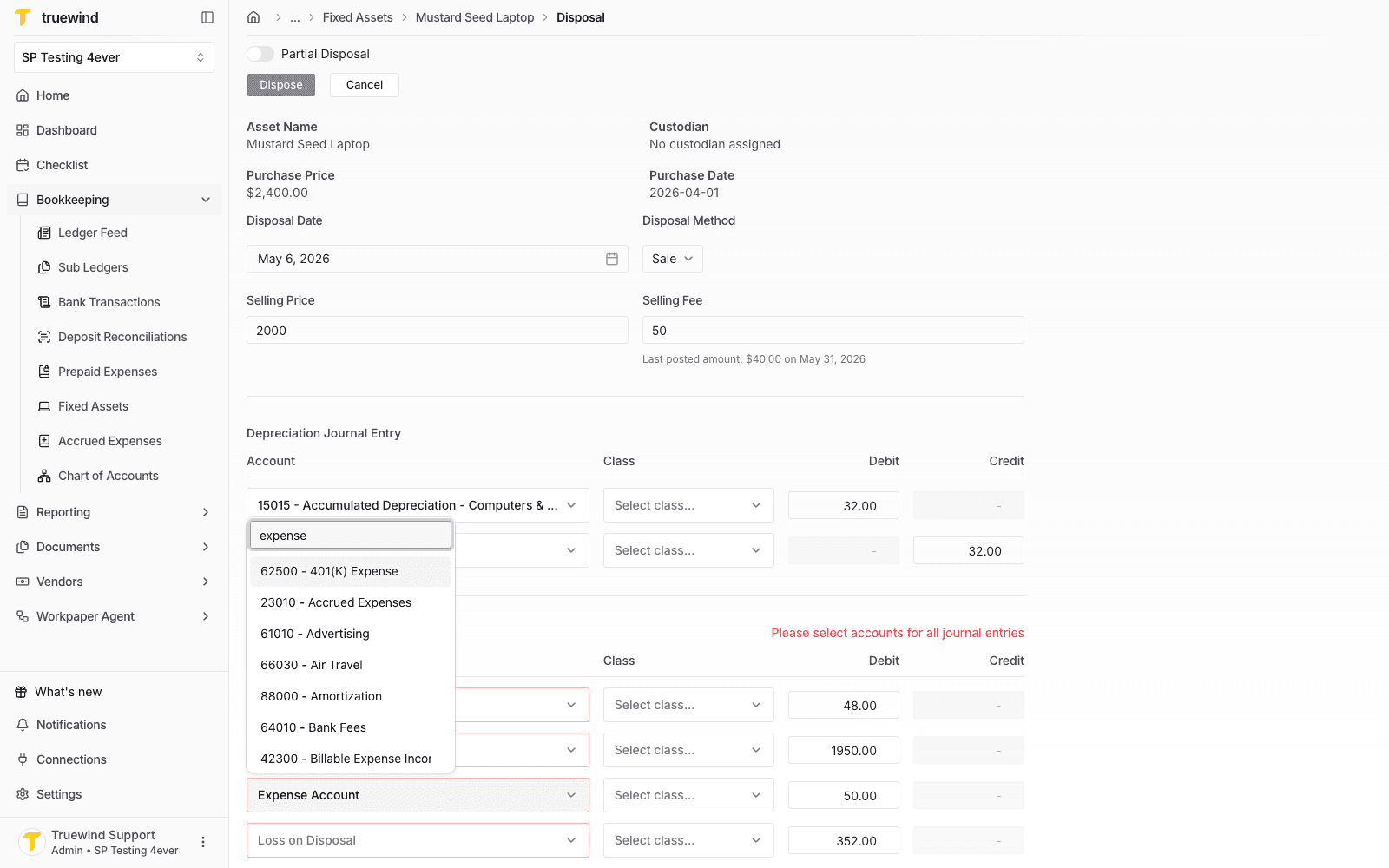
Step 14
Verify the date, method, amounts, accounts, and journal-entry impact before using Dispose to complete the retirement.
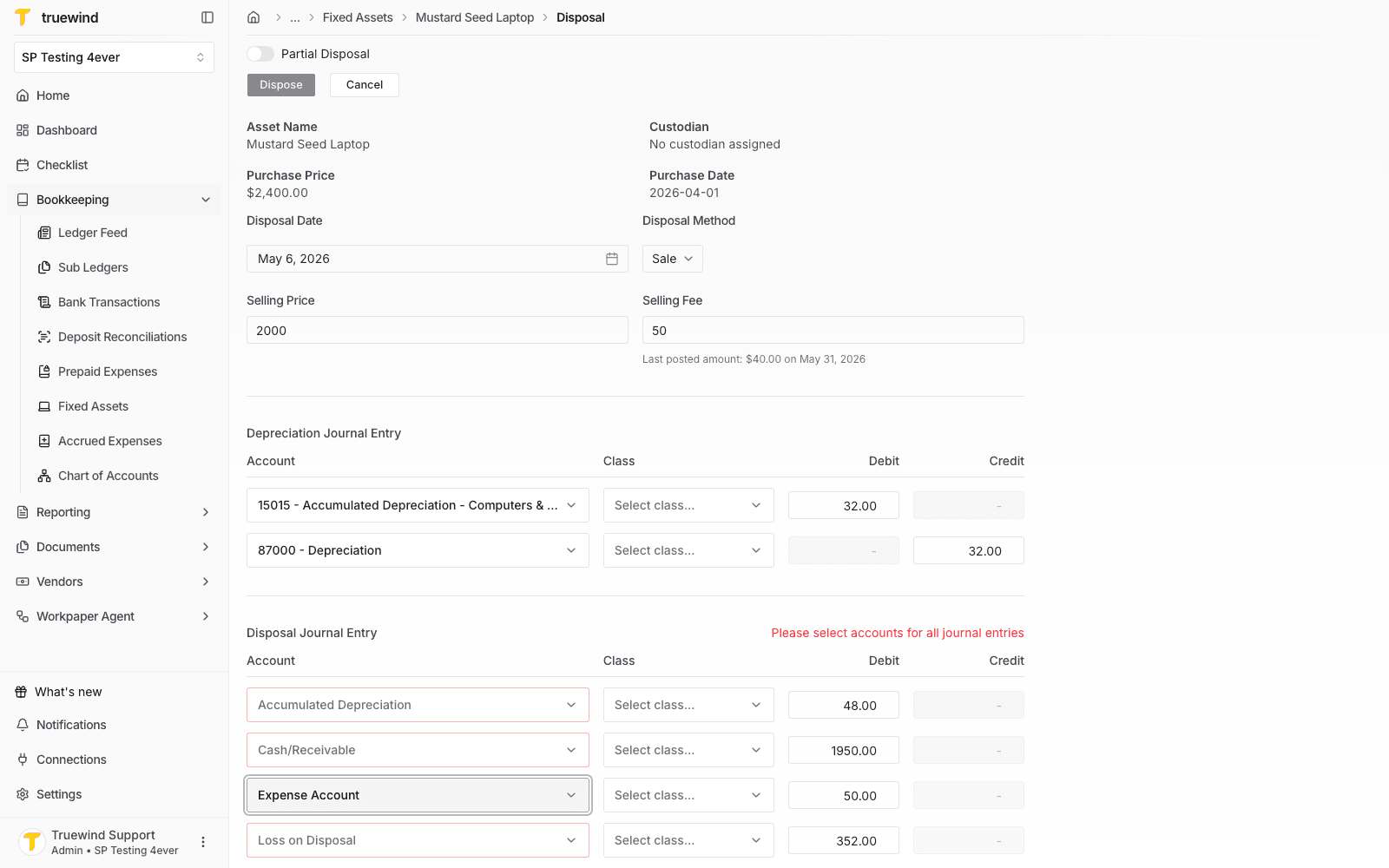
Step 15
Return to the register and use Show Disposed Assets when you need to include retired assets in the list.
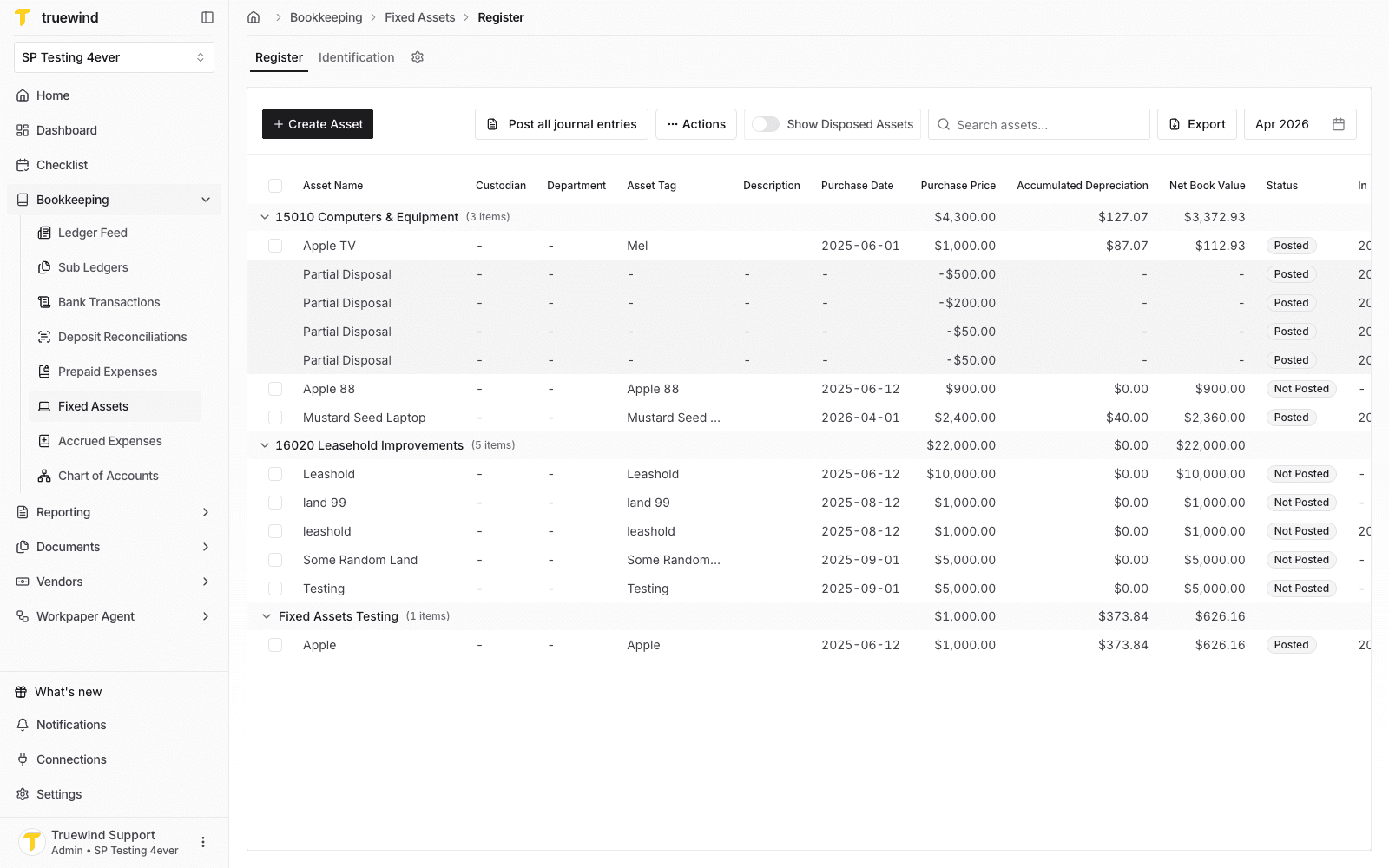
Confirm the disposal date, method, proceeds, fees, and gain or loss account before saving the disposal.
Was this helpful?
Need more help?
Ask for human help about this article and provide any feedback.