Ask the support agent

Just ask a direct question or search related articles from the Knowledge Base.

Support Center / Fixed Assets / Bank Transactions

Categorize Fixed Asset transactions

Categorize bank transactions as Fixed Assets when they should be tracked for capitalization, resulting in synced transaction detail that can support Fixed Asset registration.

Workflow

Step 1

Open the side menu

Use the highlighted control to continue through the workflow.

Screenshot showing Open the side menu

Step 2

Select Bank Transactions

Use the highlighted control to continue through the workflow.

Screenshot showing Select Bank Transactions

Step 3

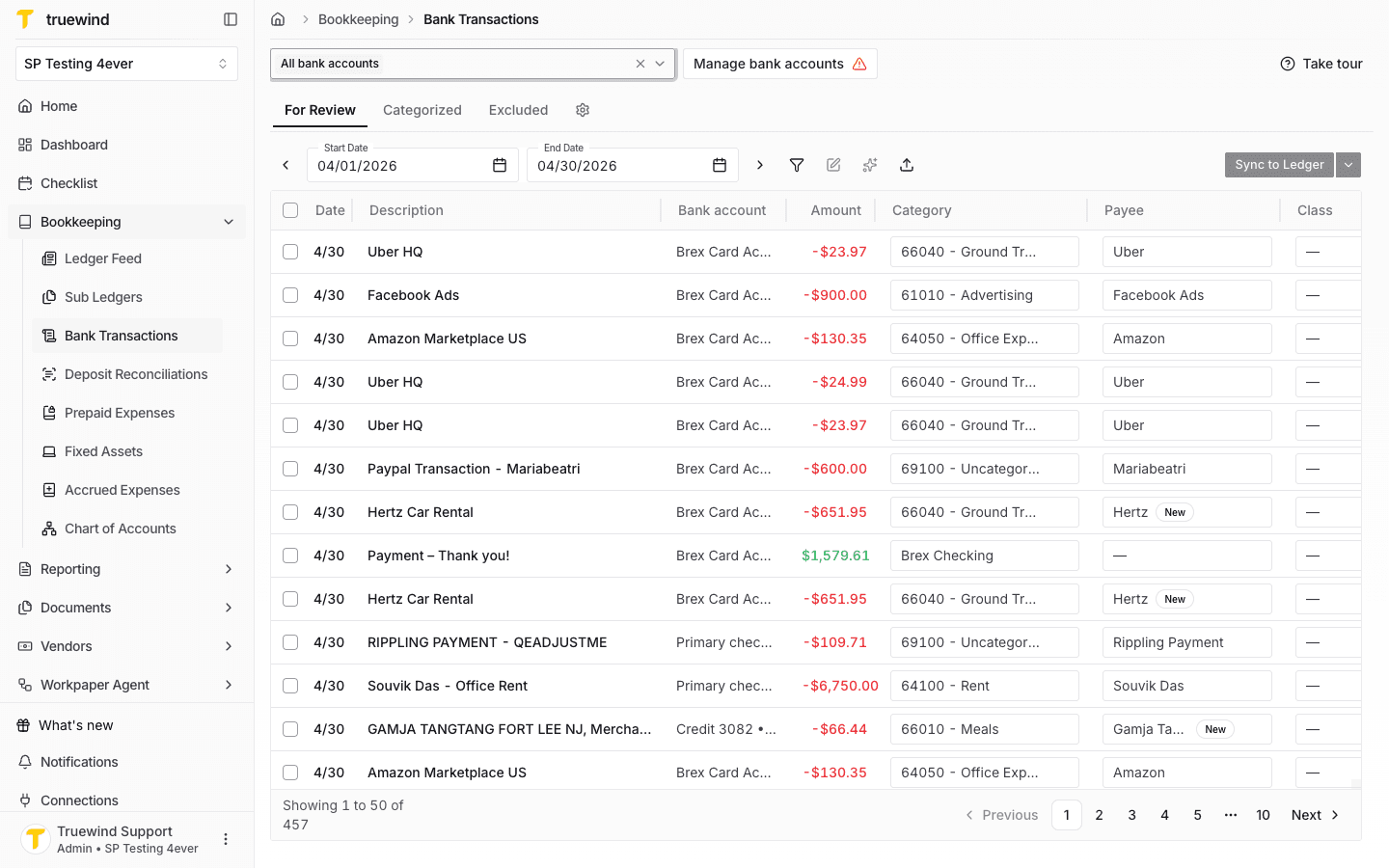
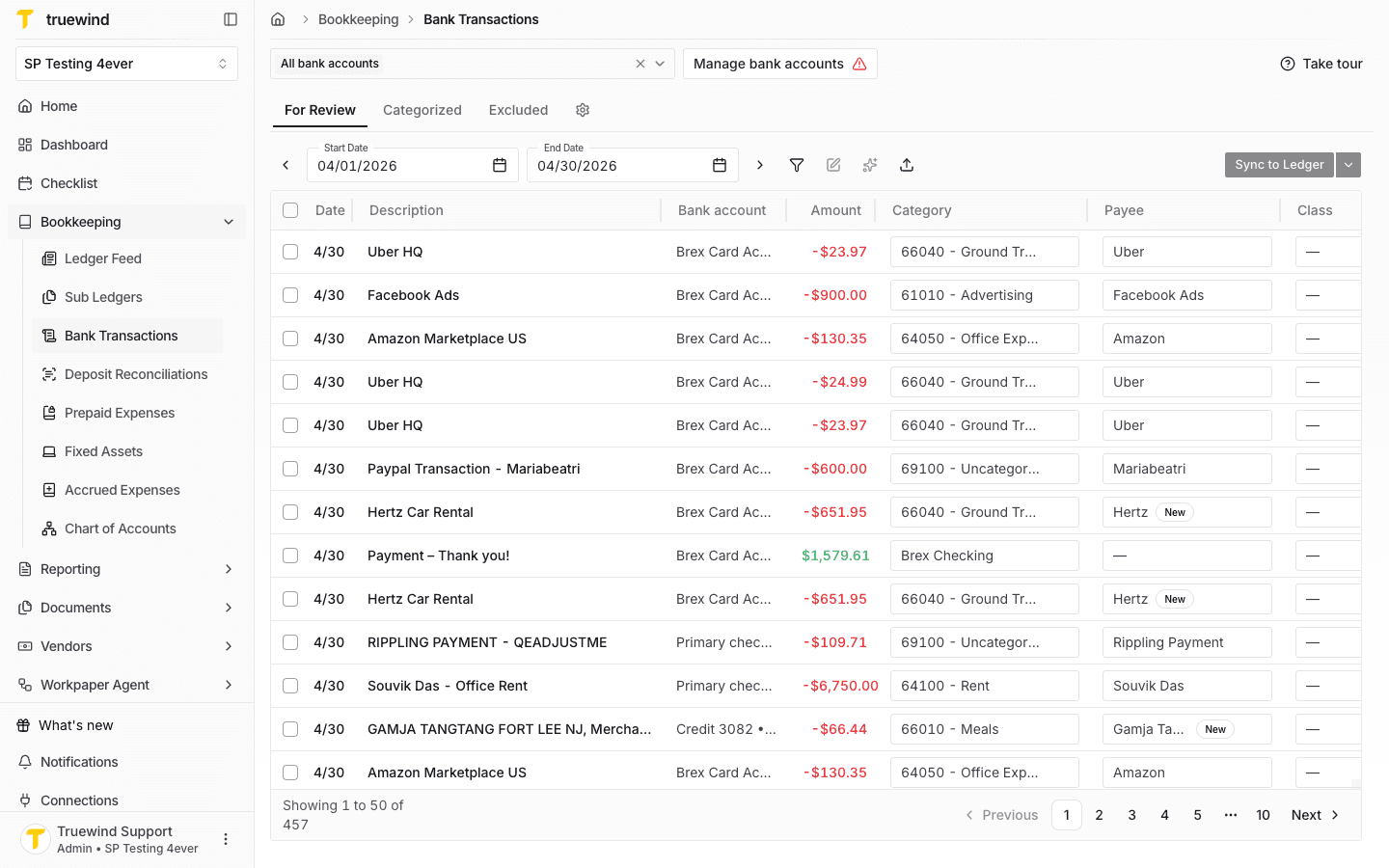
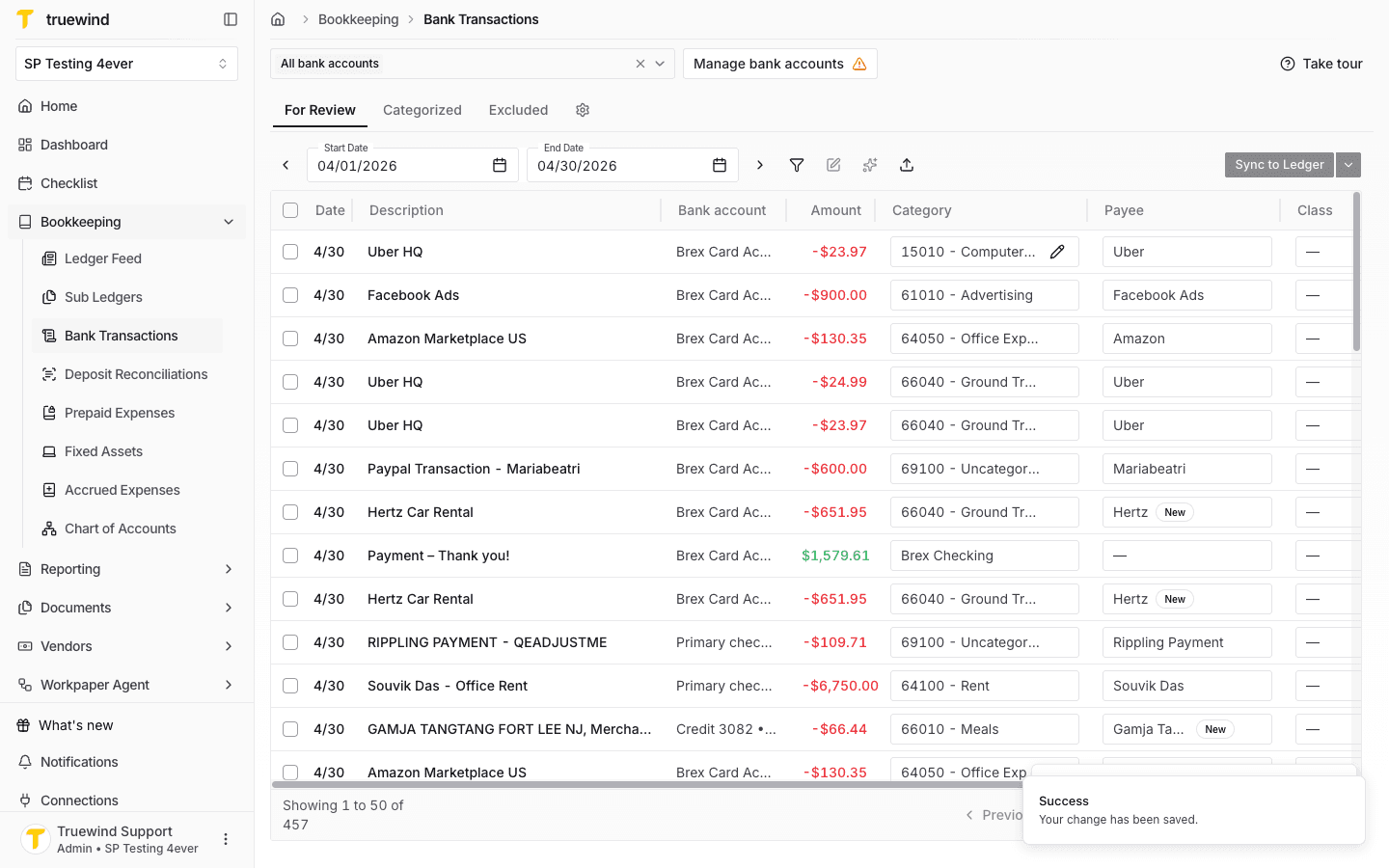
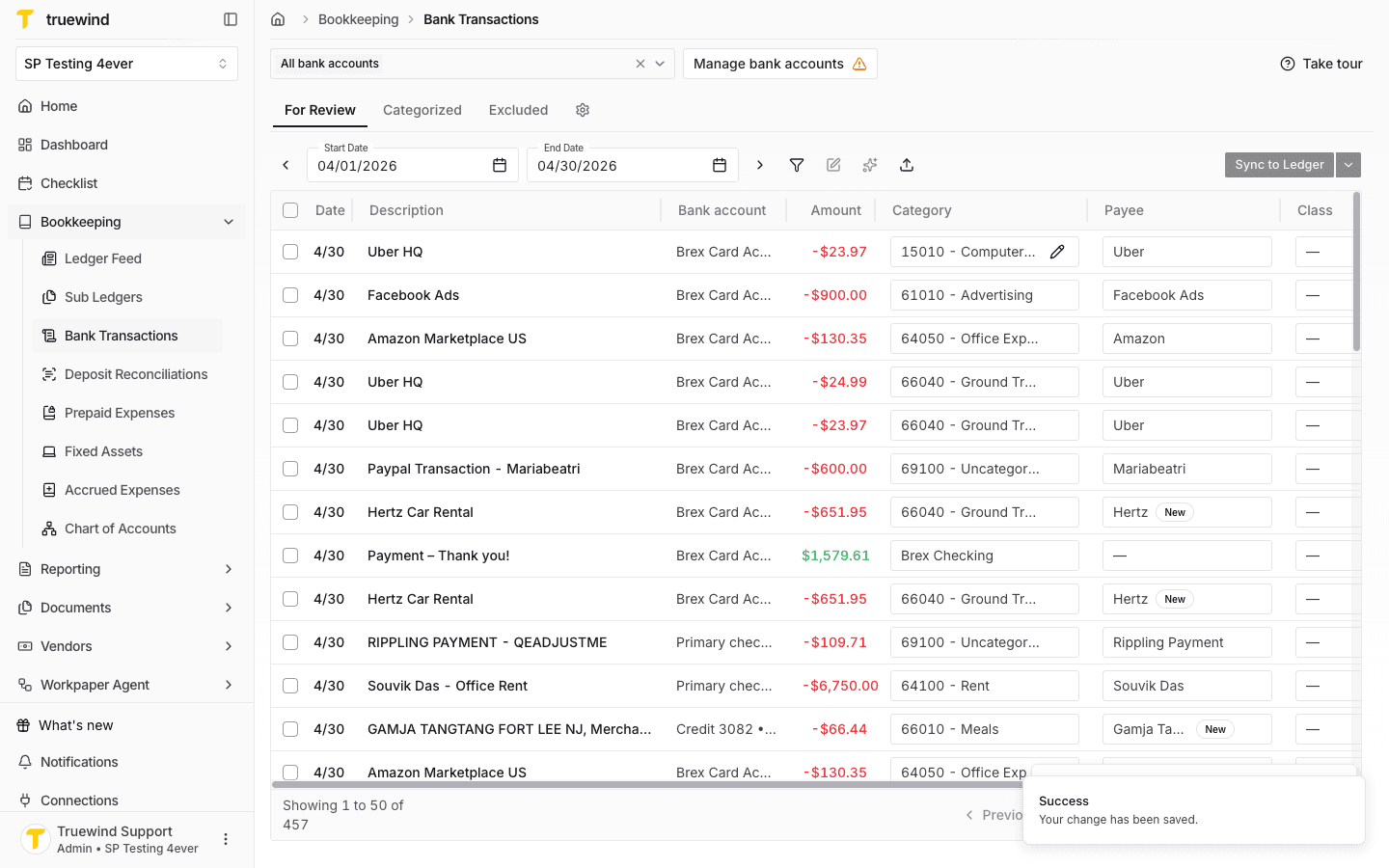
Under FOR REVIEW, you will see a list of transactions

Use the highlighted control to continue through the workflow.

Screenshot showing Under FOR REVIEW, you will see a list of transactions

Step 4

Review the transaction

Confirm the page shows the expected result before continuing to the next step.

Screenshot showing Review the transaction

Step 5

Review the transaction

Use the highlighted control to continue through the workflow.

Screenshot showing Review the transaction

Step 6

Select Select account

Choose the option that matches the account, period, or schedule you are working with.

Screenshot showing Select Select account

Step 7

The transactions have been categorized by Truewind

Use the highlighted control to continue through the workflow.

Screenshot showing The transactions have been categorized by Truewind

Step 8

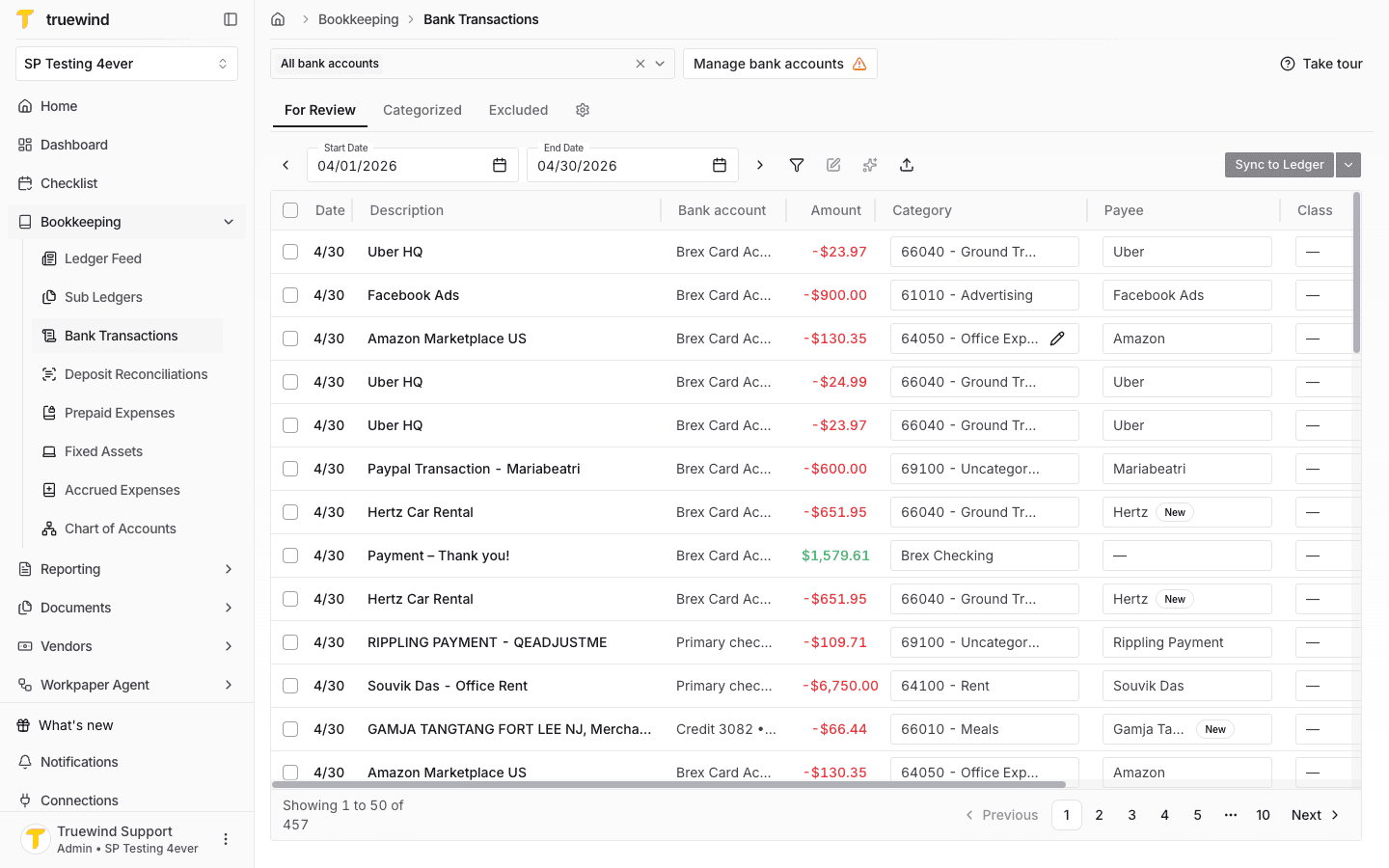
Select one transaction

Use the highlighted control to continue through the workflow.

Screenshot showing Select one transaction

Step 9

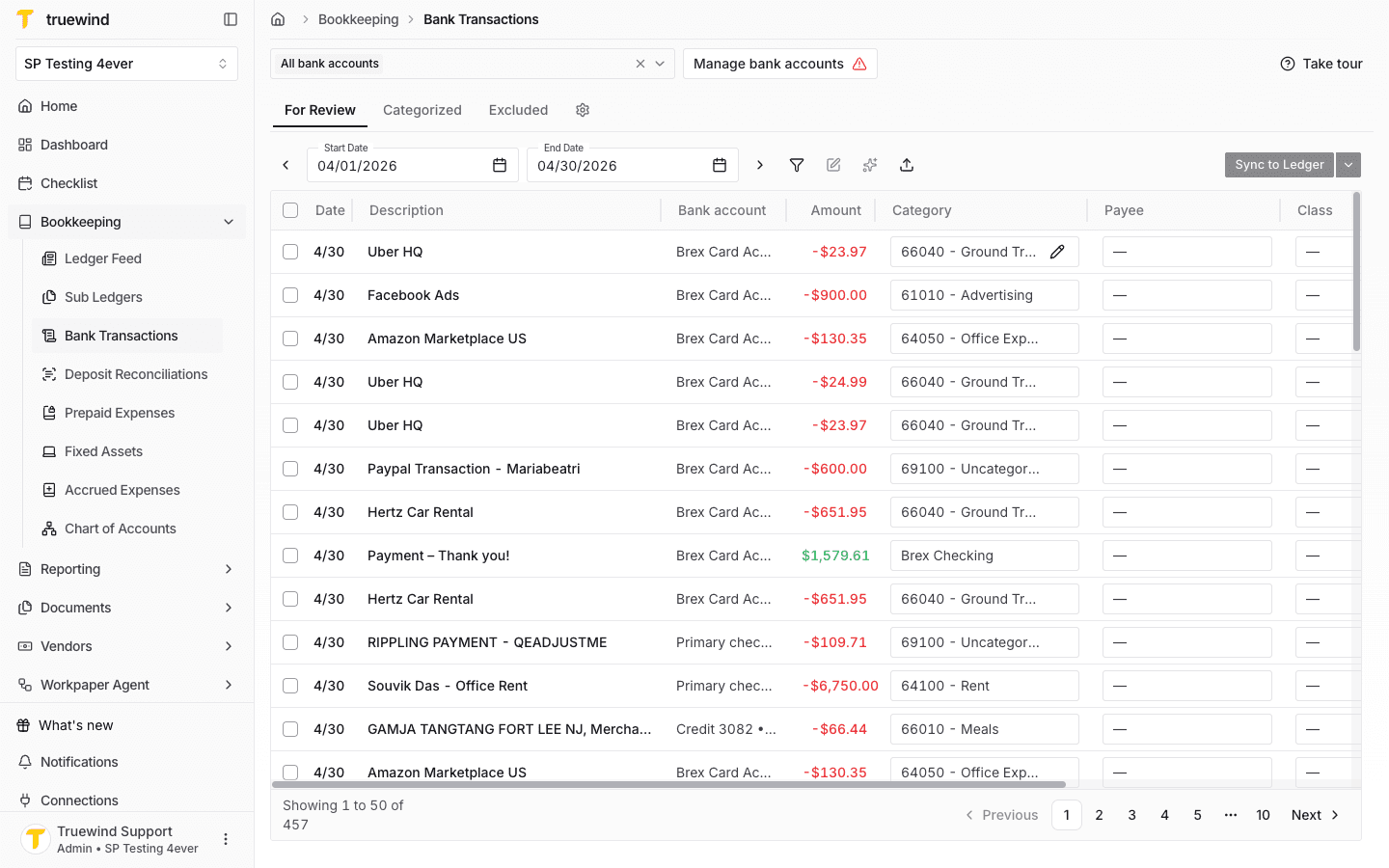
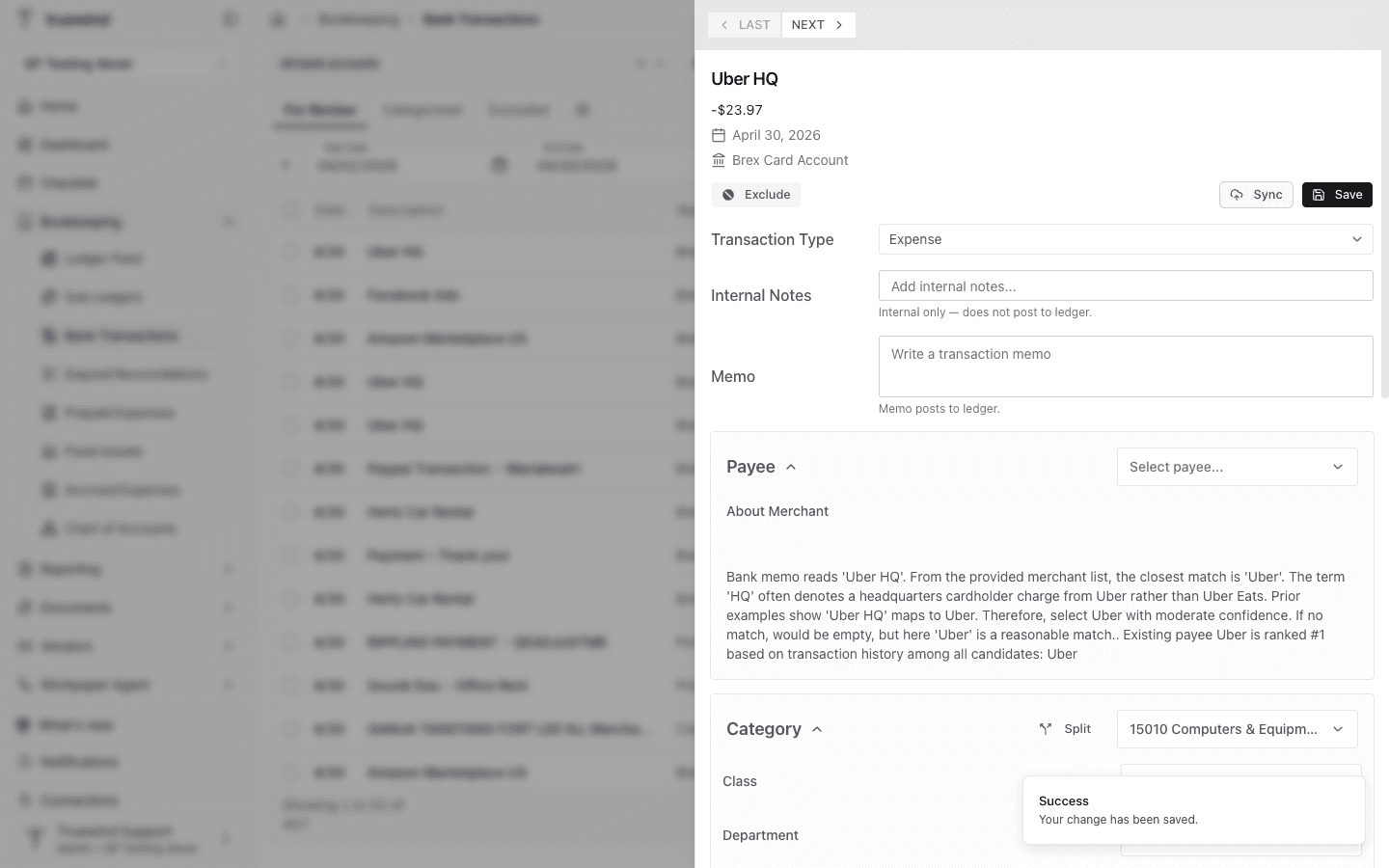
On the side bar, you will find "payee"

Confirm the page shows the expected result before continuing to the next step.

Screenshot showing On the side bar, you will find "payee"

Step 10

Review the transaction

Use the highlighted control to continue through the workflow.

Screenshot showing Review the transaction

Step 11

Edit transaction dimensions

Use the highlighted control to continue through the workflow.

Screenshot showing Edit transaction dimensions

Step 12

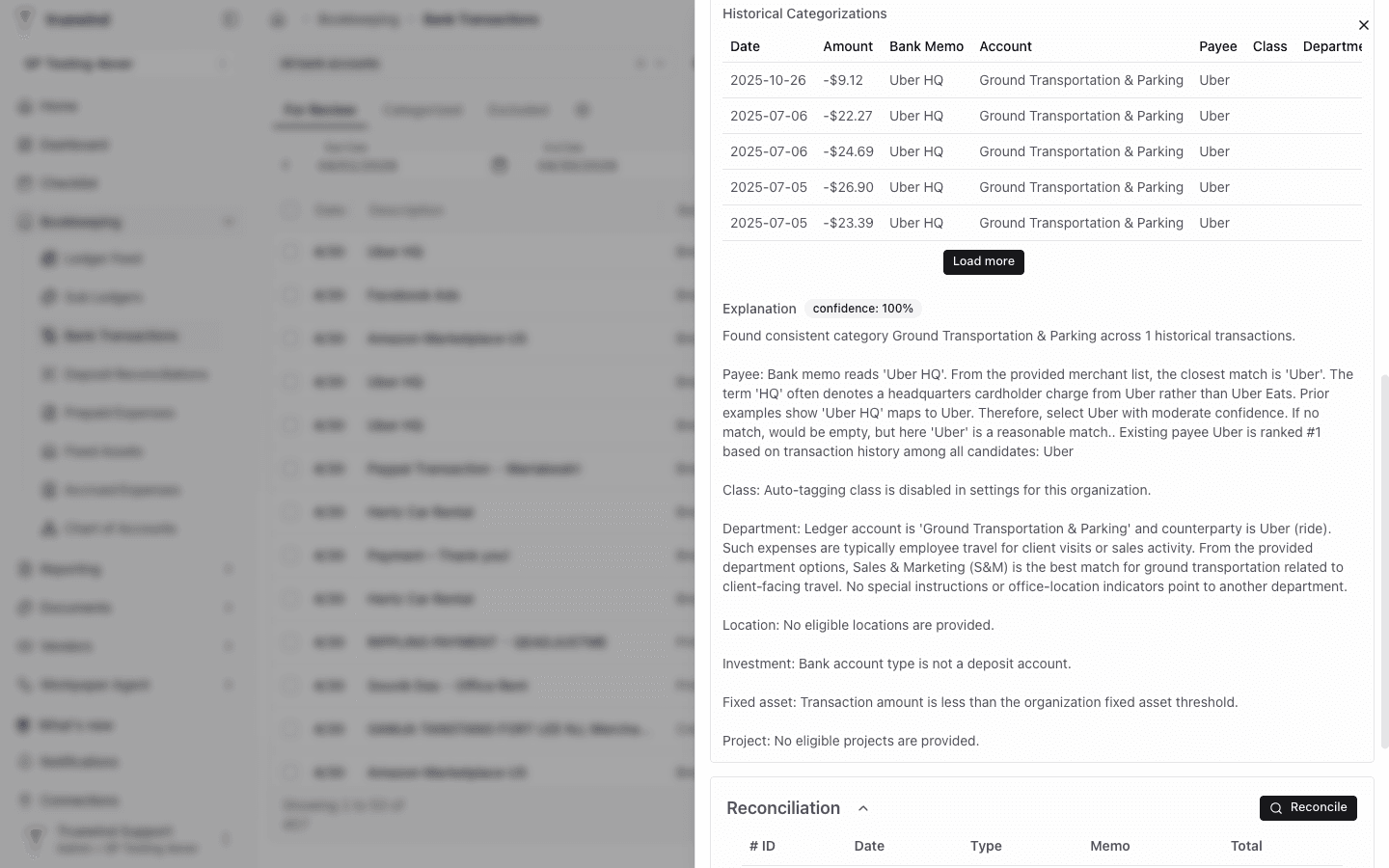
You will find all Apple related historical transactions here

Confirm the page shows the expected result before continuing to the next step.

Screenshot showing You will find all Apple related historical transactions here

Step 13

Select APPLE.COM/US. Merchant name: Apple…

Use the highlighted control to continue through the workflow.

Screenshot showing Select APPLE.COM/US. Merchant name: Apple…

Step 14

In documents, you are able to add a URL

Use the highlighted control to continue through the workflow.

Screenshot showing In documents, you are able to add a URL

Step 15

Select ADD

Use the highlighted control to continue through the workflow.

Screenshot showing Select ADD

Step 16

Enter URL "apple.com"

Enter the required values carefully so the schedule and journal-entry details calculate correctly.

Screenshot showing Enter URL "apple.com"

Step 17

Then you can click on "Sync" to sync to books

Use the highlighted control to continue through the workflow.

Screenshot showing Then you can click on "Sync" to sync to books

Step 18

You can check the synced transaction by clicking "Synced in Quickbooks"

Use the highlighted control to continue through the workflow.

Screenshot showing You can check the synced transaction by clicking "Synced in Quickbooks"

Good review habit

Confirm the payee, category, and supporting document details before syncing the transaction to the accounting platform.

Was this helpful?

Need more help?

Ask for human help about this article and provide any feedback.