
Before posting
Make sure the selected asset, posting month, and journal-entry details are correct before you submit the posting.
Ask the support agent
Just ask a direct question or search related articles from the Knowledge Base.
Support Center / Fixed Assets / Journal Entries
Post depreciation from an asset schedule when the month is ready, resulting in a depreciation journal entry for that asset.
Step 1
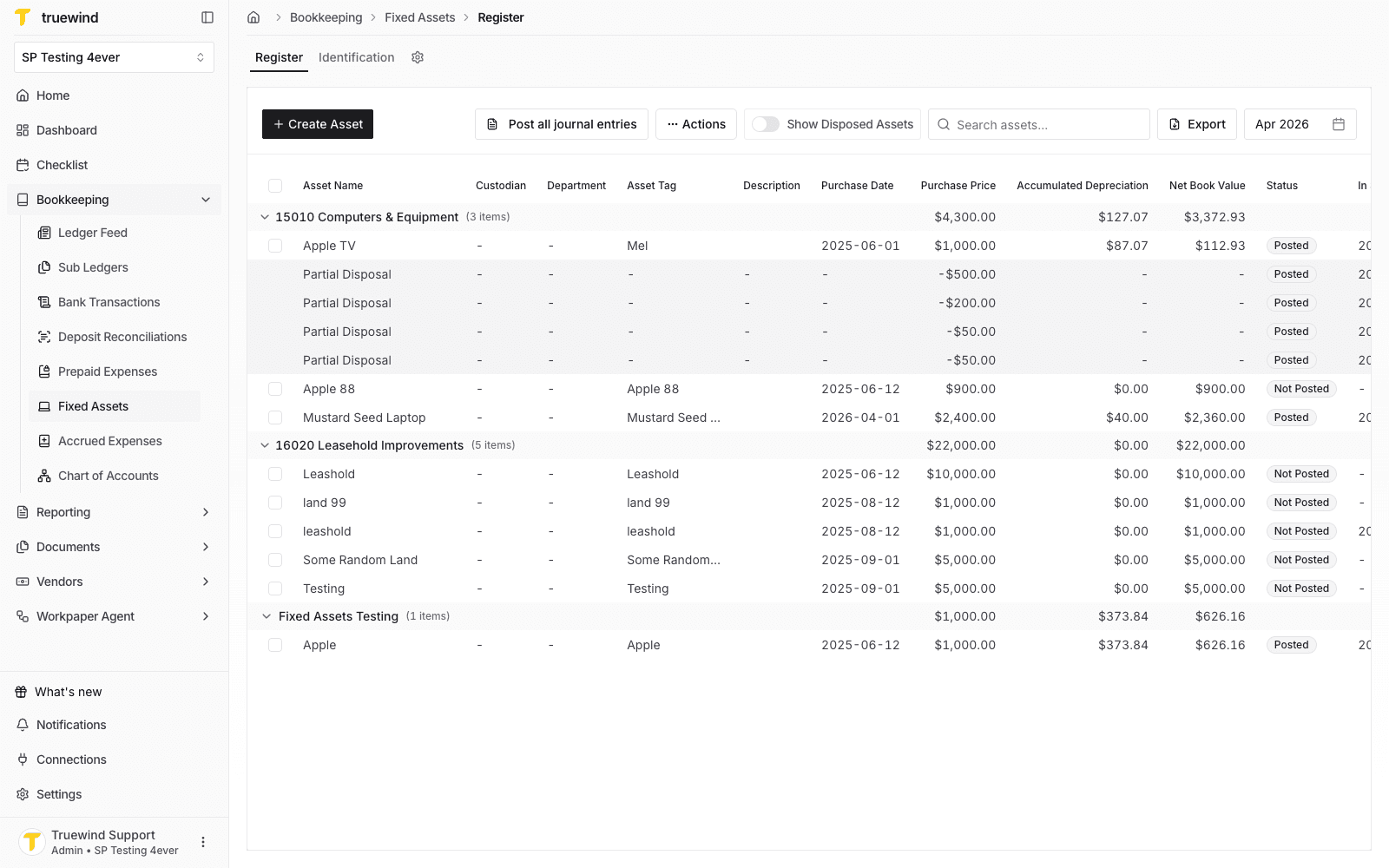
Start in Bookkeeping > Fixed Assets > Register so registered assets and posting actions are visible.
Step 2
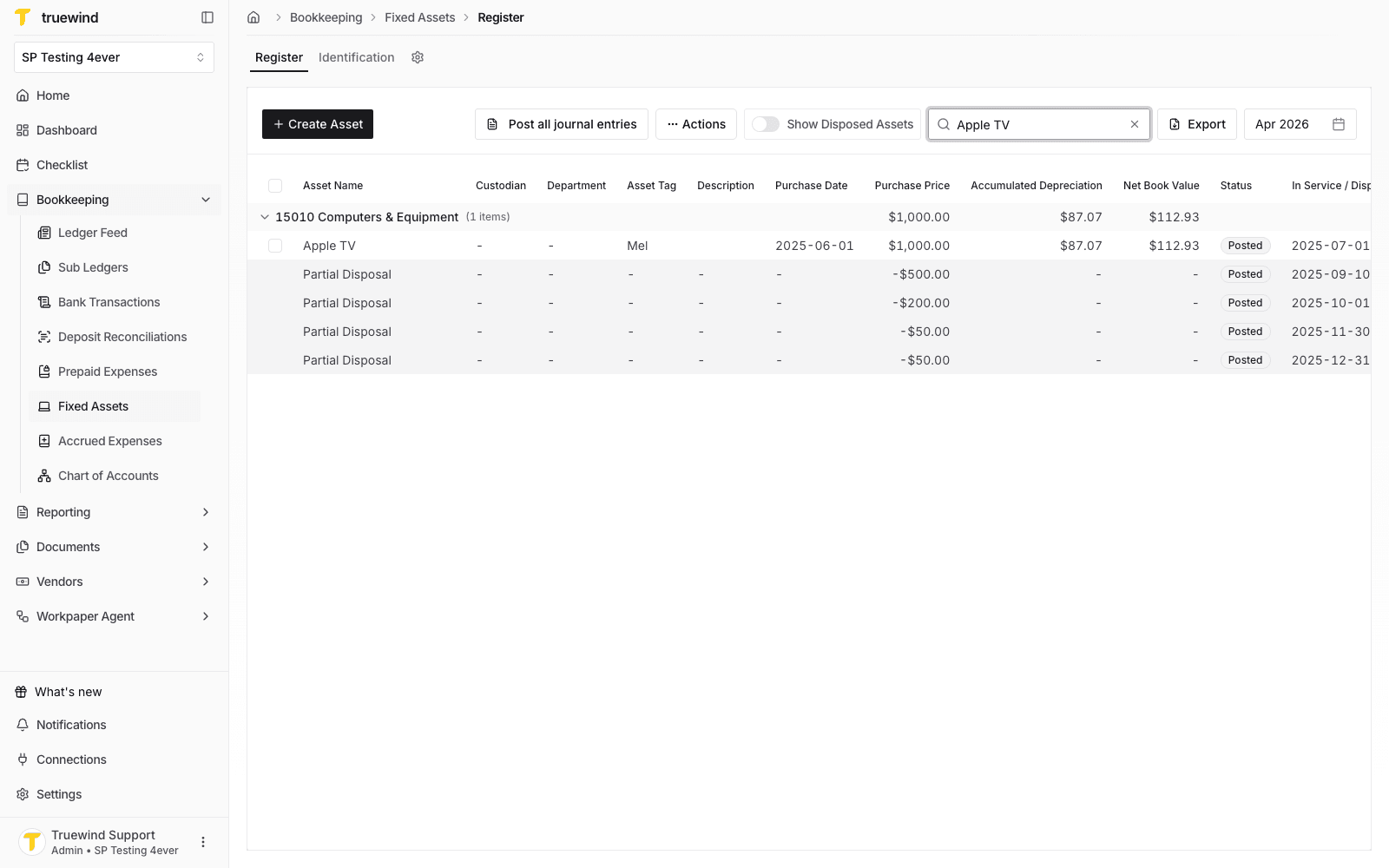
Confirm the asset row you want to post from appears in the register before opening it.
Step 3
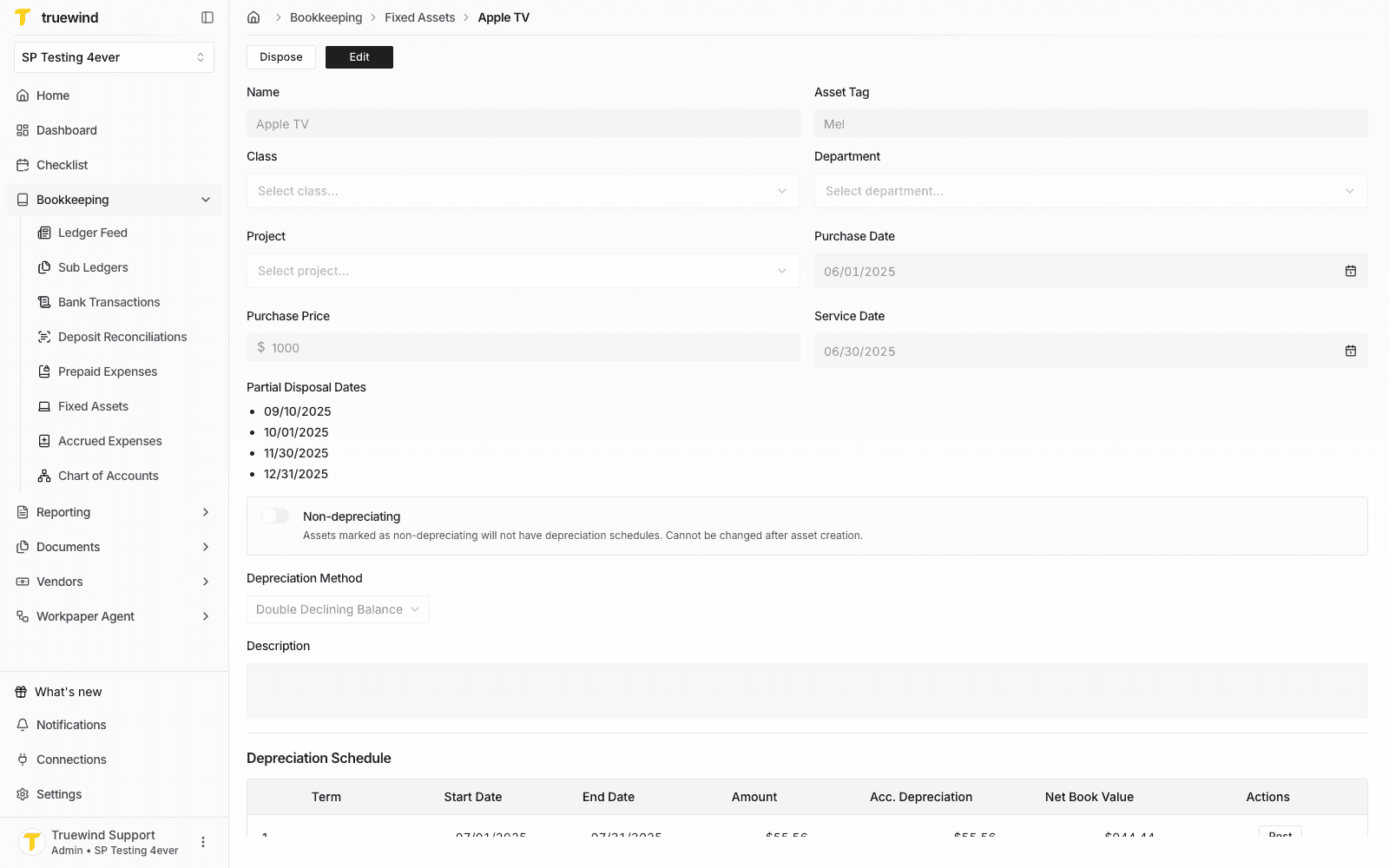
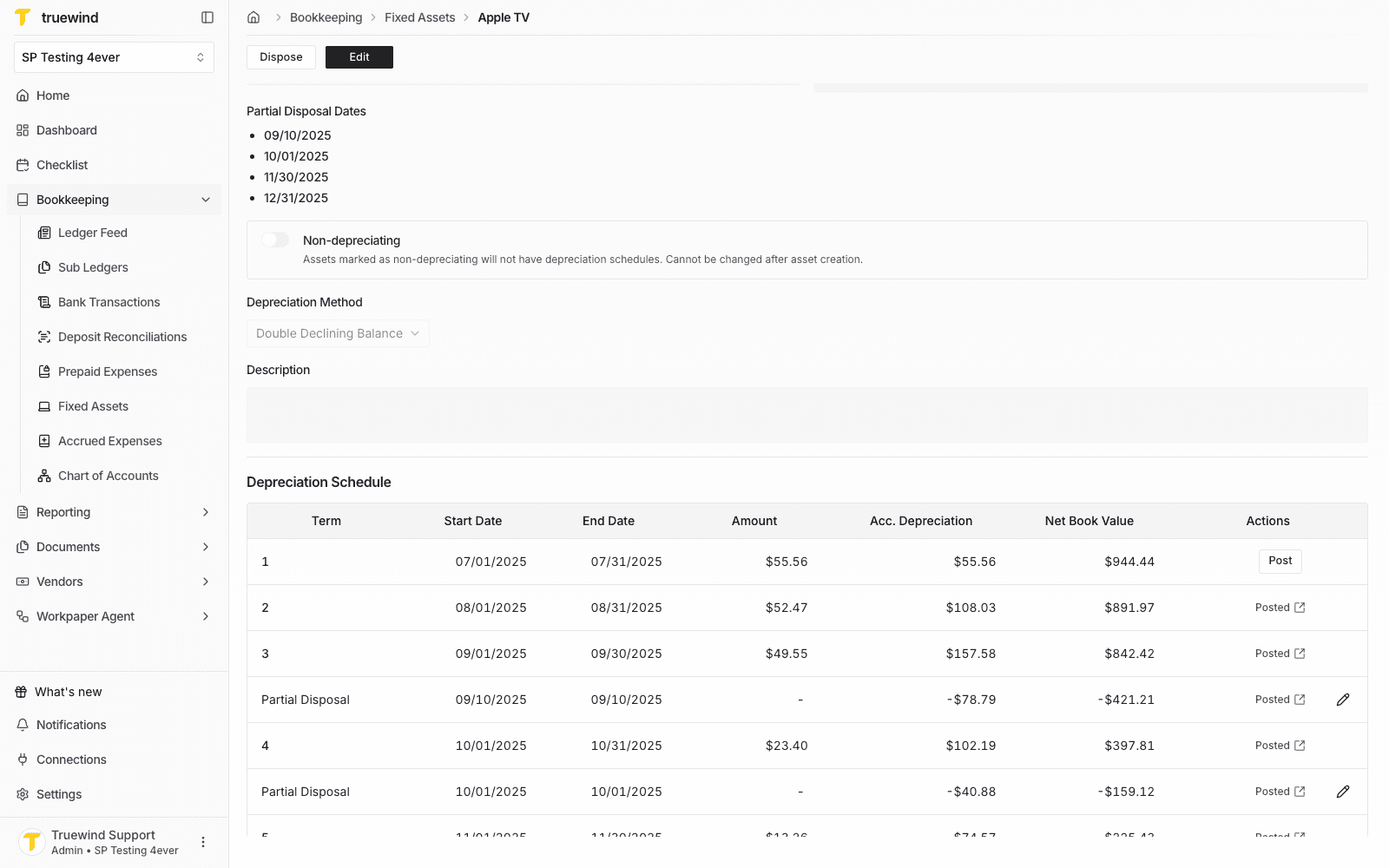
Select the asset to review its details and depreciation schedule.
Step 4
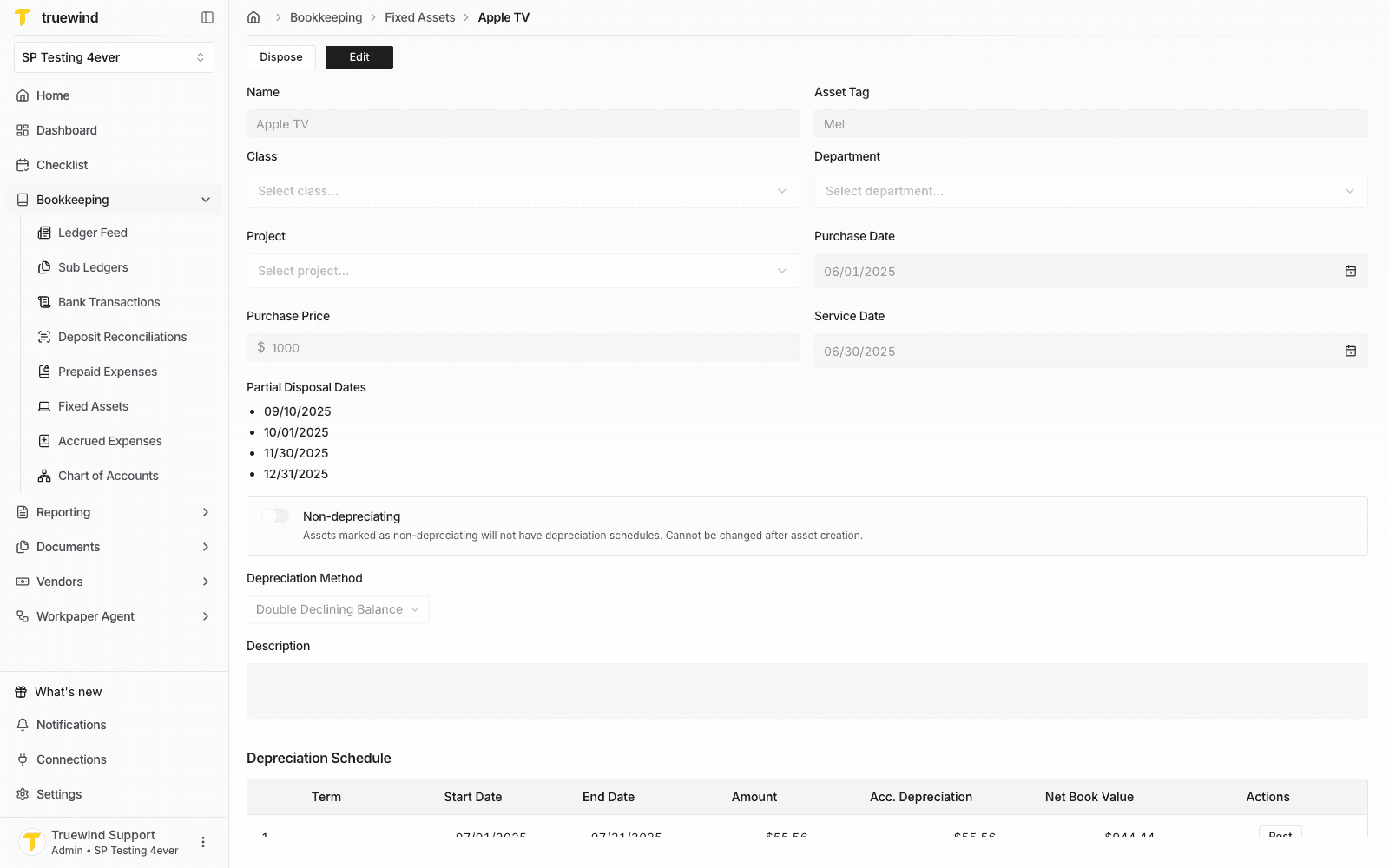
Find the next unposted term in the schedule and confirm the amount, accumulated depreciation, and net book value.
Step 5
Use the Post action on the unposted term that should be recorded for the period.
Step 6
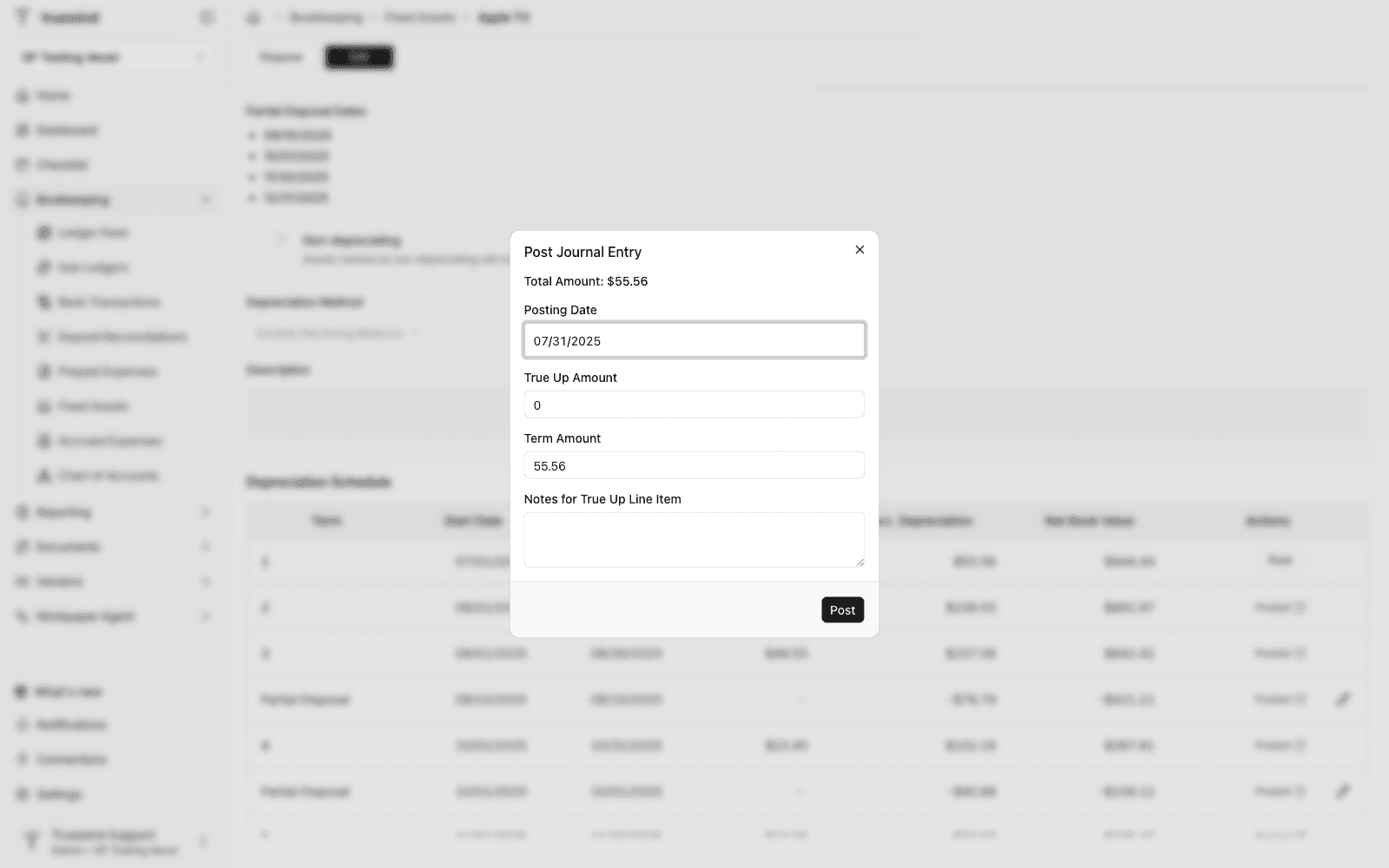
Confirm the posting date matches the depreciation term and the month you are closing.
Step 7
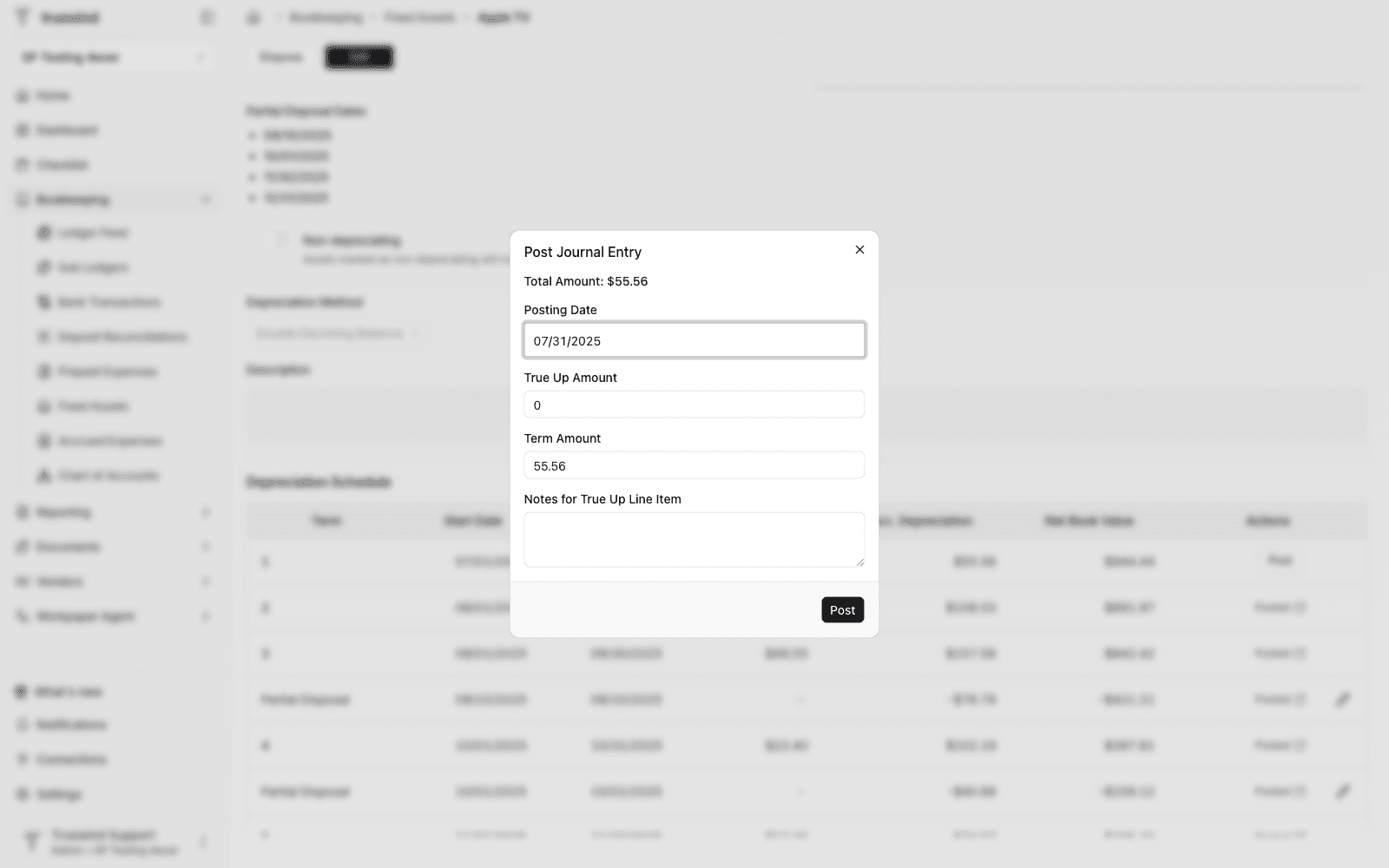
Check the true-up amount and term amount before deciding whether an adjustment is needed.
Step 8
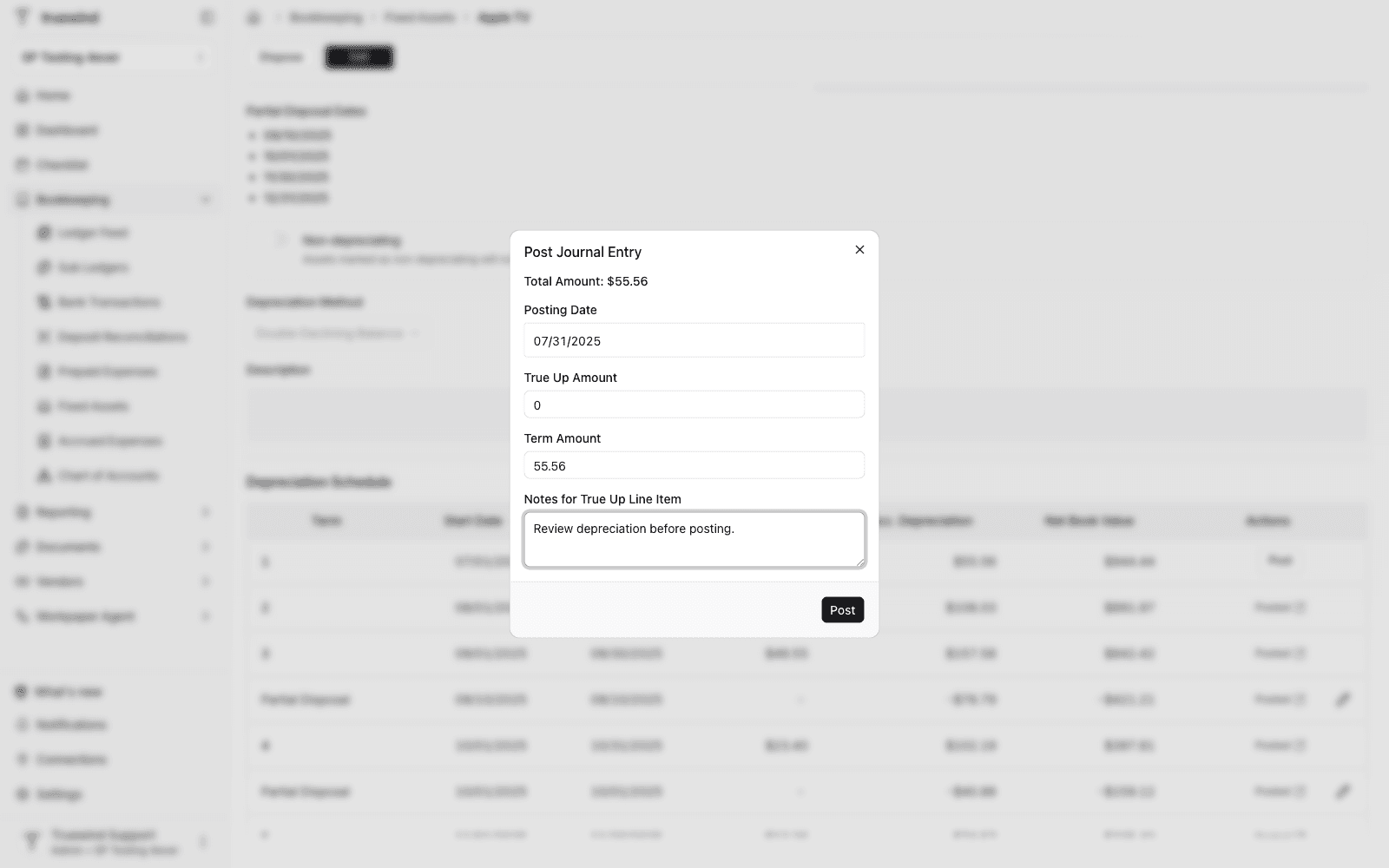
Add a note when the true-up line needs context for reviewers or audit support.
Step 9
Post only after the date, amounts, and note match the depreciation entry you expect.
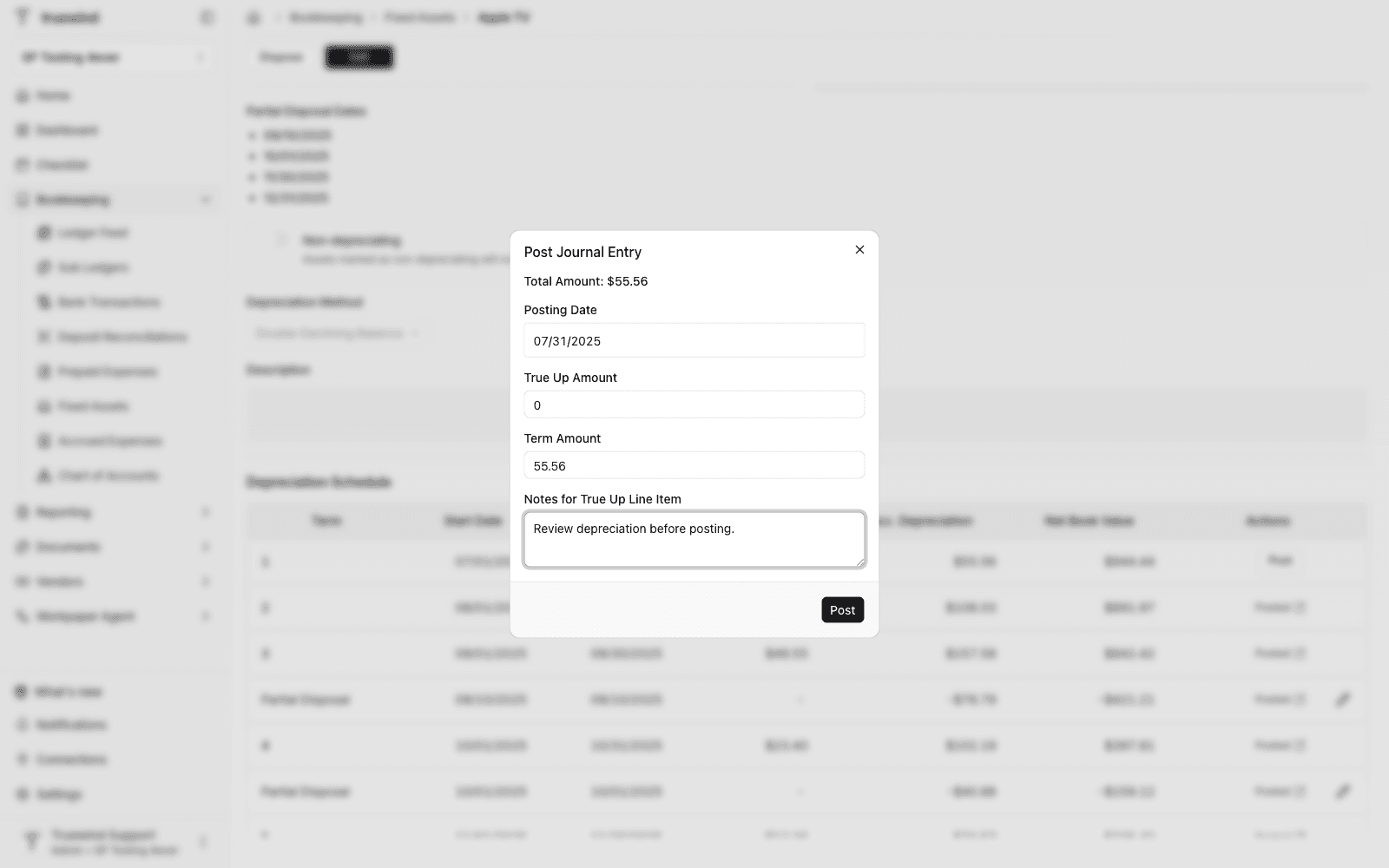
Make sure the selected asset, posting month, and journal-entry details are correct before you submit the posting.
Was this helpful?
Need more help?
Ask for human help about this article and provide any feedback.