
Important behavior
Editing a posted partial-disposal term updates the Truewind view, but the already-posted journal entry must be changed in the accounting platform if it needs correction.
Ask the support agent
Just ask a direct question or search related articles from the Knowledge Base.
Support Center / Fixed Assets / Manage
Review a Fixed Asset schedule after a partial disposal term has been added, resulting in visibility into the updated depreciation schedule and disposal journal entry state.
Step 1
Use the highlighted control to continue through the workflow.
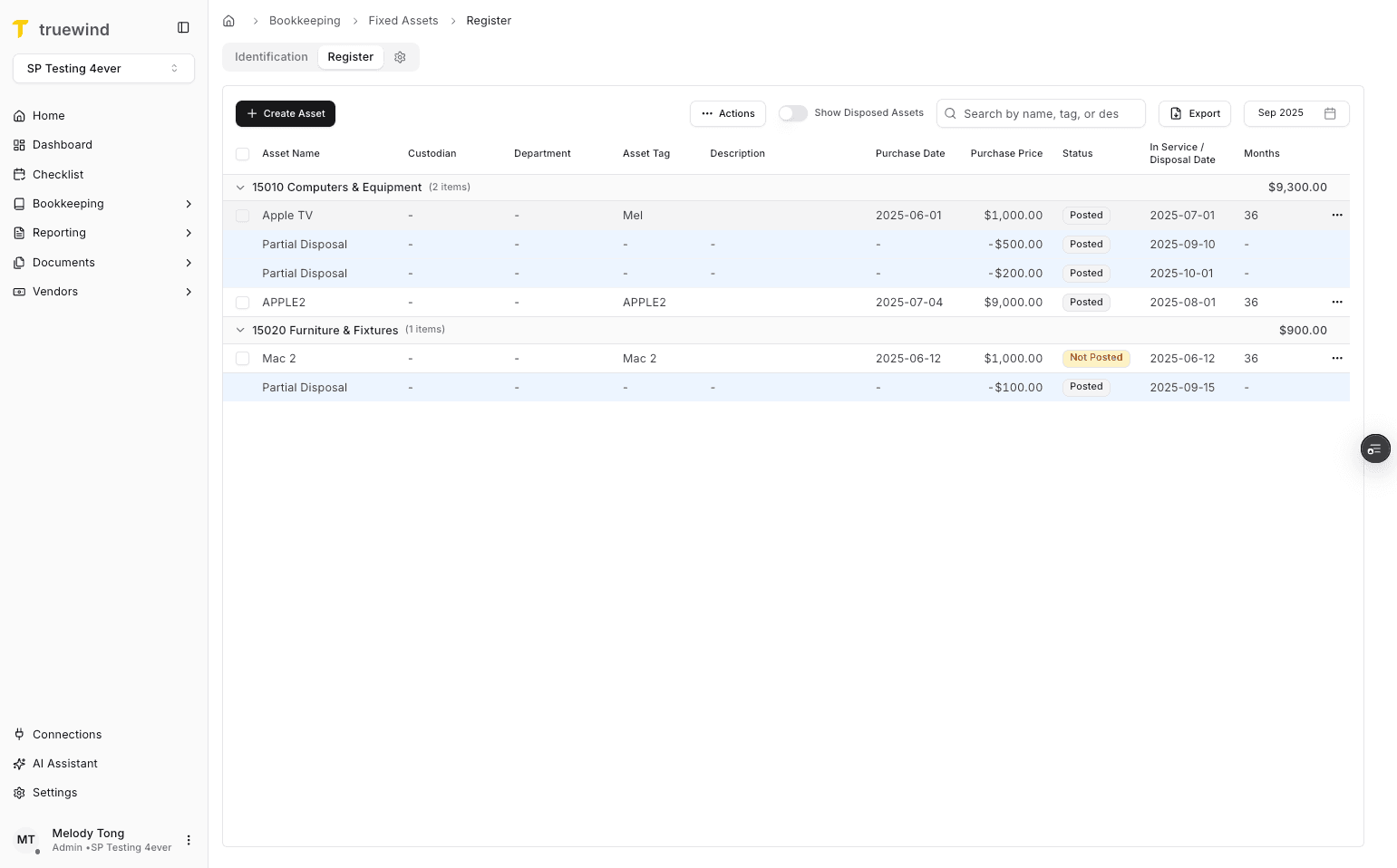
Step 2
Confirm the page shows the expected result before continuing to the next step.
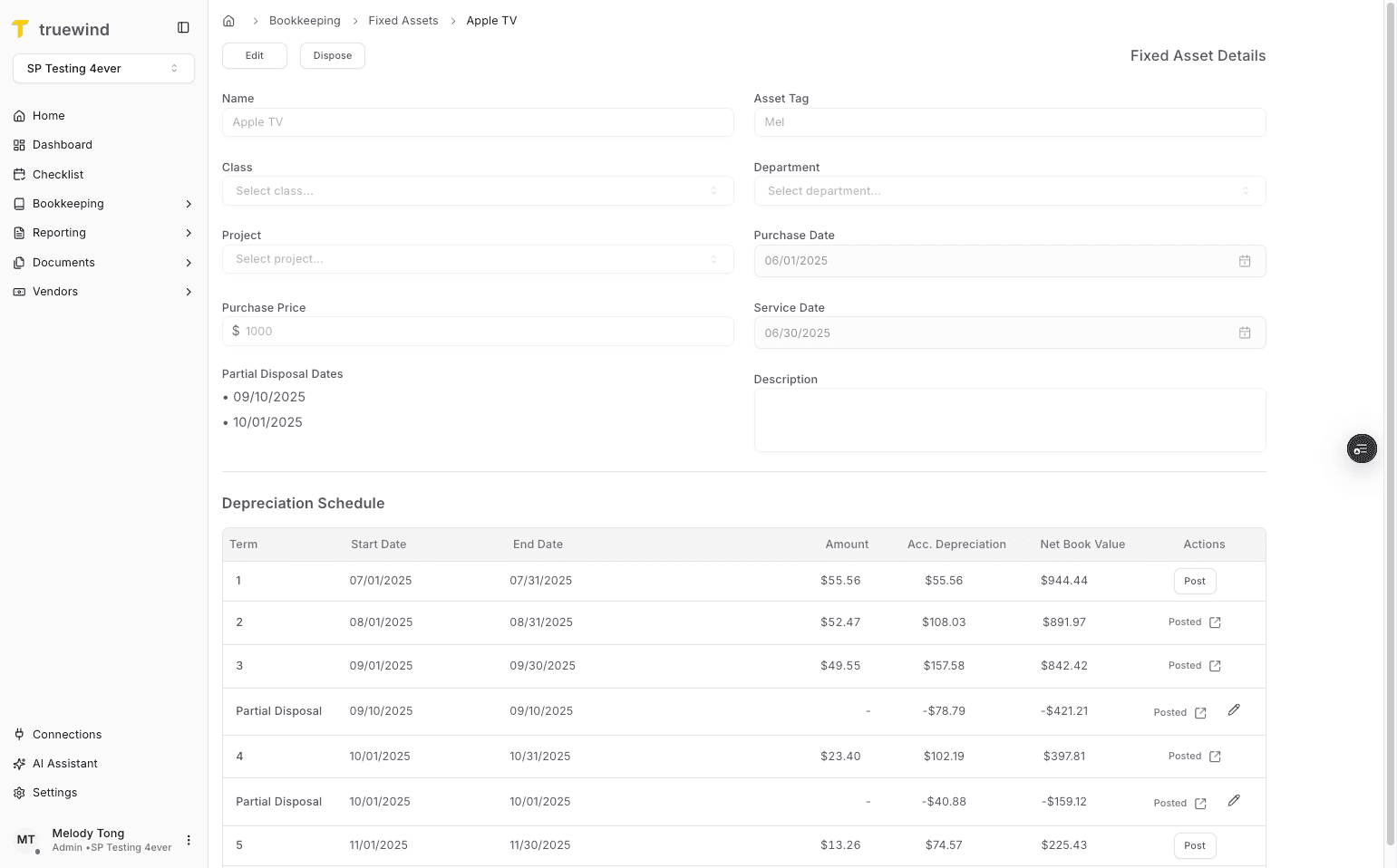
Step 3
Use the highlighted control to continue through the workflow.
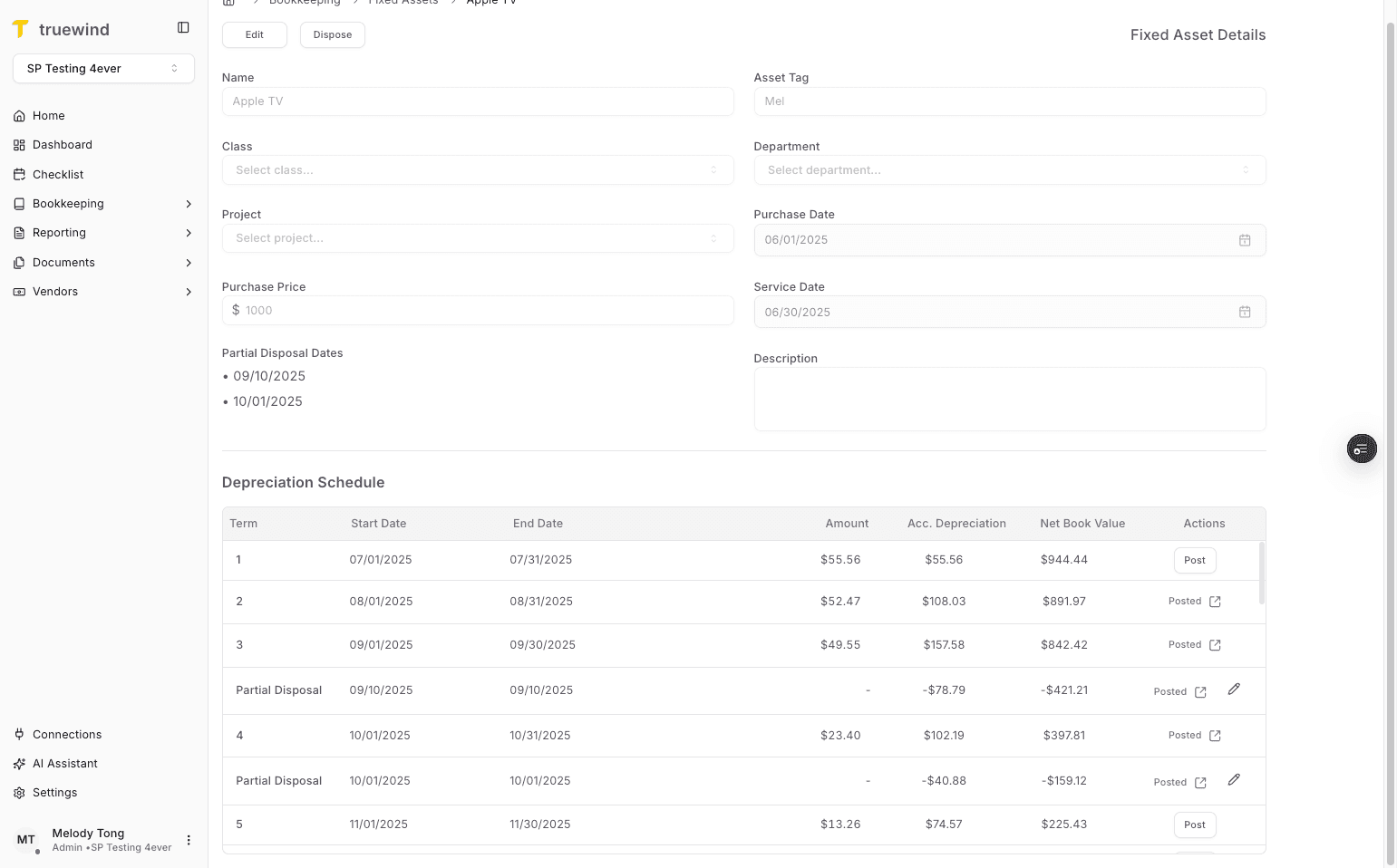
Step 4
Use the highlighted control to continue through the workflow.
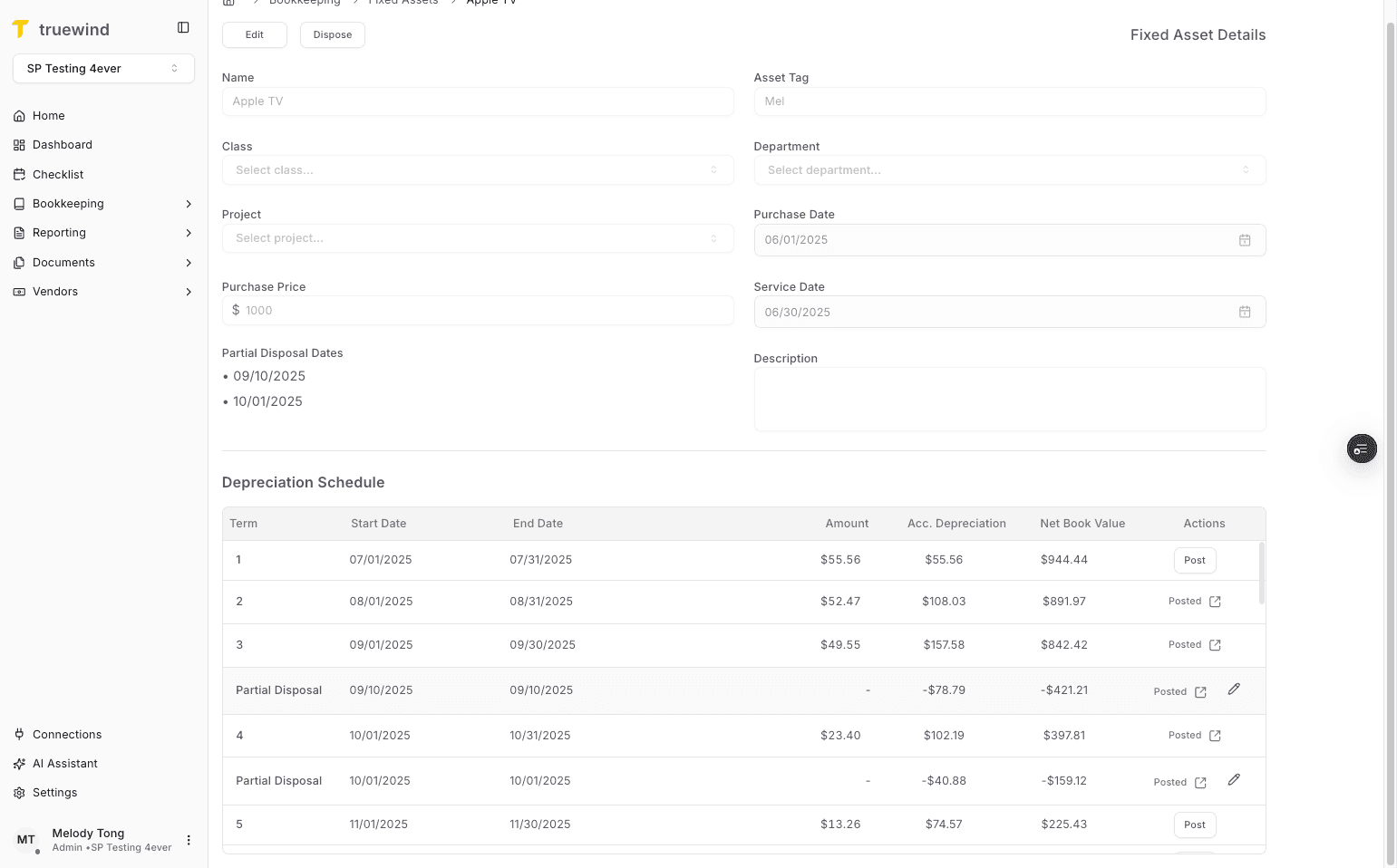
Step 5
Use the highlighted control to continue through the workflow.
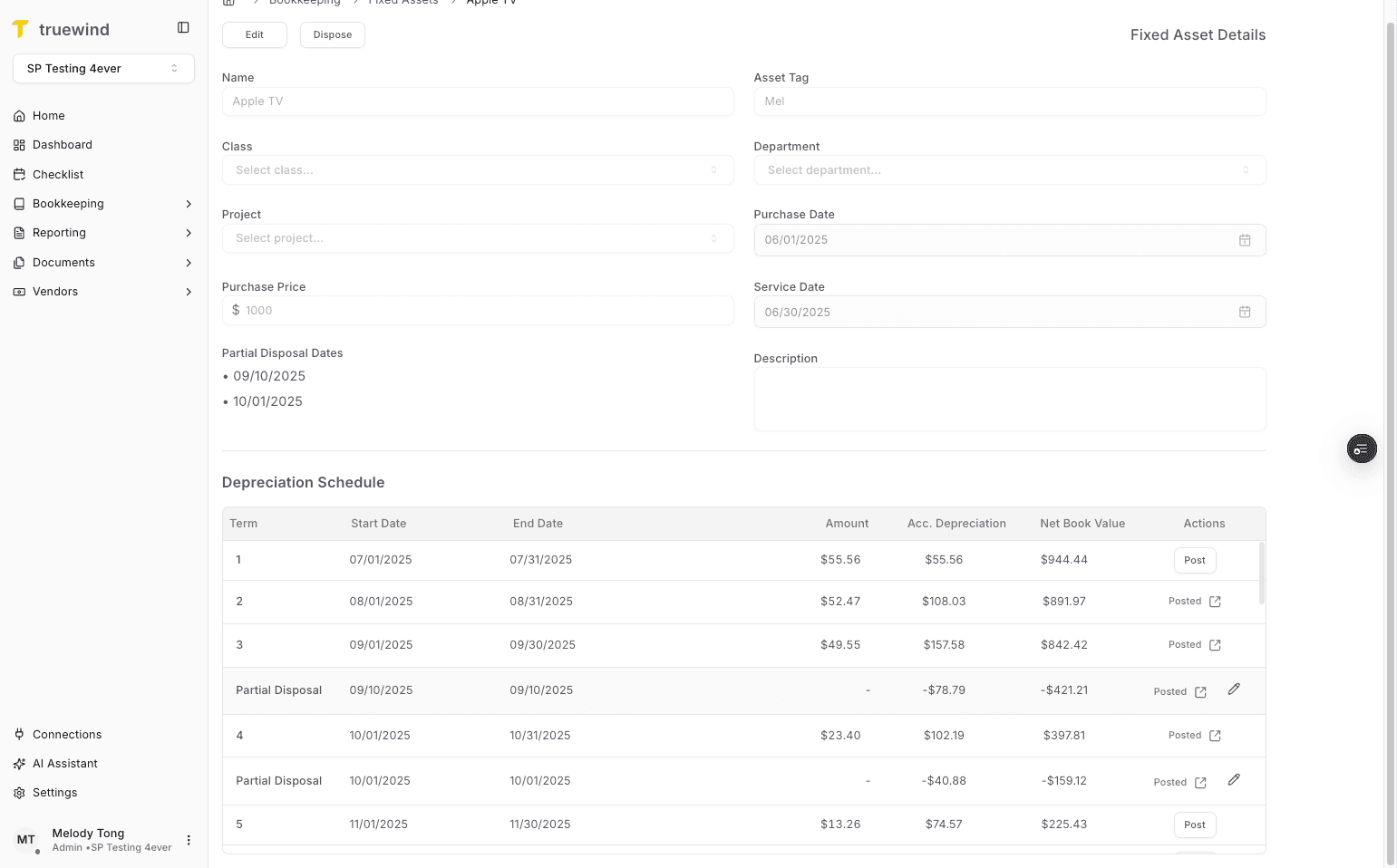
Step 6
Confirm the page shows the expected result before continuing to the next step.
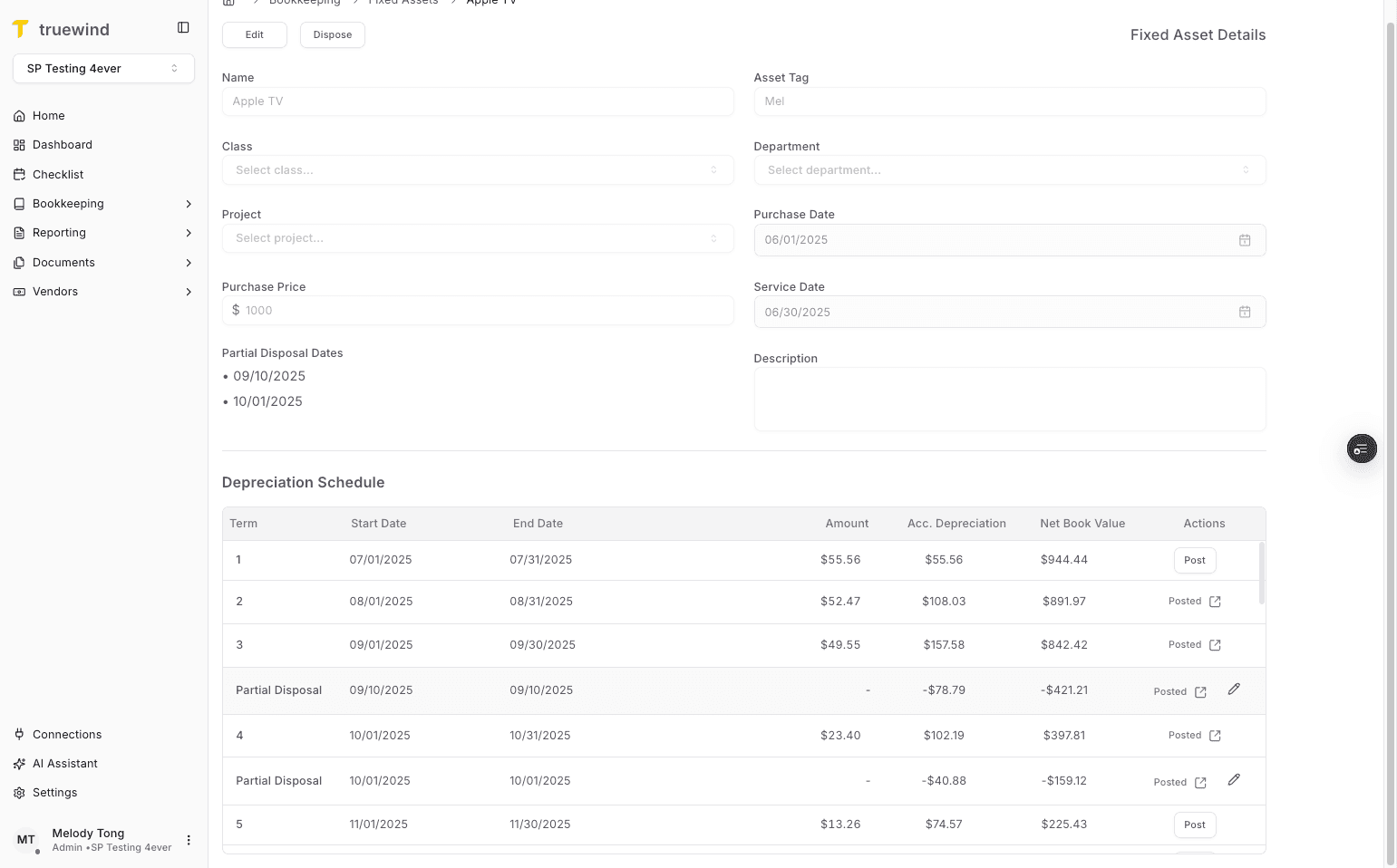
Step 7
Use the highlighted control to continue through the workflow.
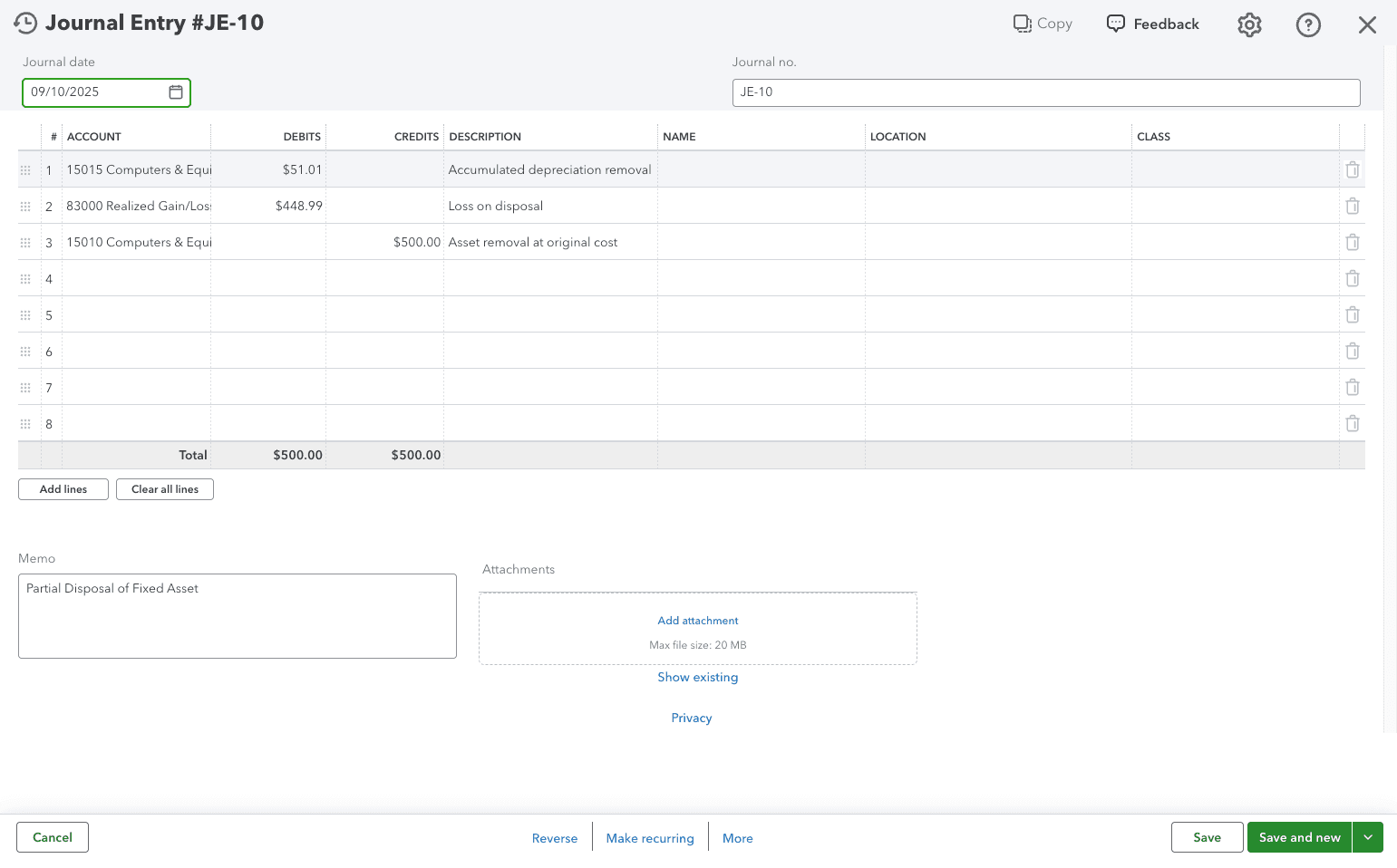
Step 8
Use the highlighted control to continue through the workflow.
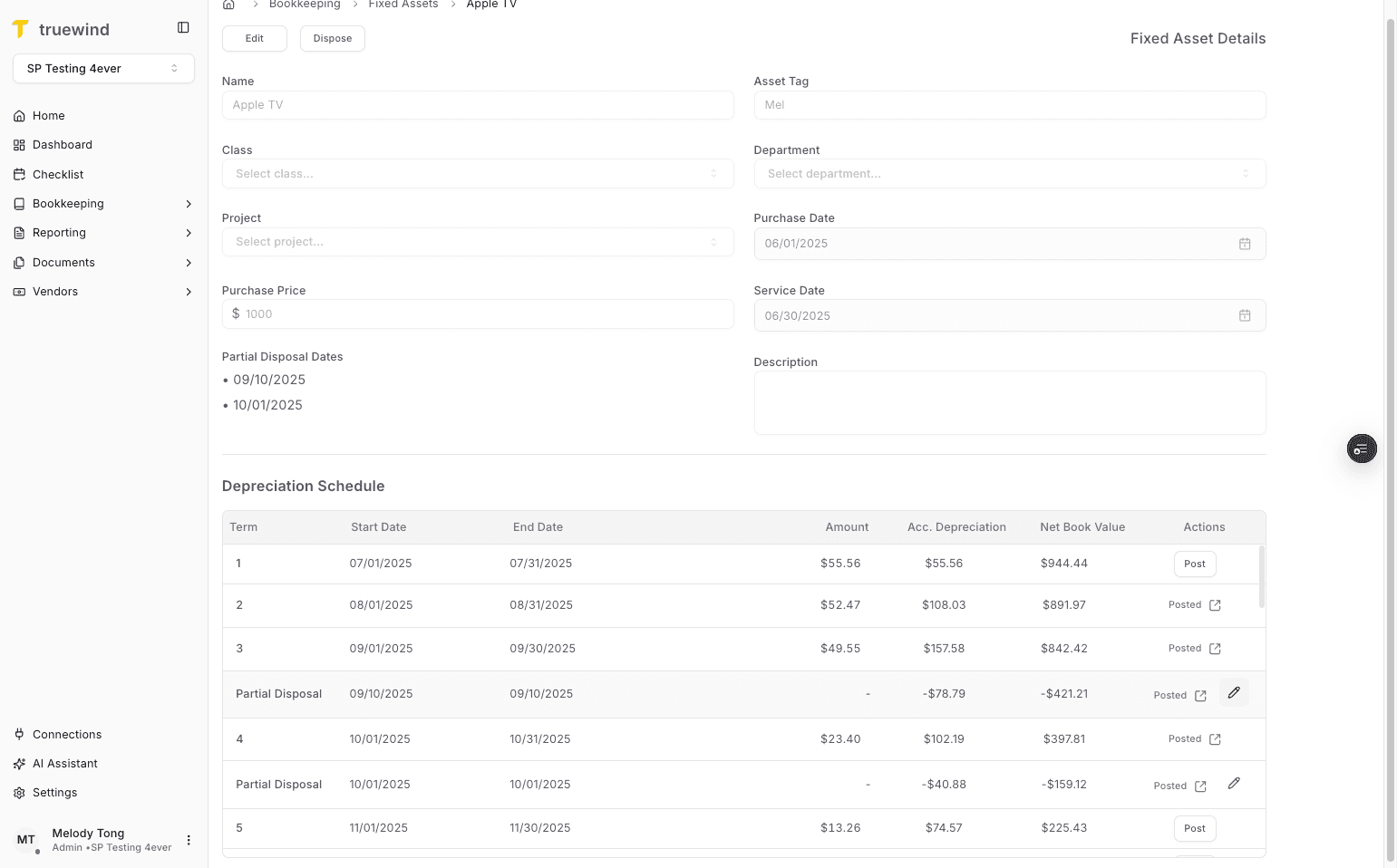
Step 9
Use the highlighted control to continue through the workflow.
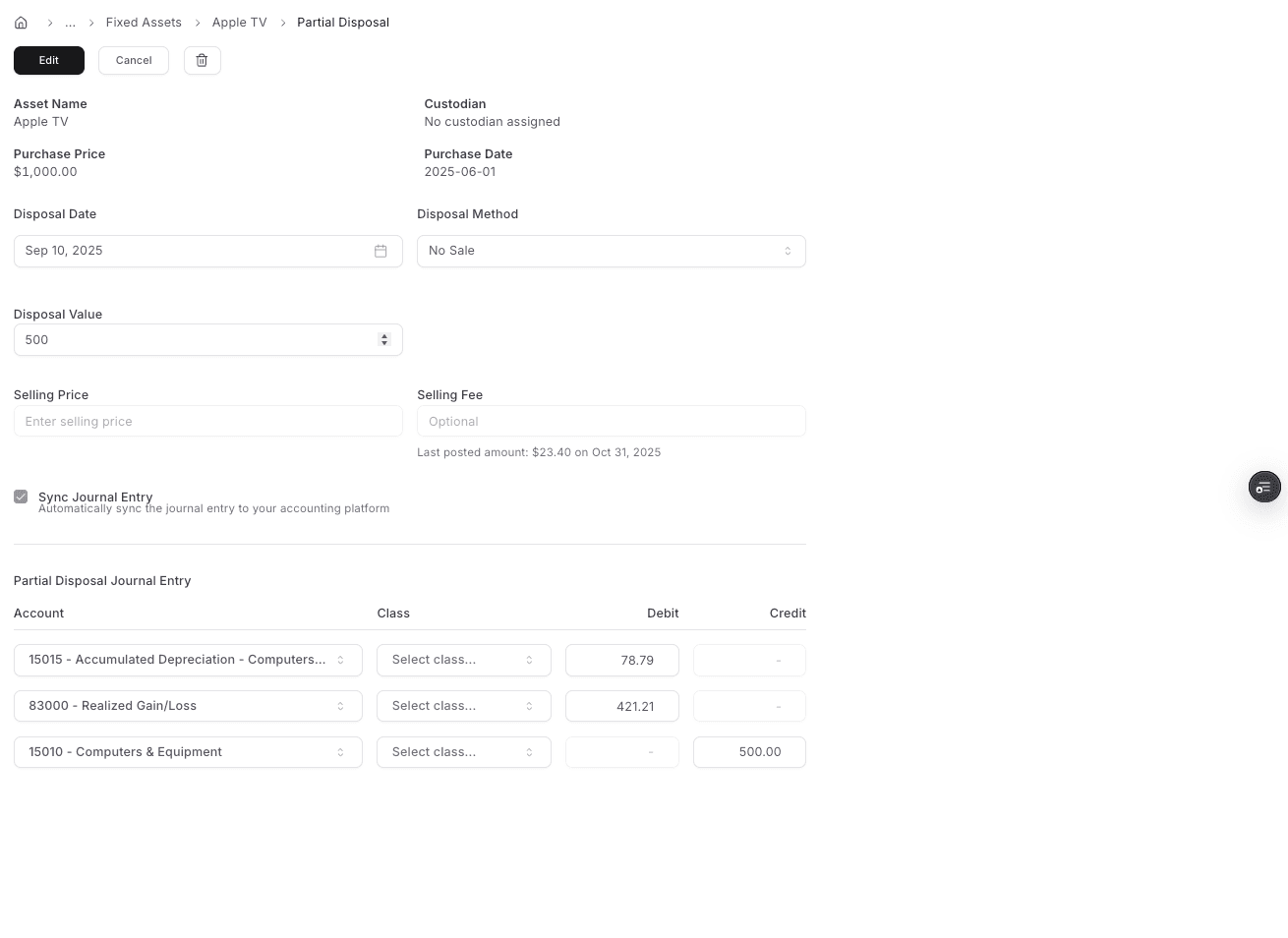
Step 10
Review the posting details and continue only when the journal-entry information is correct.
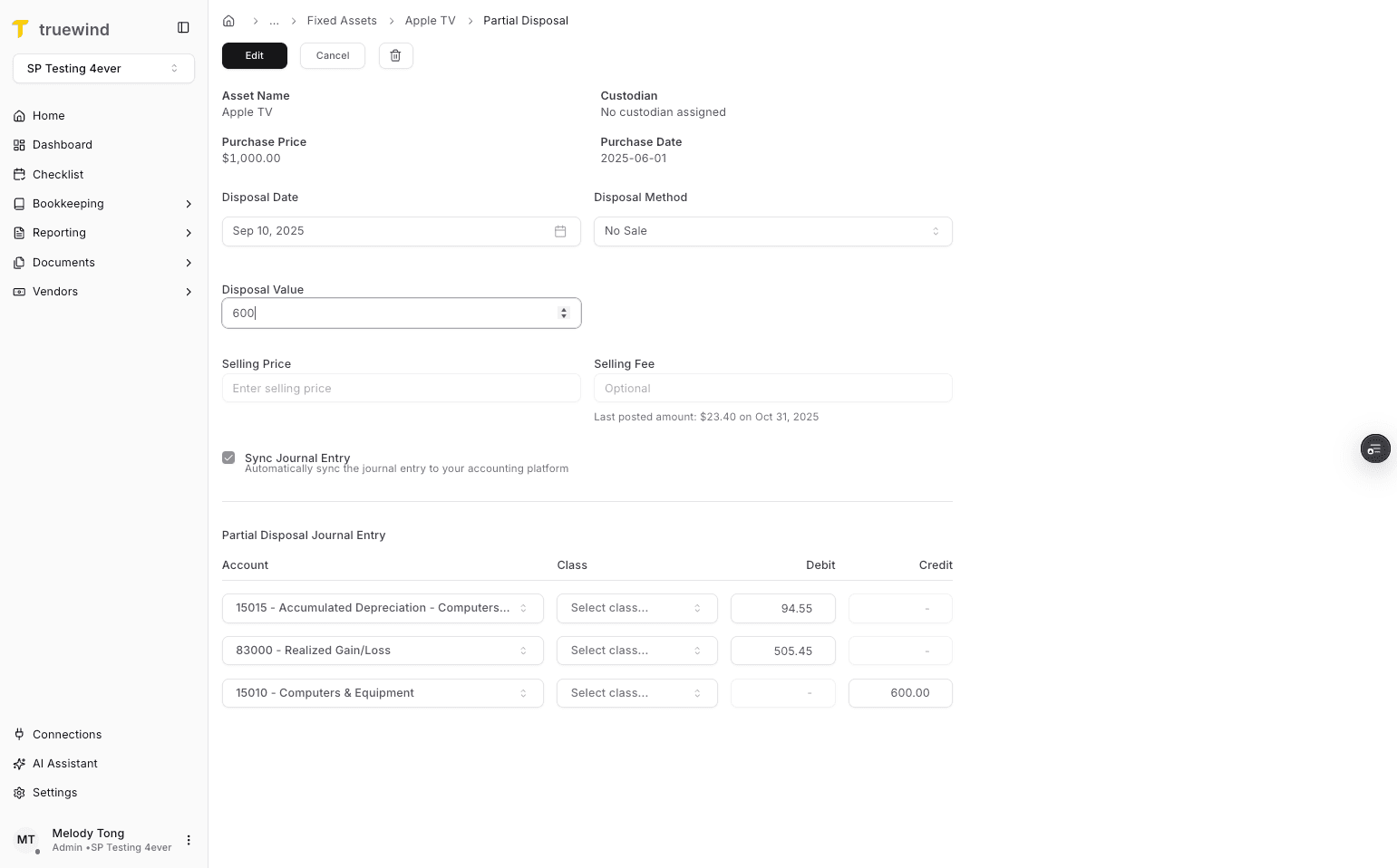
Step 11
Confirm the page shows the expected result before continuing to the next step.
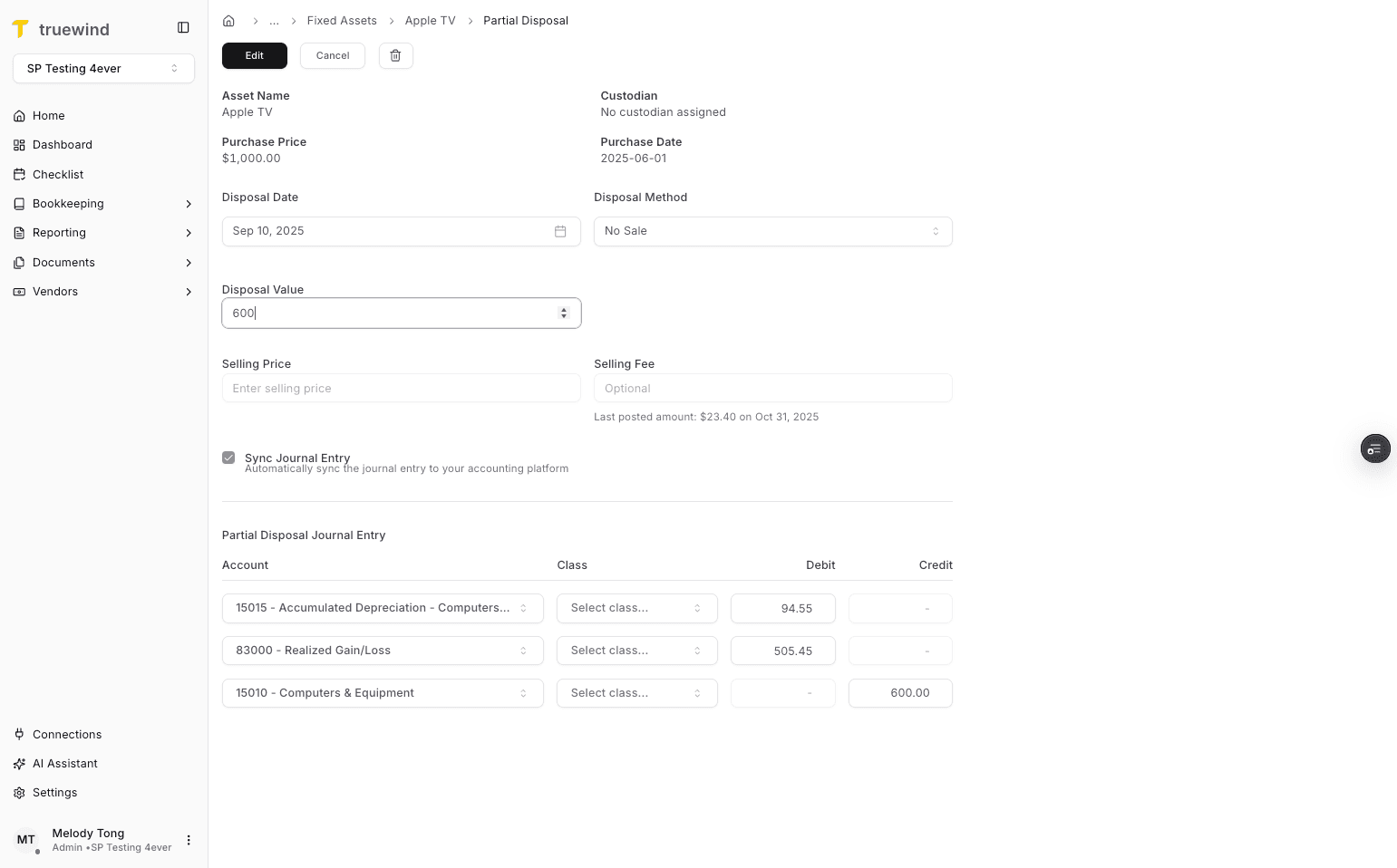
Editing a posted partial-disposal term updates the Truewind view, but the already-posted journal entry must be changed in the accounting platform if it needs correction.
Was this helpful?
Need more help?
Ask for human help about this article and provide any feedback.