Ask the support agent

Just ask a direct question or search related articles from the Knowledge Base.

Support Center / Fixed Assets / Manage

Create a depreciation schedule for Fixed Assets

Register a Fixed Asset from Identification when it should depreciate over time, resulting in a depreciation schedule ready for assignment and posting.

Workflow

Step 1

Open the side menu

Use the highlighted control to continue through the workflow.

Screenshot showing Open the side menu

Step 2

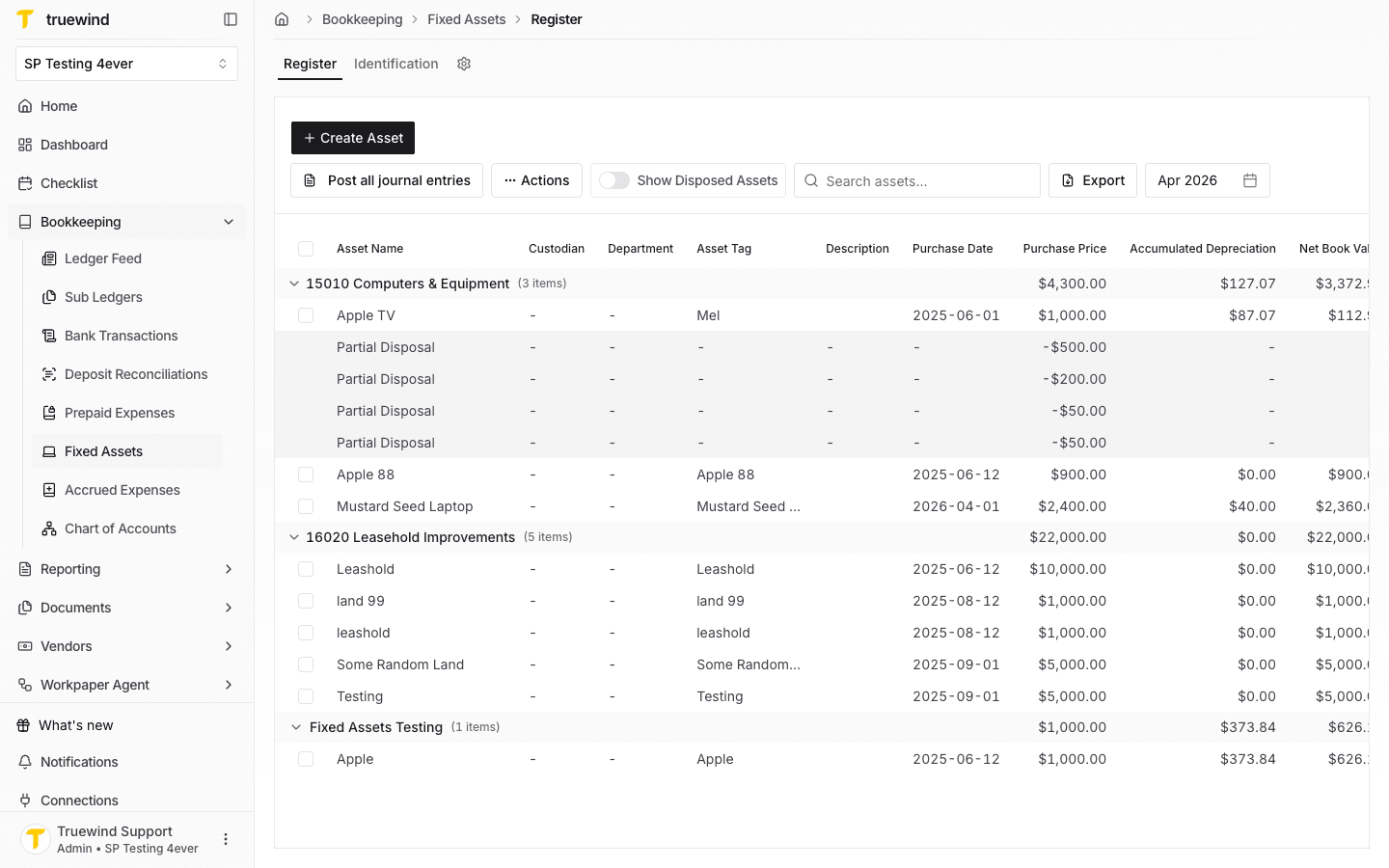
Open Fixed Assets

Use the highlighted control to continue through the workflow.

Screenshot showing Open Fixed Assets

Step 3

Review the transaction

Use the highlighted control to continue through the workflow.

Screenshot showing Review the transaction

Step 4

Check the one I just synced

Use the highlighted control to continue through the workflow.

Screenshot showing Check the one I just synced

Step 5

The status showing "Not Registered" meaning it's not depreciating yet

Confirm the page shows the expected result before continuing to the next step.

Screenshot showing The status showing "Not Registered" meaning it's not depreciating yet

Step 6

Select Register button

Use the highlighted control to continue through the workflow.

Screenshot showing Select Register button

Step 7

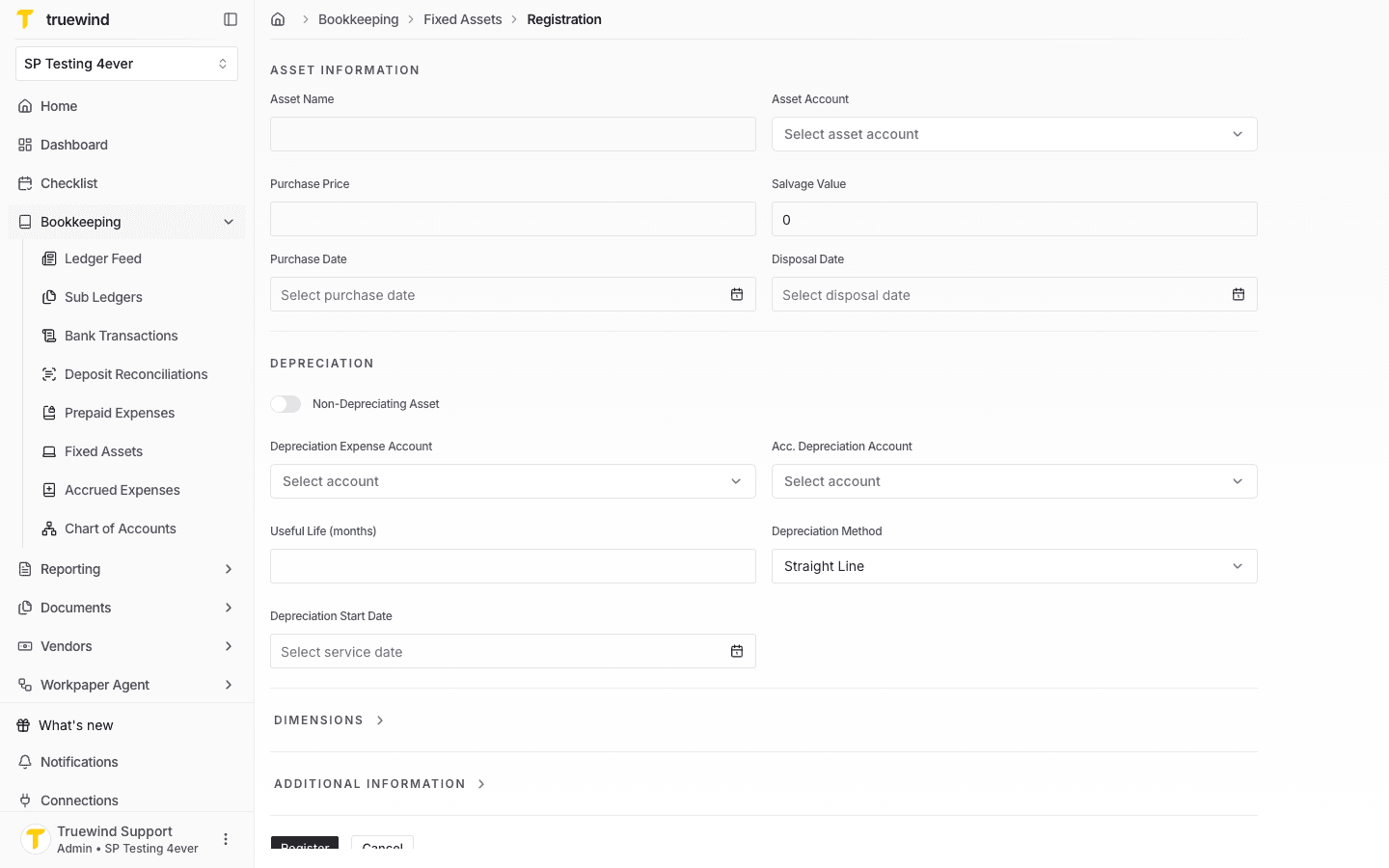
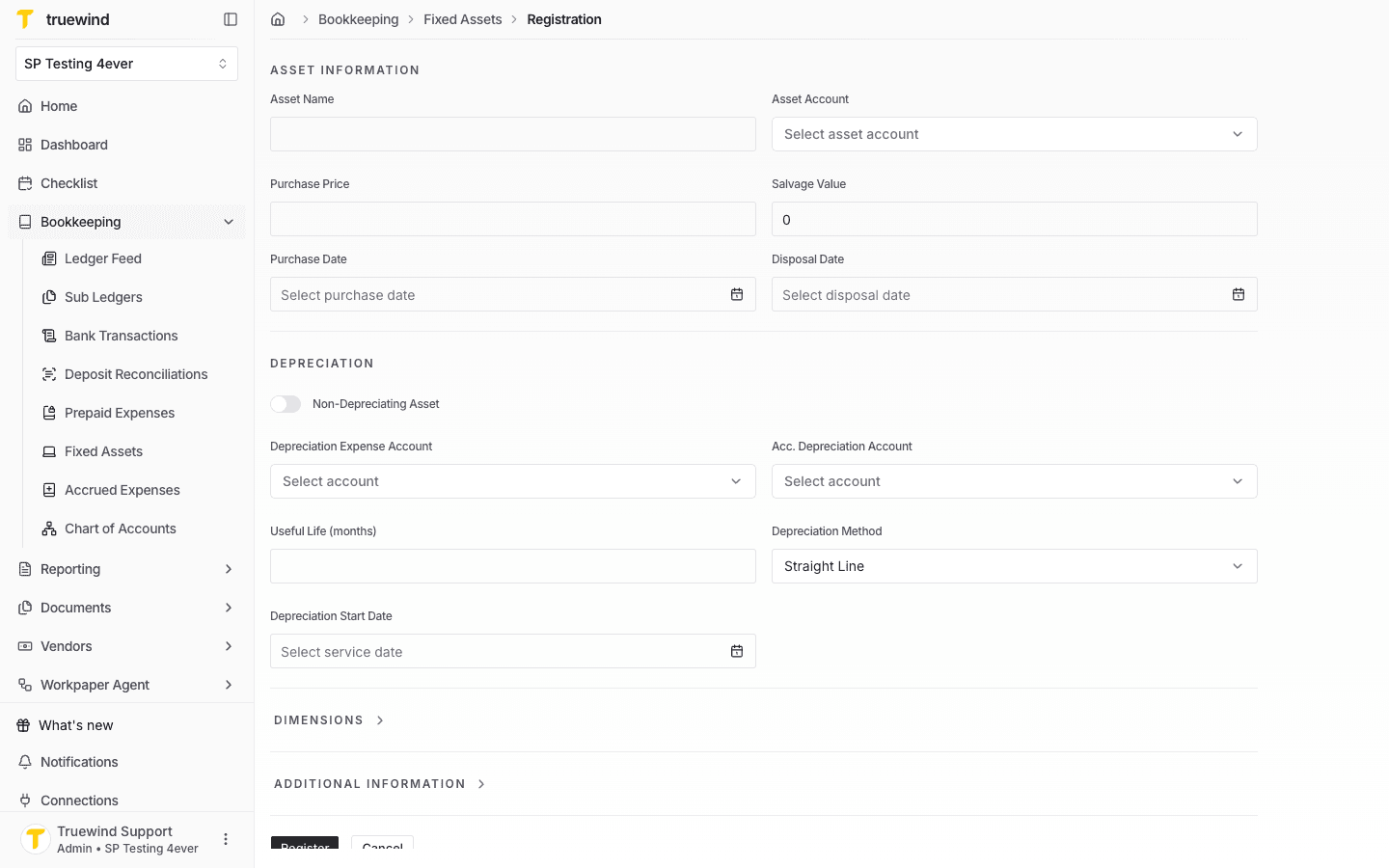
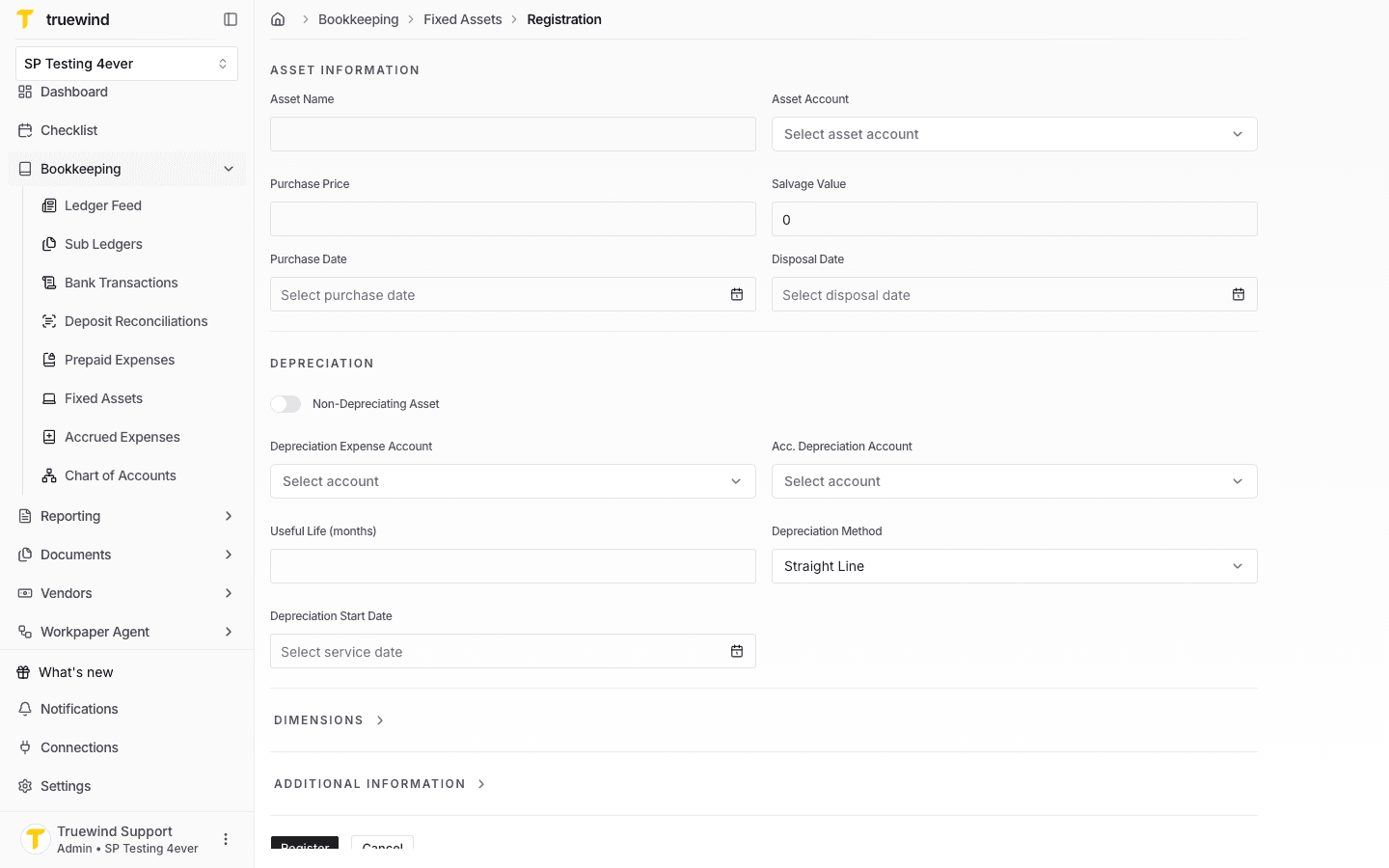
Review prefilled registration details

Enter the required values carefully so the schedule and journal-entry details calculate correctly.

Screenshot showing Review prefilled registration details

Step 8

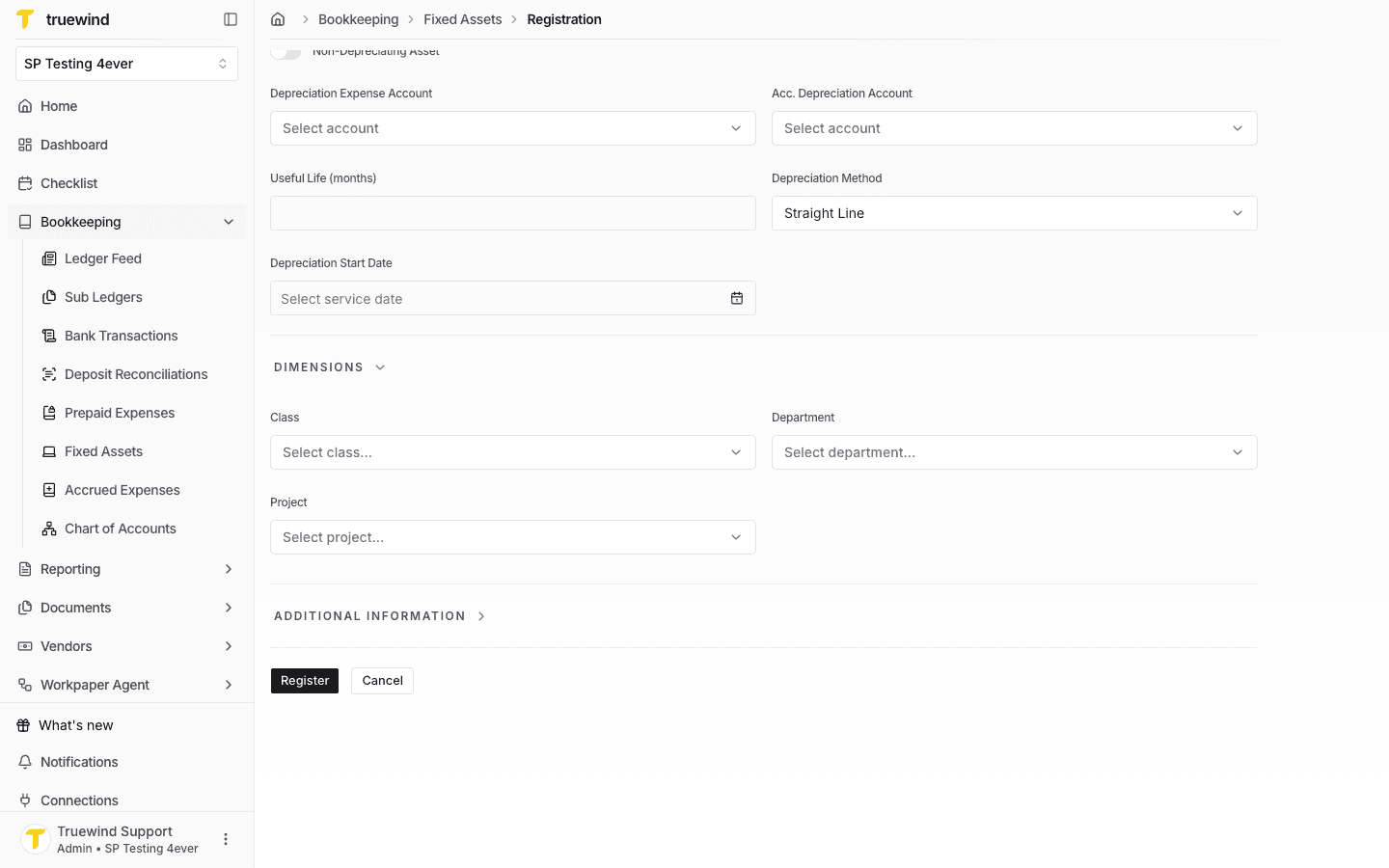
Confirm depreciation account defaults

Confirm the page shows the expected result before continuing to the next step.

Screenshot showing Confirm depreciation account defaults

Step 9

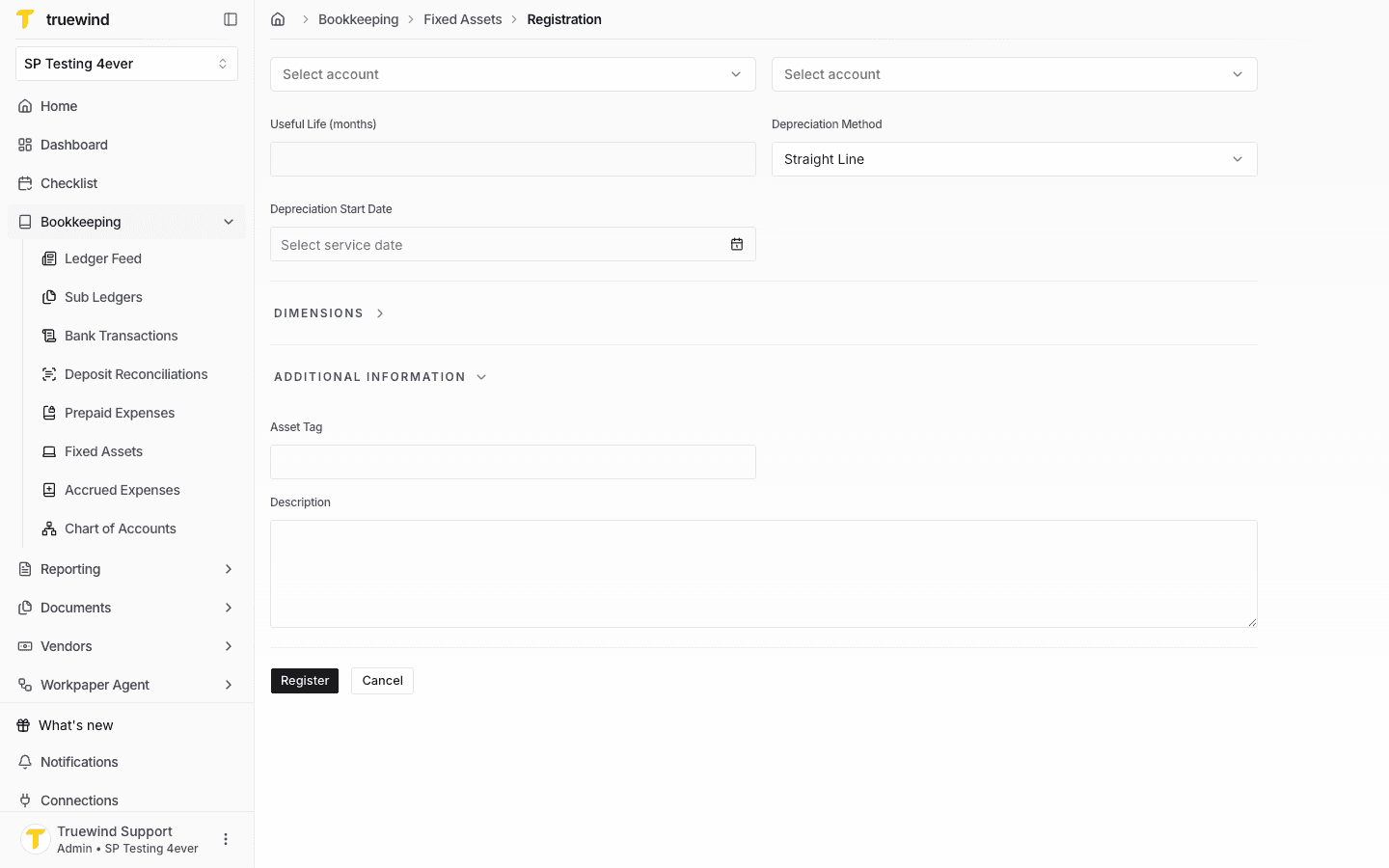
Select Description

Use the highlighted control to continue through the workflow.

Screenshot showing Select Description

Step 10

Select Depreciation Settings

Use the highlighted control to continue through the workflow.

Screenshot showing Select Depreciation Settings

Step 11

Open Register

Use the highlighted control to continue through the workflow.

Screenshot showing Open Register

Step 12

Select Asset registered successfully and depreciation schedule created

Confirm the page shows the expected result before continuing to the next step.

Screenshot showing Select Asset registered successfully and depreciation schedule created

Step 13

Open Register

Use the highlighted control to continue through the workflow.

Screenshot showing Open Register

Step 14

All registered depreciation schedule are showing here

Use the highlighted control to continue through the workflow.

Screenshot showing All registered depreciation schedule are showing here

Step 15

Select Assign to assign the custodian

Use the highlighted control to continue through the workflow.

Screenshot showing Select Assign to assign the custodian

Step 16

Enter Custodian info

Enter the required values carefully so the schedule and journal-entry details calculate correctly.

Screenshot showing Enter Custodian info

Step 17

Enter "G&A"

Enter the required values carefully so the schedule and journal-entry details calculate correctly.

Screenshot showing Enter "G&A"

Step 18

Enter "CA"

Enter the required values carefully so the schedule and journal-entry details calculate correctly.

Screenshot showing Enter "CA"

Step 19

Select ASSIGN

Use the highlighted control to continue through the workflow.

Screenshot showing Select ASSIGN

Step 20

Select Fixed Asset assigned successfully

Confirm the page shows the expected result before continuing to the next step.

Screenshot showing Select Fixed Asset assigned successfully

What to verify

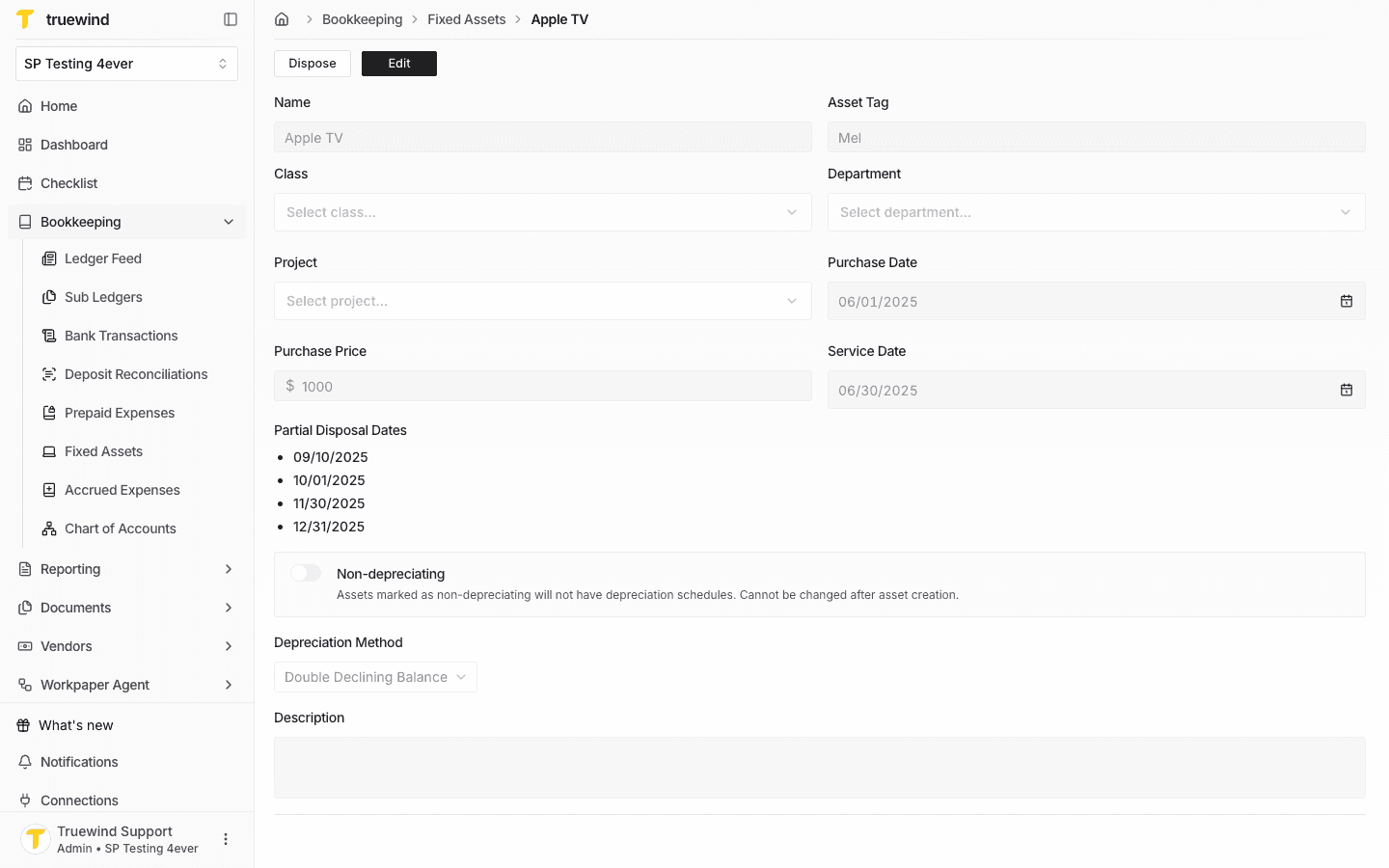
Review the asset account, depreciation method, useful life, and assigned custodian before you rely on the schedule.

Was this helpful?

Need more help?

Ask for human help about this article and provide any feedback.