Ask the support agent

Just ask a direct question or search related articles from the Knowledge Base.

Support Center / Onboarding / Create accounts

Create a top-level organization for accounting firm

Create an accounting firm organization account from the Admin Panel when you need a new firm workspace with initial user access, resulting in a firm you can open in Truewind and start adding clients under.

Workflow

Step 1

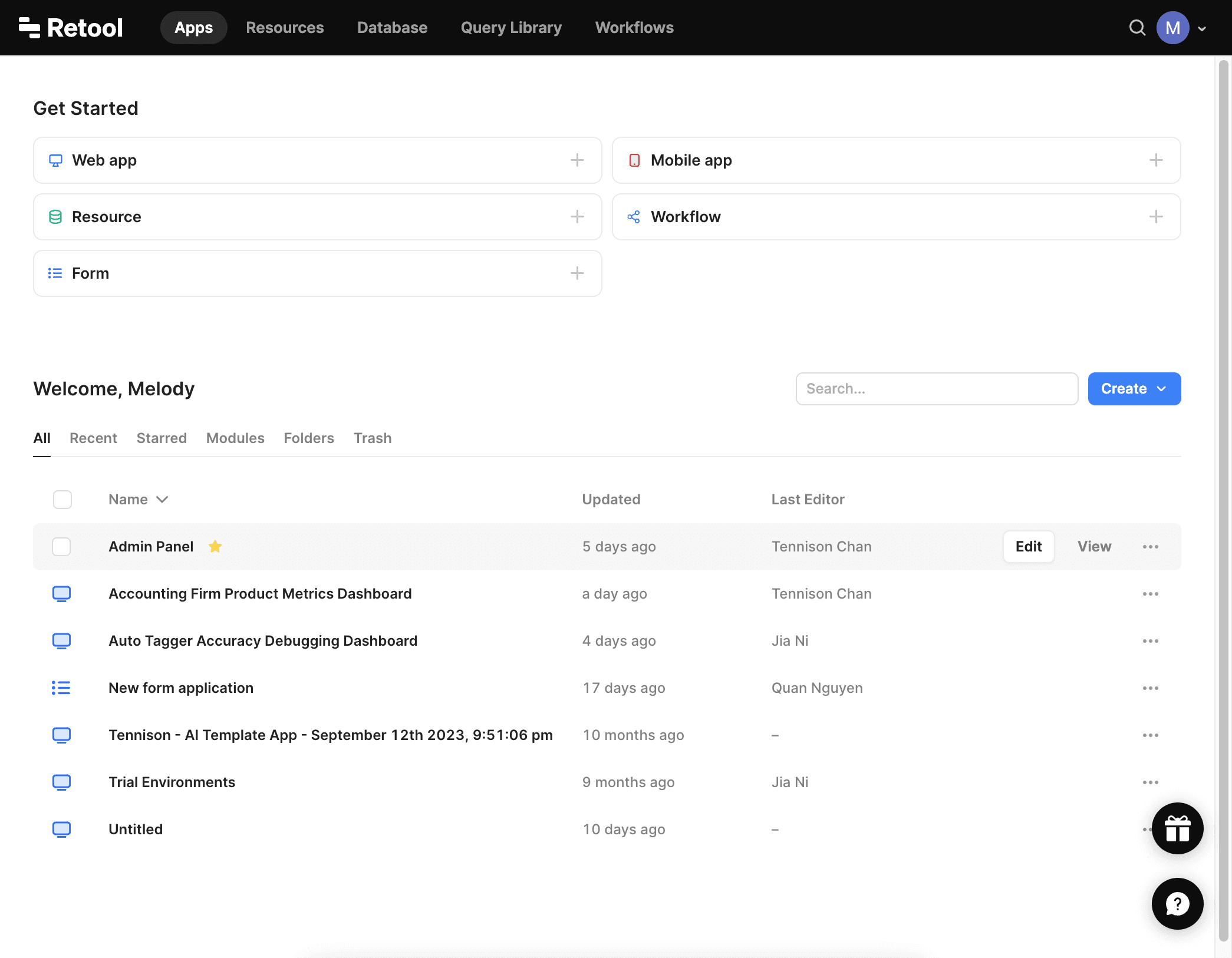
Open the Admin Panel

Starting in Retool, open the Admin Panel so the accounting firm record and user access are ready for onboarding.

Screenshot showing Log in to Retool. Click on Admin Panel

Step 2

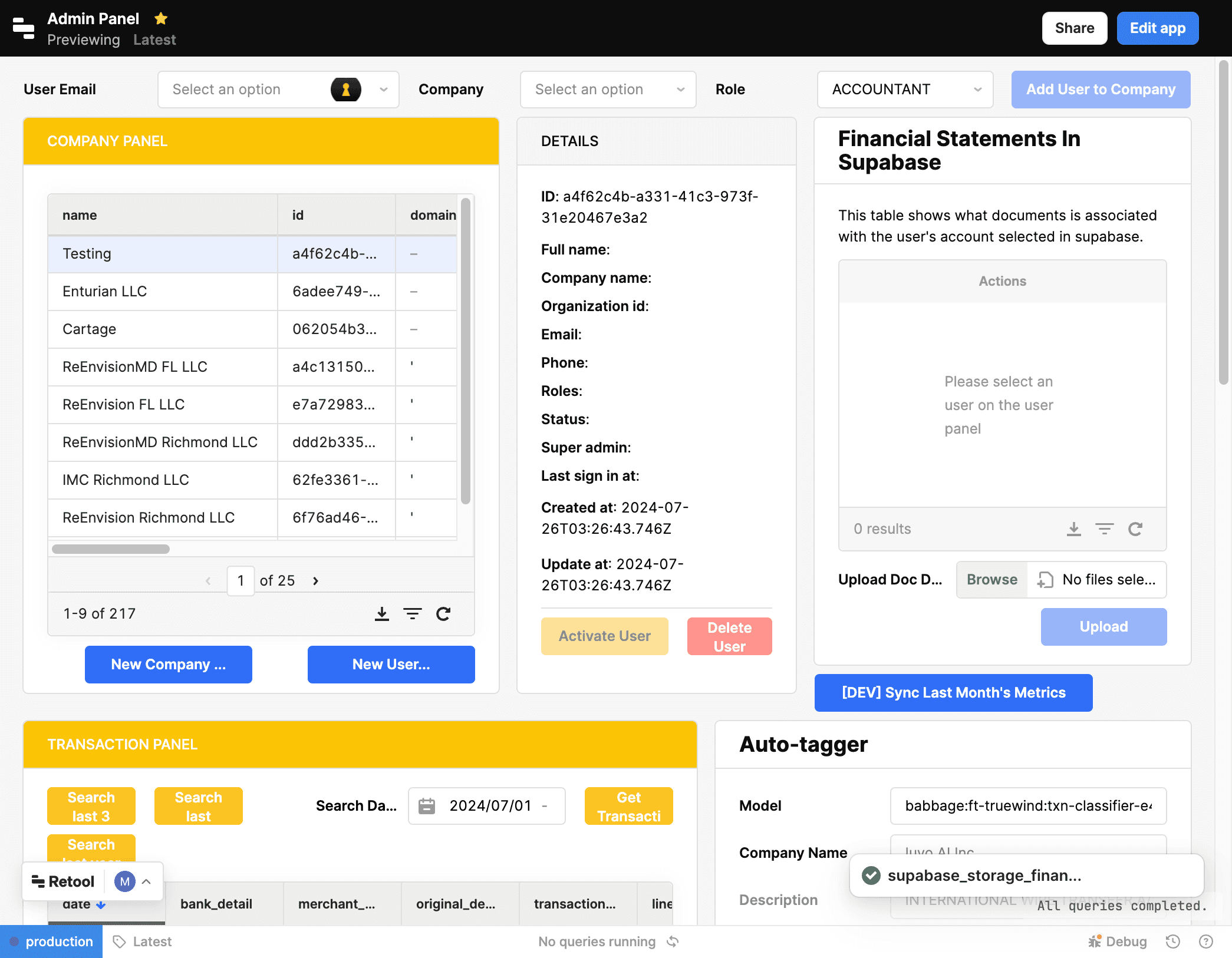
Create a new company

Start a new company record inside the Admin Panel before you configure roles and assignments.

Screenshot showing Click New Company

Step 3

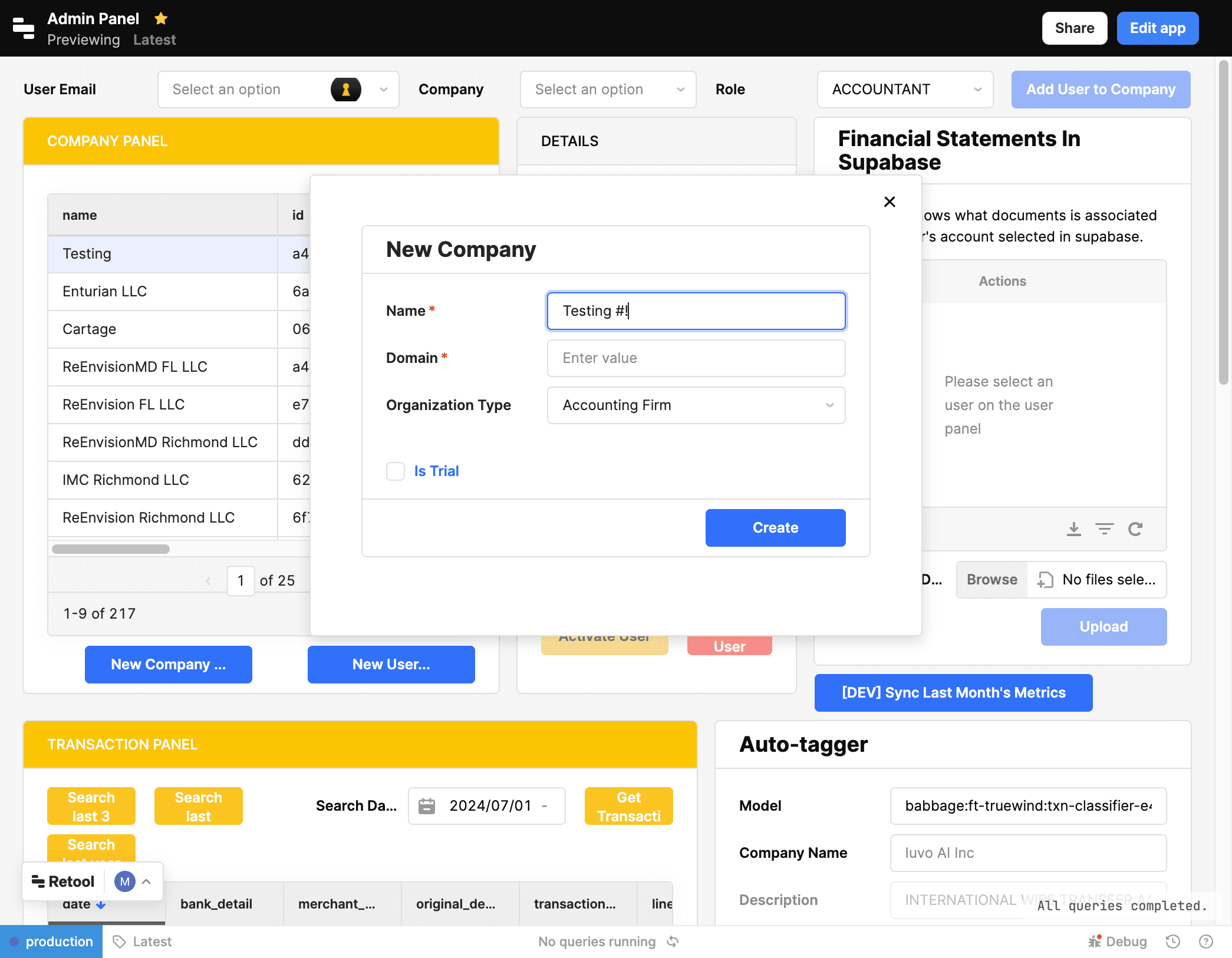
Enter company name

Type company name.

Screenshot showing Enter company name

Step 4

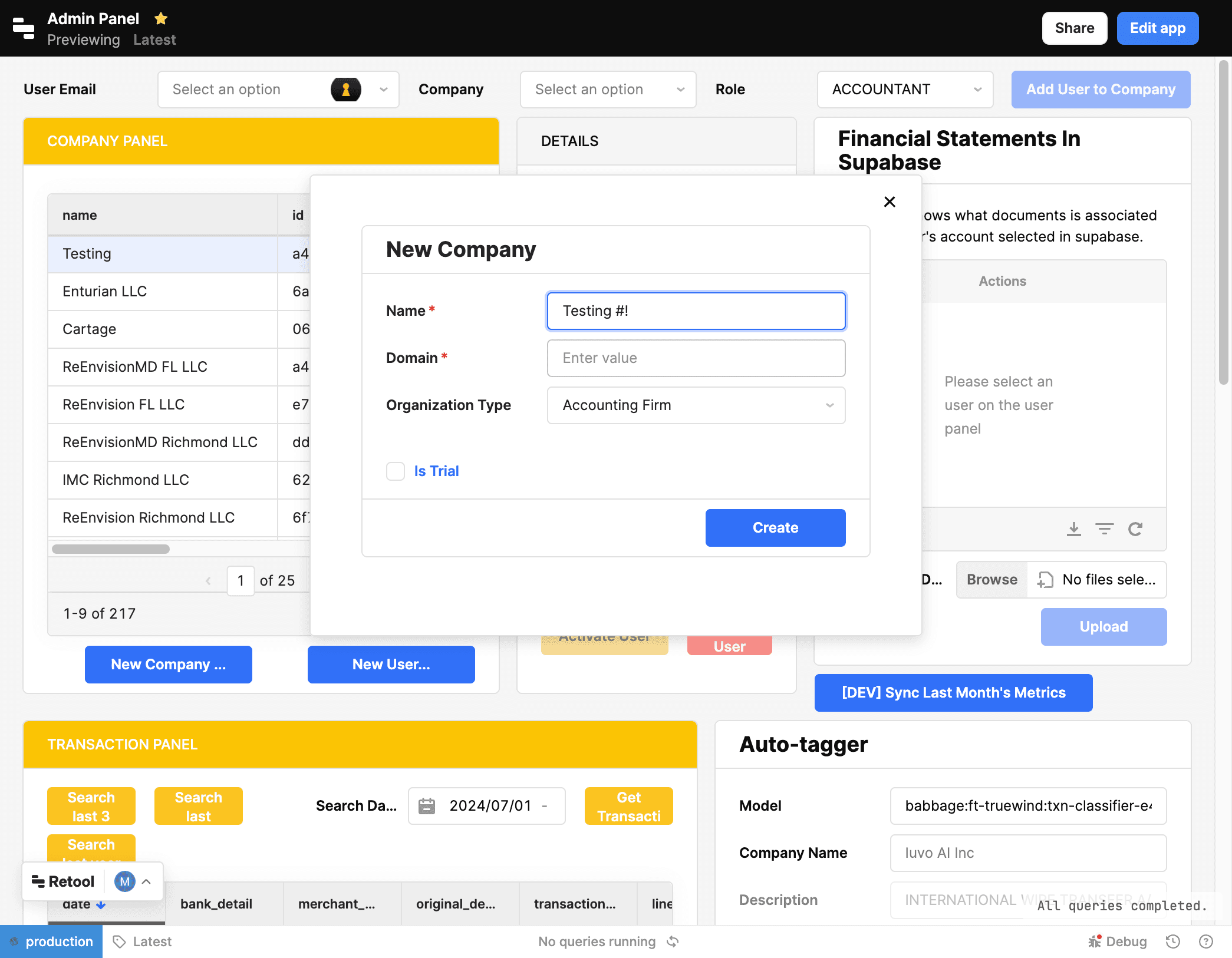
Enter Domain

Type Domain.

Screenshot showing Enter Domain

Step 5

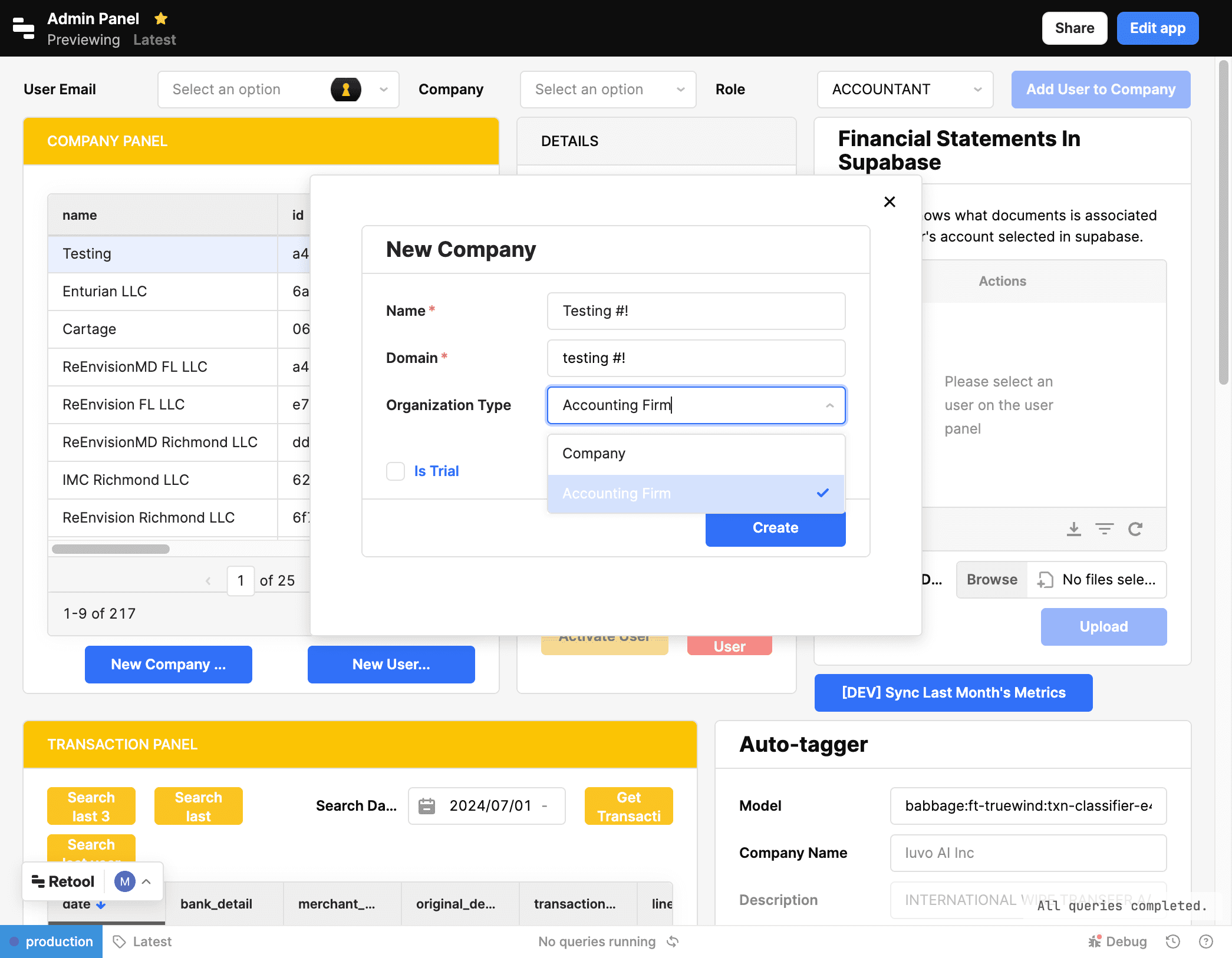
Choose the organization type

Pick the option that matches the client setup; that choice controls what happens next so the accounting firm record and user access are ready for onboarding.

Screenshot showing Choose Organization Type

Step 6

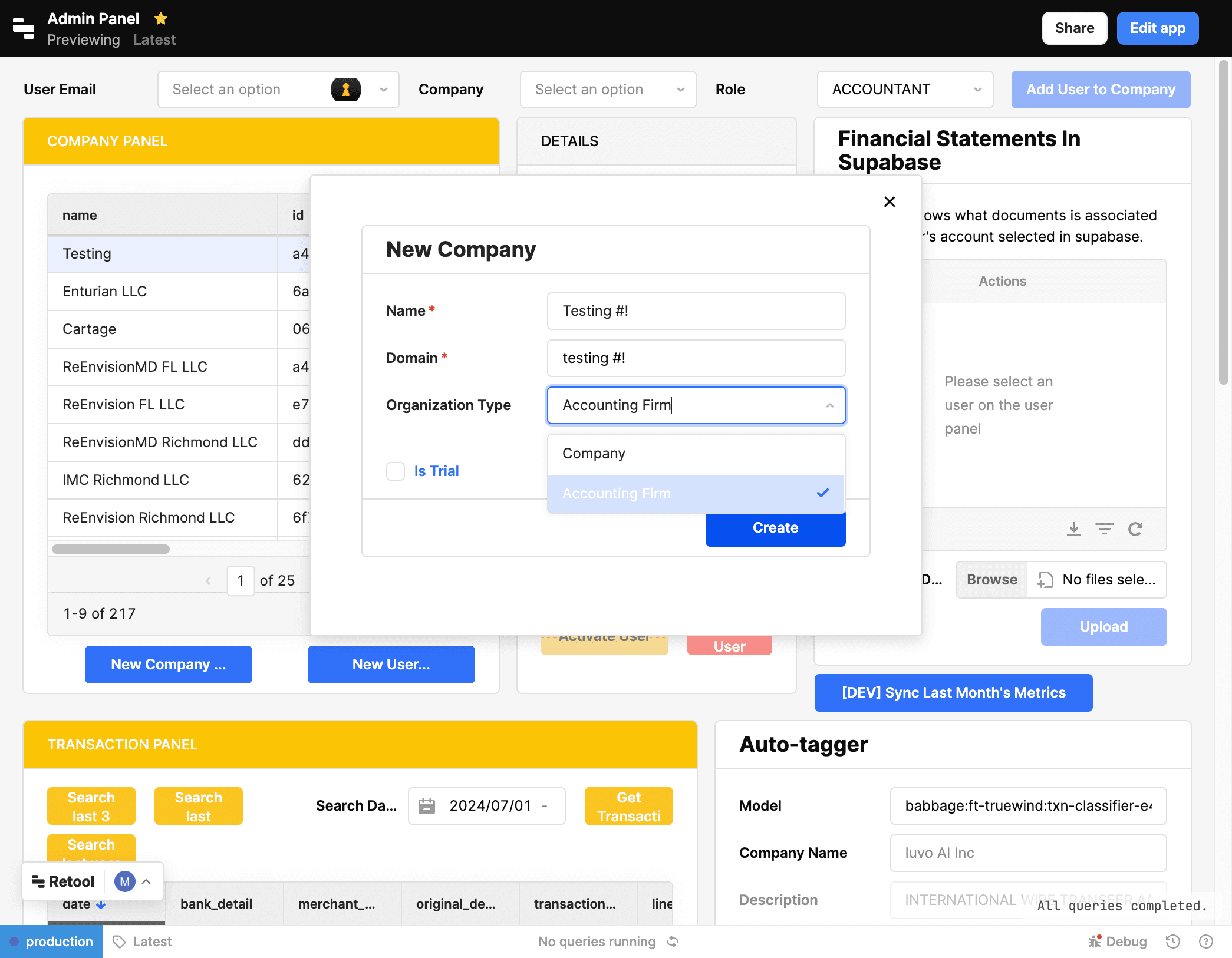
Create the record

Save the company after the organization details and type are set correctly.

Screenshot showing Click Create

Step 7

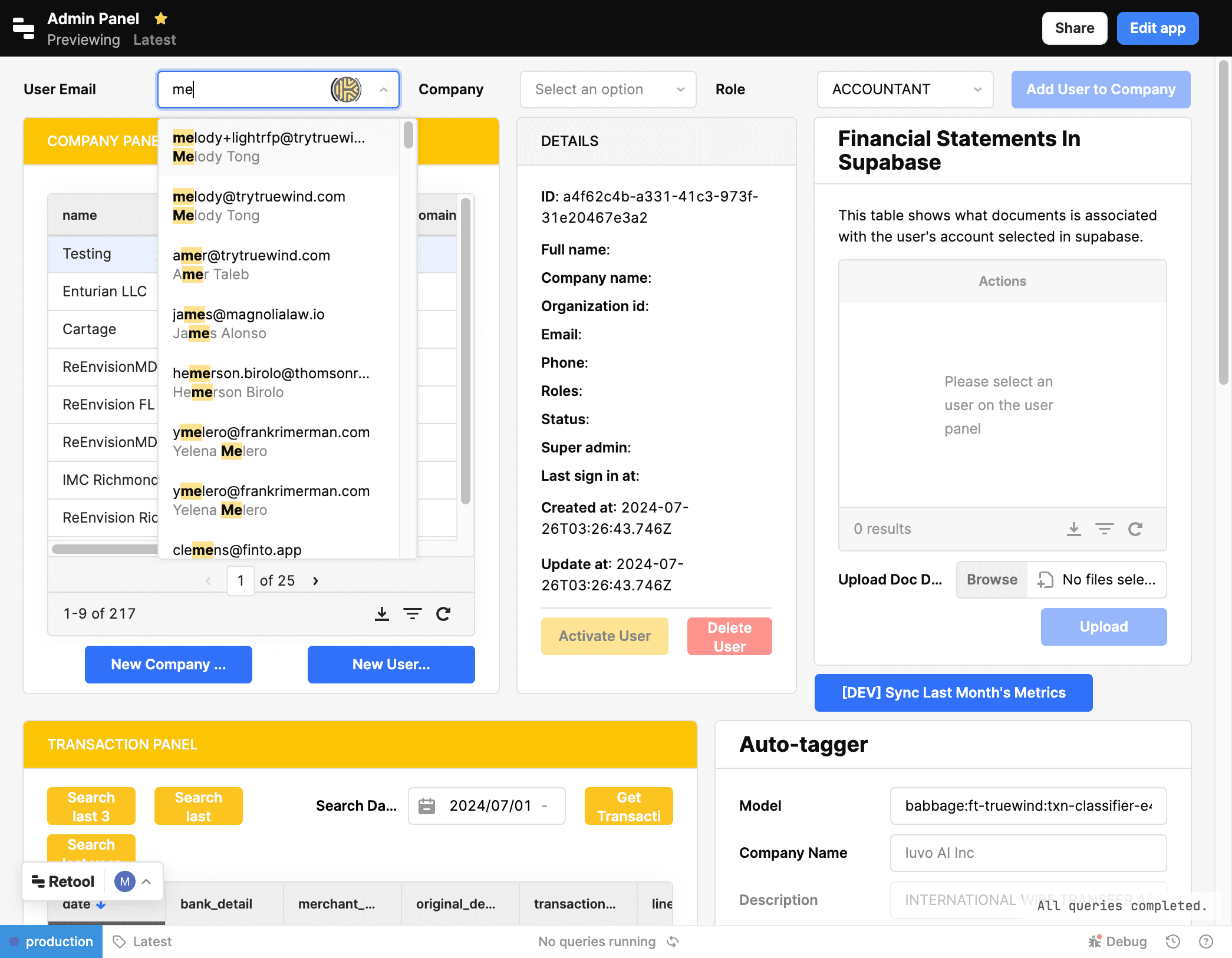
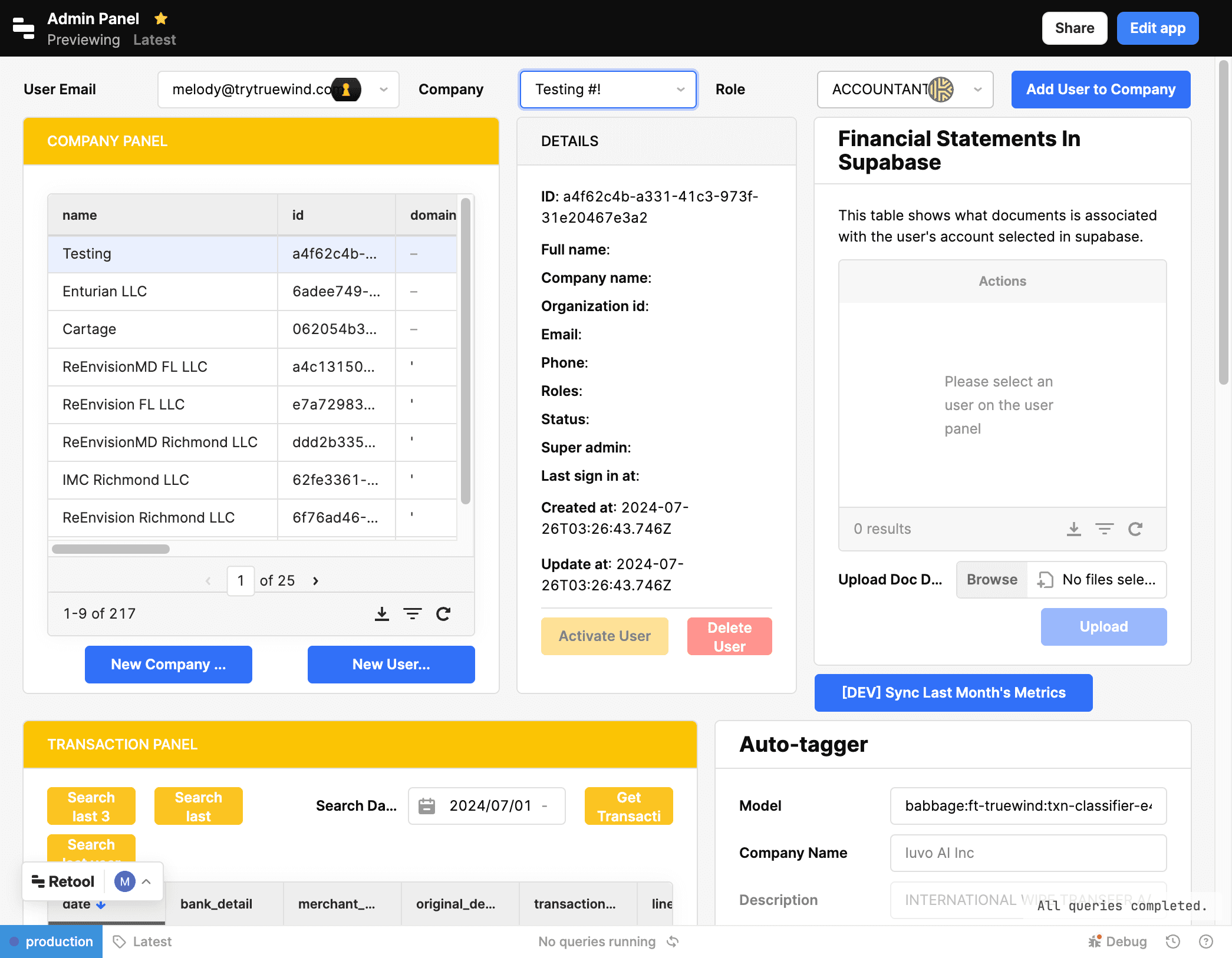
Add the user email

Complete this action so the accounting firm record and user access are ready for onboarding.

Screenshot showing Add user by selecting email

Step 8

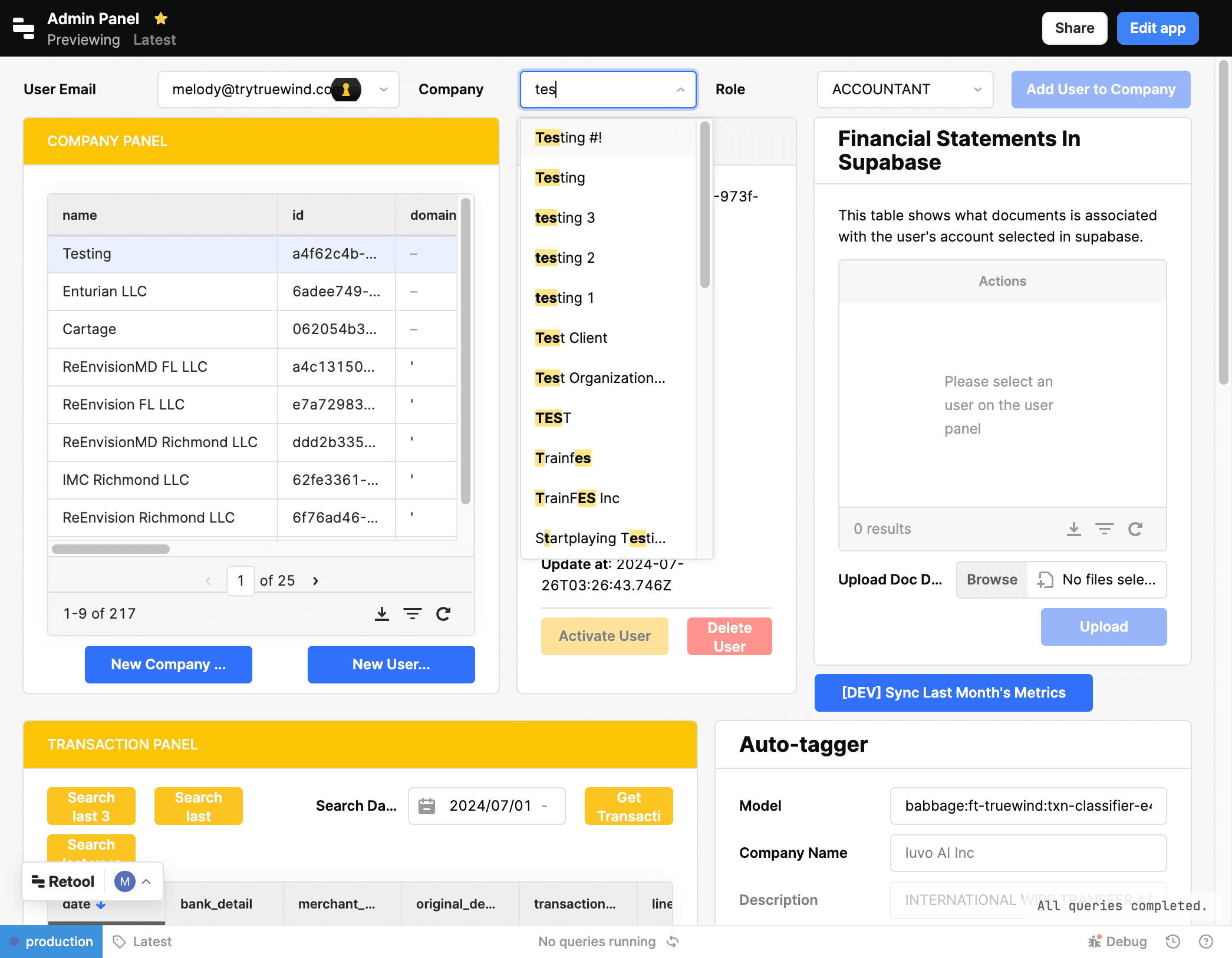
Choose the company

Pick the option that matches the client setup; that choice controls what happens next so the accounting firm record and user access are ready for onboarding.

Screenshot showing Select the company

Step 9

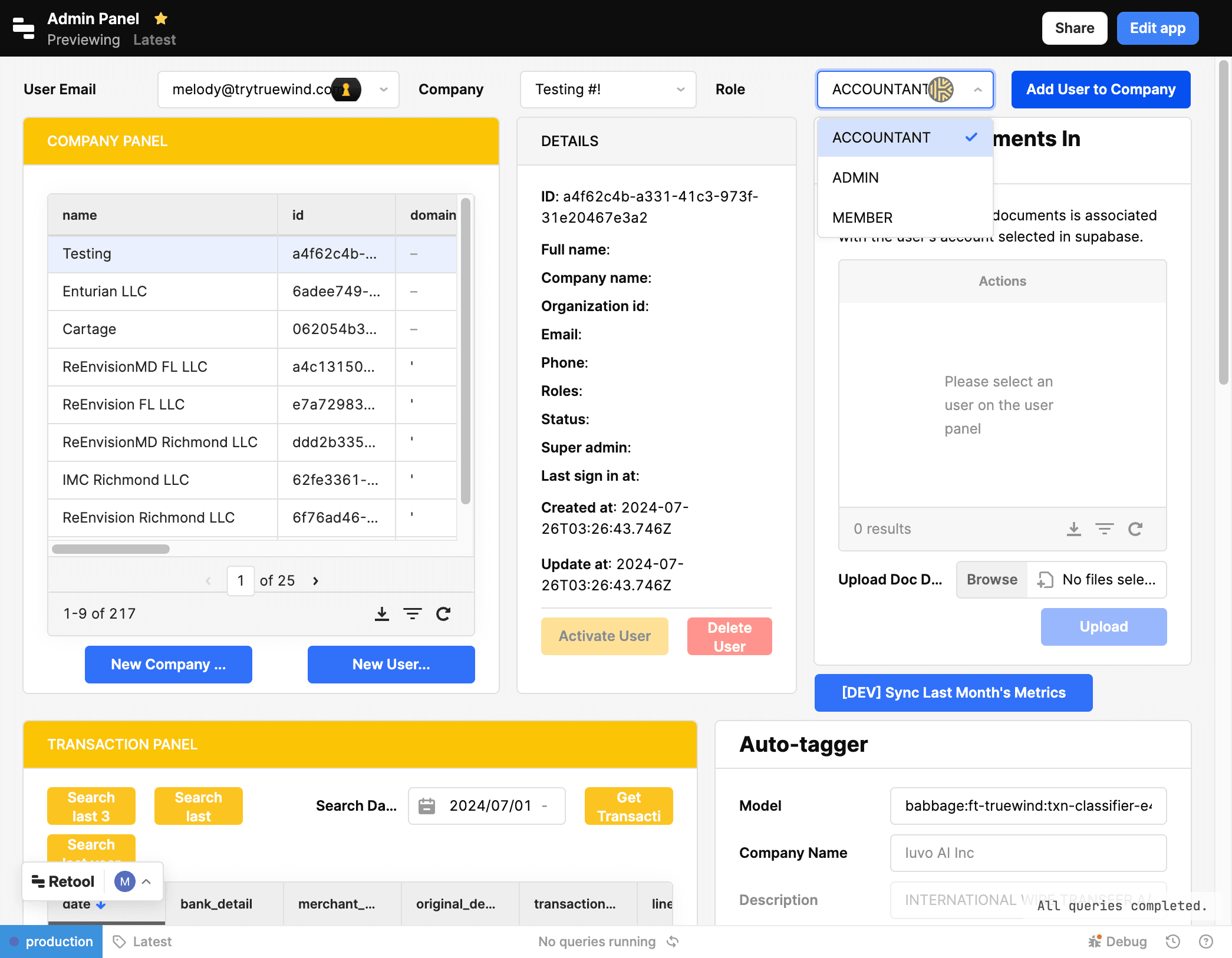
Choose the role

Pick the option that matches the client setup; that choice controls what happens next so the accounting firm record and user access are ready for onboarding.

Screenshot showing Select Role

Step 10

Add a user to the company

Assign the user immediately so the new company is accessible to the right team member.

Screenshot showing Click Add User to Company

Step 11

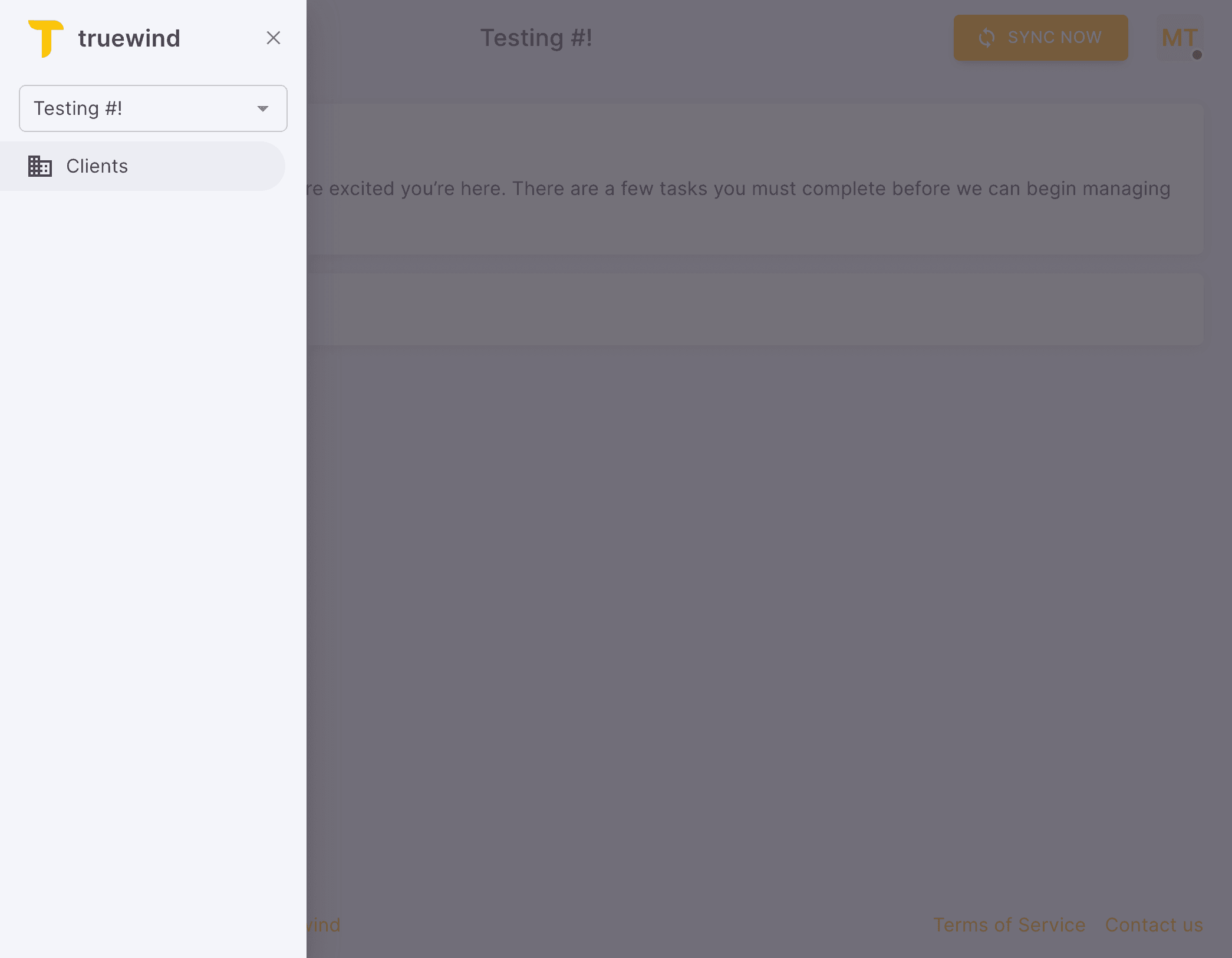
Open the side menu

Return to Truewind and use the navigation menu to move into the accounting firm workspace.

Screenshot showing Open Truewind. Click on side menu

Step 12

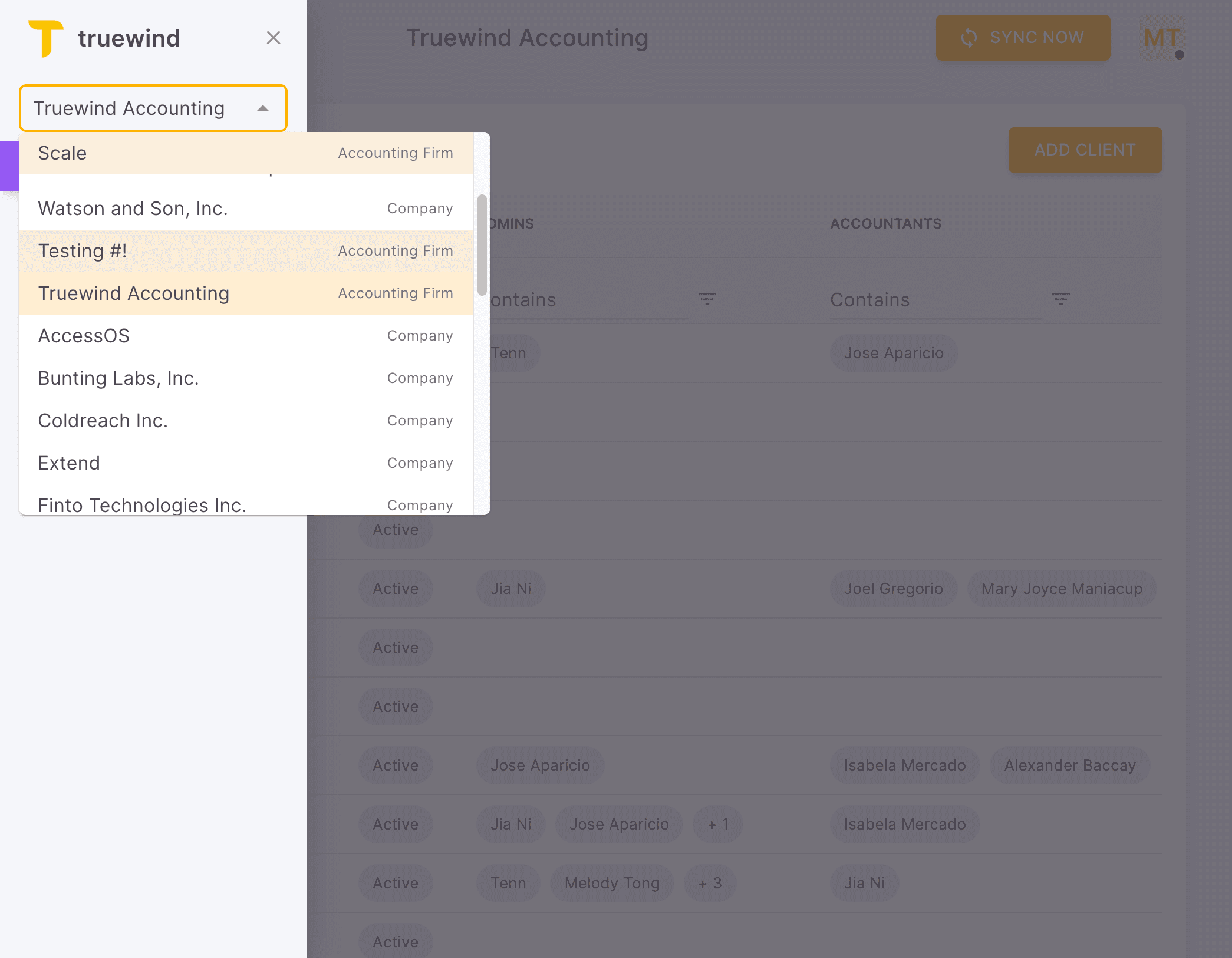
Choose the accounting firm

Pick the option that matches the client setup; that choice controls what happens next so the accounting firm record and user access are ready for onboarding.

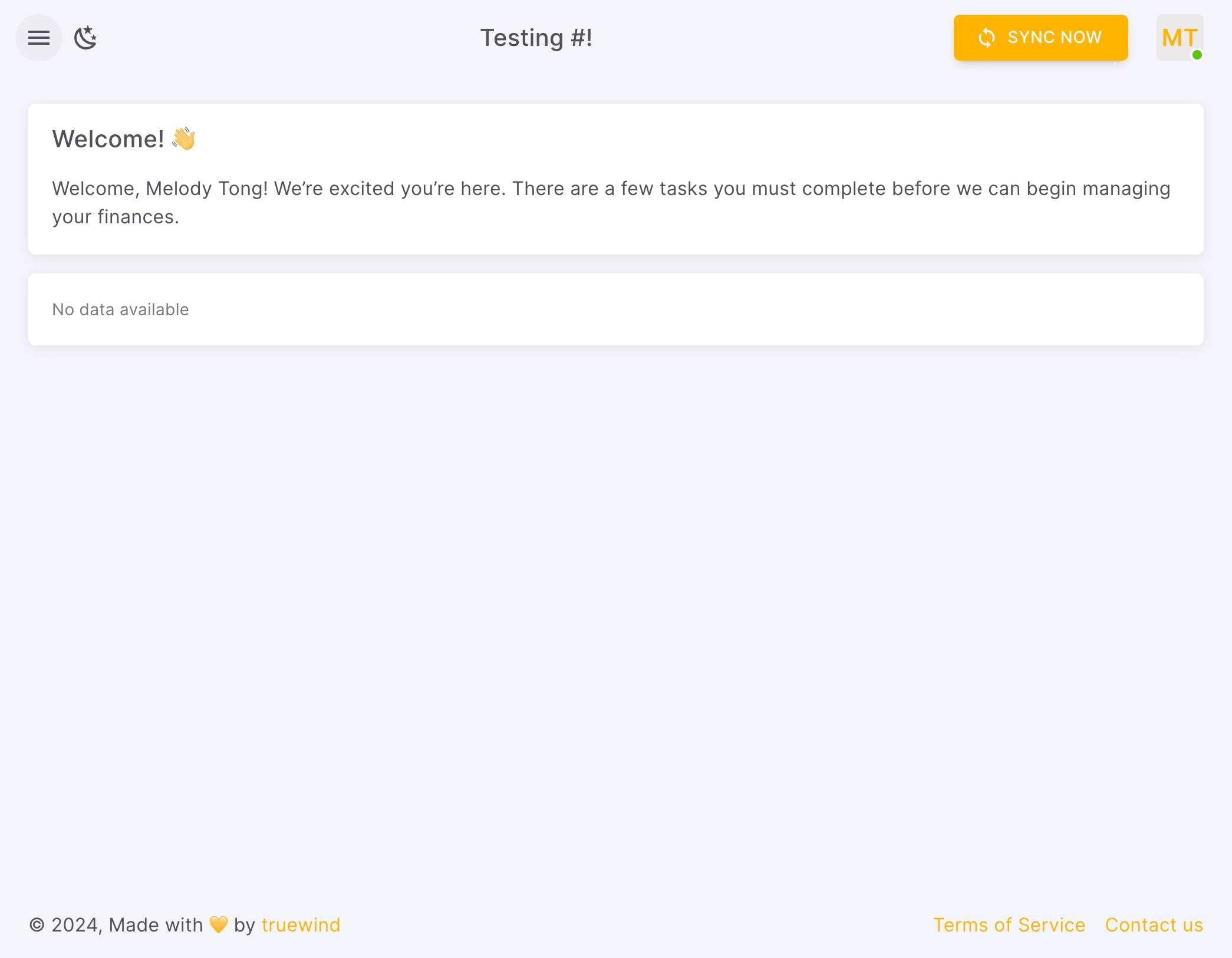
Screenshot showing Select Accounting Firm "Testing#!"

Step 13

Open the firm menu

This opens the relevant page or panel so the accounting firm record and user access are ready for onboarding.

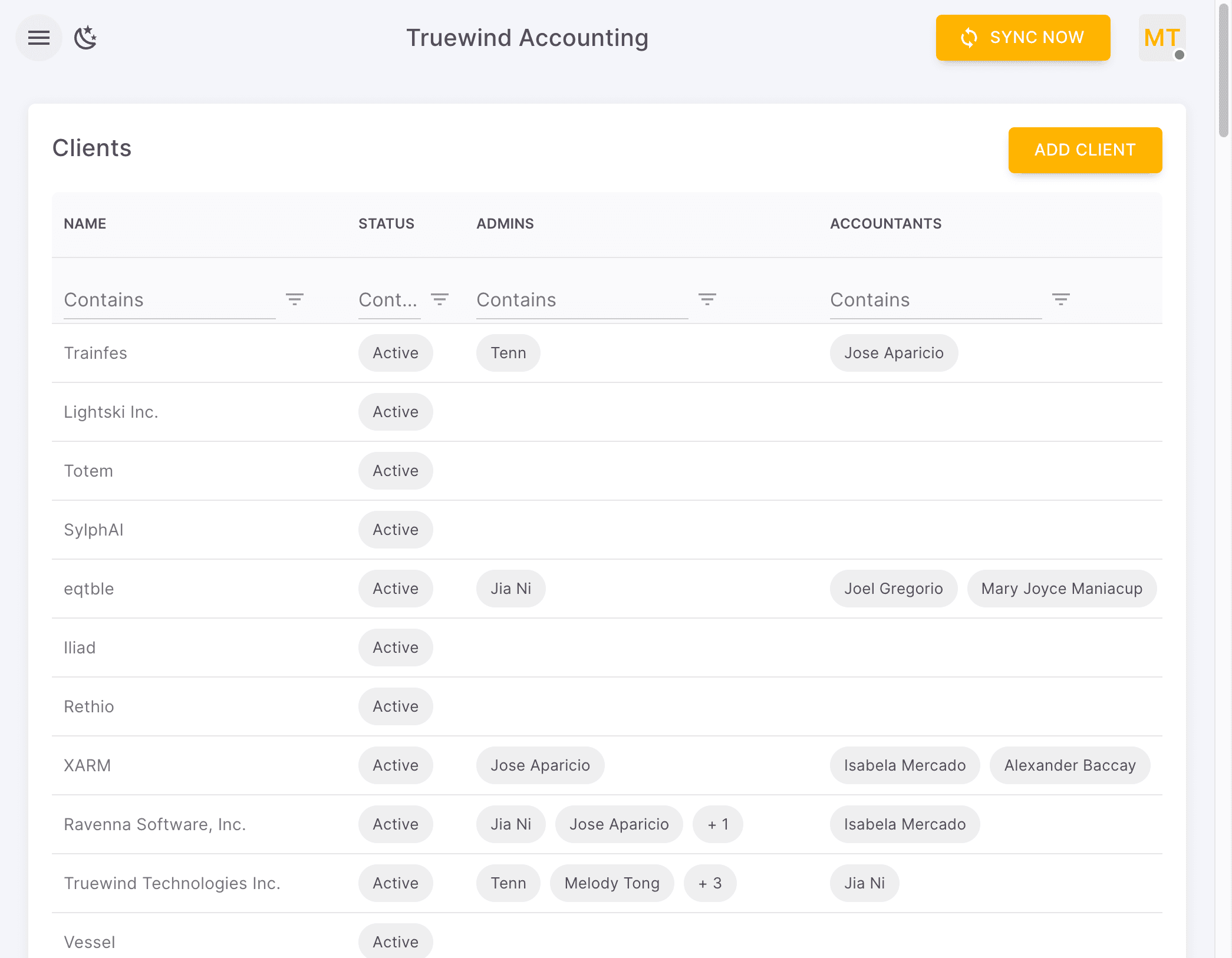
Screenshot showing Here's the main page of Accounting Firm "Testing#!". Click on side menu

Step 14

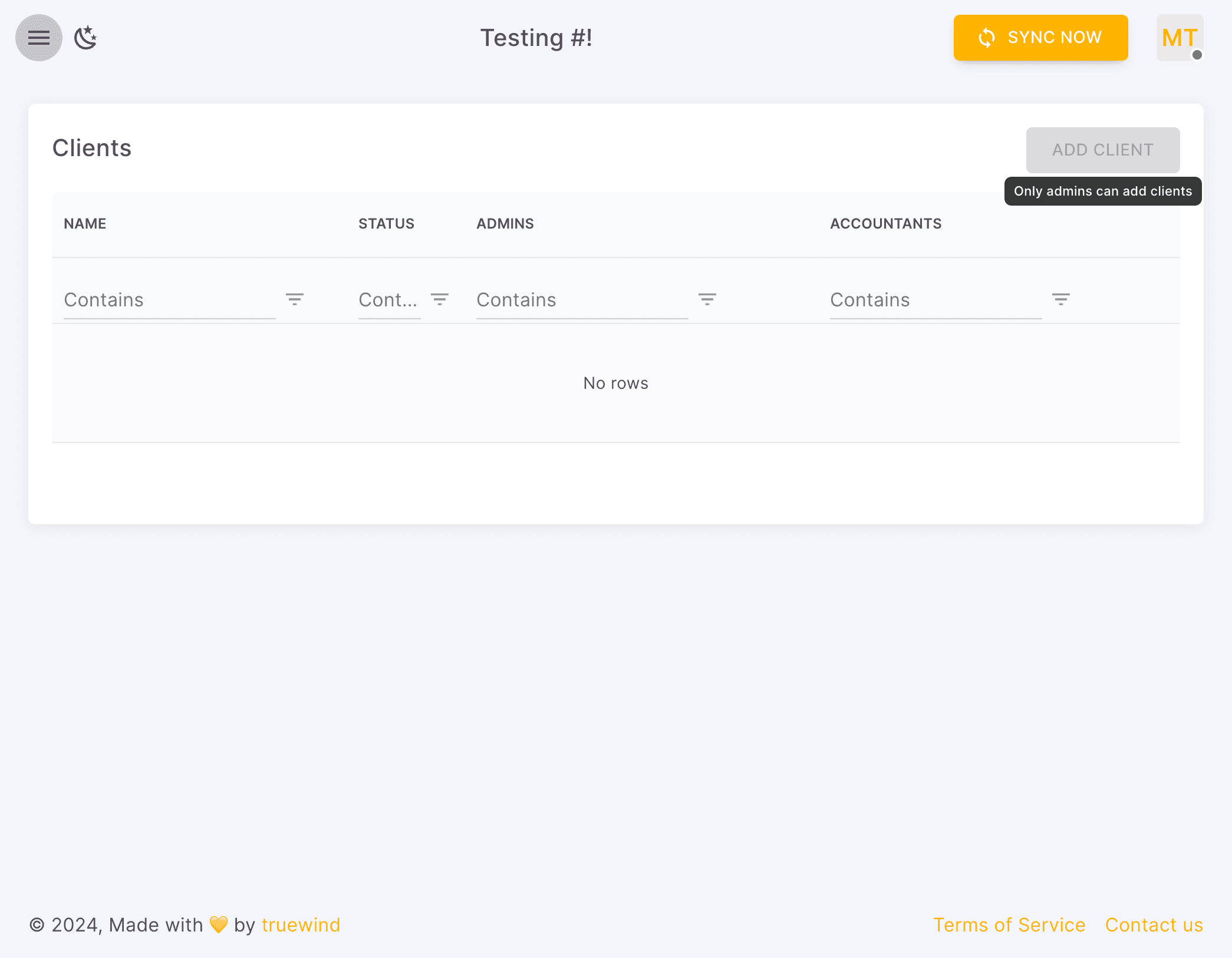
Open Clients

Use the client list to verify the new firm context or add the related client record from the right workspace.

Screenshot showing Click Clients

Step 15

Add a client

Only admins can create clients from this screen, so verify your access before you continue.

Screenshot showing Click ADD CLIENT. * Note: only admin can add clients

What to verify after creation

  • The success toast appears.
  • The Firm created alert shows the expected firm name.
  • Your user was added to the new firm as an admin.

Important behavior

The current flow creates accounting firm organizations only. It is not the workflow for adding client companies under a firm.

FAQ

Can I create more than one firm at once?

No. The current Admin Panel creates one firm per submission.

Limitations

This page is heavily restricted

Only the configured firm-admin workspace can access the Admin Panel and create new firms.

Troubleshooting

I see Access denied instead of the form.

Confirm you are in the configured accounting firm admin workspace and that your membership has firm-admin access.

Was this helpful?

Need more help?

Ask for human help about this article and provide any feedback.