
Ask the support agent

Just ask a direct question or search related articles from the Knowledge Base.

Support Center / Onboarding / Invite members

Bulk assign users to client accounts

Assign one firm member across multiple active client accounts when staffing or access needs to change, resulting in that member holding the selected client permission level across the chosen clients.

Workflow

Step 1

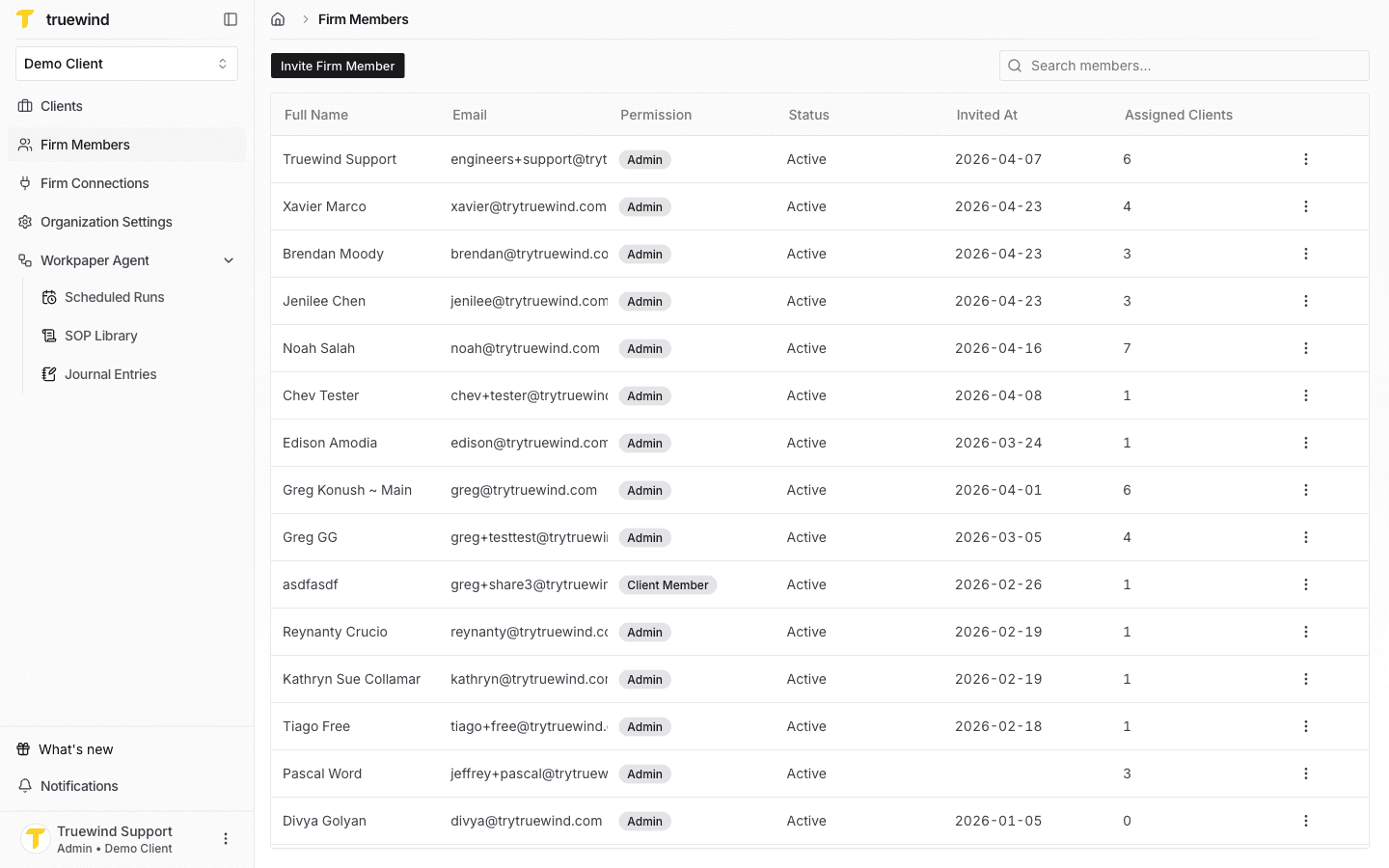
Open Firm Members

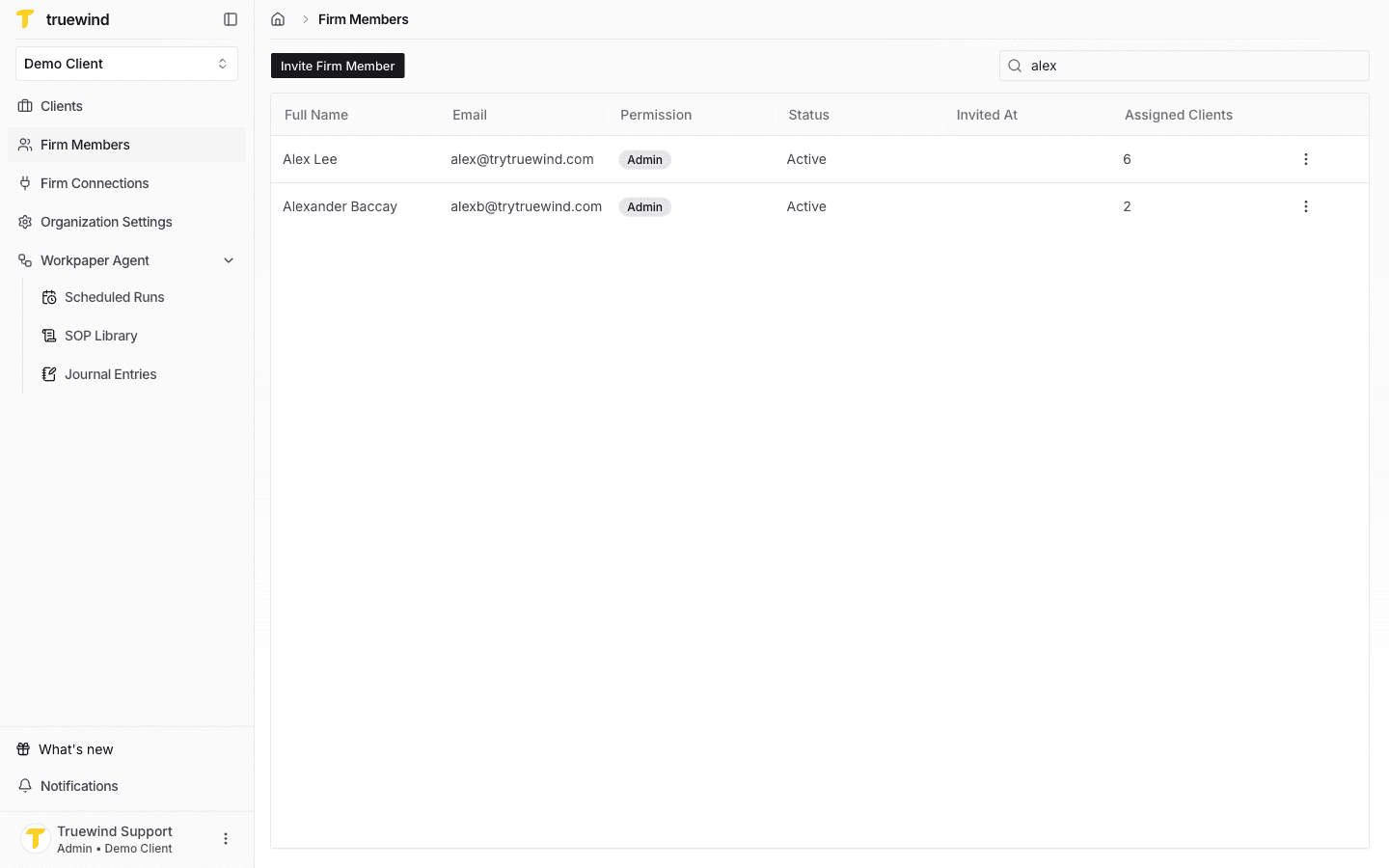
Start in Truewind on Members so the firm member table is visible.

Step 2

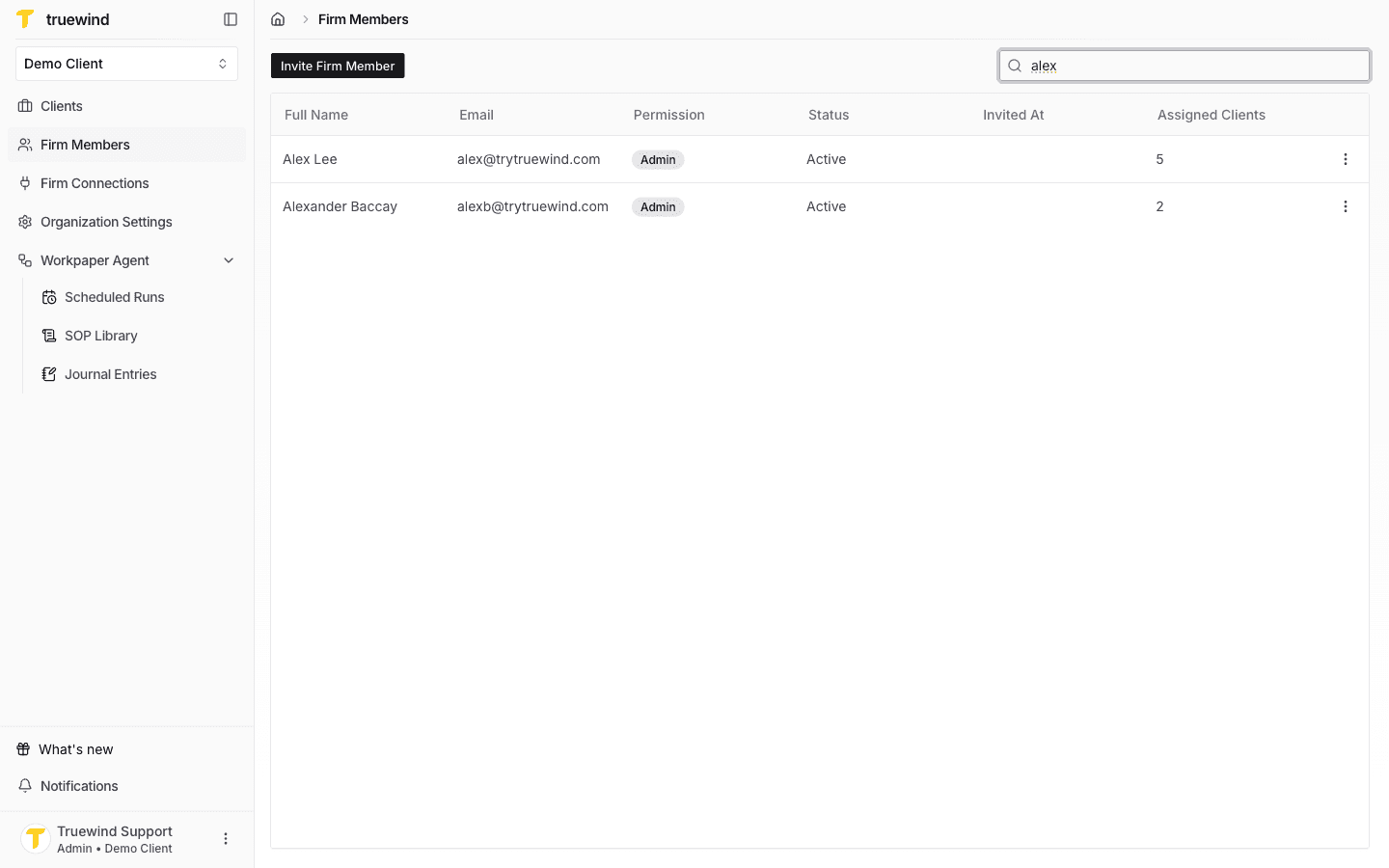
Find the member you want to assign

This uses the search field or the member table so you can locate the person whose client assignments you need to change.

Step 3

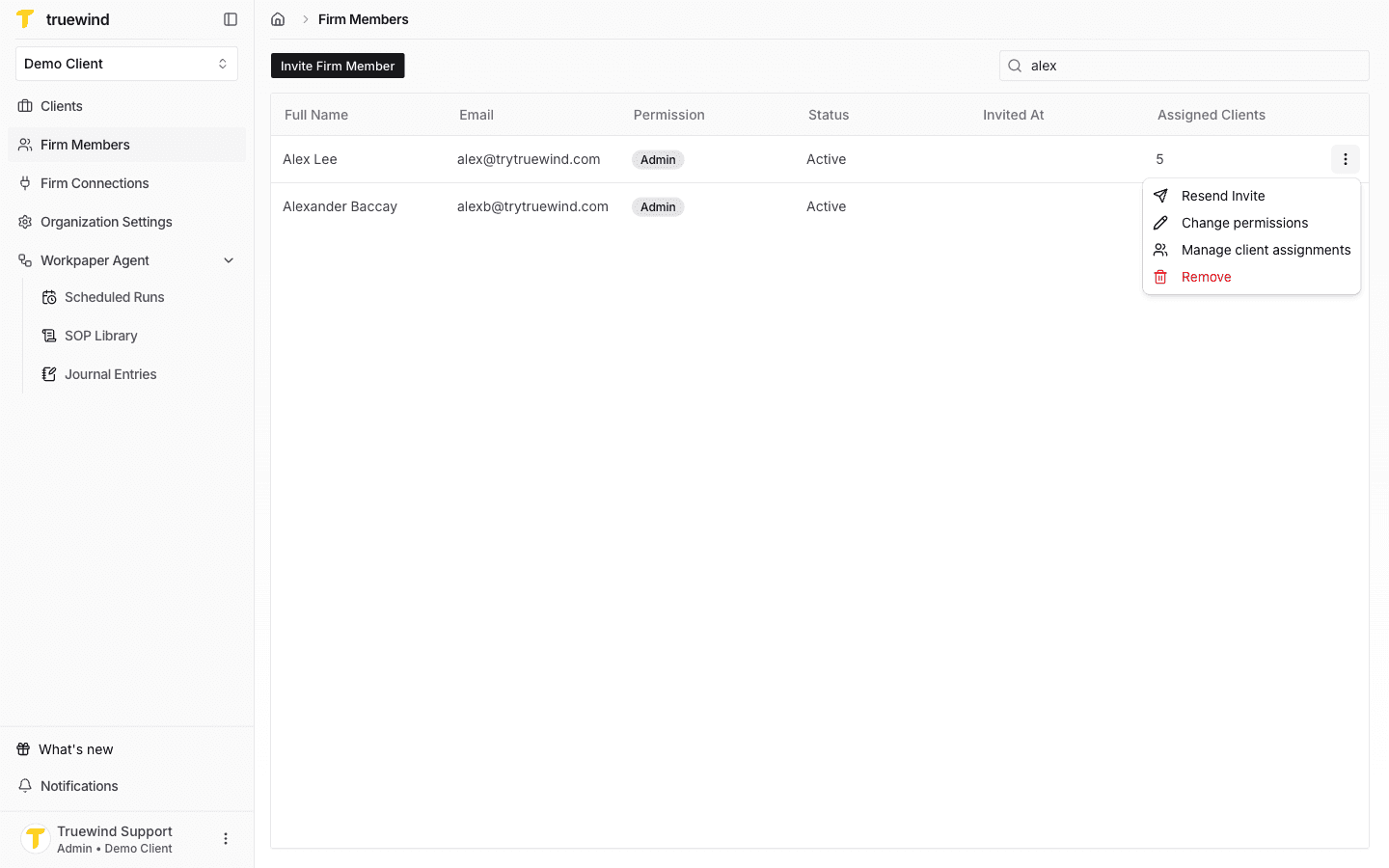
Open the member row menu

This takes you to the next page or panel so the workflow stays on the expected path.

Step 4

Choose Manage client assignments

This sets Manage client assignments from the row menu so you can open the bulk-assignment dialog for that member.

Step 5

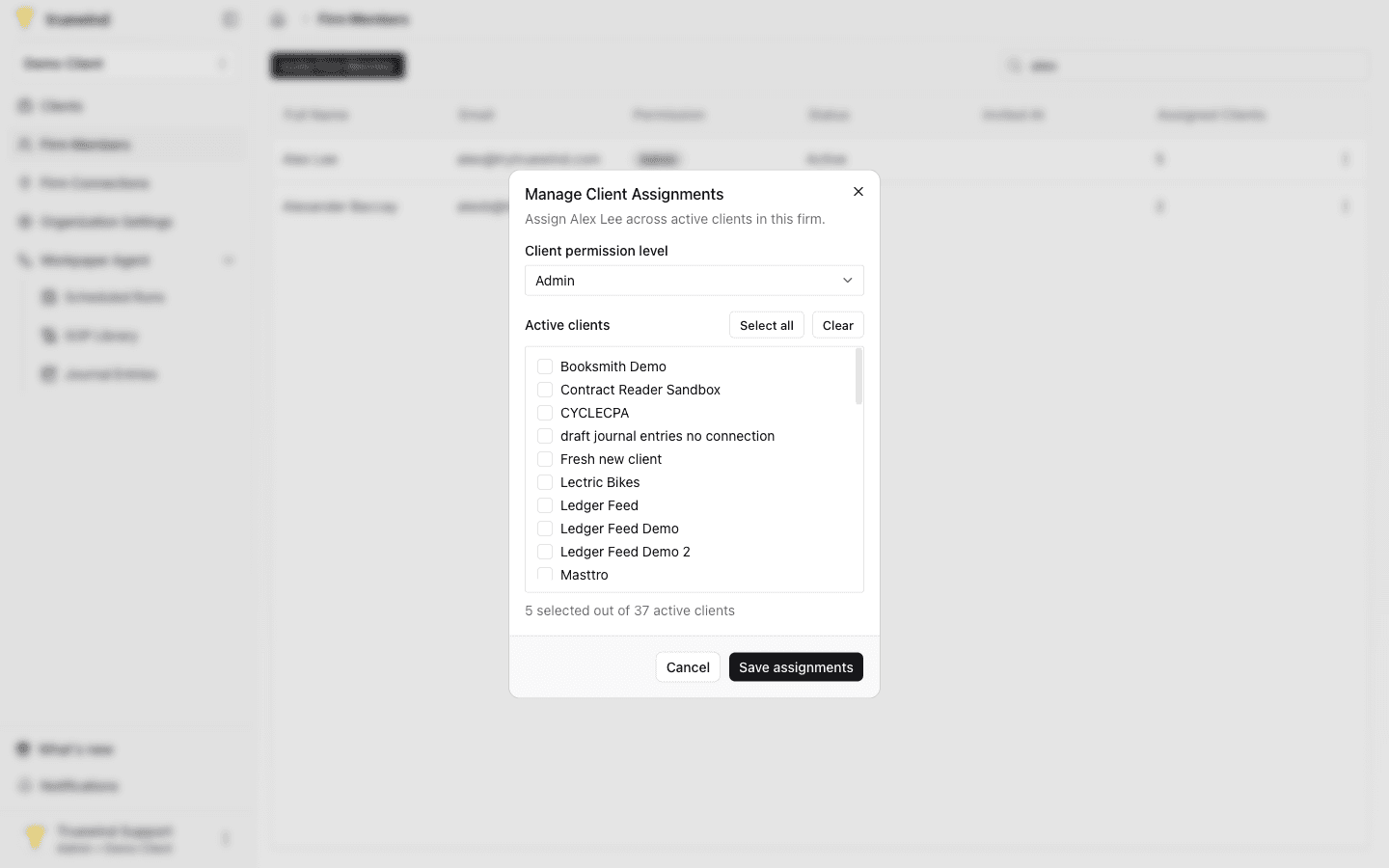
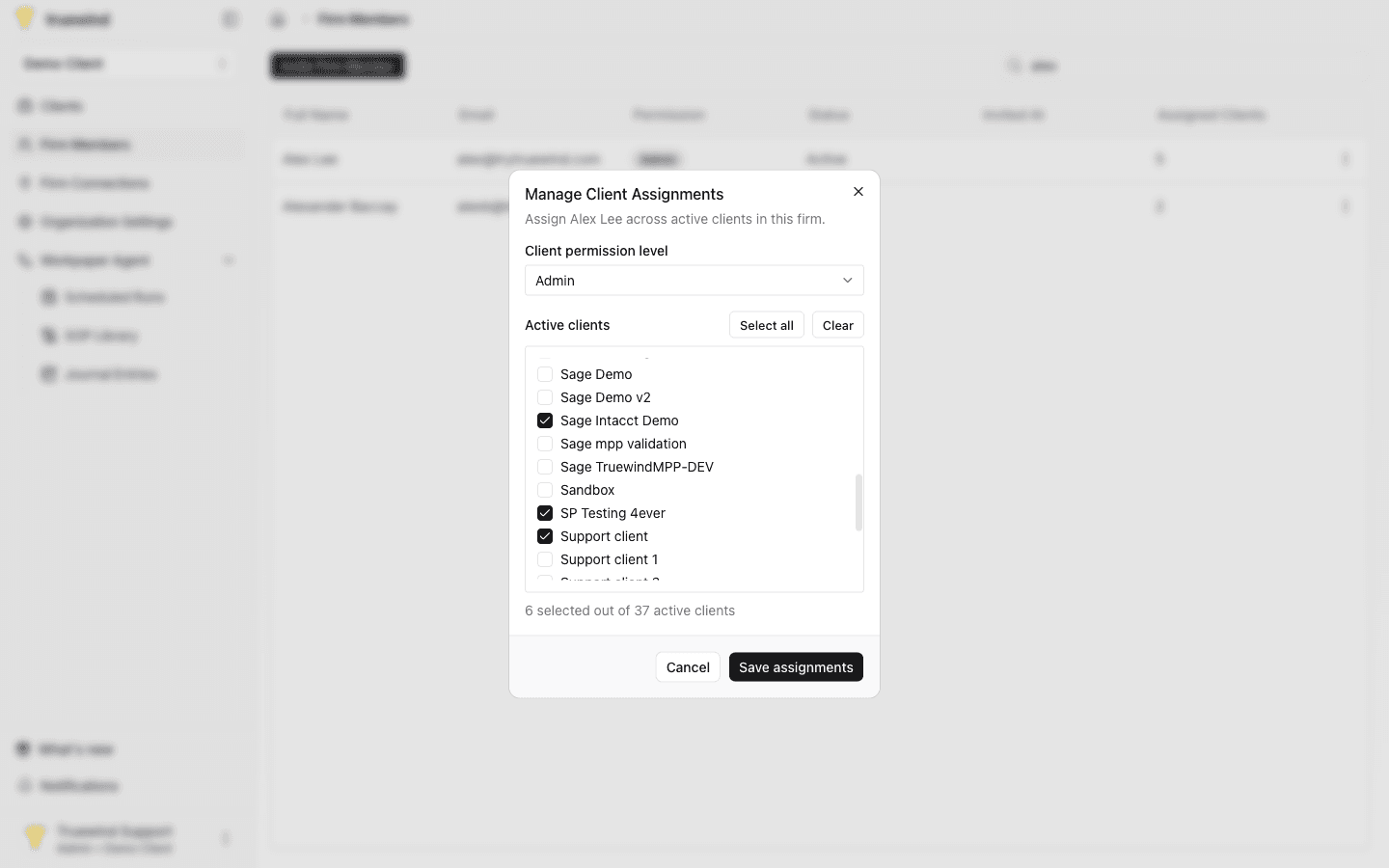
Choose the client permission level

Set the Client permission level dropdown to Admin, Accountant, or Client member before selecting clients.

Step 6

Select the active clients

Check the client accounts that should include this member, or use Select all or Clear to update the whole active list faster.

Step 7

Click Save assignments

Save the dialog once the selected clients and client role are correct, and wait for the save to finish.

Step 8

Review the assignment summary

Confirm the success toast shows how many assignments were added, updated, or removed so you know the bulk update applied correctly.

What the bulk update can do

Saving the dialog can:

  • add the member to newly selected clients
  • update the member's role on already assigned clients
  • remove assignments from clients you unchecked
  • leave unchanged clients alone when nothing needed to change

Before you save

Make sure the client permission level is correct before saving, because the same role is applied across every selected client in that submission.

FAQ

Which client roles can I assign in bulk?

The current dialog supports Admin, Accountant, and Client member.

Limitations

This workflow only works for accounting firm admins

The Manage client assignments action is only available when you are an admin in an accounting firm workspace.

Only active clients appear

The dialog lists active clients in the current firm. Inactive or invalid clients cannot be selected.

Troubleshooting

The Manage client assignments option is missing.

Confirm you are in an accounting firm workspace, you are an admin, and the member row is not blocked by a permissions limitation.

I see a loading or error toast instead of the dialog.

Wait for the active client list to load, then try again. If the client list failed to load, reload the page and retry.

Was this helpful?

Need more help?

Ask for human help about this article and provide any feedback.