
After connecting
Check that:
- the expected Sage company is connected
- entities and dimensions load as expected
- downstream workflows can read the synced data
Ask the support agent
Just ask a direct question or search related articles from the Knowledge Base.
Support Center / Onboarding / ERP Setup
Connect Sage Intacct when you need Truewind to read entities, dimensions, and accounting data, resulting in a working Sage setup for onboarding and close workflows.
Step 1
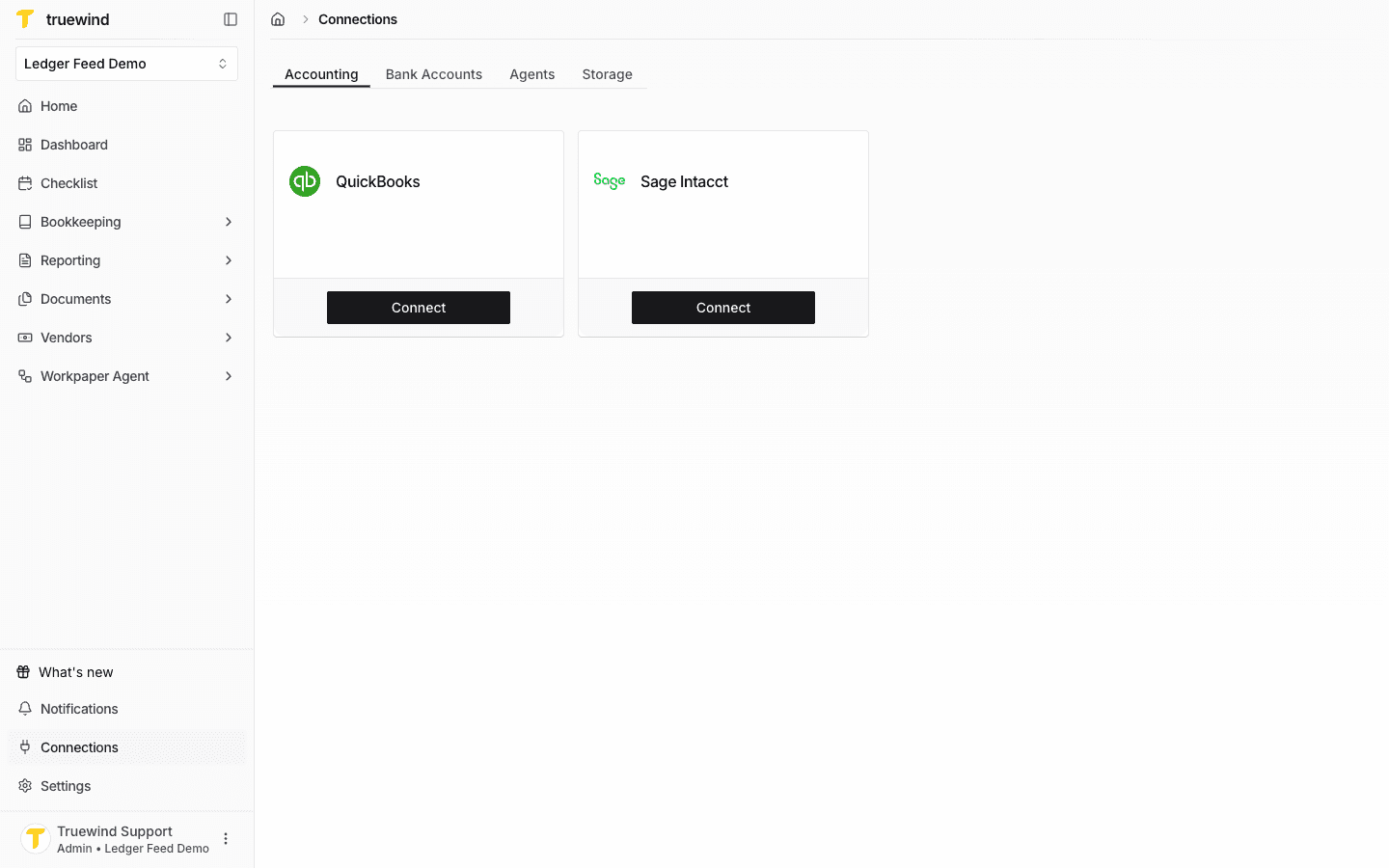
Start in Truewind on Connections > Accounting, then use the Sage Intacct Connect button in the current Connections page.
Step 2
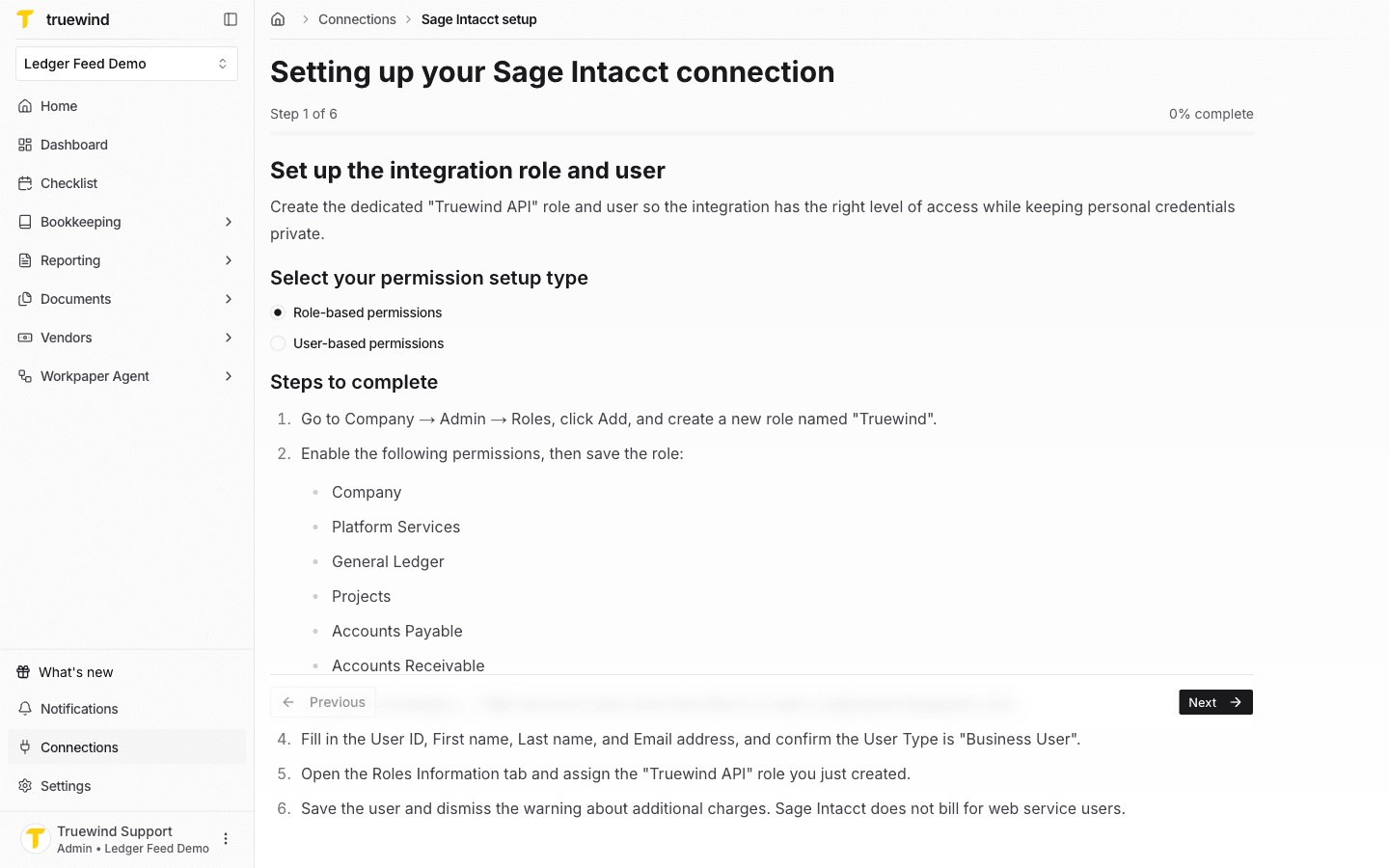
In Truewind, decide which permission setup type works for you, by selecting "Role-base permissions" or "User-based-permissions". Then, find the instructions and follow them on Sage Intacct - either create the dedicated Truewind integration role and web services user (for Role-based), or the dedicated integration user (for User-based). Once finished, go back to Truewind and click Next.
Step 3
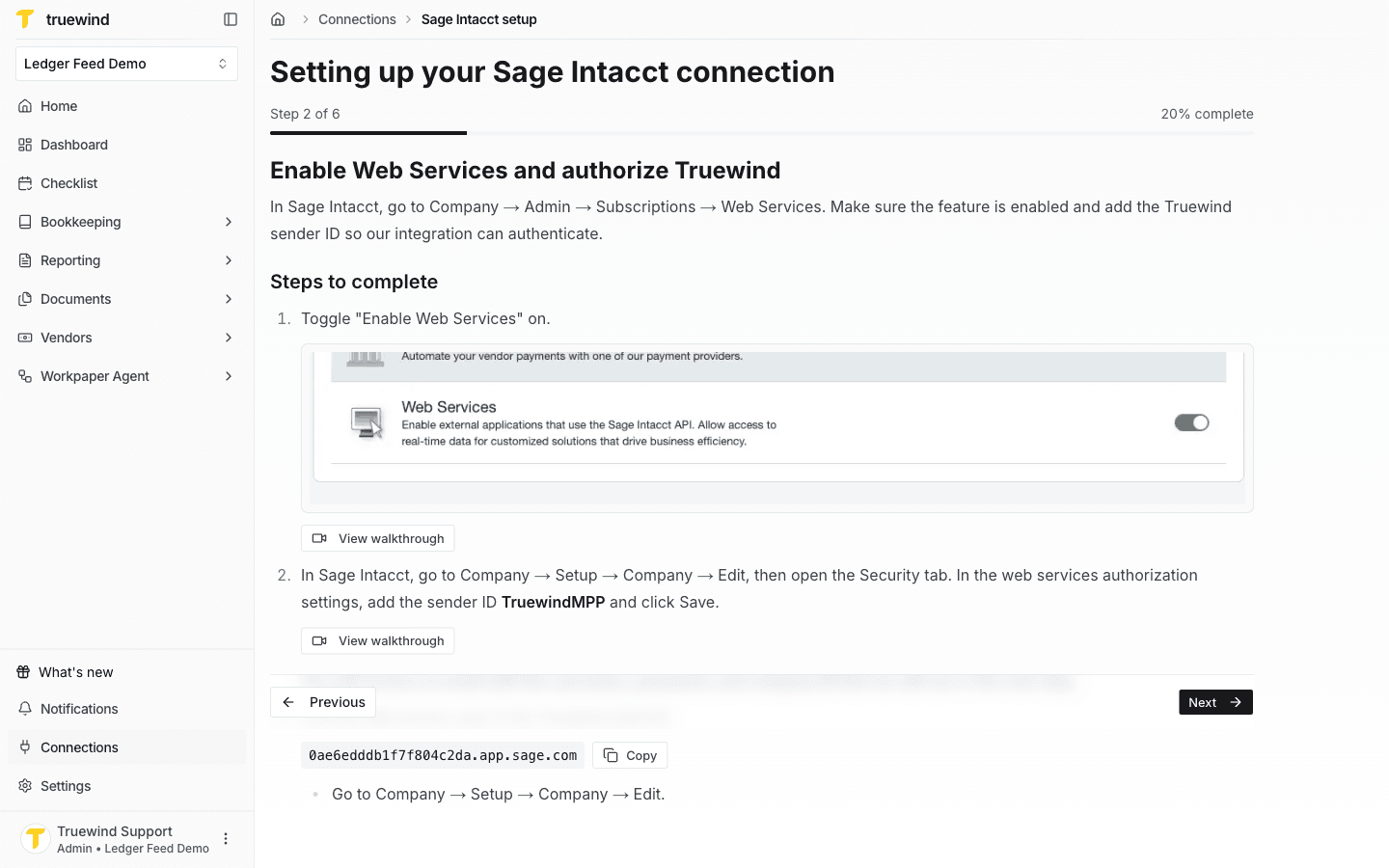
In Truewind, find the instructions and follow on Sage Intacct - turn on Web Services, add the Truewind sender ID, and link the web services user to the Truewind client application. Once finished, go back to Truewind and click Next.
Step 4
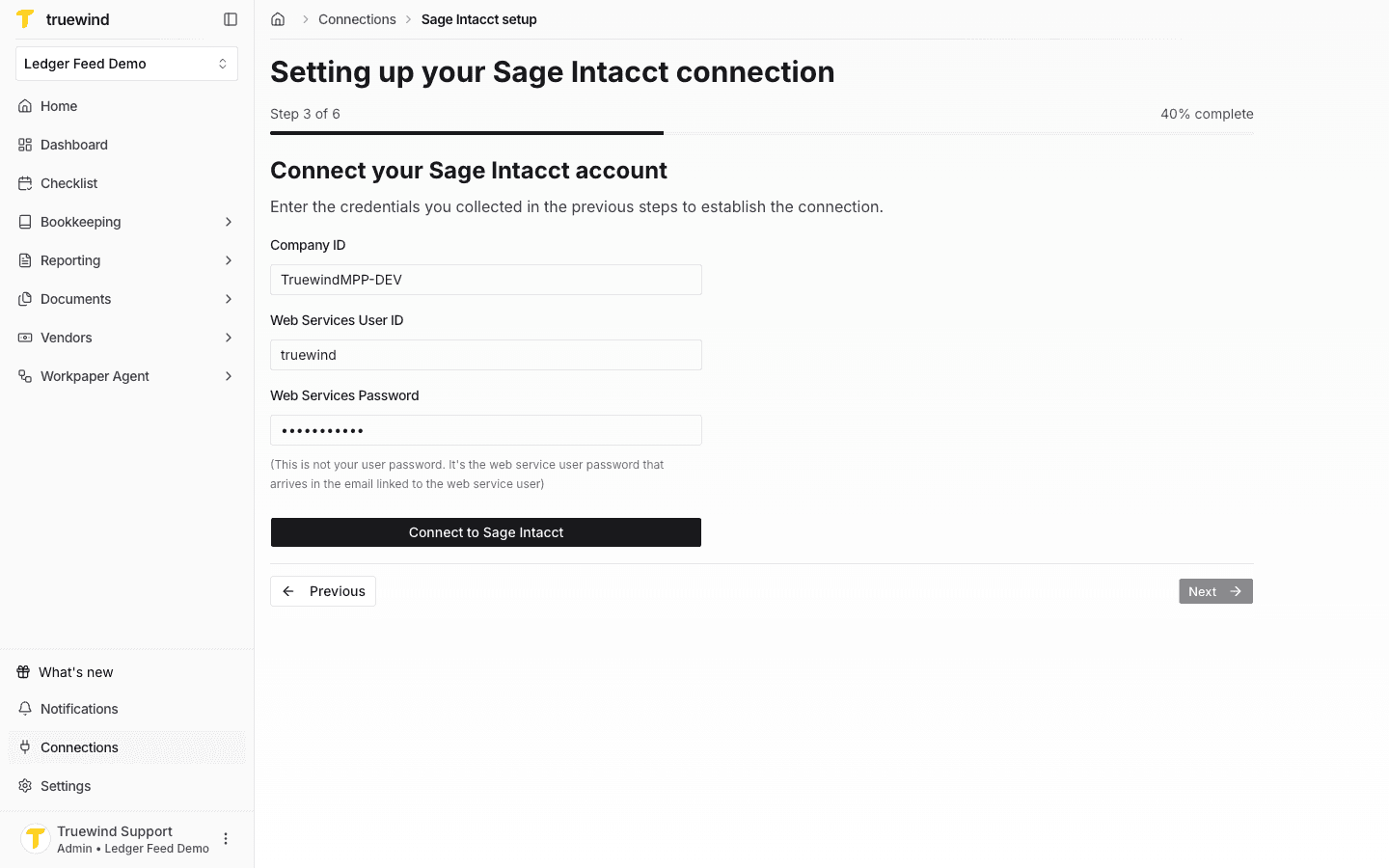
Enter the Sage Intacct company ID, web services user ID, and web services password to start the connection.
Step 5
Review the validation result in Truewind and fix any missing permissions or warnings before continuing.
Step 6
Download the XML package from Truewind and install it in Sage Intacct so real-time webhook updates can be enabled for the integration.
Check that:
You should have access to the Sage Intacct company, the appropriate credentials, and the required connection permissions.
Entity, dimension, or journal-book setup can vary by Sage Intacct environment.
Review your Sage Intacct permissions and company configuration, then re-run the sync or reconnect if needed.
Was this helpful?
Need more help?
Ask for human help about this article and provide any feedback.