
What to verify after connecting
- QuickBooks appears as syncing or connected in the current Connections UI.
- The expected entities and accounts begin syncing.
- The user who connected the ERP has the right level of access for ongoing syncs.
Ask the support agent
Just ask a direct question or search related articles from the Knowledge Base.
Support Center / Onboarding / ERP Setup
Connect QuickBooks from the current Connections page when you are setting up Truewind, resulting in a permanent QuickBooks connection that starts syncing the company and client data needed for close workflows.
Step 1
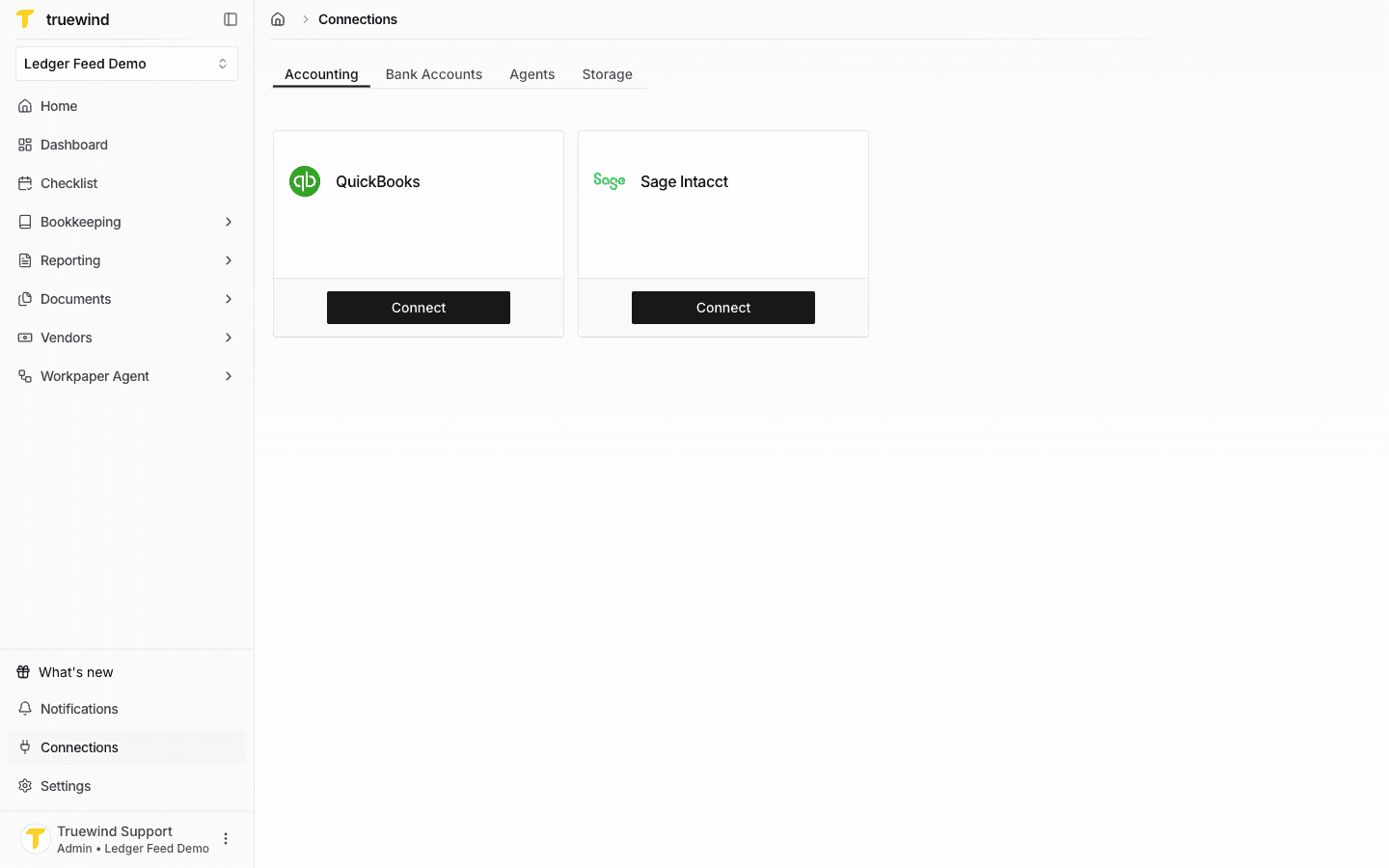
Start in Truewind on Connections > Accounting, then use the QuickBooks Connect button in the current Connections page.
Step 2
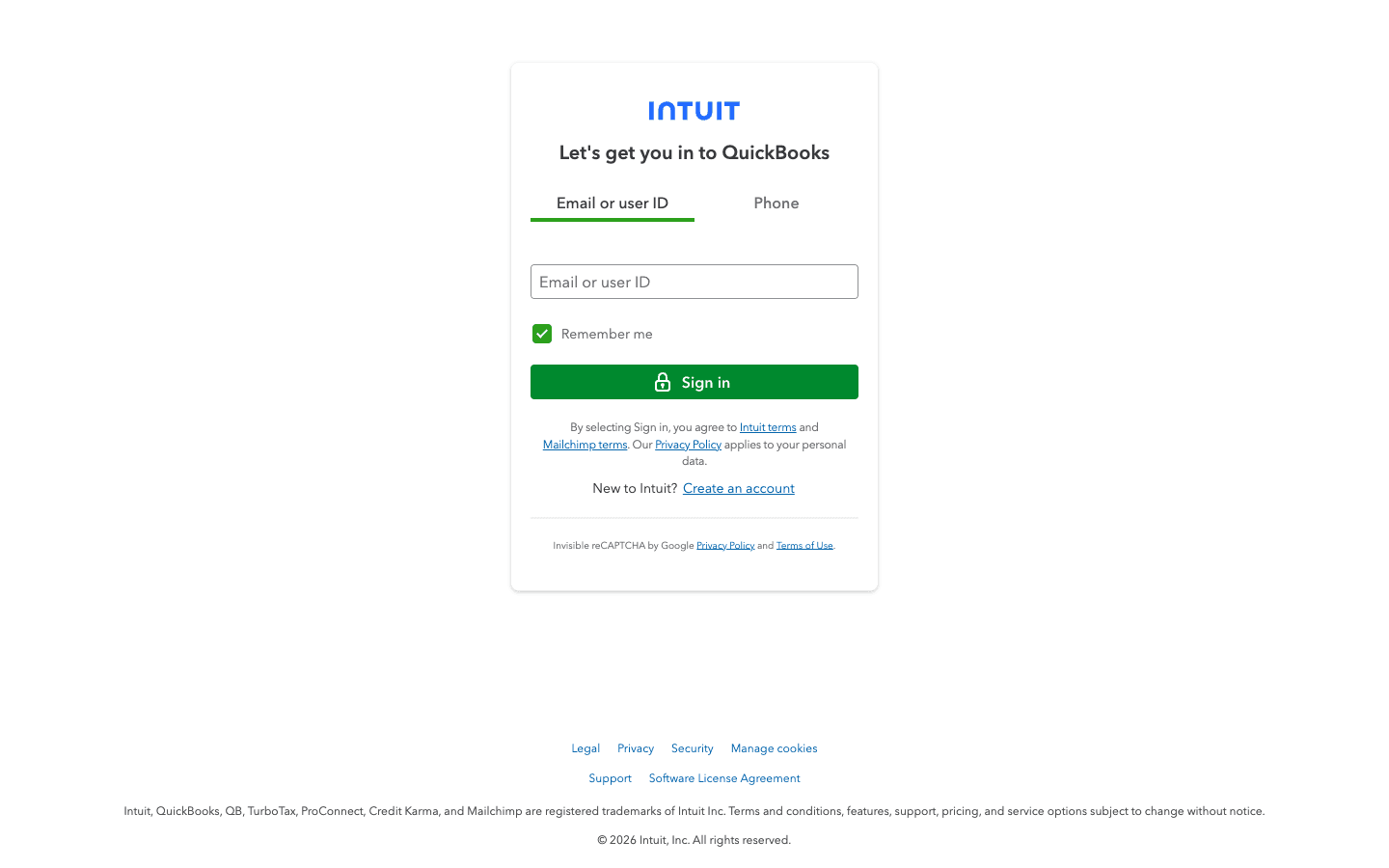
After selecting Connect in Truewind, sign in to Intuit on the QuickBooks authorization screen.
Step 3
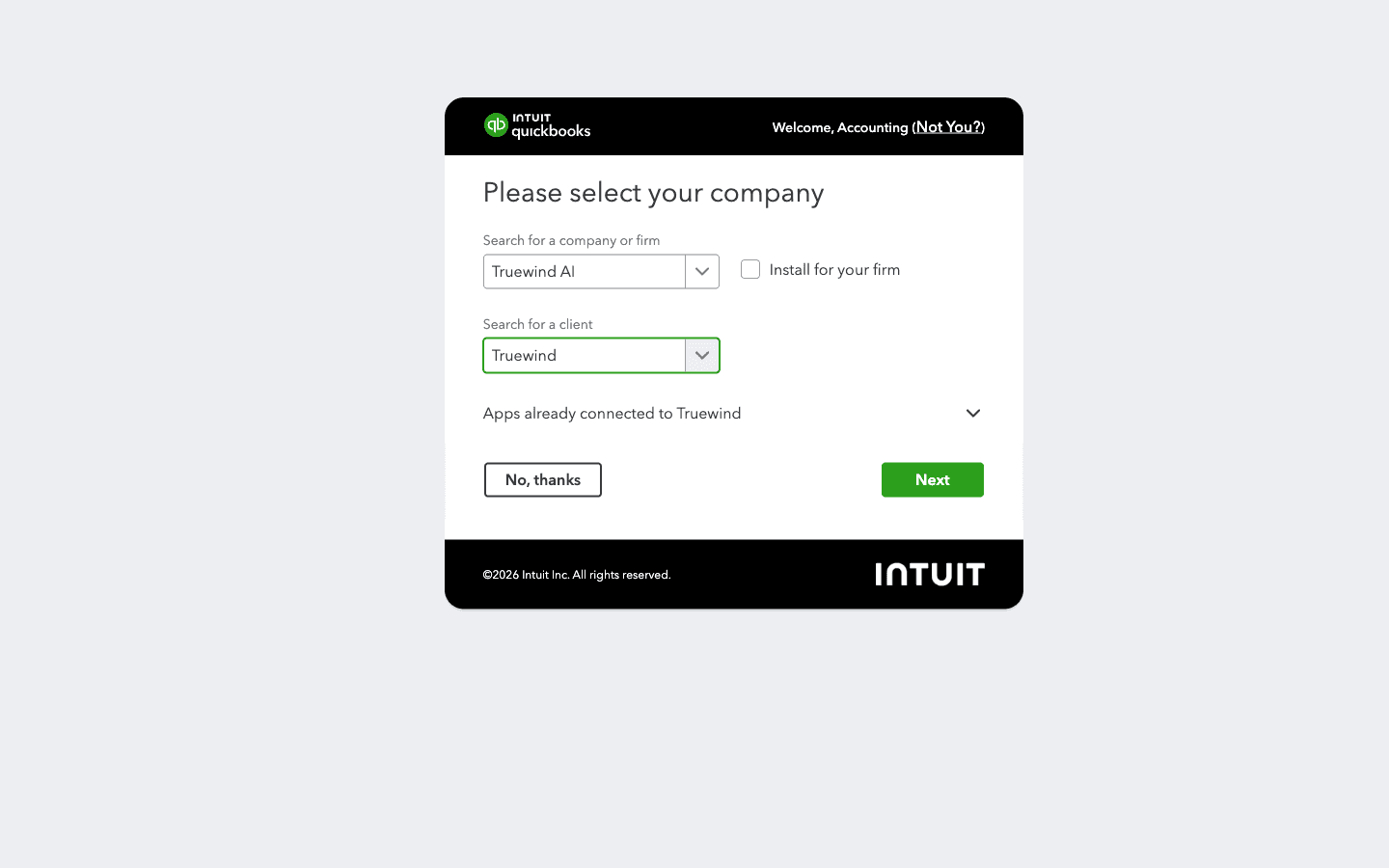
This sets the QuickBooks company and client in Intuit before you continue to the next step.
Step 4
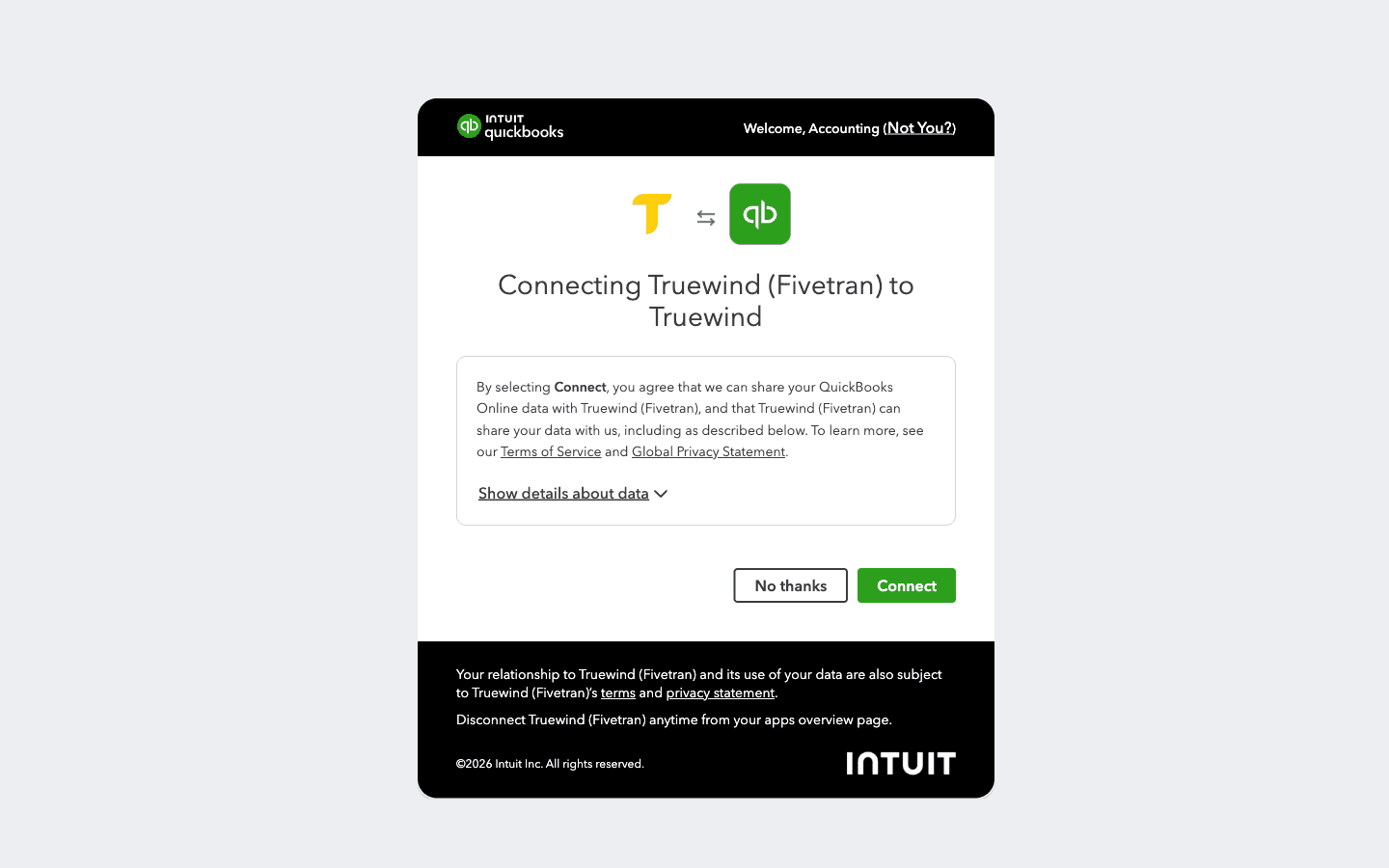
This completes the authorization and sends you back to Truewind.
Step 5
After Intuit authorization completes, return to Connections > Accounting and confirm QuickBooks shows a syncing or connected status.
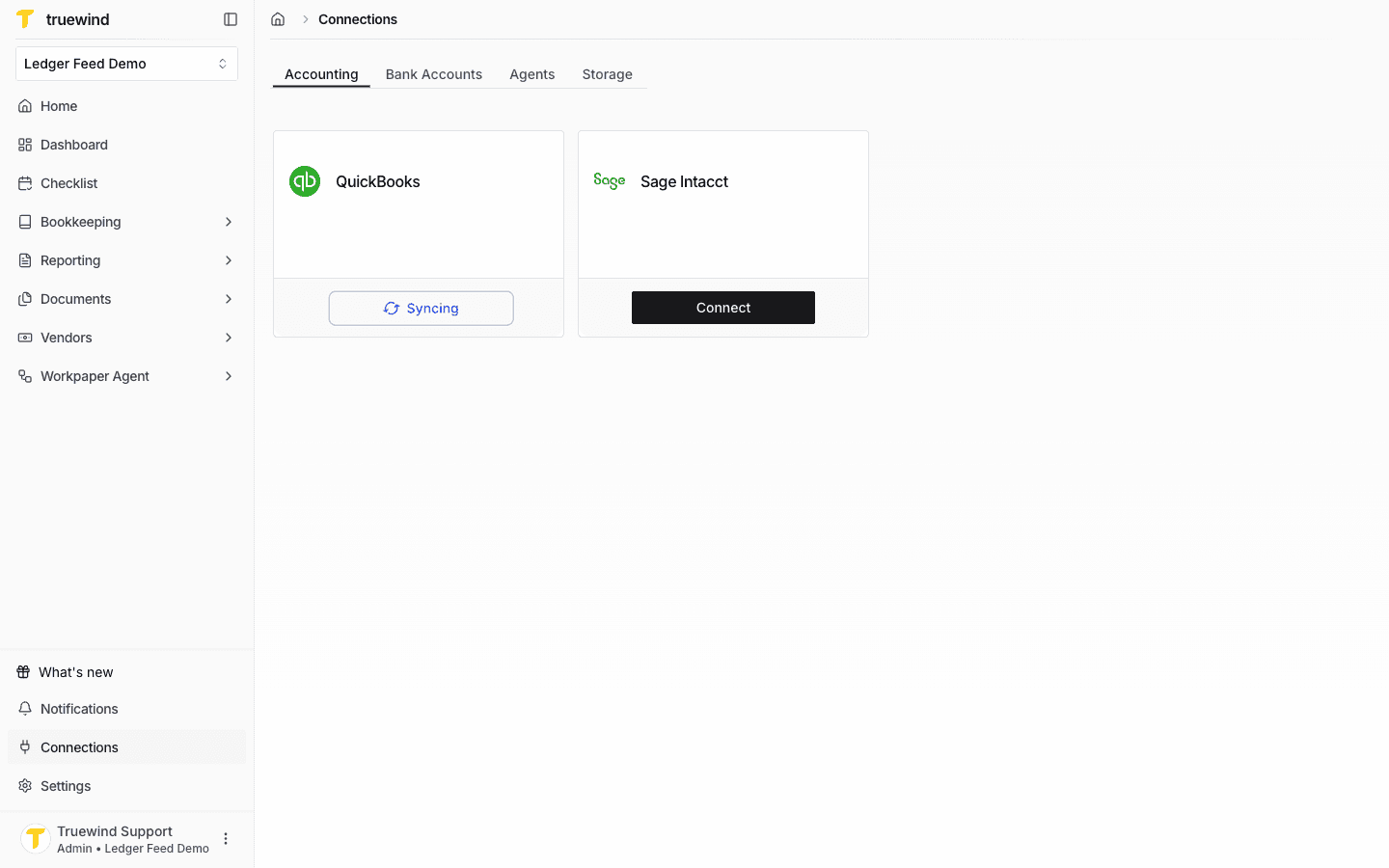
Start from Connections and stay on the Accounting tab to launch the QuickBooks connection flow.
QuickBooks may require an administrator or primary accountant to approve the third-party connection.
Confirm you are signing into the correct Intuit account, selecting the right company and client, and using an account with permission to approve the connection.
Was this helpful?
Need more help?
Ask for human help about this article and provide any feedback.