
Ask the support agent

Just ask a direct question or search related articles from the Knowledge Base.

Support Center / Onboarding / Invite members

Add and manage members

Invite teammates and update their access when onboarding or staffing changes, resulting in the right people holding the right roles in your organization.

Workflow

Step 1

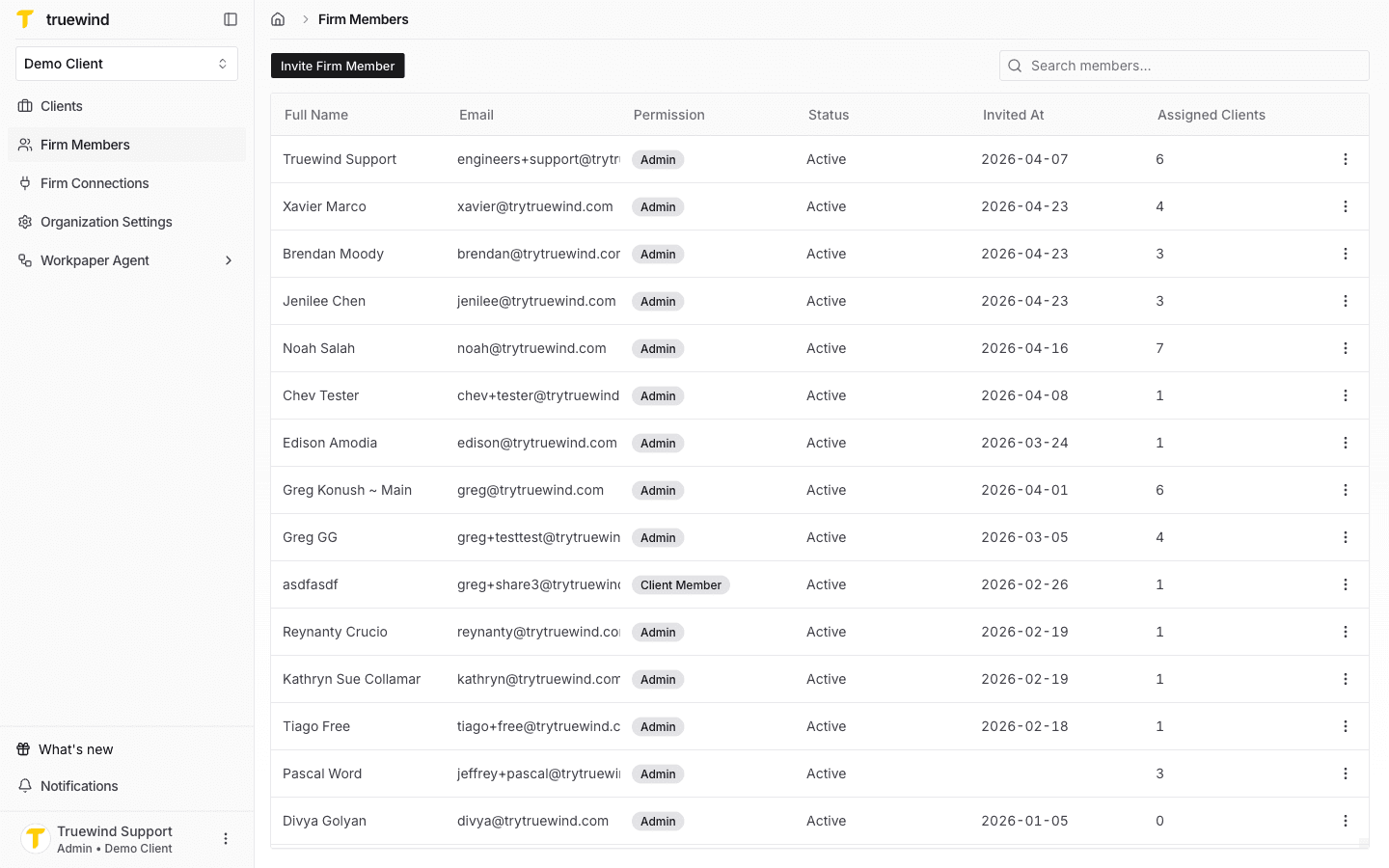
Open the Members page

Start in Truewind on Members so the current invite button, member table, and search controls are available.

Step 2

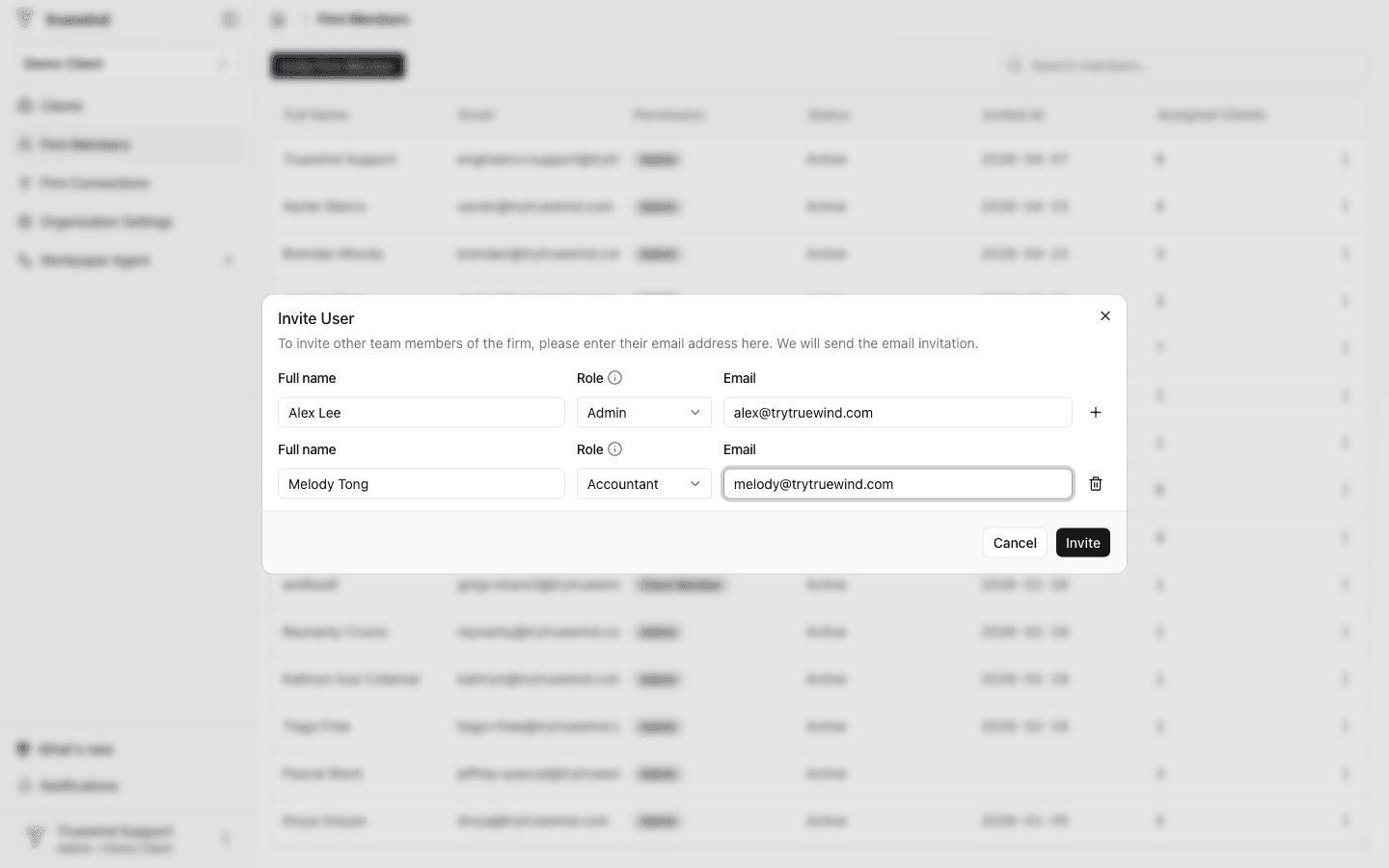
Invite the people who need access

This uses Invite Firm Member or Invite Client Member so you can send access to the teammates who should participate in onboarding or close workflows.

Step 3

Review invitation and role status

Use the current member table to confirm who is active, who still needs to accept an invitation, and whether the assigned role is correct.

Step 4

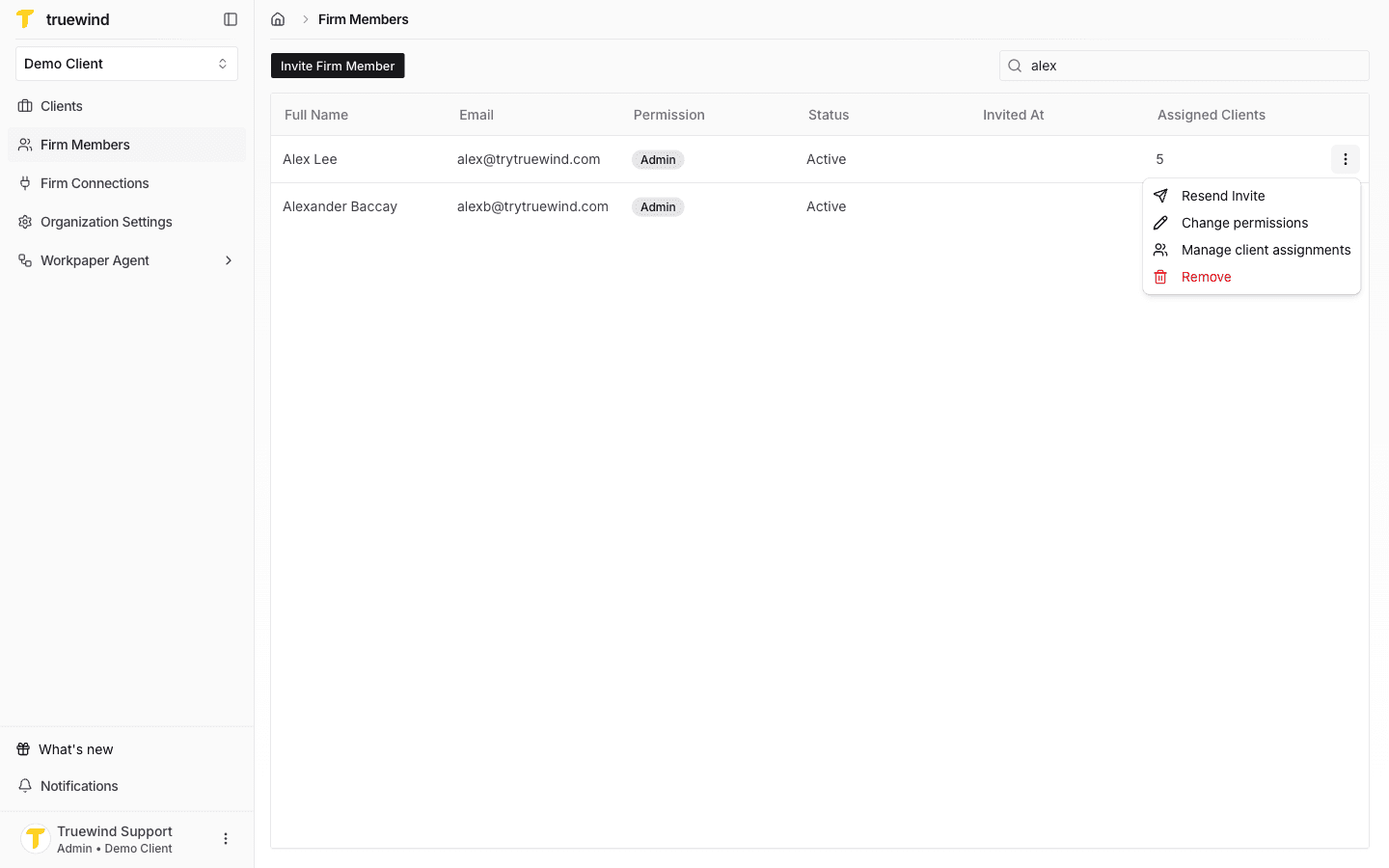
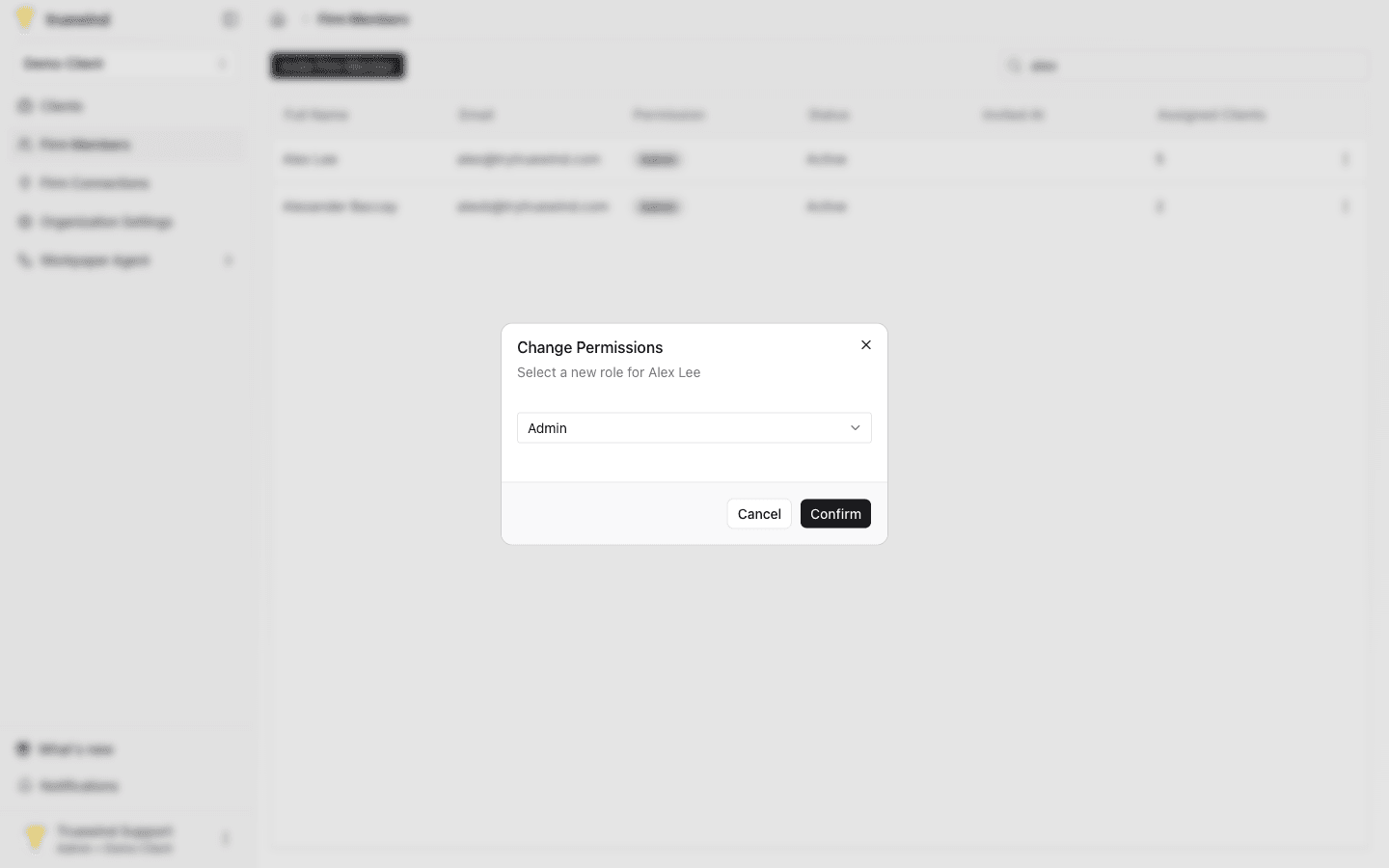
Update access when responsibilities change

Use the current role, resend, or removal actions from the member table to keep access aligned with the team structure.

Typical onboarding use case

During onboarding, teams usually need to add the people responsible for ERP setup, bank transaction review, and Workpaper Agent workflows.

Good operational checks

  • Confirm the correct organization was selected before inviting members.
  • Verify roles before the team begins using month-end workflows.
  • Revoke stale access when a member is no longer involved.

FAQ

Who should I invite first?

Start with the people who own onboarding, ERP access, and the accounting workflows that will be used first.

Limitations

Roles control what each user can do

Access differs by membership role, so some actions may not appear for all users.

Troubleshooting

A teammate did not receive the invite.

Verify the email address, then resend the invitation from the members or settings workflow.

Was this helpful?

Need more help?

Ask for human help about this article and provide any feedback.