
Ask the support agent

Just ask a direct question or search related articles from the Knowledge Base.

Support Center / Onboarding / Create accounts

Bulk add companies

Add multiple client companies from the Clients page when an accounting firm needs several new client records at once, resulting in new client organizations with assigned close roles and optional onboarding tasks.

Workflow

Step 1

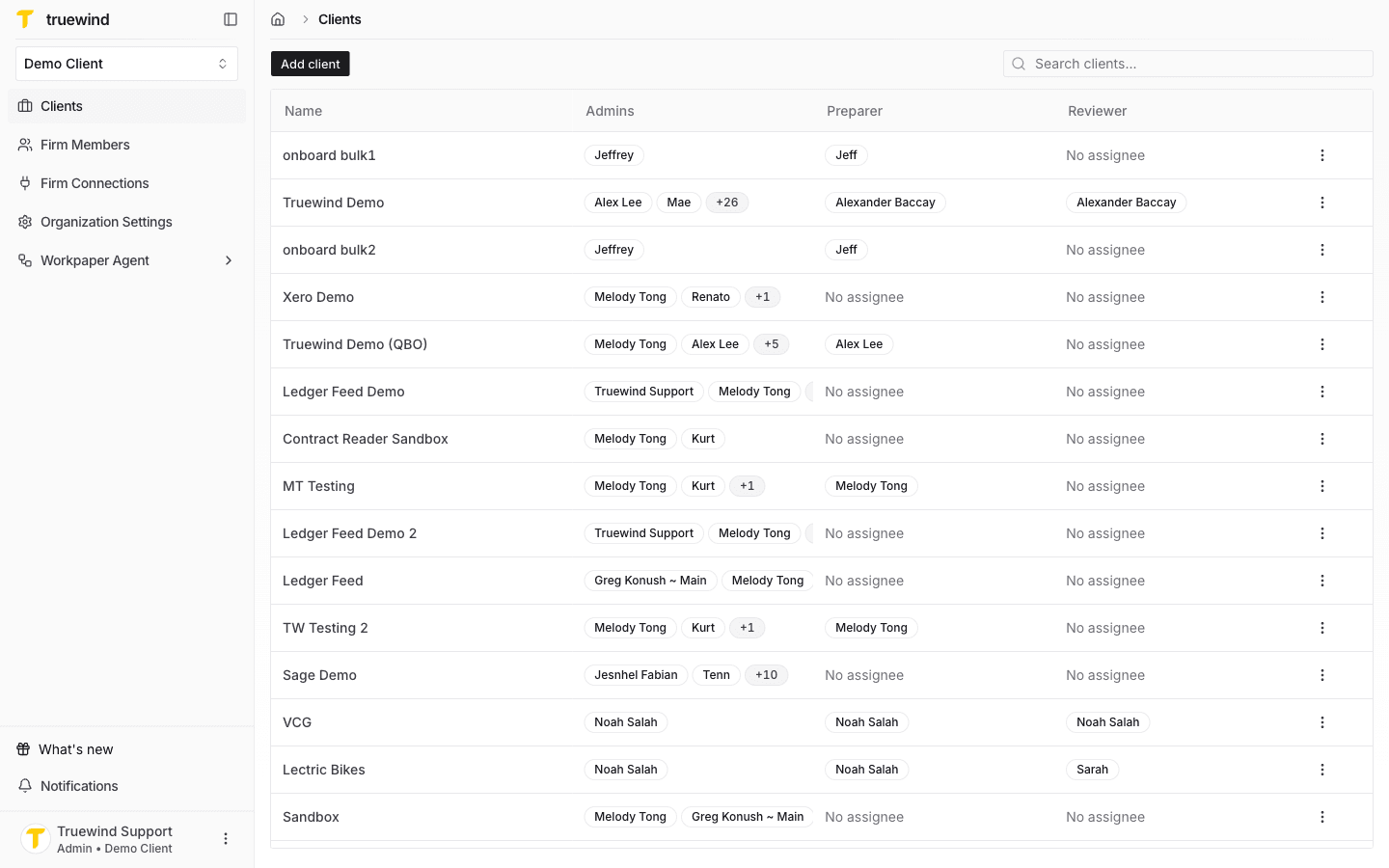
Open the Clients page

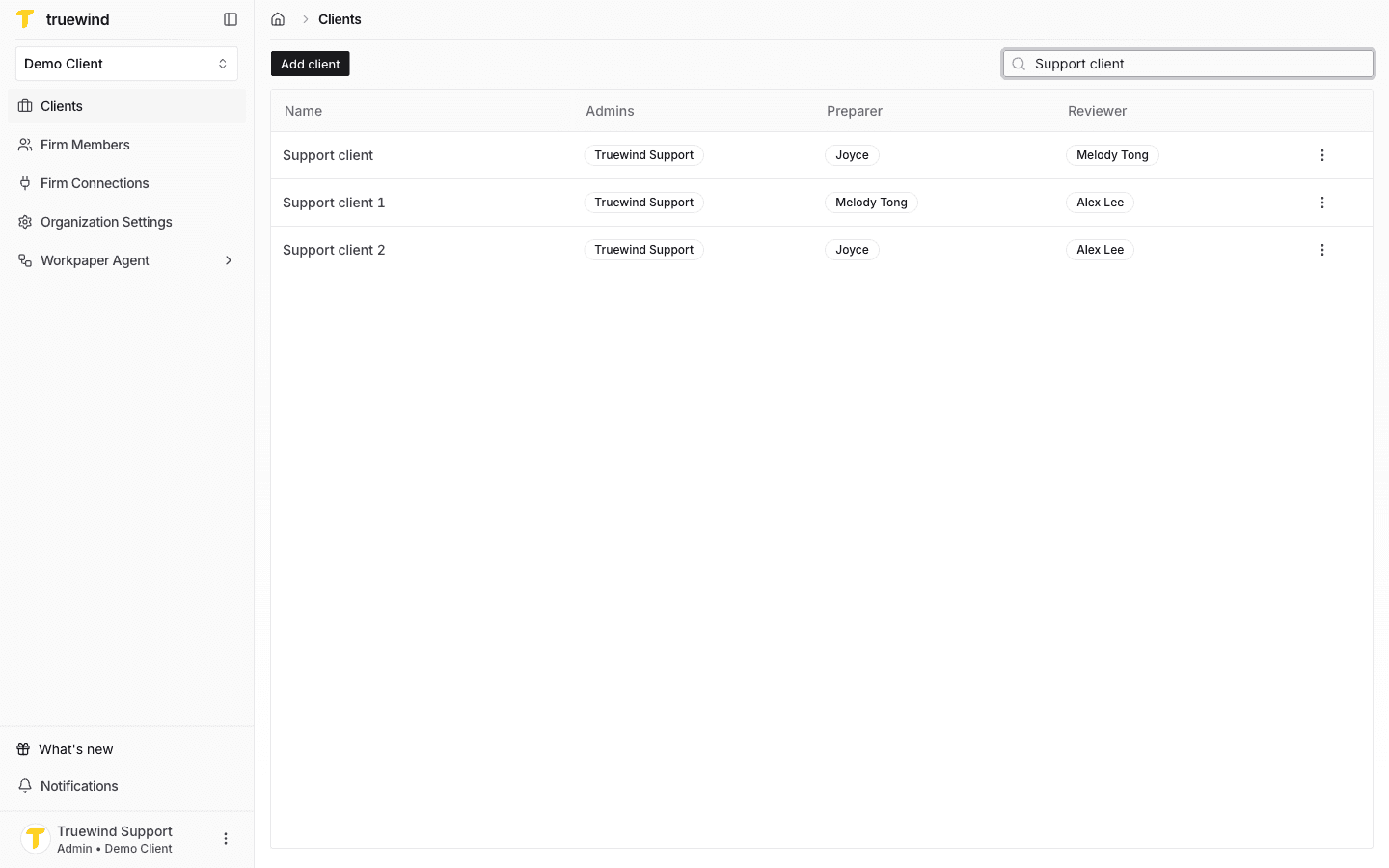
Start in Truewind on Clients so the Add client button and client list are available.

Step 2

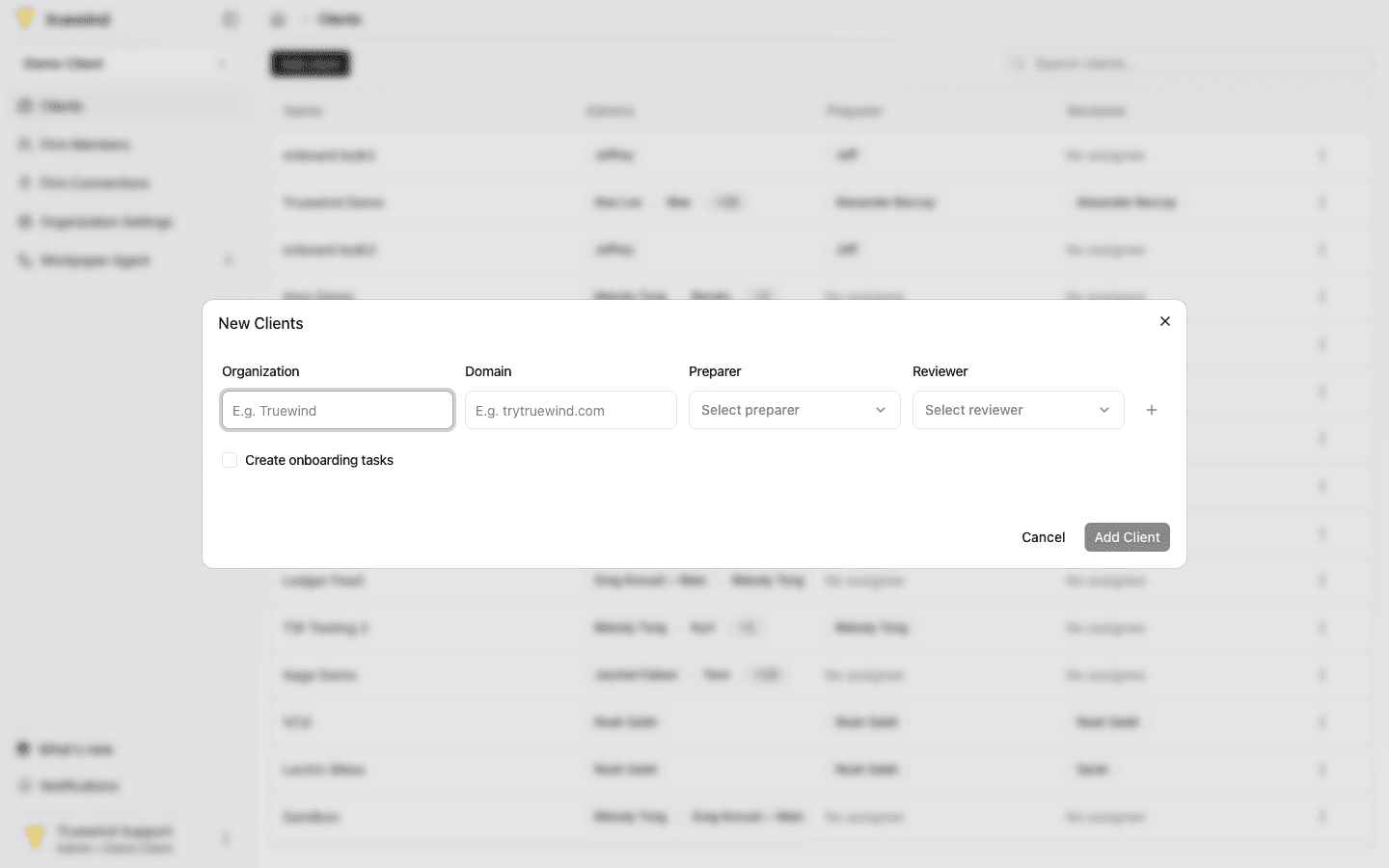
Open Add client

This takes you to the next page or panel so the workflow stays on the expected path.

Step 3

Add or paste the client rows

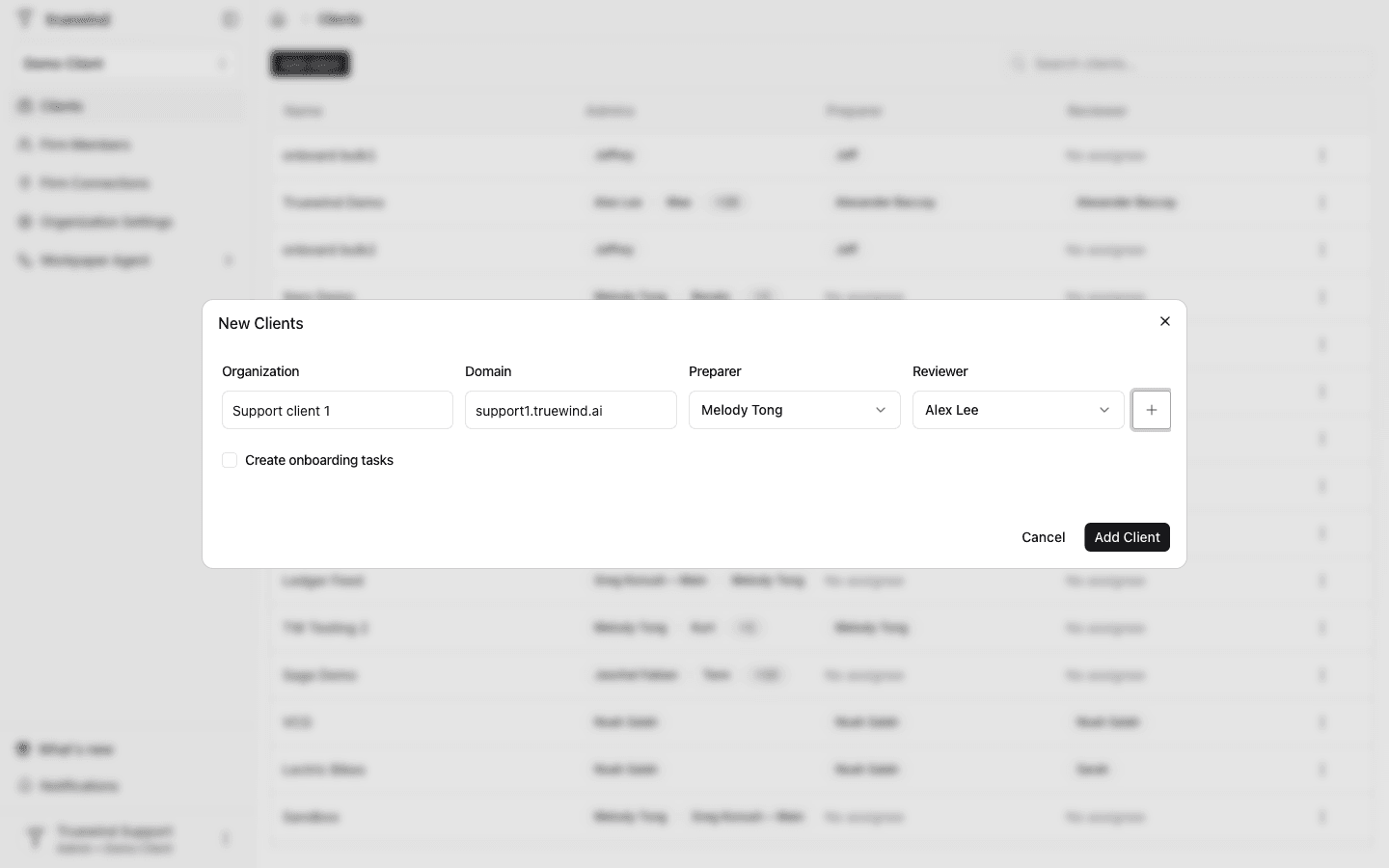
Enter one company per row or paste spreadsheet rows into the form so organization, domain, preparer, reviewer, and second reviewer values fill across the matching columns.

Step 4

Complete the required assignee fields

Make sure each row has an Organization and a Preparer, and review the optional domain, reviewer, and second reviewer values before moving on.

Step 5

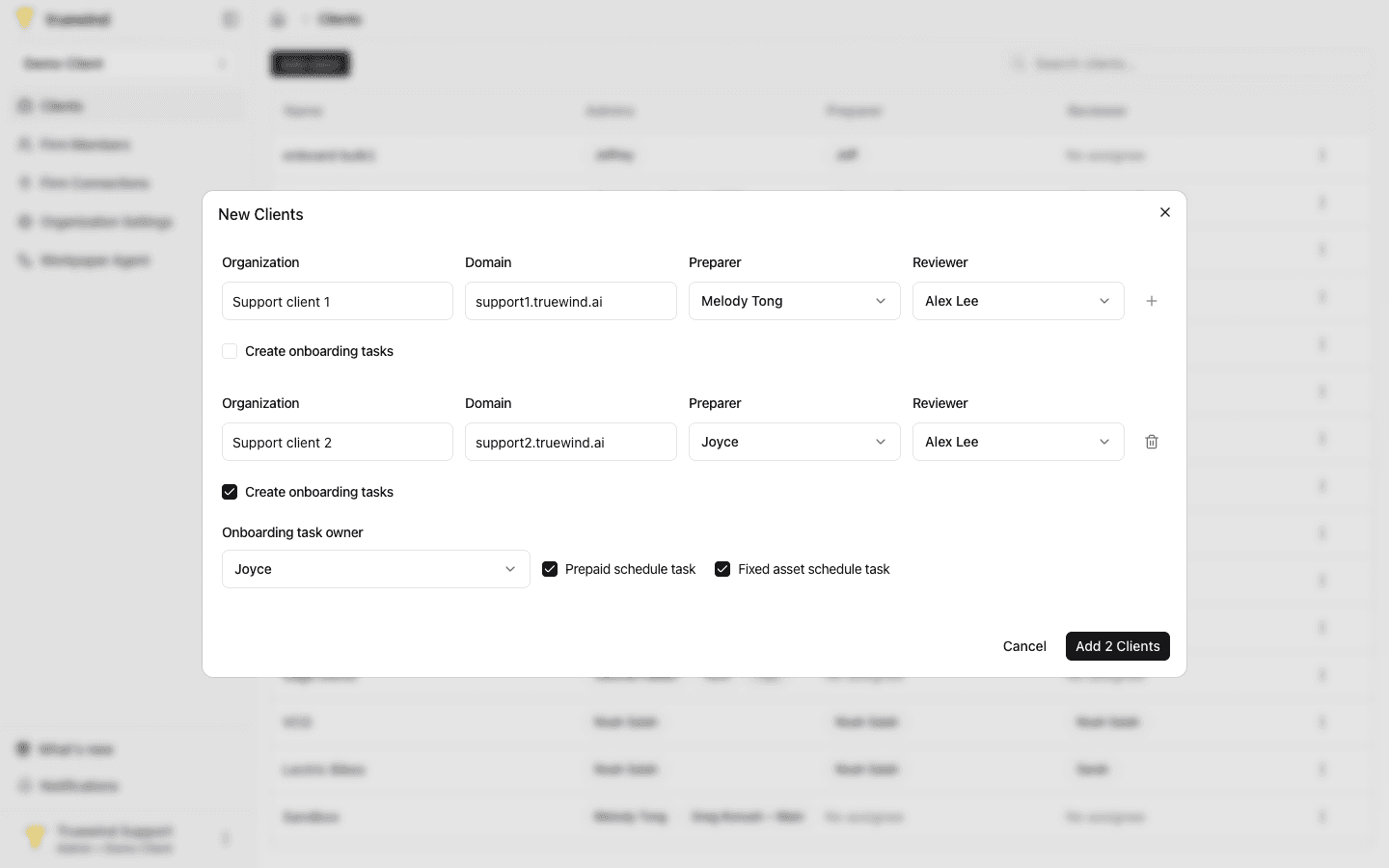
Decide whether to create onboarding tasks

Turn on Create onboarding tasks for any row that should also create the welcome checklist, then confirm the onboarding task owner and optional prepaid or fixed-assets task checkboxes.

Step 6

Adjust the row count

This uses the plus button so you can add another company row or the trash button to remove rows you do not want to submit.

Step 7

Click Add Client or Add Clients

Submit the dialog once every row is correct, and wait for the batch creation flow to finish before closing the modal.

Step 8

Review the result summary

Confirm the success toast or partial-failure toast, then check whether the dialog closed or reset to only the failed rows you still need to fix.

What happens after a company is created

For each successful row, Truewind:

  • creates a new company organization under the current firm
  • adds your current user to that client as an admin
  • saves the preparer, reviewer, and optional second reviewer assignments
  • optionally enqueues onboarding tasks if you turned that option on

Paste behavior to know

Spreadsheet paste only maps into the supported visible columns. Extra pasted columns are ignored, and unmatched user values are flagged on the affected fields.

FAQ

Can I paste rows from a spreadsheet?

Yes. The form supports spreadsheet-style paste across the organization, domain, preparer, reviewer, and second-reviewer columns.

What happens if only some rows fail?

The successful clients are still created, and the form resets to only the failed rows so you can fix and resubmit them.

Limitations

Only firm admins can add clients

The Add client button is disabled for non-admin users in the accounting firm workspace.

User assignments must match existing firm members

Preparer, reviewer, second reviewer, and onboarding task owner values must belong to users who are already members of the firm.

Troubleshooting

A pasted user value shows a matching error.

Replace the value with a firm user's exact email or a unique full name that the form can match to an existing firm member.

Some rows were created and some failed.

Review the toast summary, fix the rows that stayed in the form, and resubmit only those failed rows.

Was this helpful?

Need more help?

Ask for human help about this article and provide any feedback.