
Settings to review
Confirm the threshold, depreciation defaults, useful life, and auto-posting behavior before month-end Fixed Asset work begins.
Ask the support agent
Just ask a direct question or search related articles from the Knowledge Base.
Support Center / Settings / Features
Update Fixed Assets settings when thresholds, subaccounts, or posting behavior need to change, resulting in a configuration that matches your accounting policy.
Step 1
Start from the organization settings area so the financial configuration menu is visible.
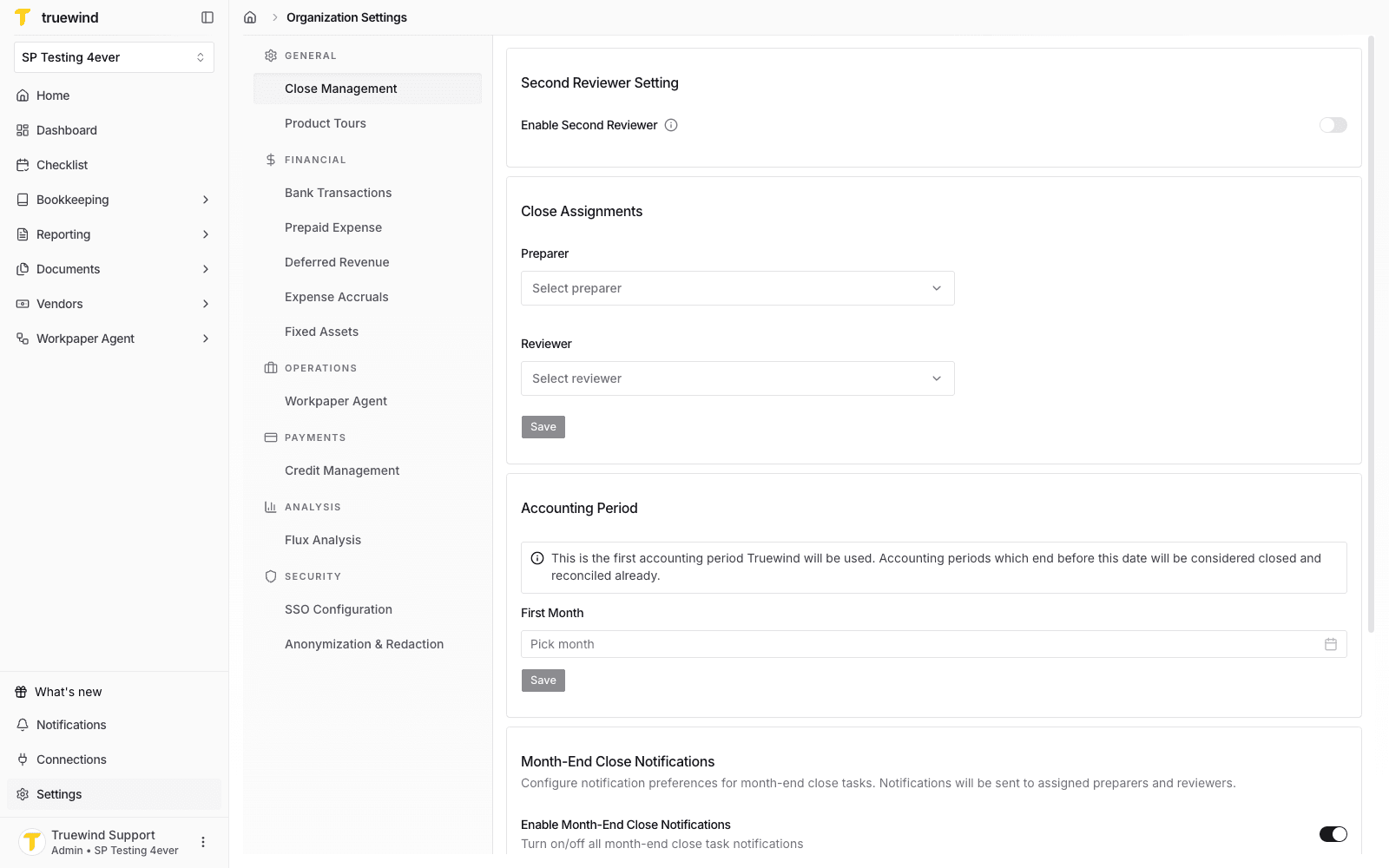
Step 2
Select Fixed Assets under Financial to manage thresholds, posting, and subaccount defaults.
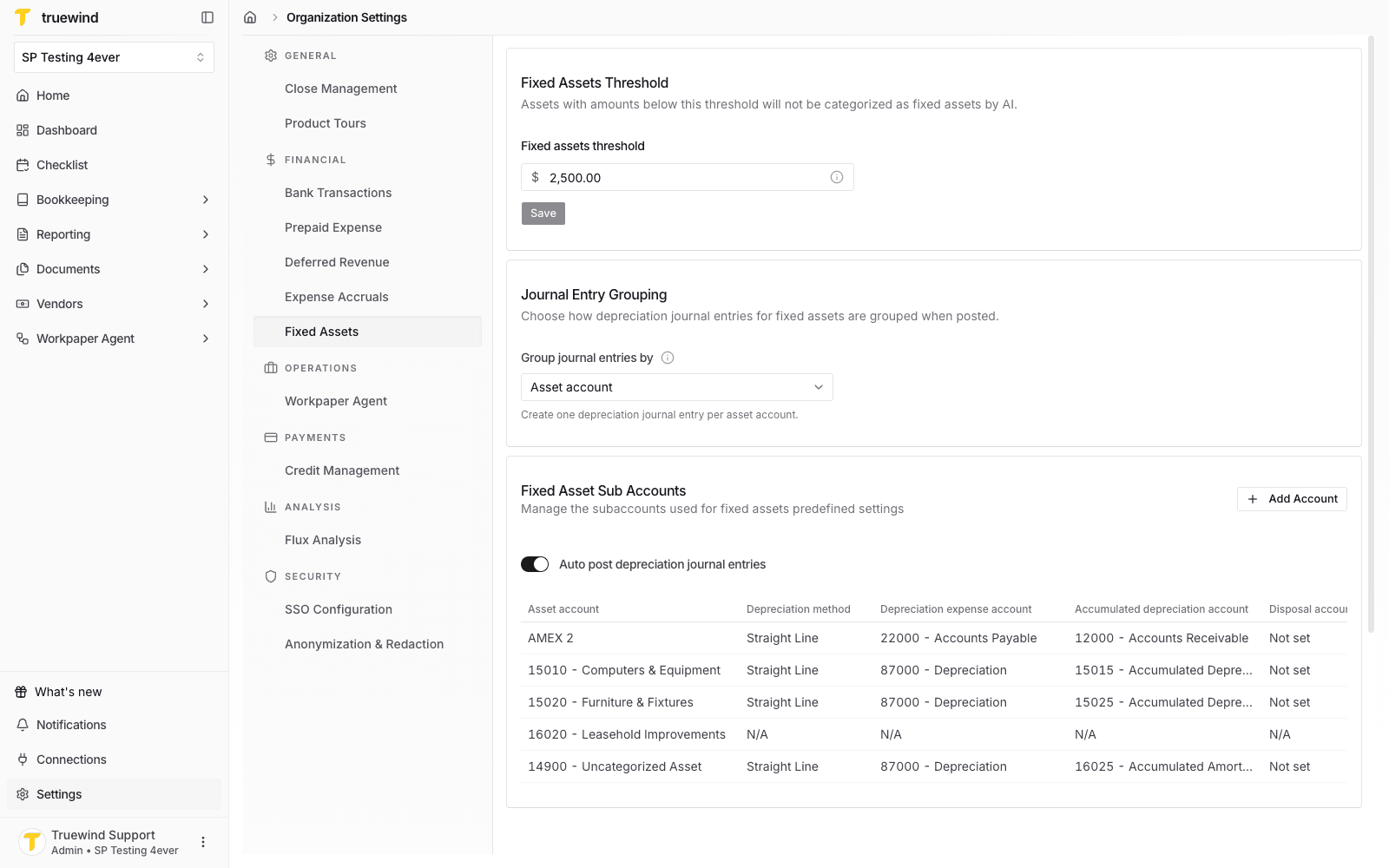
Step 3
Confirm the minimum amount Truewind should use when AI identifies fixed asset transactions.
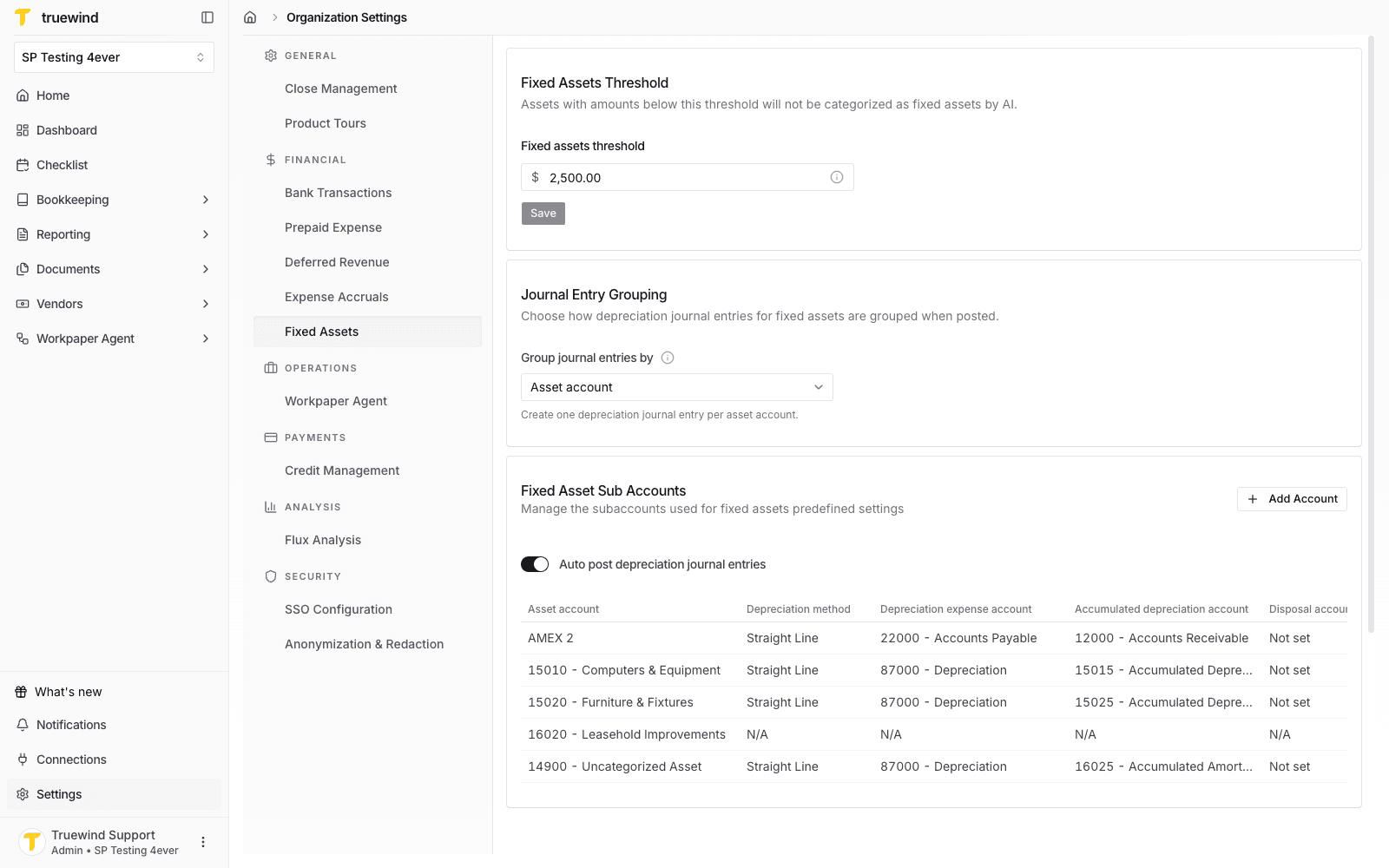
Step 4
After adjusting the amount, use Save to apply the threshold to future fixed asset detection.
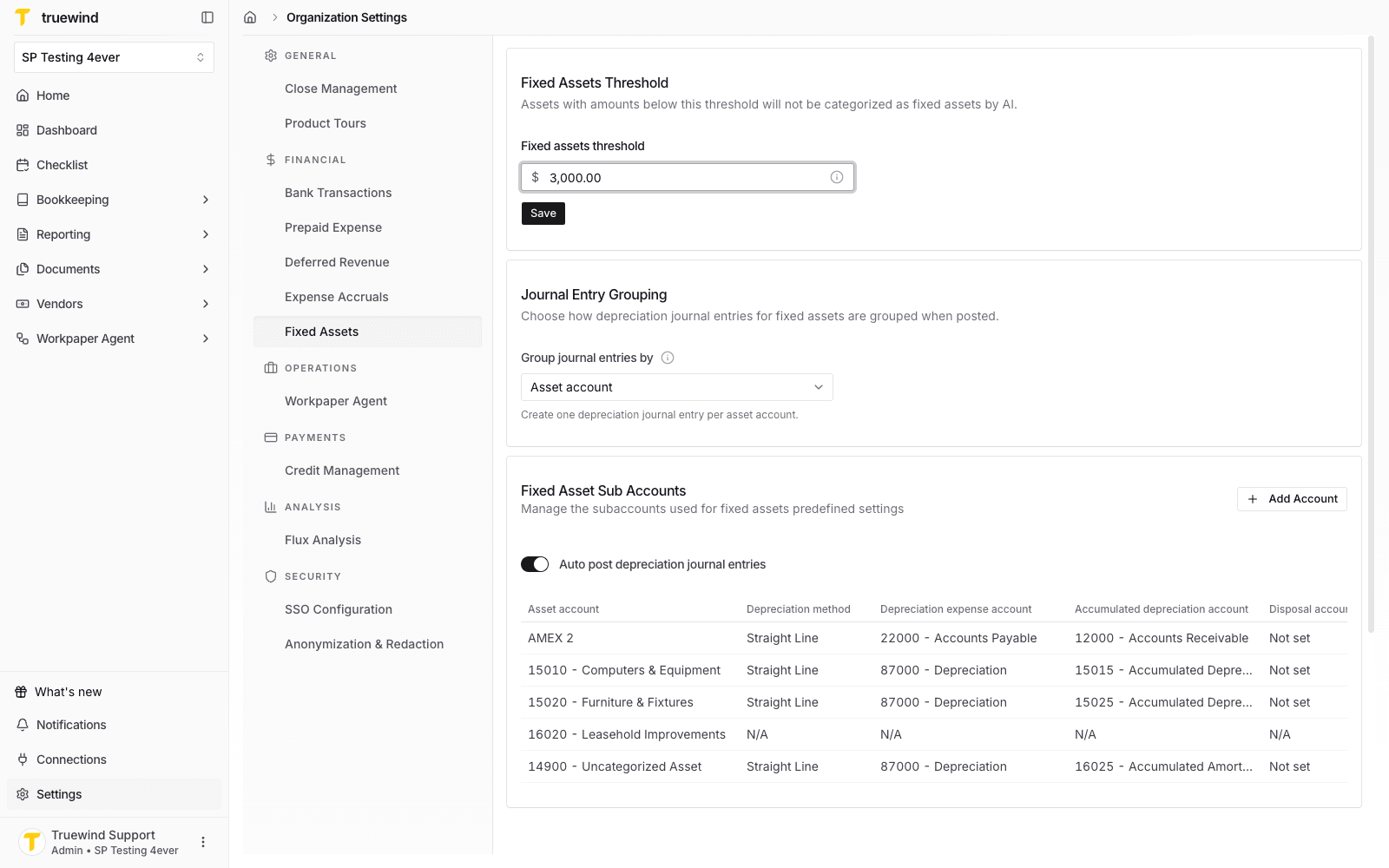
Step 5
Check whether depreciation journal entries should be grouped by asset account or posted per individual asset.
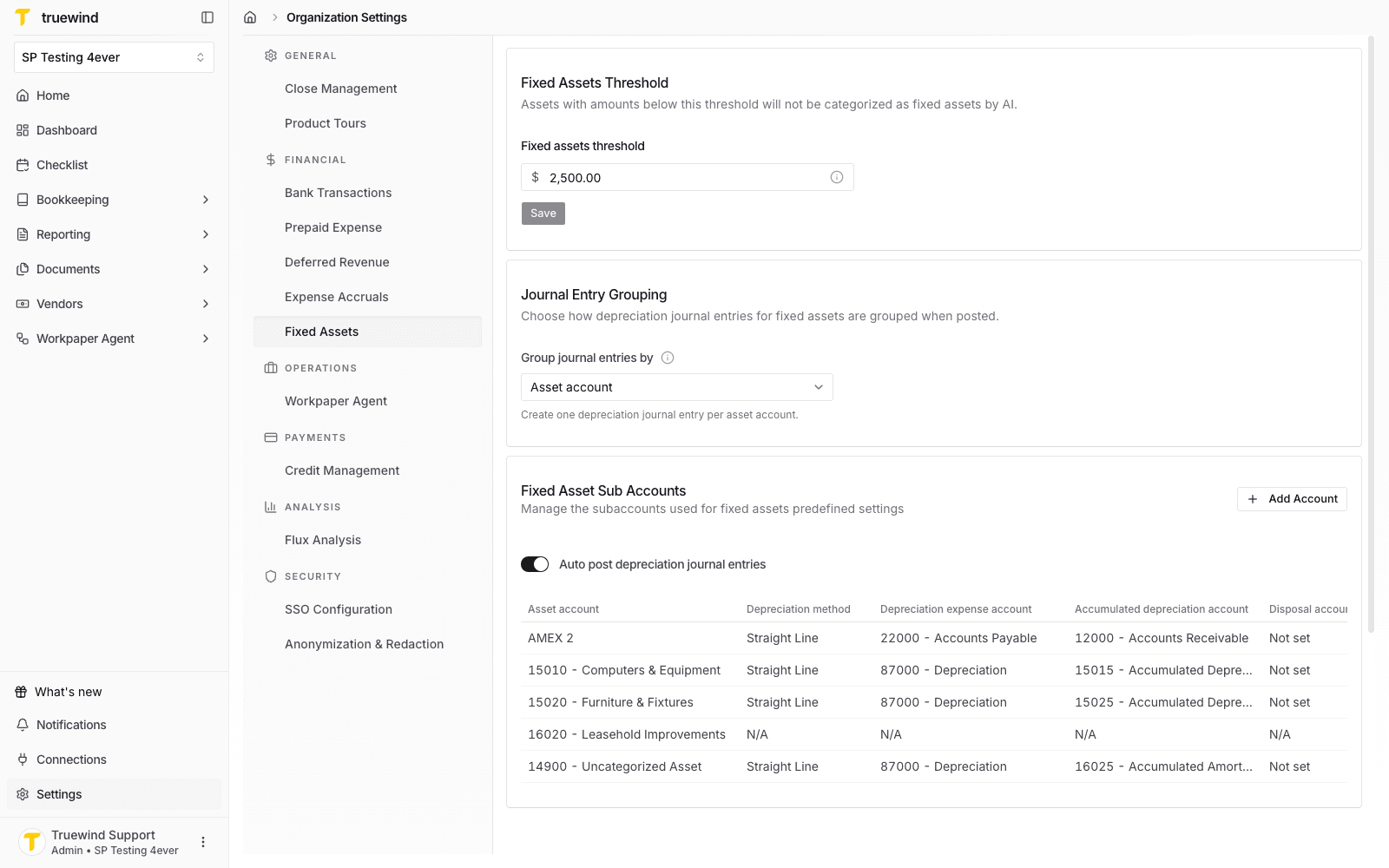
Step 6
Open the grouping menu to compare the available posting modes before selecting one.
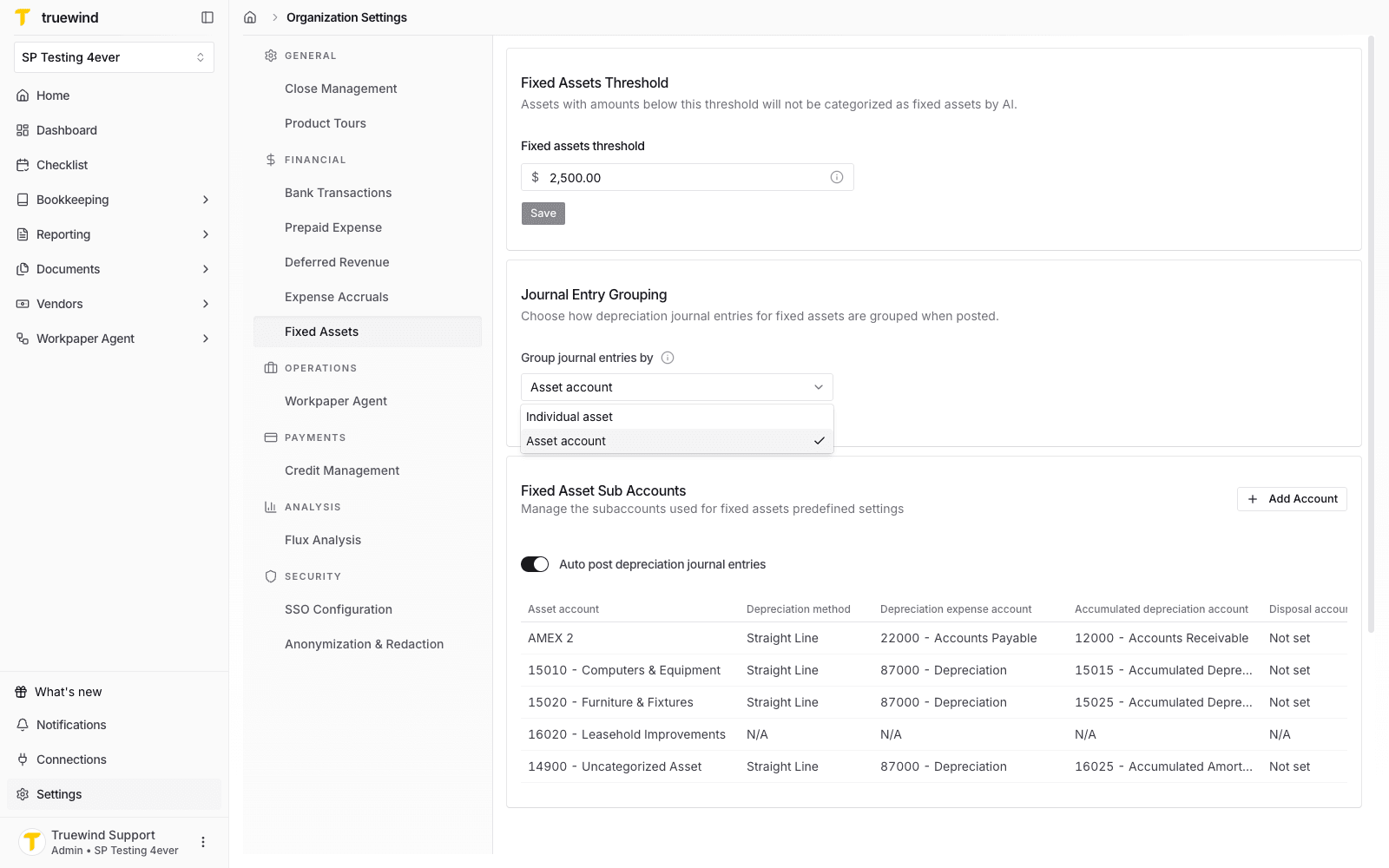
Step 7
Use the subaccount table to confirm existing asset account mappings and depreciation defaults.
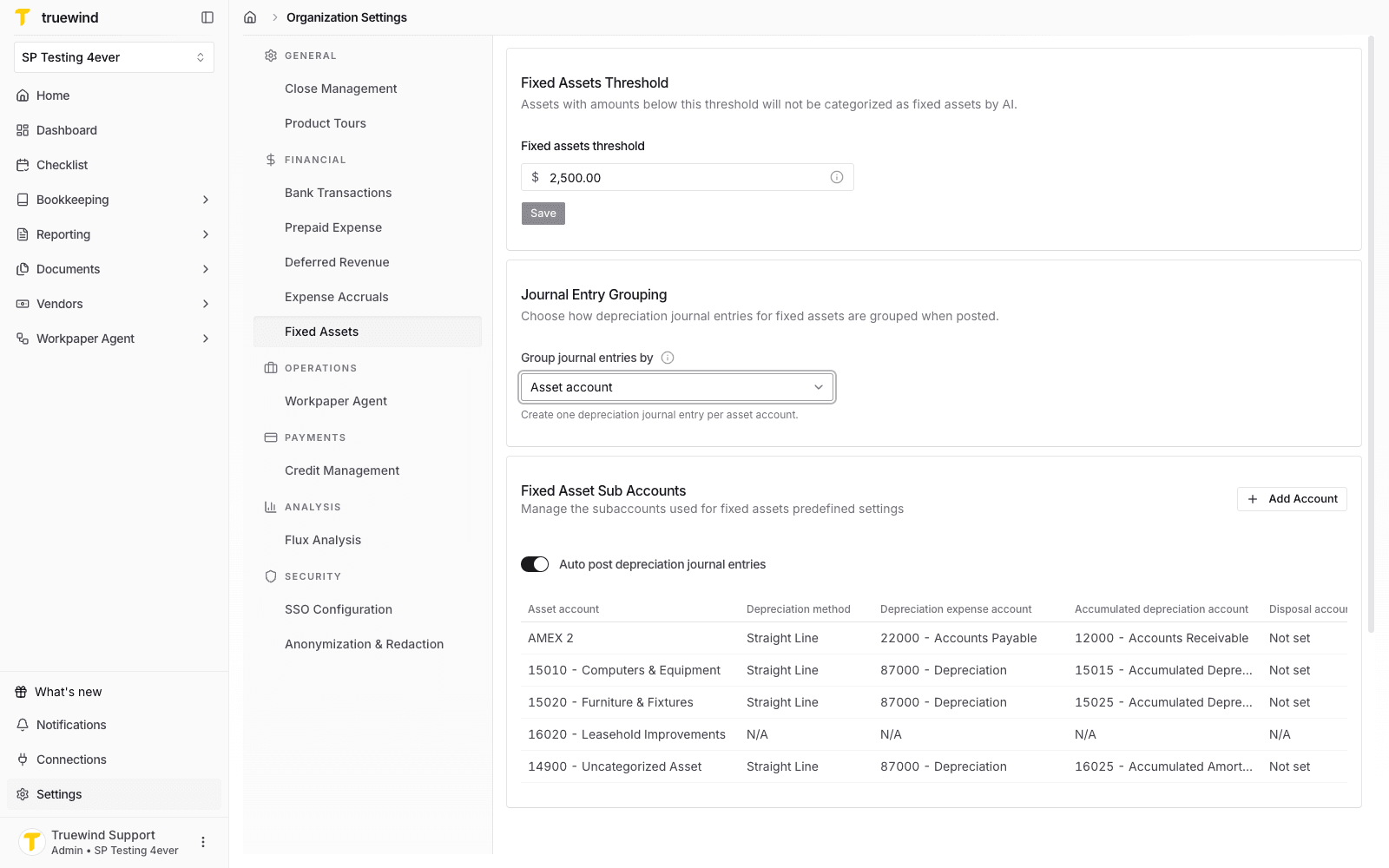
Step 8
Use Add Account when a new fixed asset account needs default depreciation behavior.
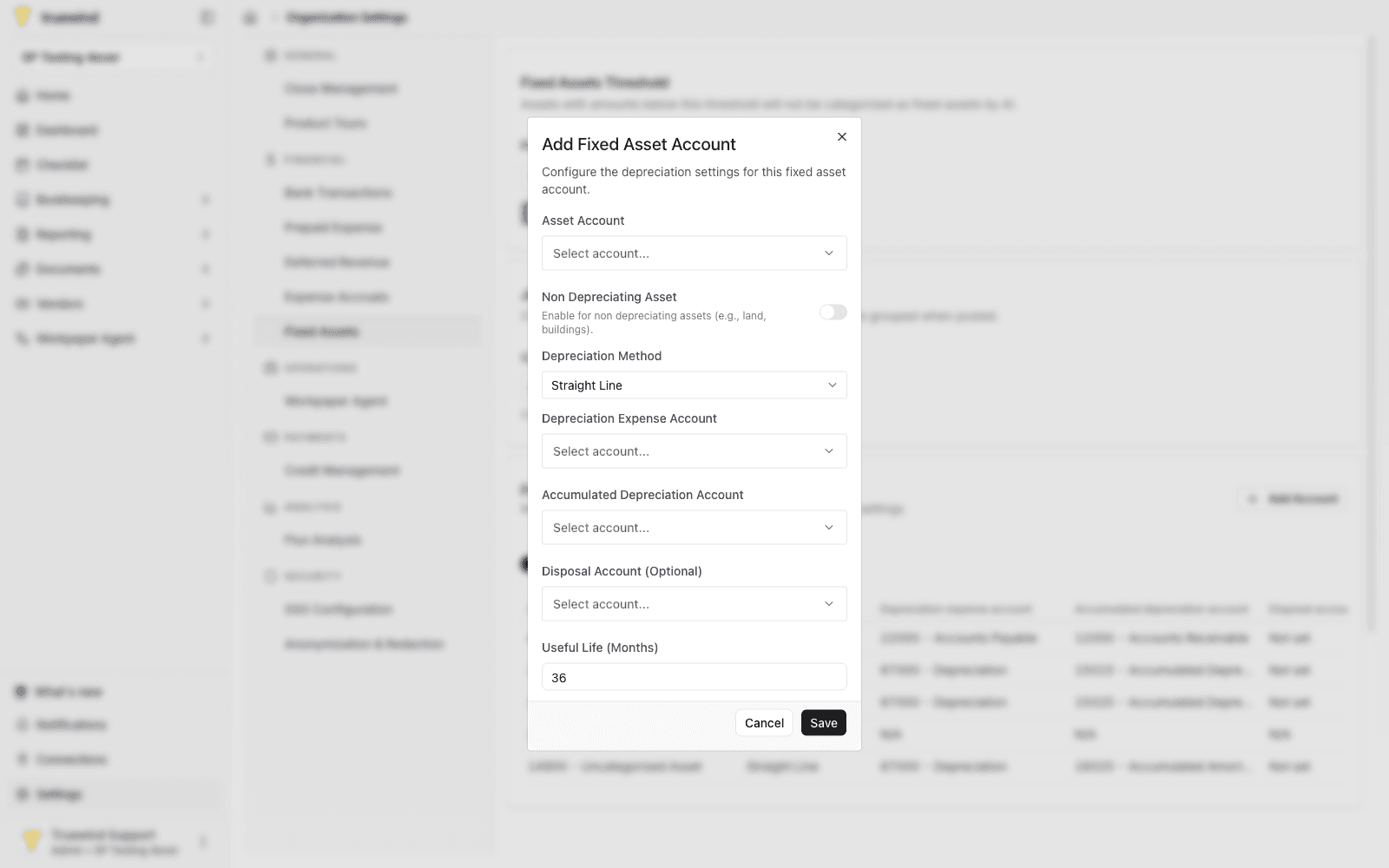
Step 9
Select the fixed asset account that should receive the default depreciation settings.
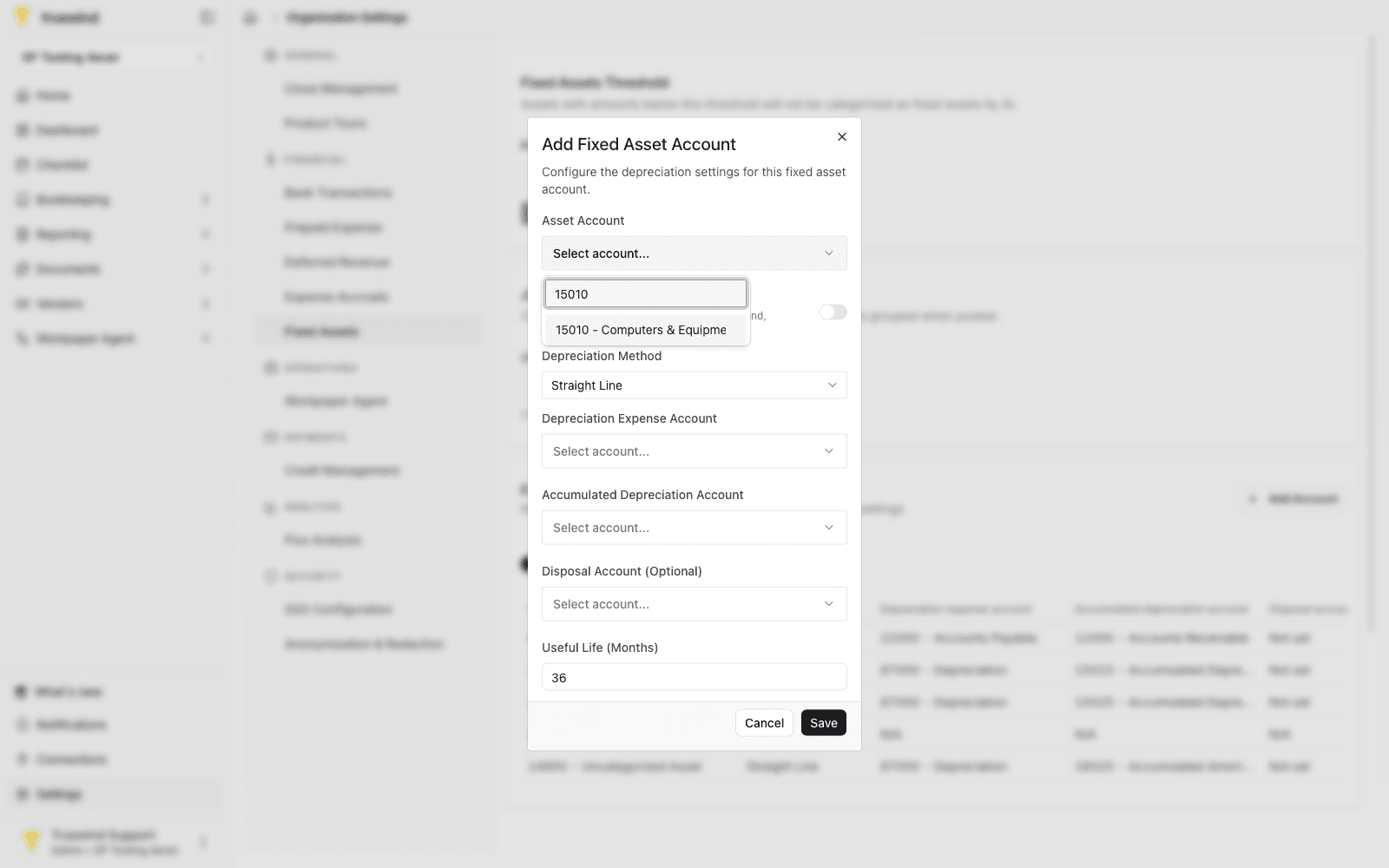
Step 10
Leave Non Depreciating Asset off when the account should generate depreciation schedules.
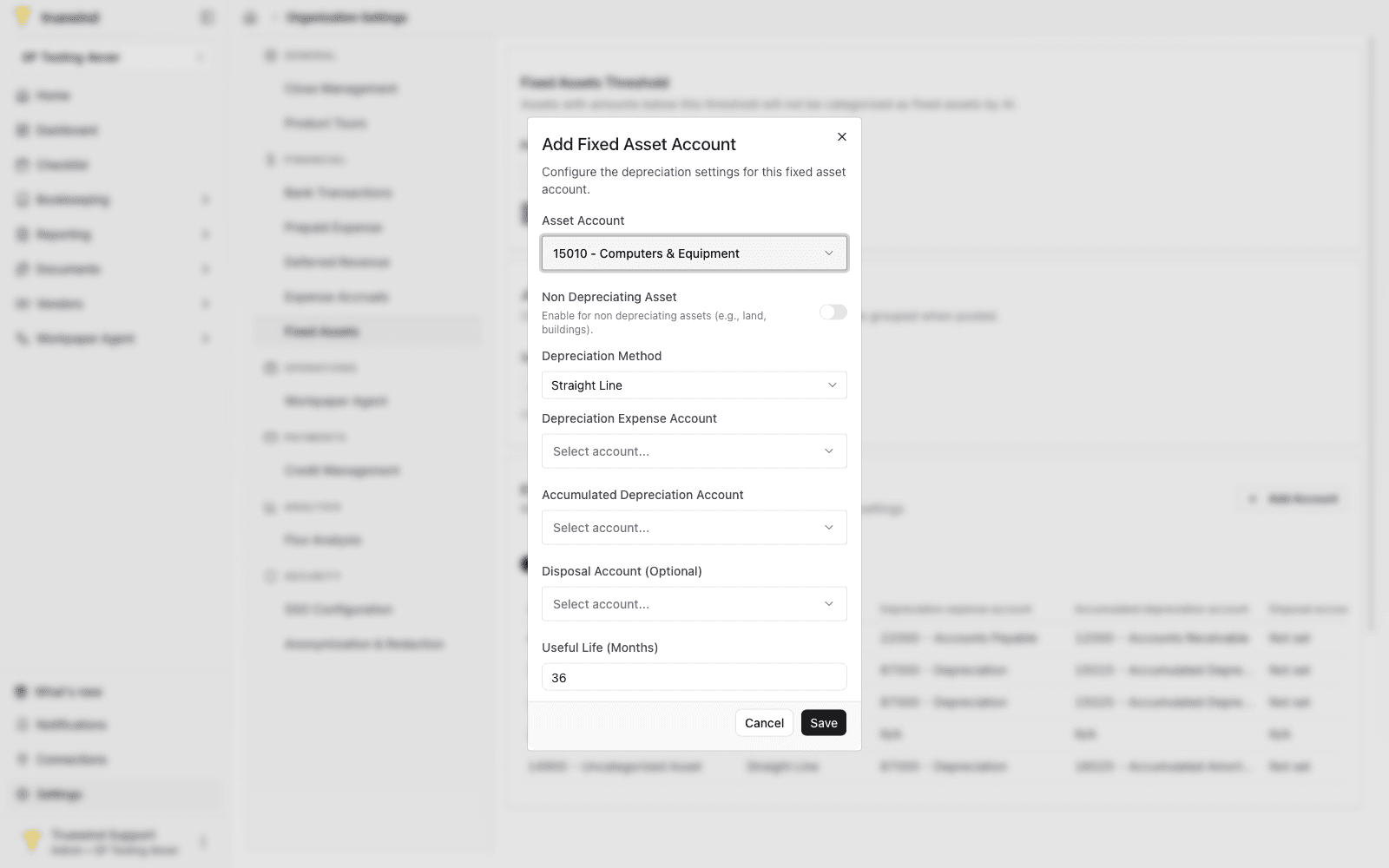
Step 11
Select the depreciation method that should be used by default for assets in this account.
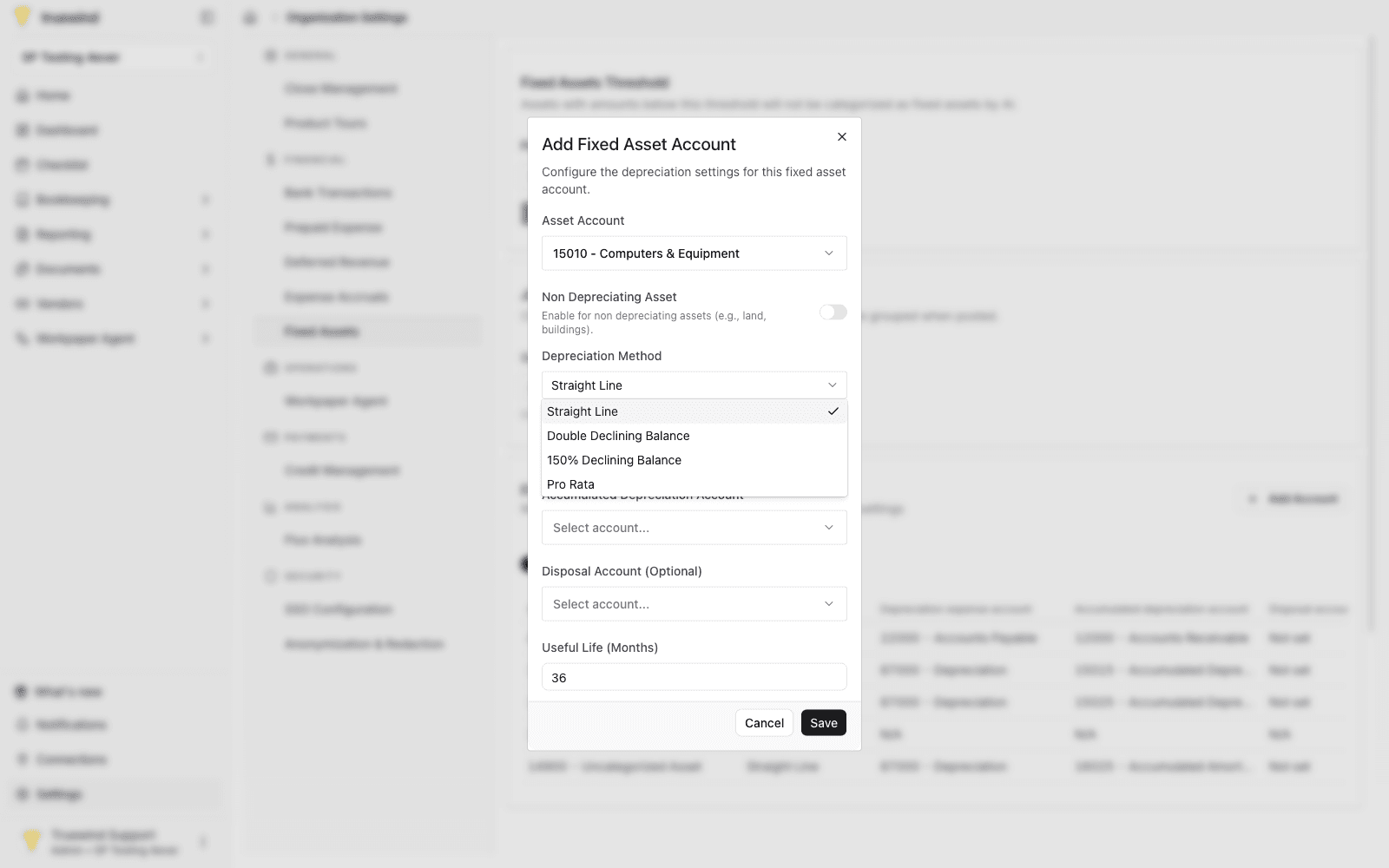
Step 12
Pick the depreciation expense account that should be used on generated journal entries.
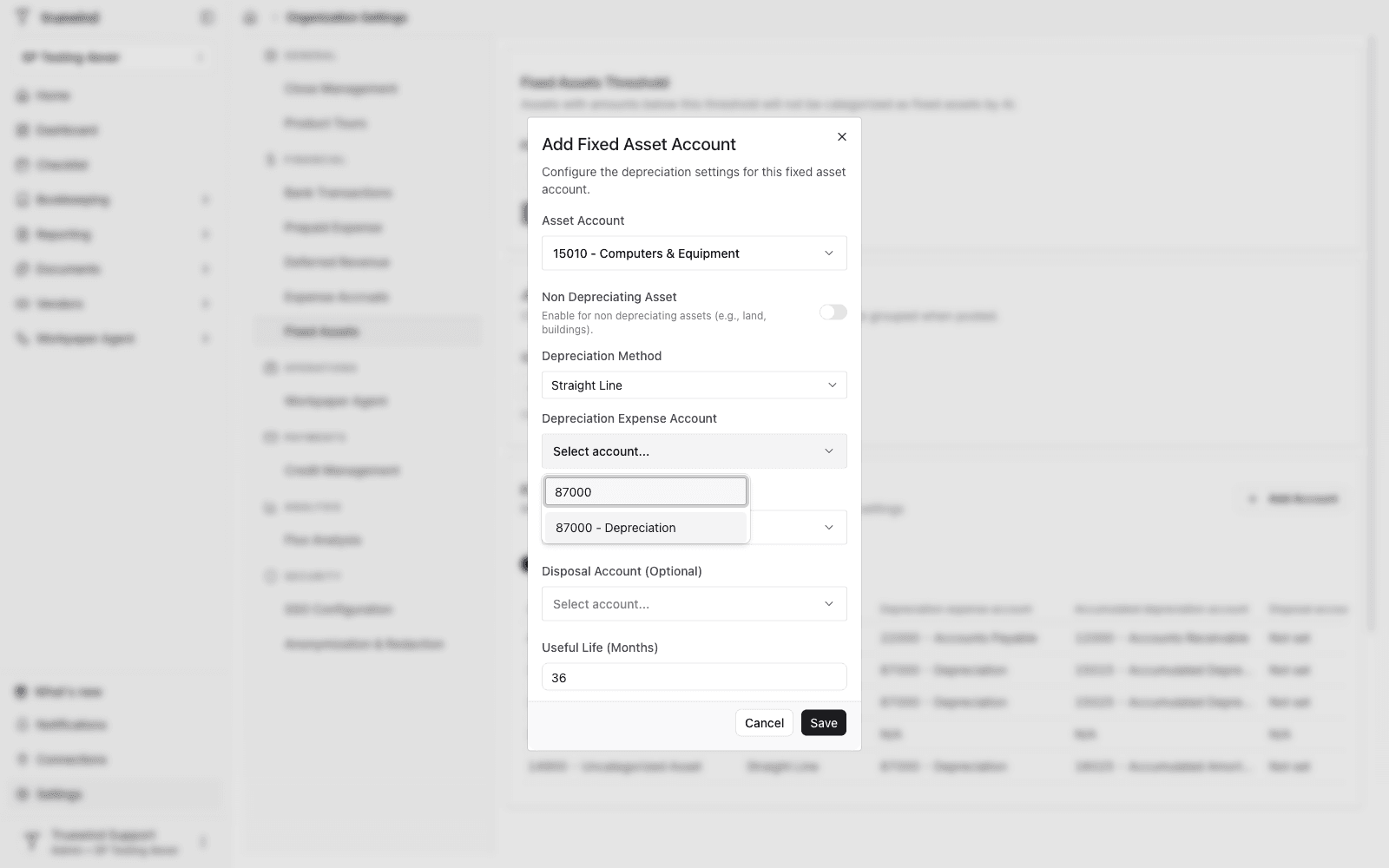
Step 13
Pick the accumulated depreciation account that should offset the asset balance.
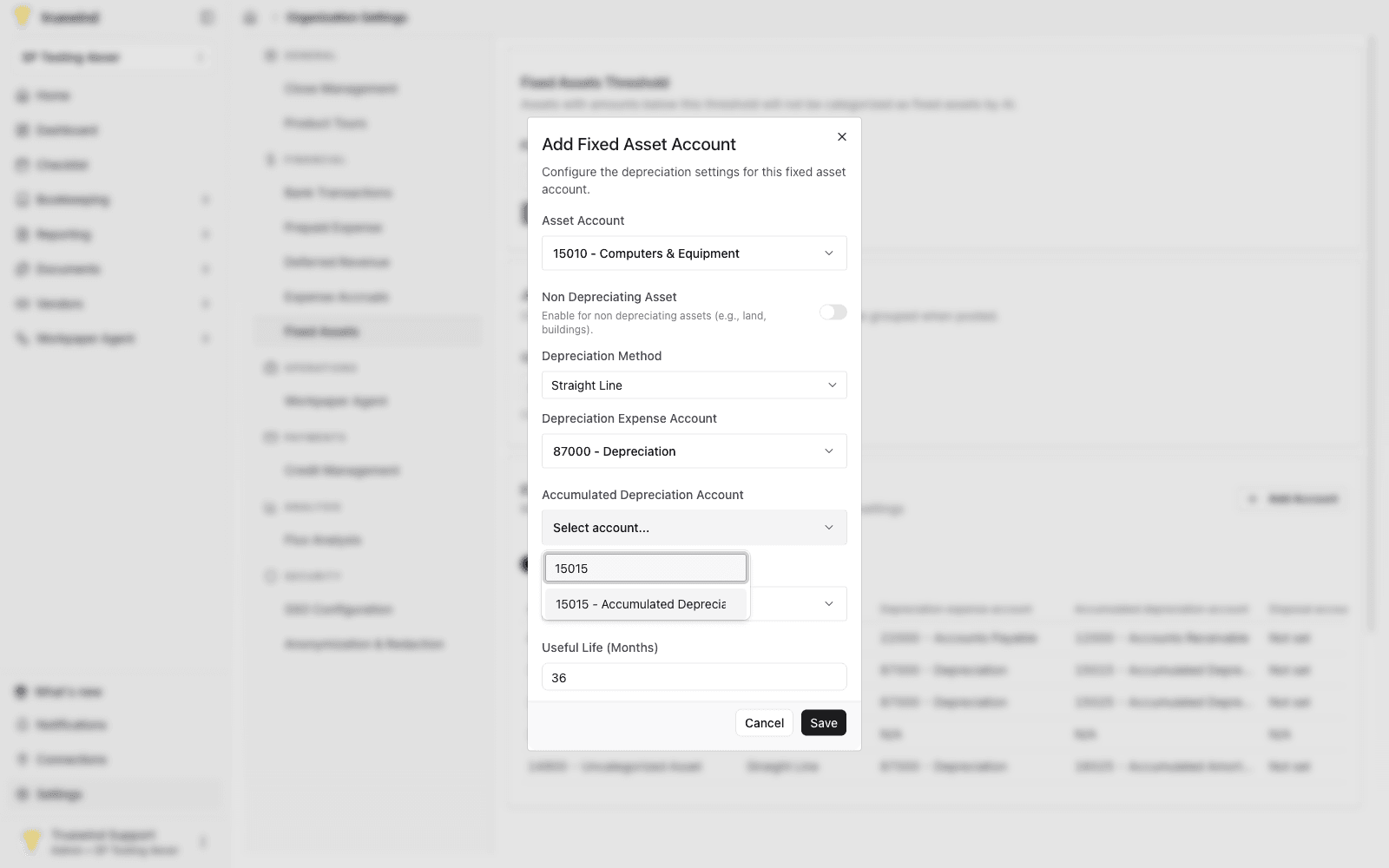
Step 14
Set the default useful life in months so new schedules use the expected term.
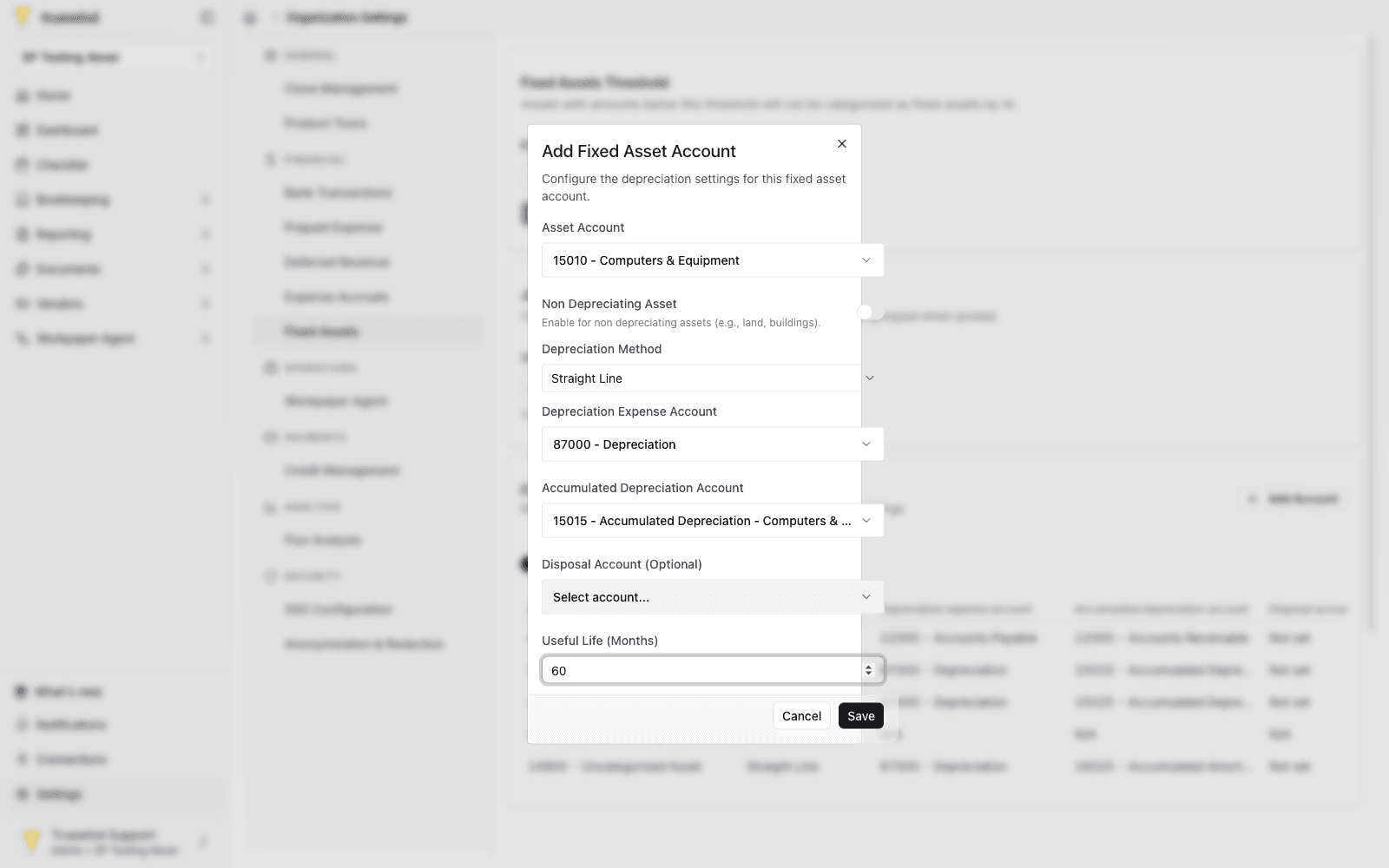
Step 15
Confirm the account, method, depreciation accounts, and useful life before saving the default.
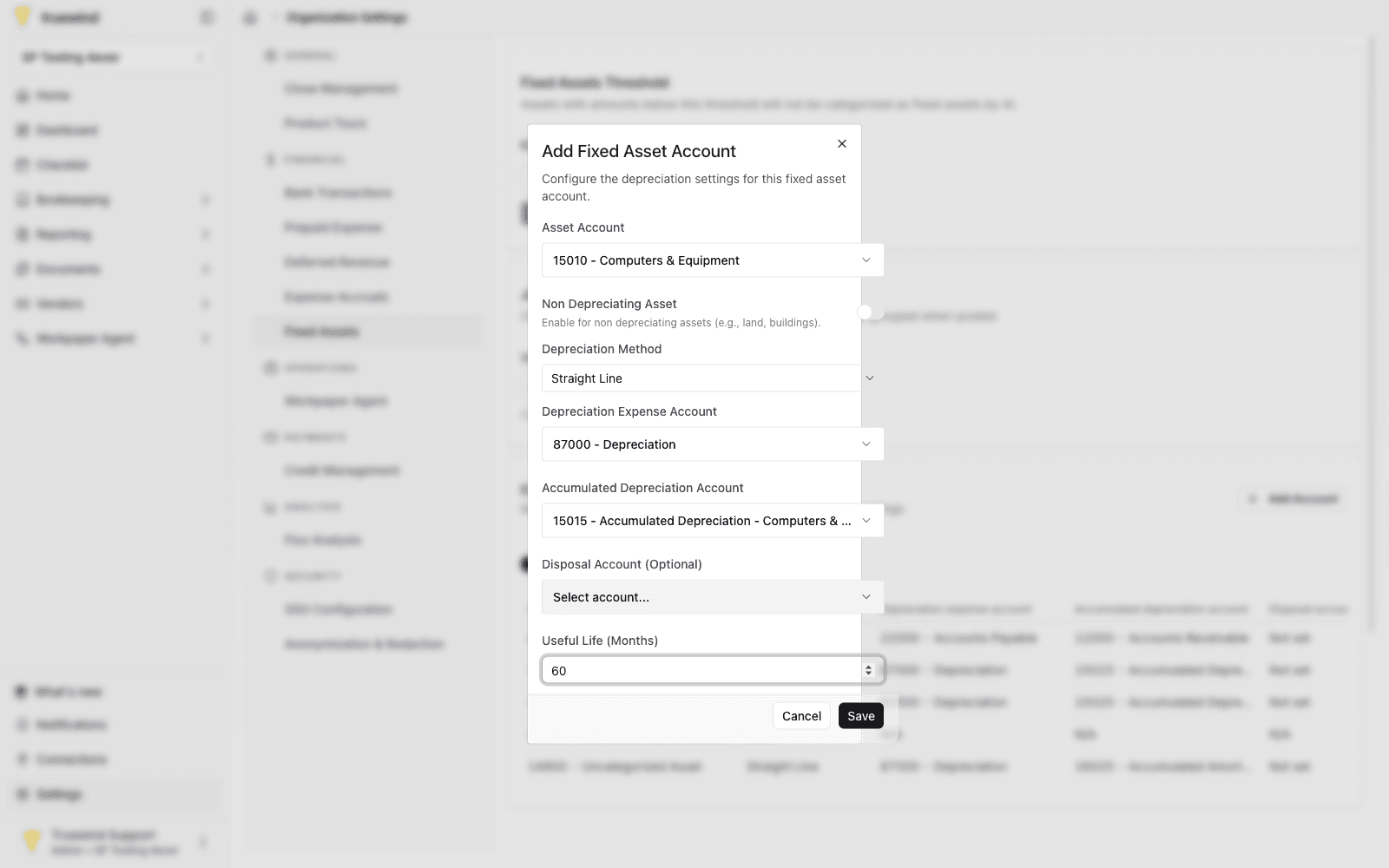
Step 16
Check whether Truewind should automatically post depreciation journal entries for fixed asset accounts.
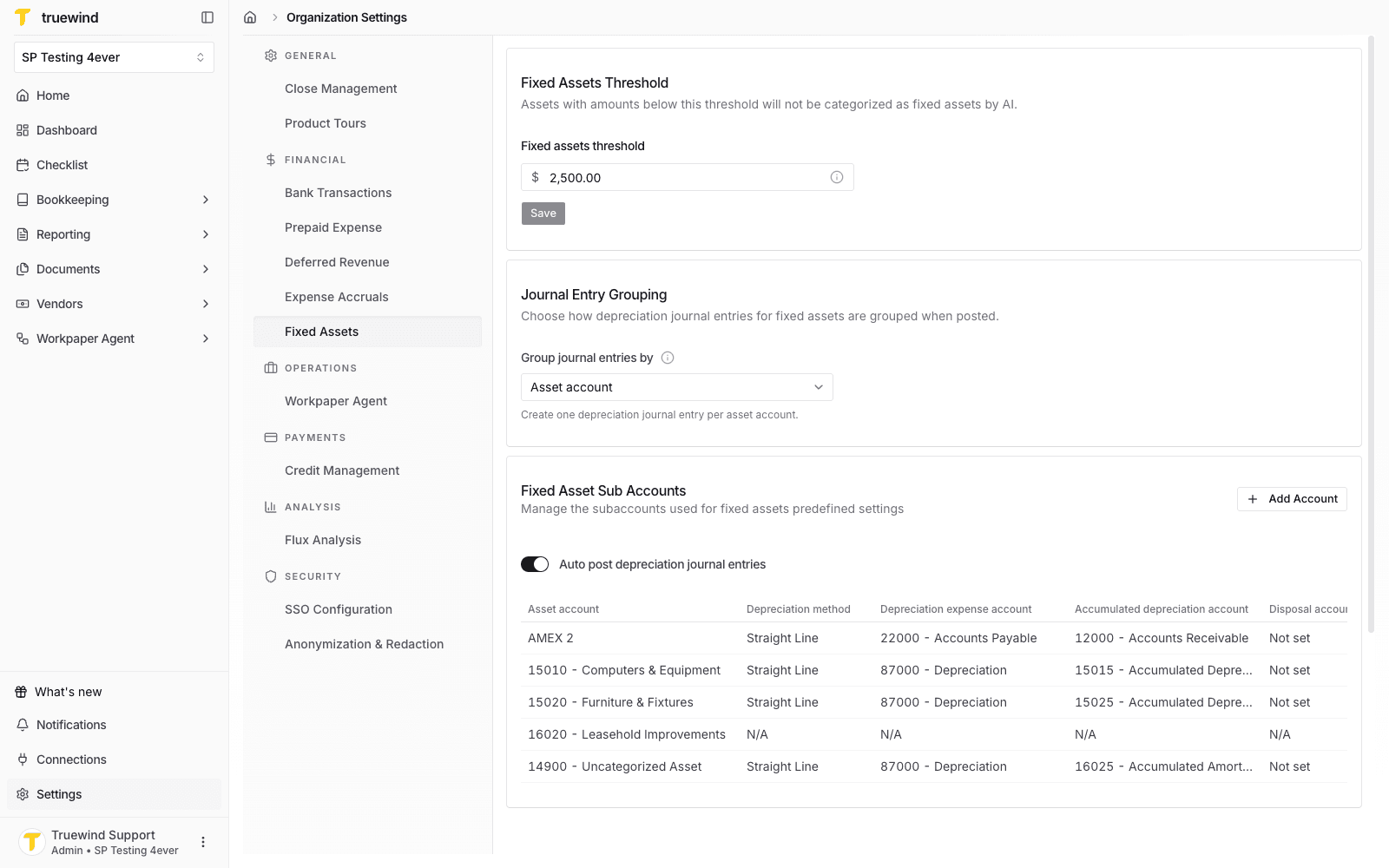
Step 17
Use the table to verify each asset account's method, depreciation accounts, disposal account, useful life, and depreciating status.
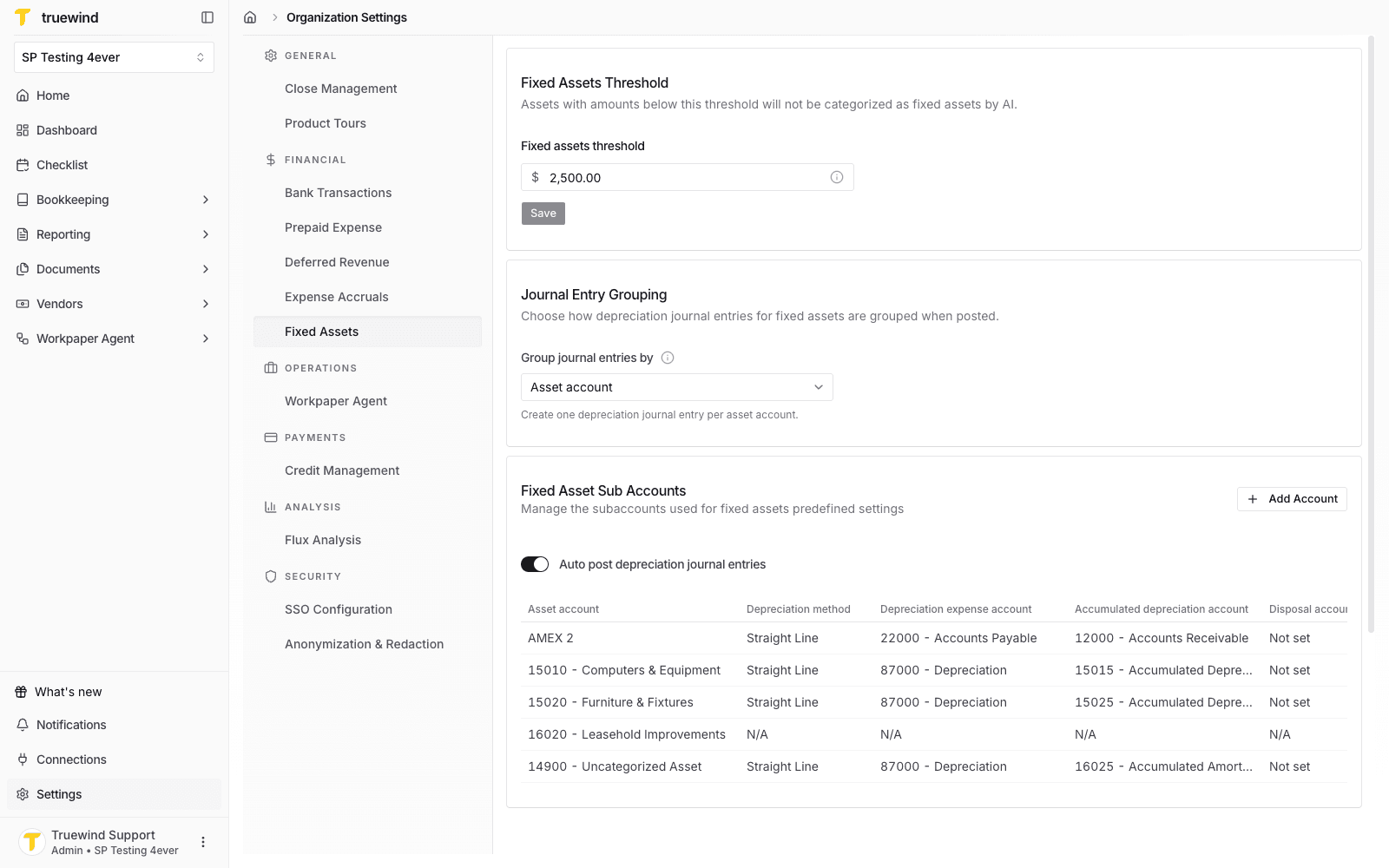
Confirm the threshold, depreciation defaults, useful life, and auto-posting behavior before month-end Fixed Asset work begins.
Was this helpful?
Need more help?
Ask for human help about this article and provide any feedback.