
Good follow-up check
After changing these settings, review one real transaction so you can confirm the fields and tagging behavior match your intended workflow.
Ask the support agent
Just ask a direct question or search related articles from the Knowledge Base.
Support Center / Settings / Features
Adjust class and department settings when transaction tagging behavior needs to change, resulting in the right categorization fields and auto-tagging behavior.
Step 1
Complete this action so Truewind can tag the same classes and departments your ERP uses.
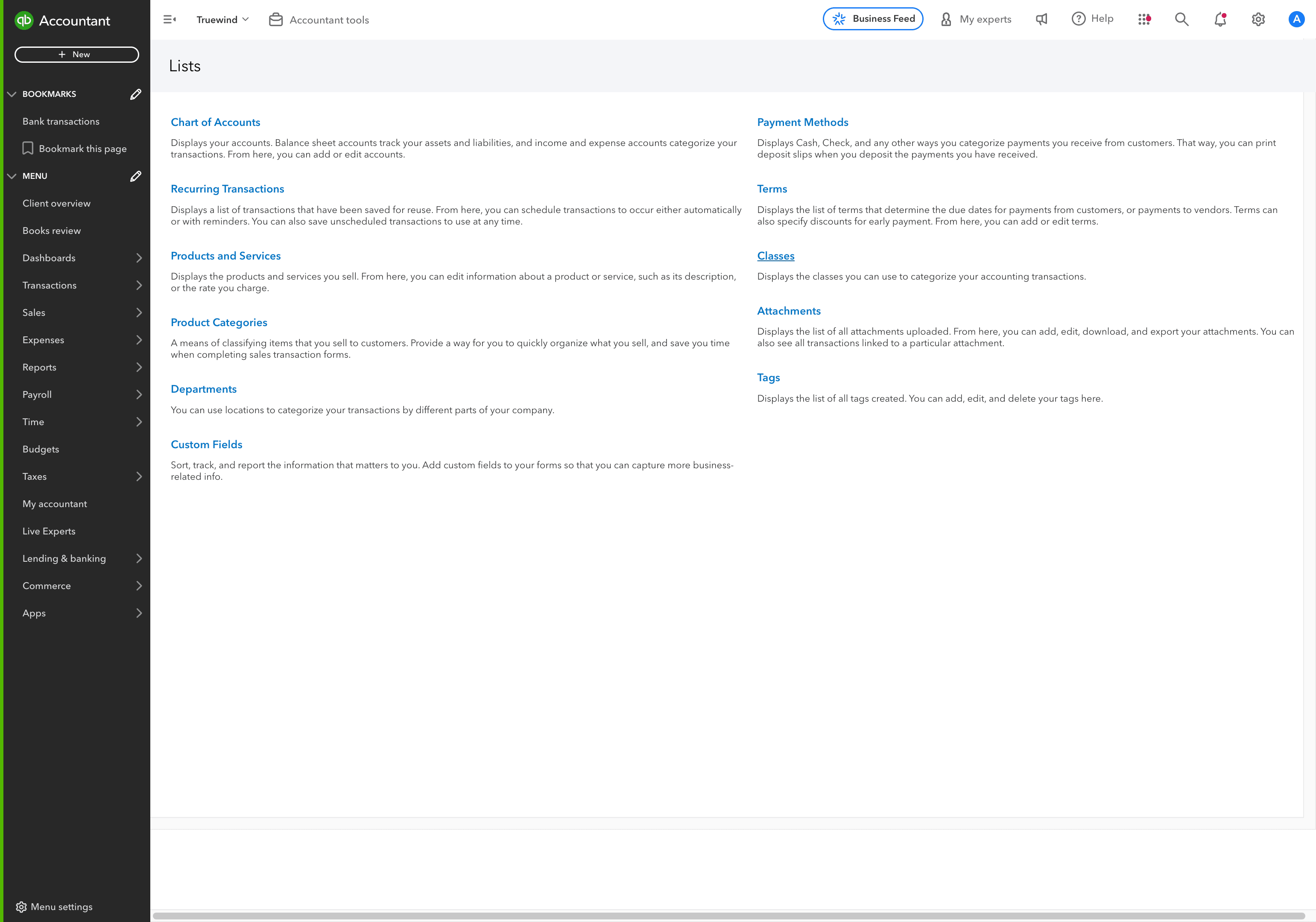
Step 2
Confirm the class list exists in QuickBooks before you expect Truewind to tag those values.
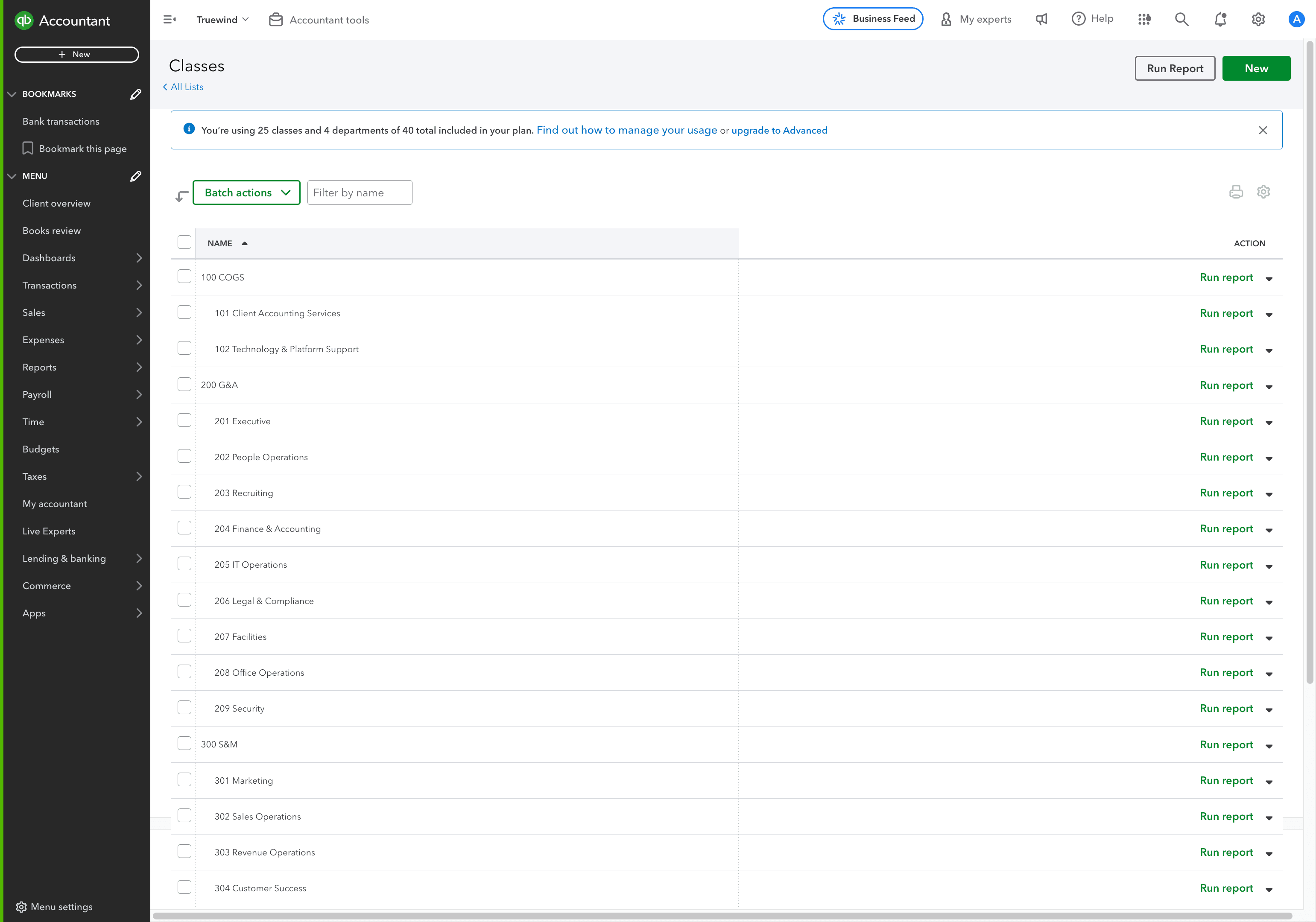
Step 3
Complete this action so Truewind can tag the same classes and departments your ERP uses.
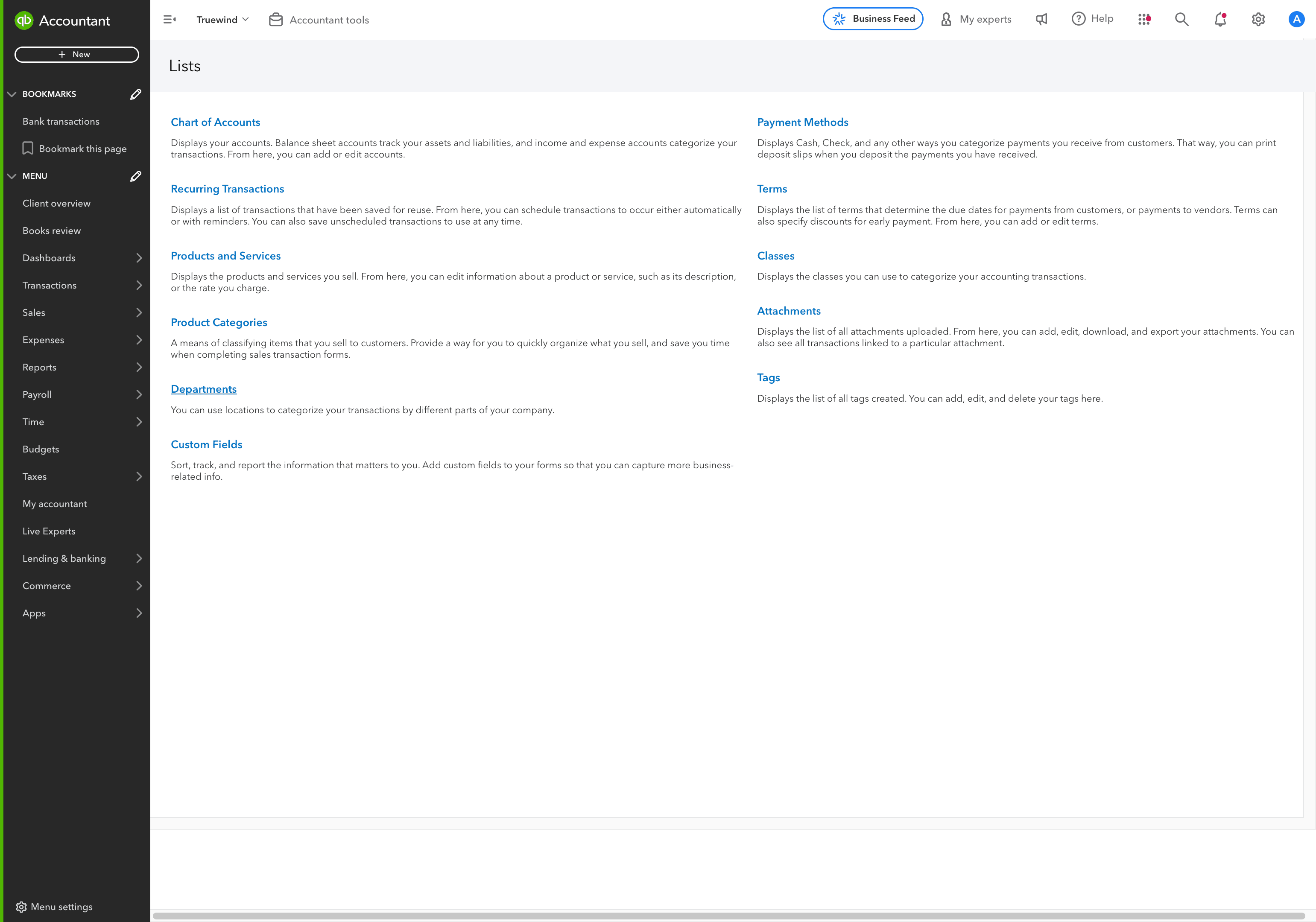
Step 4
Confirm the department list exists in QuickBooks before you enable those dimensions in Truewind.
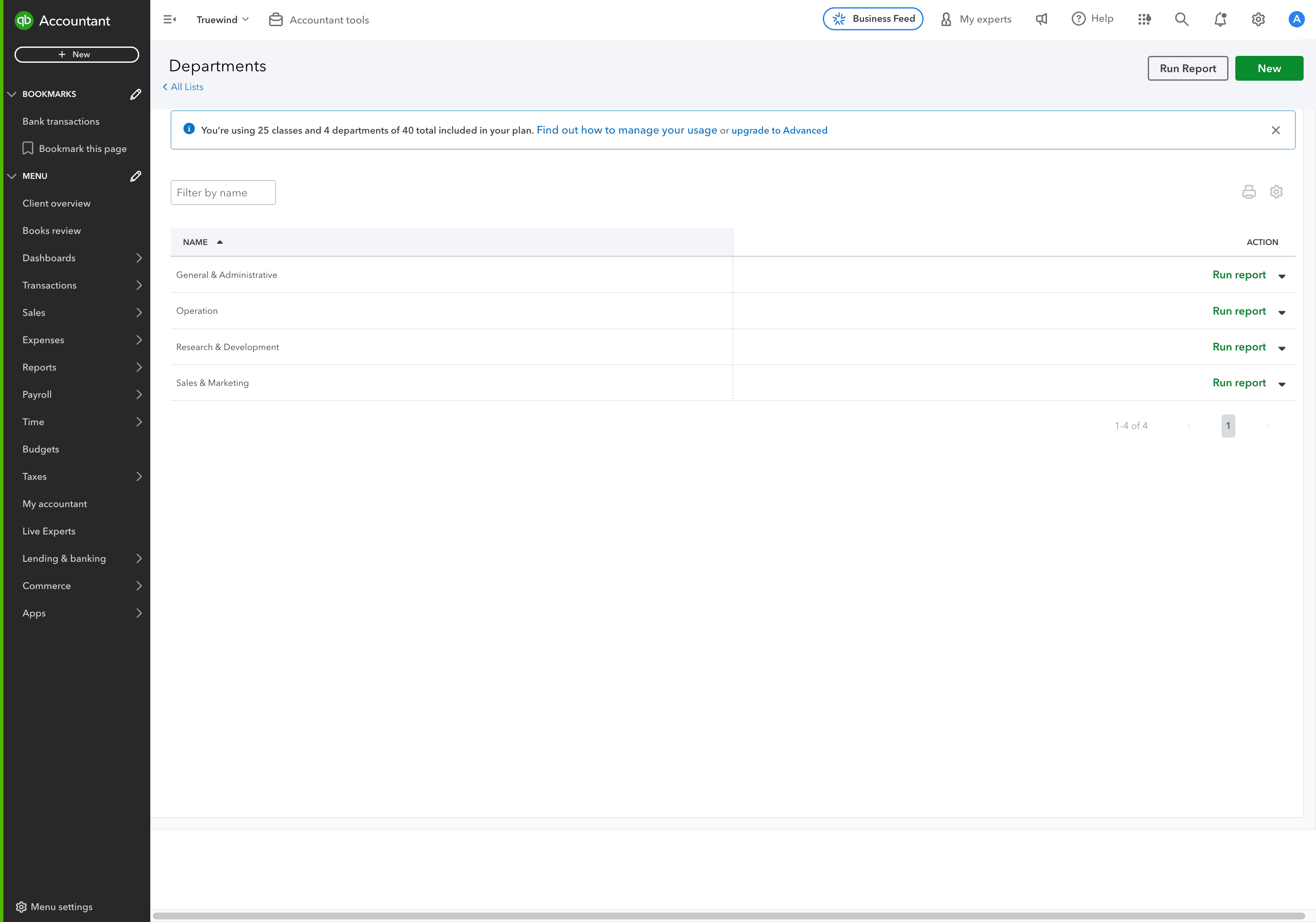
Step 5
This opens the relevant page or panel so Truewind can tag the same classes and departments your ERP uses.
Step 6
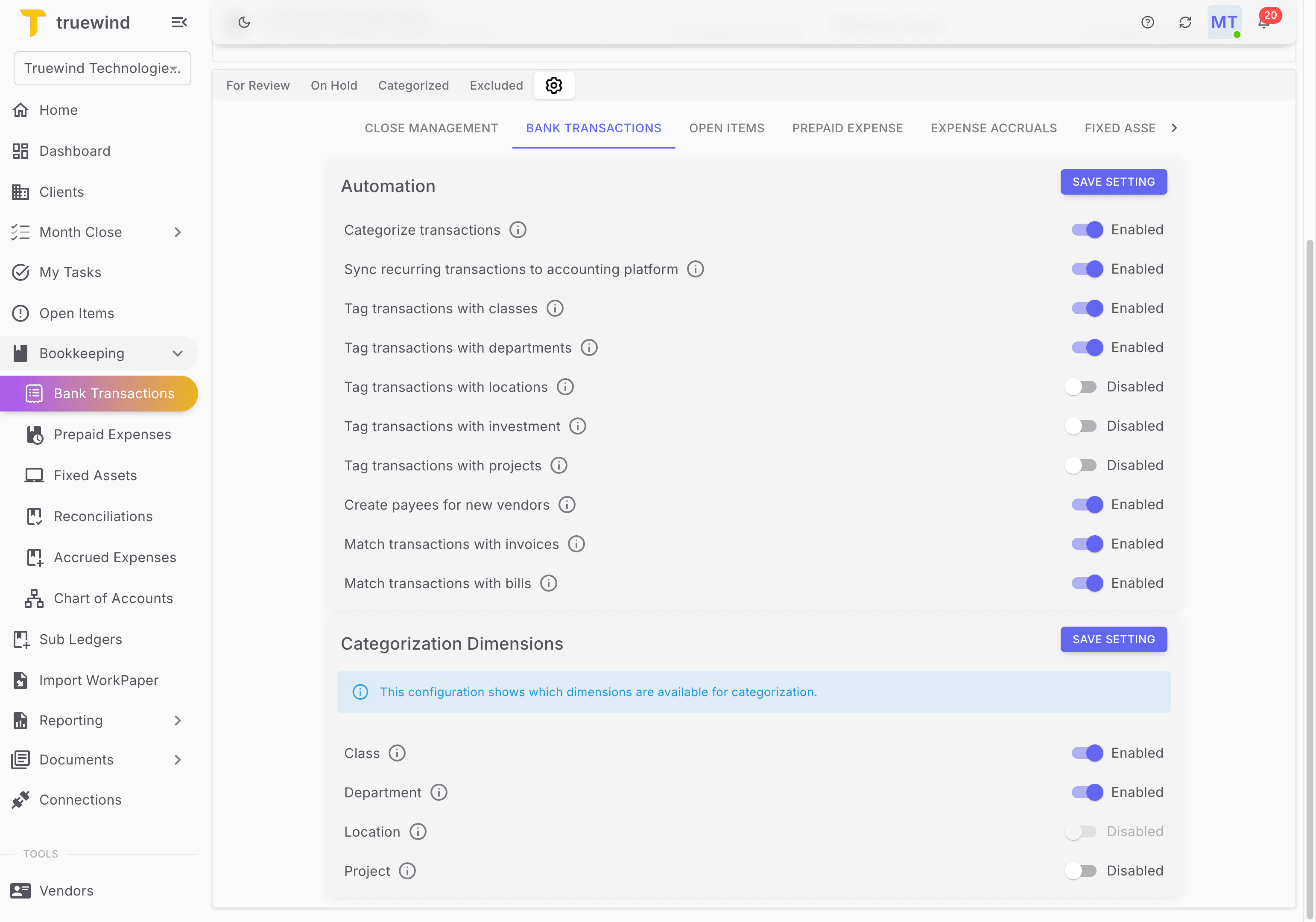
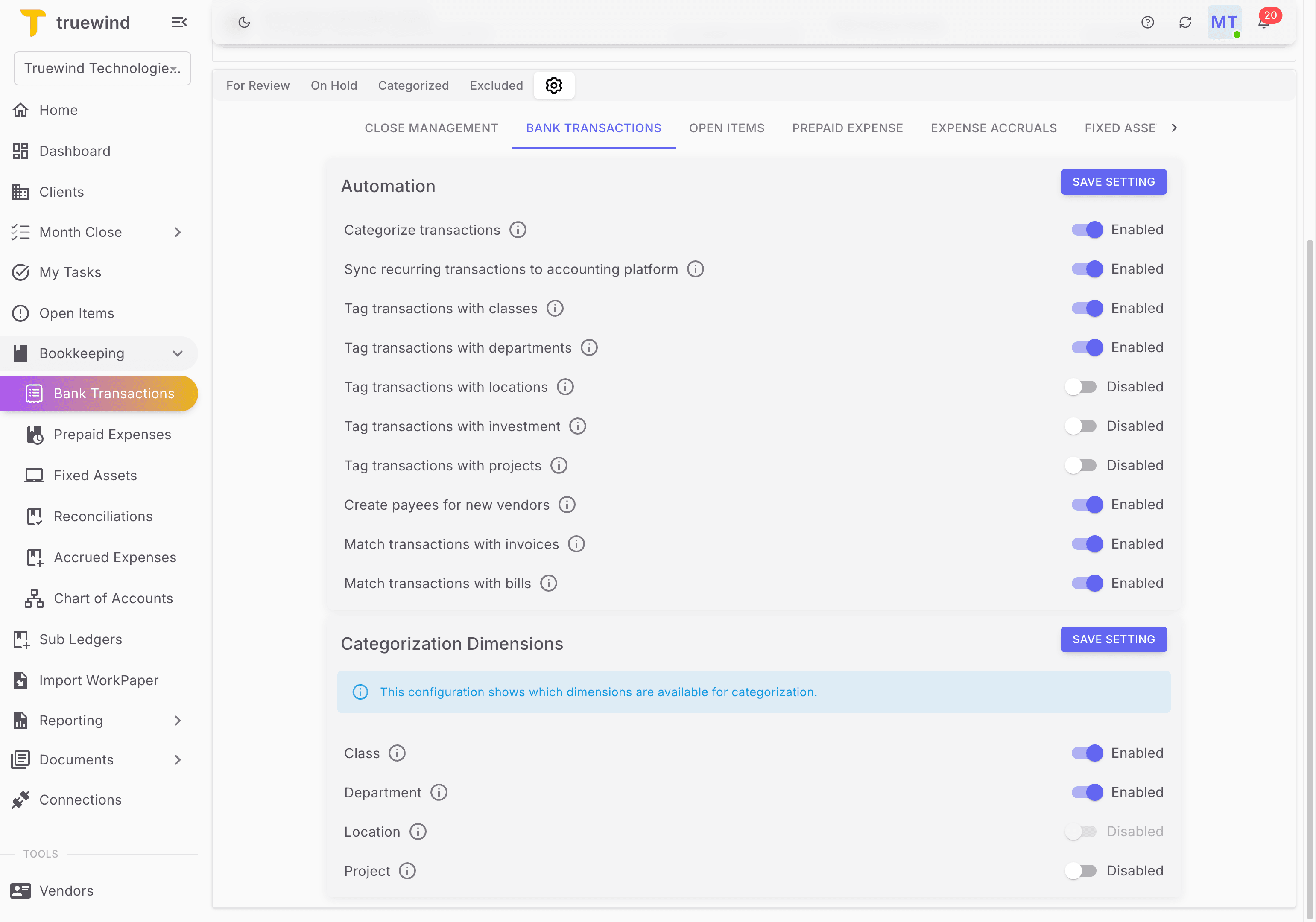
Dimension settings for bank categorization are managed from the Bank Transactions settings area.
Step 7
Turn this on only for the fields or permissions you want Truewind to use so Truewind can tag the same classes and departments your ERP uses.
Step 8
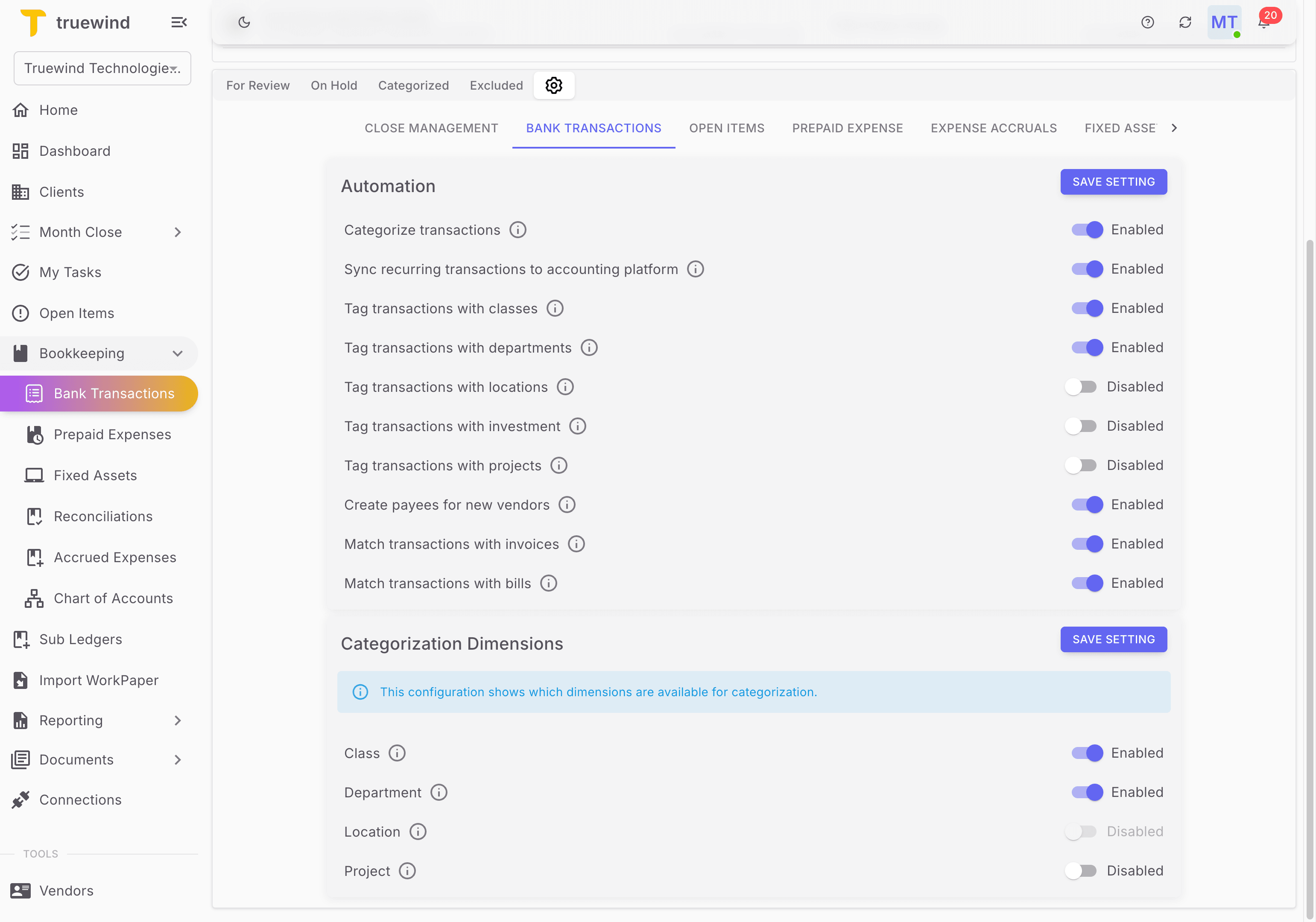
Turn on classes only if your team wants Truewind to suggest or save class values during categorization.
Step 9
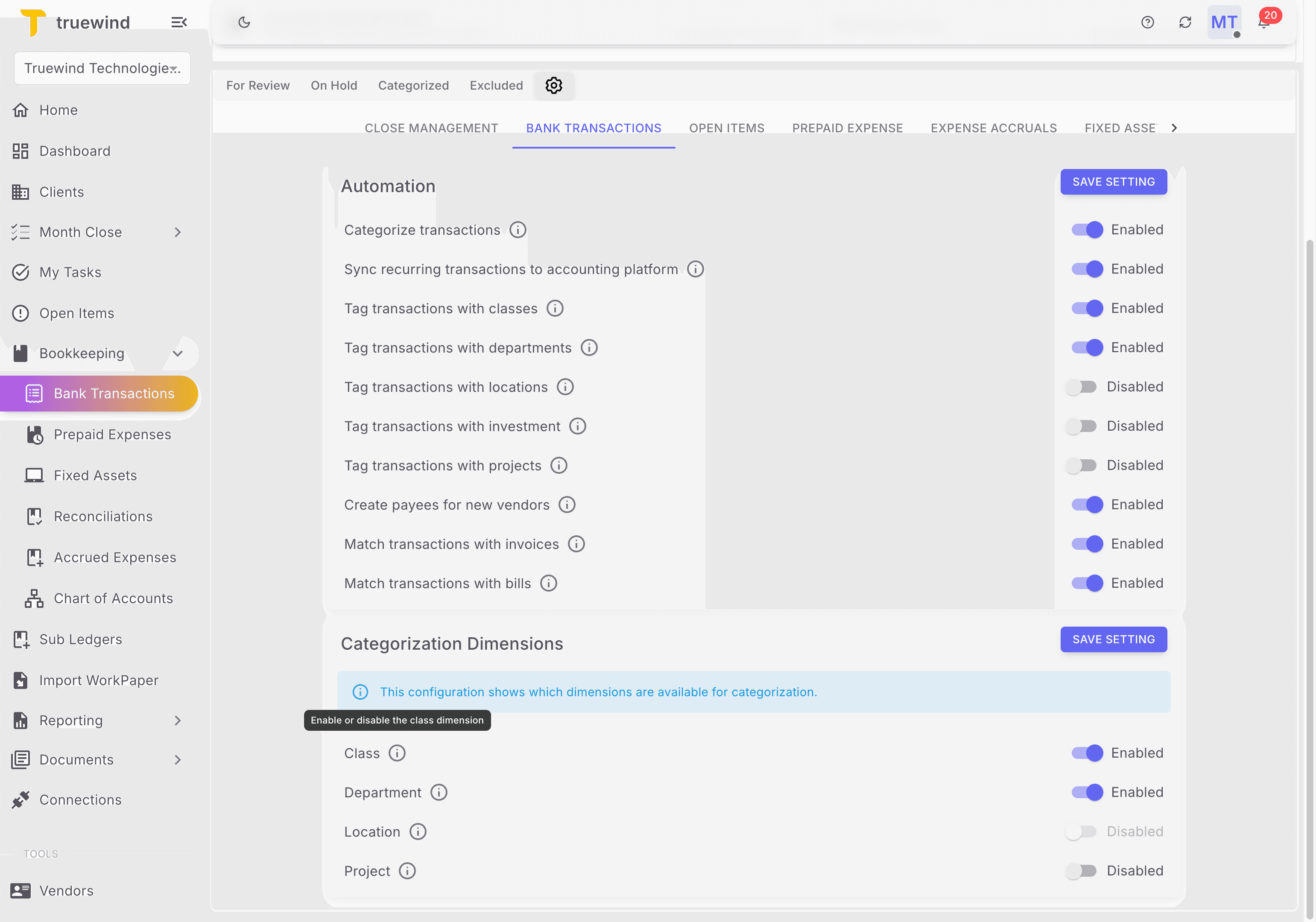
Turn on departments only if your team wants department tagging to happen in the transaction workflow.
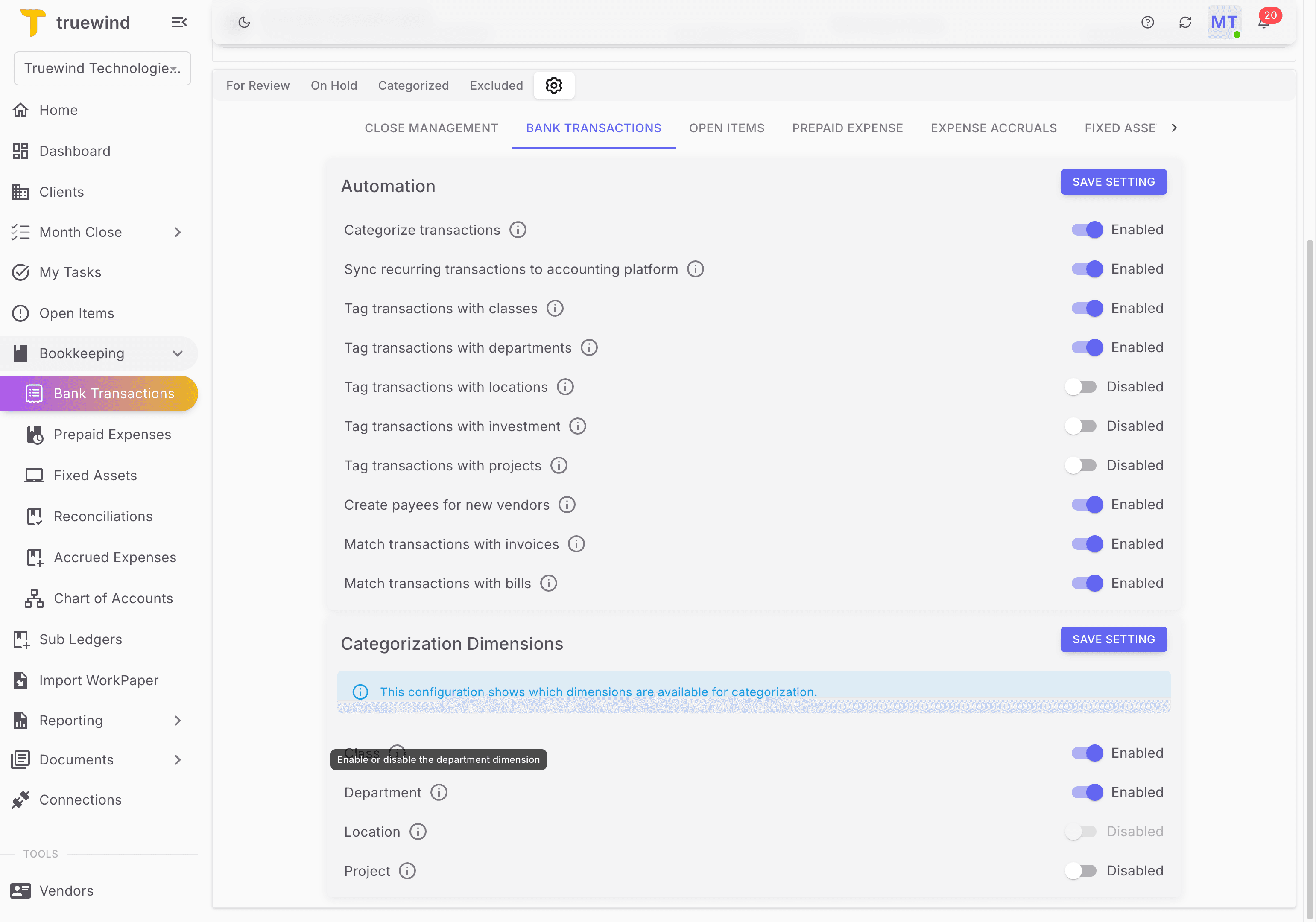
Step 10
Check for the expected result before moving on so Truewind can tag the same classes and departments your ERP uses.

After changing these settings, review one real transaction so you can confirm the fields and tagging behavior match your intended workflow.
Was this helpful?
Need more help?
Ask for human help about this article and provide any feedback.