
Why this article exists
The current product keeps settings in one place, but you may reach the page either directly or from the workflow that needs the setting changed.
Ask the support agent
Just ask a direct question or search related articles from the Knowledge Base.
Support Center / Settings / Overview
Open Organization Settings directly or from a feature-specific link when configuration needs to change, resulting in the right settings tab for the workflow you are updating.
Step 1
Start in Truewind on Organization Settings, then click on main menu on the left
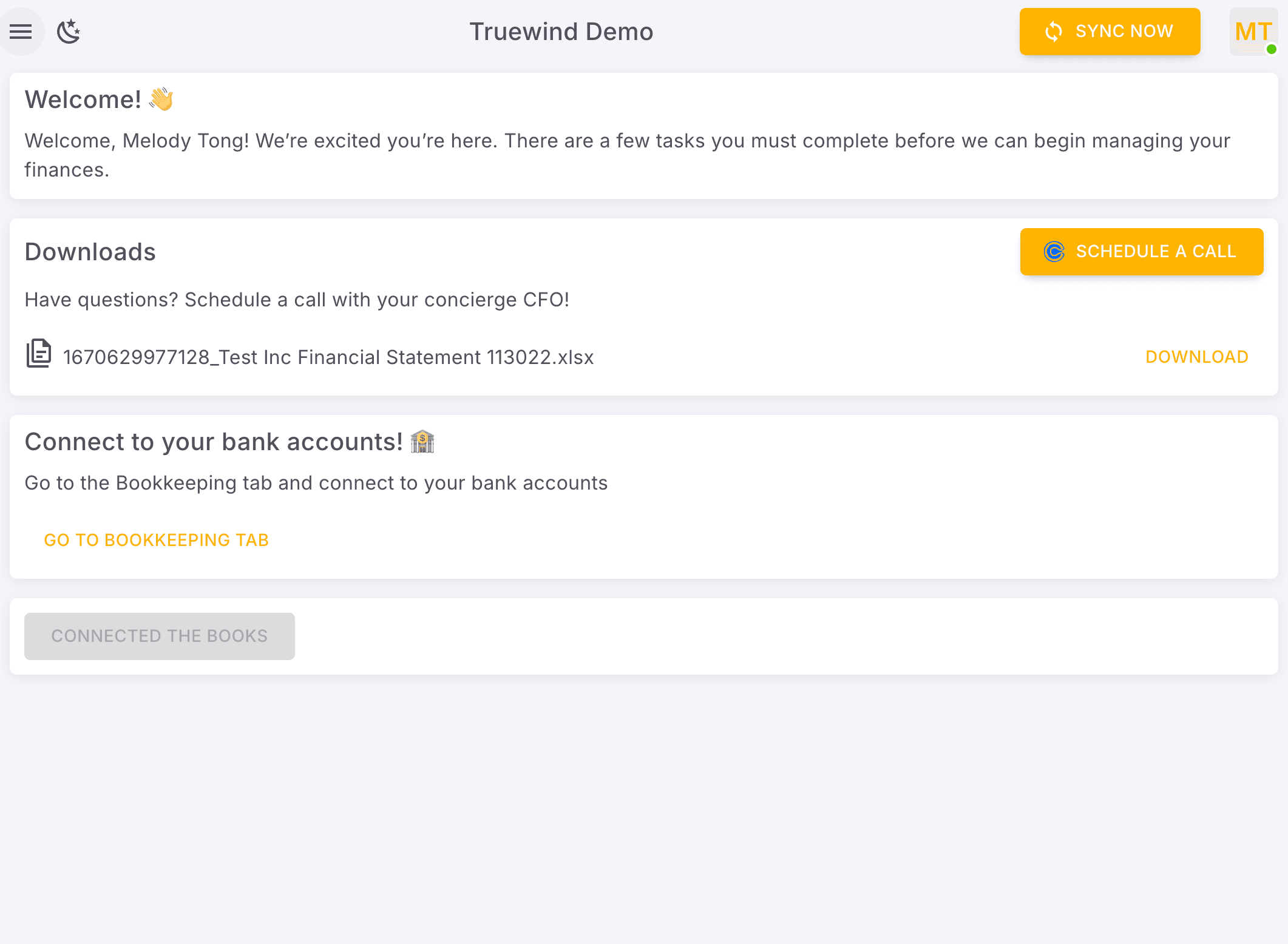
Step 2
Use Bookkeeping when you want to reach the in-product settings shortcut from an accounting workflow.
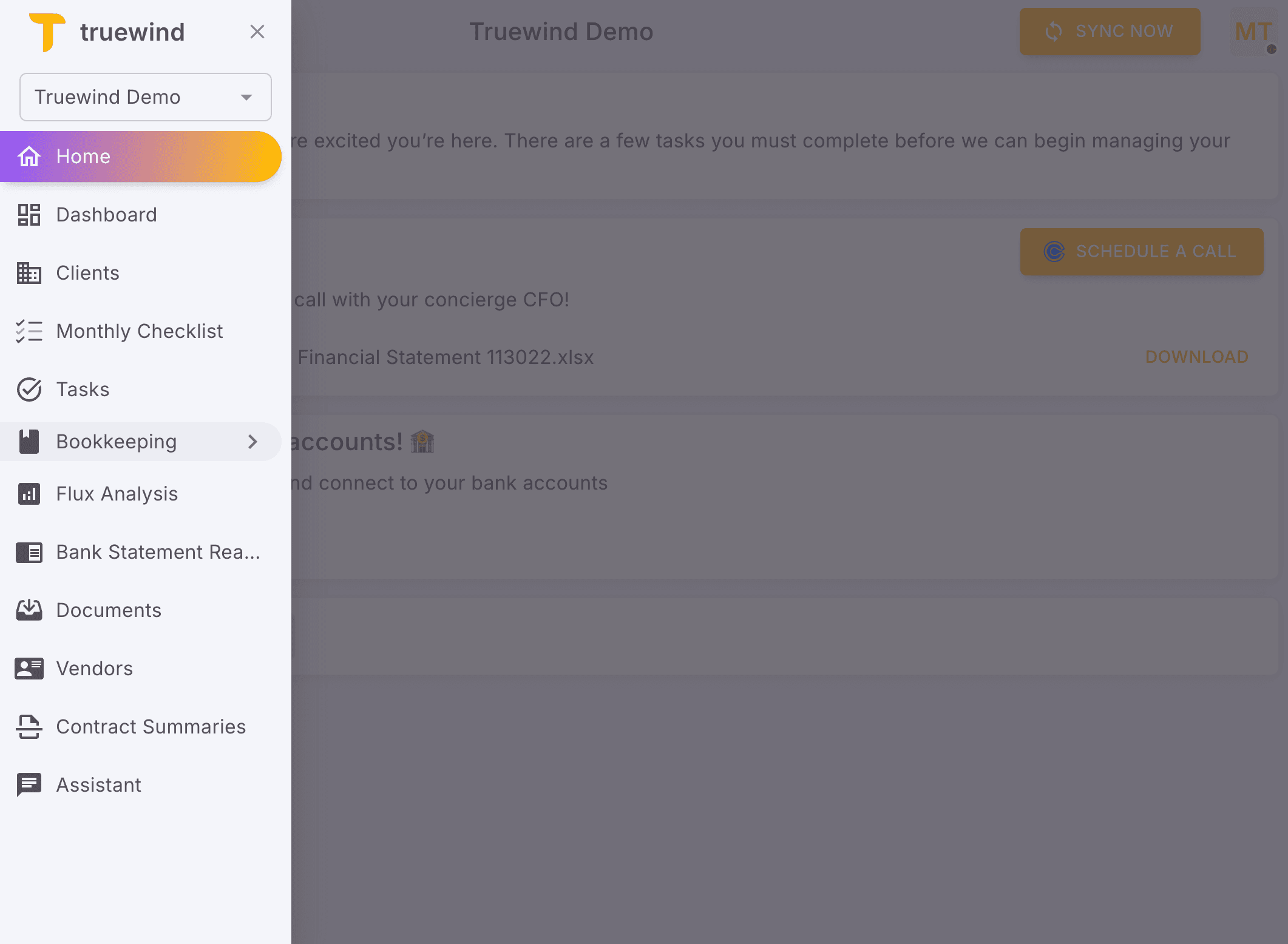
Step 3
The fastest path to organization settings starts from the Bank Transactions workspace.
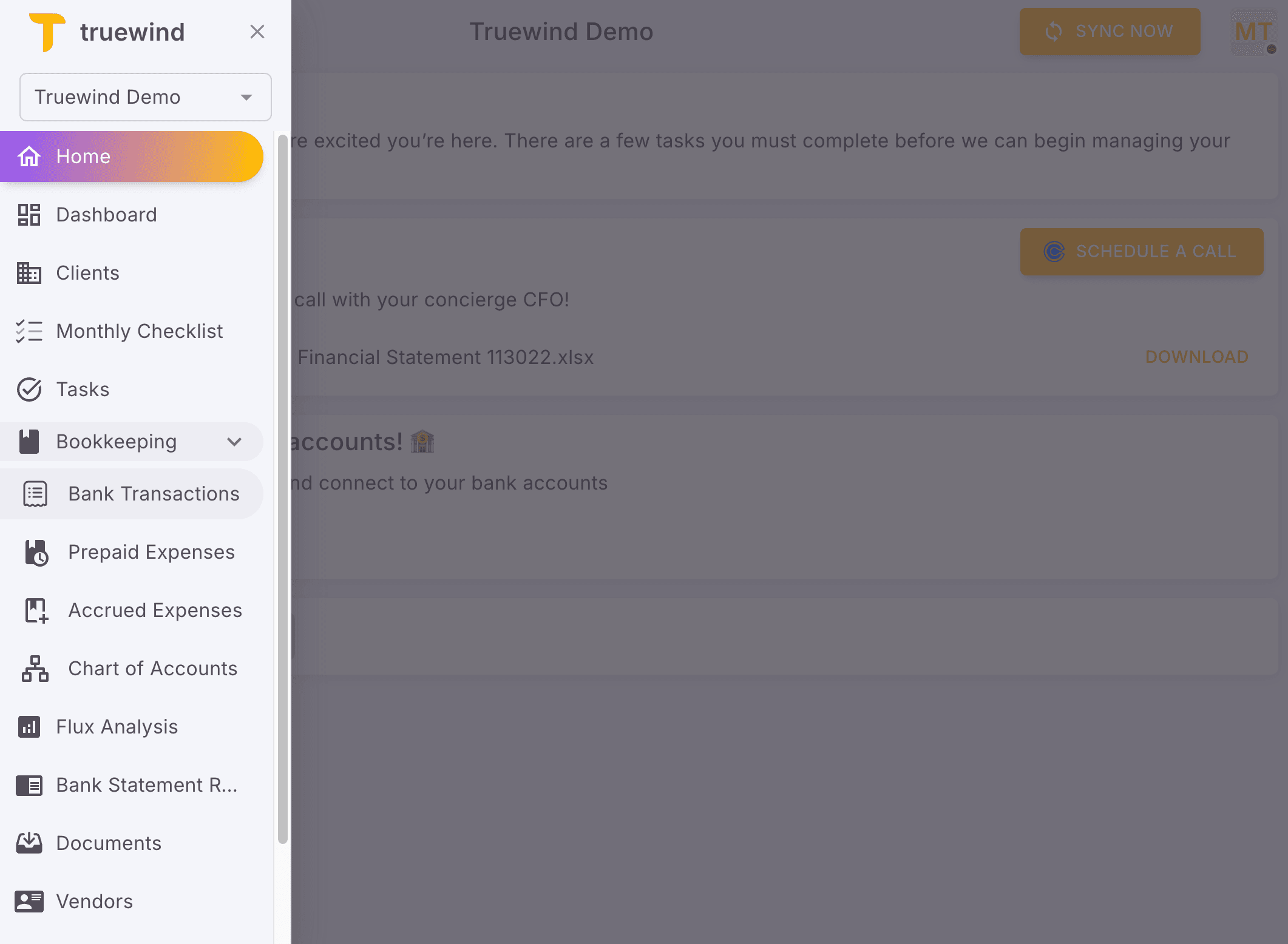
Step 4
This opens the relevant page or panel so organization-wide bookkeeping settings stay consistent.
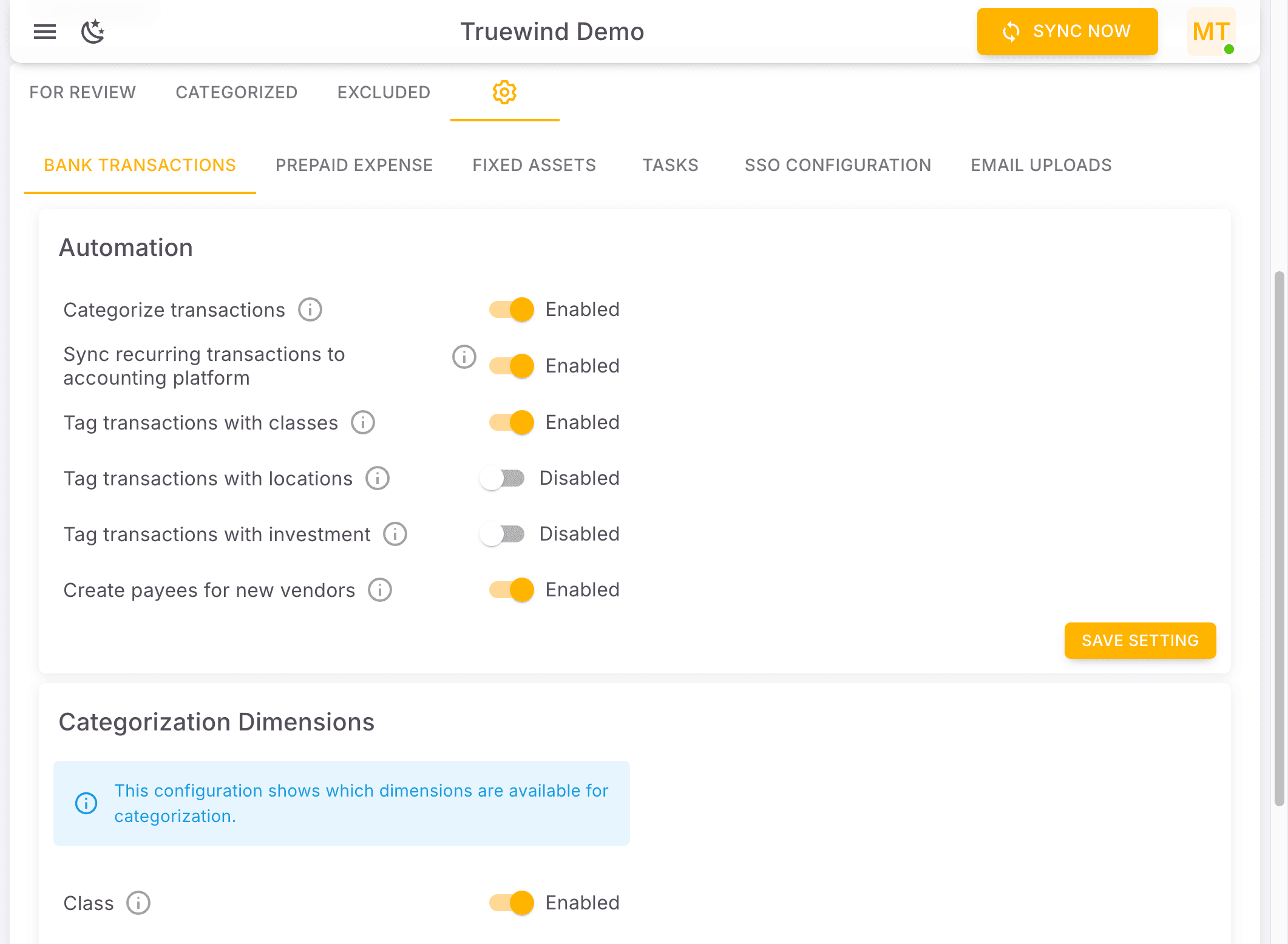
Step 5
Use this checkpoint to verify the current state so organization-wide bookkeeping settings stay consistent.
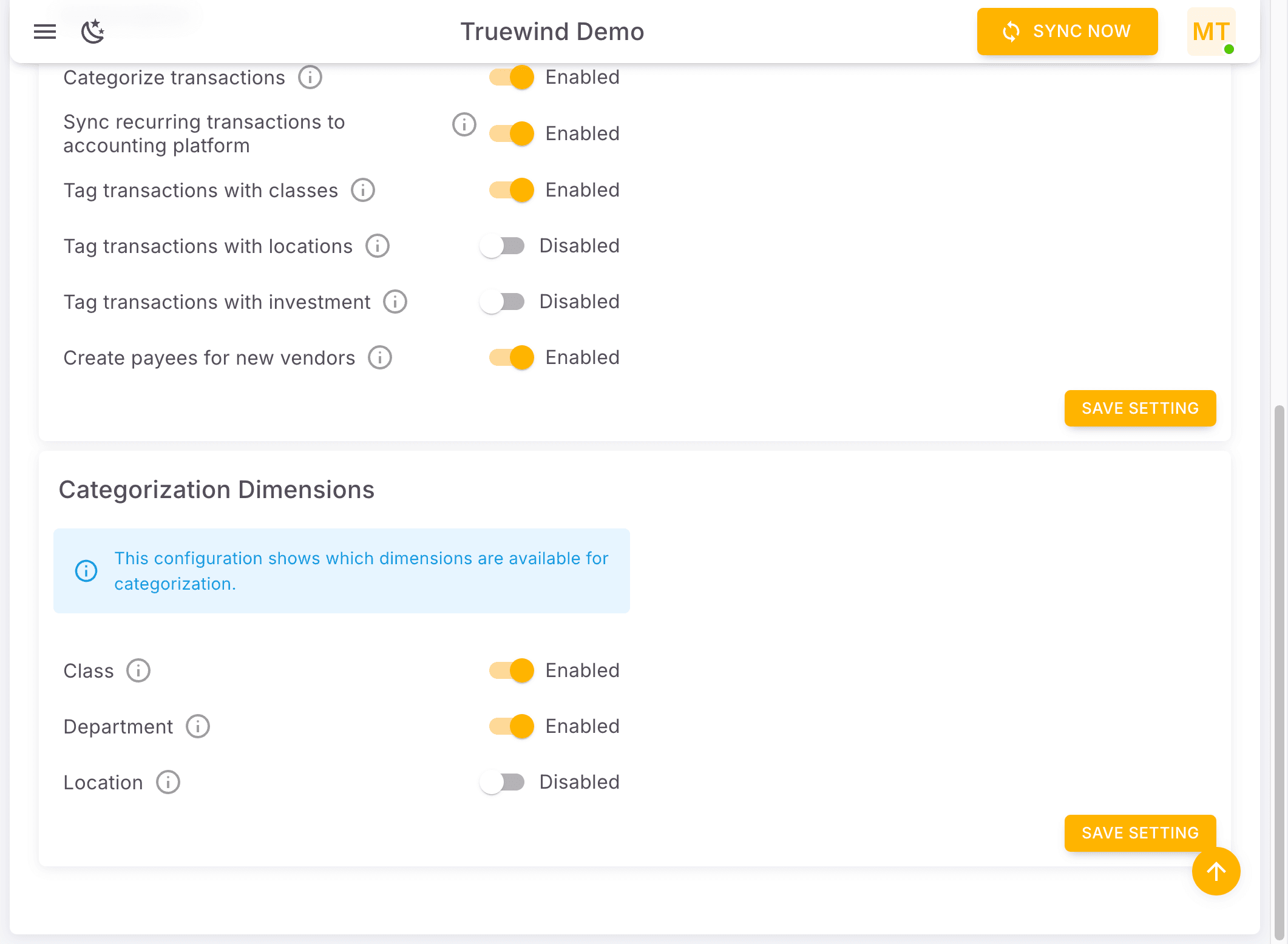
Step 6
This module uses the same organization-level settings surface, so changes here affect more than one accounting workflow.
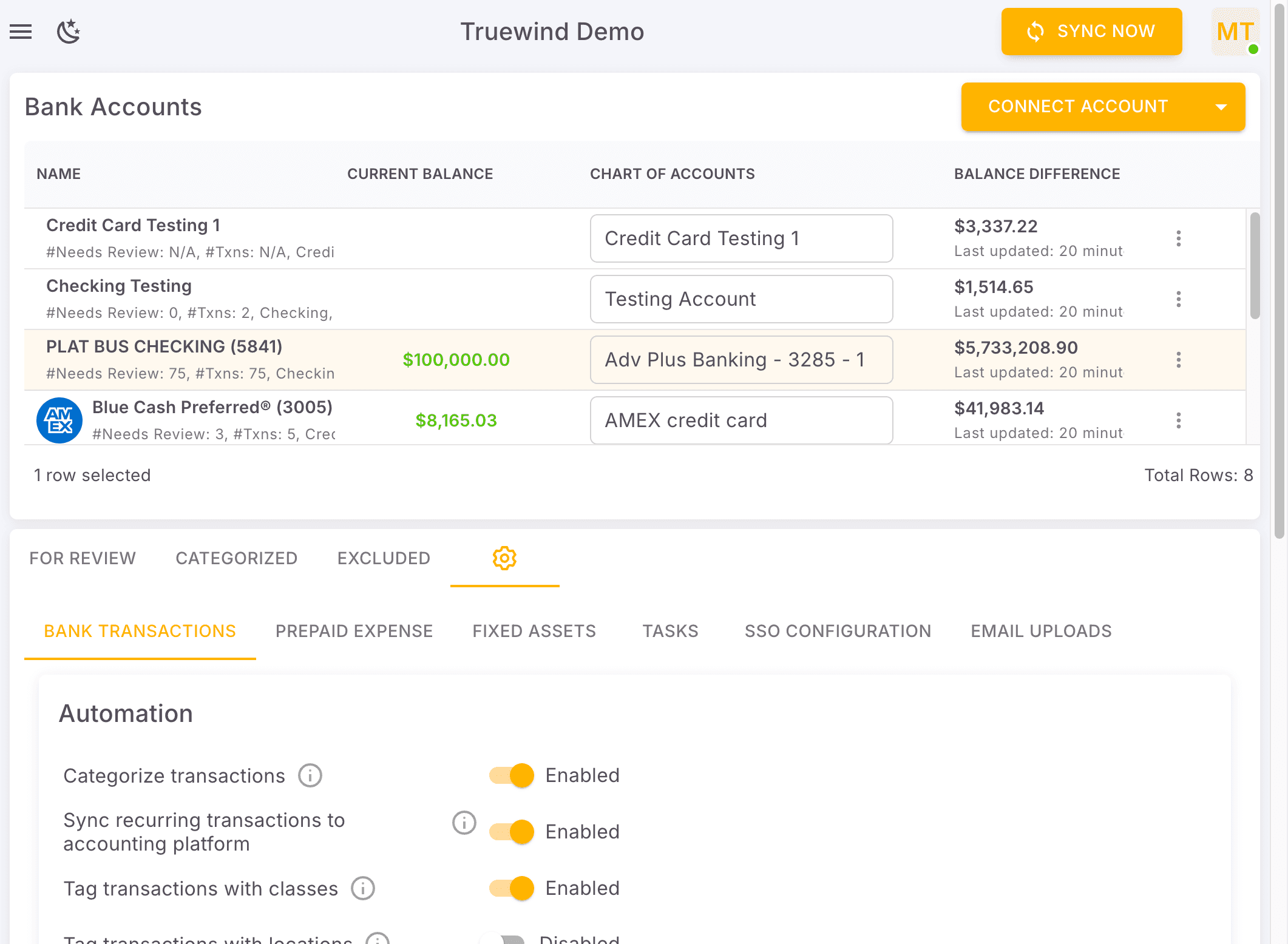
Step 7
Use this module shortcut when you need to confirm the same organization settings from another accounting area.
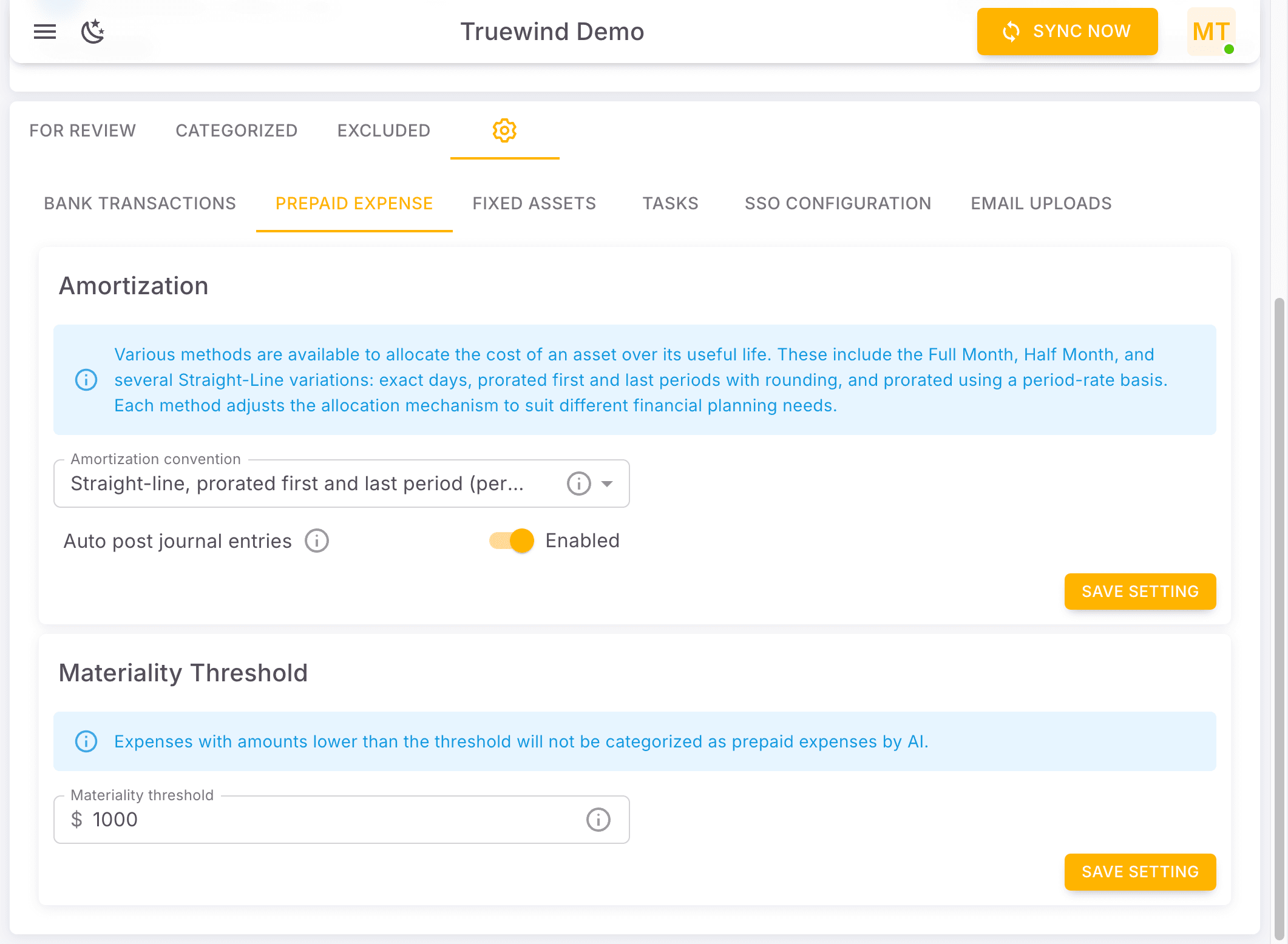
Step 8
The Tasks module points back to the same shared organization settings controls.
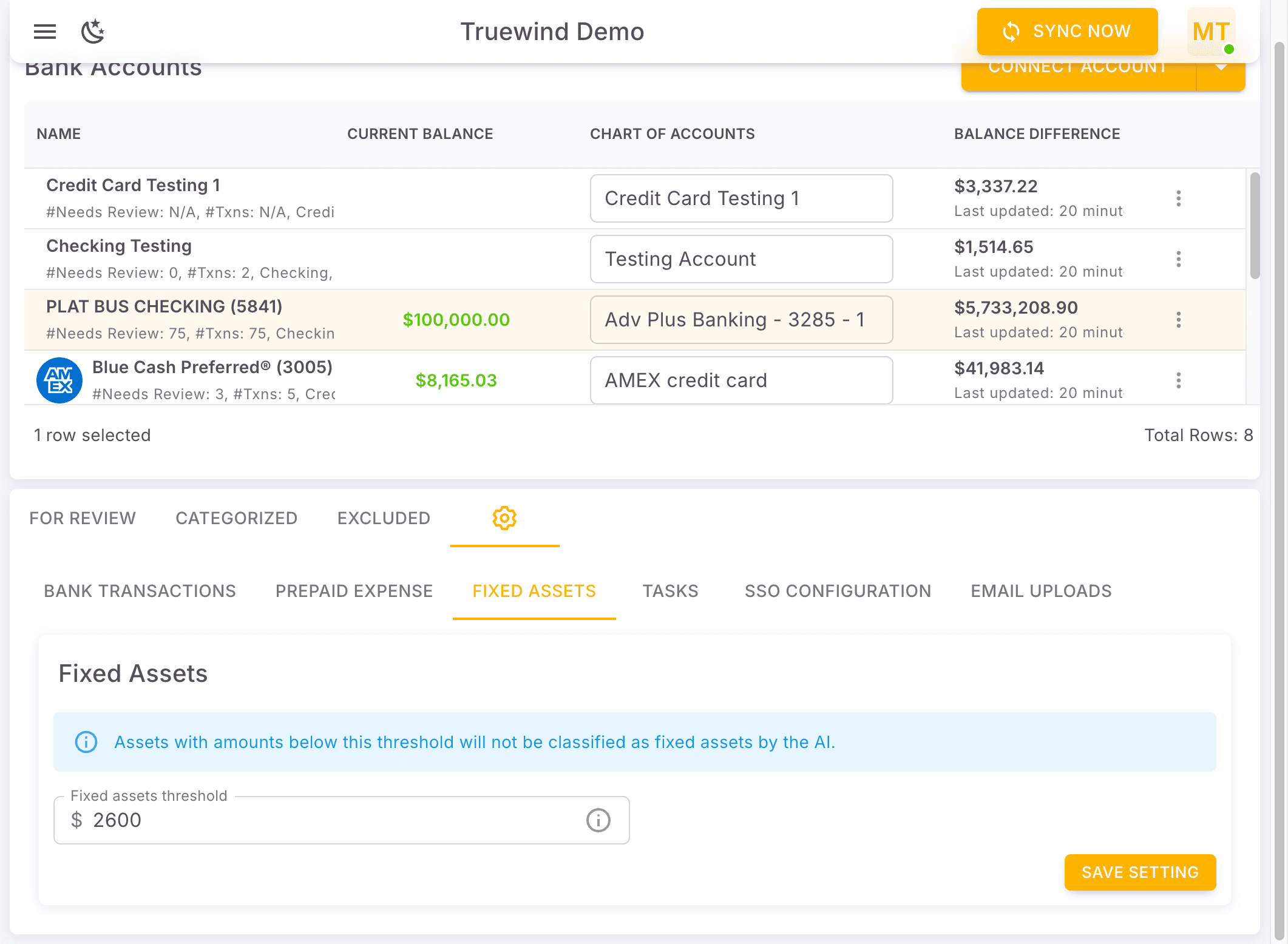
Step 9
SSO Configuration appears in the same organization settings area when you manage authentication-related options.
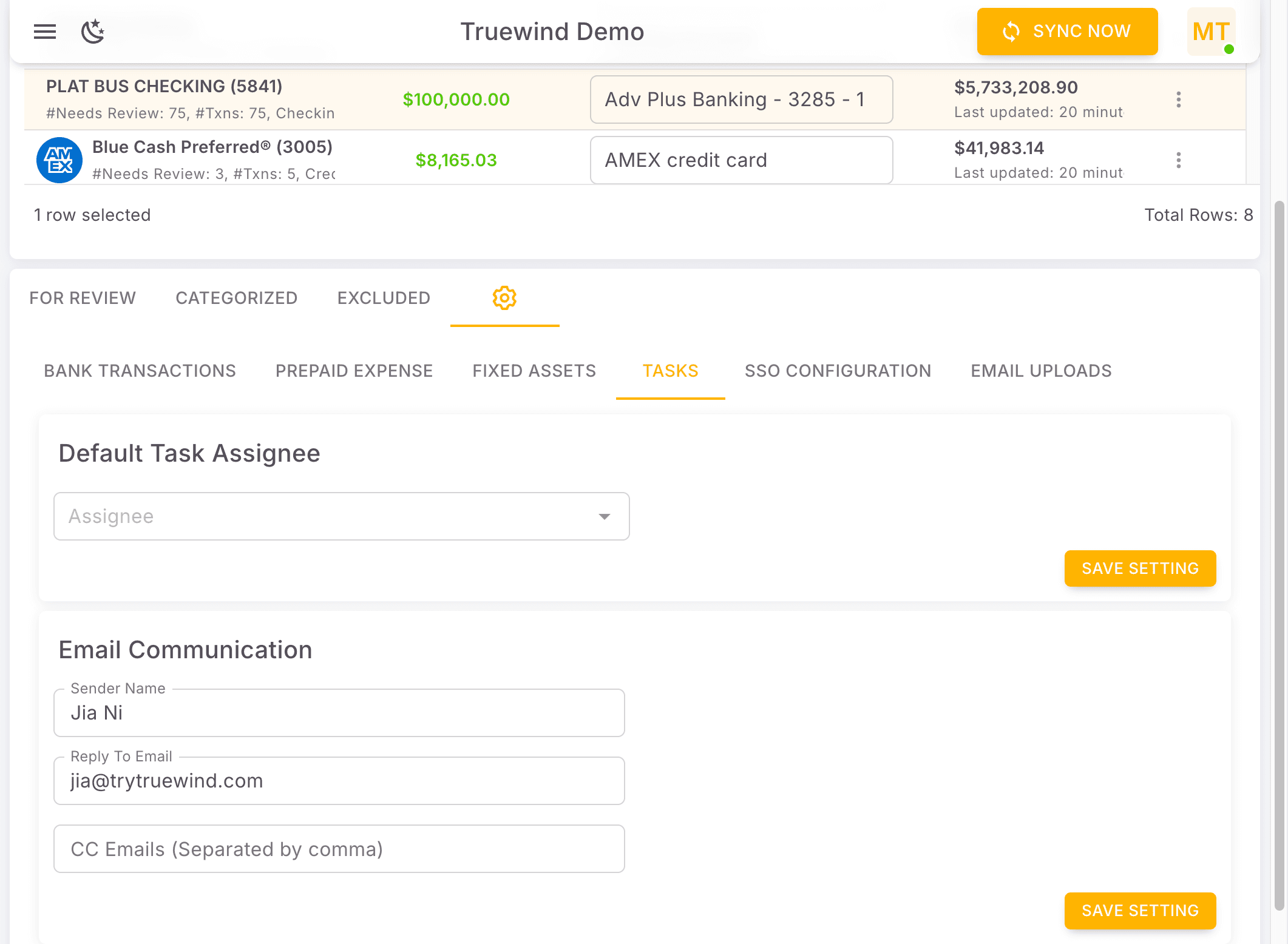
Step 10
Email Uploads is another settings category available from the shared organization settings page.
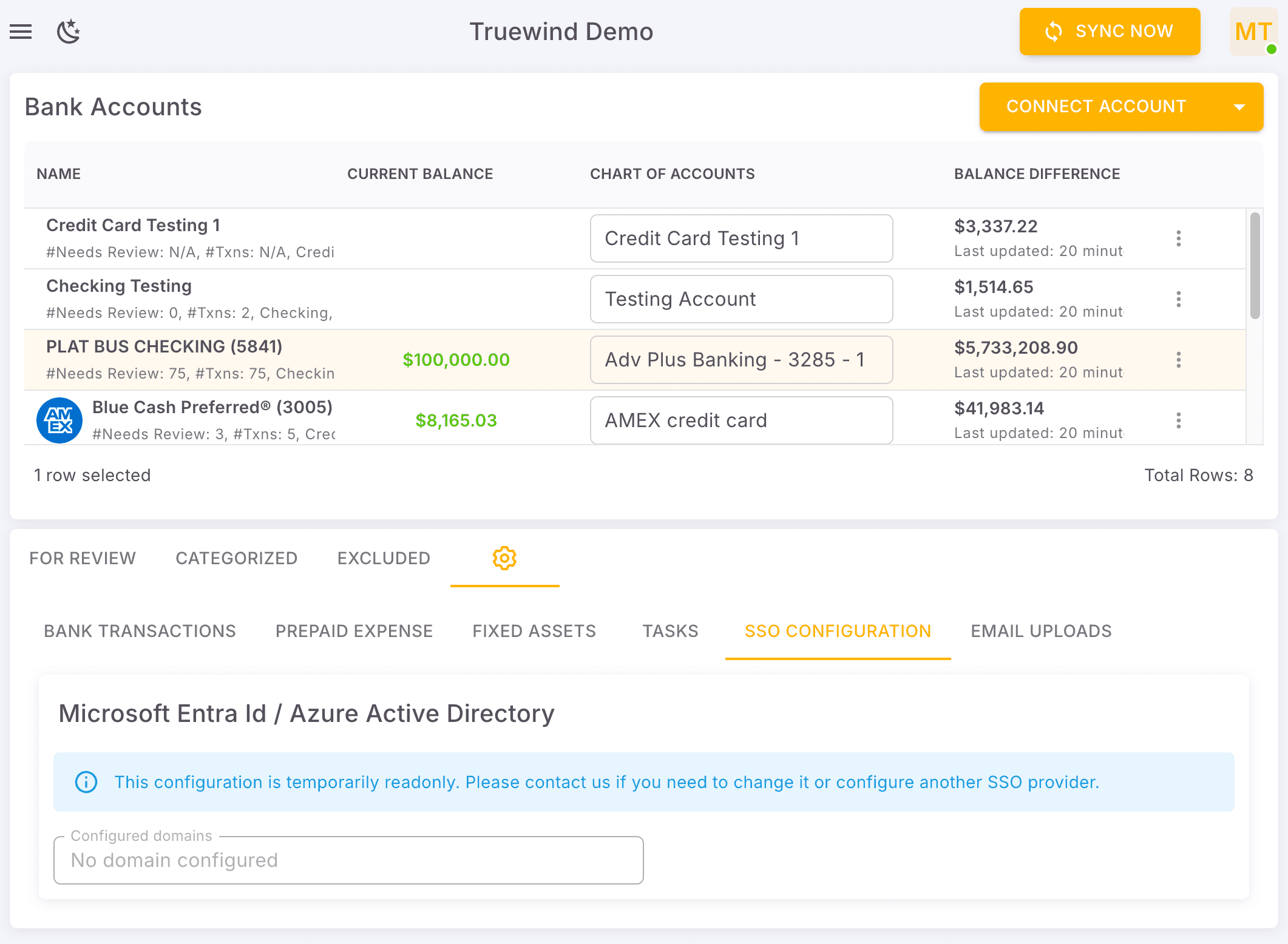
Step 11
Complete this action so organization-wide bookkeeping settings stay consistent.
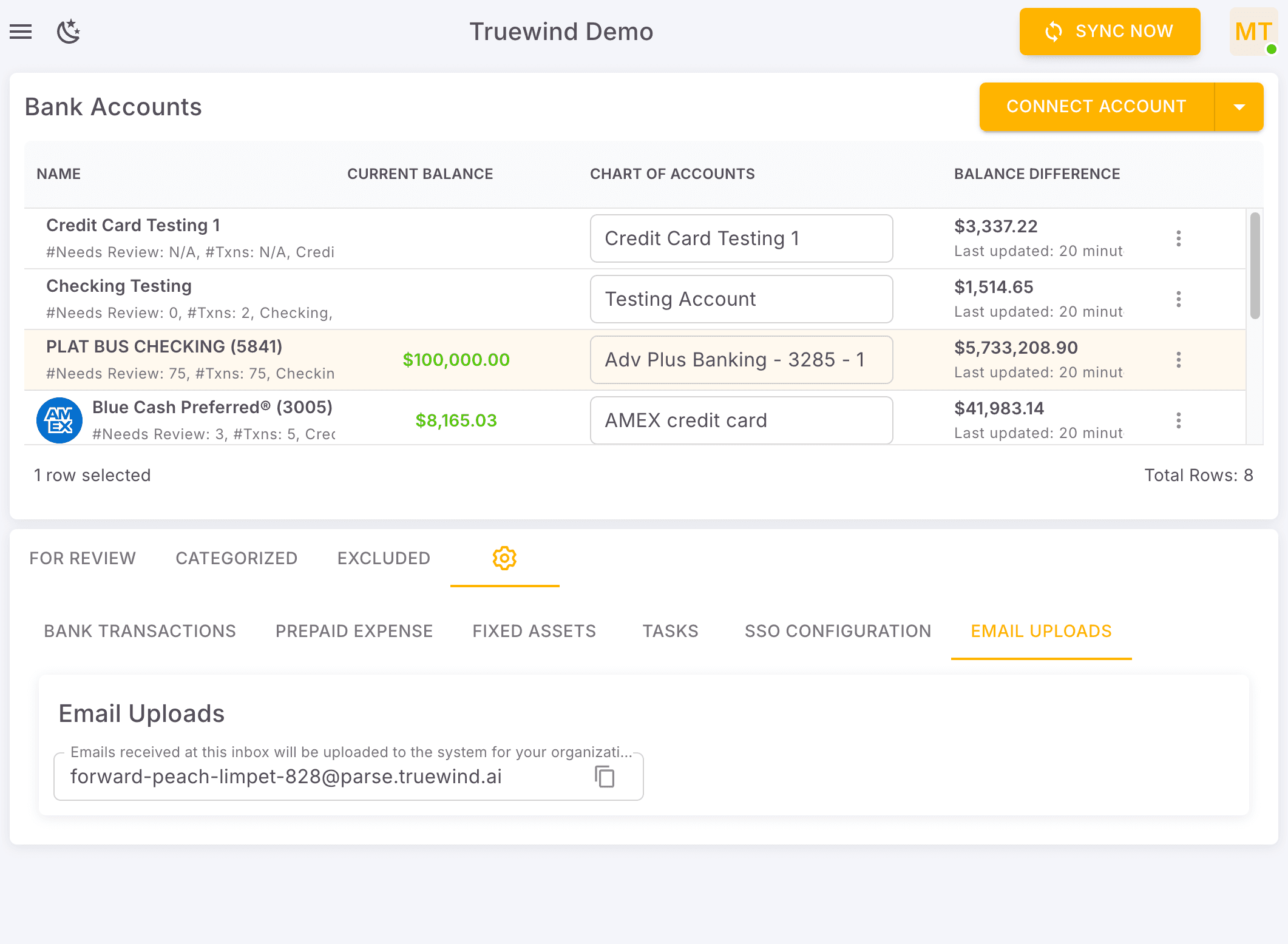
Step 12
This takes you to the central settings page where organization-wide defaults are managed.
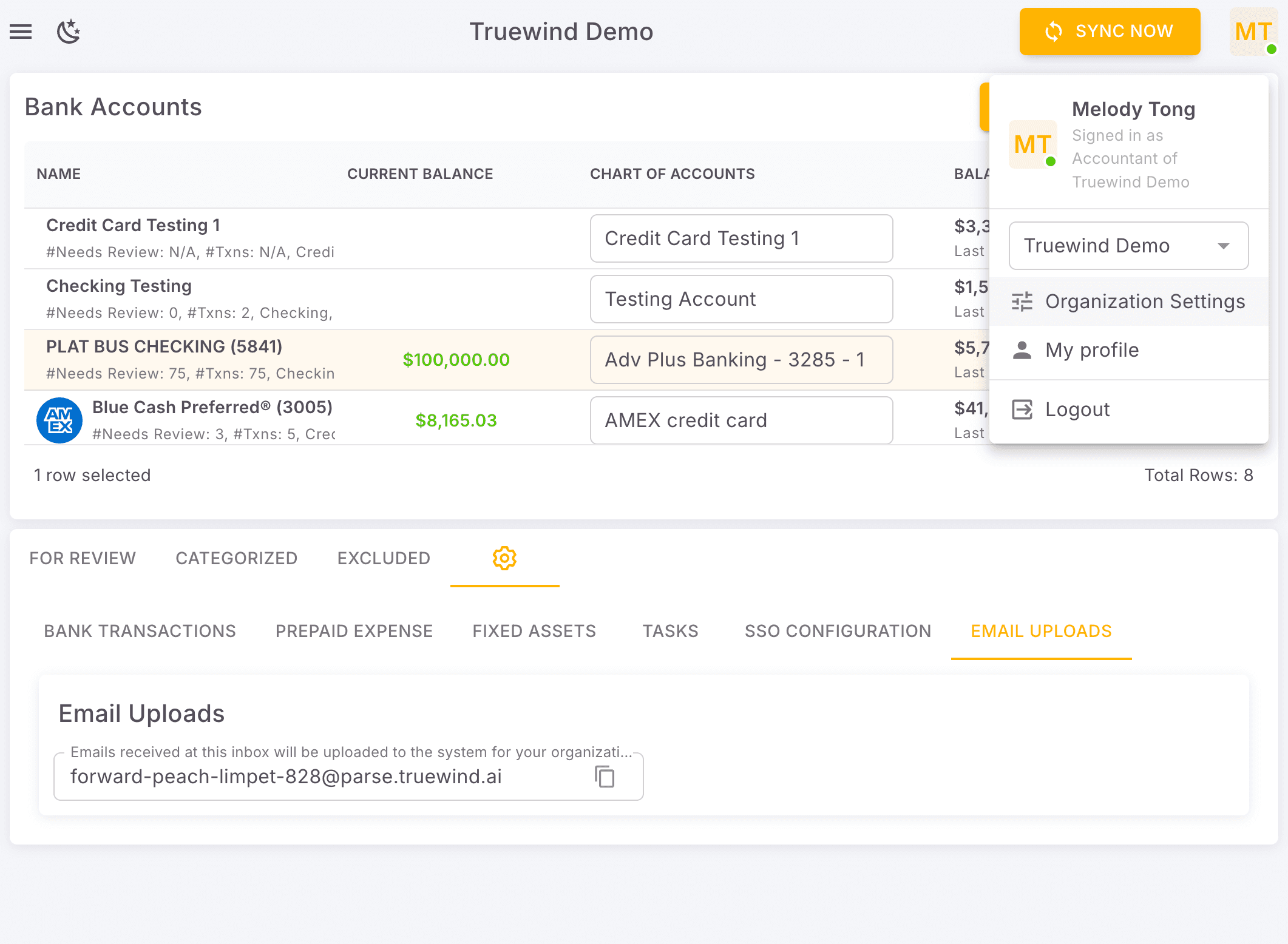
Step 13
Pick the organization whose settings you want to inspect or update.
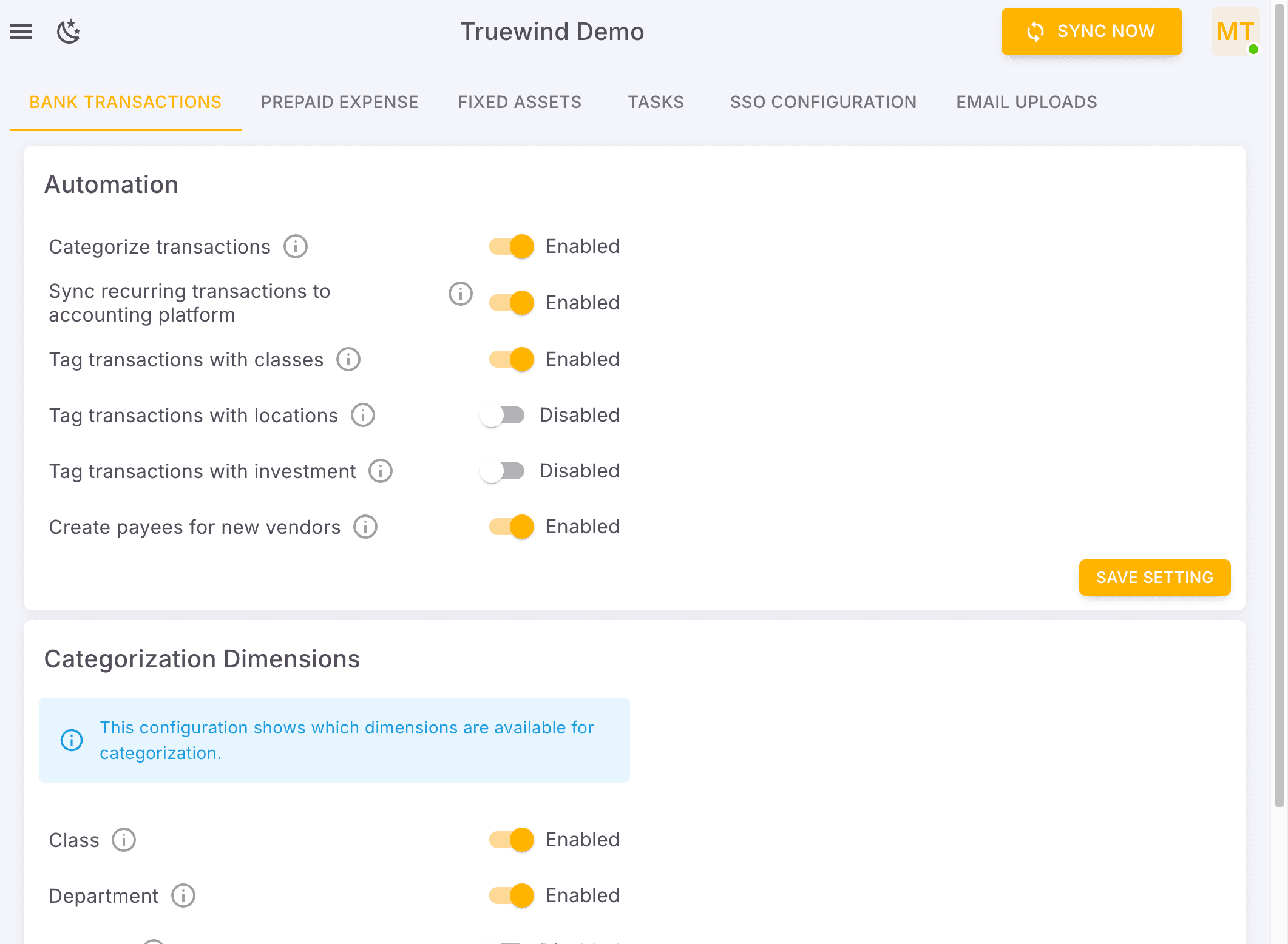
The current product keeps settings in one place, but you may reach the page either directly or from the workflow that needs the setting changed.
Was this helpful?
Need more help?
Ask for human help about this article and provide any feedback.