
What to verify
- the clearing account exists in QuickBooks
- the same account appears in Truewind Chart of Accounts
- the Deposit Reconciliation account maps to the QuickBooks clearing account
Ask the support agent
Just ask a direct question or search related articles from the Knowledge Base.
Support Center / Deposit Reconciliation / Setup
Create and map a clearing account in QuickBooks when Deposit Reconciliation needs a destination account, resulting in a mapped account ready for posting or matching.
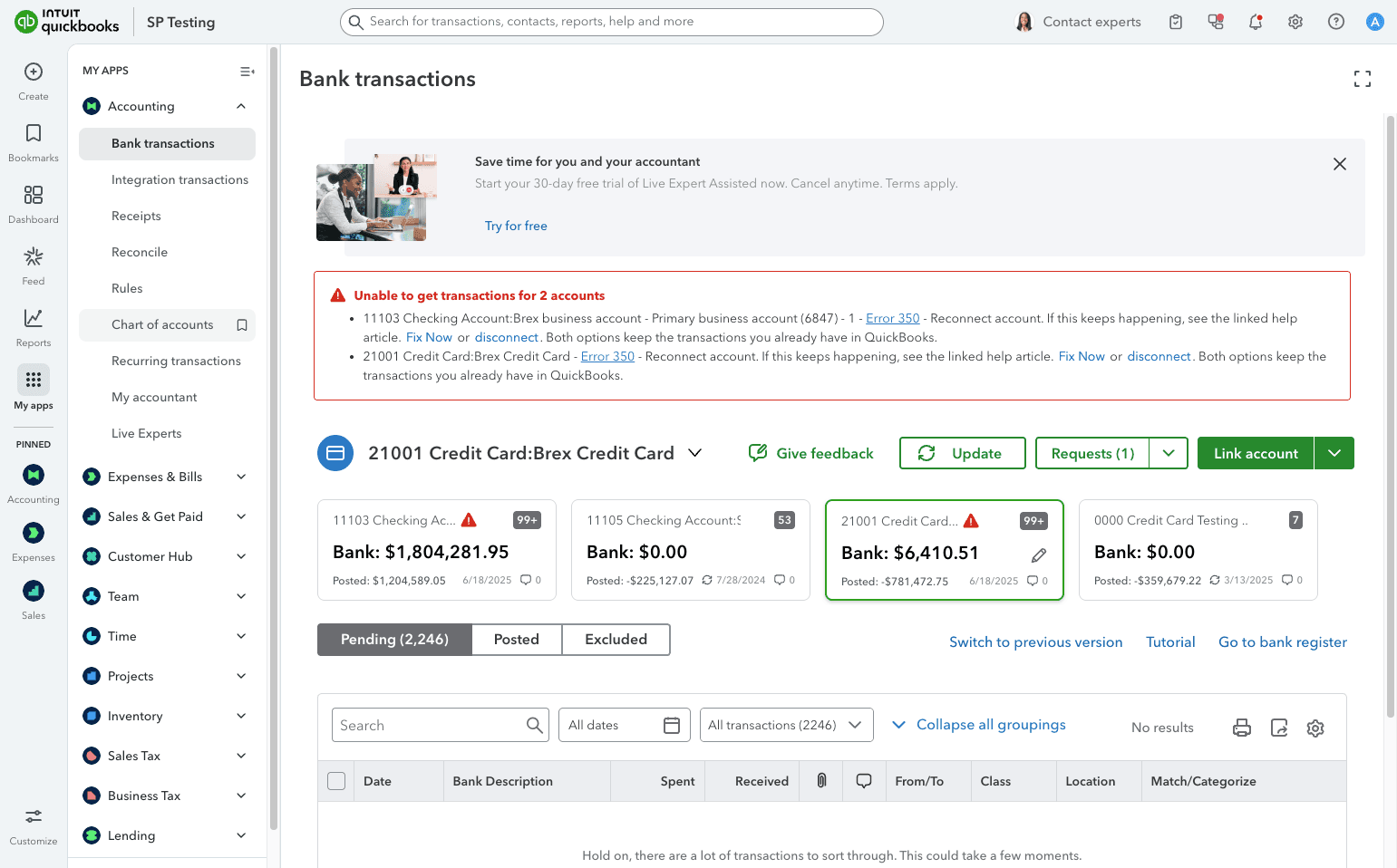
Step 1
Start in QuickBooks on the Chart of Accounts page so you can add the new clearing account first.
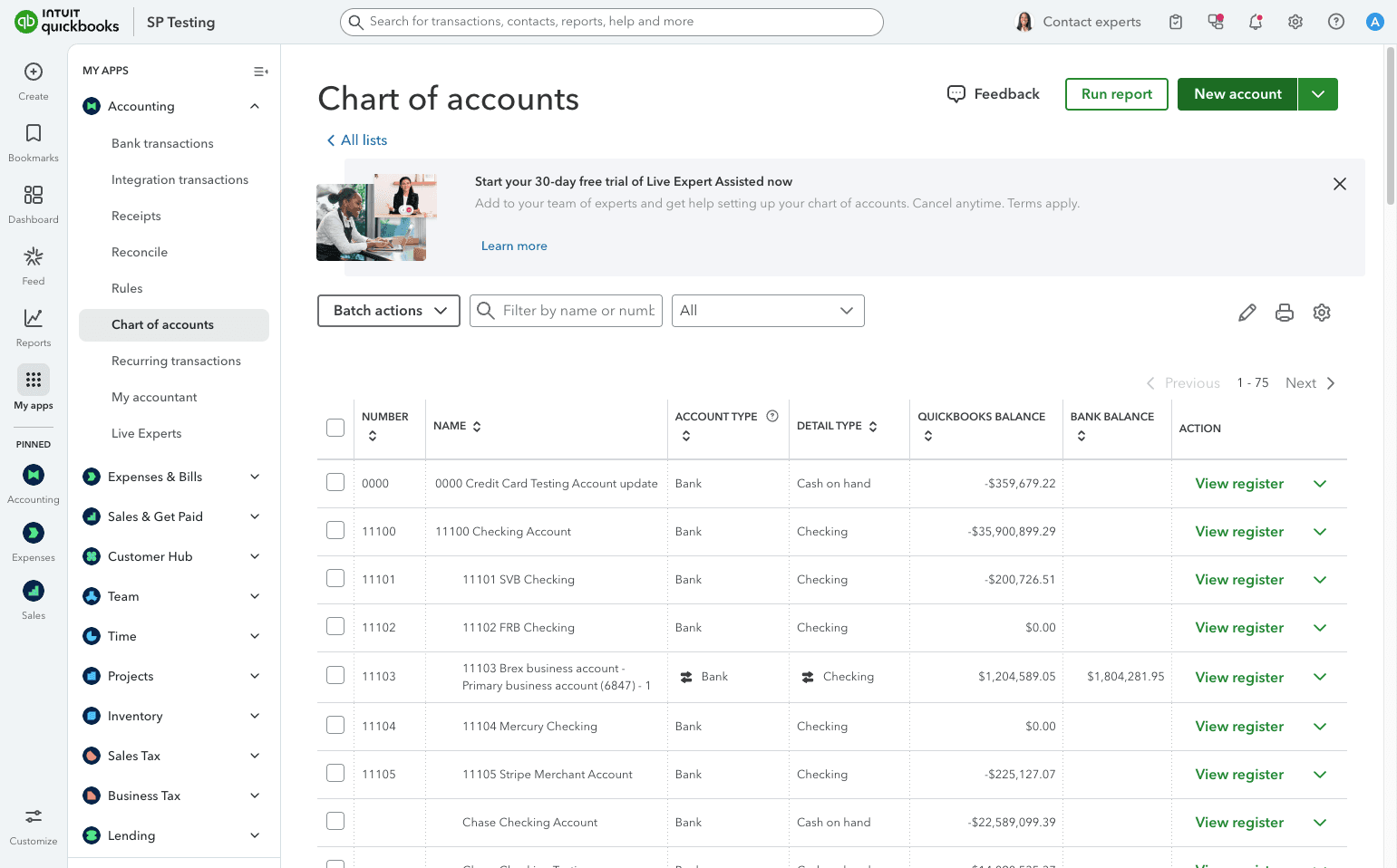
Step 2
Start a new account record before entering the clearing-account details.
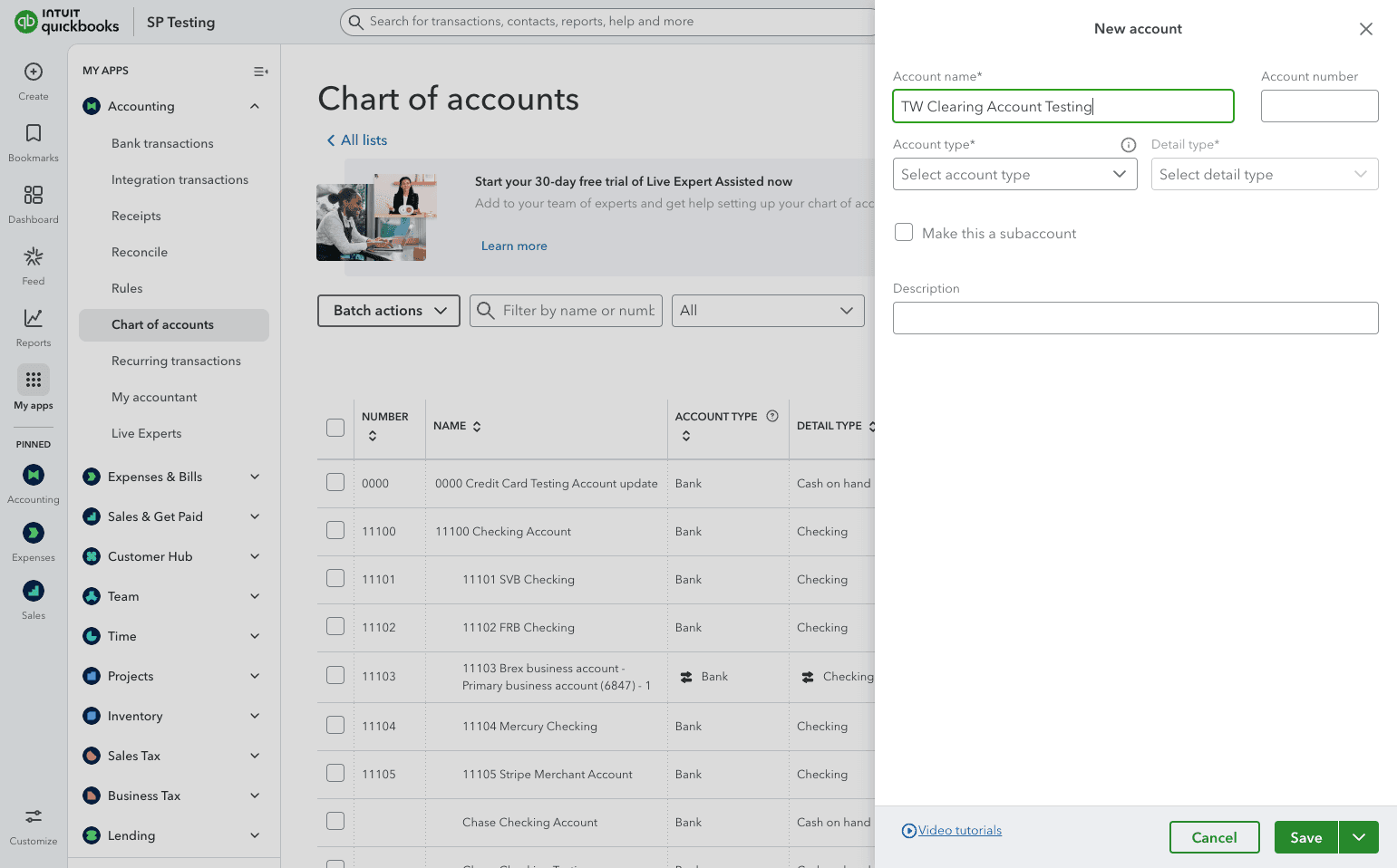
Step 3
Use the account name and optional number your team wants for the clearing account in QuickBooks.
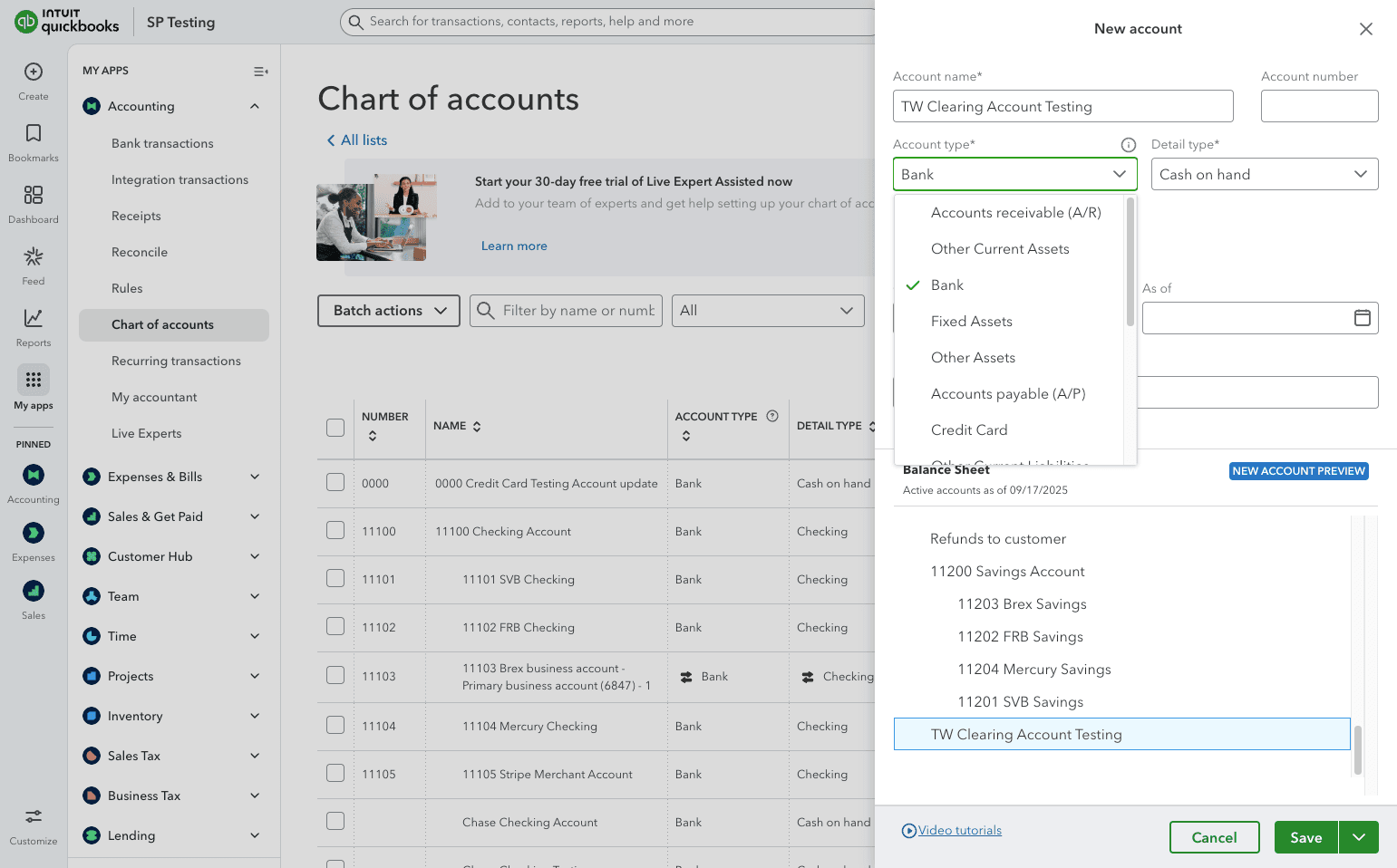
Step 4
Pick the right account type so the clearing account is classified correctly in the QuickBooks ledger.
Step 5
The detail type refines how QuickBooks categorizes the clearing account, so review it before saving.
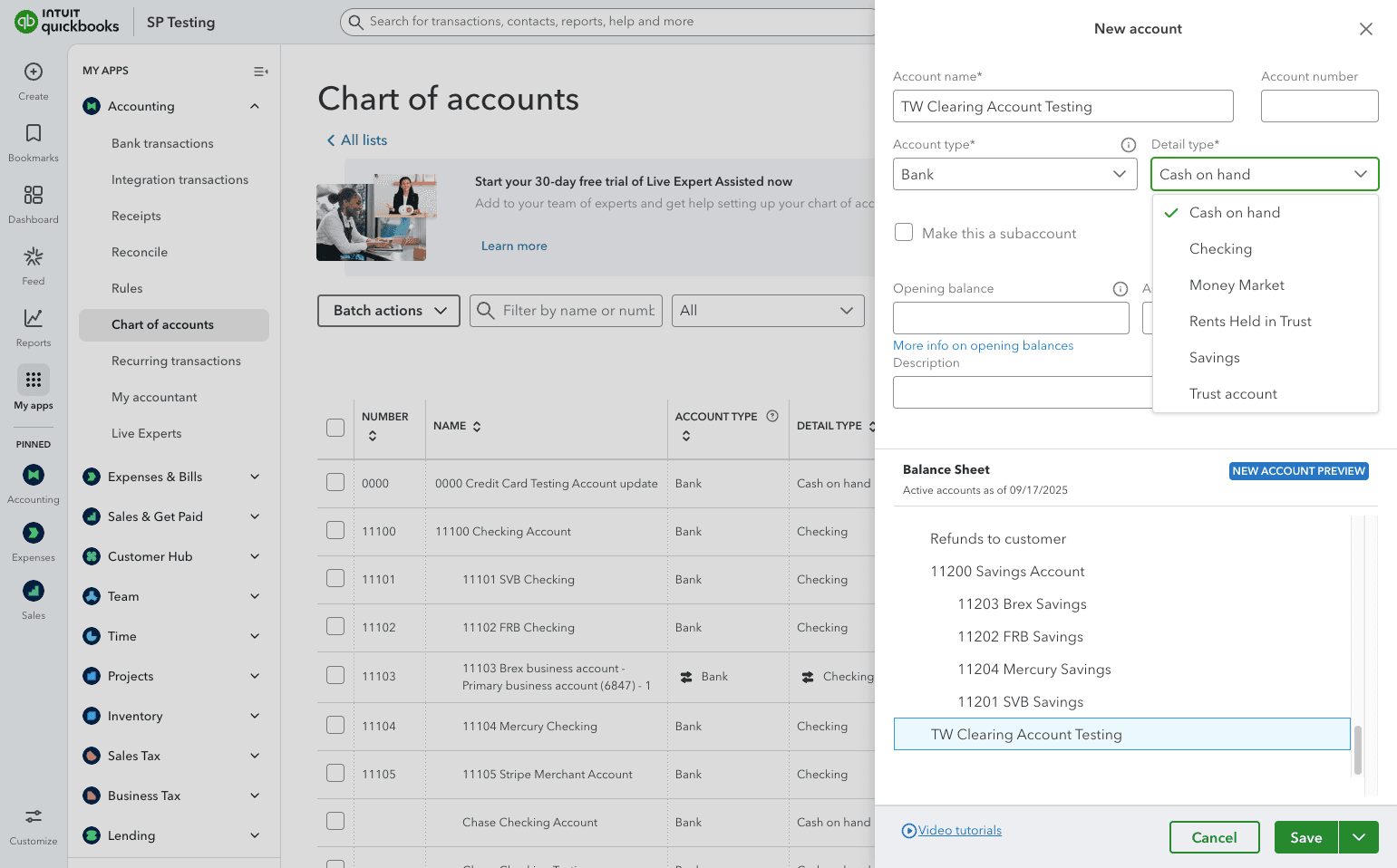
Step 6
Enable this only if the clearing account should sit under a parent account in your current chart structure.
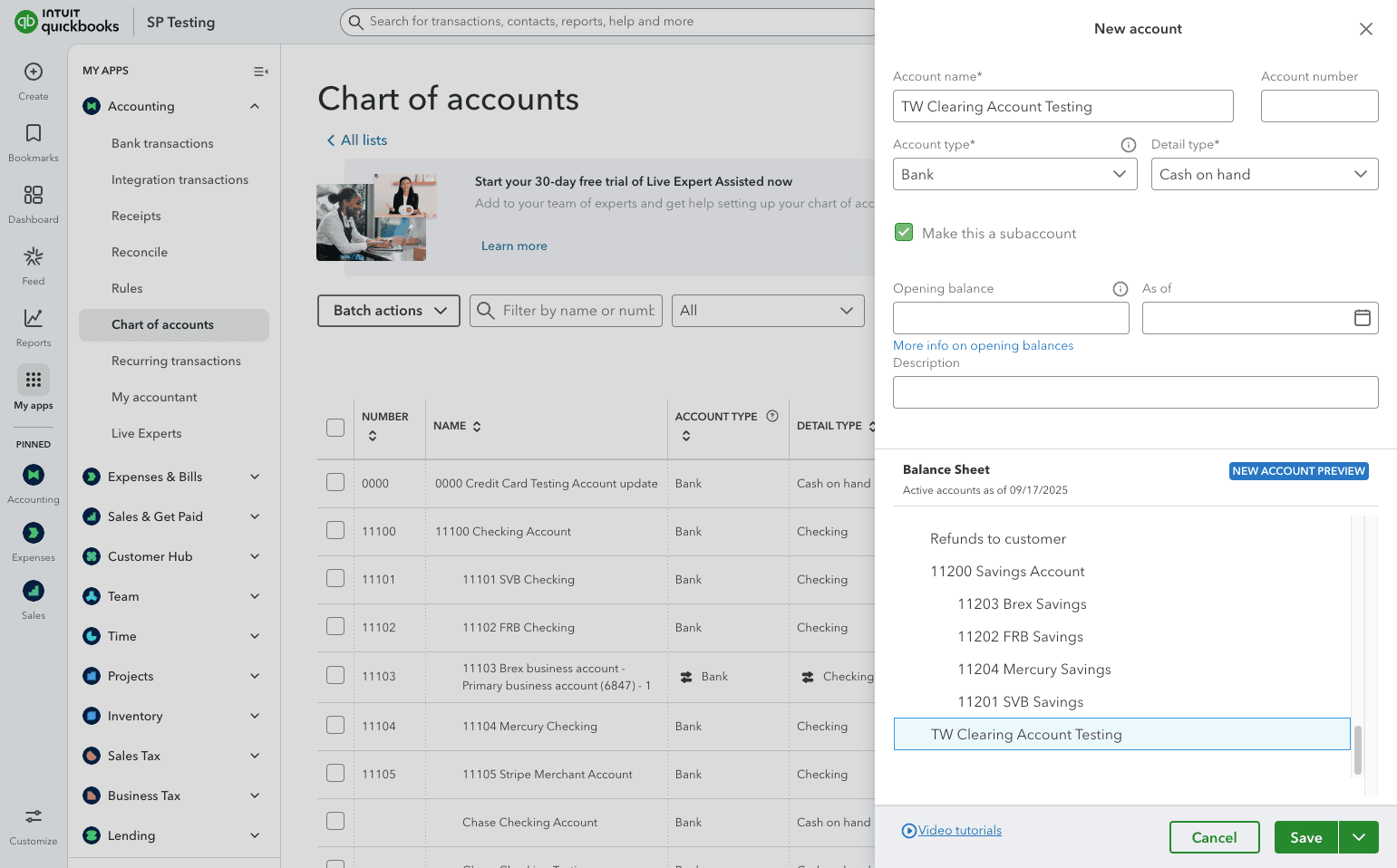
Step 7
Select the parent only when you enabled the subaccount option for this clearing account.
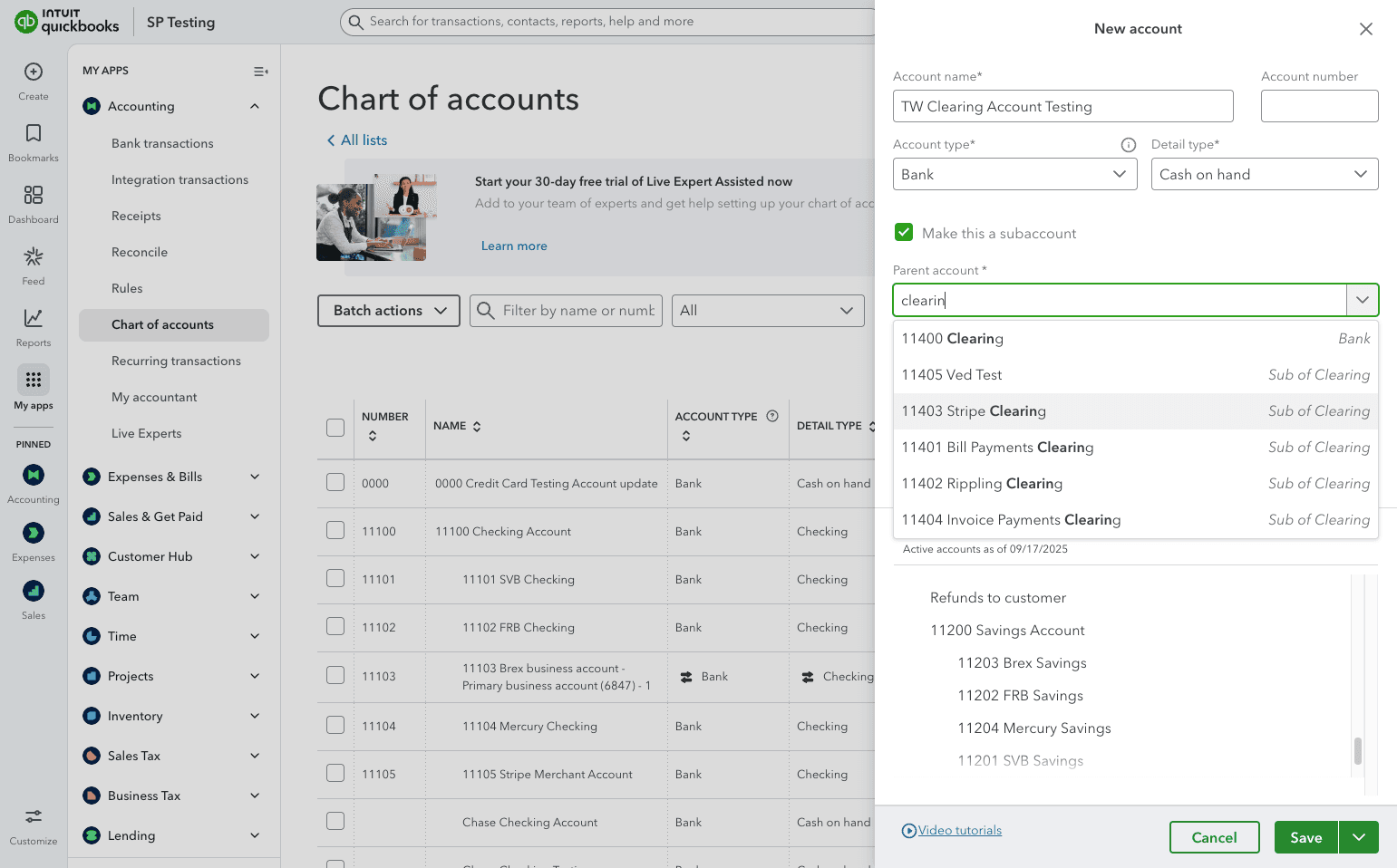
Step 8
Finish the QuickBooks account creation before you return to Truewind.
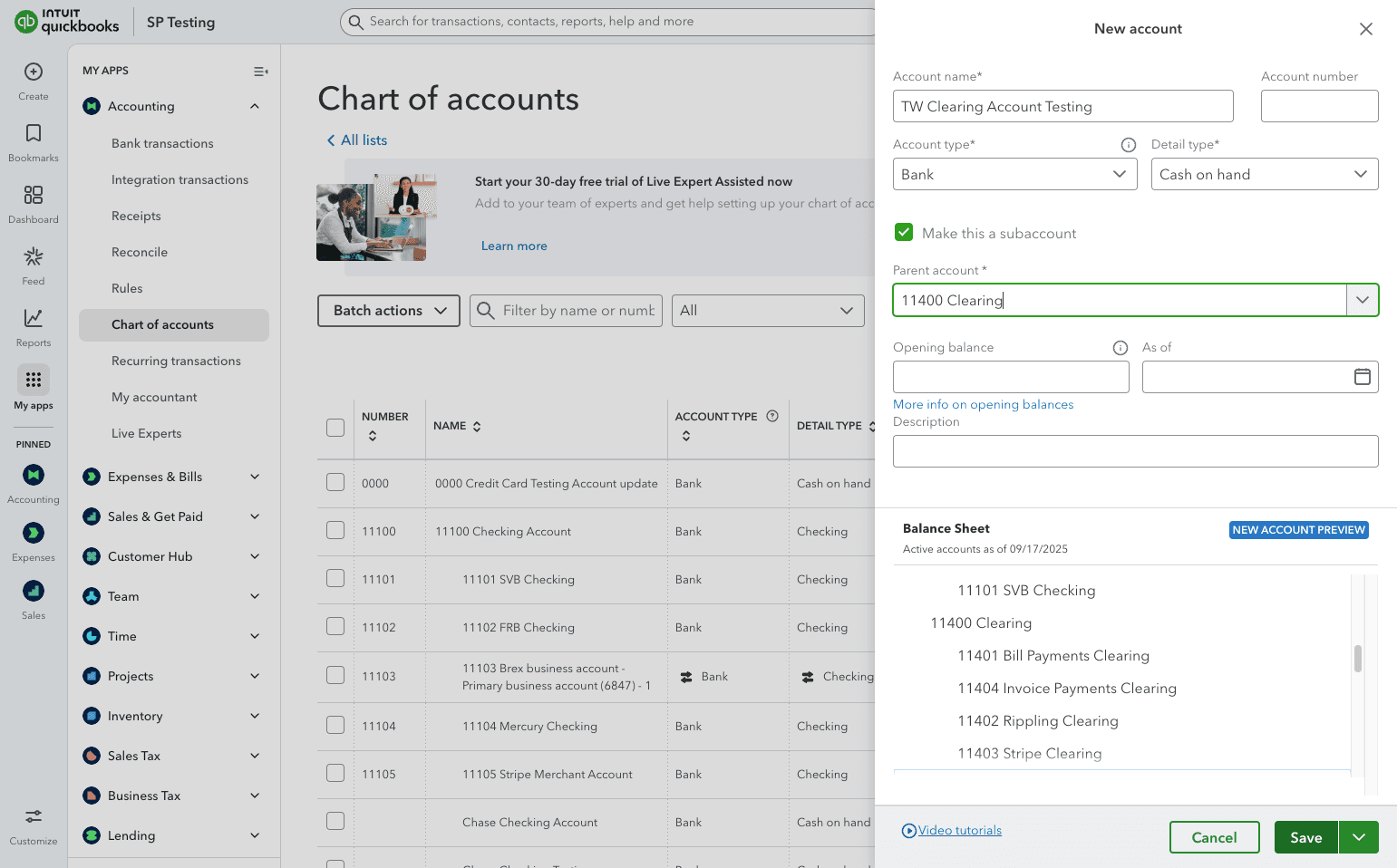
Step 9
The Tango workflow also points to the rule-setup path used alongside the clearing account during Deposit Reconciliation setup.
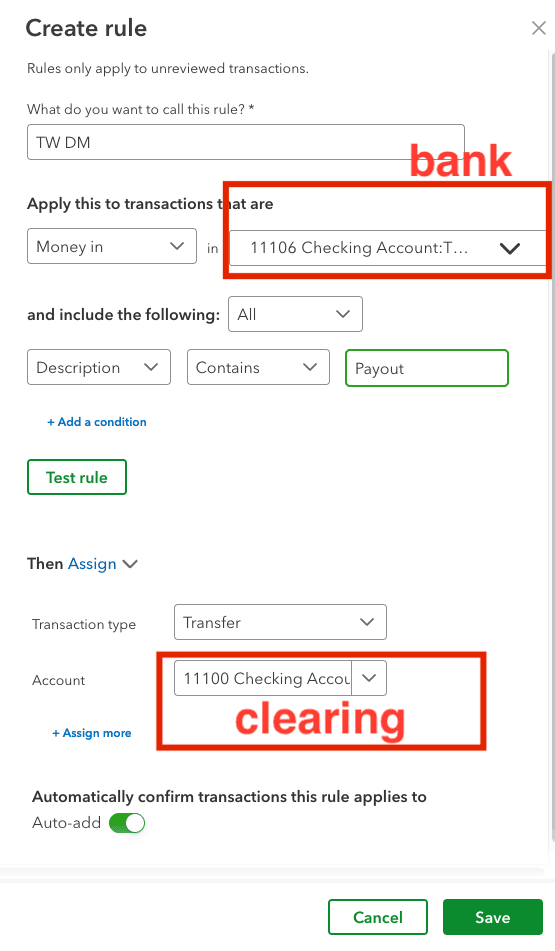
Step 10
Return to Truewind and open Chart of Accounts so you can confirm the new QuickBooks account synced over.
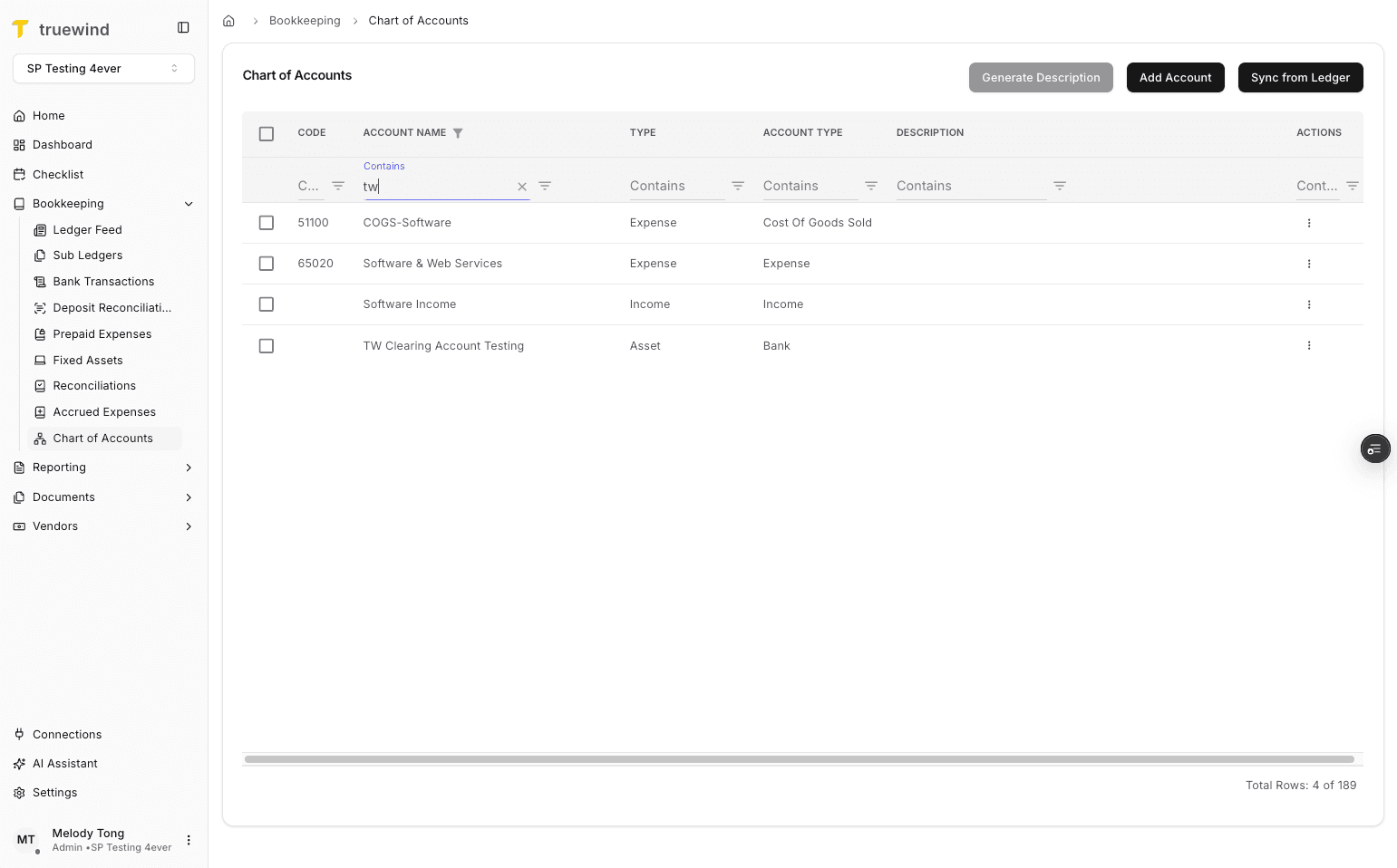
Step 11
Check that the new QuickBooks clearing account now appears in the Truewind chart of accounts.
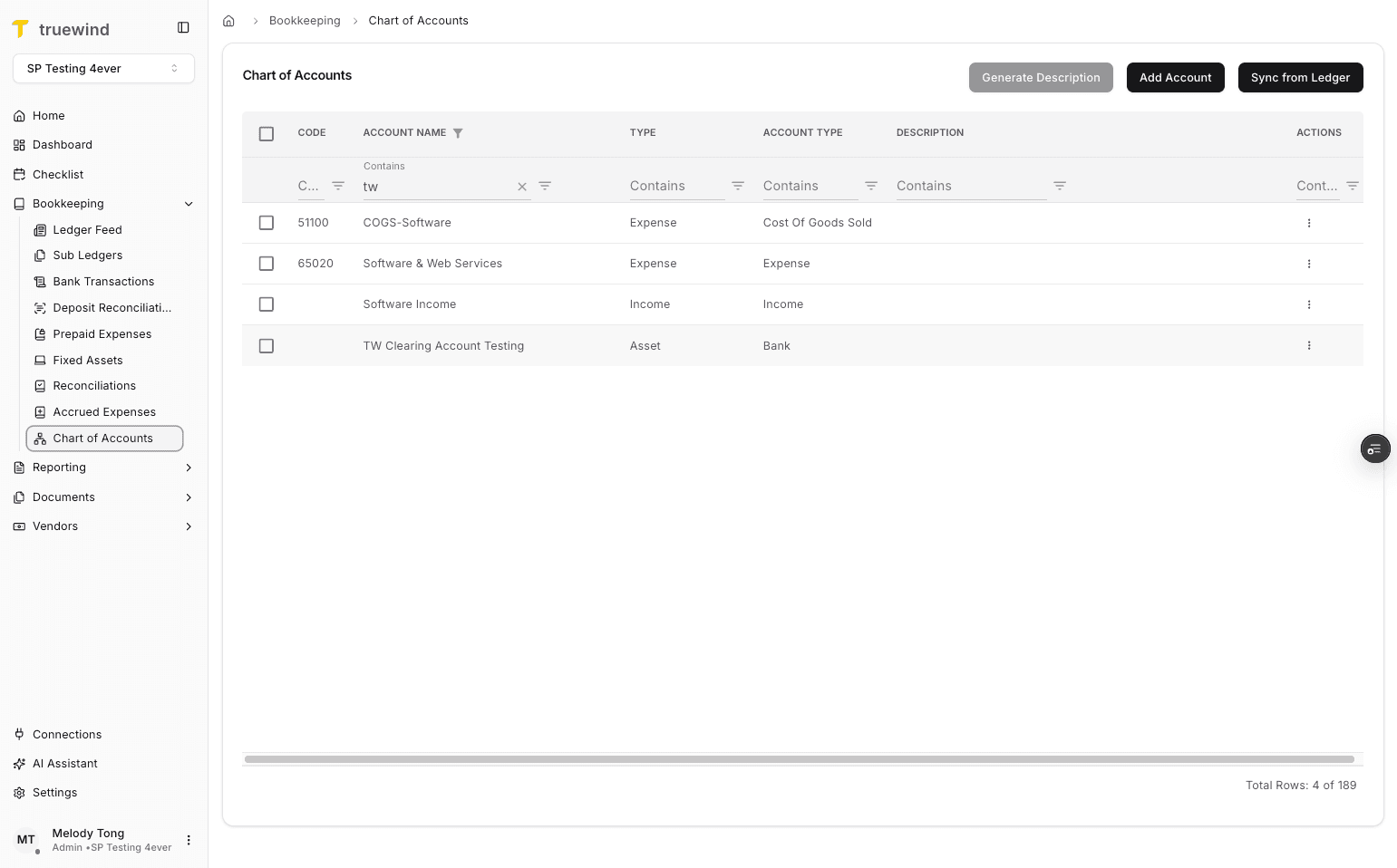
Step 12
Start the Deposit Reconciliation account setup before mapping the new QuickBooks clearing account.
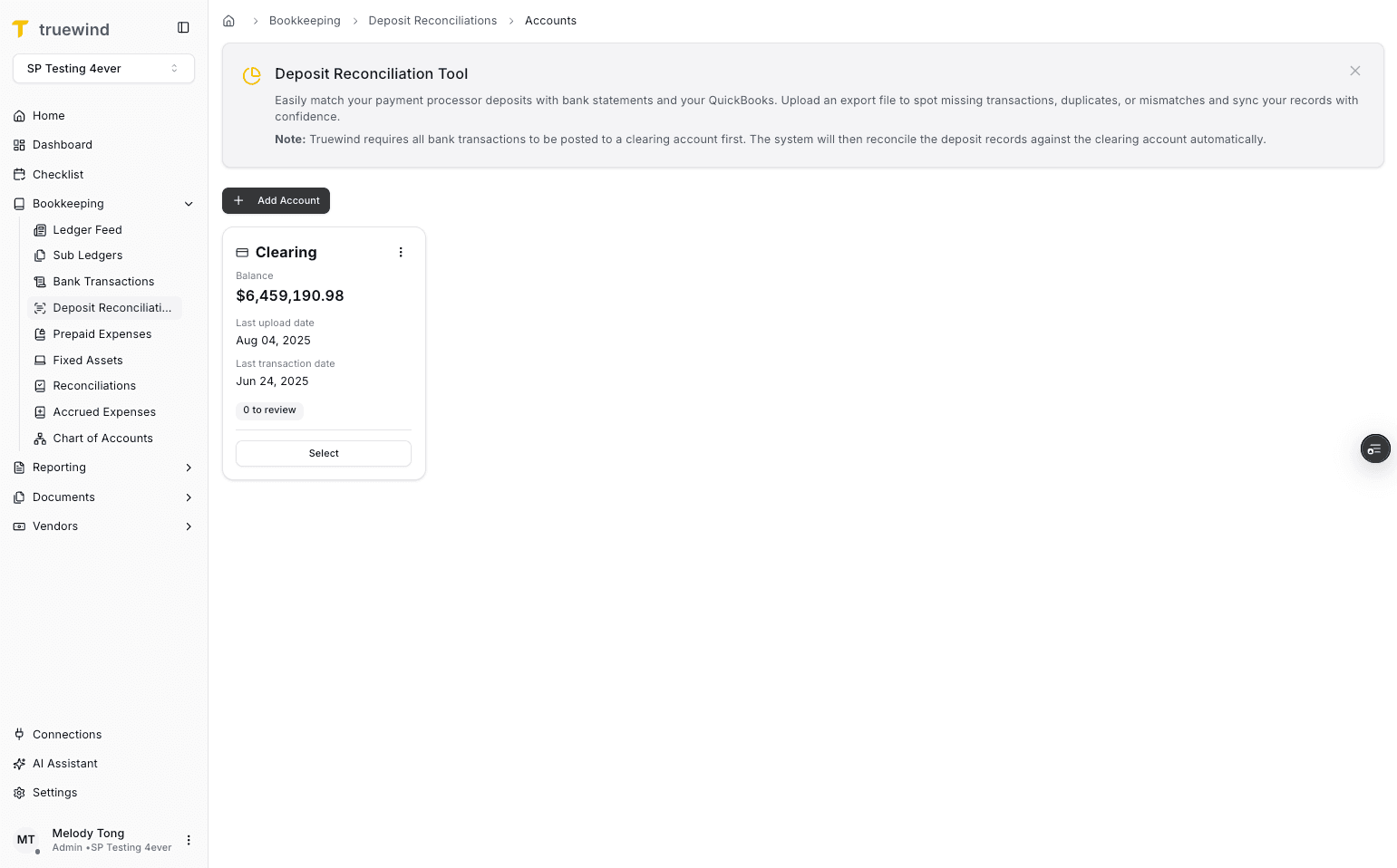
Step 13
Use a recognizable name so the Deposit Reconciliation account matches the QuickBooks clearing account.
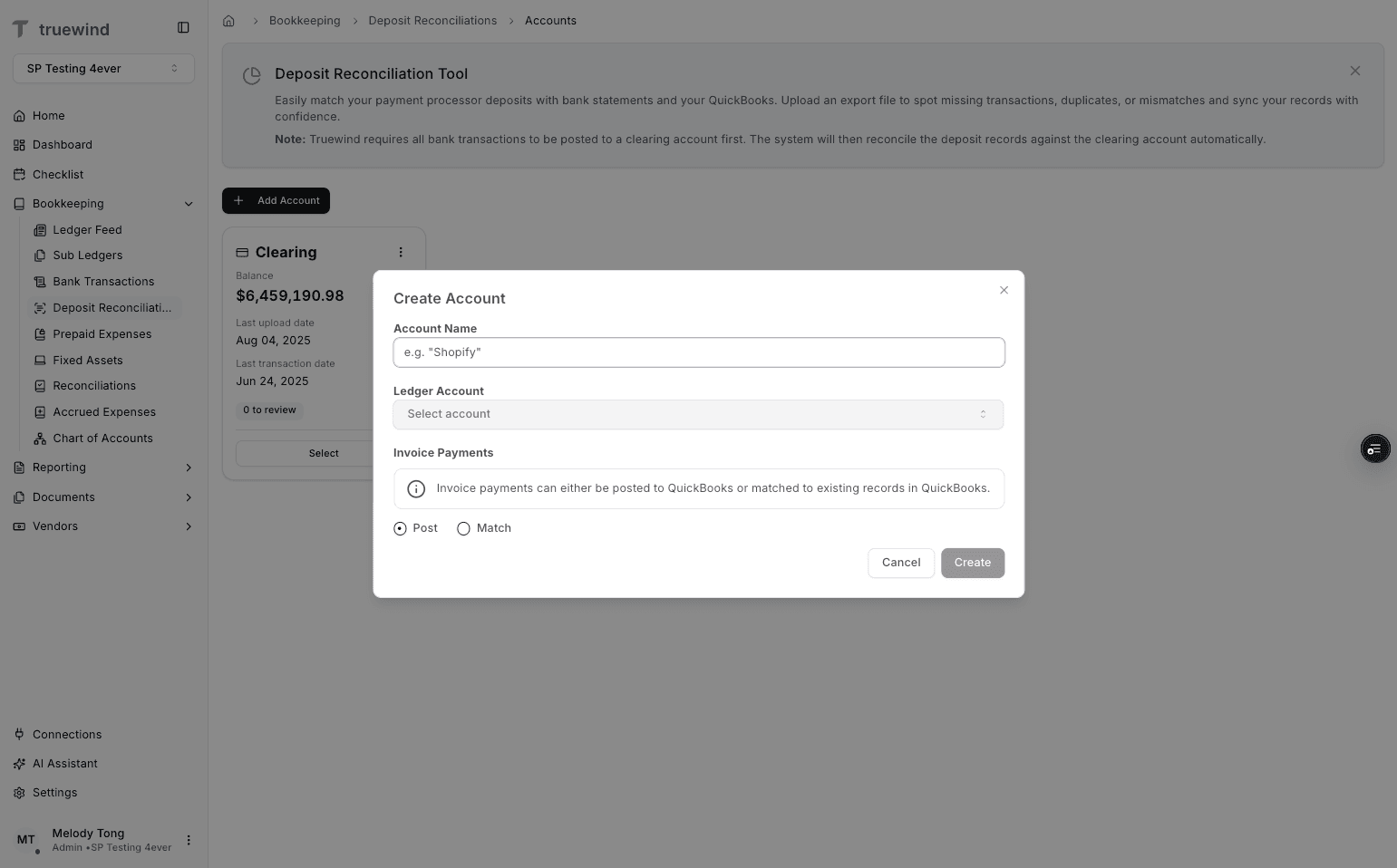
Step 14
Connect the Deposit Reconciliation account to the QuickBooks clearing account in the ledger mapping field.
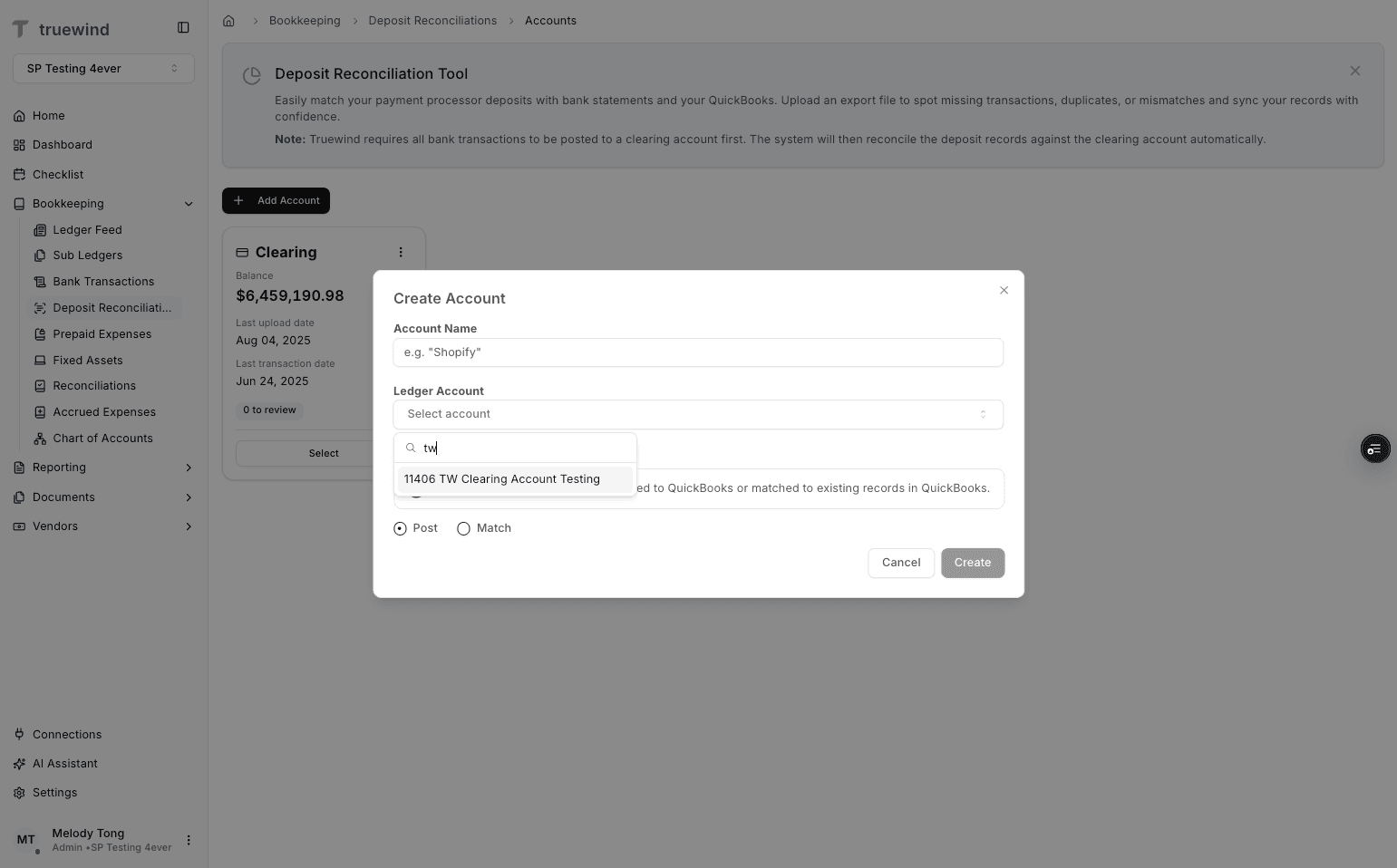
Step 15
Pick whether invoice payments should post or match based on the workflow you want this clearing account to support.
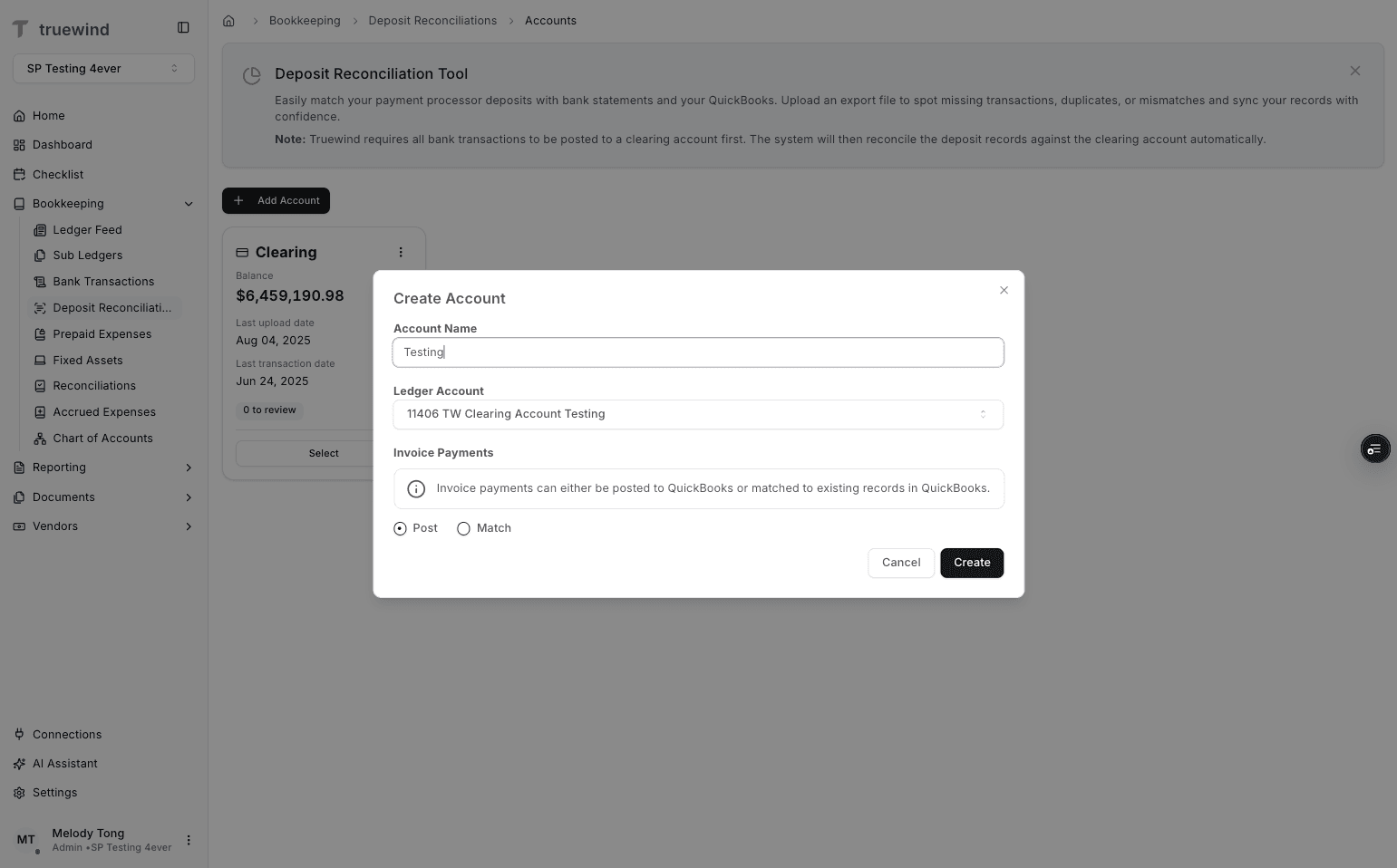
Step 16
Save the Deposit Reconciliation account after the QuickBooks mapping looks correct.
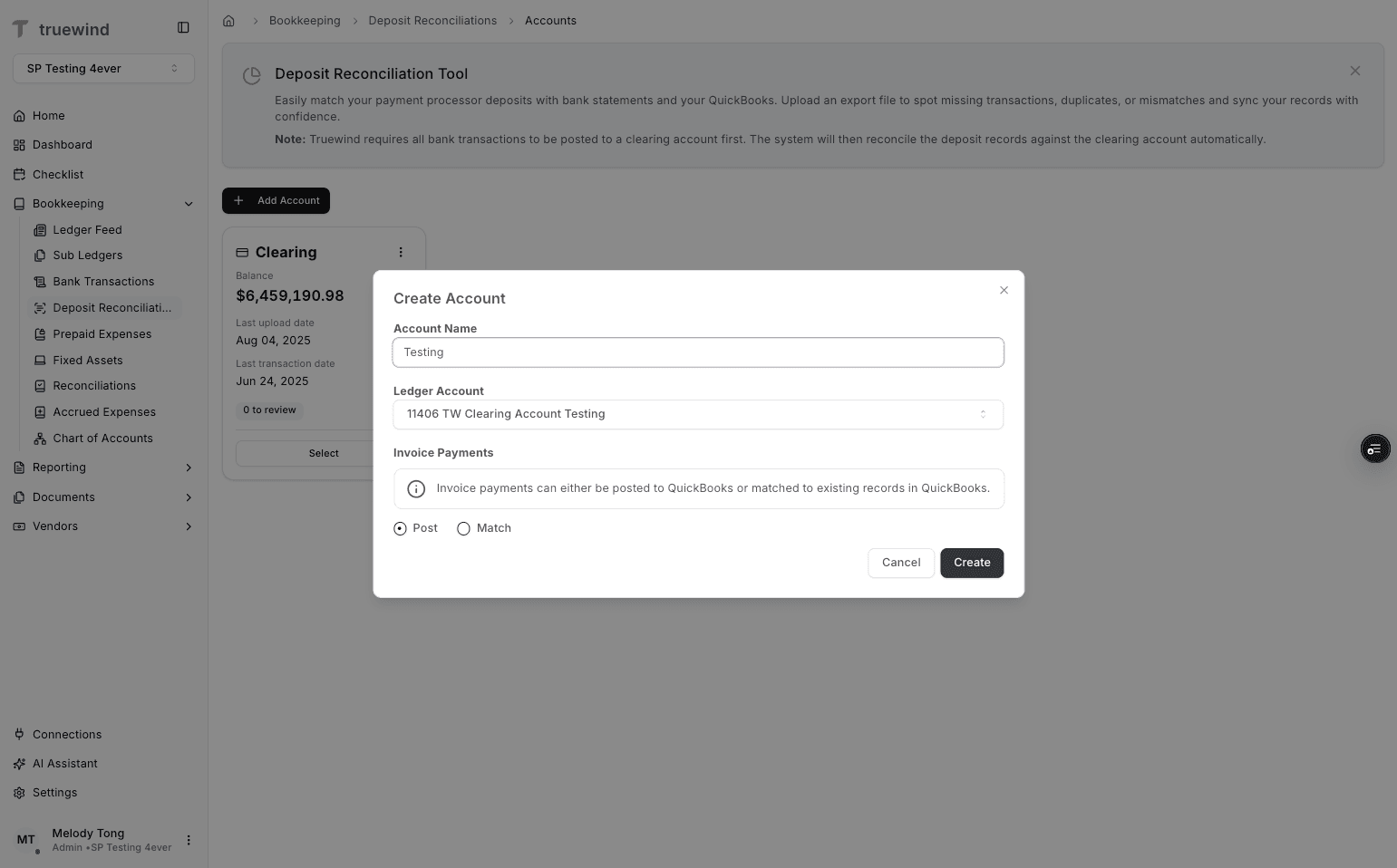
Create the clearing account in the QuickBooks chart of accounts before trying to map it inside Deposit Reconciliation.
If the clearing account has not been created in QuickBooks yet, it will not appear in the mapping selector.
Refresh the Chart of Accounts view in Truewind and confirm the account was saved correctly in QuickBooks.
Was this helpful?
Need more help?
Ask for human help about this article and provide any feedback.