Ask the support agent

Ask a direct question. The answer is grounded in the current Knowledge Base and the page you are on.

Connections / ERP Setup

Connect QuickBooks to Truewind

Connect QuickBooks to Truewind from the current Connections page so accounting data can start syncing for onboarding and close workflows.

Workflow

Setup workflow

Step 1

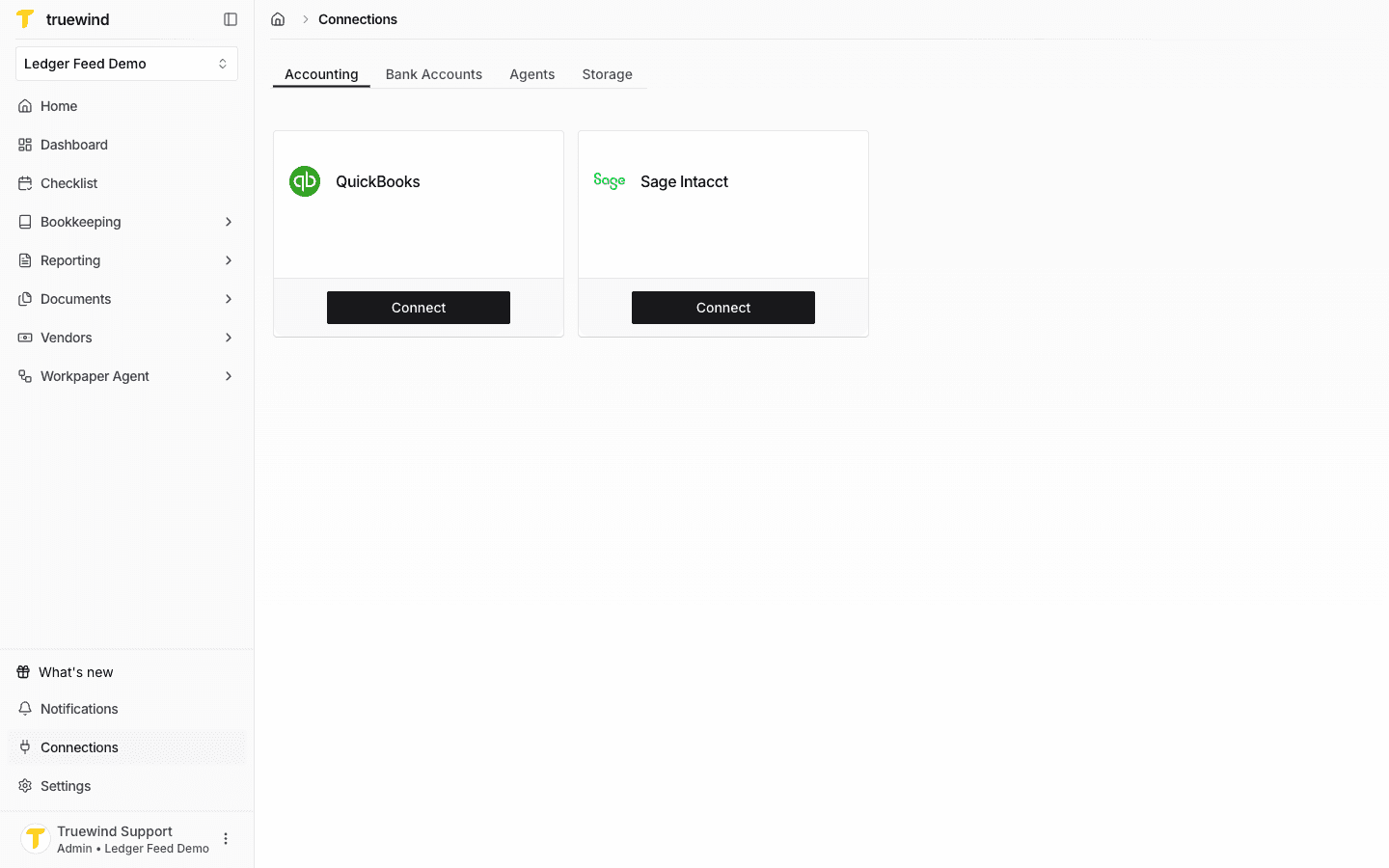
Open Connections and choose QuickBooks

Start in Truewind on Connections > Accounting, then use the QuickBooks Connect button in the current Connections page.

Screenshot showing Open Connections and choose QuickBooks

Step 2

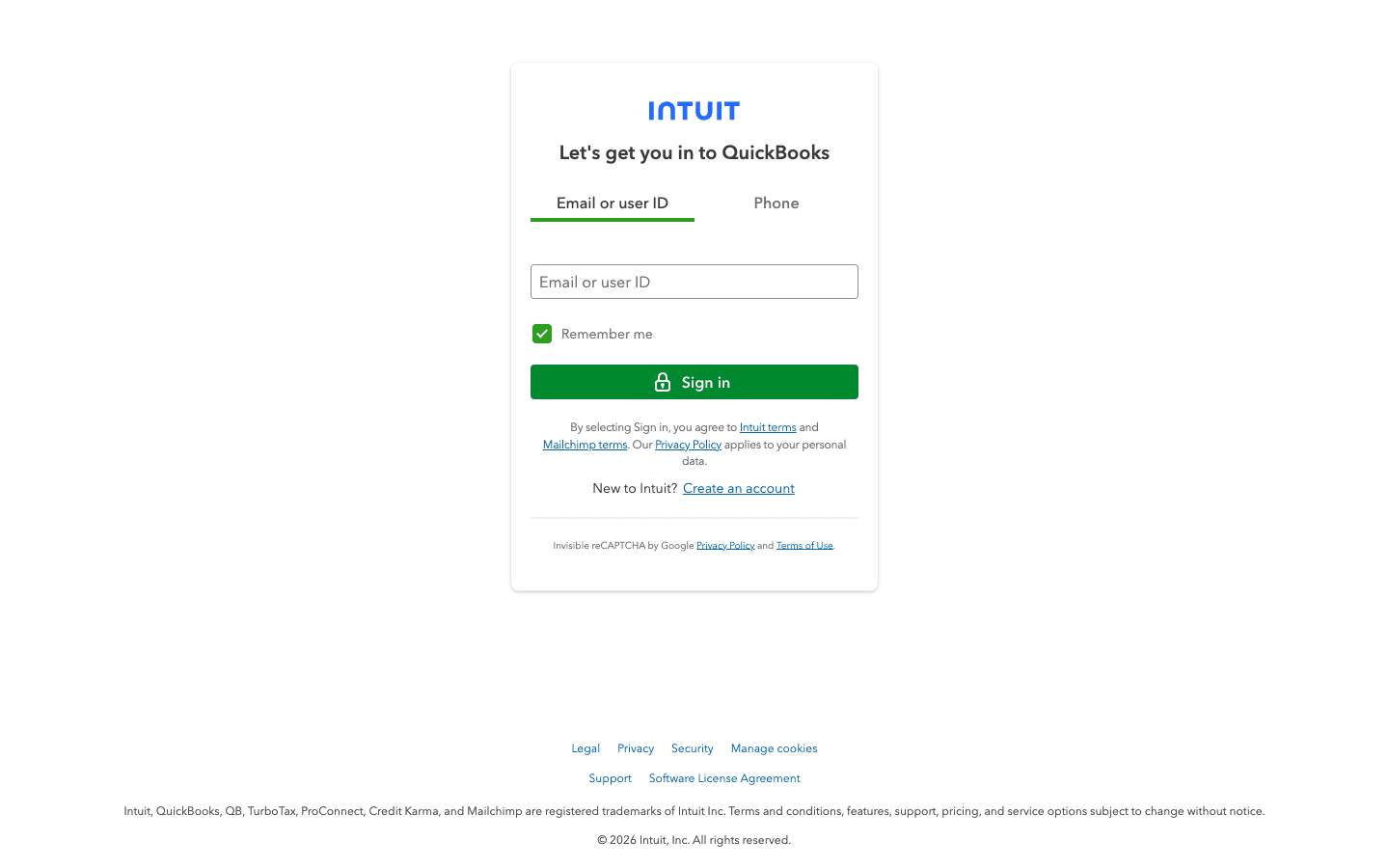
Sign in to QuickBooks

After selecting Connect in Truewind, sign in to Intuit on the QuickBooks authorization screen.

Screenshot showing after selecting Connect in Truewind, sign in to Intuit on the QuickBooks authorization screen

Step 3

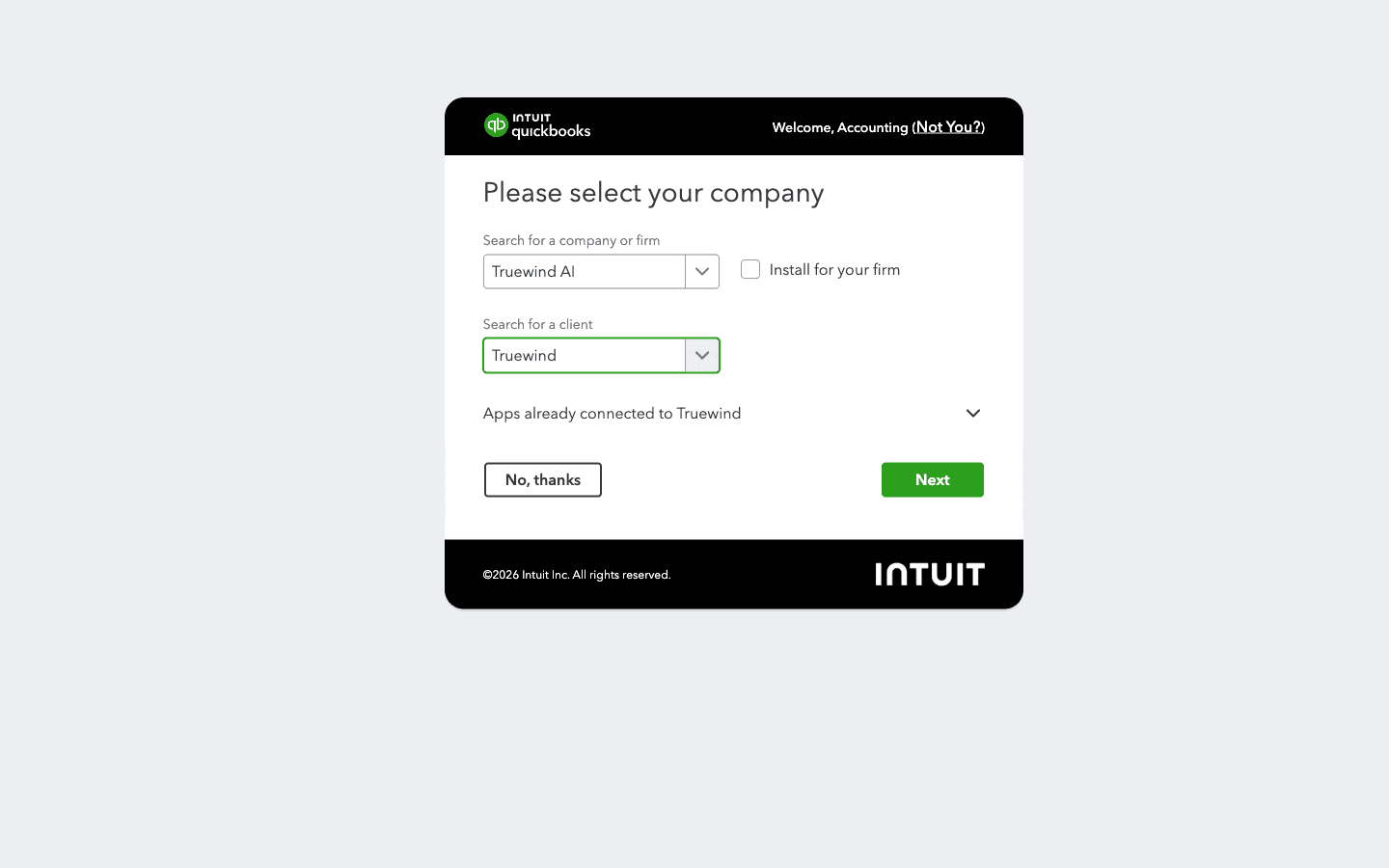
Select company and client

Select the QuickBooks company and client in Intuit, then click on Next

Screenshot showing select the QuickBooks company and client in Intuit, then click on Next

Step 4

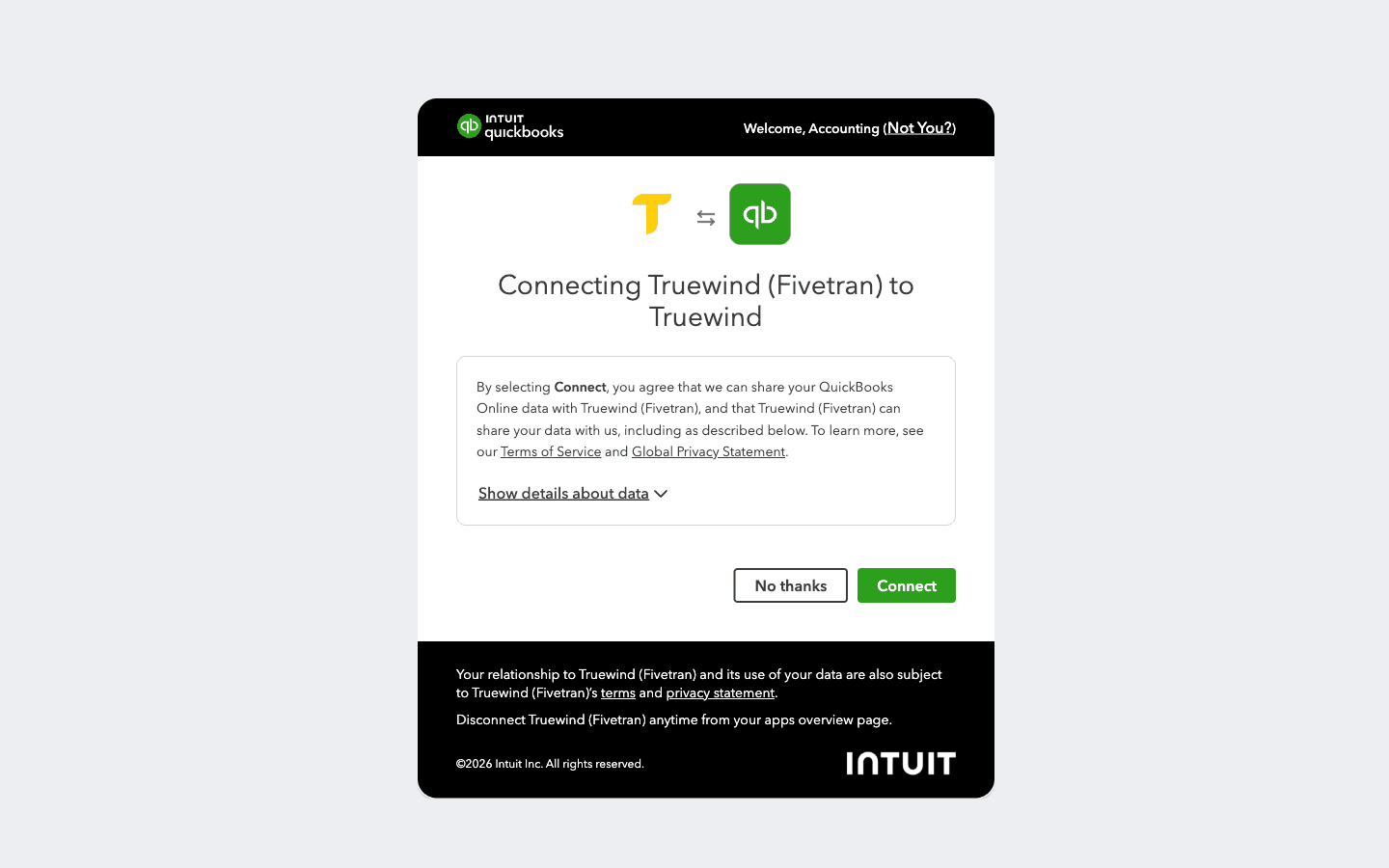
Confirm authorization

Confirm the final authorization by clicking Connect.

Screenshot showing confirm the final authorization by clicking Connect

Step 5

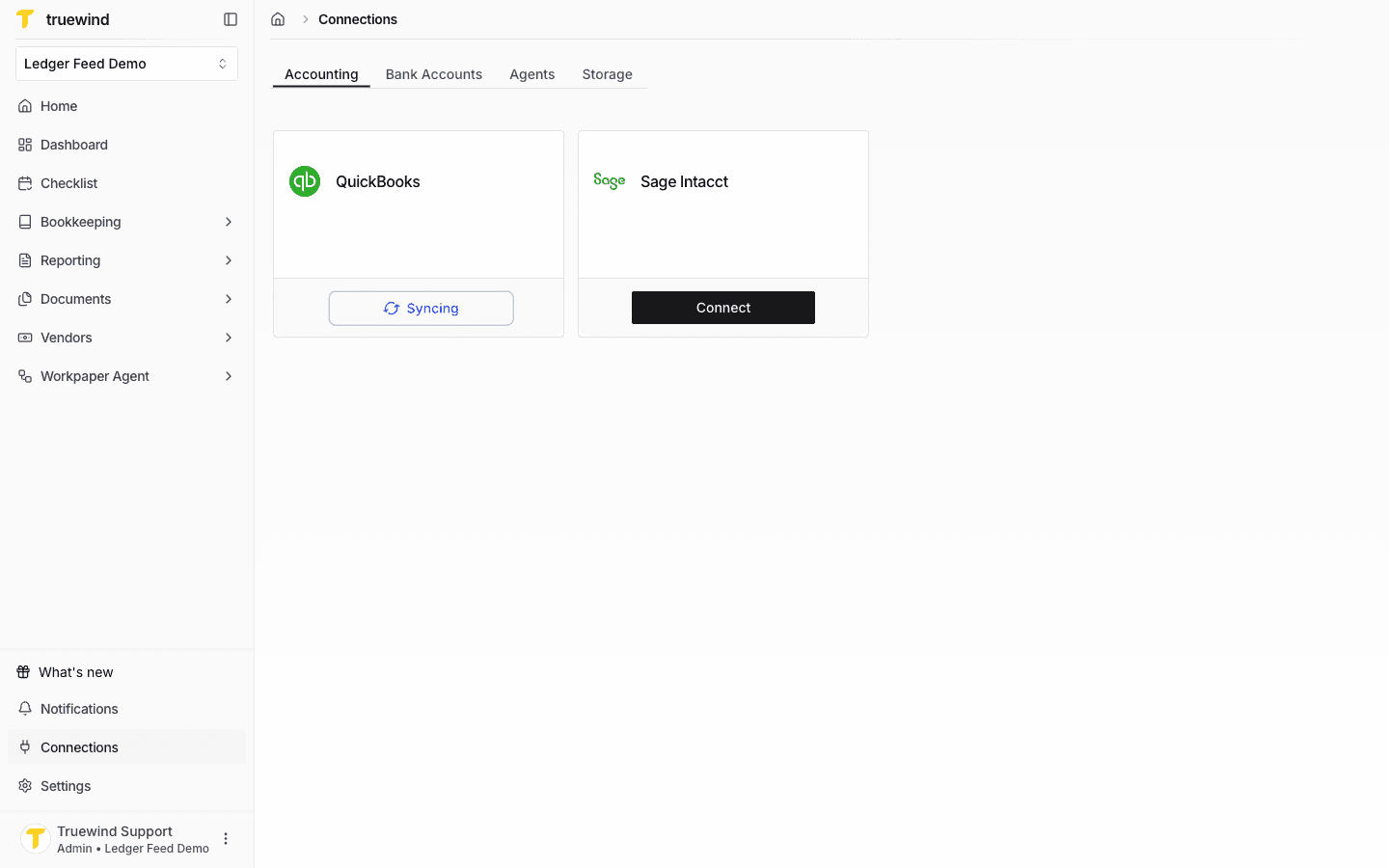
Confirm the connection is syncing in Truewind

After Intuit authorization completes, return to Connections > Accounting and confirm QuickBooks shows a syncing or connected status.

Current Truewind Connections page showing QuickBooks syncing

What to verify after connecting

  • QuickBooks appears as syncing or connected in the current Connections UI.
  • The expected entities and accounts begin syncing.
  • The user who connected the ERP has the right level of access for ongoing syncs.

When to ask for help

If the QuickBooks connection completes but expected data does not appear, use the support agent from the Knowledge Base or send an escalation from the article footer.

Was this helpful?

Need more help?

Ask for human help about this article and provide any feedback.