
Ask the support agent

Just ask a direct question or search related articles from the Knowledge Base.

Support Center / Ledger Feed / Overview

Ledger Feed overview

Use Ledger Feed when you can’t connect a bank account to Truewind. Truewind pulls deposits and expenses from your GL into Ledger Feed, where you can review AI-suggested payee, category, and dimension details before syncing approved changes back to the GL.

Workflow

Step 1

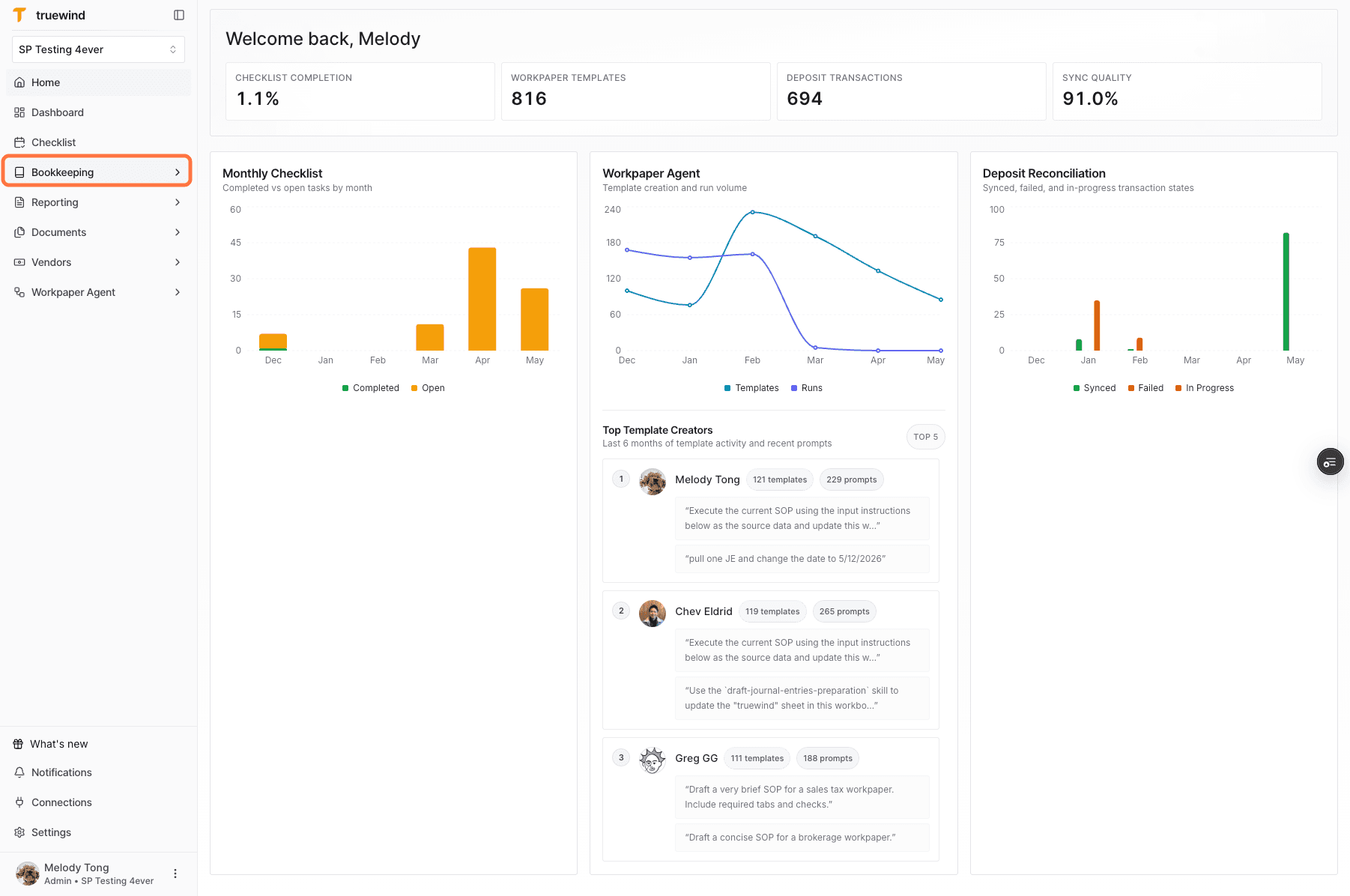
Open Bookkeeping

Start from the main navigation so you can access the GL-backed transaction review tools.

Screenshot showing the Bookkeeping navigation item in Truewind.

Step 2

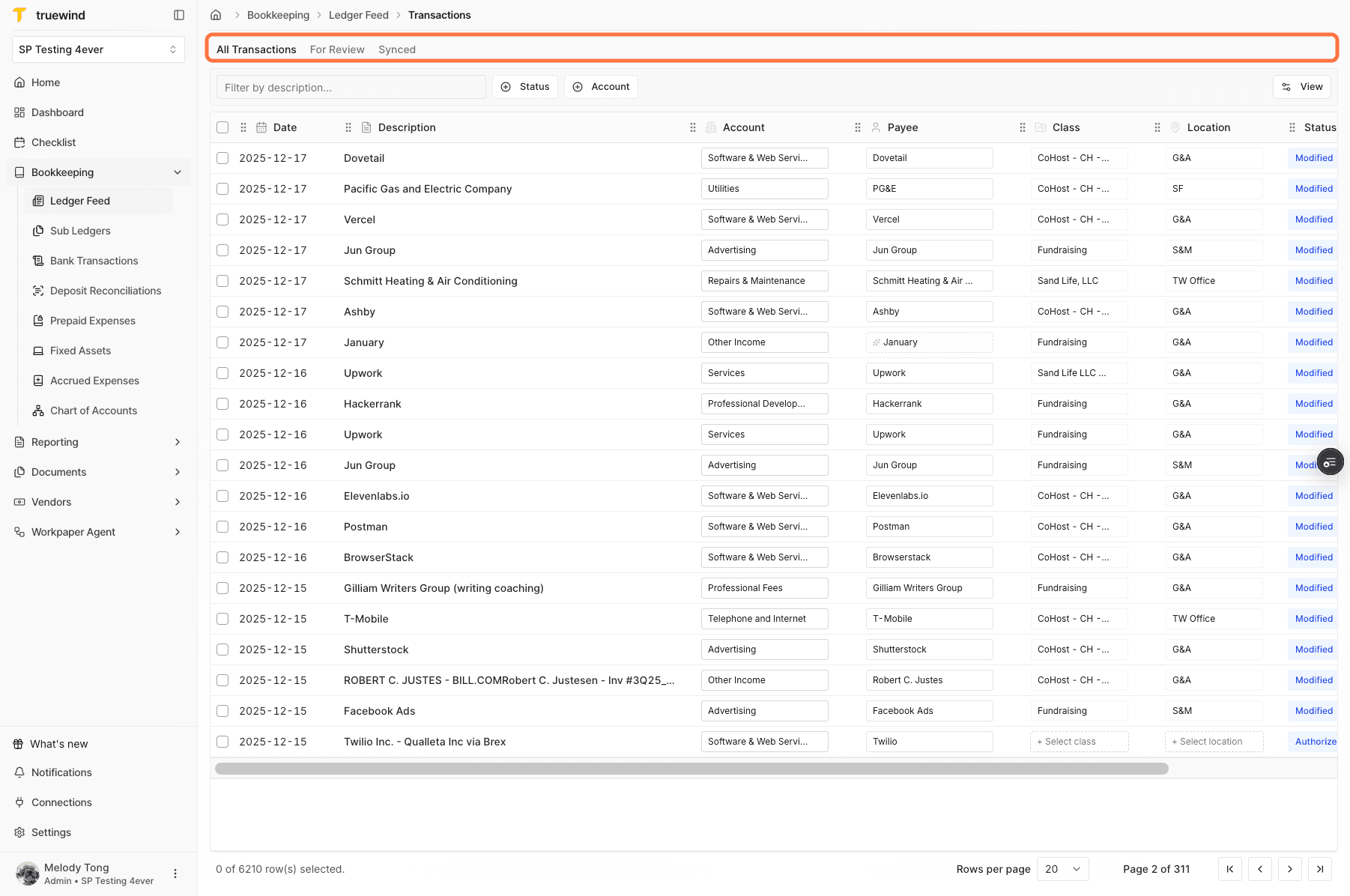
Open Ledger Feed

Choose Ledger Feed from Bookkeeping and use All Transactions when you need the unfiltered list of GL deposits and expenses.

Screenshot showing the All Transactions tab in Ledger Feed.

Step 3

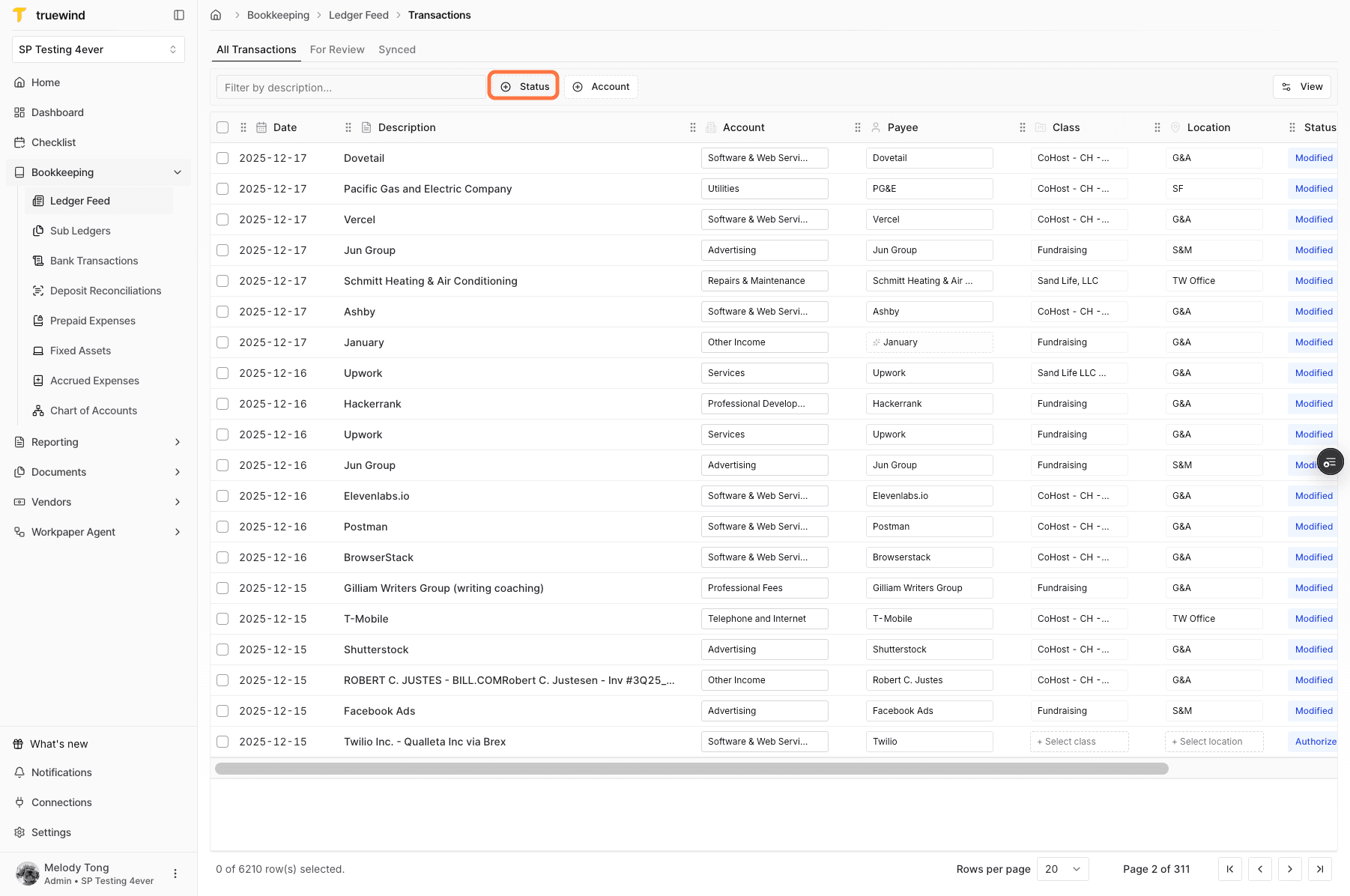
Filter the table

Apply status and account filters when you need to narrow the review queue before taking action.

Screenshot showing status and account filters in Ledger Feed.

Step 4

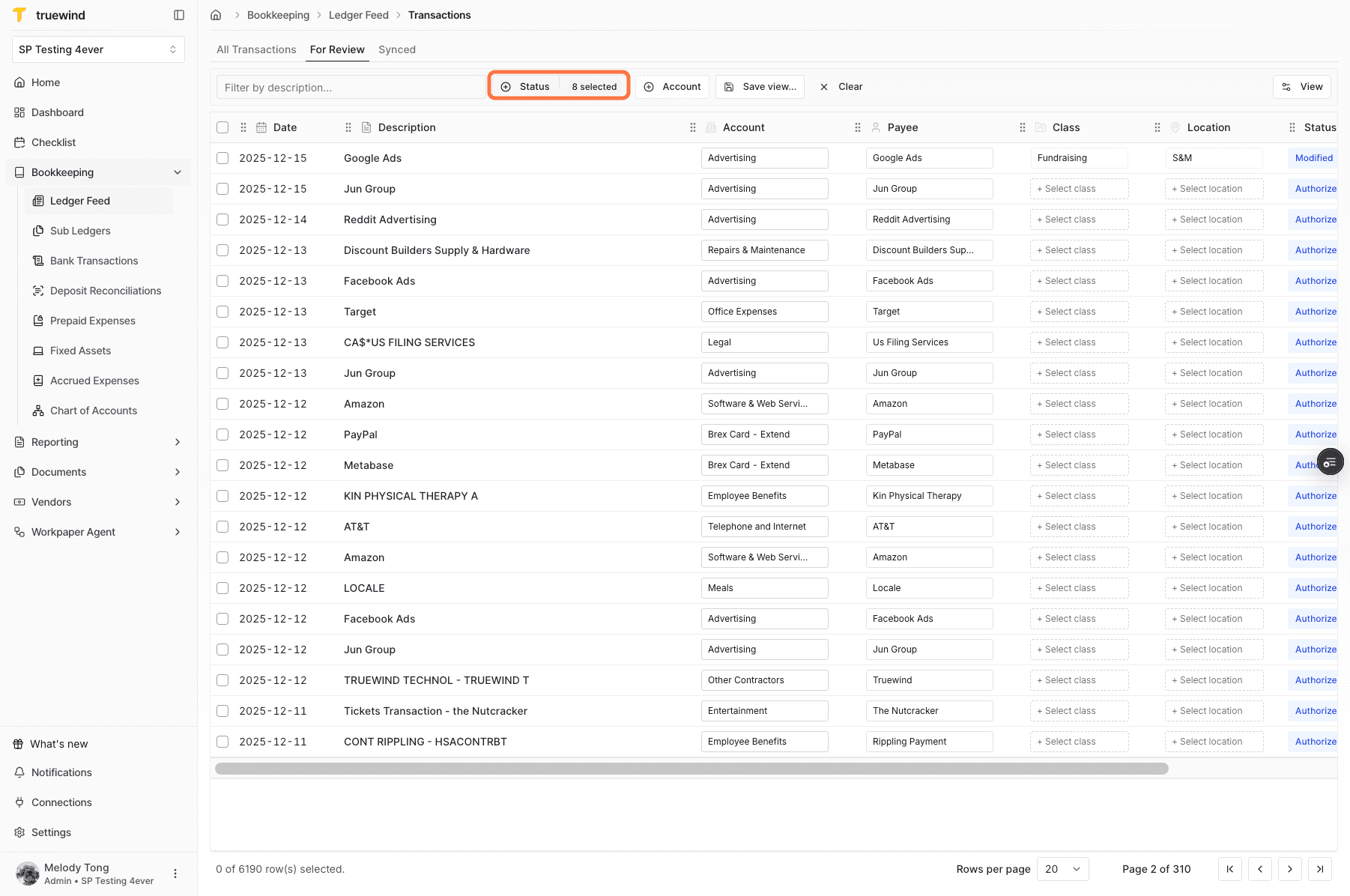
Open For Review

Start from For Review when you want Truewind's suggested review queue instead of the full transaction list.

Screenshot showing the For Review tab in Ledger Feed.

Step 5

Categorize a transaction

Select a transaction and run categorization so Truewind can suggest accounting details for review.

Screenshot showing a selected Ledger Feed transaction and categorize action.

Step 6

Confirm categorized status

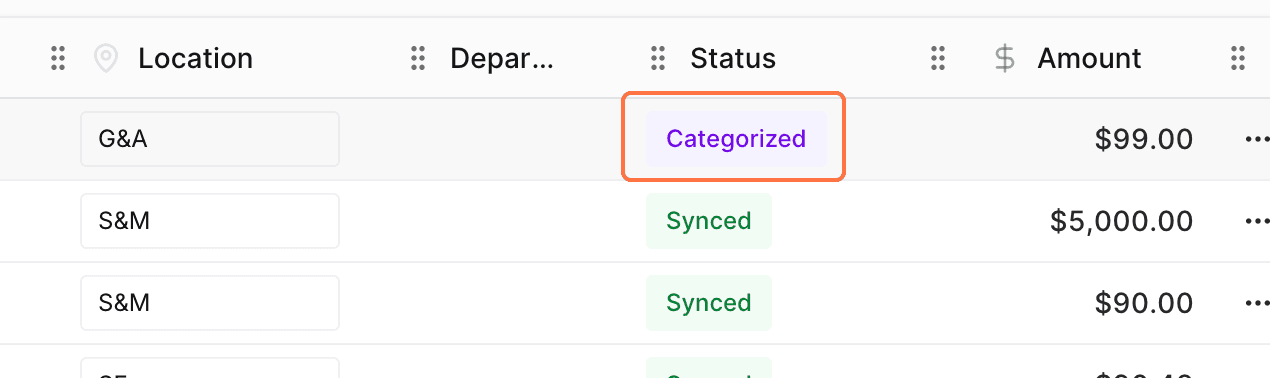
After categorization finishes, check the status so you know the row is ready for accounting review.

Screenshot showing a categorized transaction status in Ledger Feed.

Step 7

Open the row menu

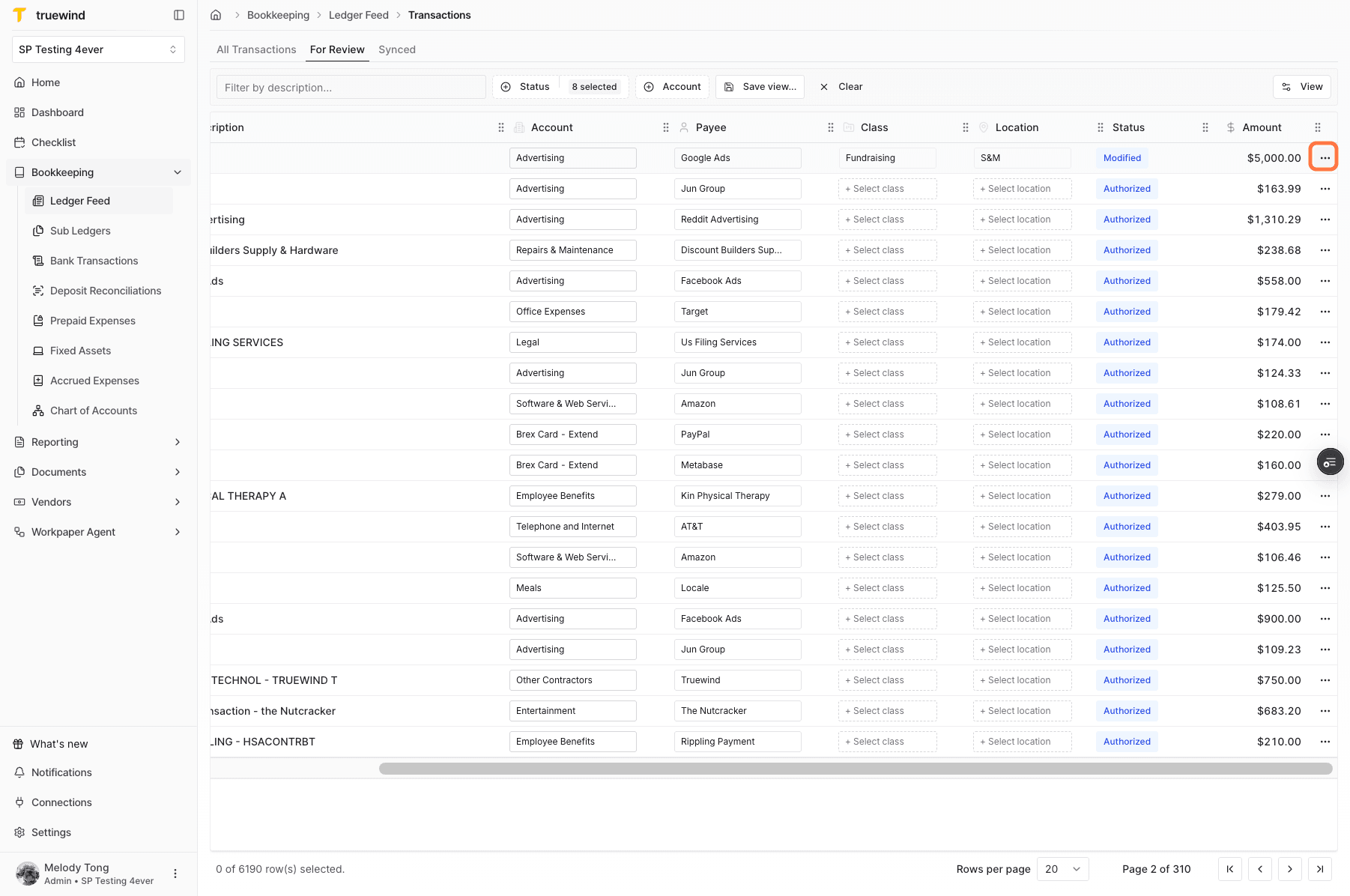
Use the row menu when you need to inspect the AI explanation behind the suggested categorization.

Screenshot showing the row action menu in Ledger Feed.

Step 8

View details

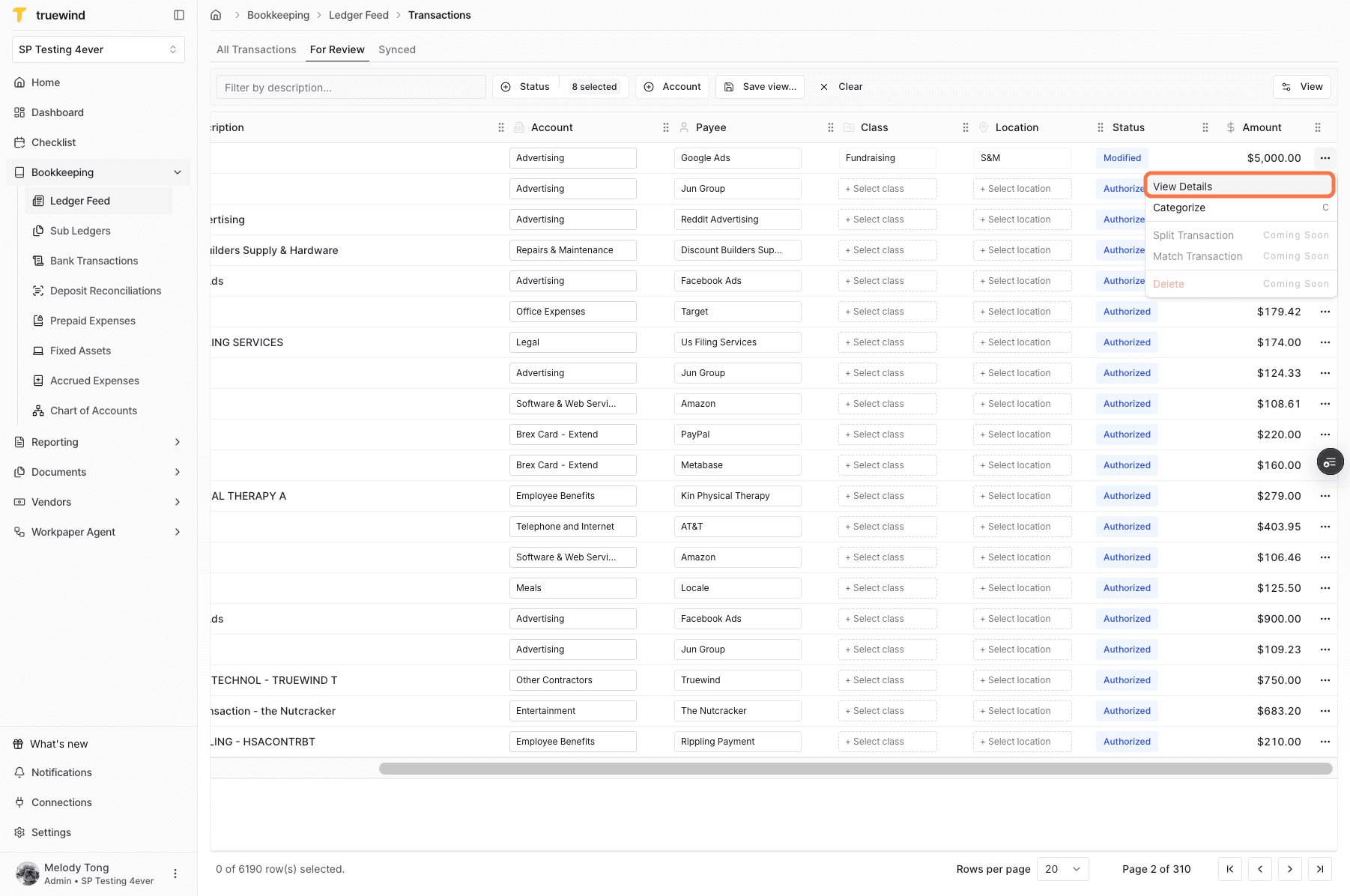
Open the detail view to review transaction context before accepting or changing the suggested accounting fields.

Screenshot showing the View Details menu option in Ledger Feed.

Step 9

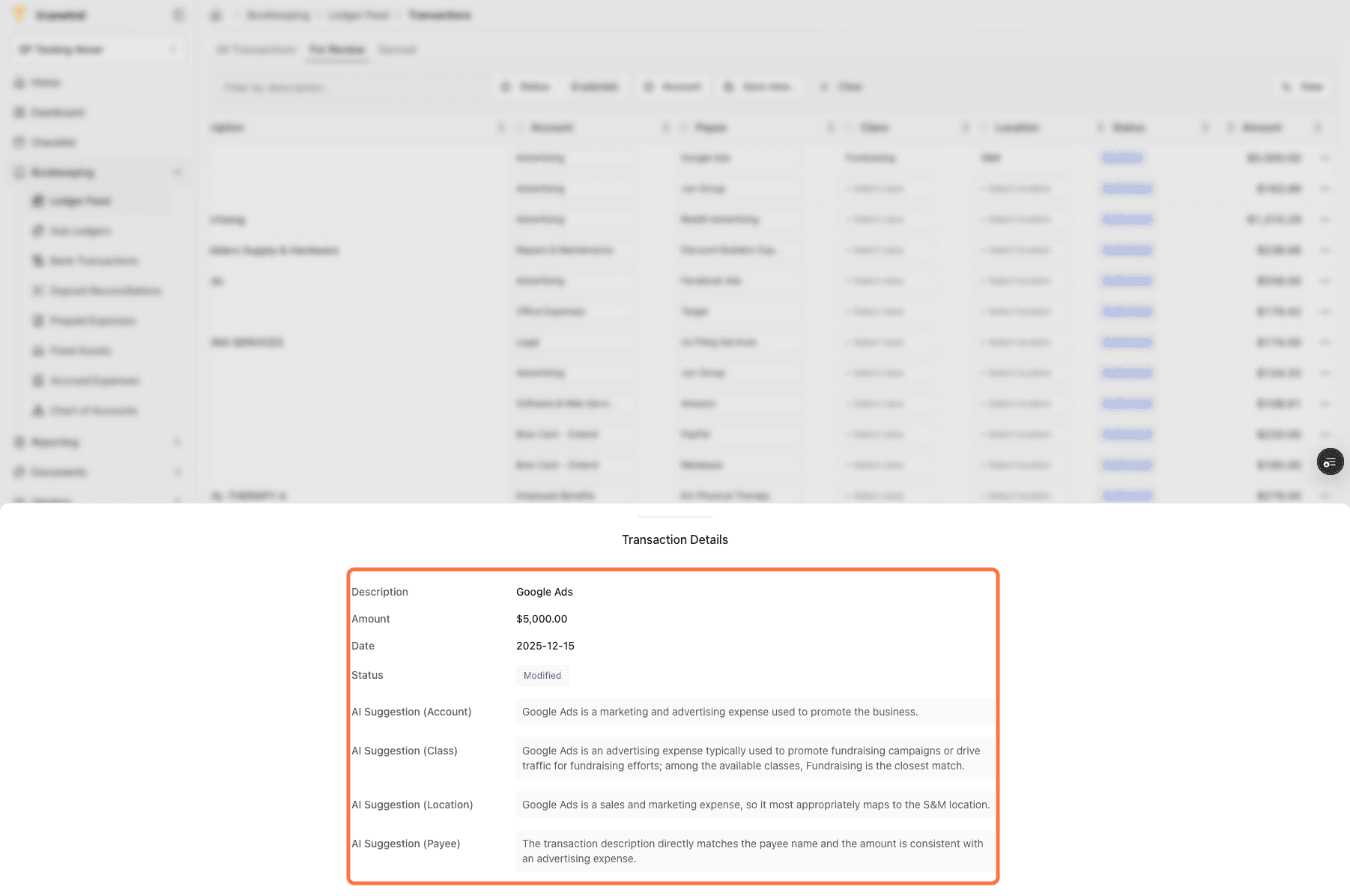
Review the description

Check the description and supporting detail so the final categorization has enough context.

Screenshot showing the transaction description in Ledger Feed.

Step 10

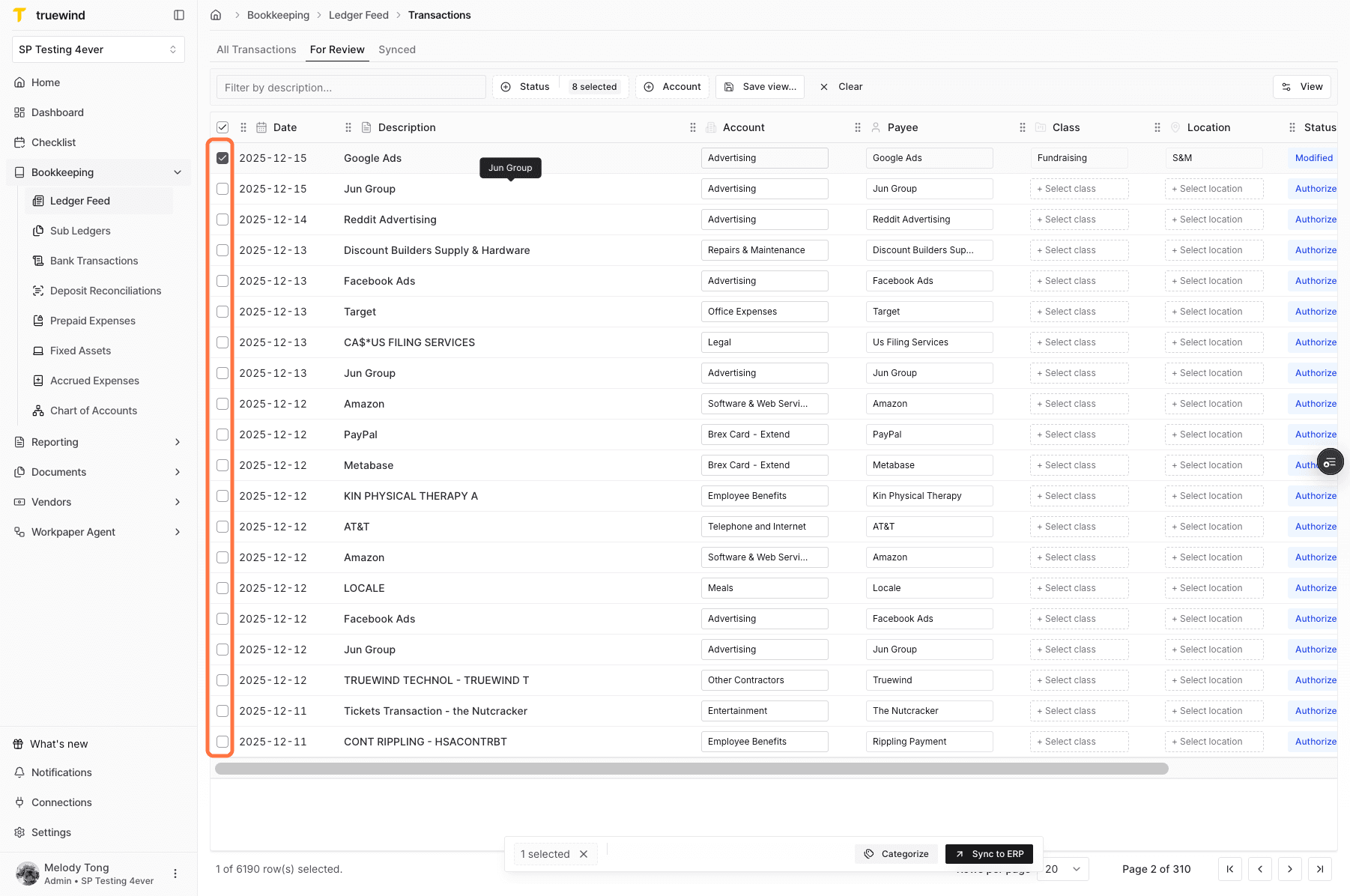
Select rows to sync

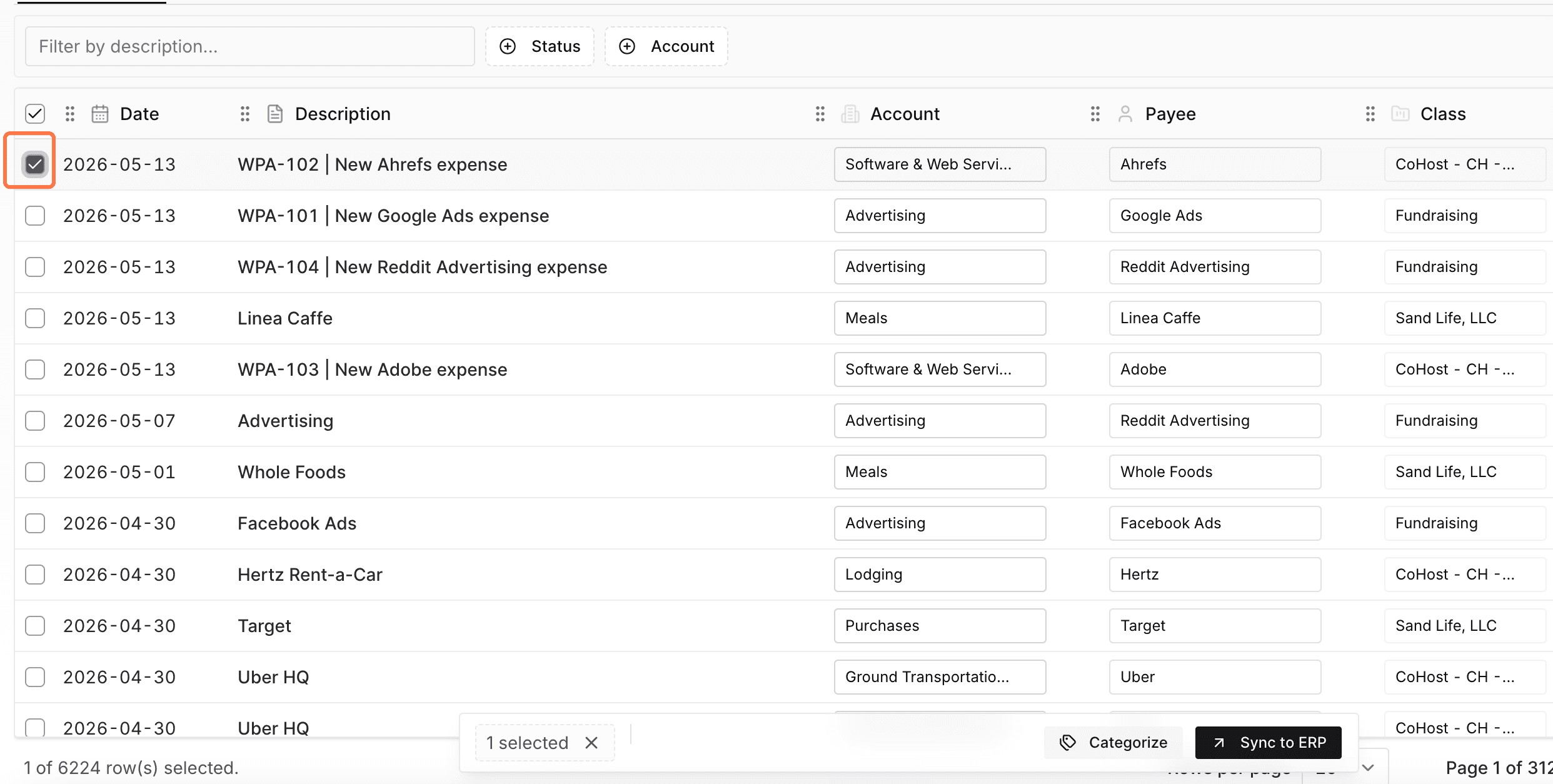
Choose reviewed transactions only after the payee, account, category, and dimensions look ready for the ledger.

Screenshot showing Ledger Feed transactions selected for syncing.

Step 11

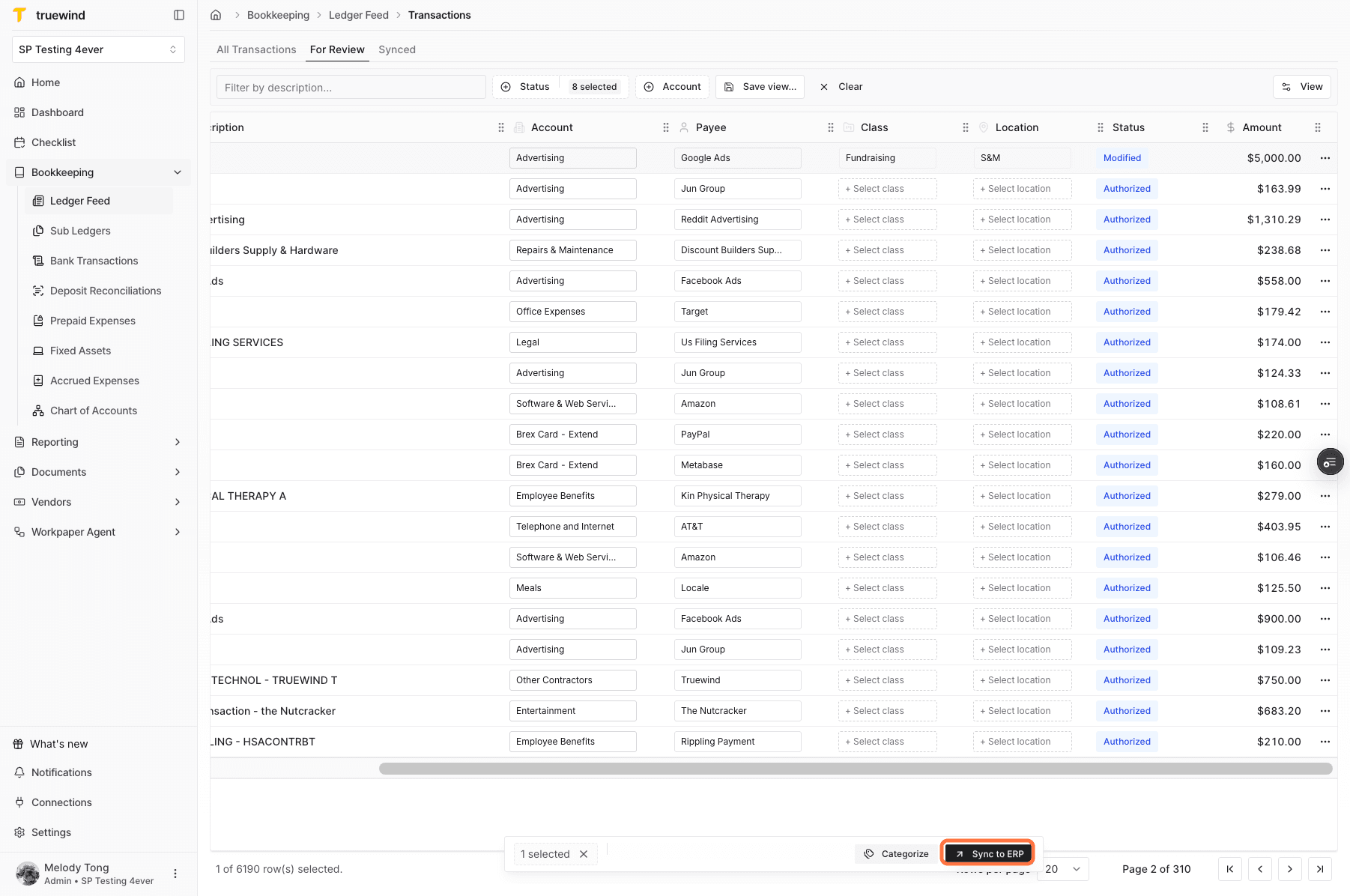
Sync to ERP

Start the sync when selected rows are ready to send back to the connected ERP.

Screenshot showing the Sync to ERP action in Ledger Feed.

Step 12

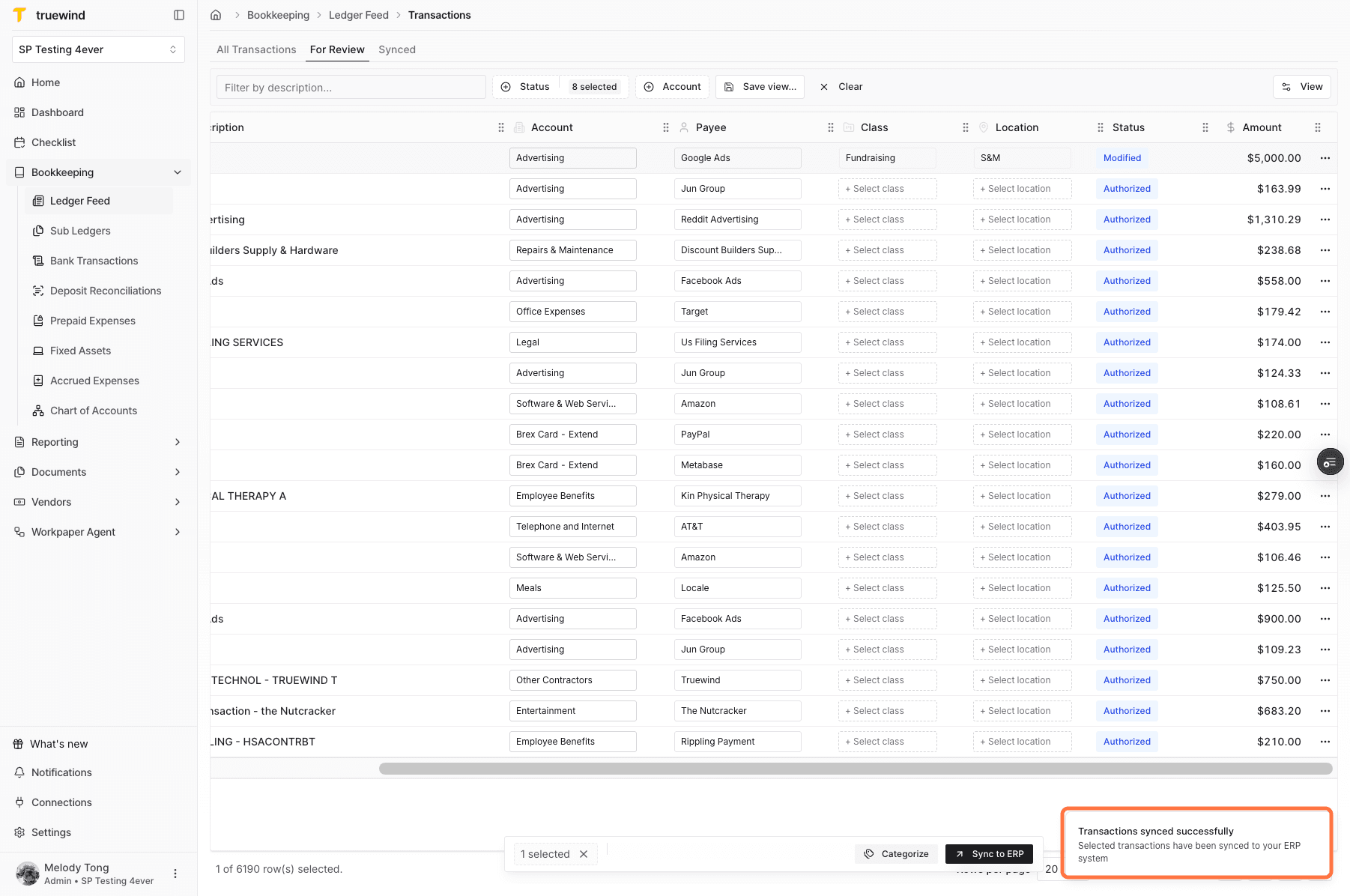
Confirm sync success

Wait for the success message before navigating away or checking the synced transaction list.

Screenshot showing a successful Ledger Feed sync message.

Step 13

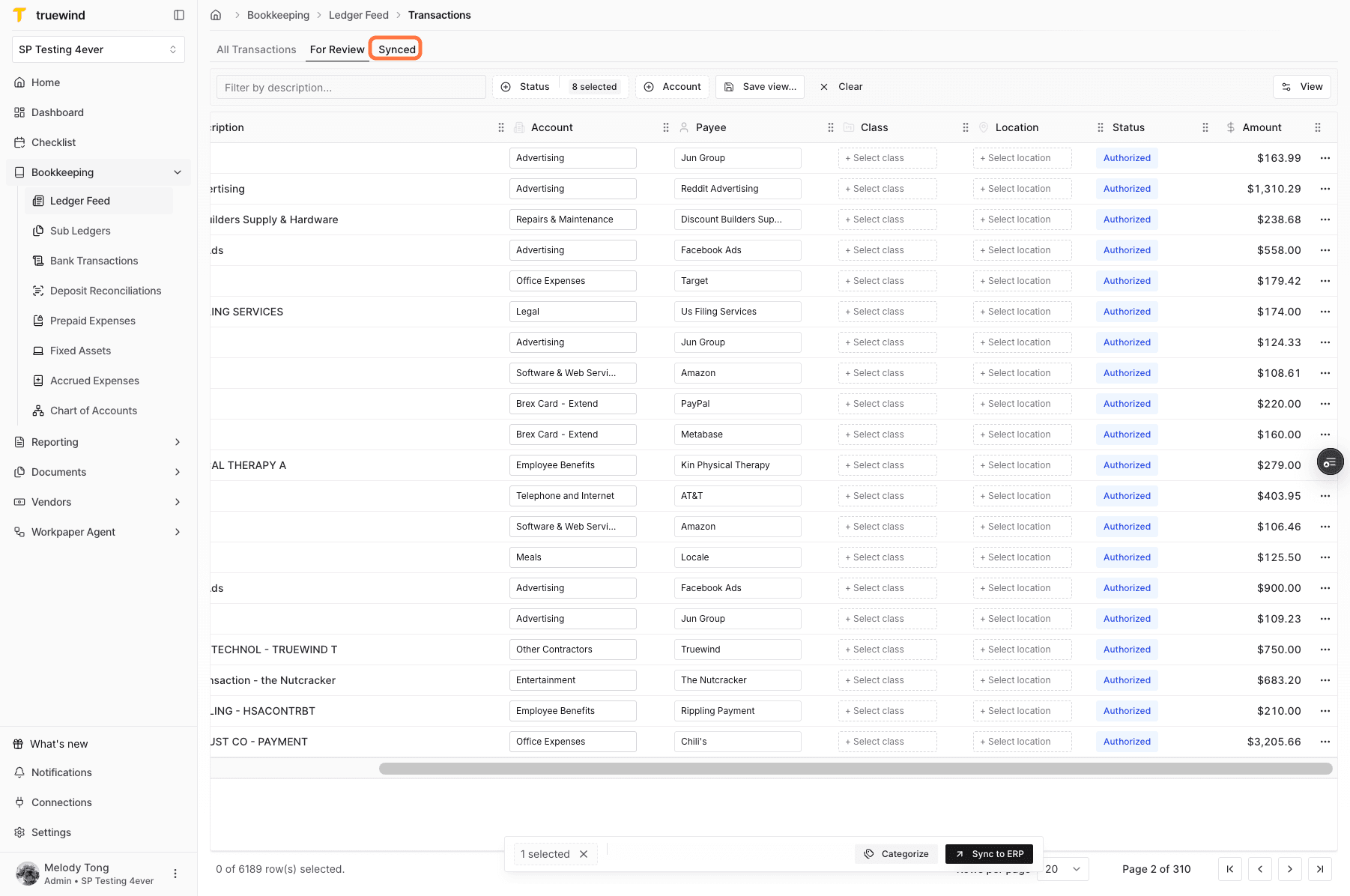
Open Synced

Use Synced to review transactions that have already been sent back to the ERP.

Screenshot showing the Synced tab in Ledger Feed.

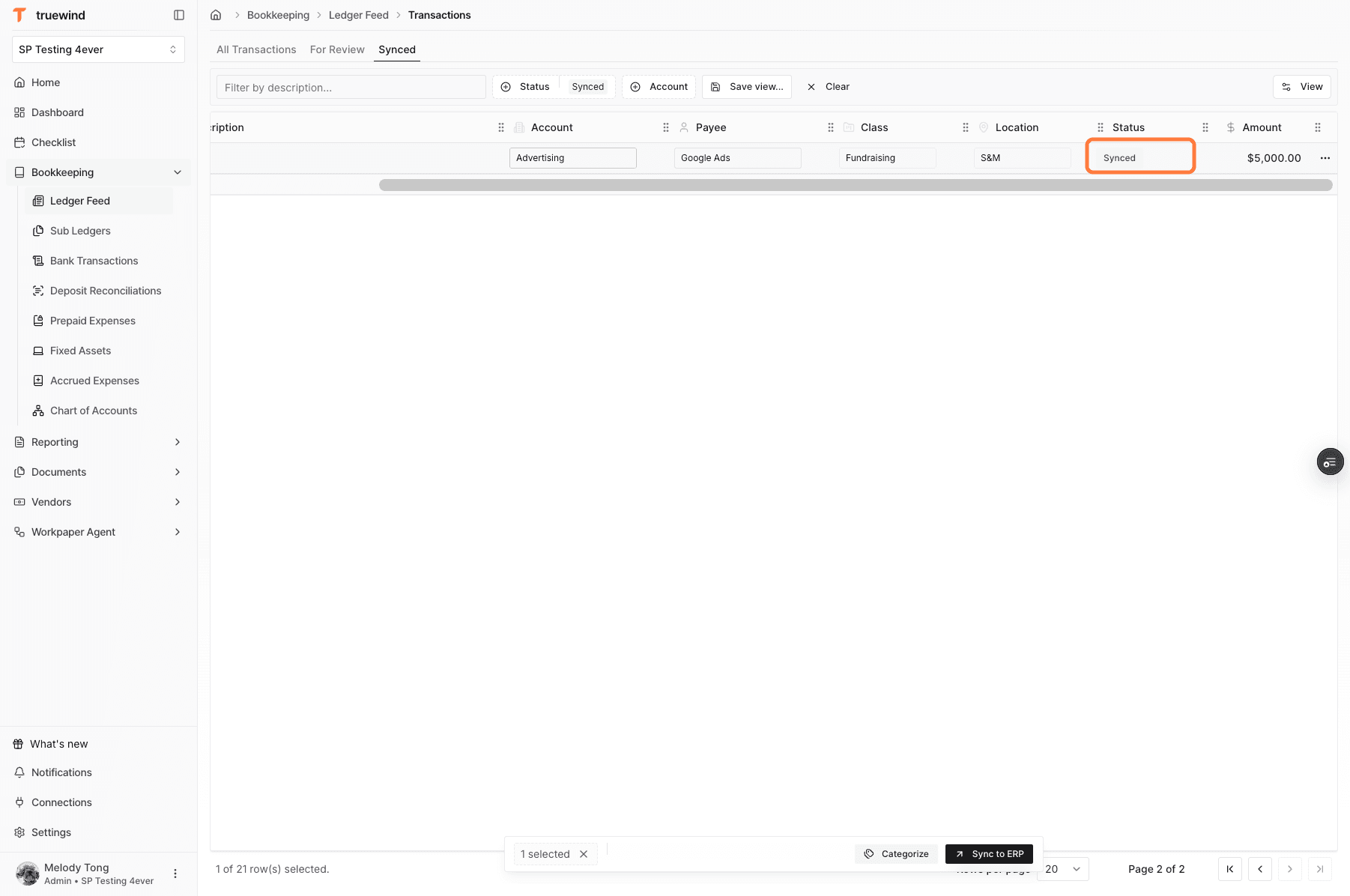
Step 14

Review synced status

Confirm the synced status on the row so the team can tell which transactions are complete.

Screenshot showing a synced transaction status in Ledger Feed.

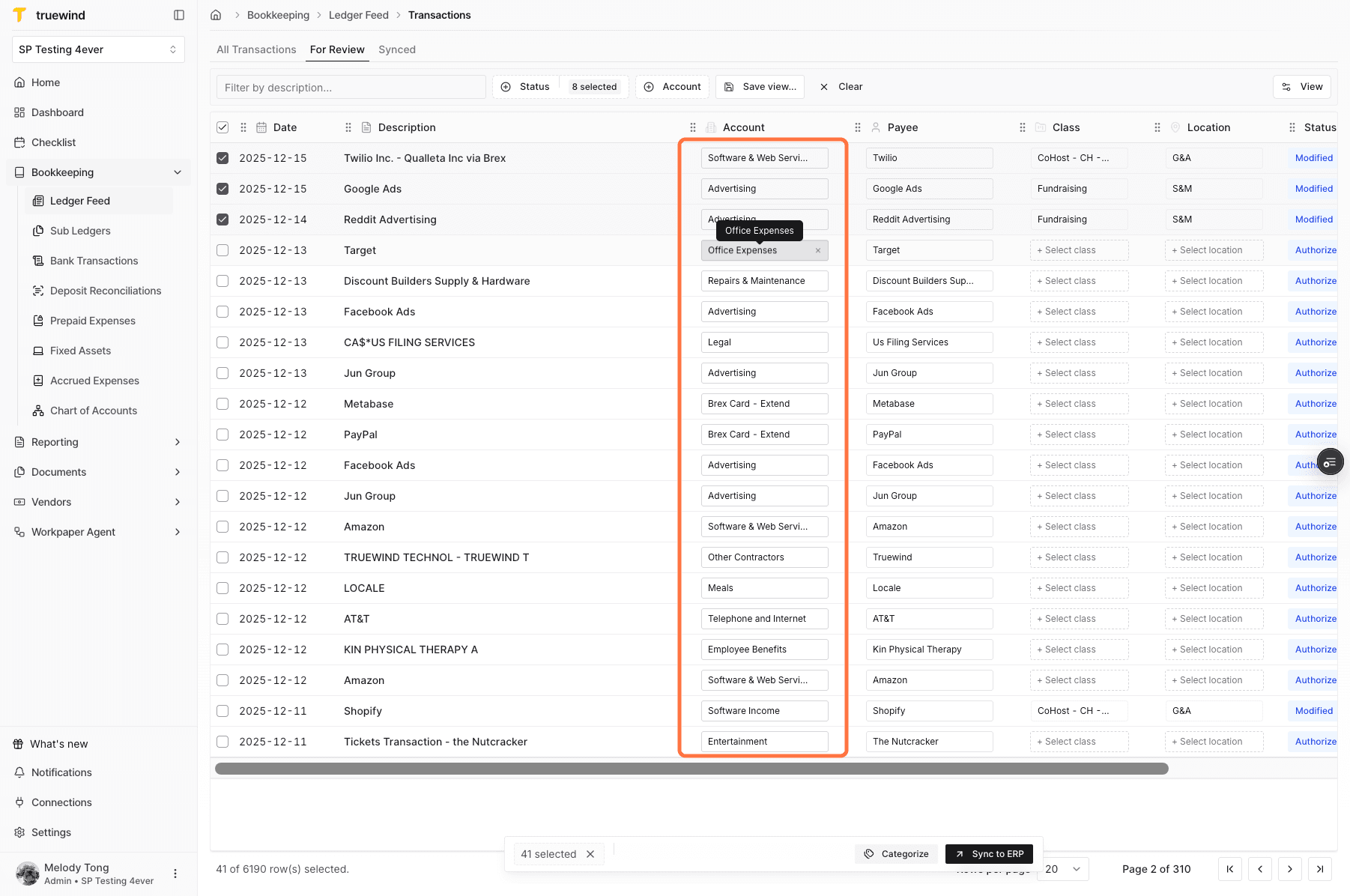
Step 15

Open Account

Click the accounting field when the AI suggestion needs a manual correction before sync.

Screenshot showing the Account field selected in Ledger Feed.

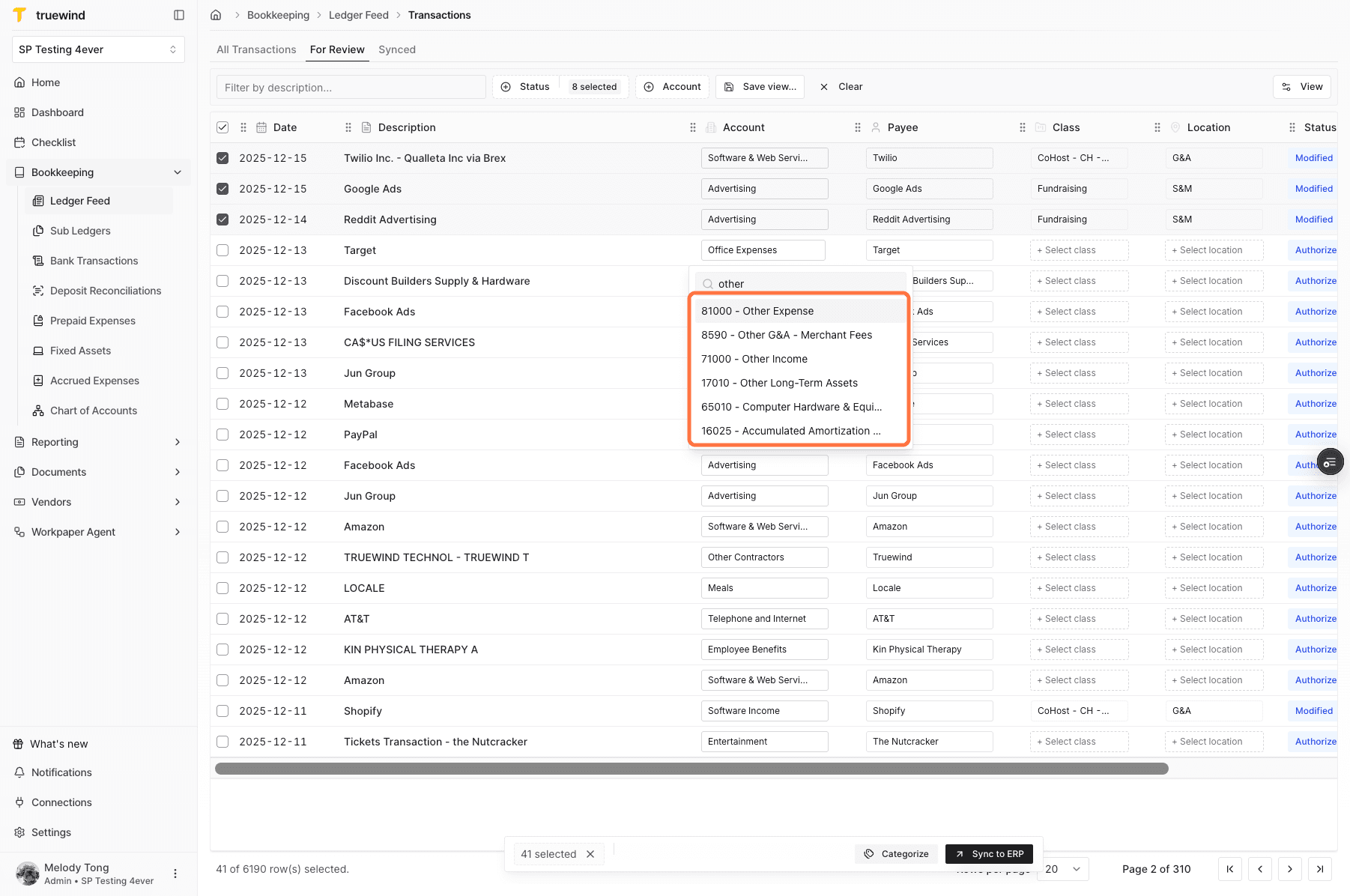
Step 16

Choose an account

Search for and select the correct ledger account from the available options.

Screenshot showing the account picker in Ledger Feed.

Step 17

Confirm modified status

A modified status means a user changed at least one accounting field on the Ledger Feed row.

Screenshot showing a modified Ledger Feed transaction status.

Step 18

Create a payee

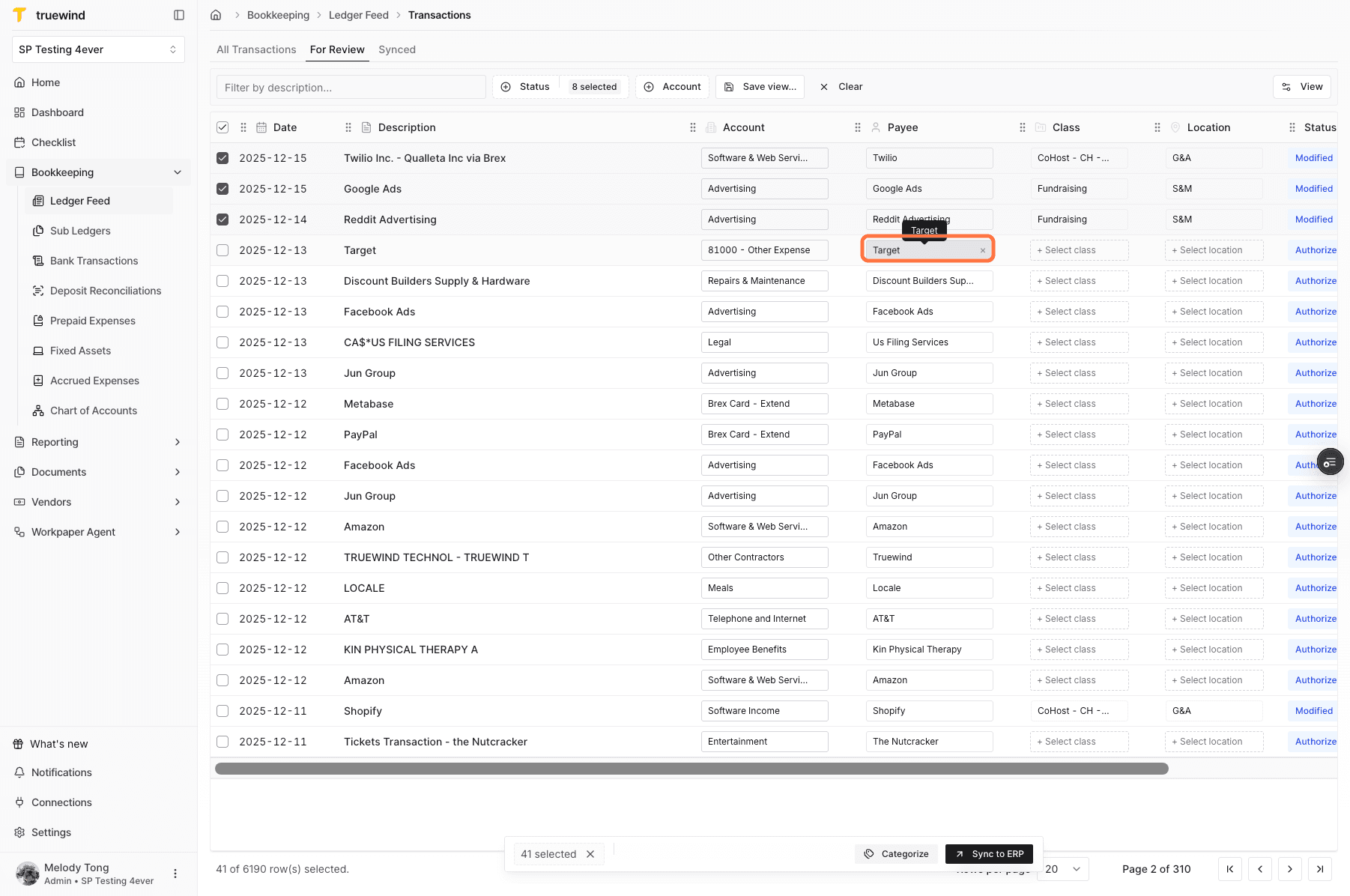
If the needed payee does not exist yet, start a new payee from the payee selector before syncing.

Screenshot showing the payee selector in Ledger Feed.

Step 19

Add the vendor

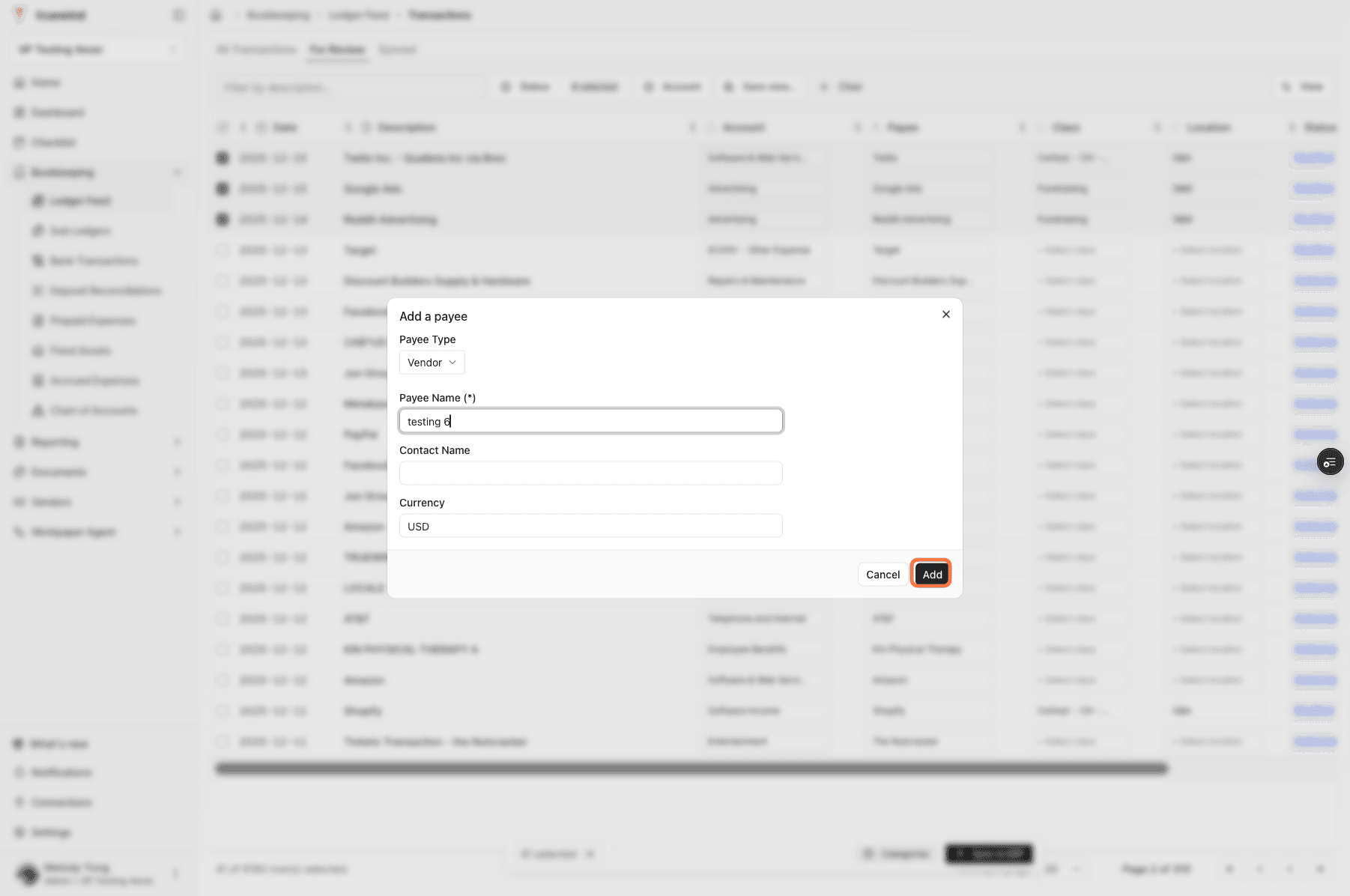
Add the new vendor so it can be created in the ERP when the transaction is synced.

Screenshot showing the add vendor action in Ledger Feed.

Step 20

Filter a saved view

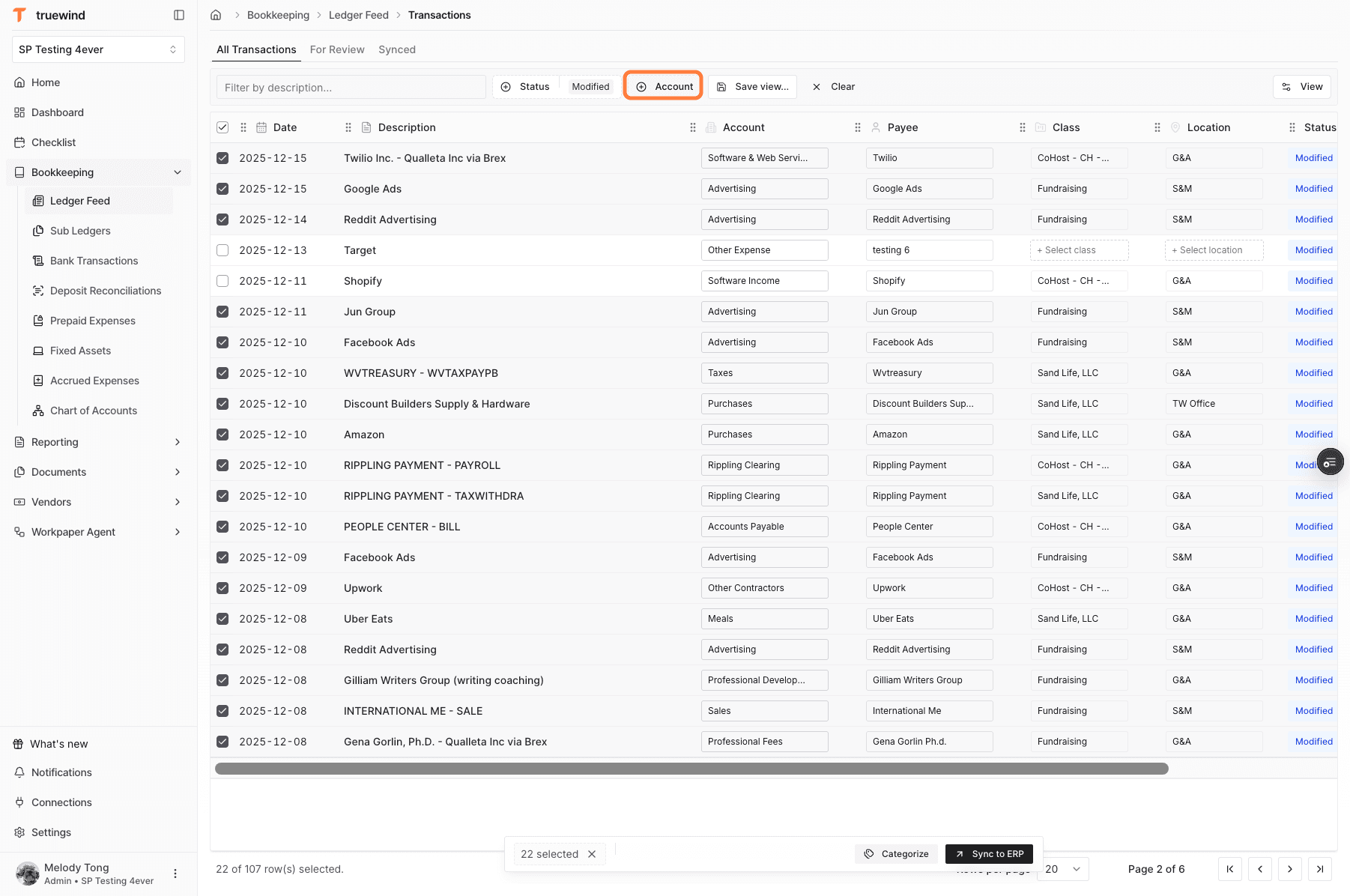
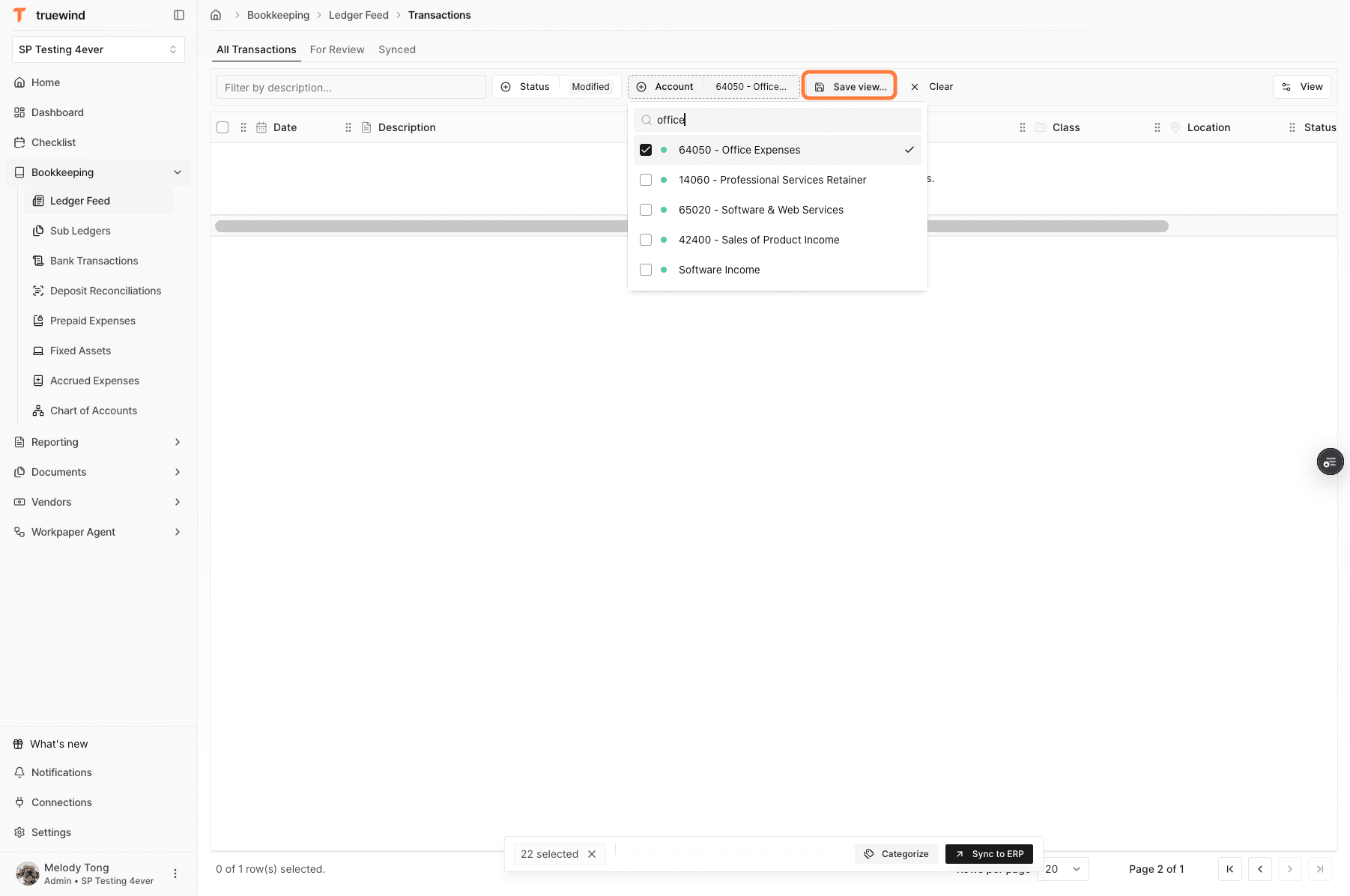
Build the view from the status and account filters you want to reuse.

Screenshot showing filters applied before saving a Ledger Feed view.

Step 21

Save the view

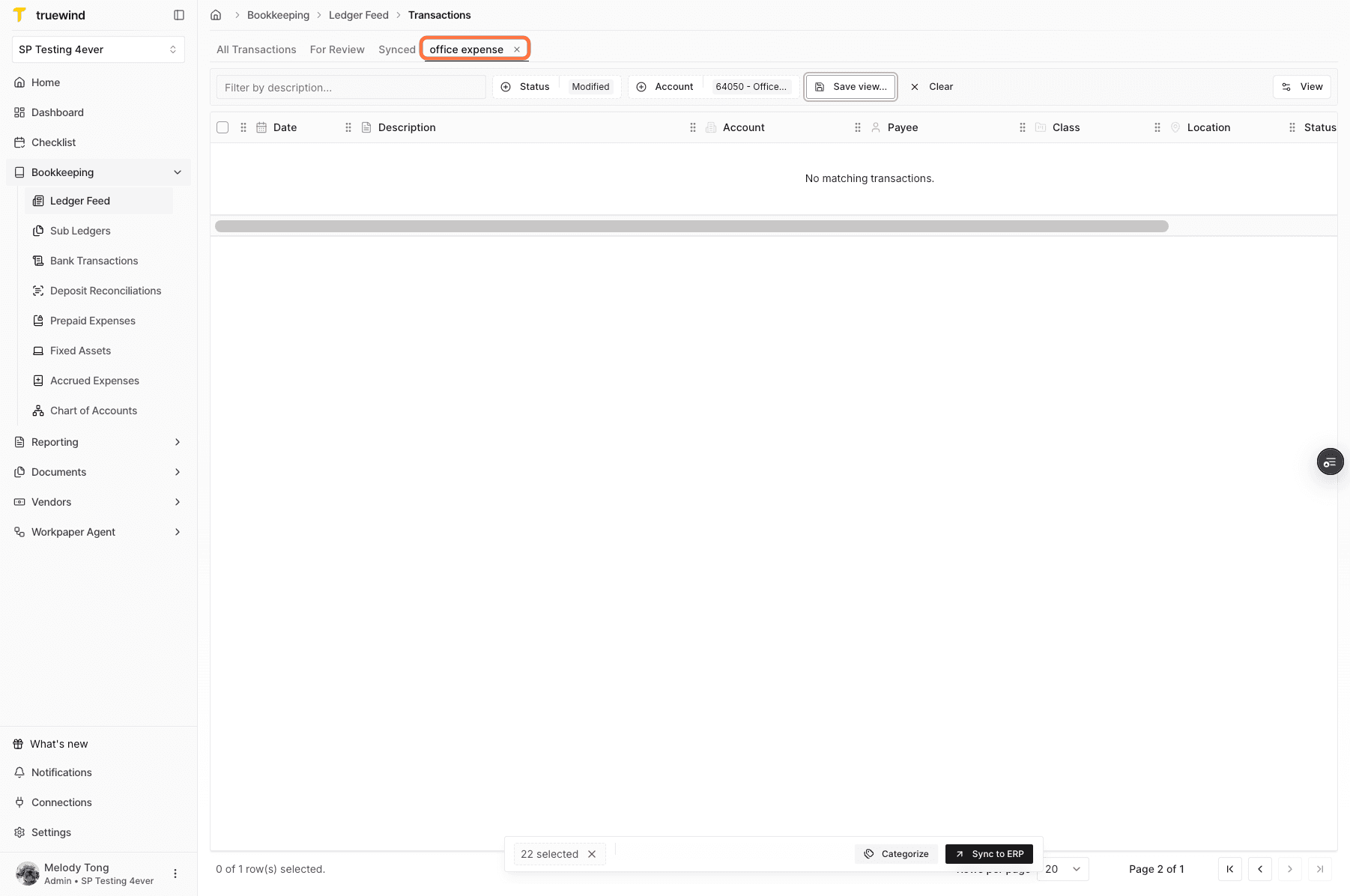
Save the filtered setup as a new tab when the same review queue will be used again.

Screenshot showing the Save view action in Ledger Feed.

Step 22

Review the new tab

Confirm the saved tab appears with the expected filters before using it for recurring review.

Screenshot showing a newly created Ledger Feed tab.

Step 23

Open View

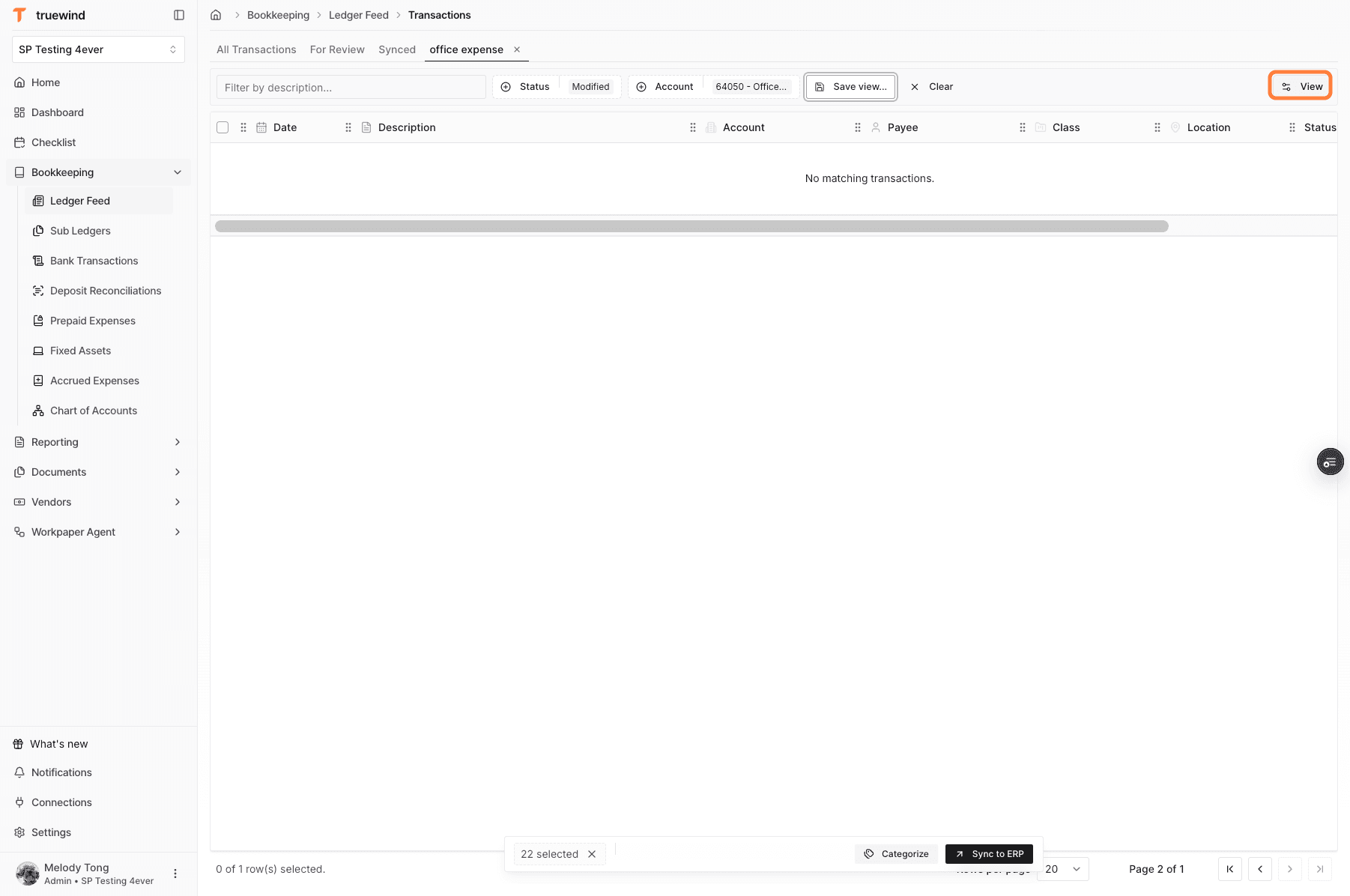
Use View when you need to adjust which table columns appear in the saved or current tab.

Screenshot showing the View menu in Ledger Feed.

Step 24

Choose visible columns

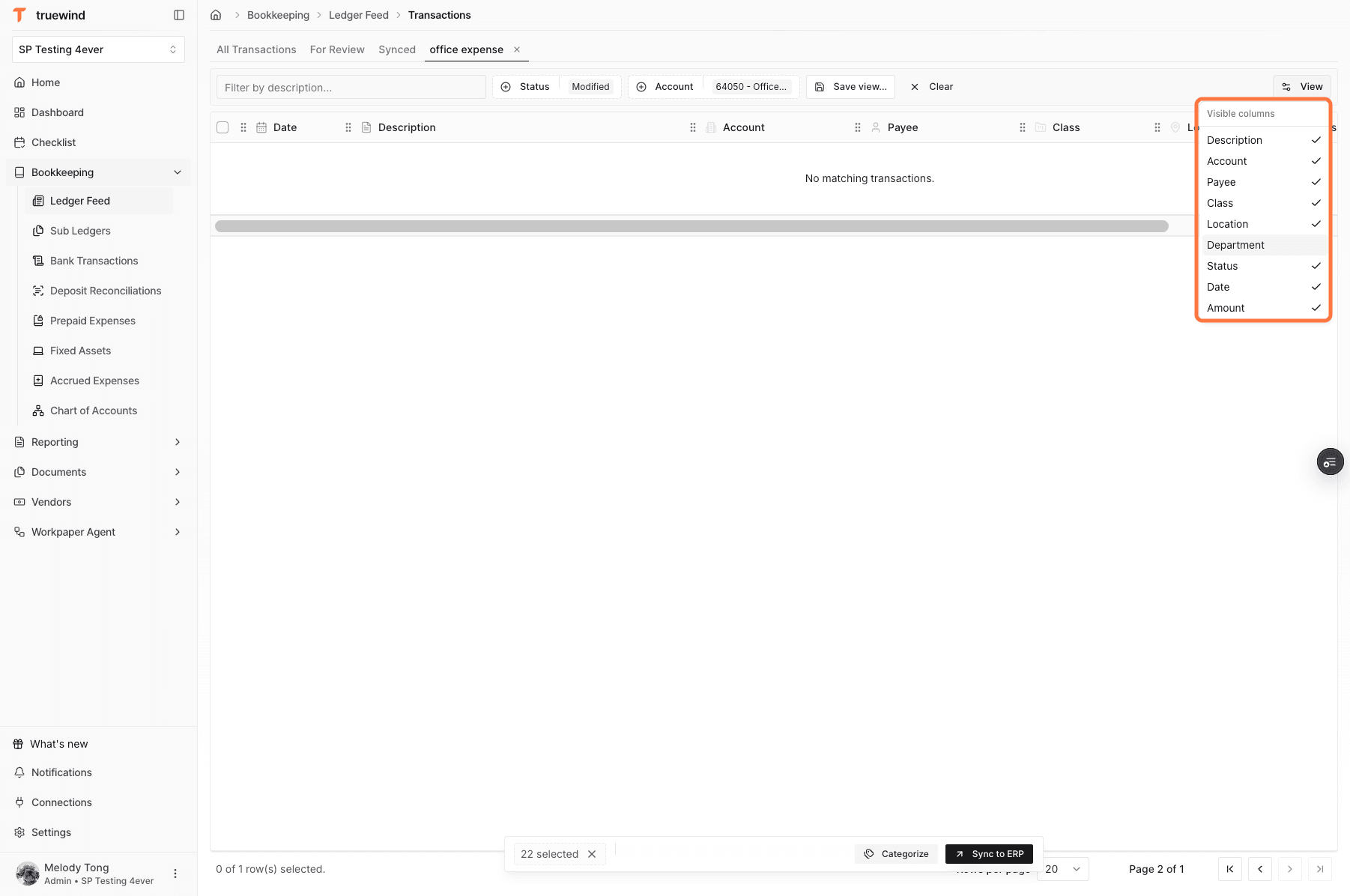
Select the fields that matter for the review, such as department or other available dimensions.

Screenshot showing visible column options in Ledger Feed.

What Ledger Feed is for

Use Ledger Feed when you can’t connect a bank account to Truewind. Truewind pulls deposits and expenses from your GL into Ledger Feed, where you can review AI-suggested payee, category, and dimension details before syncing approved changes back to the GL.

Review habit

Before syncing, check the selected tab, filters, row status, payee, account, category, and available dimensions. Treat the synced state as the handoff point back to the ledger.

FAQ

When should I use Ledger Feed?

Use Ledger Feed when transactions need to come from the general ledger instead of a connected bank feed. Truewind can pull deposits and expenses from the GL so the team can review categorization before syncing updates back.

What can I change before syncing?

Review the AI-suggested payee, account, category, and available dimensions. If a value needs correction, update it before syncing the transaction back to the ERP.

Can I save a custom Ledger Feed view?

Yes. Filter the table, save the view as a tab, and customize visible columns so repeat reviews start from the right transaction set.

Limitations

Ledger Feed is available for QuickBooks Online

Ledger Feed currently supports QuickBooks Online. Other ERP connections are not supported for this workflow.

Ledger Feed pulls deposits and expenses

The feed currently pulls only deposit and expense transaction types from QuickBooks Online.

Ledger Feed depends on GL-sourced data

If the GL import or ERP sync is incomplete, Ledger Feed may not show the latest deposits, expenses, accounts, vendors, or dimensions.

Sync only after review

Syncing sends reviewed changes back to the ledger, so confirm the payee, account, category, and dimension details before starting the sync.

Troubleshooting

Expected transactions are missing.

Check the selected tab, status filter, account filter, and latest GL sync before assuming the transaction is unavailable.

A changed accounting field does not appear in the ERP.

Confirm the transaction shows a modified or reviewed state in Ledger Feed, then sync it to the ERP and check the synced tab after completion.

Was this helpful?

Need more help?

Ask for human help about this article and provide any feedback.