

The reconciliation workspace in Sage Intacct compares what your bank reports against what's posted in your GL. Feed data flows in through direct connections, aggregators, or manual file imports. Book entries come from whatever hit the GL account. Sage matches them by amount, date, and reference, and everything that doesn't pair cleanly lands in your exception queue. Most finance teams run this monthly, aligned to the statement cycle. The bottleneck isn't the feed or the GL data. It's the matching rules. They require exact or near-exact description alignment, which breaks down fast when vendors vary how they appear or timing differences stack up. What follows is a walkthrough of Sage Intacct bank reconciliation setup, rule configuration, exception workflows, and the tweaks that cut manual review time without losing audit control.
TLDR:
- Sage Intacct matches bank statements in Cash Management by comparing imported feeds against GL entries, but continuous matching requires tools beyond native workflows.
- Cloud Services activation must be active first or your bank feed will fail silently with no error message.
- Rule sets auto-match transactions by amount, date range, and payee patterns; set tolerances as a percentage of transaction value to scale across sizes.
- Reopening a finalized reconciliation resets all matched transactions to uncleared status and breaks subsequent periods if you don't correct in sequence.
- Truewind reads bank feeds and GL entries together, flags open items, and drafts journal entries to cut reconciliation time during close.
What Bank-to-Book Reconciliation Means in Sage Intacct
Bank-to-book reconciliation compares what your bank reports against what's posted in your GL. In Sage Intacct, this process lives inside the Cash Management module, where each configured bank account gets its own reconciliation workspace.
The bank side comes from either a connected feed or an imported statement file. The book side is whatever has been posted to that account in the GL. Sage matches by amount, date, and reference number, surfacing anything that doesn't pair cleanly as an open exception for your team to resolve.
Most teams run this monthly, aligned to their bank statement cycle. Daily matching is possible for high-volume accounts, though Sage's native workflow is built around that monthly rhythm. Internal control frameworks for cash recommend matching at the frequency that fits transaction volume and risk exposure. True continuous matching, where transactions are cleared as they arrive, requires tooling beyond what Sage provides out of the box.
Prerequisites for Setting Up Bank Feeds in Sage Intacct
Before any bank connection works in Sage Intacct, specific setup requirements must be in place. Missing one can cause a silent failure with no useful error message, which is a frustrating way to find a configuration gap.
Cloud Services activation is the most common missing piece. If it isn't active in your company settings, the bank feed option may not appear at all, or a connection attempt will process and then fail without any explanation. Check Company > Subscriptions and verify this first, before anything else.
Other prerequisites to confirm:
- The bank account must be configured in Cash Management with a mapped GL account and matching currency.
- The user setting up the feed needs Cash Management admin-level permissions.
Bank Feed Connection Methods: Direct, Aggregator, and File Import
Sage Intacct supports three ways to bring bank data into the reconciliation workflow, and the method you choose affects how frequently transactions appear and how much manual intervention your team will need.
Direct Bank Feeds
Direct feeds connect Sage Intacct to your financial institution through a live data link, pulling cleared transactions automatically. This reduces lag between when a transaction settles and when it appears in your reconciliation queue.
Aggregator Services
Third-party aggregators like Plaid or Yodlee sit between your bank and Sage Intacct, collecting and forwarding transaction data. Coverage is broader across institutions, though feed reliability can vary depending on the bank.
File Import
For banks without a direct or aggregator connection, teams can upload OFX, QFX, BAI2, or CSV files manually. This method works reliably but requires a defined upload cadence to avoid gaps in your transaction history.
| Connection Method | Setup Requirements | Transaction Delay | Bank Coverage | Maintenance Burden |
|---|---|---|---|---|
| Direct Bank Feed | Cloud Services active, bank must support direct connection to Sage Intacct, Cash Management admin permissions required | Transactions appear within hours of bank clearing, typically same business day | Limited to major banks with formal Sage partnerships, regional banks often unsupported | Minimal after initial setup, connection runs automatically with no scheduled intervention needed |
| Aggregator Service | Cloud Services active, third-party aggregator account (Plaid or Yodlee), API credentials configured in Sage | One to two business days between bank clearing and appearance in Sage reconciliation queue | Broad coverage across thousands of institutions including credit unions and smaller regional banks | Moderate, requires monitoring aggregator connection health and periodic credential refresh when banks update security |
| Manual File Import | No Cloud Services requirement, bank must provide downloadable statement files in OFX, QFX, BAI2, or CSV format | Depends entirely on your upload schedule, can range from daily to monthly based on team workflow | Works with any bank that exports transaction files, including international institutions without US aggregator support | High, requires manual download from bank portal and upload to Sage on defined cadence, prone to gaps if upload is missed |
How Rule Sets Drive Automated Transaction Matching
Rule sets in Sage Intacct's bank reconciliation module tell the system how to match incoming bank transactions against open book entries. Each rule defines matching criteria such as transaction type, amount tolerance, date range, and payee name patterns.
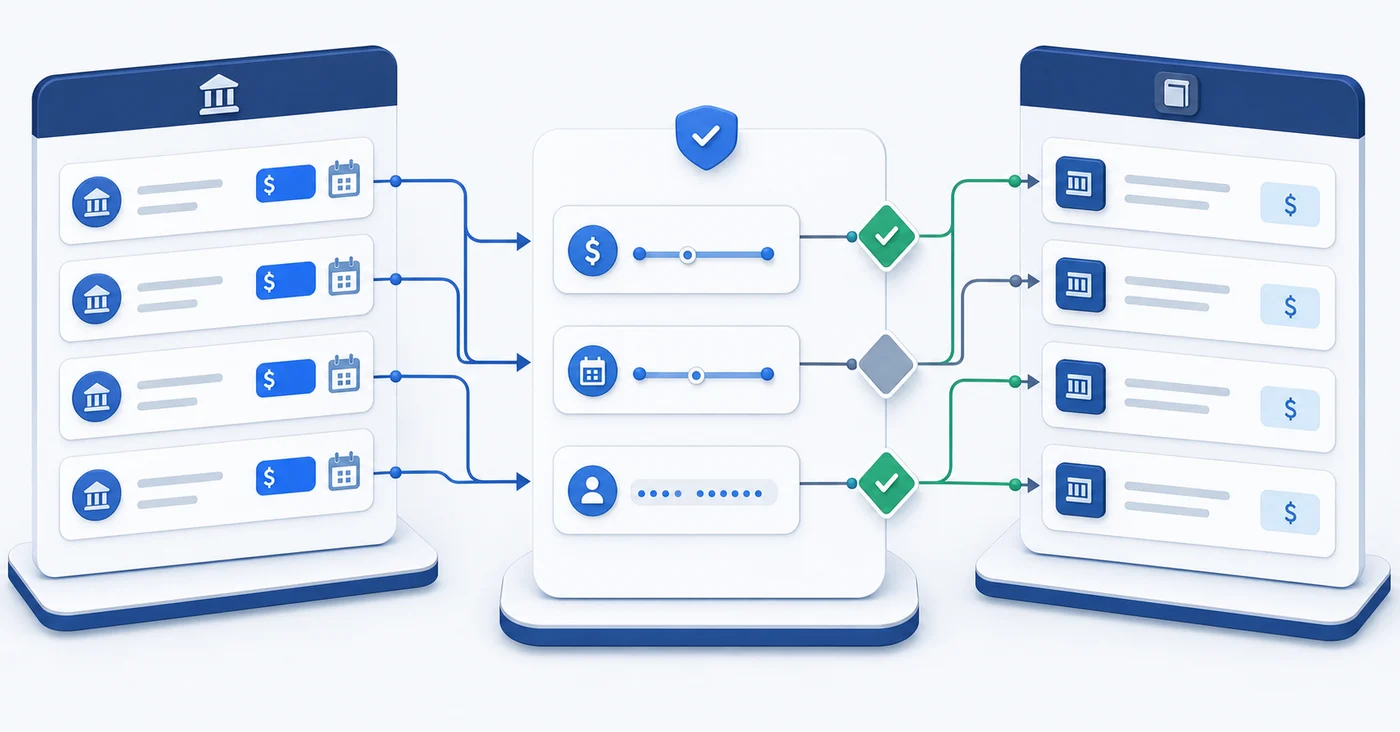
Teams typically configure rules in priority order, so the most specific criteria run first before falling back to broader logic. A transaction clearing within a two-day window and matching to the cent will auto-match before a rule allowing a five-dollar variance runs.
Common Rule Set Configurations
- Amount-exact matching: the system matches bank debits and credits to book entries where amounts align precisely, with no tolerance applied.
- Date-range matching: transactions within a configurable window (commonly one to five business days) are eligible for matching, which handles timing differences between bank posting and book recording.
- Payee or reference matching: partial or full text matching on vendor names or memo fields narrows candidates before amount logic applies.
- One-to-many matching: a single bank transaction can be matched against multiple book entries, which is useful for consolidated ACH batches covering several invoices.
Tolerance Settings and Exception Routing
Amount tolerances determine what the system auto-approves versus routes to a reviewer. Setting tolerances too wide creates audit risk; too narrow increases the manual review queue. Most finance teams land on a variance threshold tied to a percentage of transaction value instead of a flat dollar amount, which scales better across transaction sizes.
Items that fall outside all active rule sets are routed to an exceptions queue for manual matching, where a reviewer matches or flags them for investigation.
Step-by-Step: Running a Bank Reconciliation in Sage Intacct
Go to Cash Management > Bank Statements. Select your account, enter the statement ending date, and input the closing balance from your bank statement. Those three inputs define the reconciliation target.

From there, the workflow follows four steps:
- Open the Intacct tab to review book-side entries. Switch to the Bank tab for feed-sourced or imported transactions. Auto-matched items are already cleared.
- Work through remaining exceptions by selecting each open bank transaction alongside its corresponding book entry, then clicking Match.
- If an item won't match, it likely needs a journal entry or GL correction before it will clear. Flag it, resolve it, then return.
- When the difference field reaches zero, finalize the reconciliation. Sage locks the period and marks all cleared transactions accordingly.
Common Bank Reconciliation Errors and How to Prevent Them
Three errors show up repeatedly in Sage Intacct bank reconciliations: timing differences logged in the wrong period, duplicate transactions created by overlapping import rules, and uncleared items that age past 90 days without investigation.
Preventing these comes down to a few consistent habits. Industry reconciliation standards call for period discipline and timely exception resolution as foundational controls:
- Set a firm cutoff date before each reconciliation run so that transactions posted after that date are excluded from the current period match.
- Review your import mapping rules quarterly to catch overlapping criteria that pull the same transaction twice.
- Flag any uncleared item older than 30 days for manual review instead of letting it roll forward indefinitely.
Reopening and Correcting Reconciliations Safely
Reopening a finalized reconciliation in Sage Intacct resets all matched transactions back to uncleared. The period lock lifts, and every cleared item from that cycle reverts with it. Nothing about the correction is selective.
Document what went wrong before you reopen anything. Screenshot the finalized state first. Journal entries added after finalization are difficult to trace without that manually preserved record, and Sage won't reconstruct the pre-reopen picture for you.
The downstream risk is where teams get caught off guard. Subsequent periods are built on the prior reconciliation as a foundation. Reopen without correcting in sequence and one error becomes two. Always work oldest period first, confirm the correction closes cleanly, then move forward.
Multi-Entity Reconciliation and Entity-Level Restrictions
Reconciliations run where the bank account was created. Top-level accounts close at the consolidation entity; accounts created within a specific entity stay there. Getting the account creation level wrong at setup means the reconciliation workspace may not appear where your team expects it.
Entity location restrictions enforce the same boundary for users. Access scoped to Entity A blocks visibility into Entity B's accounts entirely. For teams managing dozens of entities, pre-planning your account creation hierarchy is worth the effort during initial setup.
Handling Timing Differences and Outstanding Items
Two categories cover most legitimate outstanding items: things the bank hasn't processed yet, and things your books haven't captured.
Deposits in transit are recorded in your GL but haven't cleared the bank as of the statement date. Outstanding checks are issued and posted to your books but not yet presented for payment. Neither requires a journal entry; both resolve in the following statement cycle.
Persistence is the tell. A timing difference clears next month. An item sitting for two or three cycles needs investigation, not patience.
Some items do require journal entries instead of waiting:
- Bank service charges recorded by the bank but not yet reflected in your books
- Interest income the bank credited before it was posted on the book side
- NSF returned checks the bank reversed that your GL still shows as collected
Knowing which category an item belongs to keeps your exception queue from becoming a holding area for real errors. Classify each outstanding item when it first appears, not after it's been rolling forward for a quarter.
Brokerage and Non-Standard Account Reconciliation Workarounds
Sage Intacct handles standard bank accounts well, but brokerage accounts, sweep accounts, and money market funds introduce complications. These account types often carry investment positions, dividend reinvestments, or daily sweep activity that the native bank feed and matching rules were not built to handle cleanly.
Most teams work around this by importing brokerage statements as CSV files and matching transactions manually against GL entries booked by their investment advisor or treasury team.
Automating Bank Reconciliation to Speed the Close Cycle
Month-end batch reconciliation creates a predictable bottleneck. Every unresolved exception accumulated over 30 days lands during the weeks you're already trying to close.
The Association of College Unions International cut reconciliation time from five hours to five minutes per month after moving to automated workflows, with a 35% improvement across financial operations overall.
Continuous matching changes this. When your bank feed is live and rules are configured, each transaction clears as it posts. What's left for month-end is a small exception queue, not a full statement's backlog.
How AI-Powered Transaction Coding Fits Into Sage Intacct Workflows
Sage's bank feed delivers transaction data into the system. What it doesn't do is categorize that data intelligently.
The native rules engine requires near-exact description matching. One variation in how a vendor name appears on a statement and the rule misses. Teams coming from QBO feel this gap quickly, because QBO learns from posting history while Sage requires you to anticipate every description variant upfront. As one accountant put it after building out rules in Sage: "It didn't capture half the rules. I was like, this is stupid."
AI tools that connect alongside Sage handle this with LLM-based fuzzy matching. They read historical GL data from your existing Sage instance, classify each incoming transaction by pattern instead of exact text, and assign the full dimensional breakdown before a reviewer sees anything. The bank feed brings data in. A separate coding layer determines what to do with it.
Extending Sage Intacct Reconciliation With Truewind
Truewind connects directly to Sage Intacct to automate the bank-to-book reconciliation process your team runs each close cycle. Instead of manually matching transactions or chasing down discrepancies across exported files, Truewind's AI reads your bank feeds and GL entries together, flags open items, and drafts journal entries where gaps exist.
For finance teams closing on tight deadlines, this cuts the time spent on reconciliation work without sacrificing the audit trail Sage Intacct is built around.
Final Thoughts on Bank Feed Setup and Matching Logic
Configuring bank reconciliation in Sage Intacct gives you the foundation for monthly matching, but keeping the exception queue manageable requires either tight rule coverage or tooling that learns your transaction patterns. Teams that automate beyond Sage's native rules cut reconciliation time from hours to minutes. Check out how continuous matching changes your close timeline. You'll stop treating reconciliation as a bottleneck and start treating it as background work that happens without intervention.
FAQ
Can I run bank reconciliation in Sage Intacct without connecting to a bank feed?
Yes. You can upload OFX, QFX, BAI2, or CSV statement files manually when direct feeds or aggregator connections aren't available. This method requires a consistent upload schedule to avoid transaction gaps, but works reliably for banks without automated connectivity.
Sage Intacct bank matching vs QBO transaction coding?
Sage Intacct's matching rules require near-exact description matches and miss when vendor names vary slightly on statements. QBO learns from your posting history and adapts to variations automatically. For Sage users who need that adaptive behavior, AI-powered coding tools that connect via API can apply pattern-based classification before transactions reach your review queue.
How do I prevent duplicate transactions when matching in Sage Intacct?
Review your import rule configurations quarterly to catch overlapping criteria that might pull the same transaction twice. Set firm cutoff dates before each reconciliation run to exclude transactions posted after that period. If you're also coding transactions directly in Sage while using external tools, look for duplicate detection that monitors what's already posted in your GL.
What should I do when brokerage accounts won't balance in Sage Intacct?
Sage Intacct's native bank reconciliation module wasn't built for investment positions, dividend reinvestments, or sweep activity. Most teams import brokerage statements as CSV files and match transactions manually against GL entries, or use a separate reconciliation layer that pulls data from portfolio management systems and produces Sage-ready journal entries.
Why does reopening a reconciliation in Sage Intacct reset all matched transactions?
Reopening lifts the period lock and reverts every cleared item back to uncleared status. Sage doesn't support selective corrections within a finalized reconciliation. Always document the finalized state before reopening, correct the oldest affected period first, and verify it closes cleanly before moving to subsequent periods.
Turn this into a close-ready workpaper
Start with sample files or upload your own statements to see how Truewind prepares review-ready workpapers and journal entries.